
Software · guide
How to print on Mac, from Command-P to a stuck print queue
By Alberto Gulotta · Updated · 11 min read
How to print on Mac: open the document in almost any app and press Command-P. The Print dialog opens, where you choose the printer, the number of copies and the pages, then click Print. The printer has to be set up first, by cable with its driver or wirelessly with AirPrint.
| Task | Where Apple puts it |
|---|---|
| Command-P, or File > Print, in almost any app | |
| Page setup | Shift-Command-P, a window for document settings; shortcuts can differ by app |
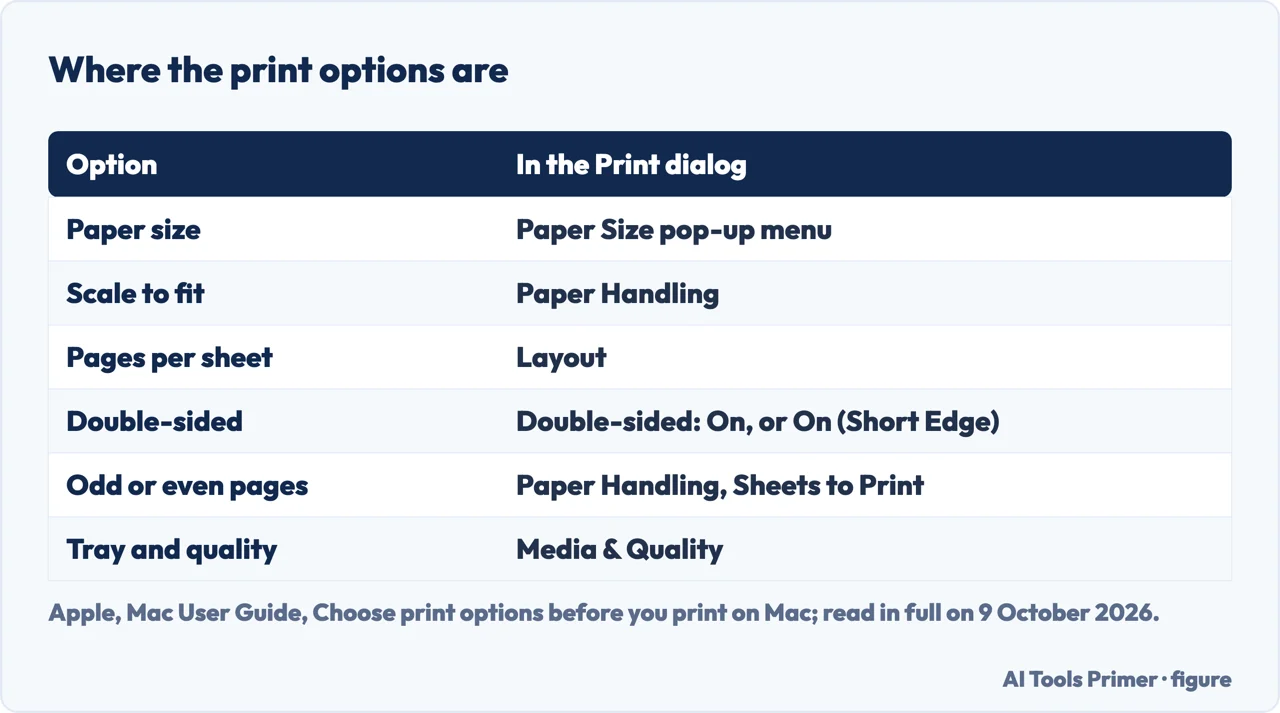
| Double-sided | The Double-sided pop-up menu: On, or On (Short Edge) |
| Save as PDF | The PDF button in the Print dialog, or the PDF pop-up menu > Save as PDF |
| Ink or toner levels | In the Print dialog, scroll down and click Printer Info |
| Pause or cancel a job | The printer icon that appears in the Dock while printing |
Which macOS. The Mac User Guide pages read here list What’s new in macOS 27 in their contents, so in our reading they describe macOS 27; the Preview steps are from the Preview User Guide, and the shortcuts page was published on 14 September 2026. A printer that isn’t on the Mac yet is in adding a printer; a picture of the screen rather than a document is in screenshots on Mac.
Before the first print: the printer has to be set up
By cable. Apple says to connect the printer with a cable, checking its documentation for the type if you don’t have the cable it came with, typically to a USB-A, USB-C, Thunderbolt or Ethernet port, with an adapter if needed, and to install the printer’s software, called the driver, usually from the manufacturer’s website. Sometimes the driver turns up when you add the printer in System Settings.
Wirelessly. A printer that supports AirPrint prints without installing any software, Apple says, once it is on the same network as the Mac; whether a printer supports AirPrint is in its documentation.
Printing a document
- Open the document. Apple says you can print from almost any app.
- Press Command-P. Or choose File > Print. The Print dialog opens.
- Choose the printer, copies and pages. Apple names these three as the choices the Print dialog opens with.
- Scroll for the rest. Apple says to scroll down and click a category such as Layout, Paper Handling or Media & Quality; what is there depends on the printer and the app.
- Click Print, then watch the Dock. Click the printer icon that appears in the Dock to see the job, and to pause or cancel it.
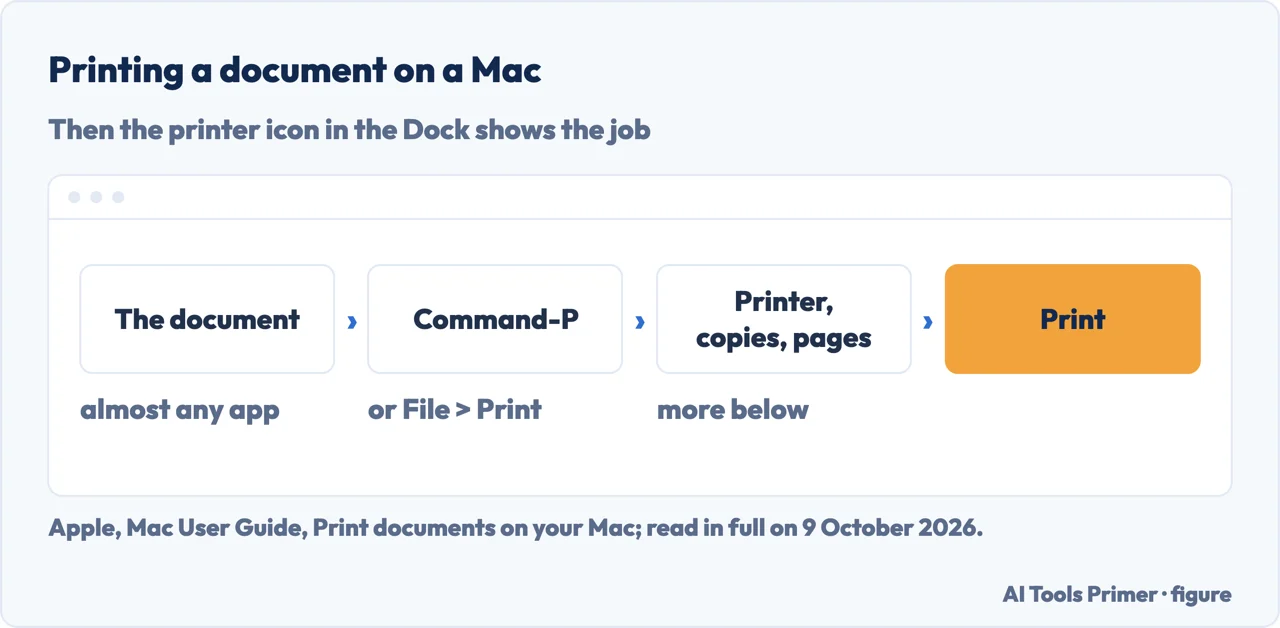
The keys. Apple’s shortcuts page gives Command-P to open a print dialog for the current document and Shift-Command-P for page setup, a window for document settings; it adds that shortcuts that work in one app might not work in another, and in Finder windows Shift-Command-P shows or hides the Preview pane. In Word for Mac, Microsoft says that if the preview doesn’t show, Show Quick Preview is a checkbox under Copies & Pages.
The options in the Print dialog
Paper and scale. Paper Size sets the sheet, and Manage Custom Sizes adds one, such as an envelope. Under Paper Handling, Scale to fit paper size works with the size chosen in Destination Paper Size; Scale Down Only keeps a smaller document at its original size. Media & Quality sets the tray, the media type and the quality.
Layout. Pages per Sheet and Layout Direction put several pages on one sheet, Border adds a border in a line style you choose, and a printer that prints two-sided may show Print as Booklet. Flip Horizontally mirrors the images, and Reverse Page Orientation prints it upside down.
Both sides, odd pages, reverse order. Choose On in the Double-sided pop-up menu, or On (Short Edge) for binding at the top. Paper Handling has Collate Sheets, Sheets to Print (all, odd or even) and Sheet Order (normal or reverse).
A watermark, and a default size. Turn on Watermark, click Apply Watermark, type the text and choose where it goes. A default paper size for new documents is set in Printers & Scanners settings, in the “Default paper size” pop-up menu.
Save as PDF, from the same dialog
The button. Press Command-P and click the PDF button in the bottom-left corner, or open the PDF pop-up menu and choose Save as PDF, then name the file and click Save. Apple says a PDF saved this way looks exactly as it would when printed, and that clicking the PDF button saves as PDF by default unless you change that with Edit Menu.
A password. Security Options can require a password to open the PDF, to copy from it or to print it.
The rest of the PDF menu. Save to Web Receipts puts the file in the Web Receipts folder inside Documents; Send in Mail attaches it to a new message; Save to iCloud Drive stores it in iCloud; Save as PostScript writes a PostScript Level 2 file.
A PDF or images in Preview, and a document in Word
Preview. To print some pages of a PDF, Apple says to choose View > Thumbnails, Command-click the thumbnails you want, then File > Print and select Selection in Preview. The Preview section of the dialog also has Auto Rotate, Show Notes for the notes visible in the PDF window, Scale, Scale to Fit with Print Entire Image or Fill Entire Paper, and Copies per page.
Word for Mac. Microsoft’s page, for Word for Microsoft 365 for Mac, Word 2024 and Word 2021, starts from File > Print. For a few pages, Page Range takes numbers and ranges separated by commas, such as 3, 4-6. Two-sided is under Copies & Pages > Layout > Two-Sided, with Long-Edge or Short-Edge binding. On a printer without automatic duplex, Microsoft’s route is Copies & Pages > Microsoft Word > Odd pages only, then the stack turned over and Even pages only.
Reverse order in Word. Word > Preferences > Output and Sharing > Print, then Reverse print order under Print options, for a printer that stacks the pages back to front.
When the Mac won’t print
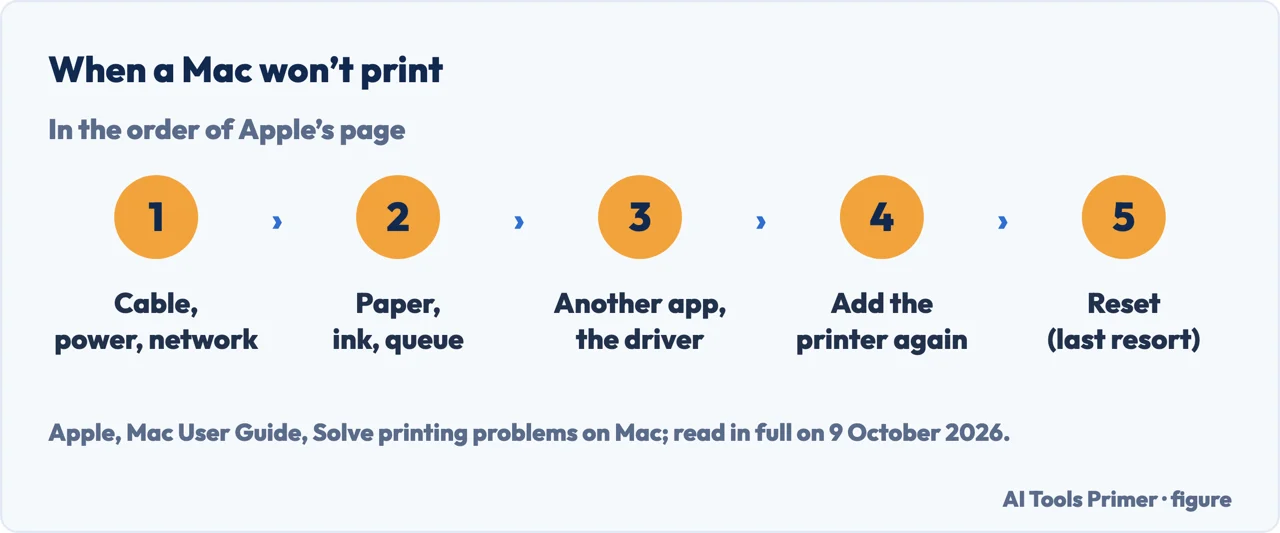
When nothing comes out: Apple’s checks, in the order of its page
The connection. The cable firmly connected, the printer plugged in and on; on a network, the Mac and the printer on the same network, and the printer you chose the one you meant. A printer shared from another Mac needs that Mac awake with sharing on. For USB, Apple says to hold Option and choose Apple menu > System Information: a printer listed there that still doesn’t work points to its own documentation.
The printer and the queue. Status lights normal, paper loaded and not jammed, enough ink or toner. An icon next to the printer’s name in the Printer pop-up menu shows its status, for example whether it is paused, offline or unavailable; Apple’s troubleshooting page says to click the Print Center icon in the Dock to open the queue, resume a paused printer or job, and, for a job that blocks the queue because of an error, select that job and use the button Apple shows for it.
The software. Try printing from another app, such as TextEdit. Check the driver version in System Settings > Printers & Scanners and contact the manufacturer to know whether it is the latest; Apple says an incompatible driver message may mean installing Rosetta. If printing problems come with software that uses Print Dialog Extensions, Apple says to turn them off with the Use Generic Printer Features checkbox, under Options & Supplies for the printer in Printers & Scanners.
Last. Add the printer again, and delete the old queue if the new one prints. Apple calls resetting the printing system the last resort: Control-click in the Printers list and choose Reset Printing System, which deletes all printers, completed jobs and presets.
The printer’s side. A printer that the Mac shows as offline is in how to fix printer offline, a job that the queue accepts and the printer doesn’t print in why a printer is not printing, and a test page from the printer in a printer test page. Streaks on the paper are in how to fix printer streaks.
Where to start
Five ways in.
- “Just the steps.”
- Printing a document — print a document
- “Both sides of the paper.”
- The options — print options
- “I need a PDF.”
- Save as PDF — save as pdf
- “It’s a PDF already.”
- Preview and Word — preview and word
- “Nothing comes out.”
- Apple’s checks — cannot print
Other printer guides
Adding the printer, and what to do when it says offline or prints nothing.
Questions people also ask
How do I get my Mac to Print to my printer?
Set the printer up first: by cable, with the driver, typically from the manufacturer’s website, or wirelessly with AirPrint on the same network as the Mac. Then press Command-P in the document, choose that printer in the Print dialog and click Print.
What is the shortcut key to Print on a Mac?
Command-P opens a print dialog for the current document, in Apple’s list of Mac keyboard shortcuts. Shift-Command-P is page setup, which Apple describes as a window for selecting document settings; Apple notes that shortcuts can differ from app to app.
Why can't I Print on my Mac?
Apple’s checks start with the cable, the power and the network, then the printer’s paper, ink and status in the queue, another app such as TextEdit, and the driver. Adding the printer again comes next on its page; Apple calls resetting the printing system, which deletes all printers, the last resort.
How do I Print a PDF on my Mac?
Open it in Preview and choose File > Print. For some pages only, Apple says to choose View > Thumbnails, Command-click the pages, then select Selection in Preview in the Print dialog. Auto Rotate and Scale are in the same Preview section.
Not covered here. It does not cover printing from an iPhone or iPad, from a Windows PC, or the settings of a particular printer model, which are in its maker’s documentation.
Sources
- Apple Support, Mac User Guide — Print documents on your Mac — support.apple.com, read 9 October 2026.
- Apple Support, Mac User Guide — Choose print options before you print on Mac — support.apple.com, read 9 October 2026.
- Apple Support, Mac User Guide — Save a document as a PDF on Mac — support.apple.com, read 9 October 2026.
- Apple Support, Mac User Guide — Solve printing problems on Mac — support.apple.com, read 9 October 2026.
- Apple Support, Preview User Guide — Print PDFs and images in Preview on Mac — support.apple.com, read 9 October 2026.
- Apple Support — Mac keyboard shortcuts (14 September 2026) — support.apple.com, read 9 October 2026.
- Microsoft Support — Print a document in Word for Mac — support.microsoft.com, read 9 October 2026.
Written by Alberto Gulotta
Founder and editor of AI Tools Primer, writing from Palermo, Italy. Thirty-five years of taking computers apart, starting with a Commodore 64 — the long version is on the about page.
Something wrong on this page? Write to aitoolsprimer@gmail.com and it gets fixed.
Written on 9 October 2026.
Independence and limits
No affiliate links and no paid placements anywhere on this site. Nobody pays to appear here, and no company has seen this page before you did.
This is general information, not professional advice. Where a page touches money, health, safety or the law, it names its source and the date it was read — and your situation may still differ. See the privacy page and the cookie policy.