
iPhone · guide
How to record audio on iPhone with Voice Memos, Notes or the screen
By Alberto Gulotta · Updated · 9 min read
How to record audio on iPhone: open Voice Memos, in the Utilities folder, tap the Record button, and tap Stop when you’re done; Apple’s guide for iOS 27 says to move the microphone closer or farther to change the level. The recording is saved as New Recording, or under your location’s name if Location Services is on.
| What | What Apple says |
|---|---|
| Microphones | The built-in one, a supported headset, or an external microphone |
| Background sound | Voice Isolation filters it out, Wide Spectrum keeps it; Wide Spectrum isn’t on every model |
| Recording mode | Mono, Stereo or Spatial Audio, in Settings; Spatial Audio isn’t on every model |
| Other apps while recording | Allowed, unless the other app plays audio: then Voice Memos stops recording |
| The orange dot | Appears while the microphone is in use |
| Deleted recordings | Kept in Recently Deleted for 30 days by default |
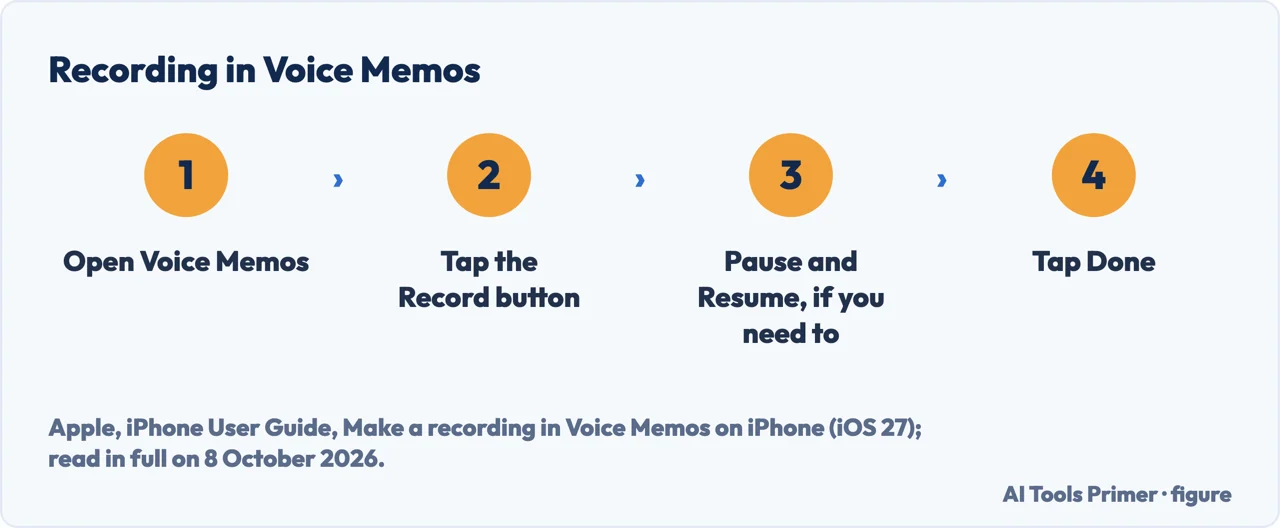
- Open Voice Memos. Apple says it is in the Utilities folder, and that you can move it to the Home Screen to find it more easily.
- Tap the Record button. To change the level, Apple says to move the microphone closer to, or farther from, what you are recording.
- Pause if you need to. Swipe up from the top of the waveform to see more while recording; tap the Pause button to stop, and Resume to carry on.
- Tap the Stop button, or Done after pausing. The recording is saved as New Recording, or under the name of your location if Location Services is on.
- Rename it. Tap the recording, tap its name, and type a new one.
How the recording sounds
Background sound. With Voice Memos open, open Control Center and tap Voice Memos at the top: Voice Isolation filters out background sounds, Wide Spectrum includes them.
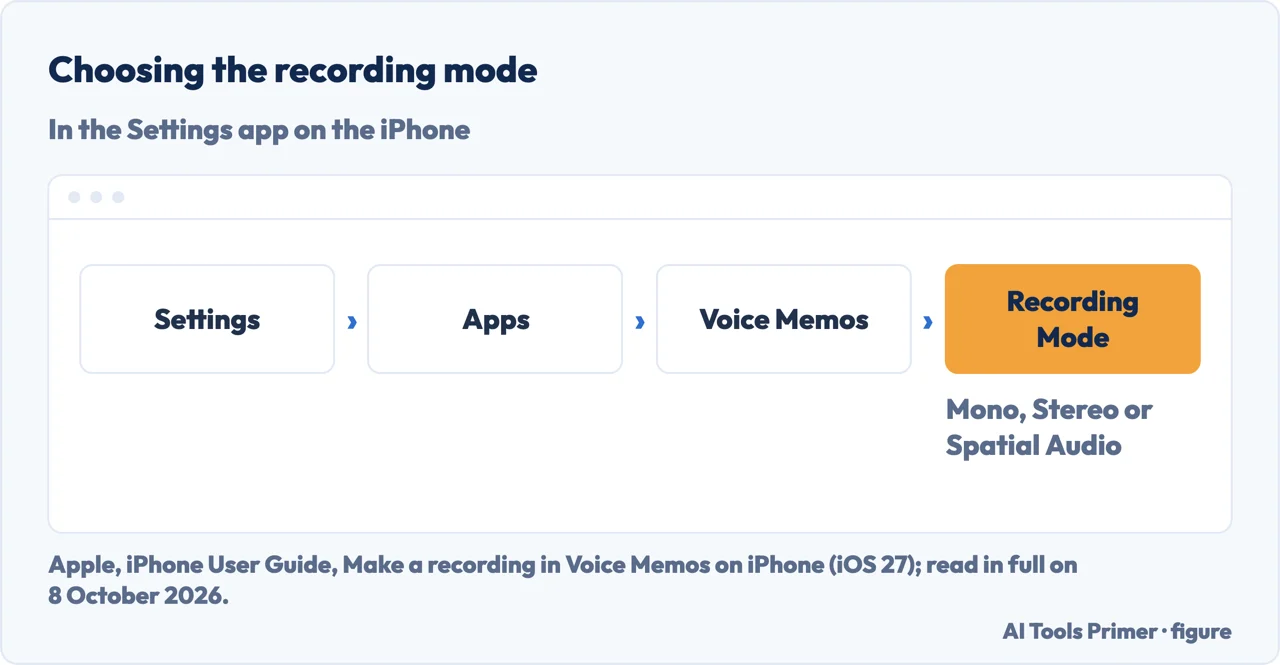
Mono, stereo or Spatial Audio. Settings, Apps, Voice Memos, Recording Mode. Apple says that on supported iPhones the built-in microphone records in Spatial Audio automatically, that earlier models record in mono unless Stereo Recording is turned on, and that stereo and Spatial Audio use several of the phone’s microphones. An external stereo microphone or audio interface that works with iPhone can also record in stereo; Apple says to look for the Made for iPhone or Works with iPhone logo.
Engadget’s extras. Its guide of 19 September 2026 describes Skip Silence and Enhance Recording for mono and stereo recordings, Studio Sound for Spatial ones, a transcript you can copy, and, while recording, multitrack recording with the Plus button, which it says needs an iPhone 16 Pro or newer.
While it records. Apple says you can open another app as long as it doesn’t play audio, because if it does, Voice Memos stops recording; on supported models the recording in progress shows in the Dynamic Island, on the Home Screen and in other apps. With Voice Memos turned on in iCloud settings, recordings appear on your iPhone, iPad and Mac signed in to the same Apple Account. To turn the speech into text on a computer instead, see transcribing a recording.
Trimming, replacing and deleting
Trim. Tap the recording, then the More button and the Trim button, drag the yellow trim handles around a section, and tap Trim to keep it or Delete to remove it. Then Apply, Done, and either Save Recording, which overwrites the original, or Save as New Recording, which leaves it as it was.
Replace. Choose Edit Recording, drag the waveform to where the new audio should start, and tap Replace; the waveform turns red while you record over it.
Delete and recover. Deleted recordings move to Recently Deleted, where Apple says they stay for 30 days by default; the time is in Settings, Apps, Voice Memos, Clear Deleted. Recover brings one back.
Recording in Notes, on screen, or on a call
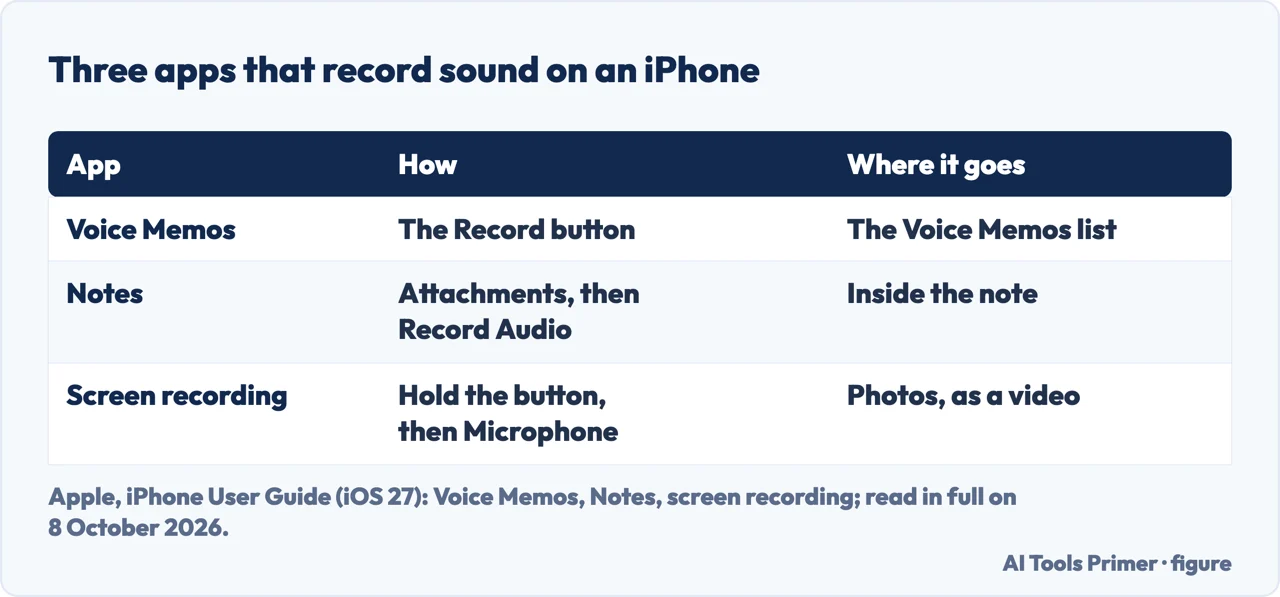
Notes. In a note, tap the Attachments button, then Record Audio, then the record button; Apple says you can pause, resume and see a live transcript. Transcription needs an iPhone 12 or later with the device language set to one of ten that Apple lists, English among them.
Sound with a screen recording. Open Control Center, touch and hold the Screen Recording control, tap Microphone to turn it on, then Start Recording. Apple says some apps might not allow recording, that you can’t record the screen while mirroring it, and that the video goes to Photos, under Collections, Media Types, Screen Recordings. The missing button and black recordings are in screen recording on iPhone.
A phone call. Apple says that in some countries and regions you can record a call with one other person. In the Phone app, during a call, tap the More button and then Call Recording. Apple says both people hear an audio notice, that the recording goes to a Call Recordings folder in Notes, and that the feature isn’t available in the European Union or in some other countries it lists. More in recording a phone call.
Which versions. Apple’s Voice Memos, Notes, call and screen-recording pages come from its iPhone User Guide for iOS 27, which gives no date; the support article on screen recording was published on 14 September 2026, and Engadget’s guide on 19 September 2026. Apple’s guide shows most buttons as icons; names such as Record, Pause, Stop, More, Trim and Attachments are ours. Messages left by callers are a different thing, in setting up voicemail.
Where to start
Five ways in.
- “Where do I start?”
- In Voice Memos — in voice memos
- “It sounds wrong.”
- How it sounds — how it sounds
- “I recorded too much.”
- Trim and replace — trim and replace
- “Not in Voice Memos.”
- Other apps — other apps
- “It stopped by itself.”
- While recording — while recording
More on sound
Recording, transcribing and the messages callers leave.
Questions people also ask
Where is the recording button on my iPhone?
For sound alone, it is in Voice Memos, which Apple puts in the Utilities folder: Engadget says to tap the red button to start recording. The Screen Recording control is in Control Center, and Apple says to add it there if you don’t see it.
How do I record just audio on my phone?
On an iPhone, Voice Memos records sound: open it and tap the red button, as Engadget describes it. Notes can too: in a note, tap the Attachments button, then Record Audio. Apple says Notes can also transcribe on an iPhone 12 or later in supported languages.
How can I record audio discreetly on my iPhone?
Apple’s guide says an orange dot appears whenever Voice Memos is using the microphone, and that both people on a recorded call hear an audio notice; it says to make sure the other person is willing to be recorded. This page does not cover recording people without their knowledge.
How to record internal audio in iPhone?
Apple’s screen recording article says you can capture sound, and that some apps might not allow you to record audio or video. Touch and hold the Screen Recording control in Control Center, then tap Microphone to turn it on and add audio. The video is saved to Photos.
Not covered here. It does not cover Voice Memos on a Mac, iPad or Apple Watch, exporting to Files, or the law on recording other people.
Sources
- Apple, iPhone User Guide (iOS 27) — Make a recording in Voice Memos on iPhone: recording, background sound, recording modes, other apps, the orange dot — support.apple.com, read 8 October 2026.
- Apple, iPhone User Guide (iOS 27) — Edit or delete a recording in Voice Memos on iPhone — support.apple.com, read 8 October 2026.
- Apple, iPhone User Guide (iOS 27) — Record and transcribe audio in Notes on iPhone — support.apple.com, read 8 October 2026.
- Apple, iPhone User Guide (iOS 27) — Take a screen recording on iPhone: recording with the microphone — support.apple.com, read 8 October 2026.
- Apple Support — Record the screen on your iPhone, iPad, or iPod touch (published 14 September 2026) — support.apple.com, read 8 October 2026.
- Apple, iPhone User Guide (iOS 27) — Record and transcribe a call on iPhone: the audio notice and where call recording is not available — support.apple.com, read 8 October 2026.
- Engadget — How to record audio on your iPhone (Filipe Espósito, 19 September 2026) — www.engadget.com, read 8 October 2026.
Written by Alberto Gulotta
Founder and editor of AI Tools Primer, writing from Palermo, Italy. Thirty-five years of taking computers apart, starting with a Commodore 64 — the long version is on the about page.
Something wrong on this page? Write to aitoolsprimer@gmail.com and it gets fixed.
Written on 9 October 2026.
Independence and limits
No affiliate links and no paid placements anywhere on this site. Nobody pays to appear here, and no company has seen this page before you did.
This is general information, not professional advice. Where a page touches money, health, safety or the law, it names its source and the date it was read — and your situation may still differ. See the privacy page and the cookie policy.