
iPhone · guide
How to unhide apps on iPhone, and find the ones that went missing
By Alberto Gulotta · Updated · 12 min read
How to unhide apps on iPhone: swipe left past your Home Screen pages to App Library, open the Hidden folder at the bottom, authenticate, then touch and hold the app and tap Don’t Require Face ID. Apple’s guide for iOS 27 says the app then appears near the top of App Library. Hiding exists from iOS 18.
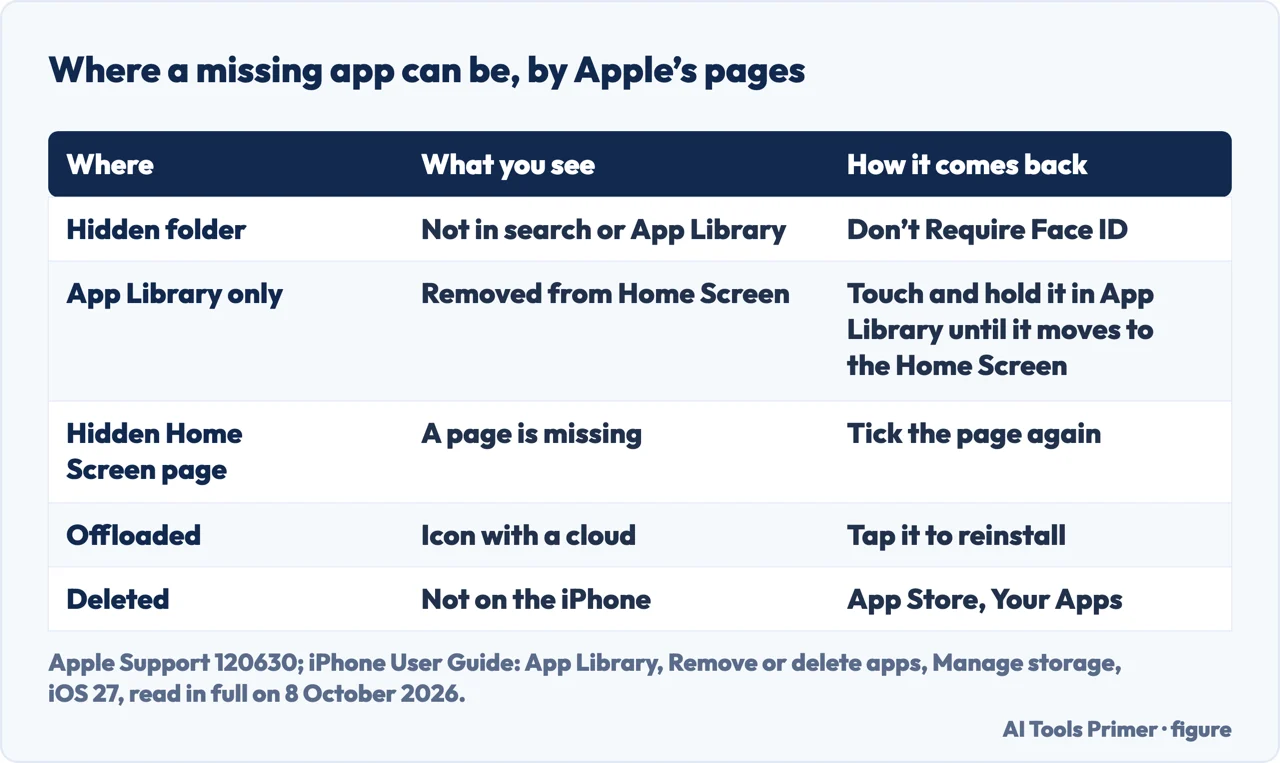
| Where it is | Way back | Apple page read |
|---|---|---|
| Hidden folder (iOS 18 and later) | App Library › Hidden, authenticate, touch and hold the app, Don’t Require Face ID | Lock or hide an app on iPhone, iOS 18 and 27 |
| App Library only | Touch and hold the app in App Library until it moves to the Home Screen | Find and use your apps in App Library, iOS 27 |
| A hidden Home Screen page | Touch and hold the wallpaper, tap the dots, tick the page | The same page; support article 120630 |
| Offloaded | Tap the icon with the cloud symbol to reinstall | Manage storage on iPhone |
| Deleted | App Store › your picture › Apps & Purchase History › Your Apps | Remove or delete apps from iPhone, iOS 27 |
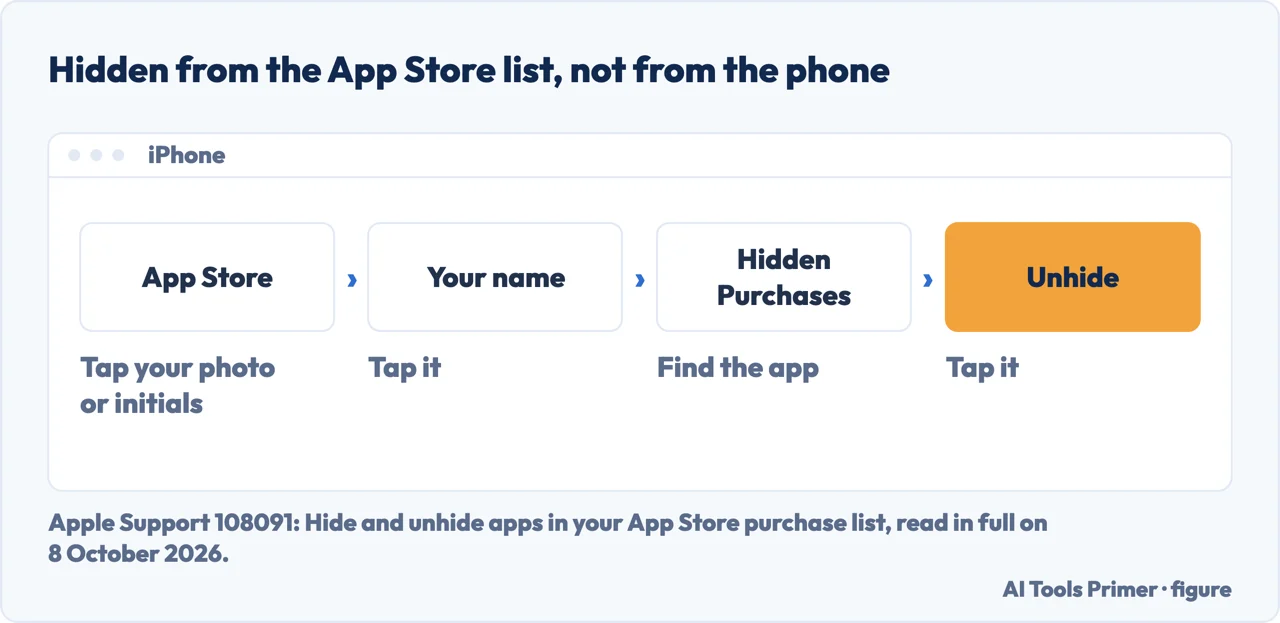
| Hidden in the App Store list | App Store › your photo › your name › Hidden Purchases › Unhide | Support article 108091 |
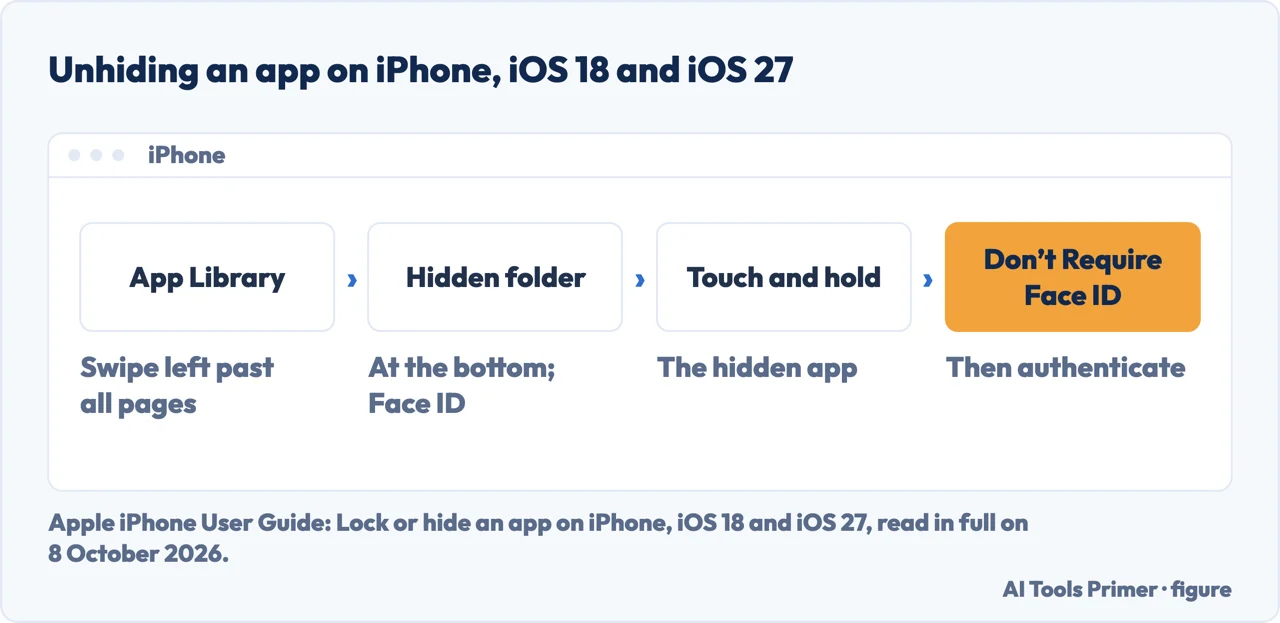
What hiding did, and what unhiding undoes
Hiding, in iOS 18 and later. Apple’s support article on apps that cannot be found says you can hide apps on your iPhone in iOS 18; the guide’s version selector lists the page Lock or hide an app for iOS 18, 26 and 27. The Apple pages read here do not cover iOS 17 or earlier.
Hiding locks too. In Apple’s steps the only route to hiding is Hide and Require Face ID (or Touch ID or Passcode), and the item that brings the app back is Don’t Require Face ID, the same item Apple gives for unlocking an app. Our reading: one tap ends both.
The list in Settings. To see every hidden app at once, Apple’s tip is Settings › Apps › Hidden Apps; support article 120630 adds that you authenticate there with Face ID, Touch ID or the passcode.
One iPhone at a time. The guide says a locked or hidden app is locked or hidden only on that iPhone, and that the status does not sync with iCloud. By our reading of that sentence, unhiding an app on one iPhone changes nothing on another device.
In a family group. Apple says children under 13 in a Family Sharing group cannot lock or hide apps; anyone aged 13 to 17 can, but a parent or guardian can see that the app was downloaded, how much time it is used, and restrict access to it using Screen Time. The ages vary by country or region.
Screen Time, and starting the layout again
Screen Time. Built-in apps and features are allowed or blocked under Settings › Screen Time › Content & Privacy Restrictions › Other Features, in Apple’s iOS 27 guide, which names AirDrop and Camera among them. Apple’s page does not say where a blocked app goes. Shamo’s, a phone-case shop, writes in its guide that apps blocked by Screen Time restrictions do not appear anywhere on the iPhone, and that the Screen Time passcode is needed to change that.
Resetting the layout. Settings › General › Transfer or Reset iPhone › Reset › Reset Home Screen Layout, then Reset Home Screen. Apple’s guide for iOS 27 says any folders you created are removed and downloaded apps are arranged alphabetically after the apps that came with the iPhone. It changes where apps sit; it does not unhide an app, by our reading, since a hidden app is not on the Home Screen to begin with.
Hiding and deleting. How an app gets into the Hidden folder, and where its name still shows, is in how to hide apps on iPhone; removing one for good is in deleting apps on iPhone.
Where to start
Five ways in.
- “Just give me the steps.”
- The Hidden folder — the steps for the hidden folder
- “Why does it still ask for Face ID?”
- What hiding did — what hiding did
- “The Hidden folder is empty.”
- Four other places — when it is not in the hidden folder
- “It is hidden in the App Store.”
- Hidden Purchases — hidden in the app store
- “A parent set restrictions.”
- Screen Time — screen time and the home screen layout
More on apps and the iPhone
Hiding, deleting and limiting apps each have a guide of their own.
Questions people also ask
How do I get my hidden apps back?
Swipe left past all your Home Screen pages to App Library, tap the Hidden folder at the bottom and authenticate. Touch and hold the app, tap Don’t Require Face ID (or Touch ID or Passcode) and authenticate again. Apple’s iOS 27 guide says the app then appears near the top of App Library.
How do I unhide the hide apps?
By our reading, each app comes out of the Hidden folder on its own: touch and hold it, tap Don’t Require Face ID, authenticate. To see which apps are hidden, Apple gives Settings › Apps › Hidden Apps. An app hidden in the App Store purchase list is unhidden there instead, under Hidden Purchases.
How to remove hidden apps on iPhone?
Apple’s guide gives no step for deleting an app inside the Hidden folder. By our reading of its steps: take the app out first with Don’t Require Face ID, then in App Library touch and hold it, tap Remove App, then Delete App and Delete. Data kept in iCloud is not deleted.
How to bring apps back on iPhone if hidden from screen?
An app removed from the Home Screen is still in App Library: swipe left past your pages, find it, and touch and hold it until it moves to the Home Screen. If a whole page is hidden, touch and hold the wallpaper, tap the dots at the bottom and tick the page.
Not covered here. It does not cover the iPad or a Mac; every route above is from Apple’s iPhone pages, with the iOS version named where Apple names it.
Nor does it cover an iPhone managed by a school or an employer, where, Shamo’s notes, certain apps may be restricted.
Sources
- Apple Support article 120630 — If you can’t find an app on the Home Screen on your iPhone: Search, hidden Home Screen pages and Edit Pages, the Hidden folder in iOS 18, Hidden Apps in Settings, and dragging an app back — support.apple.com, read 8 October 2026.
- Apple iPhone User Guide — Lock or hide an app on iPhone, iOS 27: what hiding removes, Hide and Require Face ID, built-in apps, Family Sharing ages, no sync with iCloud, Stop hiding an app, and Hidden Apps — support.apple.com, read 8 October 2026.
- Apple iPhone User Guide — Lock or hide an app on iPhone, iOS 18: Unhide an app, and the app near the top of App Library — support.apple.com, read 8 October 2026.
- Apple iPhone User Guide — Find and use your apps in App Library on iPhone, iOS 27: search, moving an app to the Home Screen, hiding and showing pages, and App Library Only — support.apple.com, read 8 October 2026.
- Apple iPhone User Guide — Move apps and widgets on the iPhone Home Screen, iOS 27: Reset Home Screen Layout — support.apple.com, read 8 October 2026.
- Apple iPhone User Guide — Remove or delete apps from iPhone, iOS 27: Remove from Home Screen, Delete App, iCloud data, and Your Apps — support.apple.com, read 8 October 2026.
- Apple iPhone User Guide — Manage storage on iPhone: Offload Unused Apps and the cloud symbol — support.apple.com, read 8 October 2026.
- Apple iPhone User Guide — Block features or content with Screen Time on iPhone, iOS 27: Content & Privacy Restrictions, Other Features — support.apple.com, read 8 October 2026.
- Apple Support article 108091 — Hide and unhide apps in your App Store purchase list: what hiding a purchase does, and Hidden Purchases — support.apple.com, read 8 October 2026.
- Shamo’s — How to unhide apps on iPhone, the fourth search result on 7 October 2026: apps blocked by Screen Time and the passcode — shamoscases.com, read 8 October 2026.
Written by Alberto Gulotta
Founder and editor of AI Tools Primer, writing from Palermo, Italy. Thirty-five years of taking computers apart, starting with a Commodore 64 — the long version is on the about page.
Something wrong on this page? Write to aitoolsprimer@gmail.com and it gets fixed.
Written on 8 October 2026.
Independence and limits
No affiliate links and no paid placements anywhere on this site. Nobody pays to appear here, and no company has seen this page before you did.
This is general information, not professional advice. Where a page touches money, health, safety or the law, it names its source and the date it was read — and your situation may still differ. See the privacy page and the cookie policy.