
Video · guide
How to edit videos on iPhone, from a trim to a joined movie
By Alberto Gulotta · Updated · 11 min read
How to edit videos on iPhone: open the video in Photos, tap Edit, and drag the ends of the frame viewer to trim it; the same screen changes speed, sound, light, crop and rotation. For removing a section from the middle and joining several videos into one, Apple’s pages point to its free iMovie.
| Edit | Where | What Apple notes |
|---|---|---|
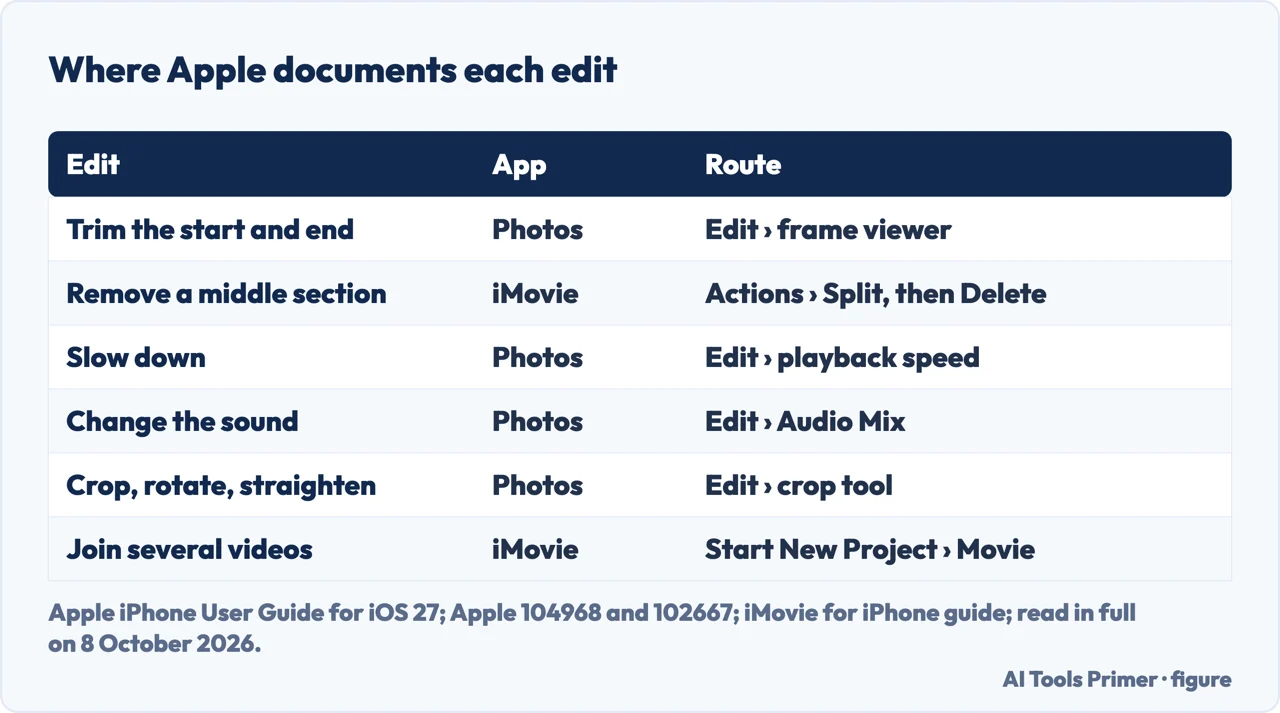
| Trim the start and the end | Photos › Edit › frame viewer | A clip saved as new can’t be reverted to the original |
| Remove a section in the middle | iMovie › split the clip, delete the part | Only video clips can be split |
| Slow it down | Photos › Edit › playback speed | Videos shot at a high frame rate; options depend on the format |
| Change the sound | Photos › Edit › Audio Mix | Spatial Audio recordings, iPhone 16 and later |
| Crop, rotate, straighten | Photos › Edit › crop tool | Rotation in 90-degree steps |
| Join several videos | iMovie › Start New Project › Movie | iMovie is a free App Store download |
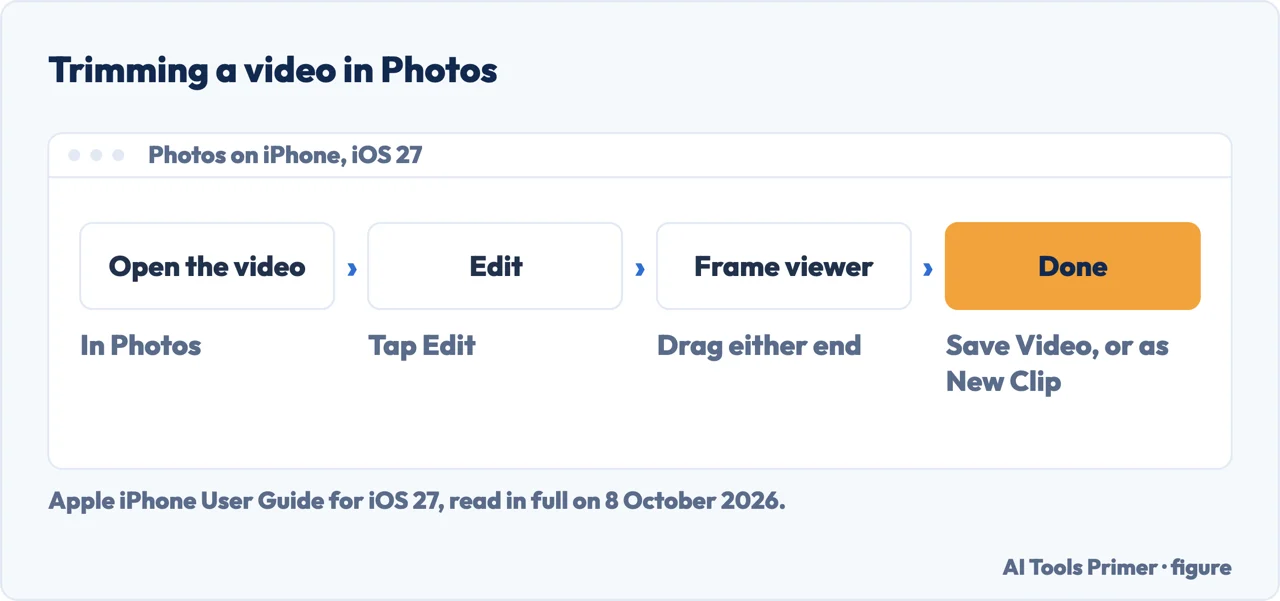
- Open the video in Photos and tap Edit. Apple’s iPhone User Guide for iOS 27 starts the edits read here in the Photos app, from the open video.
- Drag either end of the frame viewer. The strip below the video sets the start and the stop; the Play button previews the result, Apple’s article on editing videos adds.
- Tap Done.
- Choose Save Video or Save Video as New Clip. The first keeps only the trimmed version; the second keeps the original and adds the trimmed one to the library.
- To undo, open the video, tap Edit, then Revert. Apple’s note: a video saved as a new clip can’t be reverted to the original. Its article on editing videos adds that Revert to Original on such a clip undoes edits like exposure or a filter, but does not bring back the original length.
Cutting a section out of the middle
Photos trims the ends. The two Apple pages read here that describe the Photos trim, the User Guide and the article on editing videos, both describe it as setting where the video starts and stops; neither describes removing a part in between. That is our reading of the steps, not a sentence of Apple’s.
iMovie splits. Apple’s iMovie guide for iPhone gives splitting a clip as one way to remove unwanted sections: in a movie project, put the playhead where the cut goes (not at the very beginning of the clip), tap the clip, tap the Actions button, then Split. Tapping the clip and then swiping down over the playhead, as if slicing it with a finger, does the same. Then tap the unwanted piece and Delete, or touch and hold it until it pops off the timeline and drag it out.
Saving it back. Apple’s article on combining videos ends with the Share button, then Save Video, which puts the new video in the photo library; by our reading, the same step saves a split movie.
Speed and slow motion
Which videos. Apple’s article on editing videos, published 1 May 2026, says a video captured at more than 30 frames per second can be slowed down in iOS 18 and later. The iOS 27 User Guide adds that the options depend on the format: the larger the format captured, the more options appear.
Where. Apple’s article calls it the Speed control button; the User Guide gives Edit, then Video, then a button and a playback speed. Both end with choosing a playback speed.
Which part plays slowly. For a video recorded in Slo-mo mode, or one whose speed was changed, Edit shows vertical bars under the frame viewer, in the User Guide’s words, or white lines in the timeline, in the article’s: dragging them sets where slow motion begins and ends, so the rest plays at normal speed.
The sound: Audio Mix
Apple’s article on editing videos says Spatial Audio recording is supported on iPhone 16 models, iPhone 17 models and iPhone Air, and the User Guide that iPhone 16 or later offers three recording options: Spatial Audio, Studio and Mono. A video recorded with Spatial Audio gets Audio Mix in Photos, with four choices:
Standard plays the original audio; In-Frame reduces sounds and voices from sources not visible in the frame; Studio reduces background sound and reverb; Cinematic puts the voices on a front track and leaves the surroundings in surround. A slider sets how strong the effect is. On iPhone 18 Pro models, the User Guide adds, Audio Mix can also isolate music.
Light, colour, crop and rotation
Light and colour. The same Edit screen has Adjust: swipe across settings such as Exposure, Brilliance or Highlights and drag a slider; the User Guide gives these for photos and videos alike. Filters such as Vivid or Dramatic are there too; for photos on iPhone 16 and later, Apple points to Photographic Styles instead, and on those models filters are available if Styles are not turned on.
Crop and rotate. The crop tool works on videos as on photos: drag the corners, unlock the ratio or pick one such as Square or 9:16, rotate by 90 degrees, flip horizontally, or straighten and tilt with a slider.
Copy the look to other videos. Copy Edits and Paste Edits move adjustments from one photo or video to others; for photos, Apple says Photos then also adjusts white balance and exposure to create a better match.
Putting several videos together
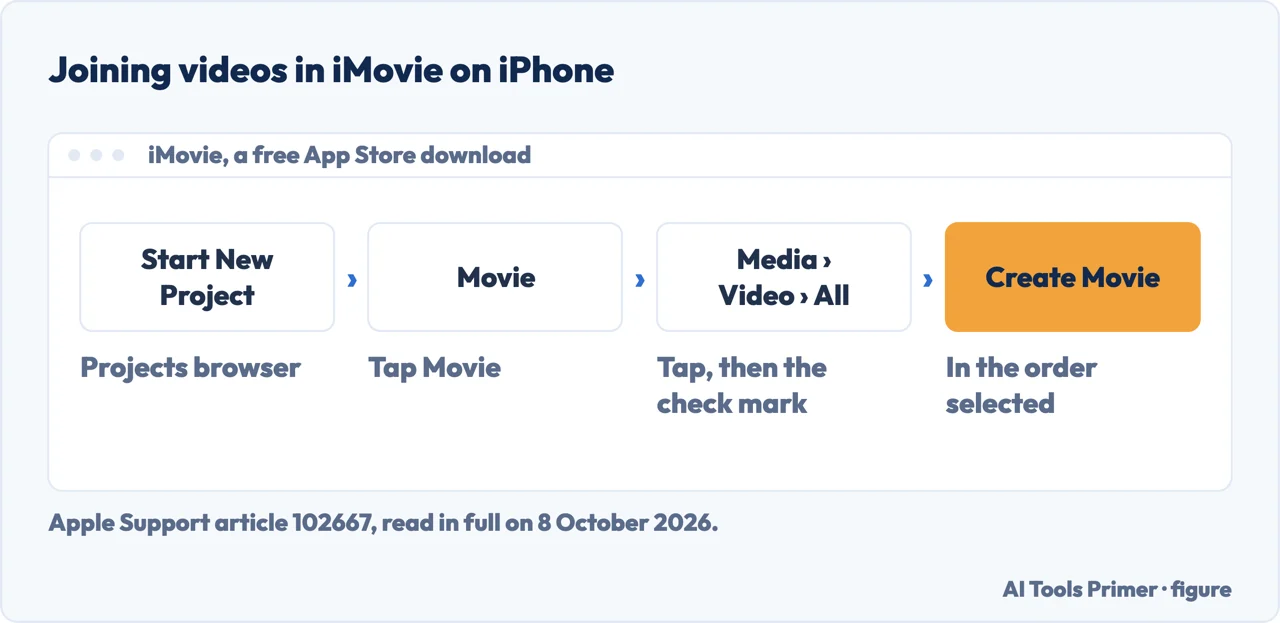
Apple’s answer is iMovie, which its article on combining videos says is a free download from the App Store if it is not on the phone. Start New Project, then Movie; Media › Video › All; tap each video and the check mark, in the order wanted; then Create Movie.
In the timeline, touch and hold a clip to drag it elsewhere; tap a clip and drag the yellow handles to make it shorter; tap the icon between two clips to change the transition, which is Dissolve unless changed. Done, then Share › Save Video, puts the result in Photos.
Another editor on the same phone. Google’s help for its Photos app on iPhone and iPad, which needs iOS 16 or later, gives a Speed tool that works on a selected portion and goes both ways: ¼x or ½x to slow down, 2x or 4x to speed up. The same app trims, mutes, exports a single frame, crops, rotates, and, on a device with at least 3 GB of RAM, adjusts Brightness, Highlights and White point; Save copy saves a copy of the video with the edits.
After the edit. An edited video that is too big to send is in how to compress a video on iPhone, recording the screen instead of the camera is in how to screen record on iPhone, and a picture that has turned blocky is in how to fix pixelated video.
Where to start
Six ways in.
- “Just make it shorter.”
- Trim in Photos — trim in photos
- “Take out a bit in the middle.”
- Split in iMovie — cut out the middle
- “Slow it down.”
- Speed — speed and slow motion
- “Fix the sound.”
- Audio Mix — audio mix
- “It is too dark, or sideways.”
- Look and frame — look and frame
- “Join three clips.”
- Combine — combine videos
More on video
Sending, recording and repairing a video each have a guide of their own.
Questions people also ask
How do I cut out a part of a video on my iPhone?
For the beginning or end, Photos: open the video, tap Edit, drag the ends of the frame viewer, then Done. For a section in the middle, Apple’s iMovie guide uses Split: put the playhead at the cut, tap the clip, Actions, Split, then delete the unwanted piece; Share › Save Video, from Apple’s article on combining videos, saves to Photos.
Do iPhones have a built-in video editor?
By our reading, yes: Apple’s iPhone User Guide for iOS 27 puts video editing in the Photos app, with trimming, playback speed, Audio Mix, light and colour, filters, crop and rotation. iMovie, which joins clips and splits them, is a separate app that Apple says can be downloaded free from the App Store.
What is the best way to edit videos together on iPhone?
Apple’s documented way is iMovie: Start New Project, Movie, then Media › Video › All, tap each video and its check mark, and Create Movie. Clips join in the order tapped and can be dragged into another order in the timeline. Share › Save Video puts the result in Photos.
How do I edit an existing video?
In Photos, open the video and tap Edit: Apple’s guide gives the same screen for trimming, speed, sound, light, colour and crop. Save Video keeps only the edited version; Save Video as New Clip keeps the original beside it. Revert to Original undoes saved edits; on a clip saved as new, it does not restore the original length.
Not covered here. It does not cover third-party editing apps beyond Google Photos, which Apple’s article mentions without naming any, nor Cinematic mode videos, which have a User Guide page of their own.
Nor does it say how long iMovie takes on a given iPhone: no page read for it measures that.
Sources
- Apple iPhone User Guide for iOS 27 — Trim video length, adjust speed, and edit audio on iPhone: the trim, Revert, playback speed by format, Slo-mo sections, and Audio Mix — support.apple.com, read 8 October 2026.
- Apple Support article 104968 — How to edit videos on your iPhone, iPad, or Mac: Save Video as New Clip, what Revert keeps, speed above 30 fps in iOS 18 and later, Spatial Audio models, published 1 May 2026 — support.apple.com, read 8 October 2026.
- Apple iPhone User Guide for iOS 27 — Edit photos and videos on iPhone: Adjust, filters and Photographic Styles, Copy Edits and Paste Edits — support.apple.com, read 8 October 2026.
- Apple iPhone User Guide for iOS 27 — Crop, rotate, flip, or straighten photos and videos on iPhone — support.apple.com, read 8 October 2026.
- Apple Support article 102667 — How to combine videos on iPhone: iMovie as a free download, Create Movie, the order, transitions, and saving to Photos, published 17 November 2023 — support.apple.com, read 8 October 2026.
- iMovie User Guide for iPhone, iMovie iOS 3.0.4 — Arrange video clips and photos: move, trim, rotate, duplicate, split and remove clips — support.apple.com, read 8 October 2026.
- iMovie User Guide for iPhone, iMovie iOS 3.0.4 — Add video clips and photos: the Add Media button and trimming a clip before adding it — support.apple.com, read 8 October 2026.
- Google Photos Help — Edit your videos with Google Photos (iPhone & iPad): iOS 16 or later, Speed from ¼x to 4x on a portion, trim, mute, Export Frame, crop and Adjust — support.google.com, read 8 October 2026.
Written by Alberto Gulotta
Founder and editor of AI Tools Primer, writing from Palermo, Italy. Thirty-five years of taking computers apart, starting with a Commodore 64 — the long version is on the about page.
Something wrong on this page? Write to aitoolsprimer@gmail.com and it gets fixed.
Written on 8 October 2026.
Independence and limits
No affiliate links and no paid placements anywhere on this site. Nobody pays to appear here, and no company has seen this page before you did.
This is general information, not professional advice. Where a page touches money, health, safety or the law, it names its source and the date it was read — and your situation may still differ. See the privacy page and the cookie policy.