
Video · guide
How to fix pixelated video, from a stream or from a file
By Alberto Gulotta · Updated · 10 min read
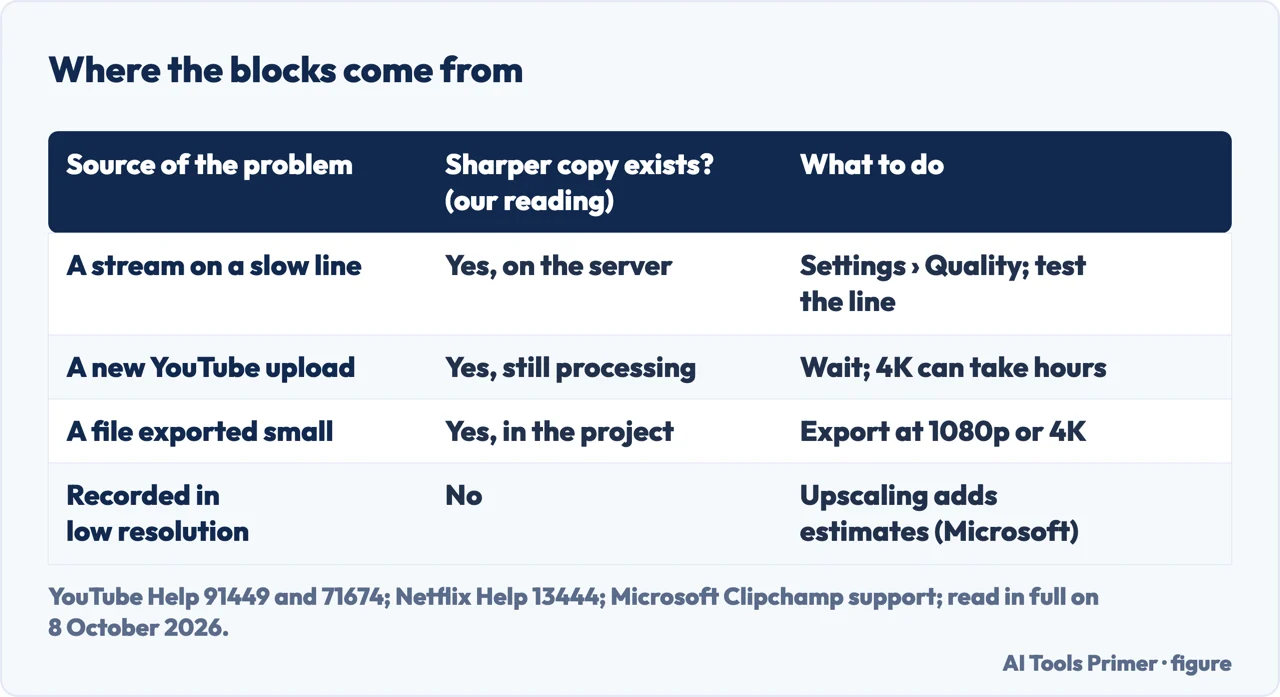
How to fix pixelated video depends on where the blocks come from. In a stream, YouTube and Netflix lower the quality on a slow connection; on YouTube, pick a higher resolution under Settings › Quality. A file exported small can, by our reading, be exported again. Footage recorded in standard definition, YouTube says, has no HD version.
| Cause | Where it shows | Fix | Source |
|---|---|---|---|
| Slow or unstable connection | Streaming | A wired or Wi-Fi network (Netflix); pick the quality by hand (YouTube) | YouTube, Netflix |
| Upload still processing | Your new YouTube video | Wait; 4K can take hours | YouTube |
| Recorded in standard definition | The recording itself | No HD version (YouTube); our reading: record the next one higher (Apple shows where) | YouTube, Apple |
| Exported at a low resolution | The file you saved | Our reading: export again higher; Clipchamp offers up to 4K | Microsoft Clipchamp |
| Bitrate too low for the resolution | The file you uploaded | Our reading: encode near YouTube’s recommended bitrate | YouTube |
| Plan, device or cable | Netflix on a TV | A plan, device and HDMI cable that support the quality | Netflix |
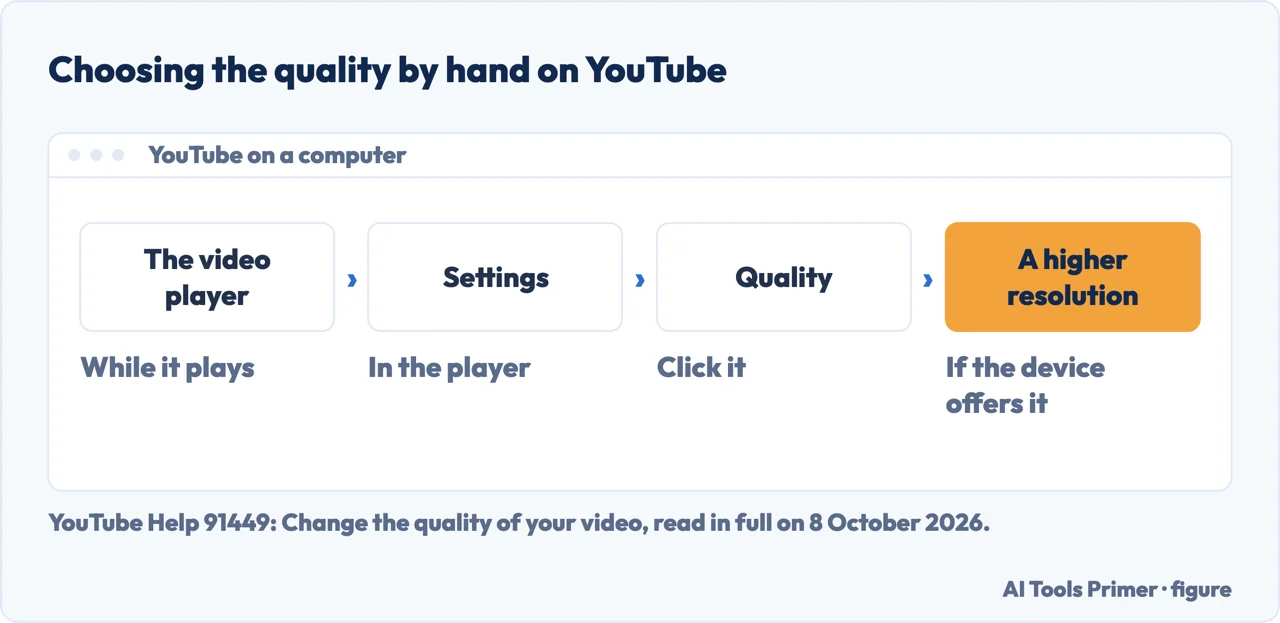
- Open the player’s settings. On YouTube, in the video player, select Settings; on a computer click Quality, on a TV select Quality.
- Pick a higher resolution. YouTube says it changes the quality of the stream to suit the viewing conditions, and that you can change it by hand on any video. Some formats, such as 1080p and 4K, may not be offered on every device, YouTube adds, because they need newer compression (VP9).
- Test the connection. Netflix says it may stream at a lower quality on slow or unstable connections, and recommends a wired or Wi-Fi network when one is available. Its own test is under Get Help › Check your Network on a TV, or My Netflix › Menu › App Settings › Internet Speed Test on a phone, or fast.com in a browser.
- Give it a moment. Netflix notes that playback sometimes starts at a lower resolution and switches to a higher one after a short time.
A stream that looks pixelated
Among the factors YouTube lists as deciding the quality you get are the speed of your connection, the size of the player or screen, the quality of the original upload, and the browser, since some browsers do not support newer formats or quality options.
Netflix adds the account and the hardware. The plan has to support the quality; in a web browser, Data usage per screen under Playback Settings should be High or Auto for 1080p and Medium, High or Auto for 720p. For a Premium plan on a TV, every device in the chain has to support 4K or HDR, the HDMI cables have to be Premium High Speed or Ultra High Speed, and the port has to support HDCP 2.2 or later. If one link falls short, Netflix plays at the highest quality that link allows.
Netflix keeps a separate page for video that is distorted, glitchy, skips or stutters, and sends low, blurry or pixelated pictures to its quality page; the distorted case it puts down to the device or the cable, with steps such as reversing the HDMI cable or trying another port.
Your own video, just uploaded to YouTube
YouTube processes every upload in low quality first, so the upload completes faster, and adds the higher resolutions afterwards. For 4K and 1080p that can take several hours: a 60-minute 4K video at 30 fps can take up to 4 hours, and one at 60 fps longer. If the higher options are missing from Settings on the watch page, YouTube says the video is still being processed. Verifying the account, it adds, helps the processing time.
A file you made or exported
The resolution you exported at. Microsoft’s Clipchamp offers 480p, 720p, 1080p and 4K when saving. It describes 480p as the smallest, for drafts and demos, and says 1080p can be watched on a big screen without looking blurry or glitchy. By our reading, a 1080p project saved at 480p has lost the detail in that file; the fix is a new export from the project at the higher setting.
The bitrate. For an SDR upload, YouTube recommends 8 Mbps for 1080p at a standard frame rate and 12 Mbps at a high one, 5 and 7.5 Mbps for 720p, and 35 to 45 Mbps for 4K at a standard frame rate. Our reading of those tables: a file encoded well below them, at the same resolution, has fewer bits to describe each frame, and the detail is what goes. The tables are for uploads, not a minimum for every use; more on them in uploading to YouTube.
The recording itself. On an iPhone, the resolution and frame rate are at the top of the screen in Video mode, or under Settings › Camera › Record Video; Apple notes that faster frame rates and higher resolutions make larger files. Apple’s guide for iOS 27 also says Action mode records at most 2.8K.
Can a pixelated video be repaired?
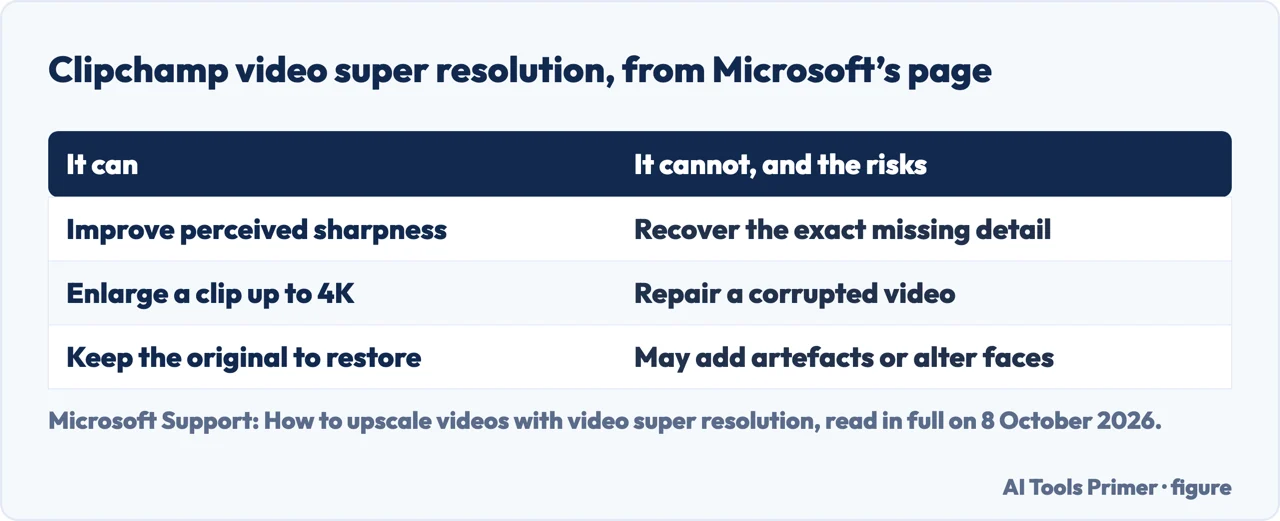
YouTube’s answer for the original is short: a video recorded in standard definition will not be available in high definition. What exists is upscaling, and Microsoft’s page on Clipchamp’s video super resolution sets out what it does. It uses AI to estimate extra detail as it enlarges each frame, can improve the perceived sharpness of low-resolution or compressed footage, and can go up to 4K. It cannot recover the exact information missing from the source: the added details are estimates, not a reconstruction; results may include unwanted artefacts, and upscaling may alter facial features.
Microsoft’s conditions: the feature is in the Clipchamp desktop app for Windows, not in the browser, and depends on Windows video upscaling being supported and turned on. The path is Upscale tab › Quality › a target resolution › Upscale, and Restore original undoes it. Upscaling and exporting are separate steps, so the export resolution has to match the upscale one. Microsoft advises against relying on an upscaled video where faithful footage matters, such as legal evidence or identity checks.
Making a file smaller without the blocks. Lowering the resolution and lowering the bitrate are two different moves; both are in compressing video, and still pictures that look blocky are in fixing pixelated photos.
Where to start
Five ways in.
- “It is a YouTube video.”
- The stream — the steps for a stream
- “It is Netflix on the TV.”
- Plan and cables — a stream that looks pixelated
- “I just uploaded it.”
- Processing — your own upload
- “It is my own file.”
- Export and bitrate — a file you made
- “Can AI fix it?”
- Upscaling — can it be repaired
More on video files
Size, uploading and converting each have a guide of their own.
Questions people also ask
Why is my video so pixelated?
Among the factors YouTube names: the speed of your connection, the player or screen size, the quality of the original upload, and the browser. A new upload is shown in low quality until processing ends. By our reading, a file can also be pixelated because it was exported at a low resolution or bitrate, or recorded in standard definition.
How to clear up a grainy video?
For the next recording on an iPhone, Apple says Auto FPS can improve low-light video by dropping to 24 fps, under Settings › Camera › Record Video. For an existing clip, Microsoft says Clipchamp’s upscaling can improve the perceived sharpness of low-resolution or compressed footage, with estimated, not recovered, detail.
Can pixelation be removed?
Not to the original detail, by our reading. YouTube says a video recorded in standard definition will not be available in high definition, and Microsoft says AI upscaling cannot recover the exact information missing from the source. By our reading, a stream at low quality or a file exported too small is different: a sharper copy exists behind it.
How can I make a blurry video look clear?
On YouTube, pick a higher resolution under Settings › Quality; Netflix asks you to check the connection. For your own file, by our reading, export again from the project at 1080p or 4K. If only the low-resolution copy exists, Microsoft says Clipchamp’s upscaler can improve its perceived sharpness, with estimated details.
Not covered here. It does not compare paid upscaling services or test any of them; the one upscaler described is Clipchamp’s, from Microsoft’s own page.
Nor does it cover a screen with stuck or dead pixels, which is a fault of the display rather than of the video.
Sources
- YouTube Help article 91449 — Change the quality of your video: the four factors, Settings and Quality on a computer and a TV, and VP9 — support.google.com, read 8 October 2026.
- YouTube Help article 71674 — Low video quality after upload: low quality first, and processing times for 4K and 1080p — support.google.com, read 8 October 2026.
- YouTube Help article 1722171 — YouTube recommended upload encoding settings: video bitrates by resolution and frame rate — support.google.com, read 8 October 2026.
- Netflix Help Center article 13444 — How to get the best video quality: network, plan, devices, HDMI cables and HDCP, and Data usage per screen — help.netflix.com, read 8 October 2026.
- Netflix Help Center article 100342 — Video is distorted, glitchy, skips or stutters: the device and the HDMI cable — help.netflix.com, read 8 October 2026.
- Microsoft Support — How to choose the right export resolution, Clipchamp: 480p, 720p, 1080p and 4K — support.microsoft.com, read 8 October 2026.
- Microsoft Support — How to upscale videos with video super resolution, Clipchamp: what it can and cannot do, and where it runs — support.microsoft.com, read 8 October 2026.
- Apple iPhone User Guide — Change video recording formats on iPhone, iOS 27: resolution and frame rate, file size, and Action mode — support.apple.com, read 8 October 2026.
- Apple iPhone User Guide — Change video recording settings on iPhone: Auto FPS in low light — support.apple.com, read 8 October 2026.
Written by Alberto Gulotta
Founder and editor of AI Tools Primer, writing from Palermo, Italy. Thirty-five years of taking computers apart, starting with a Commodore 64 — the long version is on the about page.
Something wrong on this page? Write to aitoolsprimer@gmail.com and it gets fixed.
Written on 8 October 2026.
Independence and limits
No affiliate links and no paid placements anywhere on this site. Nobody pays to appear here, and no company has seen this page before you did.
This is general information, not professional advice. Where a page touches money, health, safety or the law, it names its source and the date it was read — and your situation may still differ. See the privacy page and the cookie policy.