
Video · guide
How to speed up a video on iPhone
By Alberto Gulotta · Updated · 10 min read
How to speed up a video on iPhone: Apple’s guide for the Photos app describes slowing videos down and gives no step for making one faster. iMovie has a Speed slider that does, and Google Photos offers 2x and 4x. For a scene you have not filmed yet, the Camera’s Time-lapse mode sets the pace as you record.
| Route | What the source says |
|---|---|
| Photos app | Describes slowing down videos captured at a high frame rate; names no way to speed a video up (Apple) |
| iMovie | Drag the Speed slider right to increase the speed; 2x means twice the normal speed (Apple) |
| Google Photos | Edit, Speed, then tap 2x or 4x; the device must have iOS 16 or above (Google) |
| Time-lapse mode | Captures footage at selected intervals, so the pace is set while you record (Apple) |
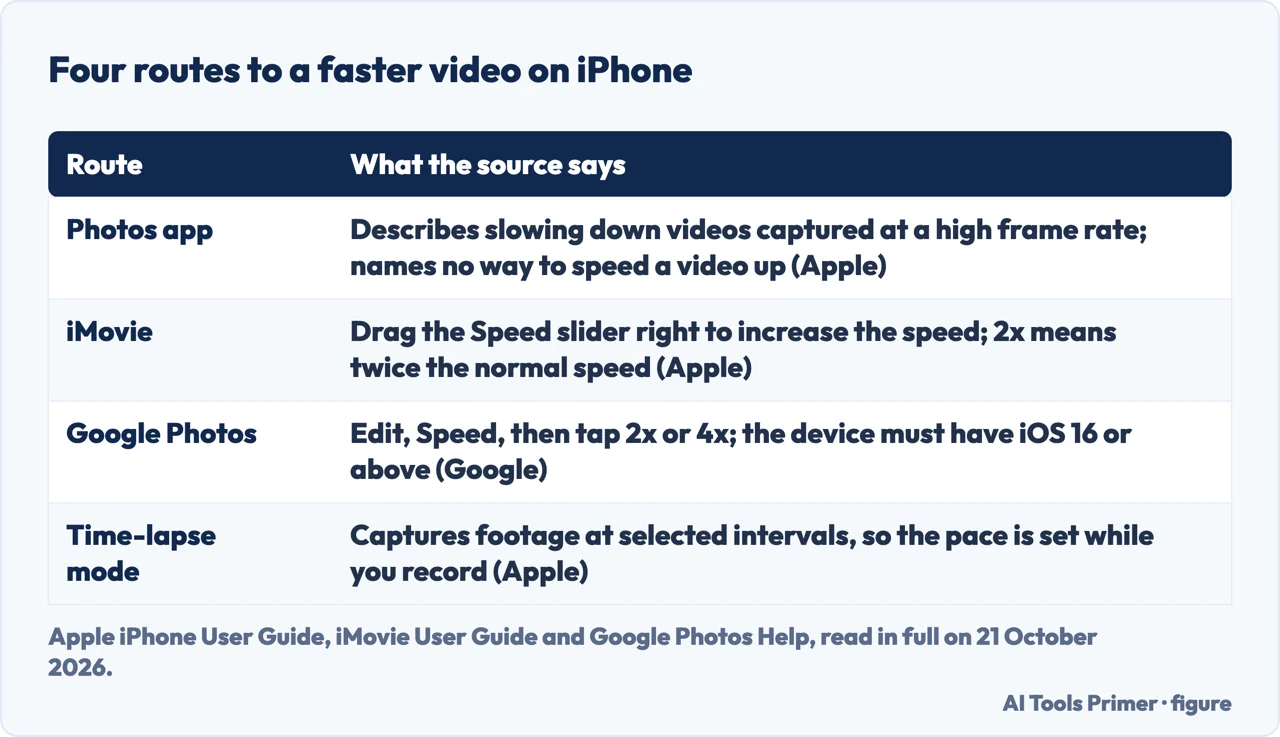
Photos: the speed control is for slowing down
The steps. Apple’s iPhone User Guide has a page called “Trim video length, adjust speed, and edit audio on iPhone”. For playback speed it says to open a video in the Photos app, tap the Edit button, tap Video, then tap the playback speed button and choose a speed.
What it is for. The same page introduces the control this way: “You can slow down videos that were captured at a high frame rate for a dramatic effect.” It adds a note: “The playback options available depend on the format of the video you captured.” and “The larger the format you capture, the more options are available.” Our reading is that the page describes slowing down and gives no step for making a video faster, and that what you see in the speed row depends on how the video was recorded. We tested this on no iPhone, so we cannot say what any particular video will show.
A vendor says the same. CapCut, which sells a video editor, writes in its own guide: “While the Photos app can slow down videos, it cannot speed them up.” It is a vendor’s statement and we have not checked it on a device, but it agrees with what Apple’s page leaves out. If you only need to cut the ends off a clip, that is a different job, covered in how to edit videos on iPhone.
iMovie: a slider for the whole clip or part of it
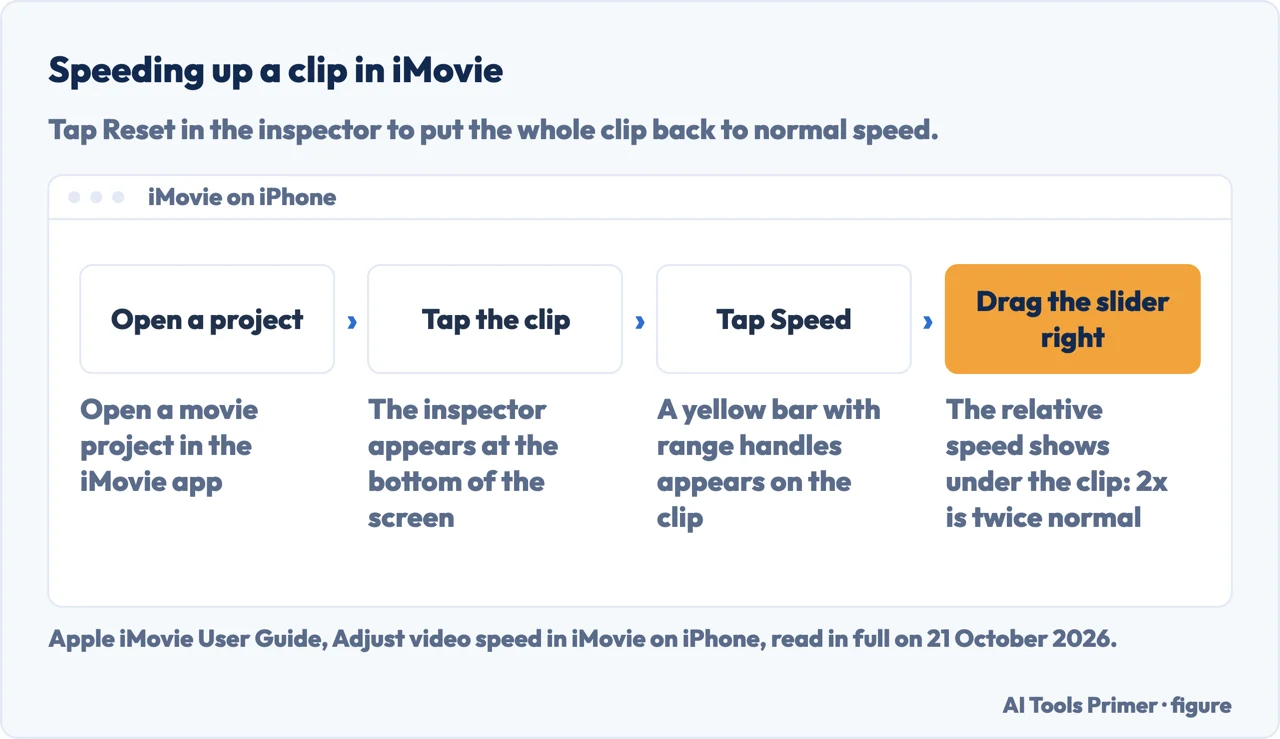
Apple’s iMovie User Guide for iPhone has a page, “Adjust video speed in iMovie on iPhone”. Its steps, in order:
- In the iMovie app on your iPhone, open a movie project.
- Tap a video clip in the timeline to reveal the inspector at the bottom of the screen.
- Tap the Speed button. A yellow bar appears at the bottom of the clip, with range handles at each end.
- In the inspector, drag the slider right to increase the speed, or left to decrease it.
Reading the number. As you drag, the page says the relative speed is displayed below the clip: “2x means twice the normal speed, 1/2x means half the normal speed, and so on”. The page uses 2x as its example and gives no top speed, so we cannot say how far the slider goes.
Different speeds in one clip. The page says you can fine-tune a clip by “dividing it into ranges, each with its own speed”, by dragging a range handle or tapping Add in the inspector. Tapping Reset in the inspector puts the entire clip back to normal speed.
The sound. “By default, iMovie preserves the pitch of audio clips that are sped up or slowed down.” The page says a setting called “Speed changes pitch”, in Project Settings, switches that off so a recorded voice is higher when sped up.
One catch. For a clip shot in Cinematic mode, the page warns that after a speed change you will no longer be able to edit any of the Cinematic effects. How to build a project, join clips and save the finished movie is outside this page; the combining section of our editing guide covers joining clips.
Google Photos: 2x or 4x in four taps
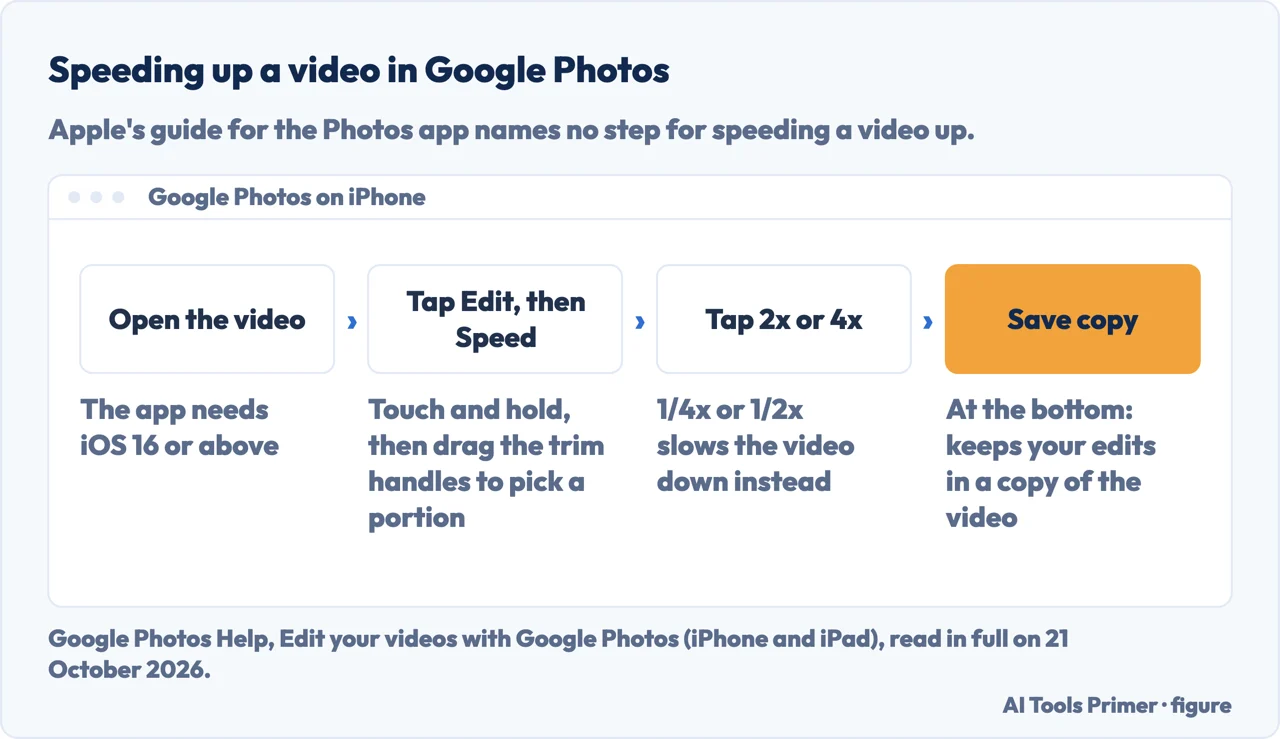
Google’s help page for editing videos in Google Photos on iPhone and iPad says “Your device must have iOS 16 or above.” Google Photos is a separate app from Apple’s Photos, and the page tells you to download and install it. Its steps for speed:
- Open the video you want to edit.
- Tap Edit, then Speed.
- To choose part of the video, “touch and hold, then drag the trim handles”; otherwise the change is for the whole video.
- To speed the video up, tap 2x or 4x. To slow it down, tap ¼x or ½x.
- At the bottom, tap Save copy to keep a copy of the video with your edits.
The page does not say whether the sound changes with the speed, and it gives no speed above 4x. Because the edit is saved as a copy, our reading is that the original stays where it is, but the page does not say that in so many words.
Time-lapse: set the pace before you record
If the video does not exist yet, Apple’s page on recording a video has a mode for this. It describes Time-lapse as a way to “Capture footage at selected intervals” to make a video of something that unfolds over a period of time, such as a setting sun or traffic flowing. The steps: open Camera, select Time-lapse mode, frame your subject, put the iPhone on a stable surface or tripod, and tap the Record button to start and stop.
Apple adds a tip: on iPhone 12 or later, a tripod gives more detail and brightness in low light. Time-lapse does nothing for a video you have already filmed: for that, the three routes above are the only ones we read.
Which route to take
This part is our reading of the sources above, not something any of them says, and we did not try the routes side by side on a phone.
- A clip you already have, and you want it at 2x or 4x. Google Photos names those two settings.
- Different speeds inside one clip, or a note of the exact speed. iMovie’s ranges and its on-screen 2x label are built for that.
- Slow motion, not fast. That is what the Photos app’s speed control is described as doing.
- A long scene you have not filmed yet. Time-lapse.
CapCut’s guide goes further than the two guides above: it says a Normal Speed setting changes the playback rate “from 0.1× up to 100× faster”, with Curve Speed for gradual changes, and that the result can be saved as MP4 or GIF. That is the vendor’s own description of its own product: we installed nothing and cannot confirm it.
Where to start
Four ways in.
- “It is already in Photos.”
- What Photos does — photos
- “I want fine control.”
- The iMovie slider — imovie
- “Just 2x or 4x.”
- Google Photos — google photos
- “I have not filmed it yet.”
- Time-lapse — time lapse
More on video
Editing, sending, recording and repairing a video each have a guide of their own.
Questions people also ask
How to speed up an iPhone video you have already recorded?
Yes, with an app other than the Photos app. Apple’s iMovie guide has a Speed slider you drag right to increase the speed, and Google’s Photos help gives 2x and 4x. Apple’s guide for the Photos app describes slowing down videos captured at a high frame rate and names no step for speeding one up.
How do I speed up a video on iPhone more than 2x?
Google Photos offers 4x, per its help page. The iMovie page uses 2x as its example and gives no top speed. CapCut says its Normal Speed setting goes from 0.1× up to 100× faster; that is a vendor’s claim we did not test.
How to speed up video on iPhone without iMovie?
Google Photos is the other route in the sources: Edit, Speed, then 2x or 4x, then Save copy, on iOS 16 or above. If you have not recorded yet, Time-lapse mode in the Camera sets the pace while you film.
Does speeding up a video change the sound?
In iMovie, Apple says the pitch of audio is preserved by default, and a setting called “Speed changes pitch” switches that off. The Google Photos help page does not say what happens to the sound.
Not covered here. It was not tested on an iPhone: the steps are Apple’s and Google’s own, read on 21 October 2026, and the menus can differ by iOS and app version.
It does not cover Android, the speed controls inside Instagram or TikTok, adding music, or recording in Slo-mo.
It names CapCut only as a vendor quoted on its own guide, and it did not install or test it.
Sources
- Apple iPhone User Guide — Trim video length, adjust speed, and edit audio on iPhone: the playback speed control, how it depends on the format, and the Slo-mo section — support.apple.com, read 21 October 2026.
- Apple iMovie User Guide for iPhone — Adjust video speed in iMovie on iPhone: the Speed button, ranges, Reset and the pitch setting — support.apple.com, read 21 October 2026.
- Apple iPhone User Guide — Record a video with your iPhone camera: Time-lapse mode — support.apple.com, read 21 October 2026.
- Google Photos Help — Edit your videos with Google Photos (iPhone and iPad): change the speed of your video — support.google.com, read 21 October 2026.
- CapCut — How to Speed Up a Video on iPhone: A Complete Guide in 2026 (vendor guide, dated 10 October 2026) — www.capcut.com, read 21 October 2026.
Written by Alberto Gulotta
Founder and editor of AI Tools Primer, writing from Palermo, Italy. Thirty-five years of taking computers apart, starting with a Commodore 64 — the long version is on the about page.
Something wrong on this page? Write to aitoolsprimer@gmail.com and it gets fixed.
Written on 21 October 2026.
Independence and limits
No affiliate links and no paid placements anywhere on this site. Nobody pays to appear here, and no company has seen this page before you did.
This is general information, not professional advice. Where a page touches money, health, safety or the law, it names its source and the date it was read — and your situation may still differ. See the privacy page and the cookie policy.