
Anonymity · guide
Firefox privacy settings: the three levels, and what breaks
By Alberto Gulotta · Updated · 19 min read
Firefox privacy settings start in Settings, Privacy & Security, where Enhanced Tracking Protection has three levels. Mozilla says Standard is on after installation. Strict blocks more but can break sites; from version 142 Firefox can let some trackers load. Privacy Guides recommends Strict, while Fingerprint, a device-identification vendor, says Strict can make a site run slowly or crash.
| Question | Answer | Where it comes from |
|---|---|---|
| Where are the settings? | Firefox menu, Settings, Privacy & Security; or the shield beside the address bar, then Protection settings | Mozilla Support |
| Which level is on after installing? | Standard, one of three: Standard, Strict and Custom | Mozilla Support |
| Why would Strict break a site? | Trackers are hidden in content such as videos, comments and login fields, so Firefox blocks the content | Mozilla Support |
| Does Do Not Track still exist? | Mozilla removed the option in Firefox 135 and points to Global Privacy Control | Mozilla Support |
| Does Firefox stop all fingerprinting? | Mozilla calls its block of known fingerprinters an initial defense; Privacy Guides says Strict does not stop all of it | Mozilla Support, Privacy Guides |
Where the settings are, and what the shield tells you
This page is about Firefox on a computer, because the pages we read are for the desktop browser. Mozilla’s page on Enhanced Tracking Protection, updated on 24 September 2026, gives two ways in. The first starts at the shield to the left of the address bar on any website: click it, choose Protection settings and Firefox opens Privacy & Security in a new tab, at the Enhanced Tracking Protection settings. To change the level you click Advanced settings there. The second goes through the menu: in the menu bar click Firefox and choose Settings (or Preferences, in some cases), then select Privacy & Security. A third place is about:protections, the Protections Dashboard, which Mozilla says shows what has been blocked on all sites over the past week.
The shield also reports on the page you are looking at. Mozilla describes three states: Blocking, when Firefox blocked trackers and harmful scripts on a site and you can open the shield to see what; Active, when protection is on but nothing needed blocking; and Inactive, when it has been turned off for that site and a switch in the shield turns it back on. A number beside the shield counts the trackers blocked on the page. The names of the sections move between versions. Mozilla’s page on Global Privacy Control gives one set of steps that ends at Website Privacy Preferences and another that ends at Additional protections, and its page on HTTPS-Only Mode gives one that scrolls down Privacy & Security and another that goes through Connection and software security and Advanced settings. The pages we read do not label which Firefox version uses which, so the settings below are named the way each Mozilla page names them.
Standard, Strict and Custom
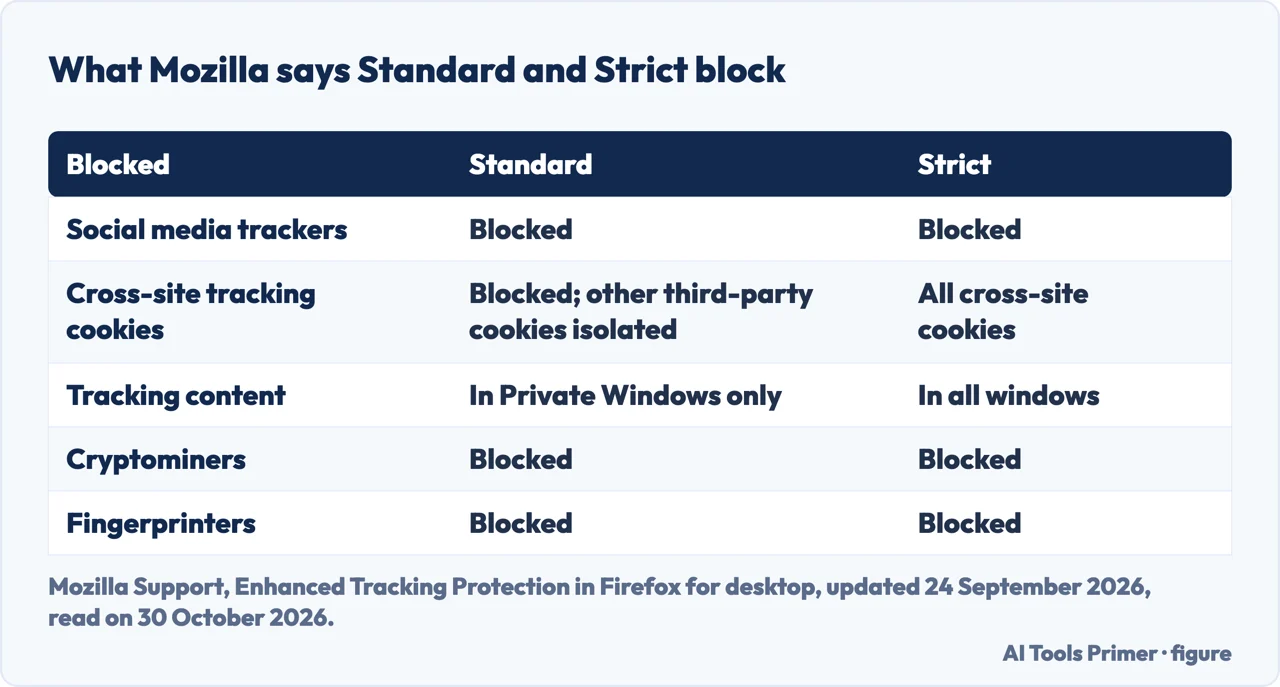
Mozilla says Enhanced Tracking Protection relies on a list of known trackers provided by Disconnect, and that when you download Firefox all the protections included in Standard are already enabled. In Standard, Firefox blocks social media trackers, cross-site tracking cookies (other third-party cookies are isolated), tracking content in Private Windows only, cryptominers and fingerprinters. Strict blocks the same list with two differences: all cross-site cookies, and tracking content in all windows. Mozilla describes tracking content as trackers hidden in ads, videos and other in-page content. The two differences Mozilla names are cookies and content, and the figure below sets the two columns side by side. The Source Docs matrix, which Mozilla keeps for developers, lists one more that changes between the presets: Query Parameter Stripping, which strips known tracking parameters from URLs during navigation, is off in Standard and on in Strict.
Two cookie features sit around that line. Total Cookie Protection is enabled by default in Standard, and Mozilla says it confines every cookie to the website where it was created, which stops cookies from tracking you across sites. Strict adds Enhanced Cookie Clearing, which Mozilla says lets users clear third-party cookies more effectively. Strict also carries Bounce Tracking Protection, which Mozilla describes as a strict-mode feature that stops redirect trackers, the ones that send you through intermediate addresses to learn about your browsing. Firefox detects them, and the cookies and storage tied to them are cleared if you do not interact with them within a set time.
Custom is for choosing. Mozilla’s steps are the same as for Strict: shield, Protection settings, Advanced settings, then Custom, and ticking the checkboxes for the trackers and scripts you want blocked. Unticking all of them lets everything load. Fingerprint, a company that sells device identification, describes the same level as a way to allow trackers from one company but not another, and gives Google and Meta as its example. Its page also describes Standard as the default mode and says Standard does not affect how sites perform or operate. In its list of what Standard blocks, that page does not name fingerprinters, where Mozilla’s page does; elsewhere it says Firefox blocks all connections to known trackers by default, preventing them from setting cookies or fingerprinting the device.
When a site breaks, and the exceptions Mozilla added
Mozilla says you may meet breakage on some sites in Strict, because trackers are hidden in some content. Its example is a website that embeds an outside video or a social media post containing trackers: to block the trackers, Firefox must also block the content itself. It lists where trackers are often hidden: login fields, forms, payments, comments and videos. The fix it gives is to turn Enhanced Tracking Protection off for that one site. Click the shield, switch it off at the top of the panel, and the site is added to the exception list and reloads, while protection stays on everywhere else. The same switch turns it back on. If that cures the problem, Mozilla suggests sending a Report Broken Site report, and both the shield panel and the Help menu lead to it.
From Firefox 142, Mozilla says, Firefox may allow certain trackers to load on specific websites so they work properly. It calls these WebCompat exceptions and puts the checkboxes in the Strict and Custom settings. Its page on managing them gives two levels. Fix major site issues is the one for pages that fail to load or for login and checkout problems, and it is enabled by default in Strict; Mozilla recommends keeping it enabled. Fix minor website issues covers things such as missing embedded videos, social media widgets and decorative images, and it is disabled by default in Strict. In Standard the exceptions are enabled in Private Browsing windows. Mozilla also publishes the list of deployed exceptions at etp-exceptions.mozilla.org. It says unticking the options can improve privacy but may stop features such as video playback or login pop-ups from working, and that if a site stops working you can tick the same options again and reload.
If a site still looks wrong after that, the same Mozilla page lists these steps in order: reload the page, turn Enhanced Tracking Protection off for the site temporarily, test the site in another browser, clear its cookies and cache, and report the problem to Mozilla.
Three sources, three views of Strict
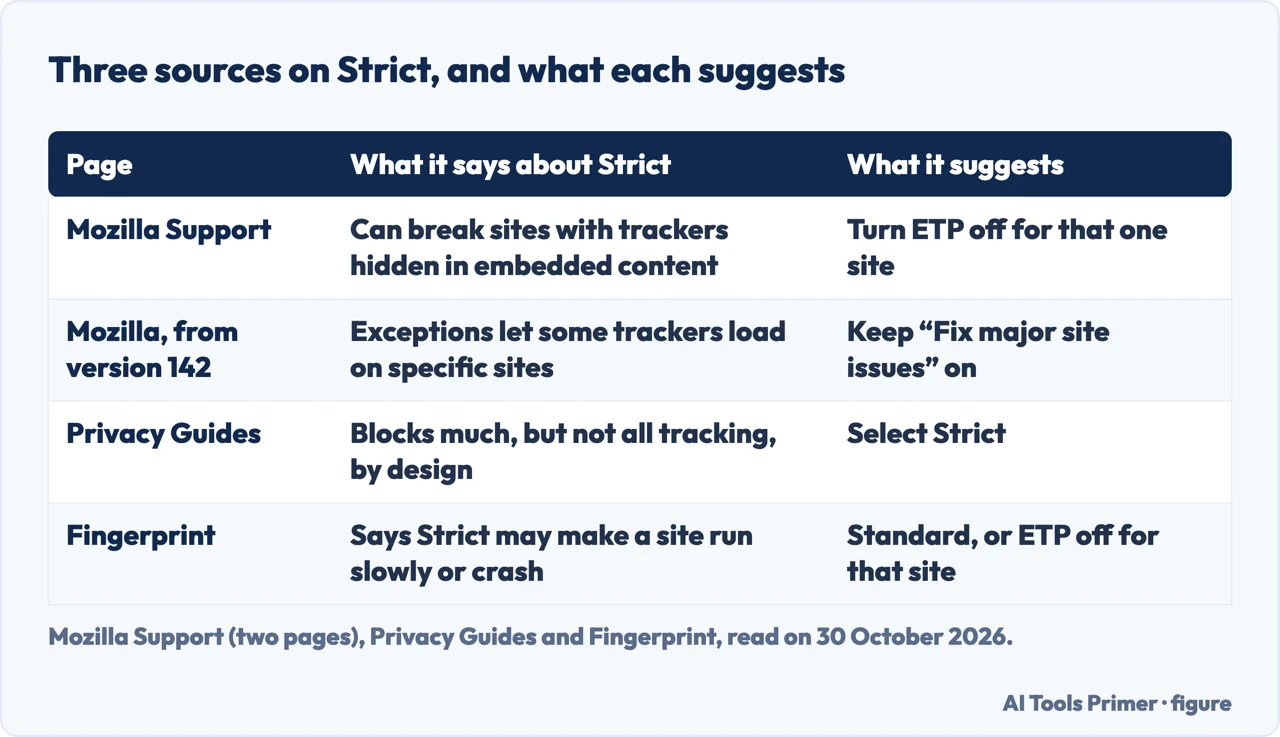
The pages we read do not agree on how much Strict is worth the trouble, and the difference is worth keeping in view. Privacy Guides, a non-profit site, tells its readers to select Strict Enhanced Tracking Protection. It adds that Enhanced Tracking Protection protects against many common threats but does not block all tracking avenues, because it is designed to have minimal to no impact on how usable sites are. Fingerprint says Strict may make a site run slowly or crash, and that if this happens it is recommended to choose Standard, or to disable protection for that site only. Mozilla describes Strict as the choice to further increase privacy. It explains why Strict breaks some content, says Standard is on after installation, and describes the exceptions above as a way to keep sites working when blocking trackers breaks them.
Fingerprinting: what is blocked and what is only limited
Mozilla’s page on fingerprinting, updated on 4 November 2025, explains that details of your computer, such as the operating system, hardware, graphics cards, additional software and installed fonts, can be combined into a “fingerprint” that makes you identifiable across the web, potentially without cookies. Firefox answers in two ways. For Known Fingerprinters it blocks scripts listed on Disconnect’s fingerprinting list, and the page says this protection is enabled in normal browsing and when Enhanced Tracking Protection is set to Strict. For Suspected Fingerprinters, which Firefox cannot block because it does not know the script or because the script is built into the site, it limits the information the browser exposes. The page says that protection is enabled in Private Browsing and in Strict, and in Custom you can choose whether it covers all windows or only private ones.
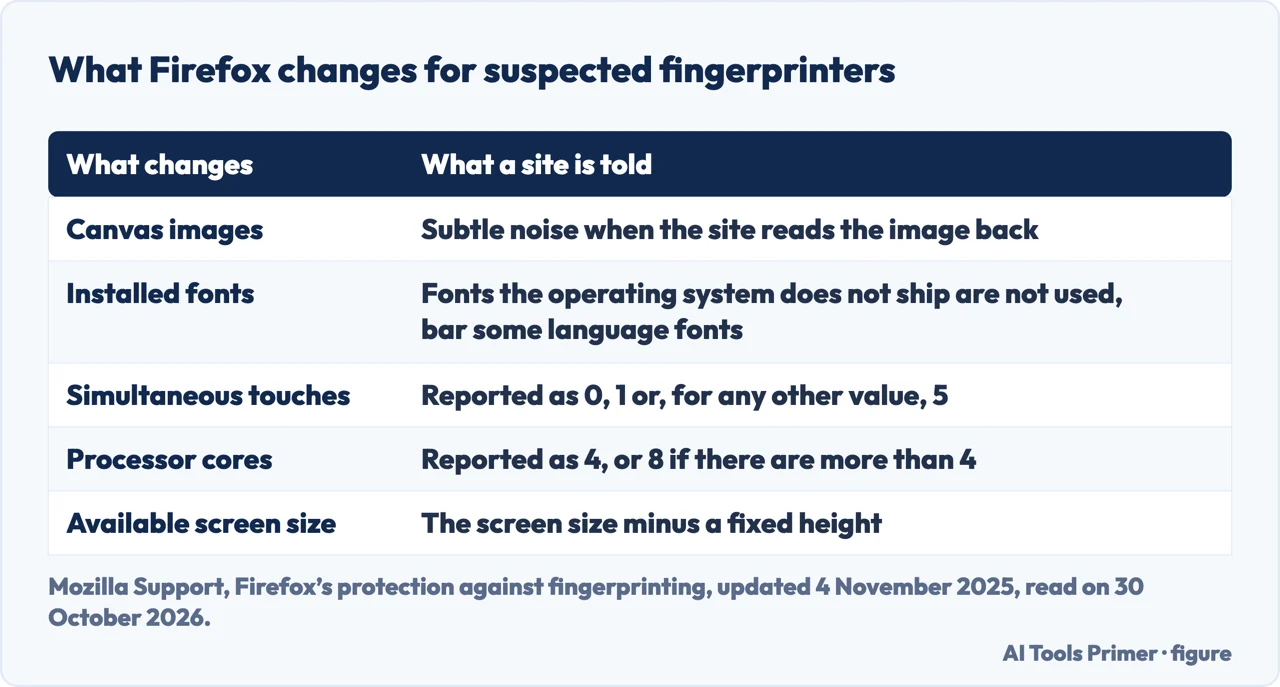
The same page is frank about the first of the two. It says the block on known fingerprinters serves as an initial defense that does not safeguard you against companies missing from the list, and that Mozilla sometimes has to create exceptions to the list so that websites keep working. For the second it names what Firefox alters, and the figure below sets out the items. The page prints the fixed height taken off the available screen resolution in a garbled way, so we do not give the number.
That limiting has a price, and Mozilla lists the breakage it sees most often: a custom font that is not in the default install list is not used; scripts that detect emoji support may wrongly fail; image or video effects such as greenscreen may not behave as expected; languages with extended character sets may show a square where a glyph should be; a website that uses touch events from several input devices at once may not process them correctly; a website that tries to maximize its own window may overlap the taskbar or dock; and websites that run complex calculations may be slower. On rare occasions it can break a site completely, and turning off Enhanced Tracking Protection for that site resolves it if fingerprinting protection was the cause.
What the matrix, Privacy Guides and Fingerprint say about limits
Mozilla’s Firefox Source Docs matrix, which lists the preferences behind each mode, describes two fingerprinting settings. privacy.fingerprintingProtection is the supported one, with canvas randomization and reduced system information. Resist Fingerprinting, privacy.resistFingerprinting, is described as an unsupported variant that could break websites and is off by default in both normal and private windows. Mozilla’s support page on fingerprinting lists “Resist Fingerprinting” among its related articles.
Privacy Guides says Strict blocks fingerprinting scripts but notes that this does not protect you from all fingerprinting. It describes Arkenfox, a set of options for Firefox, as aimed at basic tracking scripts through canvas randomization and Firefox’s built-in resistance settings, and says some of its options are subjectively strict and may break websites. It adds that Arkenfox does not try to make your browser blend in with a crowd of other users the way Mullvad Browser or Tor Browser do, which it calls the only way to thwart advanced fingerprint tracking scripts. For stronger protection it points to Mullvad Browser, and says Firefox keeps the advantage of being more flexible, with per-site exceptions for sites where you need to stay logged in. Fingerprint, for its part, says Firefox blocks all requests known to have fingerprinting capabilities, which leaves other parties, the website itself among them, free to use it, for uses such as fraud prevention. It sets that against Brave, which it says uses farbling. Our page on Brave covers that browser’s own defaults.
The other settings that do something: signals, HTTPS and clean links
Global Privacy Control. Mozilla’s page says it was introduced in Firefox 120 and tells websites not to sell or share information about your browsing session. It calls Global Privacy Control a signal, not a blocker: some websites may ignore it, and the page says outside certain regions compliance is optional. Asked whether it stops all tracking, the page answers no, and advises combining it with Enhanced Tracking Protection. You set it with a checkbox in Privacy & Security, and Firefox saves the change by itself. The Source Docs matrix lists it as off in normal windows and on in private windows, and the firefox.com page on how Firefox protects your data says a Private Window proactively tells websites not to sell or share your data.
Do Not Track. Mozilla’s page says the setting was removed starting in Firefox 135, that many sites do not respect it, and that in some cases it can reduce privacy. It points to Global Privacy Control instead. Fingerprint’s page still describes Do Not Track as a Firefox feature, notes that sites are not required to comply, and says it is disabled by default.
HTTPS-Only Mode. Mozilla says it forces all connections to websites to use HTTPS, and that most websites already support HTTPS. When a site has no secure version, Firefox shows a Secure Site Not Available page with two choices: Continue to HTTP Site, which turns the mode off for that site temporarily, or Go Back. You can turn the mode on for all windows or only for private ones, and add exceptions, either permanent or for the session; exceptions cannot be added for private windows. The Mozilla page we read does not say whether the mode is on by default. Fingerprint says it is disabled by default, and Privacy Guides recommends enabling it in all windows, saying sites without HTTPS are uncommon, so the change should have little to no impact.
Copy Clean Link. Mozilla says this is automatically enabled: right-click a link or the address in the address bar, choose Copy Clean Link, and the copy has the tracking parameters stripped.
What Privacy Guides recommends, and what Mozilla says about itself
The longest list of settings to change comes from Privacy Guides, in the Firefox part of its page on browsers for computers. In Settings it recommends turning off search suggestions, because it says they send everything you type in the address bar to the default search engine whether or not you submit a search, and turning off Firefox Suggest and its suggestions from sponsors for the same reason. It recommends Strict. It recommends deleting cookies and site data when Firefox is closed, with exceptions for sites where you want to stay logged in, and says this protects against persistent cookies but not against cookies picked up during one session. It recommends unticking five telemetry boxes: technical and interaction data, personalized extension recommendations, studies, the daily usage ping and crash reports. It recommends HTTPS-Only Mode in all windows, and, for people who use a DNS over HTTPS provider, Max Protection; our page on encrypted DNS covers that setting. It describes Firefox Sync as protected by end-to-end encryption.
It also carries a warning that Firefox includes a unique download token in downloads from Mozilla’s website and uses telemetry to send it, and that the token is not included in releases from the Mozilla FTP.
Mozilla’s own page on firefox.com is about principles more than steps. It says Firefox is built so that not even Mozilla should know which websites you visit, that synced data is encrypted end to end before it leaves the device, that the optional ads on the homepage can be turned off, and that Mozilla never sells your personal data to any advertiser. It also says Firefox offers more ad blocker options than any other browser because it supports Manifest v2 extensions. Those are Mozilla’s statements about itself, and we did not test them. The page does not tell you which settings to change.
The private window, and what it leaves alone
Mozilla’s page on private browsing says the mode opens a new browser window, and when you close the last private window your browsing history and any tracking cookies from the sites you visited are erased. It says the mode does not delete new bookmarks you make from a private window, does not protect you from malware or viruses, does not prevent the websites you visit from seeing where you are physically located and does not stop your internet service provider from logging what you do. For that last pair it says you need a trustworthy VPN. Fingerprint puts it differently: private mode does not make the browser more secure, but it isolates that activity from your regular browsing, which makes it harder for websites and trackers to stitch your behavior to a profile they already have.
A private window is also where several of the settings above are stronger. Tracking content is blocked there even in Standard, the fingerprinting limits apply there, the compatibility exceptions are enabled there in Standard, and Global Privacy Control is on there. The page on firefox.com says the Private Window blocks tracker scripts and content by default and has advanced fingerprinting protections. For the general case of what such a window deletes and who can still see you, our page on incognito mode goes through it, and the private browsers and fingerprinting guide places Firefox among the other options, including Tor Browser. If your question is about saved logins, see the page on the Firefox password manager.
What we could not check
We changed no setting in Firefox and measured nothing. The pages we read do not say how many of the settings above change what a website can record, and they do not count how many sites break under Strict or under the fingerprinting limits; Mozilla names the kinds of breakage and not the frequency. They do not compare Mozilla’s advice with Privacy Guides’ list, and the Mozilla page on HTTPS-Only Mode does not state its default. Everything here is for Firefox on a computer: we read nothing on Firefox for a phone. The Source Docs matrix reads flattened on the page, so we used only the rows whose order of values the page makes clear. Fingerprint sells device identification, and we used its page only for the points above, with its name beside them.
Where to start
Four ways in.
- Where do I find my browser privacy settings?
- Where the settings are, and what the shield tells you — where
- How do I stop Firefox from blocking websites?
- When a site breaks, and the exceptions Mozilla added — break
- “Does Firefox stop fingerprinting?”
- What is blocked and what is only limited — fingerprinting
- Is Firefox private actually private?
- The private window, and what it leaves alone — private
Other browsers and incognito
Browser defaults, and what a private window deletes.
What sites and networks see
Blocks, addresses and lookups.
Questions people also ask
How do I set Firefox to private?
The pages we read describe what private browsing does and not the steps to open it. Mozilla says it opens a new window and, when the last private window closes, erases the browsing history and tracking cookies from that session.
Is Firefox private actually private?
Mozilla says private browsing does not stop websites seeing where you are or your provider logging what you do. Privacy Guides says Strict tracking protection does not block all tracking or all fingerprinting.
Where do I find my browser privacy settings?
Mozilla gives two routes: the Firefox menu, Settings (or Preferences), Privacy & Security; or the shield beside the address bar, Protection settings. The names of some sections differ between versions.
How do I stop Firefox from blocking websites?
Mozilla says to switch Enhanced Tracking Protection off for the one site from the shield panel, keep the Fix major site issues exception on, and report the broken site. Fingerprint suggests Standard instead of Strict.
Not covered here. We changed no setting in Firefox. The statements come from nine Mozilla pages, the Firefox section of Privacy Guides and a guide by Fingerprint, all read on 30 October 2026.
The search volume and difficulty behind this page come from a Semrush reading of 29 August 2026, older than the 60 days the site normally allows.
Sources
- Mozilla Support — Enhanced Tracking Protection in Firefox for desktop — support.mozilla.org, read 30 October 2026.
- Mozilla Support — Firefox’s protection against fingerprinting — support.mozilla.org, read 30 October 2026.
- Mozilla Support — Manage Enhanced Tracking Protection exceptions — support.mozilla.org, read 30 October 2026.
- Mozilla Support — Global Privacy Control — support.mozilla.org, read 30 October 2026.
- Mozilla Support — Do Not Track — support.mozilla.org, read 30 October 2026.
- Mozilla Support — HTTPS-Only Mode — support.mozilla.org, read 30 October 2026.
- Firefox Source Docs — Privacy Capabilities Overview — firefox-source-docs.mozilla.org, read 30 October 2026.
- Firefox.com — How Firefox Protects Your Data — www.firefox.com, read 30 October 2026.
- Firefox.com — Firefox private browsing mode — www.firefox.com, read 30 October 2026.
- Privacy Guides — Privacy Respecting Web Browsers for PC and Mac — www.privacyguides.org, read 30 October 2026.
- Fingerprint — The Guide to Firefox’s Privacy and Security Features — fingerprint.com, read 30 October 2026.
Written by Alberto Gulotta
Founder and editor of AI Tools Primer, writing from Palermo, Italy. Thirty-five years of taking computers apart, starting with a Commodore 64 — the long version is on the about page.
Something wrong on this page? Write to aitoolsprimer@gmail.com and it gets fixed.
Written on 3 November 2026.
Independence and limits
No affiliate links and no paid placements anywhere on this site. Nobody pays to appear here, and no company has seen this page before you did.
This is general information, not professional advice. Where a page touches money, health, safety or the law, it names its source and the date it was read — and your situation may still differ. See the privacy page and the cookie policy.