
Devices · guide
Android privacy settings by version: menus, permissions, switches
By Alberto Gulotta · Updated · 16 min read
Android privacy settings sit under Settings, Security and privacy on Android 13 and up, and in separate sections on Android 12 and lower. Google’s pages cover permissions app by app and by type, a privacy dashboard and camera and microphone switches, and the pages we read give different answers on how far back the dashboard looks.
| Question | Answer | Where it comes from |
|---|---|---|
| Where do I start? | Settings, then Security and privacy on Android 13 and up; separate Security and Privacy sections on Android 12 and lower | Google Android Help |
| Where is the list by permission type? | Permission manager, under Privacy; EFF and Consumer Reports reach it through Privacy controls | Google, EFF, Consumer Reports |
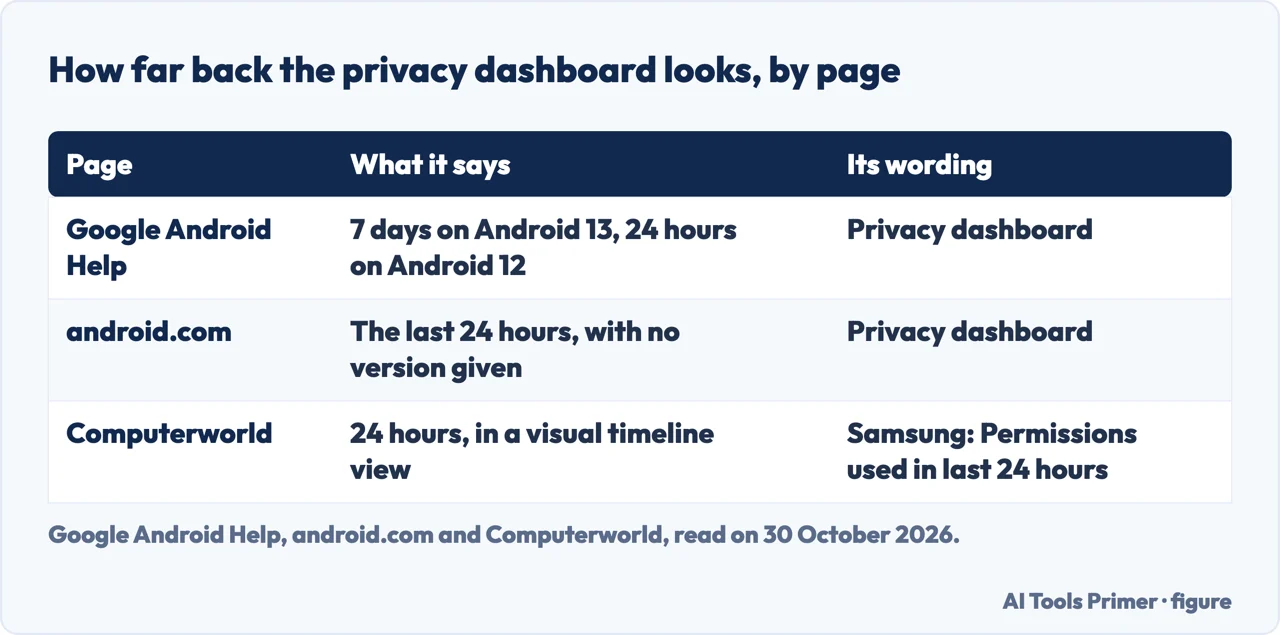
| How far back does the privacy dashboard look? | Google says 7 days on Android 13 and 24 hours on Android 12; android.com and Computerworld say 24 hours | Google, android.com, Computerworld |
| How do I switch off the camera or microphone for every app? | Privacy controls, then Camera access or Microphone access; the Quick Settings tiles do the same | Google Android Help |
| What does Android reset by itself? | Permissions of apps not used for an extended period, from Android 11 | Android Open Source Project |
Where the settings live, and why the menu changes
Google’s help page on security and privacy settings starts with a warning: not all Android devices have combined security and privacy settings, and some have separate sections. On a phone with Android 13 and up it gives Settings, then Security and privacy. On Android 12 and lower it gives Settings, then Security for the security settings, and Settings, then Privacy for the privacy ones. The combined screen, it says, offers an overview of your status, alerts when there are potential risks and recommendations for improving your security and privacy. Under it sit app security, which gives warnings from Google Play Protect, device lock, accounts security, system updates, device finders, privacy, which gives information about privacy permissions, and a last entry for more settings such as app pinning and notifications on the lock screen.
The pages we read describe the path to the permission screens in slightly different words. Google’s page on app permissions gives two routes. For one app: Settings, Apps, the app, then Permissions; if the app is not in the list, tap See all apps first. By type: Settings, Security & Privacy, Privacy, then Permission manager, where you tap a type of permission and then an app. EFF’s guide, which says it is accurate as of Android 16 and was last reviewed on 23 June 2025, goes through Security & Privacy, Privacy Controls and Permission manager, and says each permission is listed with the number of apps that have access to it. Consumer Reports says settings may vary slightly depending on the phone’s manufacturer and gives three routes: through Privacy controls and Permission manager, through the individual apps in Settings, Apps (or Apps & Notifications), and through Settings, Privacy, Permission Manager.
Computerworld’s guide, first published in June 2020 and updated in December 2024, says that depending on your software and device you might have to tap a line that says Privacy or Privacy controls before you see Permission Manager. If you see nothing like that, it suggests searching your system settings for the word permission to find the closest equivalent. Google’s page on app permissions adds that on a Pixel phone some of its steps work only on Android 11 and up. The pages we read do not walk through the menus of Xiaomi or Motorola phones, and the only Samsung label the pages give for the permission screens is the one Computerworld gives for the dashboard, covered below.
What a permission can be set to
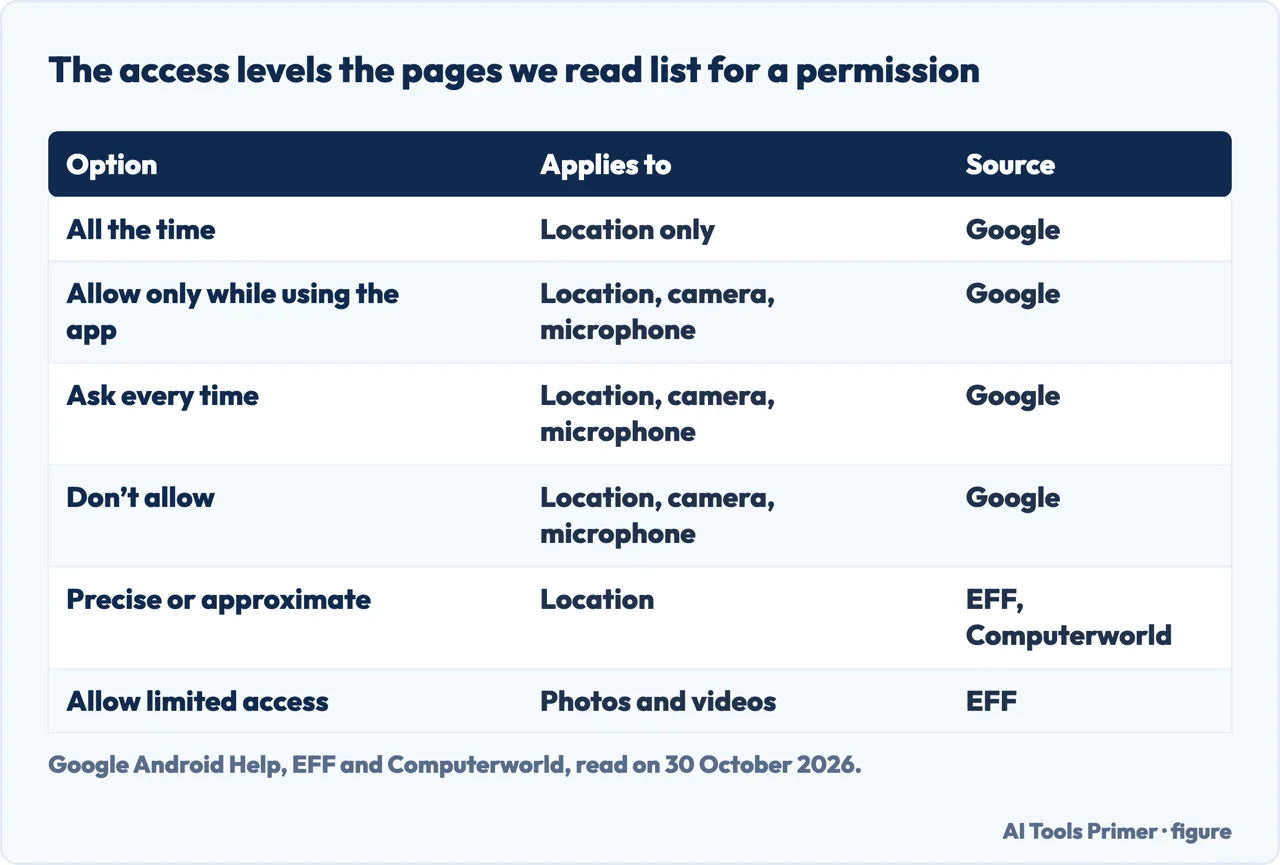
According to Google, an app asks for permission to use a feature such as your camera or contacts list, and you can allow or deny it. Later you can change a permission for a single app or by permission type. For location, camera and microphone, the page says you may be able to choose among four settings. All the time is for location only: the app can use the permission at any time, even when you are not using it. Allow only while using the app limits it to when you are using that app. Ask every time makes the app ask each time you open it, and the app can use the permission until you are done with it. Don’t allow means the app cannot use the permission, even while you use it.
Google lists fifteen types of permission: calendar, call logs, camera, contacts, files, health, wellness and fitness, location, microphone, music and audio, nearby devices, notifications, phone, photos and videos, physical activity and SMS. It adds that on devices running Android 15 and below the health entry may appear as Body Sensors.
EFF, Computerworld and Consumer Reports add detail the Google help pages we read do not carry. EFF lists four values for location (Don’t allow, Ask every time, Allow only while using the app, Always) and says you can also grant a precise location or a more general one, noting that mapping apps in particular need the precise one. For photos and videos it gives Always allow all, Allow limited access, where you pick the photos an app gets, and Don’t allow. For contacts it describes an app getting either your whole contact list or nothing. Computerworld, a magazine article rather than a help page, dates the changes: since Android 10 an app can have location all the time or only in use; since Android 11, location, camera and microphone can be granted for a single session; since Android 12, precise or approximate location. We could not check those dates against a Google page.
Consumer Reports suggests reviewing each app and downgrading permissions, for example letting a car-share app have location all the time or only when you are using it. It also says to look at which permissions a new app asks for when you download it.
Who used what: the privacy dashboard and how far back it looks
Google’s page on the privacy dashboard says it shows which apps are accessing data, which permissions they are using and when. The steps: open Settings, tap Security and Privacy or Privacy (you may need to tap Privacy again), tap Privacy dashboard, select the permission you are concerned about to find the apps that accessed it, and tap an app to update the permission. The page warns that some of its steps work only on Android 12 or 13 and up.
The pages differ on how far back the history goes. Google’s page sets the check at the last 7 days on Android 13 or 24 hours on Android 12, and names no other versions. The android.com privacy page, a product page, says you can see which apps accessed your camera, microphone and location in the last 24 hours, with no version attached. Computerworld also says 24 hours, shown in what it calls a visual timeline view, and says the closest equivalent on Samsung’s version of Android is a line called Permissions used in last 24 hours. The pages we read do not say whether the 7-day history applies to Android versions after 13.
Camera and microphone: the indicator and the switches
Google’s page on checking whether the camera or microphone is on says that when an app uses either, a green indicator shows at the top right corner of the screen. Swipe down and tap the indicator; tap once to see which app or service is using the camera or microphone, and again to manage its permissions. The android.com privacy page describes the same green icons in the top right corner. Google adds that some of these steps work only on Android 12 and up.
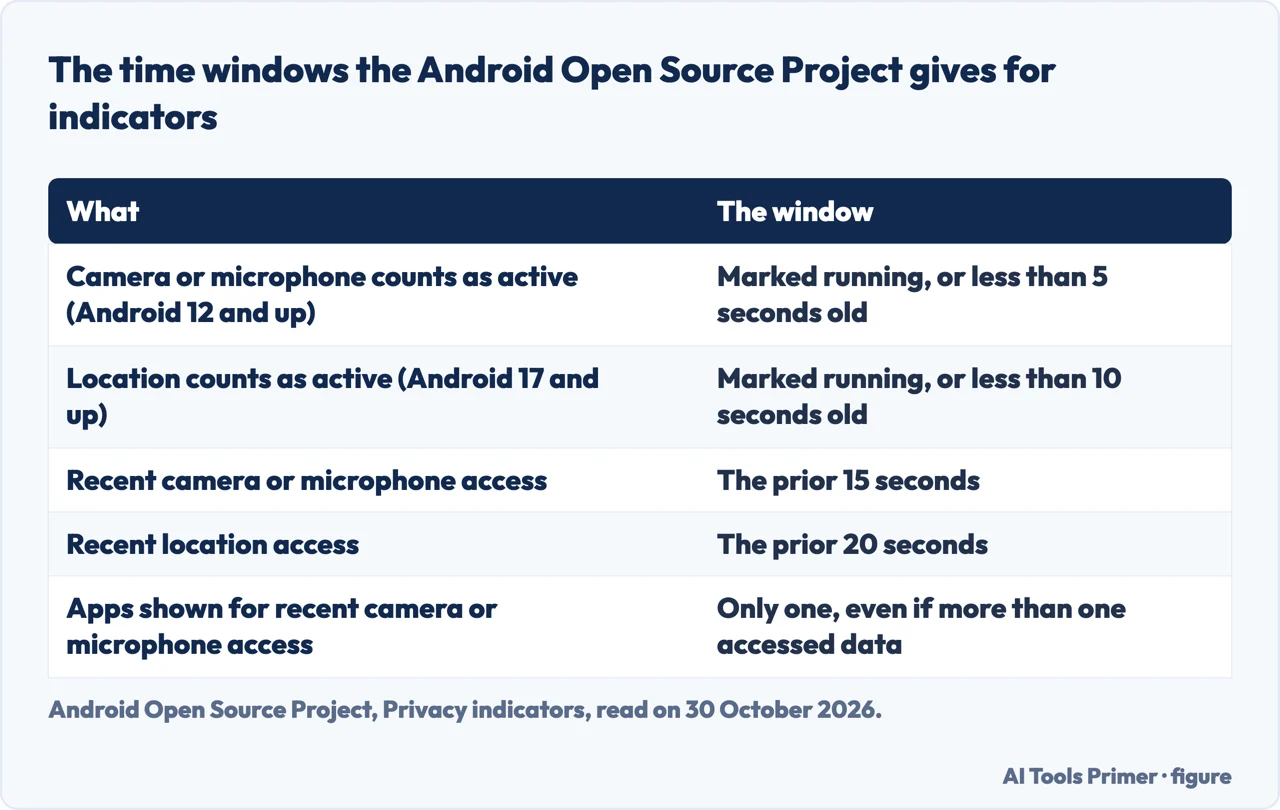
The Android Open Source Project, which documents how the system is built, adds the rules behind the indicator. It covers camera, microphone and location. An icon shows first and then becomes a dot that persists until the app is dismissed or closed. For camera and microphone from Android 12, a use counts as active if the system marks it as running or it is less than five seconds old; for location, the page gives ten seconds in Android 17 or higher. A recent access is one in the prior 15 seconds, or 20 for location. All active apps show in the dialog, but only one app shows as the source of recent access, even if more than one accessed data in that window; for location, every app in the window is shown.
To turn access off for everything at once, Google’s page on app permissions gives Settings, Security & privacy, Privacy, Privacy controls, then turn off Camera access or Microphone access. The camera page gives a second route: swipe down twice to open Quick Settings and tap the camera or microphone tile. If the tiles are missing, tap Edit or Add at the bottom of Quick Settings and drag a tile in. It also says swiping down may not work on all devices, and that if you have trouble reaching the camera or microphone you should check that you have unblocked them. The android.com page calls this a toggle that disables camera and mic access system-wide.
What Android resets by itself, and the advertising ID
The Android Open Source Project documents the automatic reset in its page on the PermissionController module. In Android 11, it says, the module can revoke runtime permissions for apps that have not been used for an extended period of time. Apps targeting SDK 30 or higher have this on by default, and apps targeting SDK 29 or lower have it off by default. When it is on it affects all runtime permissions, but it leaves out those already granted by the system, by policy or by a role. EFF says that if you do not open an app for a while Android resets its permissions to the default, and android.com says that if you have not used an app in a while Android resets your permissions automatically. The pages we read do not say how long an app has to sit unused.
You can also set it for one app. Google’s page gives Settings, Apps, the app, then under Unused app settings turn on Pause app activity if unused.
The advertising ID is a separate setting. EFF calls it the identifier behind most third-party tracking on mobile devices and says that disabling it makes tracking and profiling substantially harder; its path is Settings, Security & privacy, Privacy controls, Ads, then Delete advertising ID. Consumer Reports gives the same path and says that deleting the ID does not stop the data collection itself but makes it much more difficult to aggregate. Computerworld adds a distinction: resetting the ID gives a fresh start, while deleting it keeps apps from identifying you by it, and it names Privacy Controls or More Privacy Settings as the way to Ads. We have not followed these paths on a phone.
The android.com page also points to the data safety section in Google Play, which it says provides details about what data an app can access and use, and to alerts for unknown trackers.
Beyond the permission screens, and where the guides stop
EFF says what changes make sense depends on how you use your phone and your security plan, and that it explains what the settings do so you can decide. Its guide goes past permissions. It points to Google’s Privacy Checkup, which it places on the Google account rather than a page of the phone’s settings, and to the backup choices: it says photos and videos stored in Google Photos are not end-to-end encrypted, and that some of the other backed-up data is. It also covers Advanced Protection, which it says is currently available only on phones running Android 16 and which includes an inactivity reboot after 72 hours locked; the private space, which it says is available on Android 15 and above for devices with at least 6 GB of RAM, found under Security & privacy; multiple users; turning off 2G, through the Allow 2G option under Network & Internet, SIMs, with the caveat that it depends on the version, the manufacturer and the carrier; and hiding sensitive notifications on the lock screen, with the note that each app decides what counts as sensitive.
Several of these have a page of their own here. Our page on hiding apps on Android sets Google’s private space beside Samsung’s Hide Apps. The passcodes page covers the lock itself, and the page on screen time on Android covers the usage side. For a phone built around privacy, see GrapheneOS, and for a phone that may already carry something unwanted, getting rid of a virus on Android.
What we did not use
We changed these settings on no phone, so every path above is as the pages document it. Every statement above comes from the pages named under Sources; further pages on the subject were not opened or could not be read for this page. The pages we read do not mention the dialer code in one of the questions people ask, and they do not compare Android with iPhone. The question about a phone being monitored is a different problem from permissions; the dashboard and the green indicator show which apps used the camera, microphone or location, which is not the same as a check for monitoring.
Where to start
Four ways in.
- “Where are the settings?”
- Where the settings live, and why the menu changes — where
- “What can I let an app do?”
- What a permission can be set to — levels
- “Who used my camera?”
- Who used what: the privacy dashboard — dashboard
- “Can I switch it all off?”
- Camera and microphone: the indicator and the switches — camera
The phone and its lock
The lock, the time on screen and the system underneath.
Apps on the phone
Hiding them, removing them and finding the unwanted ones.
Questions people also ask
Where are the privacy settings on an Android phone?
Google gives Settings, then Security and privacy on Android 13 and up. On Android 12 and lower the security and privacy settings are separate sections. The permission screens are under Privacy, in Permission manager.
What does *#7353 do on Android?
The pages we read do not mention that code. They place the privacy settings under Settings, Security and privacy, and the permission lists under Permission manager.
How do I check if my Android phone is being monitored?
The pages we read do not answer that. Google’s privacy dashboard shows which apps used a permission, and the green indicator shows when the camera or microphone is in use. Our page on getting rid of a virus on Android covers the scanner.
How do I make my Android phone private?
EFF says the right changes depend on how you use your phone and your security plan. The steps the pages give are reviewing permissions by app and type, checking the privacy dashboard, using the camera and microphone switches and deleting the advertising ID.
Not covered here. We changed these settings on no phone. The statements come from Google Android Help and android.com, two Android Open Source Project pages, EFF, Computerworld and Consumer Reports, all read on 30 October 2026.
The search volume and difficulty behind this page come from a Semrush reading of 29 August 2026, older than the 60 days the site normally allows.
Sources
- Google Android Help — Manage permissions from the privacy dashboard — support.google.com, read 30 October 2026.
- Google Android Help — Change app permissions on your Android phone — support.google.com, read 30 October 2026.
- Google Android Help — Learn about Android security & privacy settings — support.google.com, read 30 October 2026.
- Google Android Help — Check if your Android camera or microphone is on or off — support.google.com, read 30 October 2026.
- android.com — Android privacy settings and permissions — www.android.com, read 30 October 2026.
- Android Open Source Project — Permission Controller — source.android.com, read 30 October 2026.
- Android Open Source Project — Privacy indicators — source.android.com, read 30 October 2026.
- EFF Surveillance Self-Defense — Get to Know Android Privacy and Security Settings — ssd.eff.org, read 30 October 2026.
- Computerworld — The ultimate Android privacy guide — www.computerworld.com, read 30 October 2026.
- Consumer Reports Security Planner — Review Your Android Phone’s App Permissions — securityplanner.consumerreports.org, read 30 October 2026.
Written by Alberto Gulotta
Founder and editor of AI Tools Primer, writing from Palermo, Italy. Thirty-five years of taking computers apart, starting with a Commodore 64 — the long version is on the about page.
Something wrong on this page? Write to aitoolsprimer@gmail.com and it gets fixed.
Written on 30 October 2026.
Independence and limits
No affiliate links and no paid placements anywhere on this site. Nobody pays to appear here, and no company has seen this page before you did.
This is general information, not professional advice. Where a page touches money, health, safety or the law, it names its source and the date it was read — and your situation may still differ. See the privacy page and the cookie policy.