
Devices · guide
How to check screen time on Android, and what limits leave open
By Alberto Gulotta · Updated · 18 min read
How to check screen time on Android: open Settings, then Digital Wellbeing, which Google says is on some phones and How-To Geek says is on most Android devices. Menu names differ by page. Limits come in two kinds, ones you set and ones a parent sets, and each leaves something open.
| Question | Answer | Where it comes from |
|---|---|---|
| Where is the number? | Settings, then Digital Wellbeing; several pages call it Digital Wellbeing & parental controls | Google, How-To Geek, Tech Advisor |
| What does it count? | Screen time by app, how often you unlock the device and open certain apps, and notifications received by app | |
| Can I limit myself? | Yes: app timers that reset at midnight, and a 4-digit PIN to hold them | |
| Can a parent limit a child? | Yes: a daily limit in Family Link on Android 7 and up, or on-device controls on Android 17 or later | Family Link, Android Help |
| What does a limit leave open? | Apps marked as unlimited, a separate limit on each device, system apps, a forgotten PIN and web filters are covered below | Family Link, Android Help |
Where Android shows the number
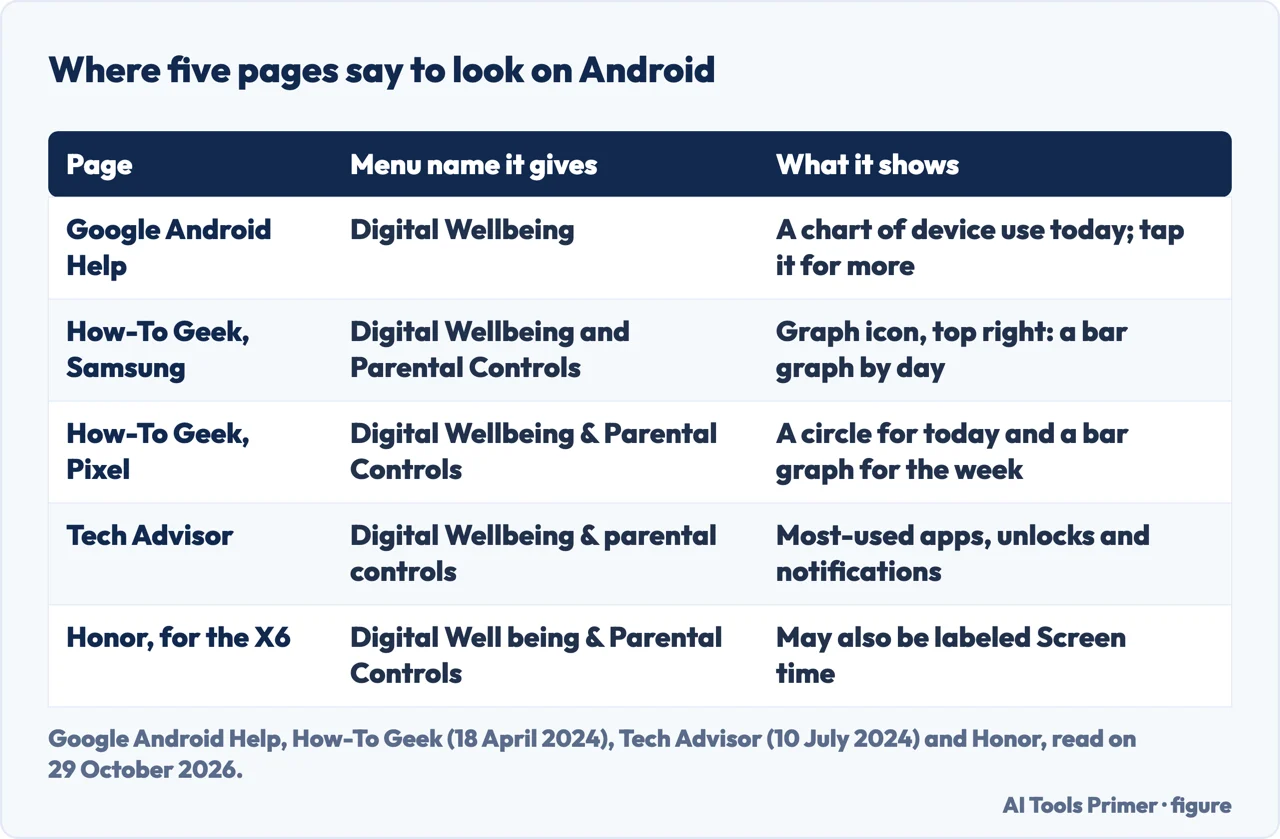
Google’s help page for Digital Wellbeing opens with a hedge. On some phones, it says, you can get info about how you spend time on your phone, such as how often you unlock it and how long you use each app, and some of the steps may vary based on your device. How-To Geek, in a guide updated on 18 April 2024, is broader: it says Digital Wellbeing is available on most Android devices and tells readers to look for similarly named settings. The pages we read do not say which phones lack it.
Google’s route is short. Open Settings and tap Digital Wellbeing. To find it as an app, turn on Show icon in the app list in the same place. The first time you open it, Google says, you need to set up your profile. The chart on the first screen shows your device use today, and tapping the chart opens the detail.
How-To Geek splits the route by phone. On a Samsung Galaxy, swipe down once from the top of the screen to reach Quick Settings, tap the gear, open the Digital Wellbeing and Parental Controls entry, pick the Digital Wellbeing section if the phone asks, then tap the graph icon at the top right. That shows a bar graph of screen time for each day of the week, with the most-used apps under it. On a Google Pixel, swipe down twice, tap the gear and open Digital Wellbeing & Parental Controls. A circle chart at the top shows today, with app use in colours around it, and tapping its centre gives more. If it is your first visit you might have to tap Show Info, and a bar graph below shows the week.
Tech Advisor, in a guide from 10 July 2024, describes the same menu as Digital Wellbeing & parental controls and a single dashboard with the most-used apps, unlocks and notifications. It calls the feature pretty much the Android equivalent of Apple’s Screen Time. Honor’s own guide, written for the Honor X6, gives the same menu name and says the section might also be labeled Screen time; it suggests searching for Screen time in the Settings search bar if you cannot find it.
Google also describes a screen time widget that shows the top 3 apps you use each day. On Android 9 and later, touch and hold the Home screen, tap Widgets, then touch and hold the screen time widget and pull it where you want it.
Two things to keep in mind when you compare these pages with your own phone. The two guides with Samsung and Pixel steps are from 2024, and Google itself says steps vary by device. The Samsung steps in this article come only from How-To Geek; we did not read a Samsung page.
What the chart counts
Google names three measures behind the chart. Tap it and you can pick Screen time, which shows what apps you have had on screen and for how long. Times opened shows how often you have unlocked the device and opened certain apps. Notifications received shows how many notifications you have had and from which apps. Tapping a listed app gives more info and its settings. Tech Advisor lists the same three ideas in its own words: the most-used apps, how many times you unlock the device and how many notifications you get.
Chrome gets its own view. On Google’s page, you tap the chart, then Chrome (Show all apps if you do not see it), then Show sites, and you find the websites you visited and how much time you used them each day. Tapping a site gives more about the time spent on it. To stop showing past visits to a website, tap the site and then Remove past visits; Google adds that if you go to the site again, it will show on the list again. That is a change to the list on the screen, which is how Google describes it, and the page does not say more about what is kept.
Two things the pages we read do not settle. They do not say whether the Digital Wellbeing data leaves the phone or how long it stays; Google’s setup steps mention Manage your data, but the page does not explain it. The only figure for how much screen time is right is in Honor’s guide, which states daily hours for adults and children but names no source for them, so we have not used it.
Limits you set on yourself
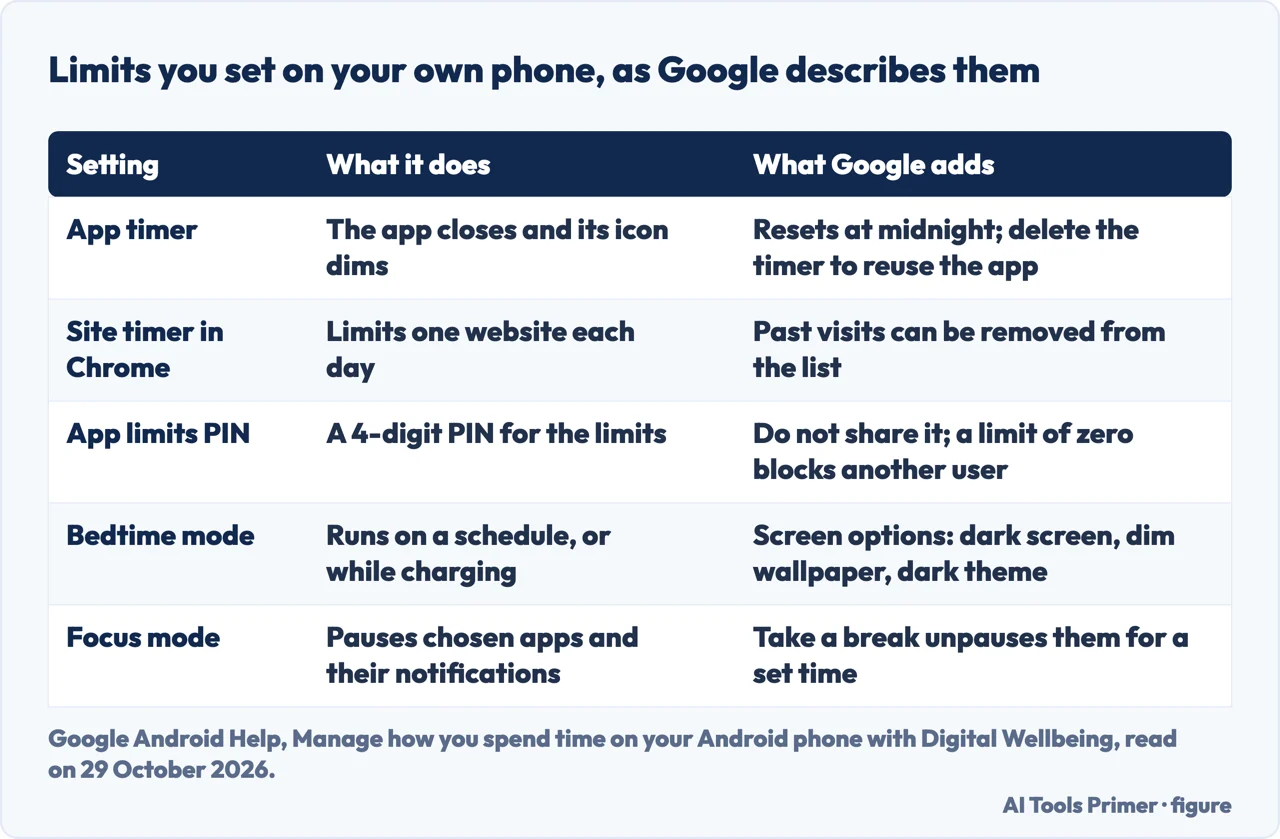
The timers live in the same place as the numbers. On Google’s page you open Settings, tap Digital Wellbeing, then App timers, and next to the app you want to limit you tap Set timer, choose the time and tap OK. When you run out of time, Google says, the app closes and its icon dims. App timers reset at midnight. To use the app again before midnight, repeat the steps and delete the app timer. Tech Advisor describes the same limit differently: you tap the hourglass icon next to the app, and the chosen apps are paused for the rest of the day. Honor’s guide also mentions the hourglass. So Google says Set timer where Tech Advisor and Honor say hourglass. Google also warns that some work and school accounts might not work with app timers.
A timer on your own phone is only as firm as who can change it. For that, Google offers an App limits PIN, meant for limits that only you can change. You open Settings, Digital Wellbeing, App limits, App limits PIN, turn on PIN for app time limits, unlock the device with its own PIN, password or pattern, then enter a unique 4-digit PIN for the limits. To remove it, turn the same switch off. Google’s warning is short: once you set up an App limits PIN, do not share it with others. Its tip goes one step further: to keep another user out of an app, create the PIN and set that app’s limit to zero.
Chrome can be limited by site. Next to a website in the Chrome view, tap Set site timer, choose a time and tap OK.
Two further tools shape the phone rather than count it. Bedtime mode, under Digital Wellbeing, turns on at a time you choose and offers Do Not Disturb plus screen options: grayscale, which changes the screen to black and white, keeping the screen dark, which turns off the always-on display, a dimmed wallpaper and a dark theme. Google adds that with Turn off Bedtime at next alarm on, Bedtime mode ends at your next alarm, and that if no alarm is set it ends at the scheduled time or when you stop charging your device, depending on your routine. Tech Advisor describes Bedtime mode as silencing the phone and changing the screen to grayscale. Focus mode lets you choose apps to pause; while it is on, Google says, you can’t use them and won’t get notifications from them. You can turn it on now, set a schedule, or tap Take a break to unpause the apps for a time limit you choose.
Limits a parent sets with Family Link
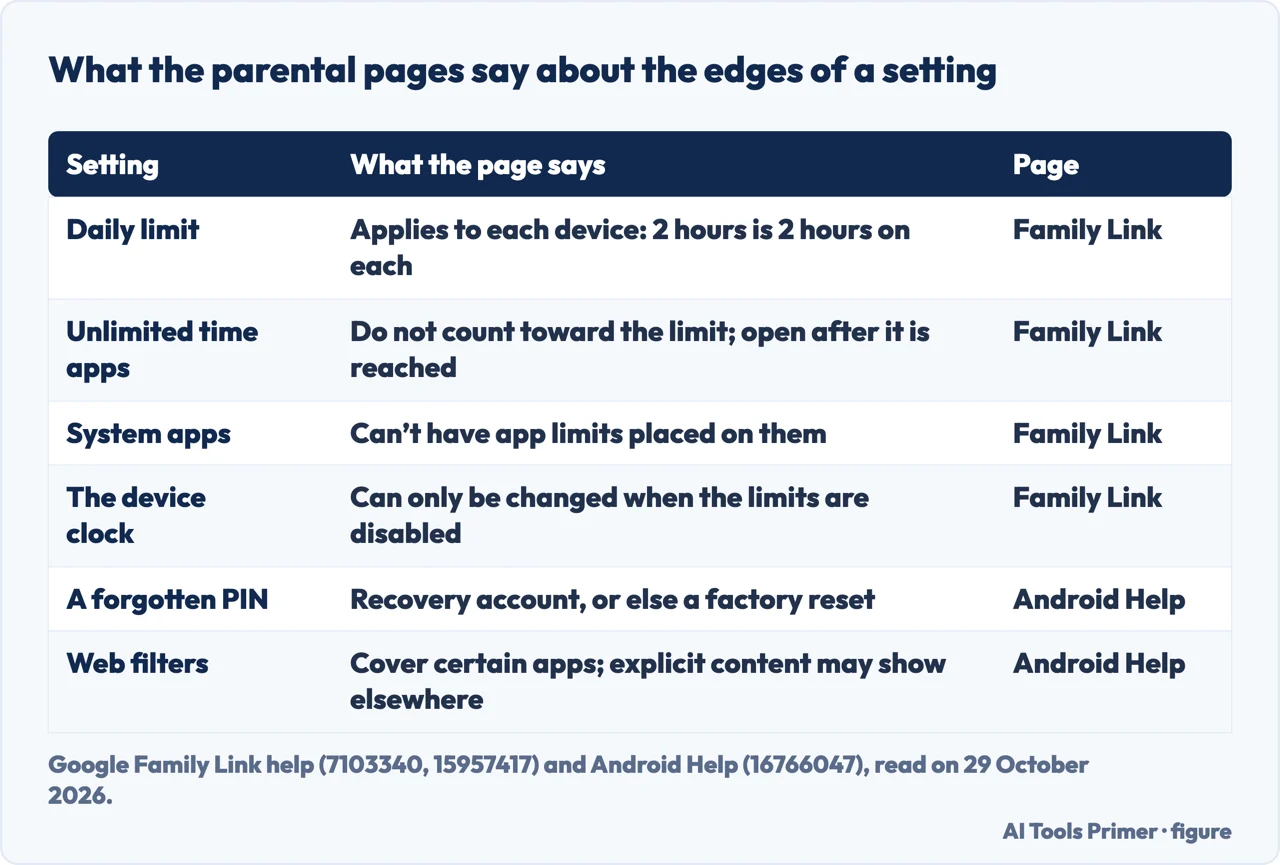
Google’s Family Link page for screen time starts from an account: with a Google Account you made for your child in Family Link, you can limit screen time on their Android device or Chromebook. The device can lock after a certain amount of use or when you think they need downtime. You can set limits for Android 7 and up. System apps can’t have app limits placed on them.
The daily limit is set in the Family Link app. Select your child, tap Screen time, then Time limits, turn on Daily limit and tap Weekly schedule. Pick a day, enter how much screen time the device is limited to, and tap Apply to all days of the week to repeat it. A single day can be switched off. You can also open the limit on the child’s own device, under Settings, Digital Wellbeing & parental controls on Android 8.1 and later. To view the current settings there, tap Daily limit; to edit them, Google says to sign in or use your Parent Access Code to verify that you are a parent. The same page says you can lock or unlock the device by hand from the Screen time tab, and that the access code can unlock a device that is not connected to the Internet. To remove the limit, use Turn off Daily Limit.
The page is specific about what a locked device does. The child can’t see notifications. They can’t unlock the device or use any apps, except apps designated as Unlimited time apps when Unlimited time apps are enabled. They can still take phone calls, and on Android phones with a calling plan they can use Emergency to call. Family Link sends the child a notification when screen time is set for the first time (Android devices only) and when the device is about to be locked.
Per-app limits come from a second Family Link page. They are under Screen time, Time limits, App limits: choose the app and tap Set limit. That page lists Android N (7.0) or later, or Chrome OS 83 or later, as the requirement. Apps marked as Unlimited time apps do not count toward the child’s Daily Limit and will be available after it is reached. They can be left available in Downtime or School Time, and they are not available when a parent manually locks the device, a setting you can change. The page adds that Unlimited time apps are not supported on Google Kids Space. Bonus time lets a parent add time while the device is locked or soon to be locked, without changing the daily limit, downtime or school time schedule.
Age changes the picture. Google’s page on accounts says that when a child reaches 13, or the age that applies in their country, Google emails both the supervising parent and the child. The child can update the account; children under 18 need parent approval to stop supervision, while parents can choose to stop it at any time, and both are notified. Our page on Family Sharing for a child sets out the group, the child’s account and what changes at 13 and 18.
The on-device controls
Another route needs no Family Link app. Android Help says a device’s screen time, app limits and content filters can be handled either with on-device controls or through Family Link. The requirement it lists is an Android device with the latest version of Android 17 or later. You open Settings, tap Parental controls, then Set up parental controls PIN. The PIN must be at least four digits, and you use it to manage the controls. The pages we read do not say whether a child account is needed for this route.
The PIN is where this route is firmest. Under Manage parental controls PIN, Forgot PIN resets it with your recovery account, and the page says this is only available if the recovery account is configured; otherwise you will need to factory reset your device. Delete PIN permanently deletes the PIN and turns off all on-device controls. The page lists two more limits: the controls cannot be switched on when the device has more than one profile, for example a work profile or a private space, and when the controls are active some device settings are restricted so that users can’t bypass them. It does not list which settings.
Once the PIN exists, the page lists Daily limit, Downtime, App limits, Blocked apps, Web content filters and App store filters. The daily limit is under Settings, Parental controls, Daily limit, Use daily limit, with a time for each day. When it is reached the device is locked, and the lock screen offers Add more time, which asks for the PIN and an amount of bonus time. Downtime works with a start and end time. Blocking an app hides it from all apps, and the page warns that if you block the Google app, Android and other apps may not function as intended.
The filters come with edges. Web filters are for the Google app 16.42 or later, recent versions of Chrome and Android System WebView, and other providers that adhere to the filter, and the page says explicit content may still show on other apps, devices or browsers. With Block explicit sites on, sites you visit in Chrome are sent to Google to check for explicit content. App store filters apply to new apps: you cannot apply the filter to already installed apps, though you can block installed apps that fall outside the age range. To turn off the Play Store filters, the page says to delete the PIN. For the parallel controls on an iPhone, see our page on content and privacy restrictions.
What each setting leaves open
Read side by side, the pages give a short list of things a limit does not cover, each stated by one source. Family Link says the daily limit applies to each Android device or Chromebook your child uses, and gives the example of a 2-hour limit meaning 2 hours on each device. The same page has a tip that time limits apply to apps installed on all of your child’s Android and Chrome OS devices. The two statements sit on one page, and the page does not say how they fit together. The separate app limits page says that time limits apply to apps installed across all of your child’s Android and Chrome OS devices. Apps marked Unlimited time are outside the daily count, and system apps can’t be limited at all.
The device clock is stated once. Family Link says the clock on a child’s device can be changed only once screen time limits are disabled. The page gives no reason. A PIN is the other edge: on the on-device route a forgotten PIN means a recovery account or a factory reset, and on Google’s own-phone route the App limits PIN is what makes a limit one that only you can change. Web filters cover certain apps and the page says explicit content may still show elsewhere.
The pages we read do not describe any other way around a limit, and we have not added any. One Family Link line is worth keeping: whether or not your child can control their own account settings does not change the settings themselves, and parents are recommended to make sure the settings are correct after they change that control.
For a one-line comparison, Apple’s Screen Time asks for a Screen Time passcode to change its settings, and Apple’s page says that from iOS 26 and iPadOS 26 a parent can let the child ask for an exception to a limit. Some parental controls on Apple devices are on by default and, depending on state, country or region and the child’s age, can’t be removed. Our page on turning off Screen Time on an iPhone covers that passcode.
Where to start
Four ways in.
- “Where do I see the number?”
- Where Android shows the number — where
- “Can I limit myself?”
- Limits you set on yourself — yourself
- “How does a parent set a limit?”
- Limits a parent sets with Family Link — parent
- “What does a limit leave open?”
- What each setting leaves open — open
Limits for a child
The group, the passcode and the permissions behind a limit.
On the Android phone
Apps you can hide or remove, and a phone built differently.
Questions people also ask
How can I check my screen time?
Google says to open Settings and tap Digital Wellbeing, where a chart shows your device use today. Several pages name the menu Digital Wellbeing & parental controls.
Is screen time available on Android?
Google says Digital Wellbeing is on some phones, and How-To Geek says it is available on most Android devices. Tech Advisor calls it pretty much the Android equivalent of Apple’s Screen Time.
How to check screen time on a Samsung?
How-To Geek says to swipe down once, tap the gear, open Digital Wellbeing and Parental Controls and tap the graph icon in the top-right corner for a bar graph by day. We did not read a Samsung page.
How to check phone total usage time?
Google’s chart shows device use today, and Tech Advisor’s dashboard lists the most-used apps, unlocks and notifications. How-To Geek’s Pixel steps add a bar graph for the week.
Not covered here. We tried nothing on a phone. The statements come from Google Android Help and Family Link pages, How-To Geek, Tech Advisor, Honor and Apple Support, all read on 29 October 2026.
The search volume and difficulty behind this page come from a Semrush reading of 29 August 2026, older than the 60 days the site normally allows.
Sources
- Google Android Help — Manage how you spend time on your Android phone with Digital Wellbeing — support.google.com, read 29 October 2026.
- Google For Families Help — Manage your child’s screen time — support.google.com, read 29 October 2026.
- Google For Families Help — Set app time limits on your child’s device — support.google.com, read 29 October 2026.
- Android Help — Set up parental controls on an Android device — support.google.com, read 29 October 2026.
- Google Account Help — How Google Accounts work when children turn 13 — support.google.com, read 29 October 2026.
- How-To Geek — How to Check Screen Time on Android (updated 18 April 2024) — www.howtogeek.com, read 29 October 2026.
- Tech Advisor — How to check screen time on Android (10 July 2024) — www.techadvisor.com, read 29 October 2026.
- Honor — How to Check Screen Time on Android — www.honor.com, read 29 October 2026.
- Apple Support — Parental controls with Screen Time — support.apple.com, read 29 October 2026.
Written by Alberto Gulotta
Founder and editor of AI Tools Primer, writing from Palermo, Italy. Thirty-five years of taking computers apart, starting with a Commodore 64 — the long version is on the about page.
Something wrong on this page? Write to aitoolsprimer@gmail.com and it gets fixed.
Written on 29 October 2026.
Independence and limits
No affiliate links and no paid placements anywhere on this site. Nobody pays to appear here, and no company has seen this page before you did.
This is general information, not professional advice. Where a page touches money, health, safety or the law, it names its source and the date it was read — and your situation may still differ. See the privacy page and the cookie policy.