
Software · guide
How to hide apps on Android: Private space, Samsung and Honor
By Alberto Gulotta · Updated · 9 min read
How to hide apps on Android has three documented answers: Google’s private space on Android 15 and up, Samsung’s Hide Apps setting, and routes such as disabling that HONOR lists. They do different things to an app’s notifications and background activity. This page sets out the steps and where the sources differ.
| Question | Answer | Where it comes from |
|---|---|---|
| What is Google’s own route? | Private space, on Android 15 and up | Android Help |
| Where is it set up? | Settings, then Security & privacy, then Private space | Android Help |
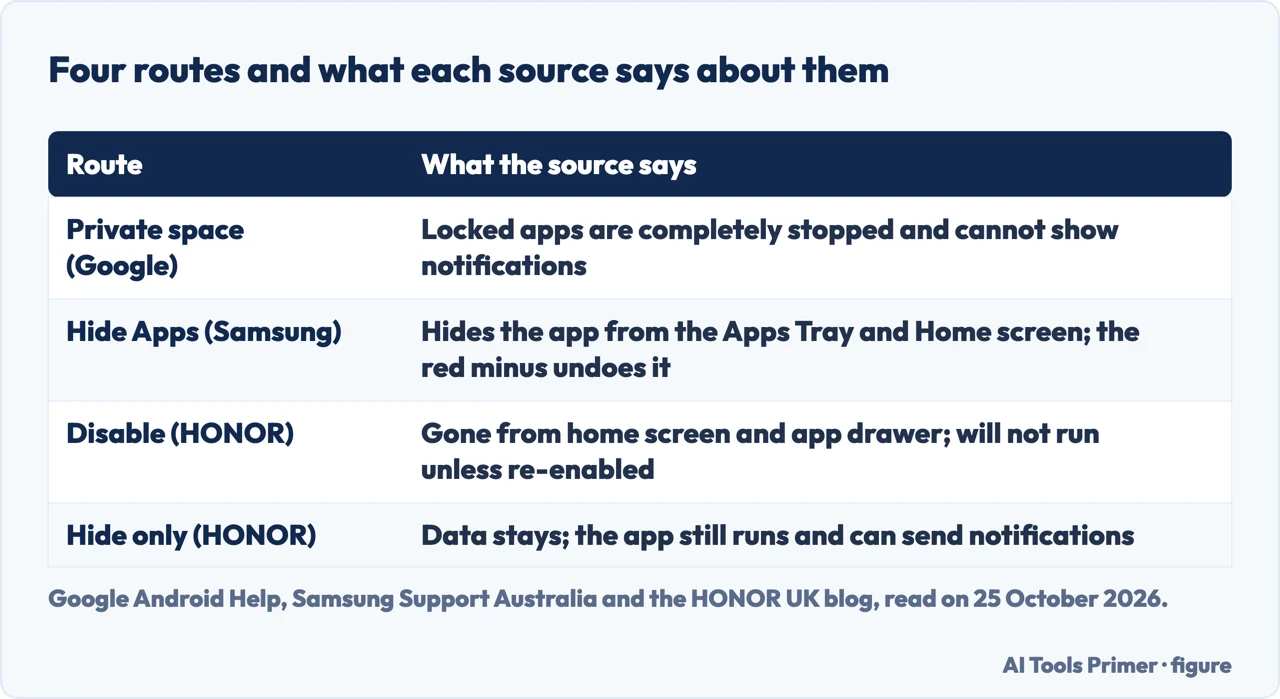
| What happens to apps when it is locked? | They are completely stopped and cannot show notifications | Android Help |
| How does a Samsung Galaxy do it? | Press and hold the Home screen, tap Settings, then Hide Apps | Samsung Support Australia |
| Does hiding delete the app’s data? | HONOR says it does not, and that the app can still send notifications | HONOR UK blog |
| Can the hiding be discovered? | Google lists cases in which private space cannot be hidden | Android Help |
Google’s route: private space
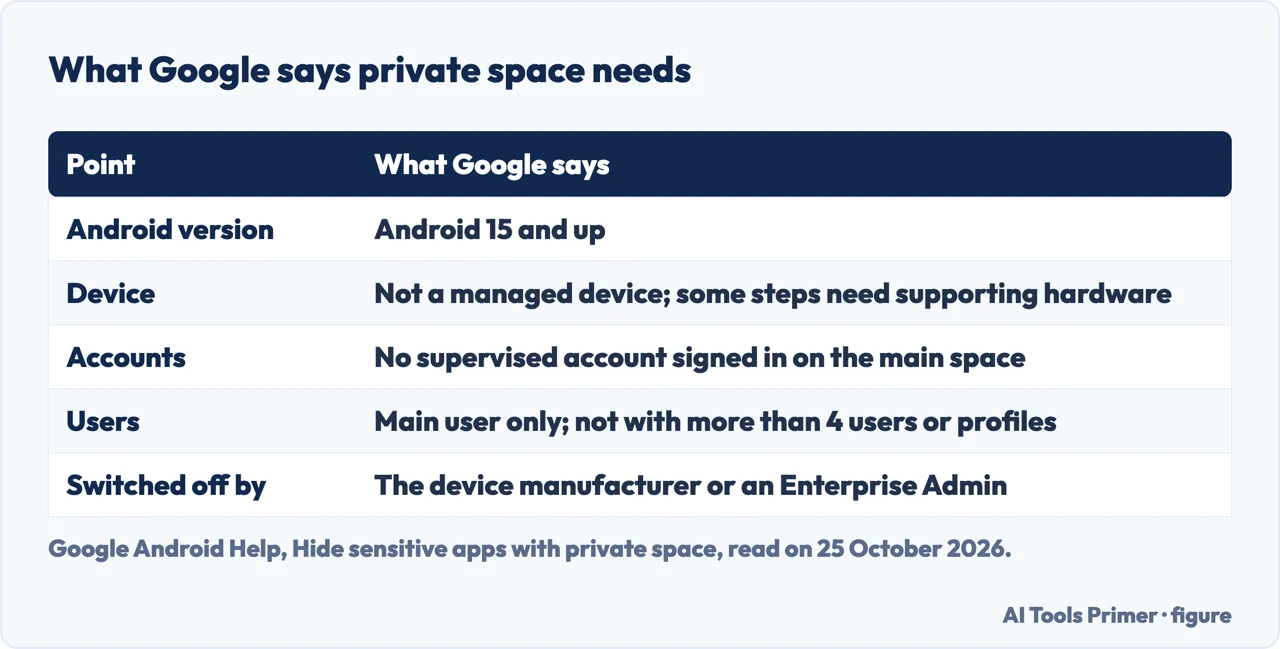
Google’s Android Help page on hiding sensitive apps with private space says you can use it when your device runs Android 15 and up and is not a managed device, and when no supervised account is signed in on the main space. You cannot use it when the device manufacturer or an Enterprise Admin has disabled it, within a secondary user, or when your device has more than 4 users or profiles. Only the main user can use it. The android.com article on private space gives the same version, Android 15 or later, and says to check it under Settings, then About phone, then Android version.
The setup steps on Google’s page are to open Settings, tap Security & privacy, and under Privacy tap Private space, authenticate with your screen lock, and tap Set up. You can then sign in to a Google Account, and Google recommends a different one for the private space, because data such as synced photos, emails, browsing history and saved passwords from an account used elsewhere can be available outside the private space. You then choose a lock: the device screen lock or a new one. The android.com article puts the result at the bottom of the app drawer, where a lock icon hides or reveals the apps.
Google warns that in some cases you cannot hide the existence of private space from others who install apps on your phone, from others who can connect your device to a computer, including Android Debug Bridge (adb) access, or from other apps which can detect it. Some launcher apps may not support it, and private space apps bypass the virtual private network on the device.
Locking, hiding the container and installing apps
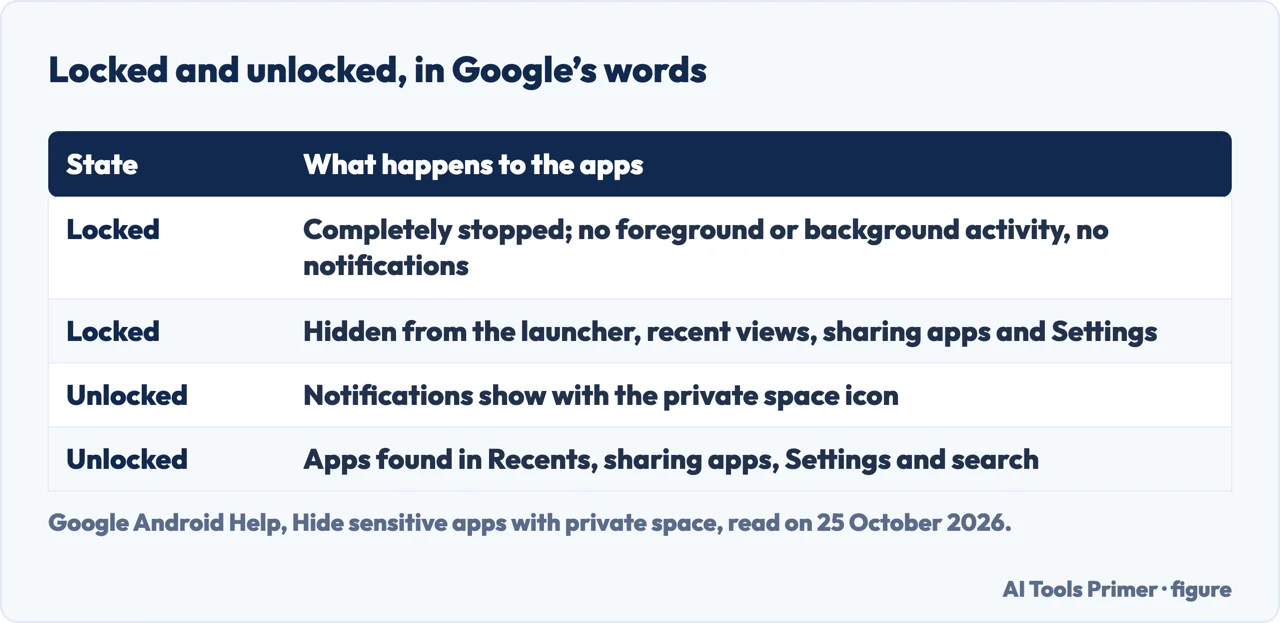
Hiding happens when the space is locked. Google says that locked apps are completely stopped, so they cannot perform foreground or background activities such as showing notifications, and are hidden from the launcher, recent views, sharing apps like photopicker and Settings, and not searchable in the quick search bar. When it is unlocked, notifications arrive with a private space icon and the apps appear in those places. You can lock it from the Private space row at the bottom of All Apps, or set it to lock automatically: every time the device locks, 5 minutes after the screen timeout, or only after the device restarts.
The container itself can also be hidden. Under the private space settings, tap Hide private space when it’s locked and turn it on; Google says this does not hide it right away but the next time you lock it. Google says the search result may show “Private space: Tap to set up or open” even if you have not set one up, so other users cannot tell whether you have one. To put an app in, touch and hold it in All Apps and tap Install app in Private space. Google says the new instance of the app is installed and that the previous instance is not copied or modified, and that private space does not let you move an app’s data from the main space. It also says you cannot add widgets and shortcuts to the home screen from it.
Samsung: Hide Apps on the Home and Apps screens
Samsung’s support page, updated on 20 August 2026 and written for Galaxy devices sold in Australia, starts from apps you cannot uninstall: if you want fewer apps in your Apps Tray and Home screen but cannot remove pre-installed ones, you can consider disabling or force-stopping the app and hiding it. The steps are to press and hold the Home screen, tap Settings, select Hide Apps, tap the application you want to hide, and select Done. To bring an app back, tap the red minus beside it in the hidden list and then Done. Samsung points to a separate guide, Using Secure Folder, for storing apps and information in a protected place.
Samsung’s page does not mention notifications or whether a hidden app keeps running; the next section and Google’s page above do.
What HONOR’s guide adds, and where it differs from Google
The HONOR UK blog lists several routes. Open Settings, search for “Hide apps” or look under Home screen options, and select the apps to hide. It names Nova Launcher and an app called App Hider that hides apps behind a disguised icon, a secure folder, a guest user profile, and disabling an app through Settings, then Apps, then Disable. Disabling an app removes it from the home screen and prevents it from running in the background, and the app will not run unless re-enabled. For HONOR phones it describes PrivateSpace: in Settings, scroll to PrivateSpace, enable it, set a separate password and fingerprint, and download the apps you want to hide from the Play Store inside it. To get back in, go to Settings, then Security & privacy, then PrivateSpace and enter the password.
The blog also says hiding an app does not delete its data, and that it does not stop notifications: the app still runs in the background and sends them unless you disable them in the app’s settings. Google’s page says the opposite for a locked private space, where apps are completely stopped. The two statements are about different features, an icon hidden from the home screen and a separate space, and the blog’s page carries no date that we could read. The EyeFi forum thread in the results was not used for lack of a date. For the iPhone versions see hiding apps on an iPhone and unhiding them.
Where to start
Four ways in.
- “Google’s way.”
- Private space — private space
- “Hide it for good.”
- Locking and the container — locking
- “On a Galaxy.”
- Samsung’s Hide Apps — samsung
- “What do they disagree on?”
- HONOR and Google — honor
Android apps and hiding
The iPhone versions and more Android pages.
Questions people also ask
How do I hide any apps from my Home screen?
On a Samsung Galaxy, press and hold the Home screen, tap Settings, select Hide Apps, tap the app and select Done, as Samsung’s support page says. Google’s route is private space.
How can I hide hidden apps?
In Google’s private space settings, turn on Hide private space when it’s locked. It takes effect the next time you lock the space.
Can you hide an app on your phone without deleting it?
Yes: HONOR says hiding does not delete an app’s data. Google’s private space installs a new instance and says the previous one is not copied or modified.
How can I see hidden apps on my phone?
Samsung lists them in the Hide Apps screen, Google says to unlock private space from All Apps or Settings, and HONOR says to go to Settings, Security & privacy, then PrivateSpace.
Not covered here. We did not try the steps on a phone. The statements come from Google’s Android Help page on private space and the android.com article, Samsung Support Australia (updated 20 August 2026, written for Australian Galaxy devices) and the HONOR UK blog, used for what they claim. Menus differ by maker and Android version, so a phone may not match.
The EyeFi forum thread, Reddit and Quora were not used. Third-party app hiders, Secure Folder, guest profiles and work profiles are not covered beyond what the pages above say.
The search volume and difficulty behind this page were read in Semrush on 29 August 2026.
Sources
- Android Help — Hide sensitive apps with private space — support.google.com, read 25 October 2026.
- Android — How to Hide Apps & Sensitive Content with Private Space — www.android.com, read 25 October 2026.
- Samsung Support Australia — Hiding Apps on my Galaxy Device (updated 20 August 2026) — www.samsung.com, read 25 October 2026.
- HONOR UK — How to Hide Apps on Android: Complete Privacy Guide — www.honor.com, read 25 October 2026.
Written by Alberto Gulotta
Founder and editor of AI Tools Primer, writing from Palermo, Italy. Thirty-five years of taking computers apart, starting with a Commodore 64 — the long version is on the about page.
Something wrong on this page? Write to aitoolsprimer@gmail.com and it gets fixed.
Written on 25 October 2026.
Independence and limits
No affiliate links and no paid placements anywhere on this site. Nobody pays to appear here, and no company has seen this page before you did.
This is general information, not professional advice. Where a page touches money, health, safety or the law, it names its source and the date it was read — and your situation may still differ. See the privacy page and the cookie policy.