
Software · guide
How to uninstall apps on Android, and what to do when one will not go
By Alberto Gulotta · Updated · 10 min read
How to uninstall apps on Android has a short answer in Google's help article: Play Store, profile icon, Manage apps & devices, the app, Uninstall. This page sets out that route and Samsung's, the difference between deleting, disabling and archiving, and what Google and Samsung say when an app cannot be removed.
| Question | Answer | Where it comes from |
|---|---|---|
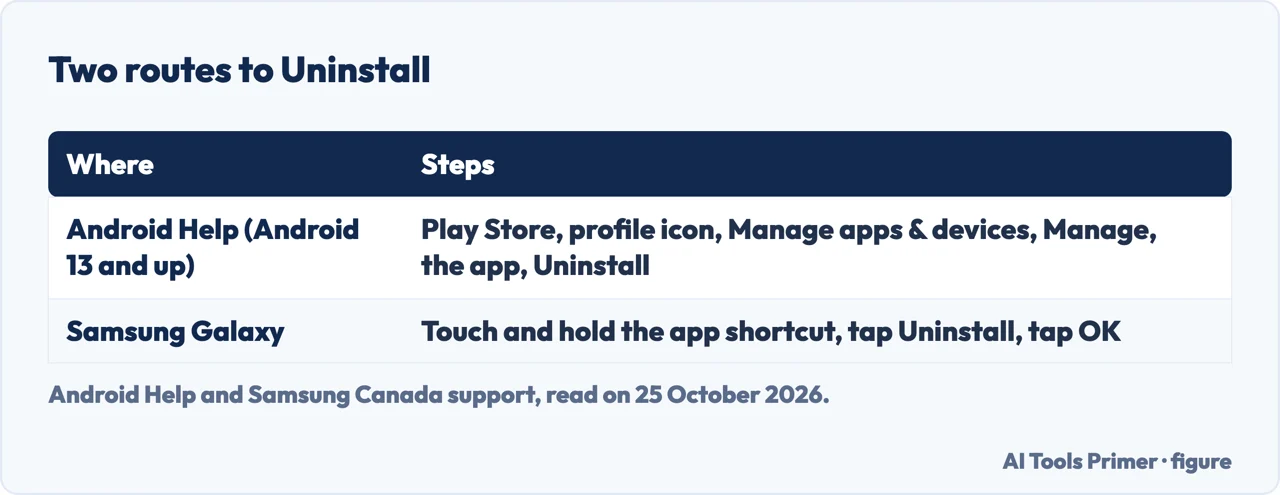
| How do I uninstall an app I installed? | Play Store, profile icon, Manage apps & devices, Manage, the app, Uninstall | Android Help |
| On a Samsung Galaxy? | Touch and hold the app shortcut, tap Uninstall, tap OK | Samsung Canada |
| What is disabling? | It hides the app, stops it running and updating, and keeps it on the phone | android.com |
| Why won’t some apps go? | Some system apps cannot be deleted; some phones allow turning them off | Android Help |
| Can I get it back? | Yes: reinstall it, or re-enable a disabled one in Settings, Apps | Android Help; Samsung Canada |
The route in Google’s help
Android Help’s article on deleting apps says some of its steps work only on Android 13 and up. To delete an app that you installed, open the Google Play Store app, tap the profile icon at the top right, tap Manage apps & devices and then Manage, select the name of the app, and tap Uninstall. The article adds that if you delete or disable an app you can add it back to your phone, and that if you bought the app you can reinstall it without buying it again. It also says you can archive apps that you have not used for a while: archiving removes the app data but keeps the app icon and your personal data on the device.
On a Samsung Galaxy
Samsung Canada’s page on managing apps gives a shorter route for a downloaded app: find the app, touch and hold its shortcut for a few seconds, tap Uninstall, and tap OK to confirm. It notes that uninstalling removes the app from the Galaxy and frees up storage space, and that if you reinstall the app later from the Play Store or Galaxy Store you may need to sign in again or reconfigure its settings. Samsung’s US page gives the same gesture from the Apps screen: swipe up or down from a Home screen, touch and hold the app and tap Uninstall. Samsung Canada also describes a separate option for troubleshooting, Uninstall updates, which returns some apps to the version originally installed on the phone.
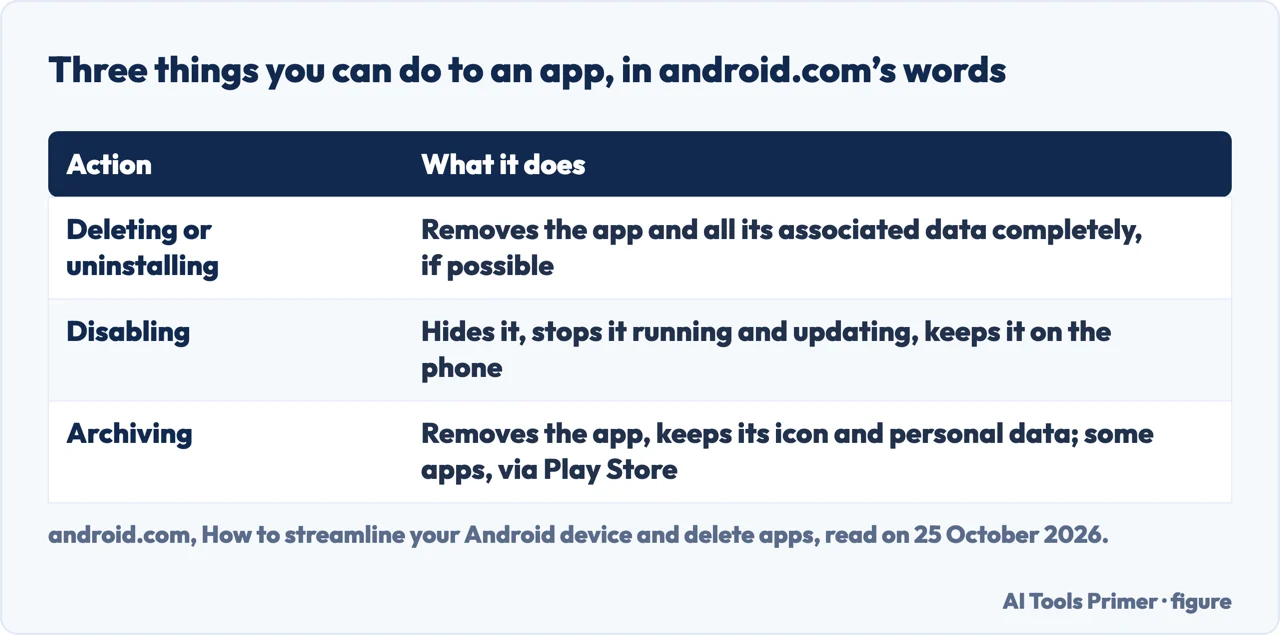
Delete, disable or archive
The android.com article lays out three actions that affect app storage differently. Deleting or uninstalling removes the app and all its associated data completely, if possible. Disabling hides the app from the home screen, prevents it from running or updating, and stops it using system resources, but keeps it on the phone, where you can still find it in settings and re-enable it. Archiving removes the app from the device but keeps the icon and personal data, so reinstalling is easy; archived apps stay visible but need a download to work again, and the article says the option is available for some apps through the Play Store. Samsung Canada makes the same distinction in its own words: disabling prevents an app from running and removes it from the Apps screen, but the app remains installed.
The android.com article lists four ways to disable an app: a long-press on the icon and the Disable option; the app’s listing in the Play Store, where an enabled app shows buttons to Uninstall or Disable it; Settings, then Apps or Apps & Notifications, then the app and Disable; and Safe Mode, which it describes as useful for disabling apps that interfere with the device and entered by pressing and holding the power button, then long-pressing the power-off option and confirming the restart. It tells you to back up the phone before significant changes. To get a disabled app back, see the section below, or hiding apps on Android when the goal is only to get an app out of sight.
When an app will not go
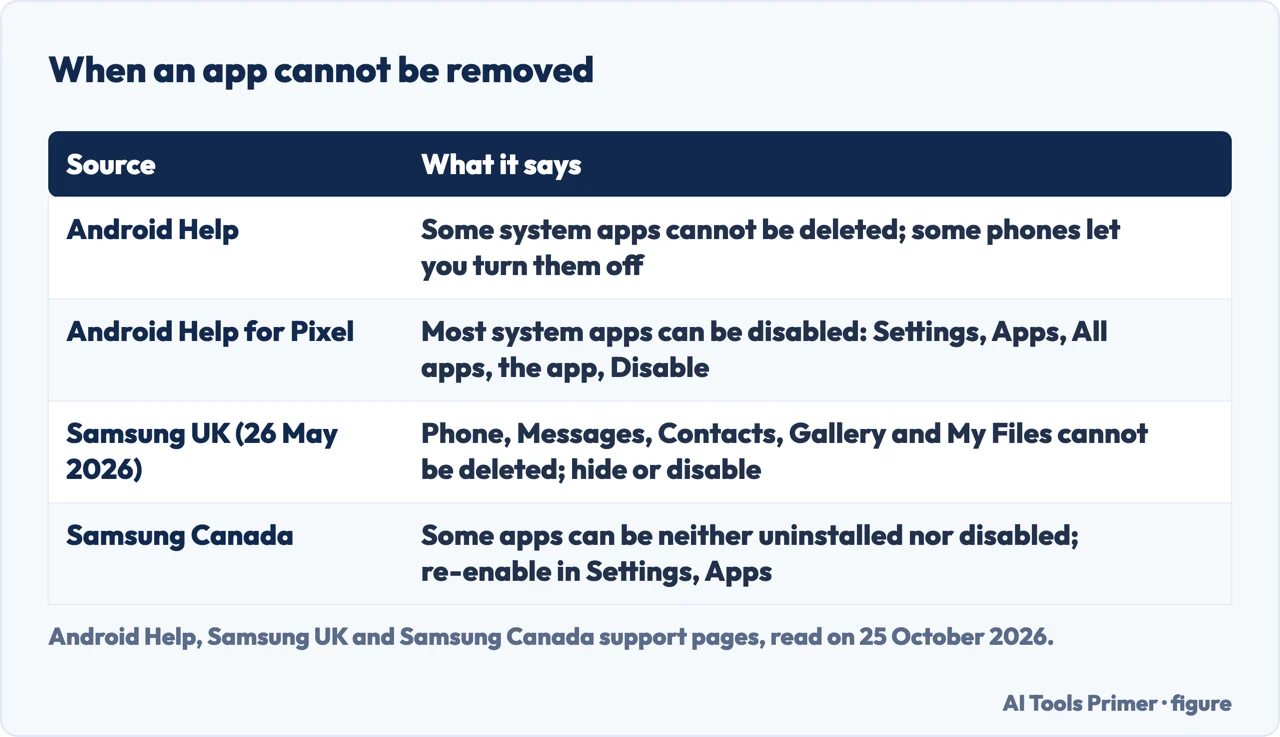
Android Help says you cannot delete some system apps that came pre-installed, but that on some phones you can turn them off so that they do not show in the list of apps, and it sends you to your device manufacturer for how. The Pixel version of the article is more specific: most system apps on a Pixel can be disabled, by opening Settings, then Apps, then All apps, then the app, and choosing Disable. The android.com article explains why some stay: some system apps are tightly connected to Android’s core features, such as logging in to a Google Account, syncing across apps and receiving security patches, and removing them could break key parts of the phone’s functionality.
Samsung UK’s page, updated on 26 May 2026, says some pre-installed apps can be deleted but essential ones such as Phone, Messages, Contacts, Gallery and My Files cannot, because they are required for basic functions. For those, it says the hide-apps option is available for every pre-installed app, while the disable option is available only for some. Samsung Canada gives the disable steps: touch and hold the shortcut, tap Disable, and tap Disable again; to enable it later, open Settings, tap Apps, select the app and tap Enable. It adds that some apps cannot be uninstalled or disabled because the phone needs them to operate. The pages we read give no other reason for an app that will not uninstall.
Apps you stopped using
Android Help also describes what Android does with apps you have not used for a long time: it deletes temporary files to free up space, stops the app running in the background, and stops it sending notifications. To review them, go to Apps, then Unused apps; to exclude an app, open its App info, then Unused apps, and turn off Pause app activity if unused. For the space side of removing apps see clearing the cache on Android, and for an app that keeps stopping rather than staying, apps crashing on Android. On an iPhone the same question is deleting apps, and on a Mac, deleting apps on a Mac.
What we did not read
Menus differ by Android version and maker; Android Help flags that some steps need Android 13 or later, and the Samsung pages we read are written for Galaxy phones. We did not run any of these steps on a phone. The guides from wikiHow, CNET, Asurion and How-To Geek in the results, and the Play Store listing page, were not read.
Where to start
Four ways in.
- “Just the steps.”
- Google’s route — google
- “I have a Samsung.”
- On a Galaxy — samsung
- “Delete or disable?”
- The three actions — differences
- “It will not go.”
- When an app will not go — wont
Apps on Android
Hiding, clearing and the ones that crash.
The same job elsewhere
Missing apps, iPhone and Mac.
Questions people also ask
How do I completely uninstall an app on Android?
Android Help: Play Store, profile icon, Manage apps & devices, Manage, the app, Uninstall. android.com says deleting removes the app and all its associated data completely, if possible.
How do I remove an app that won’t uninstall?
If it is a system app, Google says it may only be possible to turn it off; on a Pixel, Settings, Apps, All apps, the app, Disable. Samsung offers hide for any pre-installed app and disable for some.
How do I uninstall unwanted apps on my Samsung phone?
Samsung Canada: touch and hold the app shortcut, tap Uninstall, tap OK. Preloaded apps that cannot be uninstalled may be disabled instead.
Why can’t I uninstall certain apps on Android?
android.com says some system apps are tightly connected to core features such as the Google Account and security updates, and removing them could break key parts of the phone; Samsung says some are required for the phone to operate.
Not covered here. We tested no step on a phone. The statements come from Android Help (deleting, disabling, unused apps; read in Chrome for the deleting article), android.com, Samsung Canada, Samsung US and Samsung UK (updated 26 May 2026), all read on 25 October 2026.
The wikiHow, CNET, Asurion and How-To Geek pages in the results and the Play Store listing page were not used. The search volume and difficulty behind this page were read in Semrush on 29 August 2026.
Sources
- Android Help — Delete apps on your Android device — support.google.com, read 25 October 2026.
- Android Help — Disable apps that came with your Android device — support.google.com, read 25 October 2026.
- Pixel Phone Help — Disable apps that came with your Android device — support.google.com, read 25 October 2026.
- Android Help — Manage unused apps on your Android device — support.google.com, read 25 October 2026.
- android.com — How to streamline your Android device and delete apps — www.android.com, read 25 October 2026.
- Samsung Canada — Manage apps on your Samsung Galaxy — www.samsung.com, read 25 October 2026.
- Samsung US — Manage apps on your Galaxy phone or tablet — www.samsung.com, read 25 October 2026.
- Samsung UK — How to delete pre-installed apps on your Samsung Galaxy device (updated 26 May 2026) — www.samsung.com, read 25 October 2026.
Written by Alberto Gulotta
Founder and editor of AI Tools Primer, writing from Palermo, Italy. Thirty-five years of taking computers apart, starting with a Commodore 64 — the long version is on the about page.
Something wrong on this page? Write to aitoolsprimer@gmail.com and it gets fixed.
Written on 25 October 2026.
Independence and limits
No affiliate links and no paid placements anywhere on this site. Nobody pays to appear here, and no company has seen this page before you did.
This is general information, not professional advice. Where a page touches money, health, safety or the law, it names its source and the date it was read — and your situation may still differ. See the privacy page and the cookie policy.