
Software · guide
How to search a picture on Google on Android, four ways
By Alberto Gulotta · Updated · 8 min read
How to search a picture on Google on Android has four routes in Google's own pages: Google Lens from the Google or Chrome app, a touch and hold on a web image, Google Lens inside Google Photos, and Circle to Search on selected phones. This page sets out each with Google's steps and what each is for.
| Question | Answer | Where it comes from |
|---|---|---|
| From the Google or Chrome app? | Tap Google Lens in the search bar, then take a photo or upload one | Google Search Help |
| An image on a web page? | Touch and hold it, then tap Search image with Google Lens | Google Search Help; Chrome Help |
| A photo in Google Photos? | Open it, tap More, then Google Lens | Google Search Help |
| Anything on the screen? | Circle to Search: long-press the Home button or the navigation handle | android.com |
| Part of an image? | Drag the corners of the box; a smaller area gives more specific results | Google Search Help |
From the Google or Chrome app
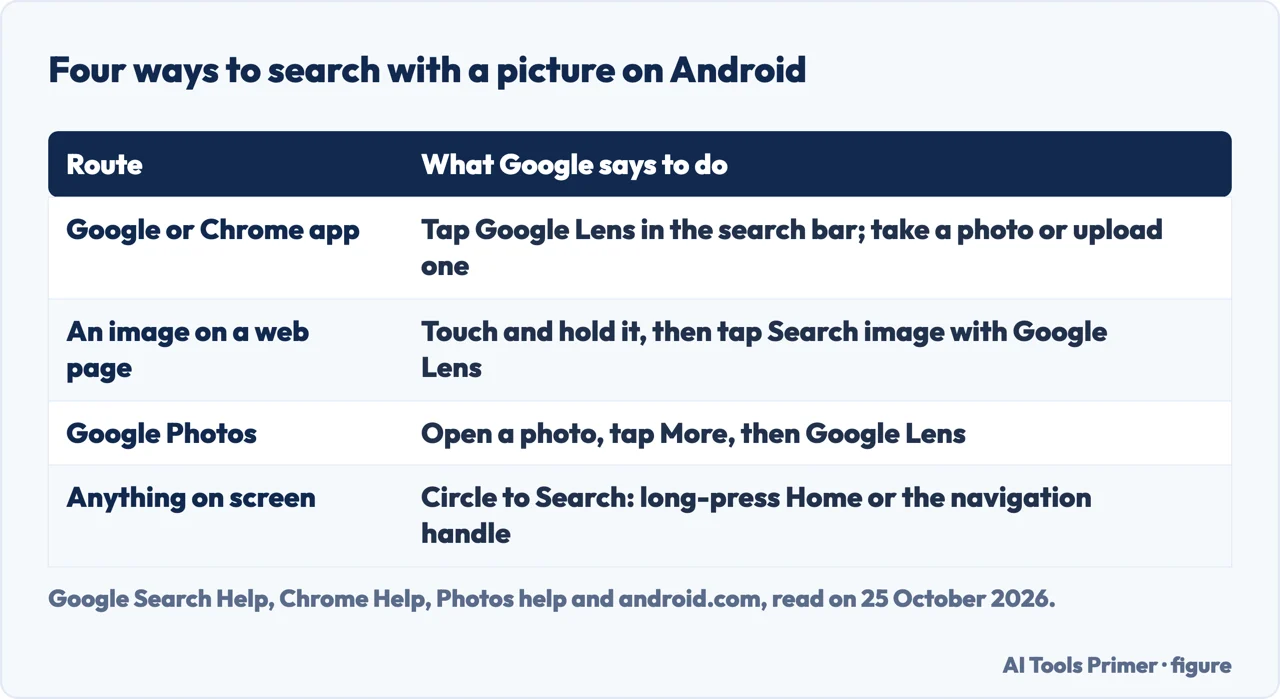
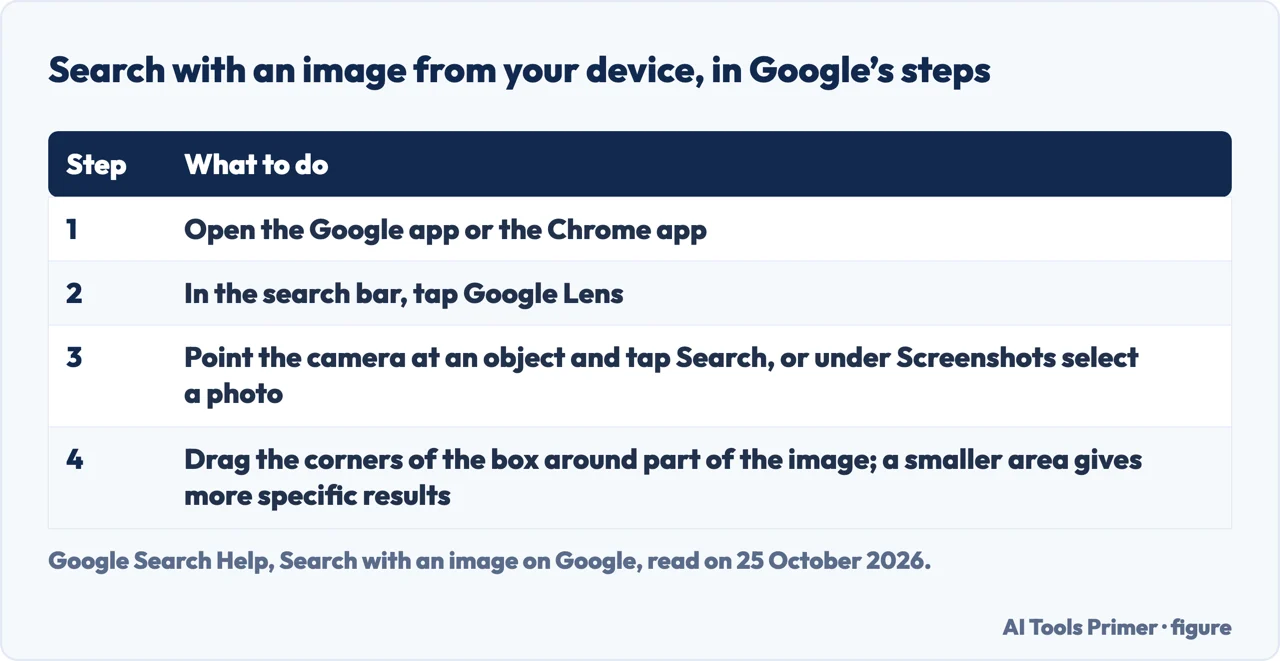
Google Search Help’s Android article says to open the Google app or the Chrome app and tap Google Lens in the search bar. To take a photo, point the camera at an object and tap Search; to ask a question about the object by voice, press and hold the Shutter button, which Google says is available only for English queries. To upload an existing image, select a photo under Screenshots. Then drag the corners of the box around the part of the image you want, scroll at the bottom for results, and tap Ask about this image to refine the search; Google’s tip is to select a smaller area for more specific results. The same article starts from google.com instead: on your Android phone or tablet, go to google.com and tap Google Lens at the bottom left. Chrome Help’s Android article adds that the same Lens button reads a QR code or a barcode: position it in the box and tap the link that pops up.
An image on a web page
For a picture you are looking at, Google Search Help says to go to the website in the Google app or Chrome app, touch and hold the image, and tap Search image with Google Lens; Chrome Help gives the same gesture. Google adds an important condition for the Chrome app: to search with a website image there, make Google your default search engine. After the Lens panel opens you can drag the corners of the box to search part of the image, and tap Ask about this image to refine it.
A photo in Google Photos
Google Search Help’s article on getting info about your photos says to open the Google Photos app, tap More at the top and then Google Lens. Based on the photo you can check details, take an action or find similar products, and Google lists what it does with several kinds of photos: apparel and home goods, barcodes, business cards, books, event flyers, landmarks, museum paintings and plants or animals. To copy text from the photo, tap and select the words. Google says Lens can translate text into all Google Translate languages, and the same article lists the countries where shopping results are available. That article is about using Lens on a photo; it does not describe searching your photo library by keyword, which is the other thing the question asks about Google Photos.
Circle to Search
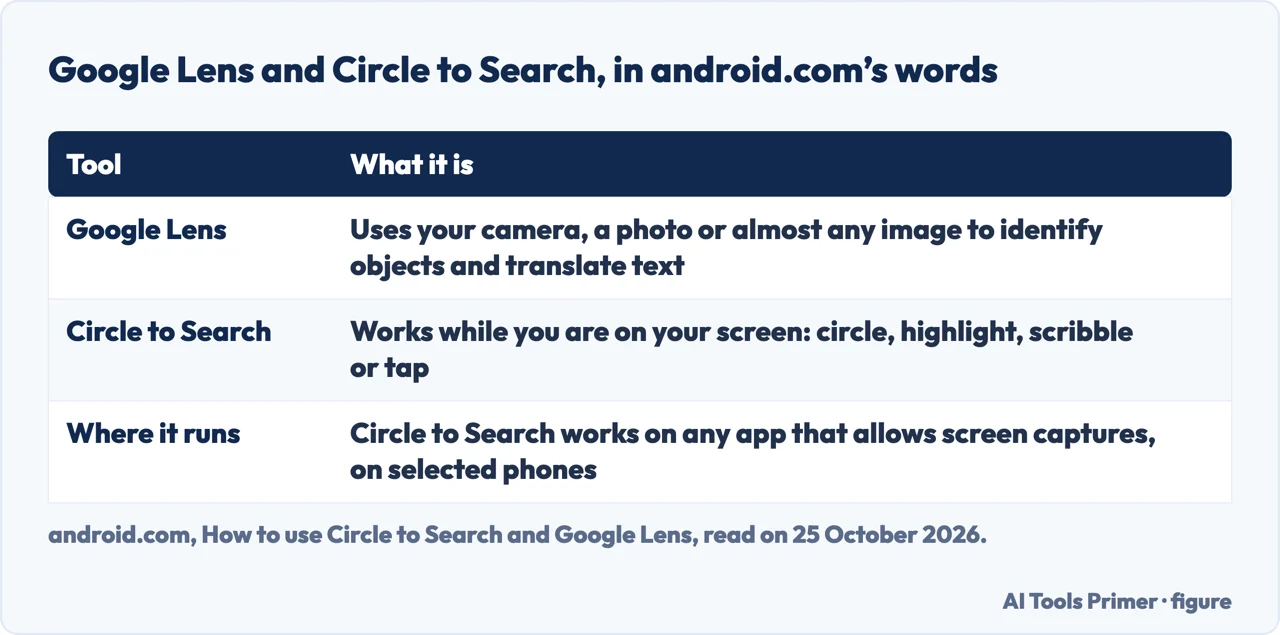
The android.com article separates the two tools. Google Lens helps you search the world around you using your camera, a photo or almost any image; Circle to Search works while you are on your screen. It says Circle to Search is a quick way to reach Google Lens, that you circle, highlight, scribble or tap on the screen, and that it works on any Android app that allows screen captures. It is available on selected phone models. With three-button navigation you long-press the Home button, and with gesture navigation you long-press the navigation handle. Once it is open, circle, highlight, scribble or tap the text, image or video you want to search; on selected devices a translate button next to the search bar translates the whole screen, and a musical note searches for music playing. The article also tells you how to find Lens on the phone: some phones put a Lens icon or mode in the Camera app, Google Assistant has a Lens icon on most Android phones, and the Google app shows a Lens icon in its search bar on some. Chrome Help adds that on select Android devices you can search a page, including Chrome, with Circle to Search.
What we did not use
The android.com article we read is the edition for India, and Google says product availability, features and specifications vary by region, carrier and device. The Android articles from Search Help and Chrome Help are written for Android phones and tablets in general, so a button may be labelled differently on your phone. We did not run any of these routes. The Lens product page returned no usable text, a blog on image search was read and not used, and the Google Images page, a second blog and the Play Store listing were not read. For taking and saving a screenshot first, see screen capture on an Android, and for copying text you have found, the clipboard on Android.
Where to start
Four ways in.
- “With the camera or a screenshot.”
- The Google app — app
- “A picture on a website.”
- A web image — web
- “A photo I took.”
- Google Photos — photos
- “Something on the screen.”
- Circle to Search — circle
On the Android screen
Copying, capturing and finding things.
Around the Android phone
Apps, trays and the keyboard.
Questions people also ask
How can I search using a photo on Google?
Open the Google or Chrome app, tap Google Lens in the search bar, then take a photo or choose one under Screenshots; or touch and hold an image on a web page and tap Search image with Google Lens.
Can I put a photo into Google to search?
Yes, through Lens: on Android Google says to select a photo under Screenshots after tapping Google Lens in the search bar. From google.com you tap Google Lens at the bottom left.
How do I turn on Google Lens on Android?
Android.com shows where to find Lens: the Google app search bar, Google Assistant and, on some phones, the Camera app.
How do I search for a specific photo on Google Photos?
The Google Photos article we read covers using Lens on a photo: open it, tap More, then Google Lens. It does not describe searching your library by keyword.
Not covered here. We tested no route on a phone. The statements come from Google Search Help (searching with an image, and info about your photos), Chrome Help for Android and the android.com article on Lens and Circle to Search (the edition for India), all read on 25 October 2026.
The Lens product page, the blogs, the Google Images page and the Play Store listing in the results were not used. The search volume and difficulty behind this page were read in Semrush on 29 August 2026.
Sources
- Google Search Help — Search with an image on Google (Android phone & tablet) — support.google.com, read 25 October 2026.
- Google Chrome Help — Search with Google Lens in Chrome (Android phone & tablet) — support.google.com, read 25 October 2026.
- Google Search Help — Get info about your photos & surroundings (Android phone & tablet) — support.google.com, read 25 October 2026.
- android.com — How to use Circle to Search and Google Lens (edition for India) — www.android.com, read 25 October 2026.
Written by Alberto Gulotta
Founder and editor of AI Tools Primer, writing from Palermo, Italy. Thirty-five years of taking computers apart, starting with a Commodore 64 — the long version is on the about page.
Something wrong on this page? Write to aitoolsprimer@gmail.com and it gets fixed.
Written on 25 October 2026.
Independence and limits
No affiliate links and no paid placements anywhere on this site. Nobody pays to appear here, and no company has seen this page before you did.
This is general information, not professional advice. Where a page touches money, health, safety or the law, it names its source and the date it was read — and your situation may still differ. See the privacy page and the cookie policy.