All Apps
phone“Swipe up from the bottom of your screen to the top. If you get All Apps, tap it.” The swipe goes all the way. Google’s stated guide for the page: “Important: Some of these steps only work on Android 14 and up.”

Software · guide
By Alberto Gulotta · Updated · 11 min read
Application tray Android is a search that tends to end badly in the official help, and the reason is not the phone. It is the word. Neither application tray nor app drawer — the other name for the same screen — appears anywhere on the Google pages that describe it.
Google’s name for that screen is All Apps: “You’ll find some apps on your Home screens, and all your apps in All Apps.”
On the article text of four Google support pages read for this — the Android page on finding apps, the Pixel gestures page, the Pixel Tablet page and the page on adding and removing apps — the words “drawer” and “tray” appear zero times. That is a count of the published article body on those four pages, not an impression.
So the search fails for a reason that has nothing to do with the phone: you are searching the manufacturer’s documentation for a word the manufacturer does not use. Type “All Apps” instead and the same pages become findable.
Once the name is right, the instruction is short — and it contains a distinction that explains most of the frustration with this screen, because two different surfaces open from the same swipe.
All Apps
phone“Swipe up from the bottom of your screen to the top. If you get All Apps, tap it.” The swipe goes all the way. Google’s stated guide for the page: “Important: Some of these steps only work on Android 14 and up.”
Recent apps
the same swipe“From the bottom of your screen, swipe up slightly, then hold. When you feel a vibration, let go.” Same finger, same edge — the pause is the whole difference, and Google names a vibration as the signal to release.
On a tablet
pixel tablet“Swipe up from the middle of your Home screen to the top.” Not from the edge. And a different guide: “Important: Some of these steps work only on Android 15 and up.”
Read the first two cards side by side. A swipe that arrives at the top of the screen gives you every app; a swipe that stops short and holds gives you the ones you were just using. It is the same finger starting in the same place, and the only thing separating the two outcomes is whether you paused. Google puts a physical signal on the second one — “when you feel a vibration, let go” — which is the detail worth having, because it turns a matter of timing into a thing you can feel.
The third card is the one people get caught by after buying a tablet. The gesture is not the same as on the phone: it starts from the middle of the Home screen rather than from the bottom edge, and Google states a different minimum version for the tablet page than for the phone page — Android 15 rather than Android 14. Same company, same screen, two published guides.
Now the question this page exists for, which is the one Google does not answer: how to get rid of the thing.
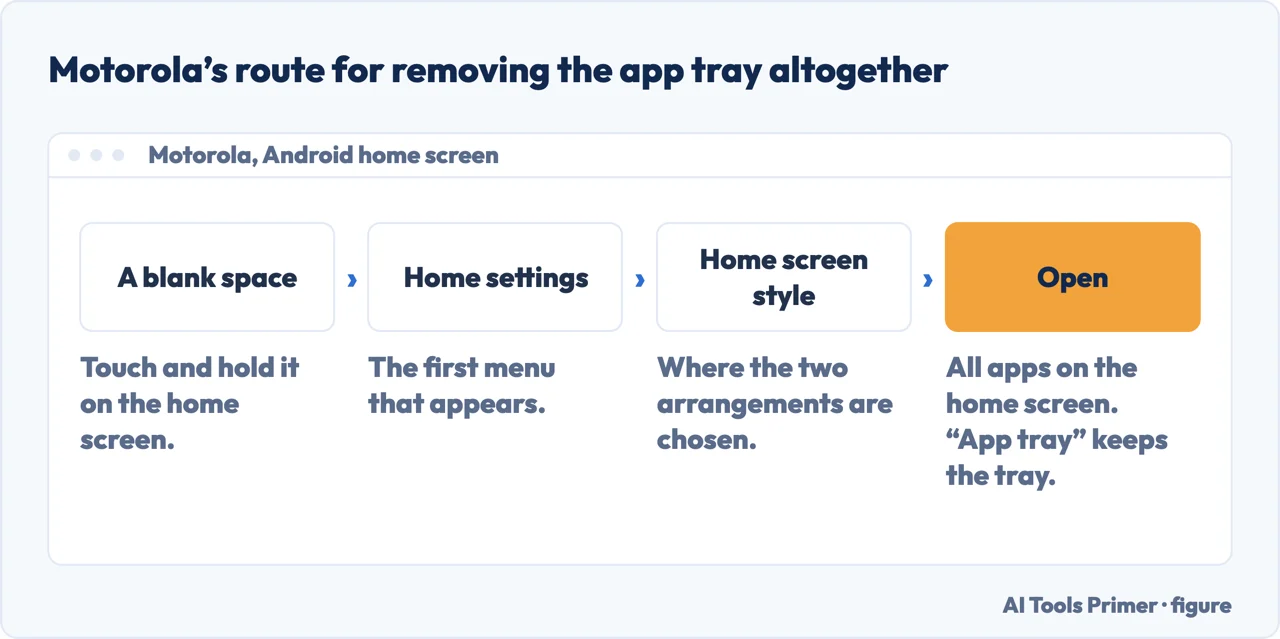
Motorola, whose support page for this uses the phrase “app tray” eight times: “Choose where to find apps: app tray or home screen”. “The app tray holds all of your installed apps. Swipe up from the bottom of the home screen to open the tray. … To see all apps on your home screen instead, you can remove the app tray. You can switch at any time.”
The route it publishes: “Touch & hold a blank space on your home screen. Tap Home settings > Home screen style and then:” — “to see all apps on your home screen, tap Open”, or “to see all apps in the app tray, tap App tray”. This is the answer to “how do I get rid of it”, and it is not on Google’s pages at all — which is consistent, because Google does not describe the screen as an optional layer. The word in the search is a manufacturer’s word, and so is the setting.
Two smaller published facts that belong here, because both come up immediately after somebody finds this screen. The first, for anyone whose work account is on the phone: “if you’re using a Google Account for work or school, you’ll find your apps in a ‘Work’ tab.” A work tab is not a fault: apps that seem to be missing are frequently sitting in the second tab. The second, from the same page, is a statement rather than a tip: “Even if you don’t close apps, you won’t run out of memory or battery. Android manages these automatically.” That is Google contradicting, in one line on its own page, the habit of swiping everything shut.
And a limit that saves a wasted minute: “Some apps, like Google Play services or system apps, can’t be stopped.” If one refuses to close, that is the documented reason.
A note on where this question gets answered. The first page of results for it is built entirely on the two words Google does not use — a glossary entry from a hardware maker, two launcher apps on the Play Store, a technology site, a social post and one manufacturer support page. Google’s own documentation does not appear on it. That is the whole problem in one screenshot: the search term and the documentation are in different vocabularies, and the pages that rank are the ones that adopted the searcher’s word.
What this page will not do is recommend a launcher. Replacing the home screen with a third-party launcher is a real answer to some of these complaints; none of those launchers has been tested here.
It will not give you a single path to the setting. It is Motorola’s path, quoted from Motorola. Other manufacturers arrange this differently, and where this page has not read the documentation it does not pretend to have.
And it will not tell you the tray can be removed on your phone. Motorola publishes that switch; Google documents no equivalent, and an absence in Google’s pages is not evidence about yours.
Three ways in. If the help pages seem to have nothing on this, take the first.
Google says All Apps. On four of its pages the words drawer and tray do not occur at all, which is why searching for them in the help returns nothing useful.
All Apps and recent apps open from the same gesture, separated only by a pause. Google names a vibration as the moment to let go.
A published setting to show every app on the home screen instead, from a manufacturer rather than from Google. The word in the search is that manufacturer’s word too.
Not covered here. It will not recommend a launcher, although one may well be the right answer for you. Nothing here has been tested.
It will not generalise Motorola’s setting to every Android phone. It is quoted from Motorola’s support page and it is Motorola’s arrangement.
It will not tell you which apps to close to save battery. Google states on its own page that closing them is unnecessary, and that sentence is more useful than any list.
And it carries no affiliate links, including for the launchers and customisation apps that this exact search sells rather well. What holds instead is simple: the gestures are quoted from Google and the setting that removes the tray from the manufacturer that publishes it, with the counts retaken on 24 August 2026.
Four symptoms with overlapping causes, and the buttons that address all of them.
Written by Alberto Gulotta
Founder and editor of AI Tools Primer, writing from Palermo, Italy. Thirty-five years of taking computers apart, starting with a Commodore 64 — the long version is on the about page.
Something wrong on this page? Write to aitoolsprimer@gmail.com and it gets fixed.
Written on 23 August 2026 · last checked 23 September 2026.
Independence and limits
No affiliate links and no paid placements anywhere on this site. Nobody pays to appear here, and no company has seen this page before you did.
This is general information, not professional advice. Where a page touches money, health, safety or the law, it names its source and the date it was read — and your situation may still differ. See the privacy page and the cookie policy.