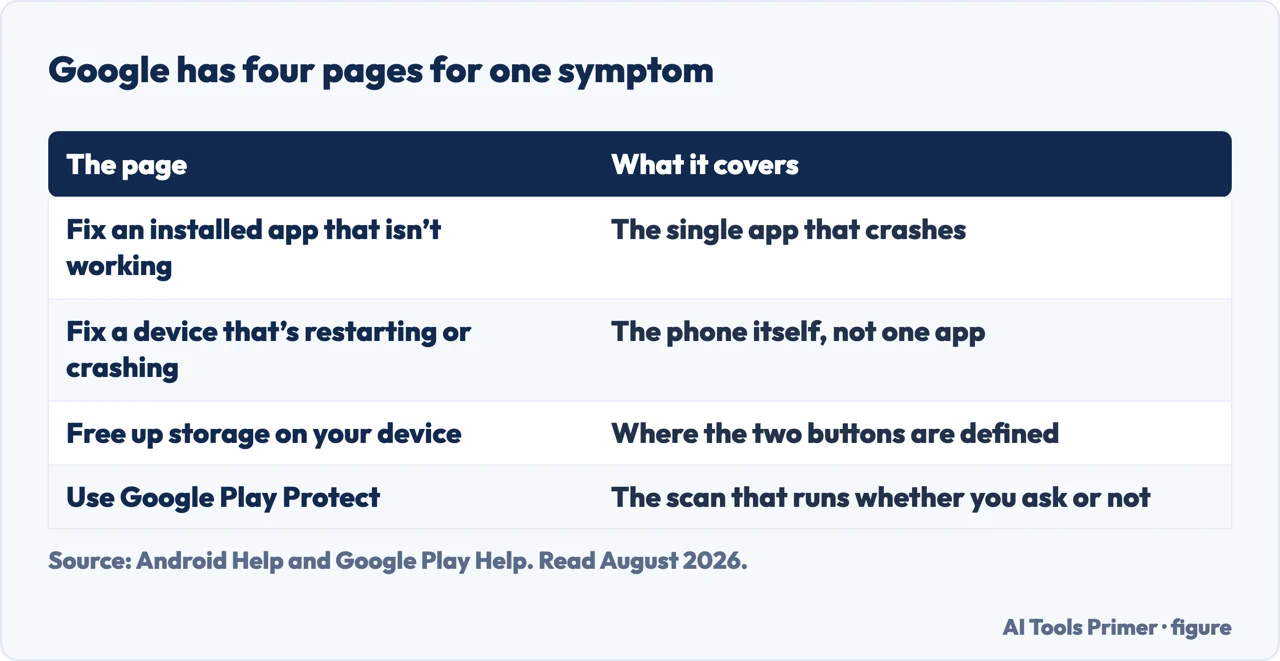
Apps are crashing on Android has an official answer, and the awkward part is that Google has four of them. Four separate support pages cover this symptom, and the one this question usually lands on is the only one with no numbers in it at all.
The app page
android 8.1 and up
Where this question lands. Restart, update, force stop, cache and data, clock sync,
uninstall.
Counted on the article text: the word storage appears zero times, and
Play Protect zero times. No free-space figure anywhere.
The crashing page
android 6.0 and up
Opens with checking storage, and carries the only threshold Google publishes for this
family.
“Your phone can start having issues when less than 10% of storage is
free.”
The freezing and slow pages
android 8.0 and up
Both carry the same sentence, word for word, including the same 10 per cent.
Three device pages with the figure; the page about apps not working without it.
The storage page
android 14 and up
The only place Google defines what the two buttons actually do — and the only page in
the group whose stated guide is Android 14.
One symptom, four official pages. Figure drawn by AI Tools Primer.
Read the first two cards together. The page written for an app that is not working covers the right steps — restart, update, force stop, clear cache and data, uninstall — and never mentions storage. The page written for a phone that is crashing opens with storage and gives the figure. Same symptom, and the free-space check is on one page and not the other.
Ten per cent is worth taking literally, because it is the only quantity Google publishes across this whole family and it repeats it word for word on three pages. On a 128 GB phone that is about 13 GB free, which is a real amount of room rather than a rounding error.
Four pages for one symptom, four different minimum versions
Each page opens with its own note, and no two match:
“Some of these steps work only on Android 8.1 and up” (apps not working)
· “Some of these steps only work on Android 6.0 and up” (restarting or
crashing) · “Android 8.0 and up” (freezes, and slow)
· “Android 14 and up” (free up storage).
These are not four answers to four questions. They are four Google pages a person with
crashing apps can plausibly land on, and the instructions on each are guaranteed only above
a different version. On an older phone — exactly the phone whose apps crash most
— which page you found decides whether the steps are supposed to work at all.
The counts above were taken by reading each page’s article text in full and searching it,
not by impression.
Then the two buttons. Every article about crashing apps tells you to clear the cache and, if that fails, clear the data. Google defines both, once.
The two buttons everyone is told to press, defined by Google in one place:
“Clear cache: Deletes temporary data. Some apps may be slow the next time you
open them.”
“Clear storage: Permanently deletes all app data. Try to delete the data within
the app first.”
One is reversible in the sense that nothing of yours is lost; the other says
permanently and Google adds an instruction before it — try to delete the data
inside the app first. And neither definition is on the page about apps that are not
working. A reader who lands there is offered both buttons without being told that one of
them destroys the app’s contents, and has to find a fourth page to learn the difference.
Google Play Protect can act on an app by itself: “It may deactivate or remove
harmful apps from your device.” and, on what that looks like, “Disable the app
until you uninstall it.”
There is a second, quieter behaviour with a stated scope: “Google Play Protect may
reset app permissions for apps you rarely use. This feature protects devices that run on
Android versions 6.0–10. Google may reset any permissions you grant from apps that
you haven’t used for 3 months.” An app that opens and then fails to do its
job after months unused may have lost a permission rather than broken — and that is a
published behaviour with a version range and a time attached.
One more line worth having, from the storage page, because it contradicts the habit this question
usually triggers: “You don’t usually need to close apps. But if an app
isn’t responding, you can try to close or force stop the app.” Force-stopping the one
app that is misbehaving is documented; sweeping every app away is the thing Google says is
usually unnecessary.
So the order that follows from the documentation rather than from the page you happened to find. Check free space first, against Google’s own ten per cent, because that check is missing from the page this question routes to. Then force stop the single app, not all of them. Then clear the cache, which Google says only makes the app slower to open next time. Only then clear storage, which Google says permanently deletes the app’s data — and try to delete what you can from inside the app first, as Google instructs.
And if the app opens but behaves as though it has forgotten something, check its permissions before reinstalling: on Android 6.0 to 10, Google publishes that it may reset permissions for apps unused for three months.
A note on other guides, with its limit stated. Google did not return readable search results while this page was written, so this page makes no claim about what is on Google’s first page for this question.
What this page will not do is tell you which of the four Google pages is right for your phone. It gives the four declared minimum versions so you can check yours against them, which is the part none of the pages tells you about each other.
It will not recommend a cleaner or booster app. The storage figure, the two buttons and Play Protect are all already on the device, and Google states that closing apps is usually unnecessary.
And it will not tell you to factory reset. Google puts that last on its own pages, after a backup instruction, and the steps above are all free and reversible by comparison.
Where to start
Three ways in. If you have not checked free space, take the first — that page did not ask you to.
Not covered here. It will not pick one of Google’s four pages for you. It lists the four declared minimum versions instead, which is the fact none of them tells you about the others.
It will not recommend a cleaner or a booster. Everything above is already installed, and Google writes that closing apps is usually unnecessary.
It will not tell you to reset the phone. Google puts that last, after a backup, on its own pages.
And it carries no affiliate links, including for storage cards and cleaner apps, the products a guide on this subject usually exists to sell. What holds instead is simple: the four minimum versions and the two definitions were taken by reading each Google page in full, with the counts taken again on 24 August 2026.
When an Android phone stops behaving
Four guides: apps crashing on Android, the application tray, a phone that keeps restarting and pop-up ads.
Google, Fix an installed Android app that isn’t working — Android Help, applies to Android 8.1 and up (the steps of restarting, updating, force stopping, clearing cache and data, checking the clock and uninstalling. Counted on the article text on 24 August 2026: the word storage appears zero times and Play Protect appears zero times) — support.google.com, read 24 August 2026.
Google, Fix an Android device that’s restarting or crashing — Android Help, applies to Android 6.0 and up (that the device can have issues when less than 10% of storage is available, the only free-space threshold Google publishes for this problem) — support.google.com, read 24 August 2026.
Google, Free up storage on your Android device — Android Help (the definitions of the two buttons: Clear cache deletes temporary data and some apps may be slow the next time you open them; Clear storage permanently deletes all app data, with the advice to try deleting the data within the app first; and the note that you do not usually need to close apps, though you can close or force stop an app that is not responding) — support.google.com, read 24 August 2026.
Google, Use Google Play Protect to help keep your apps safe & your data private — Google Play Help (that Play Protect may deactivate or remove harmful apps from your device, and may disable an app until you uninstall it; and that it may reset app permissions for apps you rarely use, a feature that protects devices running Android versions 6.0 to 10) — support.google.com, read 24 August 2026.
Samsung Support — App is crashing or not working on Samsung phone or tablet (the manufacturer's own list for the same symptom Google covers across four pages: checking for an app update through the Play Store or Galaxy Store, clearing the app cache, checking that the app is compatible with the device, rebooting, optimising the device, uninstalling and reinstalling the app, and checking for further system updates) — www.samsung.com, read 5 September 2026.
AG
Written by Alberto Gulotta
Founder and editor of AI Tools Primer, writing from Palermo, Italy. Thirty-five years of
taking computers apart, starting with a Commodore 64 — the long version is on the
about page.
Written on 23 August 2026 · last checked 23 September 2026.
§
Independence and limits
No affiliate links and no paid placements anywhere on this site. Nobody pays to appear here,
and no company has seen this page before you did.
This is general information, not professional advice. Where a page touches money, health,
safety or the law, it names its source and the date it was read — and your situation may
still differ. See the privacy page and the
cookie policy.