
Devices · guide
iPhone and iPad passcodes: what Apple, eSafety and the FTC say
By Alberto Gulotta · Updated · 15 min read
A passcode on an iPhone or iPad is the code that unlocks the device and switches on encryption of its data. Apple makes six digits the default, offers three other formats, and delays further guesses after wrong tries. This page follows what Apple, eSafety and the FTC say, not the word games or password managers.
| Question | Answer | Where it comes from |
|---|---|---|
| Where is it set? | Settings, then Face ID & Passcode, Touch ID & Passcode or Passcode, depending on the model | Apple Support |
| What is the default? | Six digits, with a four-digit, a custom numeric and a custom alphanumeric code as options | Apple Support |
| How long should it be? | eSafety says at least 6 digits and 8 ideal; the FTC says at least 6; Apple says longer is stronger | eSafety, FTC, Apple |
| What do wrong guesses cost? | Delays from the fourth try, up to 8 hours at the ninth, then a locked device at ten | Apple Platform Security |
| Can the old code still work? | For 72 hours after a change on iOS 17 and later; Apple Support adds that it works once | Apple Support, Personal Safety User Guide |
Where the passcode lives, and what it protects
Apple’s support page gives the path by model. On an iPhone X or later, or an iPad with Face ID, you go to Settings and tap Face ID & Passcode. On earlier iPhone models it is Touch ID & Passcode, and on devices without Touch ID it is Settings, then Passcode. Turn Passcode On starts the setup, and Apple’s Personal Safety User Guide gives the same two screens for Face ID and for a Home button, naming Turn Passcode On or Change Passcode as the choices there.
What the code protects is more than the lock screen. The Personal Safety User Guide says that setting a passcode also turns on data protection, which encrypts the data on the iPhone or iPad so that only someone who knows the passcode can access it. Apple Platform Security describes the same step from the technical side: on an iPad, iPhone and Apple Vision Pro, setting up a passcode or password automatically enables Data Protection. Apple Platform Security adds that, besides unlocking the device, the passcode provides entropy for certain encryption keys, so an attacker holding the device cannot reach data in specific protection classes without it; the next sections show why its length matters.
Apple Support lists the moments when the device asks for it: when you turn on or restart the device, when you press the Home button or swipe up to unlock, when you update the software, when you erase the device, when you view or change the passcode settings and when you install iOS or iPadOS configuration profiles. If the device has Touch ID or Face ID, Apple Support says that if the device supports Touch ID you can often use your fingerprint instead of the passcode, and if it supports Face ID you can use face recognition instead; the list above is when the device requires the passcode.
One distinction matters before any setting is touched. The Personal Safety User Guide notes that the device passcode is not the Apple Account password, which gives access to the iTunes Store, App Store, Apple Books, iCloud and other Apple services. The Personal Safety User Guide treats them as separate things. The pages we read do not describe a list of device passcodes. For saved website passwords, which are a different matter, see our page on saved passwords on iPhone.
The four formats, and what the combinations come to
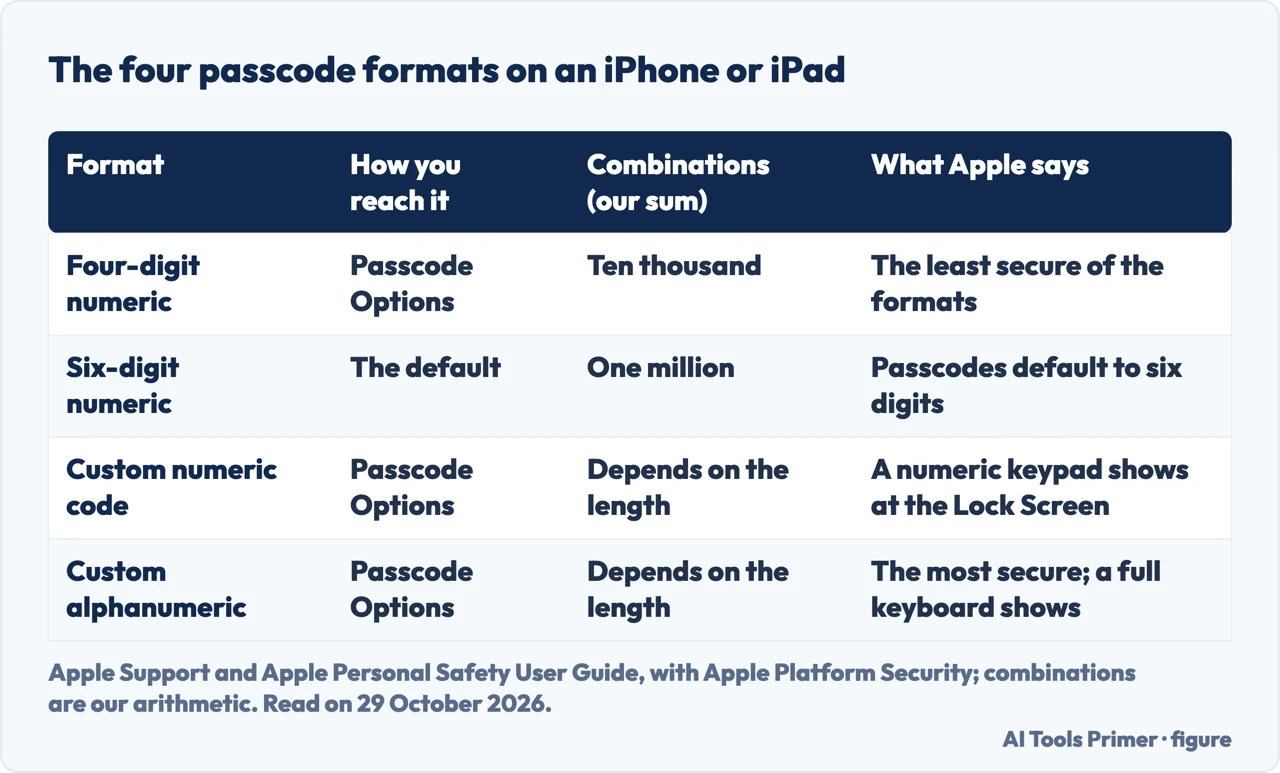
Apple Support says that when you turn a passcode on you enter a six-digit code, or tap Passcode Options to switch to a four-digit numeric code, a custom numeric code or a custom alphanumeric code. The Personal Safety User Guide says passcodes default to six digits and that the options range from the least secure, the four-digit code, to the most secure, the alphanumeric one. Apple Platform Security adds that iOS, iPadOS and visionOS support six-digit, four-digit and alphanumeric passcodes of arbitrary length, and that a code made only of numbers brings up a numeric keypad on the lock screen while an alphanumeric one brings up a full keyboard.
The count of possible codes is simple arithmetic and not something the pages state, so treat these figures as ours. A four-digit code has ten thousand possibilities and a six-digit code has a million. An eight-digit numeric code has a hundred million. A code of six characters drawn from lowercase letters and digits has more than two billion. Each extra digit multiplies the count by ten.
Apple Platform Security makes a practical point about typing. A longer numeric passcode may be easier to enter than a shorter alphanumeric password, it says, while providing similar security. It also says that using Optic ID, Face ID or Touch ID lets a person set a much stronger passcode than would otherwise be practical, because the code is not typed many times a day. The Personal Safety User Guide adds that you can tap Passcode Options when changing the code to choose the format of the next one.
How long is long enough, as the pages give it
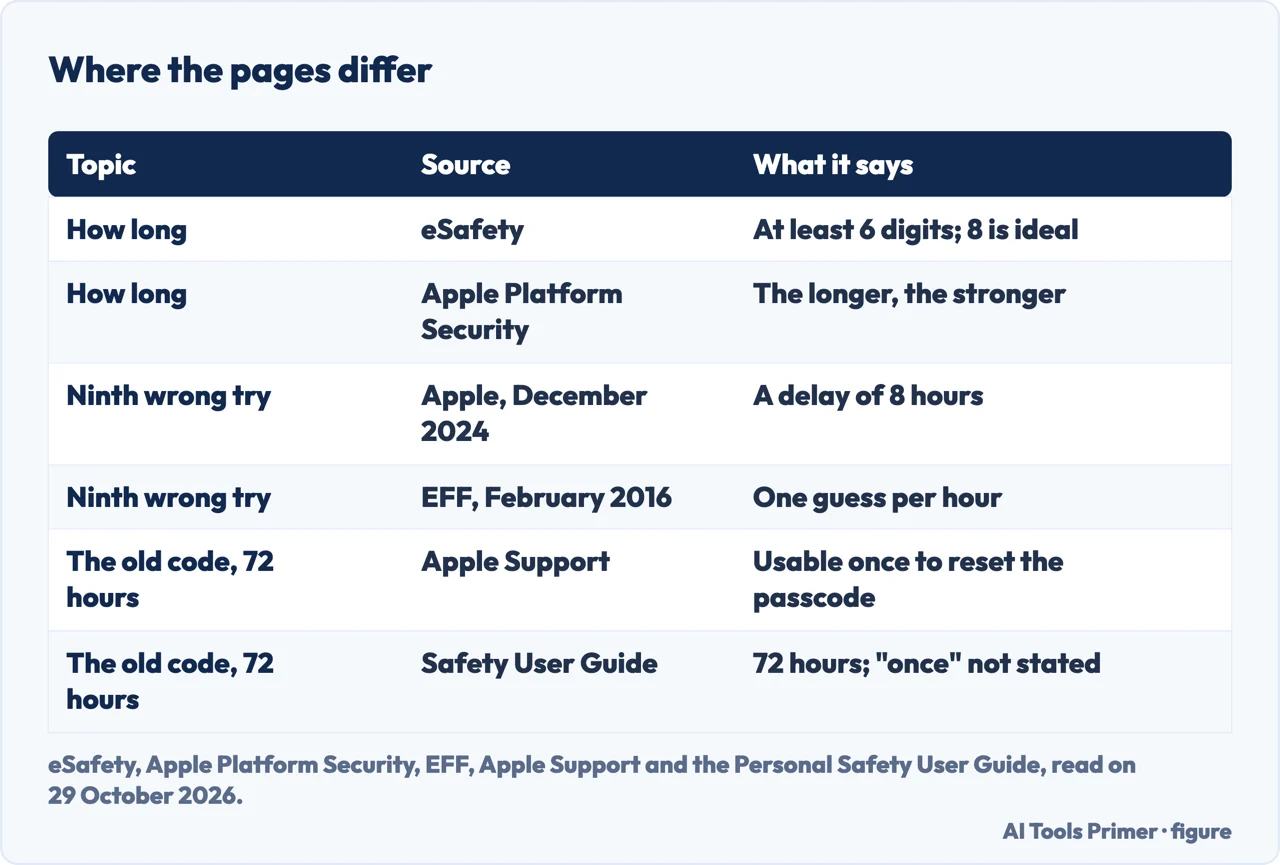
The pages do not agree on a number. the Australian eSafety Commissioner, says to create a passcode that is at least 6 digits long and that 8 digits is ideal because it is harder to guess. The FTC’s advice on protecting a phone says to use at least a 6-digit passcode. The Apple pages we read set no length for you: they make six digits the default and say, in Apple Platform Security, that the longer a passcode is, the stronger it is. So the advice to go beyond six digits rests on the eSafety page (8 digits ideal) and on Apple’s general statement that longer is stronger, and it is not a rule Apple states.
Apple Platform Security explains why length counts. The passcode is entangled with the device’s UID, so every guess has to be made on the device itself, and an iteration count is calibrated so that one attempt takes approximately 80 milliseconds. Apple’s own example is that it would take more than five and one-half years to try all combinations of a six-character alphanumeric passcode with lowercase letters and numbers. Our sum agrees: just over two billion combinations at 0.08 seconds each is about five and a half years.
Run the same sum on numbers and it gives a feel for the formats, with a warning. At 0.08 seconds a guess, four digits come to about 13 minutes, six digits to about 22 hours and eight digits to about 93 days. These are arithmetic, not the time of a real attack, because the delays and the limit of ten attempts described in the next section apply on the device. Set against that limit, the ten attempts that come before the device is locked cover 0.001% of the million possible six-digit codes, 0.1% of the ten thousand four-digit ones and 0.00001% of the hundred million eight-digit ones (our sum, assuming blind guessing), which puts the limit and the counts side by side. The Electronic Frontier Foundation, in a 2016 piece about the FBI and Apple, gave its own estimate on the same 80 milliseconds: about 700 years for eight random lowercase letters. That is the EFF’s figure from 2016, quoted as its estimate.
eSafety also says not to use birthdates, names or addresses, and never to share the passcode with anyone, including children if they are in contact with a current or ex abusive partner. Apple’s Personal Safety User Guide says that if you share a device, or others know your passcode, they can view and make changes to the information on it and on the associated Apple Account. The FTC adds two habits next to the passcode: setting the phone to lock when you are not using it, and turning on the feature in the operating system that helps you find a lost phone.
The pages we read do not say which length between six and eight digits to choose for a phone that unlocks with Face ID, and they do not give a time for guessing six digits in practice. The eSafety page is written for an iPhone with Touch ID, so its steps name that screen.
What happens after wrong guesses
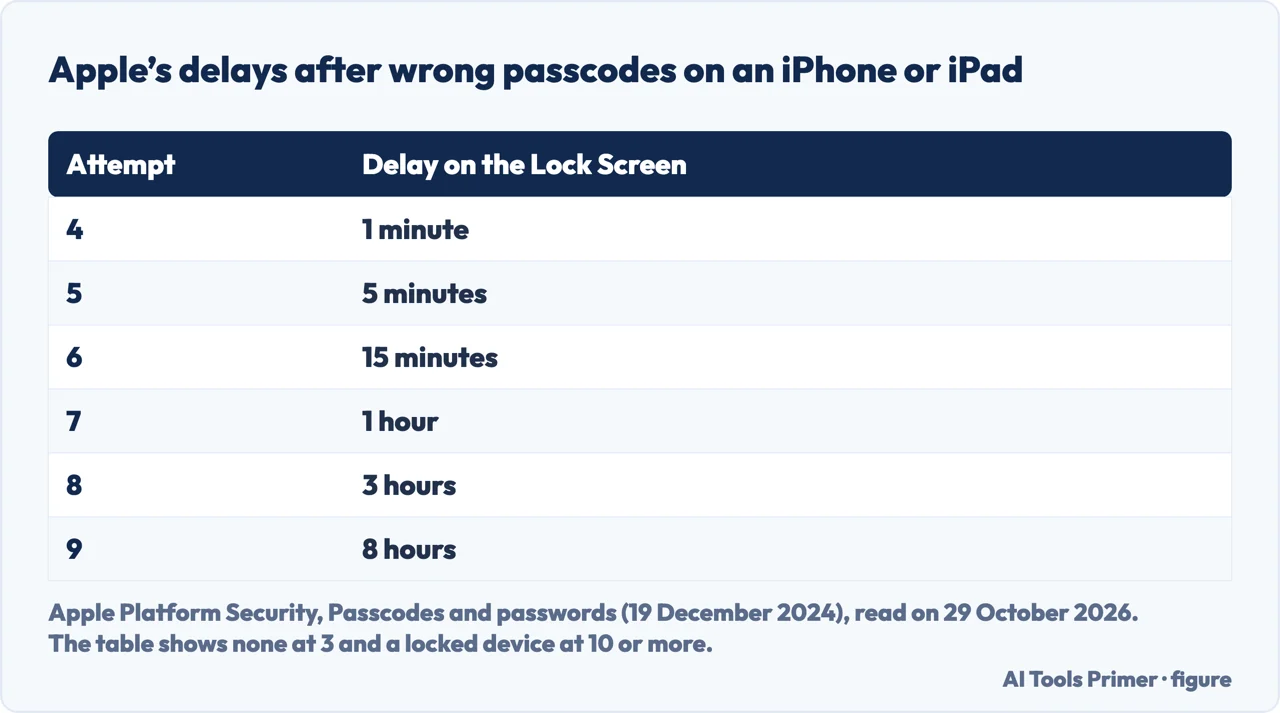
Apple Platform Security gives a table of escalating time delays after an invalid passcode on the iOS and iPadOS lock screen. Three attempts bring no delay. The fourth brings 1 minute, the fifth 5 minutes, the sixth 15 minutes, the seventh 1 hour, the eighth 3 hours and the ninth 8 hours. At ten or more the table says the device is locked and needs to connect to a Mac or PC. The same page says the Secure Enclave enforces the delays, and that if the device is restarted during a timed delay the delay is still enforced, with the timer starting over for the current period.
The delays are separate from the Erase Data option. Apple Support describes Erase Data as the choice to erase the device automatically after ten failed passcode attempts, and says that without it the device needs to be restored on a computer after ten failed attempts. Apple Platform Security gives the detail: with Erase Data on, after 10 consecutive incorrect attempts all content and settings are removed from storage, and consecutive attempts of the same incorrect passcode do not count toward the limit. It adds that the setting is also available as an administrative policy through a device management service, and can be set to a lower threshold.
The sources differ on the later delays, and they were written about eight years apart. The EFF piece of February 2016 says that after nine incorrect attempts the Secure Enclave permits only one guess per hour, which it calls 45,000 times slower than the 80 milliseconds. Apple’s table from December 2024 puts 8 hours at the ninth attempt. The 2016 text is the EFF’s description of that year; the table is Apple’s own and the more recent of the two, so this page follows it.
Changing it, and the 72 hours
Apple Support lists what the passcode screen holds: Turn Passcode Off, Change Passcode, Require Passcode, Allow Access When Locked, Erase Data and, from iOS 17, Expire Previous Passcode Now. Require Passcode asks for the code as soon as you lock the screen by default, and Apple Support says that if you use Touch ID, Face ID or Apple Pay you cannot change the immediate requirement. Allow Access When Locked is the list of features reachable on a locked device: Today View, Notification Center, Control Center, Siri, Reply with Message, Home Control, Wallet, Return Missed Calls and USB accessories.
For the change itself, the Personal Safety User Guide says to open Face ID & Passcode or Touch ID & Passcode, enter the passcode, tap Change Passcode, enter the current one and then the new one twice. After the change comes the 72 hours. The guide says that in iOS 17 or iPadOS 17 you can use the old passcode to reset the passcode for 72 hours, to protect against forgetting the new one, and that Expire Previous Passcode deactivates the old one completely. Apple Support gives the same window and adds that the previous passcode can be used once to access the device and reset the passcode. The word once appears on the support page and not in the guide, and the button is named Expire Previous Passcode Now on the first and Expire Previous Passcode on the second.
The Personal Safety User Guide treats the change as a step for someone who fears the code is known: change it and expire the previous one. It also says to tap Review Access, if available, to review settings that may allow ongoing access to your data even after the passcode change, and points to Safety Check on an iPhone with iOS 16 or later. For locking the screen sooner, the guide gives Settings, then Display & Brightness, then Auto-Lock, where you set a length of time.
This page is about choosing and changing a code you know. For a device that is already locked, our page on erasing a locked iPhone covers that case, and our page on resetting Face ID covers the face half of the lock.
What we did not use
We tested nothing on an iPhone or iPad. We read the SDM Foundation page on passcode and password, which describes a passcode as usually made of numbers and a password as longer, but it cites no sources, so nothing on this page rests on it. We did not read pages about word games, password managers or dictionary meanings of the word, because they concern something different from the lock on a phone. We did not read Apple’s page on a disabled iPhone or its page on Face ID. Apple’s Personal Safety User Guide lists Stolen Device Protection in its contents, and we did not read that page either.
Where to start
Four ways in.
- “Where is the passcode in settings?”
- Where the passcode lives, and what it protects — where
- “Six digits or more?”
- How long is long enough, as the pages give it — length
- “What happens after wrong guesses?”
- What happens after wrong guesses — delays
- “How do I change it?”
- Changing it, and the 72 hours — change
When the code is the problem
Locked out, or saved passwords and the face.
Around the passcode
Backups, permissions and a different phone.
Questions people also ask
Where do I find my list of passcodes?
The pages we read do not describe a list of device passcodes. Apple Support covers setting and changing the device passcode in Settings.
Where is the passcode in settings?
Apple Support says to go to Settings, then Face ID & Passcode on an iPhone X or later or an iPad with Face ID, Touch ID & Passcode on earlier iPhone models, and Passcode on devices without Touch ID.
What are passcodes used for?
The Personal Safety User Guide says a passcode unlocks the device and turns on data protection, which encrypts the data. Apple Support lists what the device asks for it, including a restart, a software update, an erase and a change to the passcode settings.
What’s the difference between a password and a passcode?
The Personal Safety User Guide says the device passcode is not the Apple Account password, which gives access to the App Store, iCloud and other Apple services. The official pages we read do not define the two words in general; the plain-language definitions found in search results cite no sources and are not used here.
Not covered here. We tested nothing on a device. The statements come from two Apple Support pages, Apple Platform Security, the eSafety Commissioner, the EFF and the FTC, all read on 29 October 2026; the combination counts and the times at 0.08 seconds are our own arithmetic.
The search volume and difficulty behind this page come from a Semrush reading of 29 August 2026, older than the 60 days the site normally allows.
Sources
- Apple Support — Use a passcode with your iPhone, iPad, or iPod touch (13 May 2026) — support.apple.com, read 29 October 2026.
- Apple Personal Safety User Guide — Set a unique device passcode or password (March 2024) — support.apple.com, read 29 October 2026.
- Apple Platform Security — Passcodes and passwords (19 December 2024) — support.apple.com, read 29 October 2026.
- eSafety Commissioner — Setting strong passcodes to protect iPhones and iPads — www.esafety.gov.au, read 29 October 2026.
- EFF — A Technical Perspective on the Apple iPhone Case (19 February 2016) — www.eff.org, read 29 October 2026.
- FTC — How To Protect Your Phone From Hackers — consumer.ftc.gov, read 29 October 2026.
Written by Alberto Gulotta
Founder and editor of AI Tools Primer, writing from Palermo, Italy. Thirty-five years of taking computers apart, starting with a Commodore 64 — the long version is on the about page.
Something wrong on this page? Write to aitoolsprimer@gmail.com and it gets fixed.
Written on 29 October 2026.
Independence and limits
No affiliate links and no paid placements anywhere on this site. Nobody pays to appear here, and no company has seen this page before you did.
This is general information, not professional advice. Where a page touches money, health, safety or the law, it names its source and the date it was read — and your situation may still differ. See the privacy page and the cookie policy.