
Devices · guide
How to set up parental controls: Apple, Google, FTC and NSPCC
By Alberto Gulotta · Updated · 18 min read
How to set up parental controls starts with the child’s phone, because Apple, Google and Microsoft each run their own tool. Apple’s steps sit in Settings under Family. Android 16 adds Parental Controls to Settings, and Family Link is the Google app. The NSPCC says device and broadband controls do not work on 4G, 5G or public WiFi.
| Question | Answer | Where it comes from |
|---|---|---|
| Which tool do I use? | It depends on the child’s device: Apple’s Family Sharing, Google’s Family Link or Microsoft Family Safety | FTC |
| Where are Apple’s settings? | On your own iPhone or iPad: Settings, Family, then the child’s name | Apple Support |
| Where are Android’s? | With the Android 16 update, Settings, then Parental Controls, locked with a PIN; or the Family Link app | android.com |
| Do the controls work away from home? | The NSPCC says device and broadband controls will not work on 3G, 4G, 5G or public WiFi | NSPCC |
| Can a filter be trusted fully? | The NSPCC says content filters are never 100% effective | NSPCC |
The child’s phone decides the tool
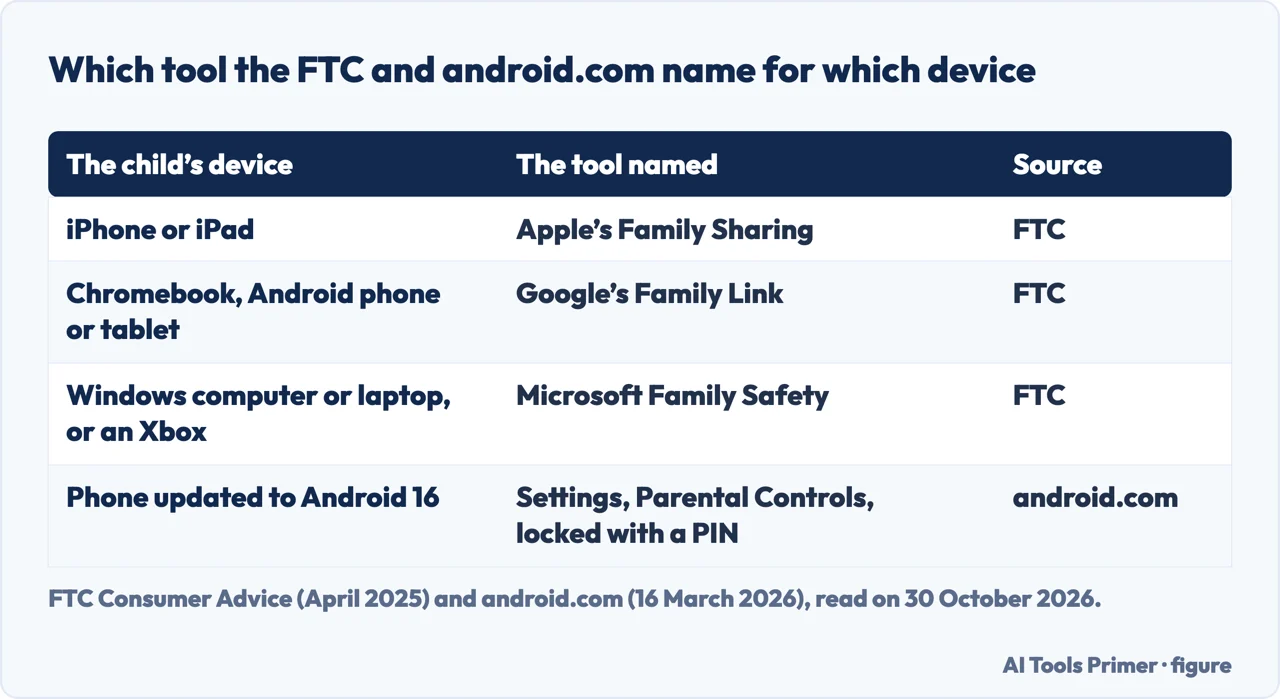
The FTC’s page, dated April 2025, says the tool you choose depends on what devices your kid uses and the boundaries you have decided to set. For an iPhone or iPad it names Apple’s Family Sharing. For a Chromebook, or an Android phone or tablet, it names Google’s Family Link, which it says also lets you customize parental controls on YouTube. For a Windows computer or laptop, or an Xbox, it names Microsoft Family Safety. The FTC adds that, to work best, parental controls need to be set up on all the devices a kid uses, and that you can always add other tools or settings later.
The FTC also says what the tools are for. It introduces the list with “most help you do things like” and then gives five items: manage how much time a kid spends online, restrict the type of content, get information about website and app activity, limit who a kid can communicate with, and restrict purchases. The platform sections below follow Apple’s own order and android.com’s two options, and the last section comes back to these five jobs.
Microsoft Family Safety is named by the FTC and the NSPCC, but we did not read Microsoft’s own pages, so we do not describe its steps. What Apple needs before any step is covered in our page on Family Sharing for a child; here that list gets only a short mention.
iPhone and iPad: the steps in Apple’s order
Apple’s page, published on 26 October 2026, says Screen Time comes with parental controls that can help you manage the apps and websites your child can access, who they communicate with, when they use their devices, and more. You set them from your own iPhone or iPad, as long as you are the Family Sharing organizer or a parent or guardian in the group. Before the steps, Apple’s list includes: Family Sharing set up; a Child Account if the child does not have one, in your Family Sharing group; an Apple Account that is the child’s own and is not shared with anyone else, a family member being its example; and the organizer or another parent or guardian added to the child’s contacts so that requests can be sent for approval.
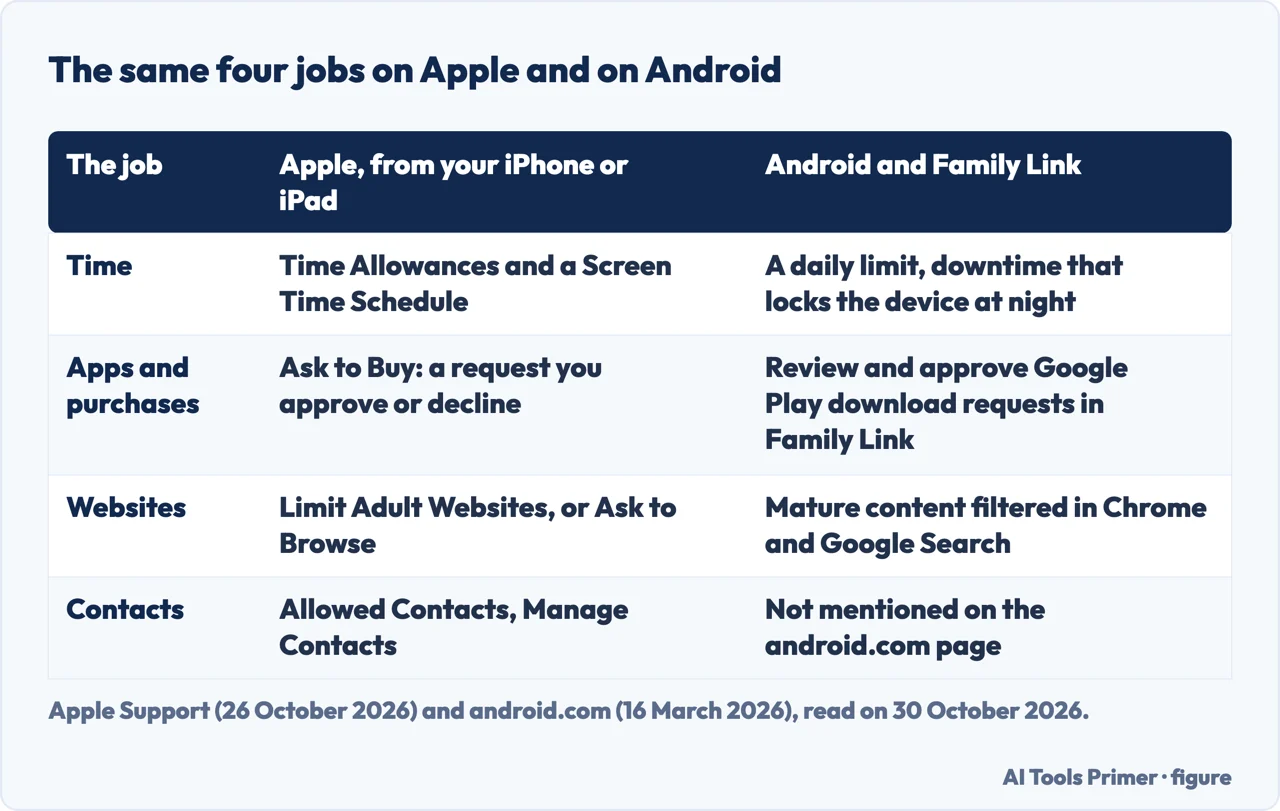
Every step then begins the same way: open Settings, tap Family, tap your child’s name. For apps and purchases, tap Apps & Websites (Apple says to enter your Screen Time passcode if asked), tap Restrictions, then Ask to Buy, then turn on Require Purchase Approval. For websites, go to Restrictions again, tap Filtering under Websites and choose Limit Adult Websites or Ask to Browse; to use Ask to Browse, set it to Approved Websites Only. To block one app or website, select it and tap Block App or Block Website, then confirm. Apple says a blocked app is not deleted: it is dimmed on the Home Screen.
For contacts, tap Allowed Contacts, then During Screen Time, and choose Contacts Only, Contacts & Groups with at Least One Contact, or Everyone. Under Manage Contacts you choose the contacts you approve, and leaving Allow Contact Editing off means the child has to send you a request to add a new one. Apple says that if a child receives a message from someone new, they cannot see it until you or another parent or guardian in the group approves. Communication Safety is its own item under the child’s name; Apple says it helps protect a child from viewing or sharing photos or videos with detected nudity, gore or violence, including in text messages and FaceTime video calls.
For time, Apple describes two tools. Screen Time Schedules let you choose which apps a child can use at different times of day, such as before, during and after school, with separate routines for weekdays and weekends. Time Allowances set how long a child can use apps across categories such as entertainment, games and social media, with a daily budget across all categories that you can then adjust per category. The paths are Family, the child’s name, then Time Allowances and Add, or Screen Time Schedule, then Schedule and Add Schedule. Apple’s page also covers Content & Privacy Restrictions, with age ratings for apps, music, books, movies and TV shows, plus Game Center, Siri and privacy settings; our pages on content and privacy restrictions and blocking websites on iPhone go further into two of these.
What Apple switches on by age and place
Apple says Ask to Buy and Ask to Browse are on by default for children under 13, and Limit Adult Websites is on by default for children under 18. It also says that, depending on your state, country or region and the child’s age, some parental controls are on by default and cannot be removed. In its footnote, where required by law, an Apple Account created for a child under 18 needs to be part of a Family Sharing group, and in some places settings such as Screen Time, Ask to Buy, Ask to Browse and content restrictions for apps cannot be turned off. For Ask to Buy, Apple says that in certain states or countries it is turned on and cannot be turned off if the child is under 18.
The page also carries version notes. Apple says Screen Time introduces new parental controls in iOS 27, iPadOS 27, macOS 27, watchOS 27 and visionOS 27, and that Ask to Browse in Safari and other supported browser apps is available in iOS 27, iPadOS 27 and macOS 27 after upgrading Screen Time. In iOS 26 and iPadOS 26 and later, it says a child can ask for an exception to a limit or restriction you set. The page also says that not all parental controls are available on all Apple devices, and that Apple TV is set through settings on the web. We tested nothing on a phone, so we cannot say which menu names an older iOS shows. If you switch a control off later, our page on turning off Screen Time covers the passcode.
Android: built-in controls or Family Link
The android.com article, dated 16 March 2026, gives two options. The first is on-device controls, available with the update for Android 16, found in Settings under Parental Controls and safeguarded by a PIN. The second is Family Link, which the article calls a free app for parents, available on Android, iOS and web. It says that by connecting your accounts you can further customize time limits and scheduled breaks, see more about time spent online, adjust account and privacy settings, manage content access and check a child’s location.
The on-device controls cover four things. You can set a total daily limit for how long a child can use the device. You can schedule downtime that locks the device automatically at night. You can set time limits for individual apps, or block them entirely. And the controls filter mature content from browsers and search engines such as Google Chrome and Google Search. The article describes the Family Link extras as remotely silencing and limiting a child’s device to approved apps during school hours, reviewing and approving requests to download apps from Google Play, and seeing the device on a map with alerts for places of interest.
To set up Family Link, the article says to download the app. Parents need an Android device running Android 7.0 (Nougat) or later or, to use the app on an iPhone, iOS 16 or later. With the app, parents can monitor devices that also run Android 7.0 or later. The article then gives two steps: connect the devices, by downloading Family Link on your own device to link your Google Account to your child’s, and set your rules, managing screen time, approving or blocking apps and setting content filters. The second step ends by saying that adding a secure PIN to the child’s device keeps the settings the way you set them.
Google’s Safety Center page adds a few details. For Family Link it lists daily screen time limits, schedules for school or downtime, and remote locking of a child’s Android or ChromeOS device. It says you can approve or decline requests to download apps or make in-app purchases from Google Play, and that you can reset a child’s password, edit their personal information or delete their account. In Chrome on a child’s Android or ChromeOS device you can limit the child to chosen websites or block specific sites. SafeSearch is on by default for signed-in users under 13, or the applicable age in the country, with accounts managed by Family Link, and a parent can turn it off or block Search altogether. A footnote says children over the applicable age can manage their own account. For how our page covers screen time on Android itself, see checking screen time on Android.
The ages 13 and 18, on each side
Google Account Help says that when a child turns 13, or the applicable age in their country, Google sends an email to the parent who supervises the account and to the child. The child can keep the current supervision by not acting on the email, which leaves the settings as they are until the child decides to update. Or they can update the account with supervision for children over 13: open the email titled “Ready to update your Google Account?”, select Update your account, review the settings and select I agree. Parents of a child over that age can stop supervision at any time, and the child needs a parent’s approval to stop it until they turn 18.
Apple words the ages differently. Its cut-offs, set out above, are 13 and 18 and vary by place. Google ties the change to 13 or the applicable age in the child’s country, and keeps parent approval for stopping supervision until 18. The pages we read do not say what age is right for loosening a control. Apple says only that when your child is ready to browse more freely, you can update the settings for Ask to Browse.
One child on iPhone, another on Android
The pages we read are each about one platform. Apple’s page does not mention Google or Android. The android.com article and the Safety Center page are about Google’s tools. The FTC gives one tool per platform: Family Sharing for an iPhone or iPad, Family Link for a Chromebook or an Android phone or tablet. For a household with both, the FTC says controls need to be set up on all the devices a kid uses, and its list names one tool per platform. The pages we read do not walk through setting the two up together.
On the point where the sources meet, they word it differently. The android.com article says the Family Link app runs on a parent’s iPhone with iOS 16 or later, and that with the app parents can monitor devices running Android 7.0 or later. Read together, those two sentences describe a parent’s iPhone running the app for a child’s Android device; we did not try it. The Safety Center page says Family Link helps manage children’s accounts and ChromeOS, Android and iOS devices, but when it describes remote locking it names an Android or ChromeOS device. The pages we read do not explain what Family Link can do on a child’s own iPhone, so we do not describe it. For an iPhone or iPad, Apple’s page is the one that gives steps.
Beyond the phone, and away from home
The NSPCC page says parental controls allow you to block and filter upsetting or inappropriate content, and that they work across your WiFi, phone network, individual apps and devices. It says they can help you plan what time of day a child goes online and for how long, create content filters, and manage the content different family members can see. For home broadband, it says internet providers can offer a filter, and some allow different settings for each user. Setting it up depends on the provider and means reaching the home router; the page says the provider can help.
For games consoles, the NSPCC says that on some consoles you can turn off chat, restrict games by age, and turn off in-game purchases or set a limit. On PlayStation it describes a Family Manager account with controls for communication with other players, content, play time and spending limits. It describes Microsoft Family Safety as a family group in which you can set screen time limits, block inappropriate content, receive activity reports and set app and game limits. Apps and services have their own controls: the page says to look in each app’s settings, where they might be called settings, family features, privacy or security, and that for Netflix you need to visit the website.
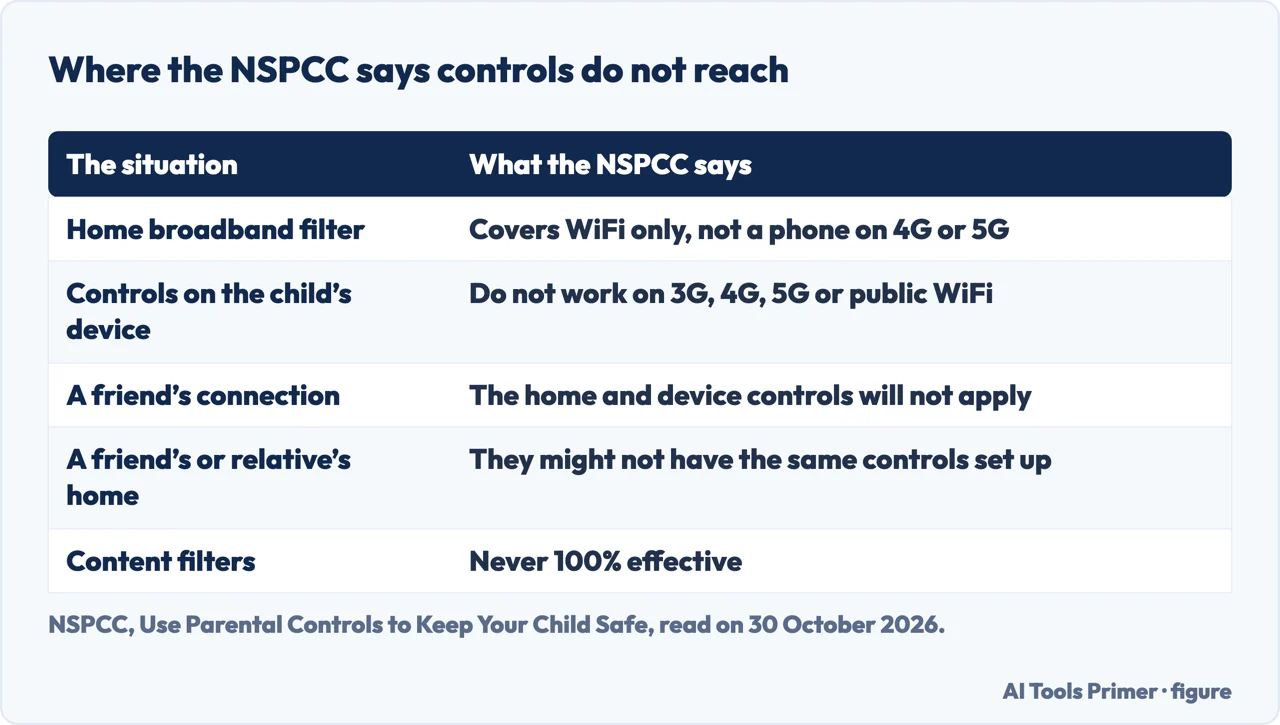
Away from home the picture changes, and the figure below sums up what the NSPCC lists. It says the controls on a child’s device and on home broadband will not work if the child uses 3G, 4G or 5G, public WiFi or a friend’s connection. Some public places offer family-friendly WiFi, and the page says its symbol means there are filters to stop children seeing inappropriate or upsetting content. A child visiting friends or family might not have the same controls set up. For home broadband, the NSPCC adds that the filter only affects WiFi, so if the child connects over 4G or 5G you need to check the settings on their mobile device too. The NSPCC page also carries a notice about a UK government announcement of 15 June 2026 on social media accounts for under-16s; we did not carry it over, because it concerns UK law.
What to set, and where the controls stop
The pages we read do not rank the controls by age, so this part is our reading and not anyone’s advice. The jobs the FTC lists are time, content, activity information, contacts and purchases. Apple’s page covers time, apps and purchases, websites and contacts. The android.com article covers time, apps, content filters and location. As a short list, time limits, purchase or download approval and website or content filtering are the jobs that Apple’s page, the android.com article and the FTC each describe.
The NSPCC says parental controls are a helpful tool but have limitations, and should not be seen as a whole solution. It gives several top tips: explain to the child why you are setting the controls, and let them know they can talk to you about why certain settings are in place; set strong passwords where you can, since on some controls a password stops settings and features from being changed; and remember that age matters, so restrictions change as children get older, but at a pace that is right for the child and not because of pressure that everyone else is allowed. It also says content filters are never 100% effective, that a child is likely to see inappropriate or upsetting content at some point, and that you need to be able to talk to them about it.
The FTC makes the same point from another side. It says talking with your kids about your family’s rules and expectations is key, that you may want to adjust the controls as a kid grows, and that there is really no substitute for talking with your kid about the rules. The android.com article ends by calling a safe and balanced digital life an ongoing conversation. We did not read a source that tells you which controls to switch on at which age, and we do not either.
Where to start
Four ways in.
- “Which tool goes with which phone?”
- The child’s phone decides the tool — device
- “Where are Apple’s settings?”
- iPhone and iPad: the steps in Apple’s order — iphone
- “What does Android offer?”
- Android: built-in controls or Family Link — android
- “Do they work away from home?”
- Beyond the phone, and away from home — beyond
Accounts and restrictions
The group, the passcode and the restrictions behind the controls.
Time and websites
Limits and blocked sites.
Questions people also ask
Can my parents put parental controls on my phone?
Apple says a parent, guardian or Family Sharing organizer sets the controls from their own iPhone or iPad, and that the child needs an Apple Account of their own. For Google, android.com says Family Link links the parent’s Google Account to the child’s, and Google Account Help says a child over 13 can keep the supervision or update the account.
How do I set up parental controls on my daughter’s phone?
It depends on the phone. On an iPhone, Apple says to open Settings, tap Family and tap the child’s name. On Android, android.com offers Settings, then Parental Controls, with the Android 16 update, or the Family Link app.
How can I restrict my child’s access to the internet?
Apple offers Limit Adult Websites or Ask to Browse under Filtering. android.com says its controls filter mature content in Chrome and Google Search. The NSPCC adds a filter from the broadband provider, which it says covers only the home WiFi.
What is the best age to remove parental controls?
The pages we read do not name an age. Google says a child over 13 needs a parent’s approval to stop supervision until 18, and the NSPCC says restrictions change at a pace that is right for the child.
Not covered here. We tested nothing on a phone. The statements come from Apple Support, android.com, the Google Safety Center, Google Account Help, the FTC and the NSPCC, all read on 30 October 2026.
The search volume and difficulty behind this page come from a Semrush reading of 29 August 2026, older than the 60 days the site normally allows.
Sources
- Apple Support — Set up parental controls to manage your child’s iPhone or iPad — support.apple.com, read 30 October 2026.
- android.com — How to get started with parental controls on Android — www.android.com, read 30 October 2026.
- Google Safety Center — Google’s Parental Controls and Family Link — safety.google, read 30 October 2026.
- Google Account Help — How Google Accounts work when children turn 13 — support.google.com, read 30 October 2026.
- FTC Consumer Advice — How To Use Parental Controls To Keep Your Kid Safer Online — consumer.ftc.gov, read 30 October 2026.
- NSPCC — Use Parental Controls to Keep Your Child Safe — www.nspcc.org.uk, read 30 October 2026.
Written by Alberto Gulotta
Founder and editor of AI Tools Primer, writing from Palermo, Italy. Thirty-five years of taking computers apart, starting with a Commodore 64 — the long version is on the about page.
Something wrong on this page? Write to aitoolsprimer@gmail.com and it gets fixed.
Written on 30 October 2026.
Independence and limits
No affiliate links and no paid placements anywhere on this site. Nobody pays to appear here, and no company has seen this page before you did.
This is general information, not professional advice. Where a page touches money, health, safety or the law, it names its source and the date it was read — and your situation may still differ. See the privacy page and the cookie policy.