
iPhone · guide
How to block websites on iPhone, on your own or a child’s
By Alberto Gulotta · Updated · 9 min read
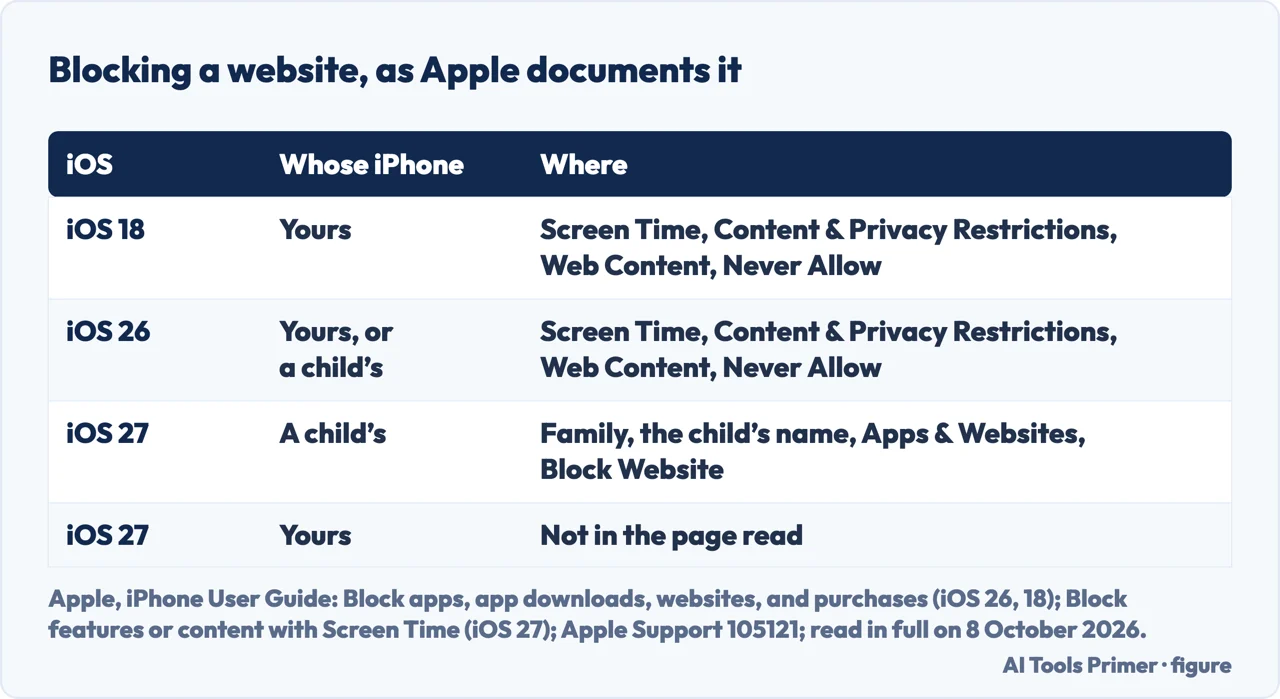
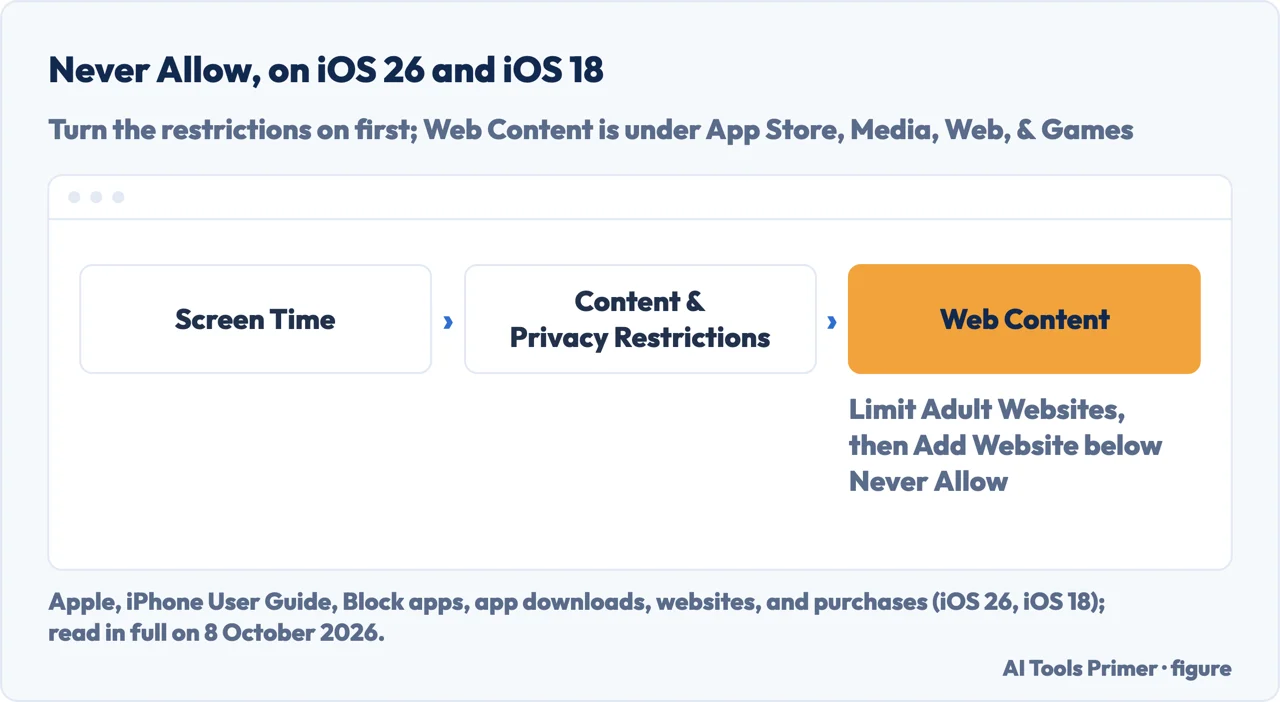
How to block websites on iPhone: on iOS 26 and iOS 18, Apple’s guide says to open Settings, Screen Time, turn on Content & Privacy Restrictions, then go to Web Content, select Limit Adult Websites and add each address below Never Allow. On iOS 27, a child’s iPhone has Block Website in the Family settings.
| What | What Apple says |
|---|---|
| iOS 26 and iOS 18 | Web Content, Limit Adult Websites, then Add Website below Never Allow; the iOS 26 page adds tapping a child’s name first |
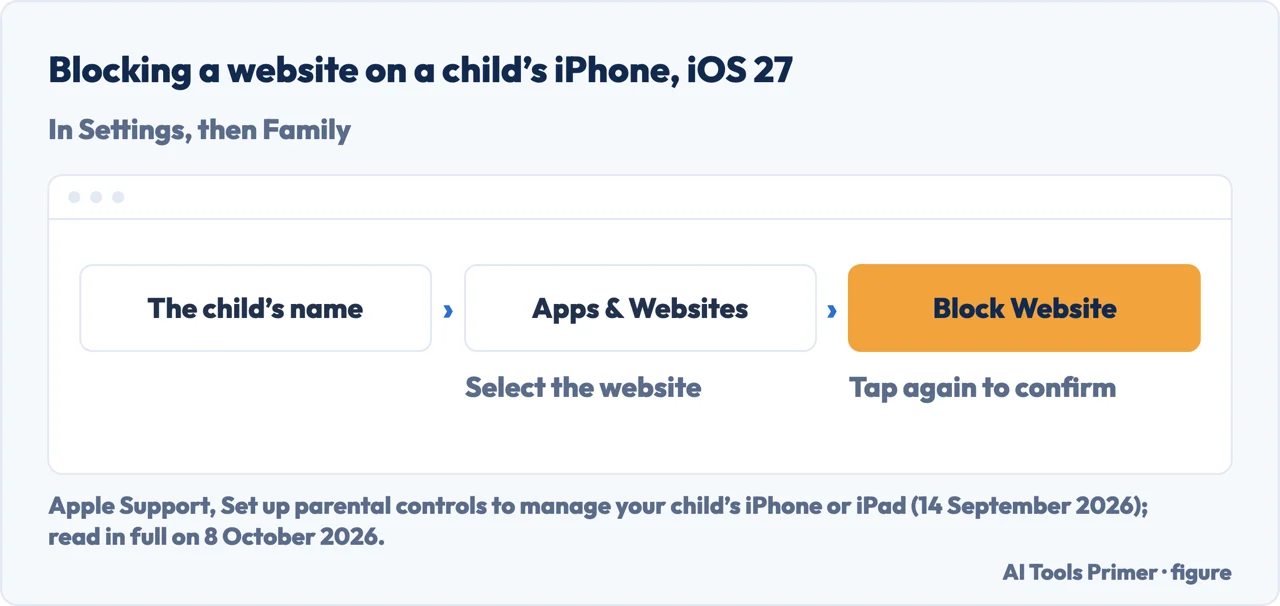
| iOS 27, a child’s iPhone | Family, the child’s name, Apps & Websites, then Block Website |
| Which browsers | Ask to Browse works in Safari and other supported browser apps on iOS 27, after upgrading Screen Time |
| On by default | Ask to Browse for children under 13; Limit Adult Websites for children under 18 (iOS 27 parental controls) |
| The lock | A four-digit Screen Time passcode (iOS 27, your own iPhone) |
- Open Screen Time. On iOS 26 and iOS 18: Settings, then Screen Time. To block websites for a child, Apple’s guide for iOS 26 says to tap the child’s name here.
- Turn the restrictions on. Tap Content & Privacy Restrictions and turn on Content & Privacy Restrictions.
- Find Web Content. Tap App Store, Media, Web, & Games, then Web Content.
- Choose Limit Adult Websites. In Apple’s steps, Never Allow comes after this choice.
- Add the website. Tap Add Website below Never Allow and enter the address of each site to block.
Locking the setting. On iOS 27, Apple’s steps for your own iPhone are Settings, Screen Time, Manage Screen Time, Lock Screen Time Settings, and a four-digit passcode entered twice; Apple adds that, if you set up Screen Time Passcode Recovery, your Apple Account can reset the passcode if you forget it. ESET’s guide says that without a passcode the restrictions can be turned off from Settings. Turning Screen Time off is in Screen Time.
A child’s iPhone on iOS 27
Before you start. Apple says iOS 27 brings new parental controls, which need Family Sharing, a Child Account in the family group, and every device in the group updated to the 27 versions; where that is not possible, the previous version of Screen Time and parental controls can still be used, or the controls set on the child’s device. Apple says they are set by the Family Sharing organizer or a parent or guardian in the group.
One website. Settings, Family, the child’s name, Apps & Websites, entering the Screen Time passcode if asked; select the website, tap Block Website, then tap again to confirm. Apple says blocked and allowed websites are kept in two lists in Apps & Websites, and a site can be unblocked at any time.
A filter instead of a list. In the same place, Restrictions, then Filtering under Websites, with a choice of Limit Adult Websites or Ask to Browse; for Ask to Browse, Apple says to set it to Approved Websites Only. The child then has to ask before visiting a new website, and you approve or decline from your device or theirs. Websites can also be allowed ahead of time.
Defaults and the law. Apple says Ask to Browse is on by default for children under 13 and Limit Adult Websites for children under 18, and that, depending on state, country or region and the child’s age, some parental controls are on by default and can’t be removed. Apple’s page also covers App Store settings such as Installing Apps; deleting apps is in content and privacy restrictions.
Your own iPhone on iOS 27
What Apple’s page covers. Apple’s guide for iOS 27 on blocking features or content, read on 8 October 2026, lists content restrictions for Books, Movies, TV Shows and Music, built-in features such as AirDrop and Camera, and Siri. It does not mention websites, and it sends parents to Apple’s guide for kids and families.
What this page does not say. The iOS 26 and iOS 18 versions of the same page give the Web Content route above. Whether that route is still on an adult’s own iPhone with iOS 27 is not in the pages read, so this page does not say it is, or that it is not.
Time limits, other browsers, other ways round
A limit instead of a block. ESET’s guide, dated 30 September 2025, gives Settings, Screen Time, App Limits, Add Limit, Websites, with a limit of at least one minute, after which, it says, access is blocked for the rest of the day. It names no iOS version.
Other browsers. Apple says Ask to Browse works in Safari and other supported browser apps on iOS 27. ESET writes, naming no iOS version, that on an iPhone Screen Time covers every browser at once. How private windows fit with these settings is in blocking incognito mode and Private Browsing.
Pop-ups are something else. None of the pages read here says these settings block a site that keeps opening windows or advertisements; that case is in how do I stop pop up ads when the blocker is already on.
Which versions. Apple’s guide pages for iOS 27, iOS 26 and iOS 18 give no dates; the parental controls article was published on 14 September 2026; ESET’s guide on 30 September 2025. Apps that hide from the Home Screen rather than from a browser are in hiding apps.
Where to start
Five ways in.
- “Where do I start?”
- Never Allow, iOS 26 and 18 — never allow ios 26 and 18
- “It is my child’s iPhone.”
- A child’s iPhone on iOS 27 — a childs iphone on ios 27
- “It is my own iPhone, on iOS 27.”
- Your own iPhone — your own iphone on ios 27
- “It must stay blocked.”
- The passcode — the passcode
- “Only less time on it.”
- Limits and browsers — limits and other browsers
More on Screen Time
The settings around a restricted iPhone.
Questions people also ask
How do I block certain websites?
On iOS 26 and iOS 18: Settings, Screen Time, Content & Privacy Restrictions on, App Store, Media, Web, & Games, Web Content, Limit Adult Websites, then Add Website below Never Allow. On a child’s iPhone with iOS 27: Family, the child’s name, Apps & Websites, Block Website.
Can I block the internet on my child's iPhone?
The Apple pages read for this guide do not describe switching the internet off. By our reading, the nearest setting they name is Ask to Browse set to Approved Websites Only: the child has to ask before opening a new website, in Safari and other supported browser apps on iOS 27.
How do I block adult websites on my iPhone permanently?
Select Limit Adult Websites: in Web Content on iOS 26 and iOS 18, or in Filtering on a child’s iPhone with iOS 27. Then lock Screen Time with a passcode; ESET says that without one the restrictions can be turned off. Apple says Limit Adult Websites is on by default for children under 18 with its iOS 27 parental controls.
How to block content on iPhone?
On iOS 27, Apple’s steps are Settings, Screen Time, Content & Privacy Restrictions, then allow or block the settings under Content Restrictions, such as Books, Movies, TV Shows and Music; built-in features like AirDrop and Camera are under Other Features.
Not covered here. It does not cover blocking websites on a Mac or an Android phone, filters set on the router or by DNS, or apps from the App Store that block websites.
Sources
- Apple, iPhone User Guide (iOS 27) — Block features or content with Screen Time on iPhone: content restrictions, other features and Siri — support.apple.com, read 8 October 2026.
- Apple, iPhone User Guide (iOS 26) — Block apps, app downloads, websites, and purchases on iPhone: Web Content and Never Allow — support.apple.com, read 8 October 2026.
- Apple, iPhone User Guide (iOS 18) — Block apps, app downloads, websites, and purchases on iPhone: Web Content and Never Allow — support.apple.com, read 8 October 2026.
- Apple Support — Set up parental controls to manage your child’s iPhone or iPad (published 14 September 2026): Block Website, Filtering, Ask to Browse, defaults by age — support.apple.com, read 8 October 2026.
- Apple, iPhone User Guide (iOS 27) — Create, change, or remove a Screen Time passcode on iPhone — support.apple.com, read 8 October 2026.
- ESET — How to block websites on Chrome, Safari, iPhone, and more (30 September 2025): Web Content, the passcode, App Limits for websites — www.eset.com, read 8 October 2026.
Written by Alberto Gulotta
Founder and editor of AI Tools Primer, writing from Palermo, Italy. Thirty-five years of taking computers apart, starting with a Commodore 64 — the long version is on the about page.
Something wrong on this page? Write to aitoolsprimer@gmail.com and it gets fixed.
Written on 9 October 2026.
Independence and limits
No affiliate links and no paid placements anywhere on this site. Nobody pays to appear here, and no company has seen this page before you did.
This is general information, not professional advice. Where a page touches money, health, safety or the law, it names its source and the date it was read — and your situation may still differ. See the privacy page and the cookie policy.