
Docs · guide
The COUNTIF function in Excel, from one condition to two
By Alberto Gulotta · Updated · 9 min read
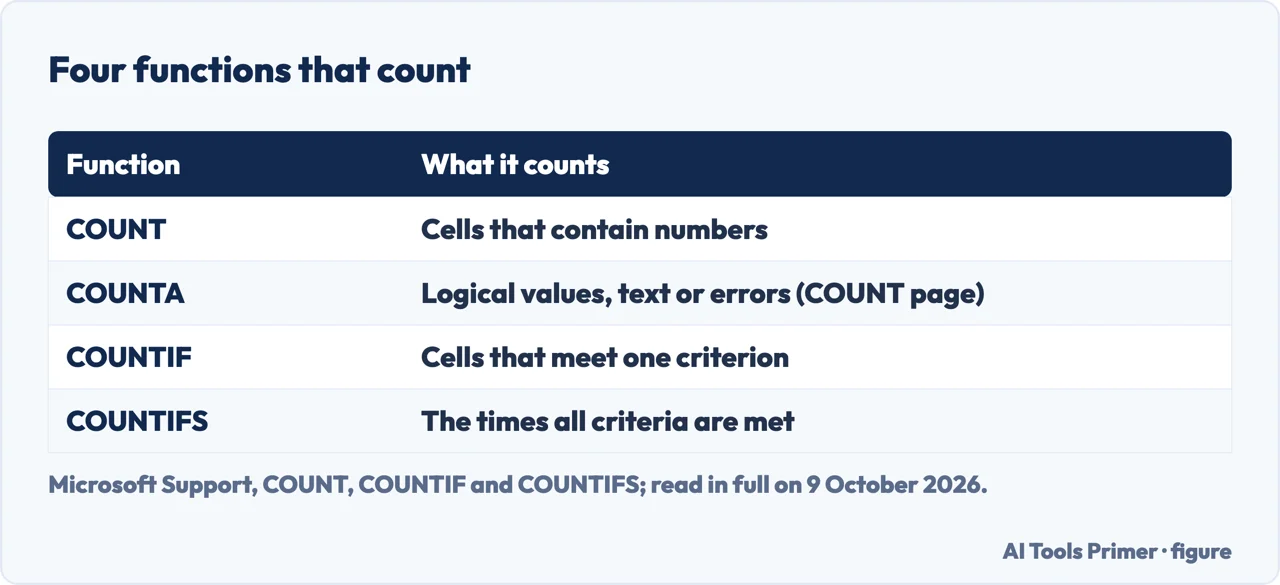
The COUNTIF function in Excel counts the cells in a range that meet one condition: =COUNTIF(range, criteria), such as =COUNTIF(A2:A5,"apples"). Text and comparisons go in double quotation marks, Exceljet says, and Microsoft says the match ignores upper and lower case. For more than one condition, Microsoft points to COUNTIFS.
| Function | What it counts | Example |
|---|---|---|
| COUNT | Cells that contain numbers; empty cells, logical values, text and errors in a range are not counted | =COUNT(A1:A20) |
| COUNTA | Logical values, text or error values, for which Microsoft’s COUNT page says to use COUNTA | — |
| COUNTIF | Cells that meet one criterion | =COUNTIF(A2:A5,"apples") |
| COUNTIFS | The times all criteria are met, across up to 127 range and criteria pairs | =COUNTIFS(B2:B5,"=Yes",C2:C5,"=Yes") |
Versions. Microsoft’s COUNTIF page lists Excel for Microsoft 365, Excel 2024 and Excel 2021, each also for Mac; its COUNTIFS and COUNT pages also list Excel 2019 and Excel 2016, and the COUNTIFS page the Excel Web App. Counting the cells that are not empty has its own page, counting cells that are not blank, and the <> operator is in does not equal in Excel.
Writing a COUNTIF formula
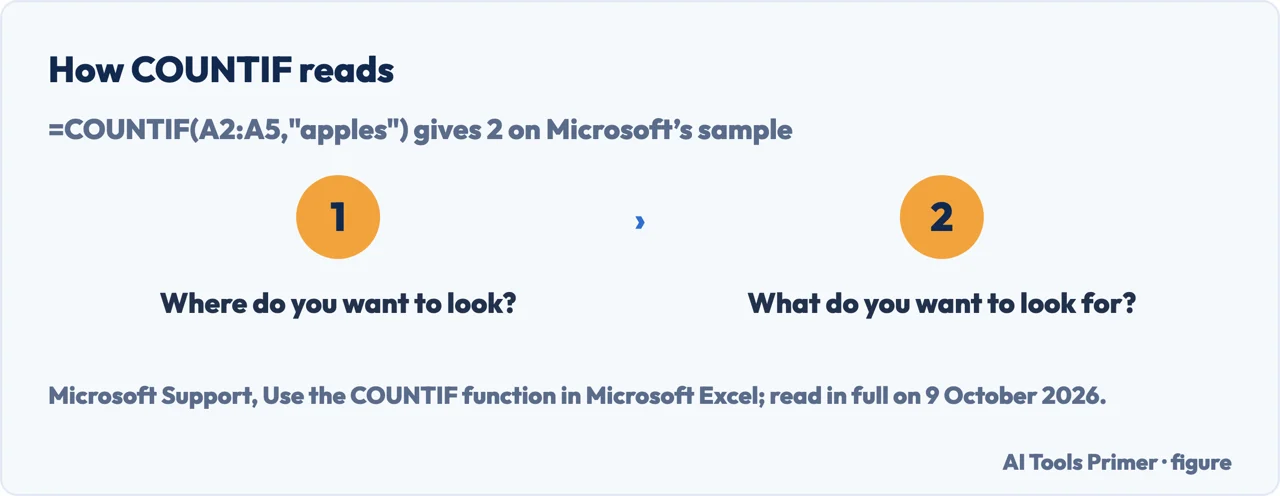
- Type =COUNTIF( and select the range. Microsoft’s plain-language version of the syntax is =COUNTIF(Where do you want to look?, What do you want to look for?).
- Write what to look for. A number like 32, a comparison like ">32", a cell like B4, or a word like "apples". When no value comes back, Microsoft’s troubleshooting table says to enclose the criteria in quotes; Exceljet says a number needs them when it comes with an operator, and that a cell reference written in quotes, "A1", becomes text.
- Close the bracket. =COUNTIF(A2:A5,"apples") gives 2 on Microsoft’s sample of apples, oranges, peaches and apples.
- Check the count against the data. If it looks wrong, Microsoft says leading or trailing spaces, a mix of straight and curly quotation marks, or nonprinting characters might be the reason.
Microsoft’s examples. On the numbers 32, 54, 75 and 86 in B2:B5, =COUNTIF(B2:B5,">55") gives 2, and =COUNTIF(B2:B5,"<>"&B4) gives 3: the ampersand joins the not-equal operator to the 75 in B4. A cell reference alone, =COUNTIF(A2:A5,A4), counts the peaches: 1. Microsoft says COUNTIF also accepts named ranges, such as fruit; a named range in another workbook needs that workbook open.
Text, ranges and the limits
Counting text, and text inside a cell
Case doesn’t matter. Microsoft says COUNTIF ignores upper and lower case: "apples" and "APPLES" match the same cells.
Any text at all. =COUNTIF(A2:A5,"*") counts the cells containing any text, 4 in Microsoft’s example. The asterisk matches any sequence of characters and the question mark any single character, so =COUNTIF(A2:A5,"?????es") counts the entries of exactly seven characters ending in es: 2. A tilde before a question mark or asterisk finds the real character.
A word inside longer text. Microsoft’s page has no example for this. By its own definition of the asterisk, "*apple*" matches any text with apple somewhere in it; Exceljet’s COUNTIFS page gives the same pattern for cells that contain apple. Exceljet notes that wildcards work only with text, not numbers.
Text that looks the same and isn’t. Microsoft says leading or trailing spaces, a mix of straight and curly quotation marks, or nonprinting characters can make COUNTIF return an unexpected value, and suggests the CLEAN or TRIM function.
Microsoft’s 32-to-85 example, counted
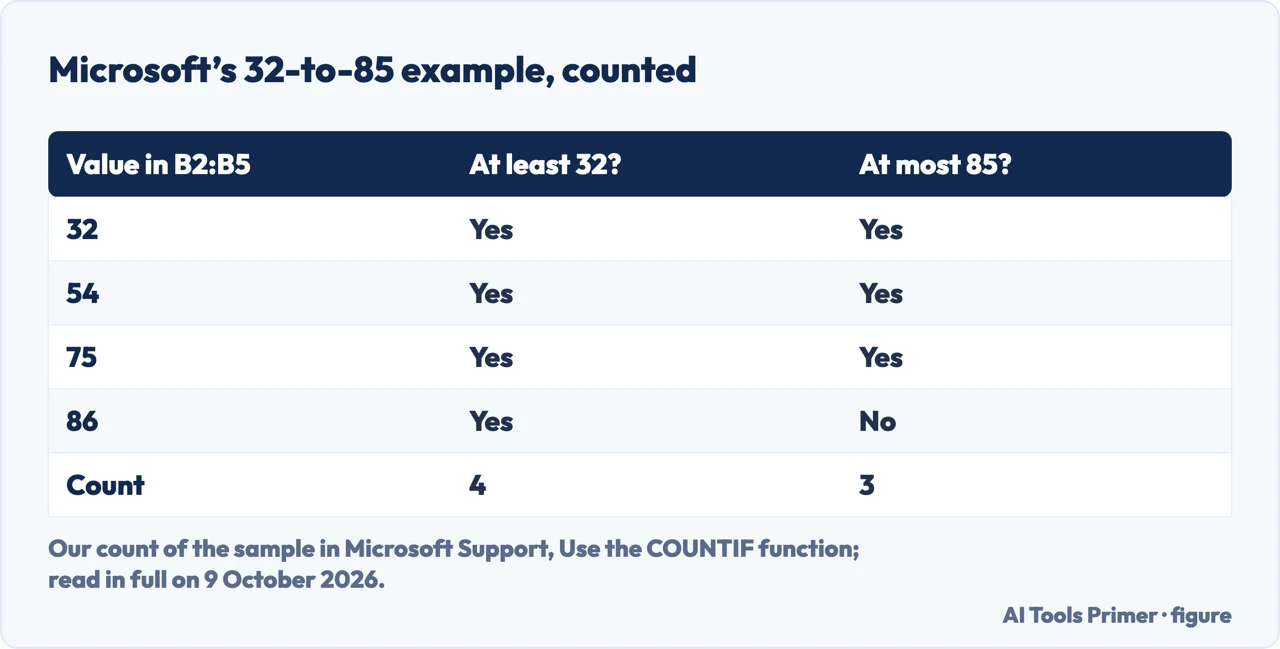
What the page says. Microsoft’s table gives =COUNTIF(B2:B5,">=32")-COUNTIF(B2:B5,"<=85") with the description of counting the values greater than or equal to 32 and less than or equal to 85, and a result of 1.
What the arithmetic gives. The values in B2:B5 are 32, 54, 75 and 86. Four are at least 32 and three are at most 85, so the formula returns 4 − 3 = 1, and that one is 86, the value above 85. The values between 32 and 85 are three. This is our count of Microsoft’s data, not a statement on its page.
A count between two values. Microsoft’s COUNTIFS page does it by giving the same range twice: =COUNTIFS(A2:A7,"<6",A2:A7,">1") counts the numbers between 1 and 6, not including either, and returns 4. On the COUNTIF data the same pattern, =COUNTIFS(B2:B5,">=32",B2:B5,"<=85"), would count the three; that line is ours.
Two conditions: COUNTIFS, or two COUNTIFs added
Both conditions. COUNTIFS(criteria_range1, criteria1, [criteria_range2, criteria2]…) counts the times all criteria are met. Microsoft says each range’s criteria is applied one cell at a time: when all the first cells meet theirs, the count goes up by 1, then the second cells, and so on. Its example =COUNTIFS(B2:B5,"=Yes",C2:C5,"=Yes") counts the salespeople who exceeded both their Q1 and Q2 quotas: 2.
Either of two values. Microsoft uses COUNTIF twice, one criteria per expression: =COUNTIF(A2:A5,A2)+COUNTIF(A2:A5,A3) counts apples and oranges, 3. Exceljet does the same in one formula, =SUM(COUNTIF(range,{"red","blue"})).
An empty cell as criteria. If the criteria argument refers to an empty cell, Microsoft says COUNTIFS treats it as 0.
What COUNTIF can’t do
Long strings. Microsoft says COUNTIF returns incorrect results for strings longer than 255 characters, and that to match longer strings you use CONCATENATE or the & operator: =COUNTIF(A2:A5,"long string"&"another long string").
Another workbook. A formula that refers to cells in a closed workbook gets #VALUE! when the cells are calculated; Microsoft says the other workbook must be open.
Colours. COUNTIF can’t count cells by background or font colour; Microsoft says a user-defined function written in VBA can.
Exceljet’s list. COUNTIF needs a real range rather than an array, so =COUNTIF(YEAR(B5:B16),E5) can’t be entered, and it doesn’t correctly count numbers longer than 15 digits.
Where to start
Five ways in.
- “How do I write it?”
- Writing it — write it
- “I’m counting words.”
- Text — text
- “Between two numbers.”
- The 32-to-85 example — between
- “I have two conditions.”
- COUNTIFS — countifs
- “The count is wrong.”
- The limits — limits
Other formulas that count or compare
The pages next to a COUNTIF: blanks, operators, duplicates and spaces.
Questions people also ask
How to use countif with 2 conditions?
For rows that meet both, use COUNTIFS with one range and criteria pair per condition: =COUNTIFS(B2:B5,"=Yes",C2:C5,"=Yes") gives 2 in Microsoft’s example. For either of two values, Microsoft adds two COUNTIFs, =COUNTIF(A2:A5,A2)+COUNTIF(A2:A5,A3), which gives 3.
How do I count if a cell contains text?
=COUNTIF(A2:A5,"*") counts the cells with any text, 4 in Microsoft’s example. For a word inside longer text, the asterisk on each side, as in "*apple*", follows from Microsoft’s definition of the asterisk, and Exceljet gives it for cells that contain apple. The match ignores case.
What is countif vs count?
COUNT counts the cells that contain numbers. COUNTIF counts the cells that meet a criterion, which Microsoft says can be a number, expression, cell reference or text. Microsoft’s COUNT page says to use COUNTIF or COUNTIFS to count only the numbers that meet certain criteria, and COUNTA for logical values, text or errors.
How to work countif function?
Give it two things: where to look and what to look for, =COUNTIF(range, criteria). Microsoft says it counts the number of cells that meet a criterion. Microsoft’s example =COUNTIF(B2:B5,">55") counts the values above 55: 2.
Not covered here. It does not cover COUNTBLANK, SUMPRODUCT, PivotTables or COUNTIF in Google Sheets, and its results are the ones printed in Microsoft’s examples, not recalculated here, except where the 32-to-85 example is counted.
Sources
- Microsoft Support — Use the COUNTIF function in Microsoft Excel — support.microsoft.com, read 9 October 2026.
- Microsoft Support — COUNTIFS function — support.microsoft.com, read 9 October 2026.
- Microsoft Support — COUNT function — support.microsoft.com, read 9 October 2026.
- Exceljet — Excel COUNTIF function (Dave Bruns) — exceljet.net, read 9 October 2026.
- Exceljet — Excel COUNTIFS function (Dave Bruns) — exceljet.net, read 9 October 2026.
Written by Alberto Gulotta
Founder and editor of AI Tools Primer, writing from Palermo, Italy. Thirty-five years of taking computers apart, starting with a Commodore 64 — the long version is on the about page.
Something wrong on this page? Write to aitoolsprimer@gmail.com and it gets fixed.
Written on 9 October 2026.
Independence and limits
No affiliate links and no paid placements anywhere on this site. Nobody pays to appear here, and no company has seen this page before you did.
This is general information, not professional advice. Where a page touches money, health, safety or the law, it names its source and the date it was read — and your situation may still differ. See the privacy page and the cookie policy.