
Footprint · guide
Reverse image search for your own photos: TinEye, Bing and Google
By Alberto Gulotta · Updated · 16 min read
A reverse image search compares a picture with the images an engine has already indexed. TinEye says it finds copies, including cropped, edited or resized ones, not different photos of the same subject. Debunk.org adds that each engine searches its own index, so one file can give different results.
| Question | Answer | Where it comes from |
|---|---|---|
| What does TinEye compare? | A fingerprint of the picture, not its file name or its metadata | TinEye Help |
| What does it find? | Copies, including cropped, edited or resized ones, and not other photos of the same subject | TinEye Help |
| Are social media images in it? | TinEye says it does not typically add them to its index | TinEye Help |
| Is my upload kept? | TinEye says it deletes the file after about a second; Bing says photos may be used to improve its services | TinEye Help, Microsoft Support |
| Does a match give a name? | TinEye says it shows where it found the photo, not necessarily who is in it | TinEye Help |
What the search compares
TinEye’s help page says it uses image recognition to find matches to the picture you give it. It does not use the image’s name or any metadata attached to it. Instead it creates a compact digital signature, which it calls a fingerprint, and compares that fingerprint with every other image in its index. The page says the index is built by crawling the web and that TinEye never adds the image you searched for to it.
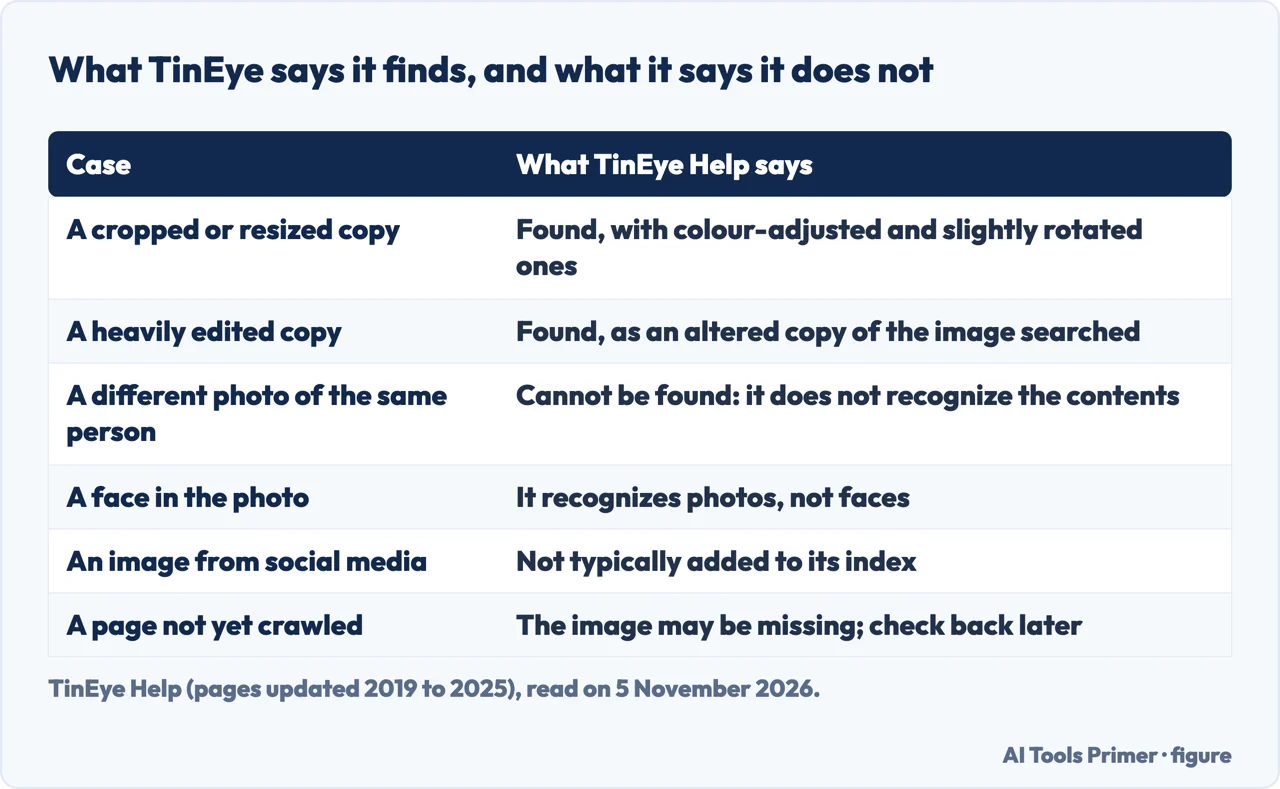
The same help pages say what a match is. TinEye finds exact and altered copies of the image, including those that have been cropped, color adjusted, resized, heavily edited or slightly rotated. It says it does not commonly return similar matches and cannot recognize the contents of an image, so it cannot find different images that show the same people or objects. Debunk.org reports the opposite behavior in its own test of a different engine: Google Lens found similar images, “not always the original”, so a result has to be checked against the photo you searched.
Each engine searches its own index, which Debunk.org describes as the collection of images the engine has already found and stored. The guide draws the consequence that the same file can give different results from one engine to the next. It also says that a search with no results proves nothing either way: the image may be new, heavily edited, shared only in private or made by AI. TinEye’s list of what it is for includes finding where an image came from, finding versions with a higher resolution, finding pages that use an image you created and finding modified versions of it.
Starting in TinEye, Bing and Google
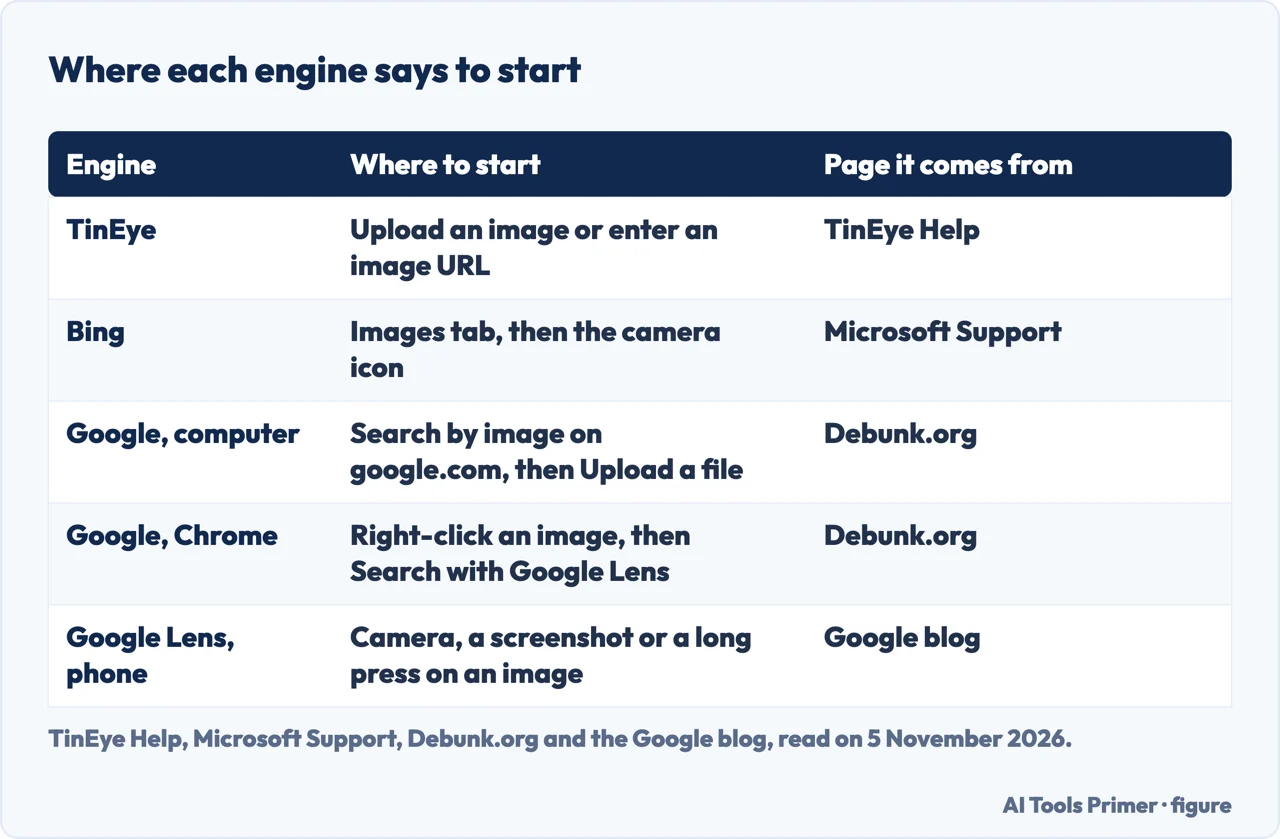
For TinEye, the help page on searching says the site is mobile-friendly and that you upload an image or enter an image address, on a phone as on a computer. It says TinEye did not offer a mobile app when the page was last updated, on 21 January 2021. It also says that if you use Firefox, Chrome, Edge or Opera you can install the TinEye browser extension, which lets you right-click a web image to search it.
For Bing, Microsoft Support says to select the Images tab at the top of a Bing search, or to go to Bing images, and then select the camera icon. On a desktop or laptop you can drag an image into the box, take a photo with a webcam, browse for pictures on the computer, or paste an image or its address. On a mobile device you can take a photo, use an image saved on the device or browse for saved image files. Microsoft says the results include pages that are using the image and related images.
For Google, we could not read Google’s own help page: it sits behind a robot check that we did not get around. The steps below are Debunk.org’s summary of Google Search Help. On a computer you use Search by image on google.com, then Upload a file, or paste the image’s link. In Chrome you can right-click an image and choose Search with Google Lens, and the results open in a sidebar. On a phone you tap the Google Lens icon in the Google app or Chrome, then drag the corners of the box around the part to search. Debunk.org adds that to search a website image in the Chrome app, Google must be your default search engine. Google’s own blog post on Lens describes the same tool as searching with the camera, a picture, a screenshot, or a long press on an image you see while browsing.
Google’s blog also describes a second tool, About this image. Its 2023 announcement, made before the launch, said it would show when an image and similar images were first indexed by Google and where else the image has been seen online, such as on news, social or fact-checking sites. You reach it from the three dots on an image in Google Images, or by searching with an image or a screenshot in Lens. A July 2024 post says it is rolling out to Circle to Search on select Android phones and to Lens in the Google app on Android and iOS.
Where the search does not reach
Social media. TinEye’s page on its index says it is always crawling the web and that its collection runs to billions of images. It says it pays special attention to stock photo sites and to collections such as Wikipedia, Flickr and NASA, which it crawls more often and tags as “stock” or “collection”. Social media images are different: the page says TinEye does “not typically add” them, naming Facebook, Instagram and Twitter, because most social media sites “prohibit indexing” of their users’ images. The pages we read do not say how Google or Bing treat social media photos.
Pages not yet crawled. When TinEye misses an image, its help page says the reason is simply that it has not yet crawled the website or page where the image appears. It says it adds hundreds of millions of new images every month and suggests checking back. Debunk.org, whose test of Google Lens found similar images and not always the original, adds what to try when a search comes back empty: a second engine, a better-quality version of the picture, or a crop of the key part, which it attributes to Yandex Help as sometimes enough. It gives these as steps for checking other people’s photos, and we tried none of them. Its page was last updated on 14 March 2019, so the figure is old.
Pages that are gone. TinEye says that in general it does not remove images from its index when the site they were found on removes them, because that history helps show where an image first came from. If it decides a site is permanently unavailable, it hides those results by default, and a checkbox labelled “Include n results not available” shows them again.
Similar photos and faces. Because TinEye finds copies and not other pictures of the same subject, a new photo of the same person is outside what it says it does. It also says it recognizes particular photos but not faces. Even when it finds the same photo it does not necessarily have the person’s name: it can only say where on the web it found the photo, and the page the image came from might say more. Debunk.org makes a related point about Yandex, which says its image search can help find out who is in a photo: a match only shows where a picture appears, and its caption may be wrong.
Dates. Debunk.org, quoting TinEye Help, says the “oldest” date in TinEye is when TinEye found the image, not proof of when it was taken. Google’s About this image reports the first time Google indexed the image, which is also an index date. Google’s July 2024 post adds that metadata shown for an image can be added or removed by the person who posts it.
What happens to the file you upload
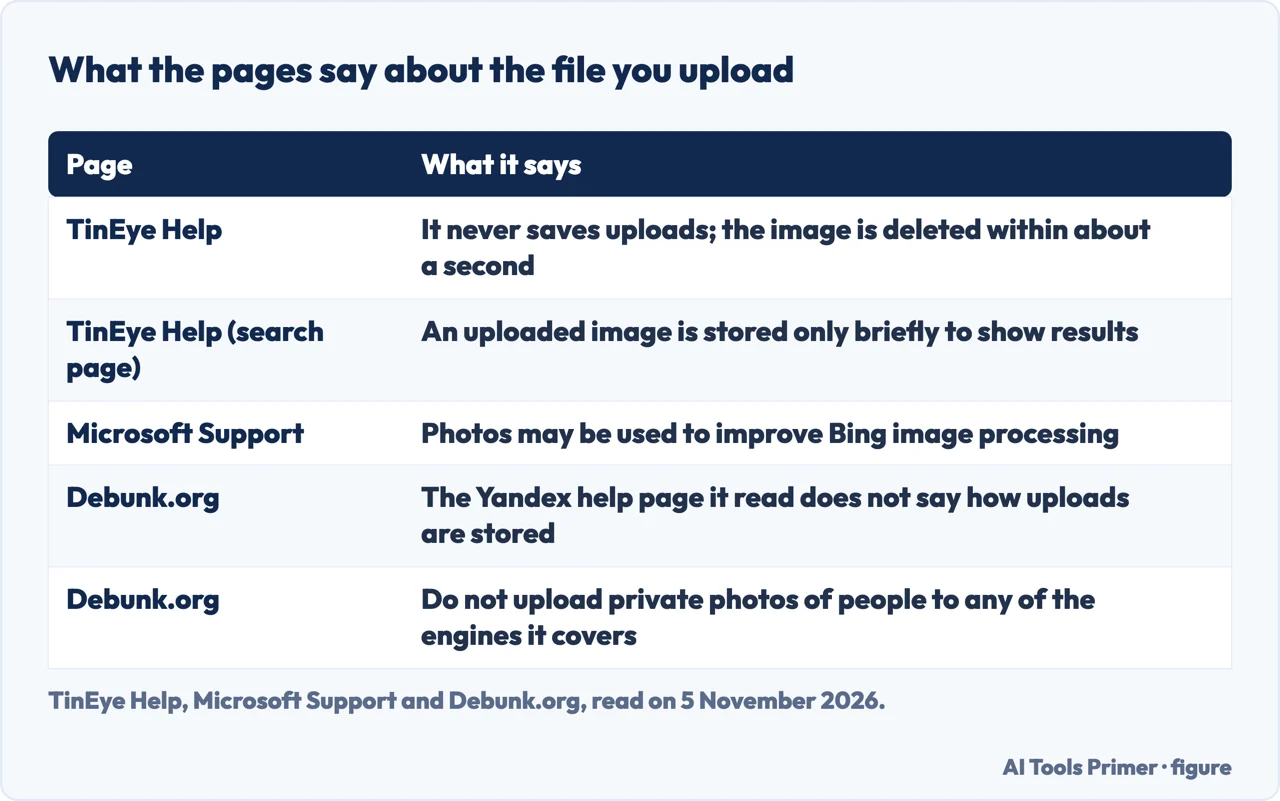
The sources word this differently, and the differences are worth reading side by side. TinEye’s page on uploads says it never saves the images you upload. It analyzes the file on its servers, creates the fingerprint, looks for matches, and within a second or so shows the results and immediately deletes the uploaded image, which is never added to its database. Its pages on how it works and on searching use a looser wording: they say TinEye only keeps the image briefly in order to show the results.
Microsoft’s page on Bing Visual Search says that when you upload a photo, Bing uses AI to help understand its content, and that AI might still make mistakes. It also says the photos you provide may be used to improve Bing image processing services. That is a different statement from TinEye’s, and the Microsoft page carries no date.
For Google, we have only what the blog posts say about the tools, not a statement about uploaded files, because Google’s help pages were not readable. Debunk.org notes that the Yandex help page it read does not say how Yandex stores uploaded images. Its guide ends the privacy section with a plain instruction: do not upload private photos of people to any of the engines. For Yandex it adds that the tool should not be used to identify private people.
The pages we read do not discuss consent or the law. The one related instruction comes from Debunk.org, given above: do not upload private photos of people to any of the engines.
What the sources say to do with a match
Debunk.org, writing about checking photos that other people share, tells readers to write down what they found: save the links, the dates and, if possible, an archived copy. It also says to read the original caption of the oldest credible copy. Those are steps for a verifier, and the pages we read give no separate steps for someone who has found their own photo.
The one removal procedure we read is TinEye’s. Its help page points to an image removal form at tineye.com/image_removal and sets a condition first: the image must no longer appear on the website where TinEye found it, and if it is still displayed there, TinEye says it will not be able to remove it from the results. TinEye also says it has no control over the websites in its results, and that taking an image out of TinEye does not take it off those sites. To have it removed from other websites you contact their owners. For image removal matters TinEye gives the address notice@tineye.com. The page also says that others cannot search for your image on TinEye or find results containing it unless they already have a copy of that image.
Google’s side is covered elsewhere on this site. Our page on Google’s Results about you tool describes a tool that scans search for your home address, phone number and email address and asks for removal of results, not of the pages. Our page on removing personal information from Google sets out the private info request, the legal route and how long the sources say it takes. A file can also carry details of its own, and our page on metadata in photos covers the location, device and date that travel inside it.
Order matters in what the sources say. TinEye’s removal page asks for the picture to be gone from the site first, and the TinEye page on broken links explains why a result can stay in its index after the site has dropped the picture. Neither page says how long that takes to clear.
What we did not use
We uploaded no image to any engine and tested nothing; every statement above is what a page says. The TinEye help pages carry dates from 2019 to 2025, and they may have changed since. The Microsoft page has no date. We did not read Google Search Help, which is why the Google steps come from Debunk.org, and we did not read the Yandex help pages. We read no page from a seller of people-search or facial-recognition services. A guide to Google’s tool on Labnol was read only for background and supplies no statement here. The pages we read do not say how Google treats photos you upload, how large its index is, or how much results differ between engines for a social media profile picture.
Where to start
Five ways in.
- “What does it compare?”
- What the search compares — what
- “How do I start it?”
- Starting in TinEye, Bing and Google — start
- “Why did it find nothing?”
- Where the search does not reach — gaps
- “Is my photo kept?”
- What happens to the file you upload — upload
- “I found a match.”
- What the sources say to do with a match — match
Finding your own name and photos
Where a name or a picture turns up, and what Google scans for you.
Getting a picture out of sight
Google, the profile and the file itself.
Questions people also ask
How do I Google reverse image search?
Google’s own help page was behind a robot check, so these steps are Debunk.org’s summary of it: on a computer, Search by image on google.com, then Upload a file or paste a link; in Chrome, right-click an image and choose Search with Google Lens; on a phone, tap the Google Lens icon in the Google app or Chrome.
Can I reverse search with a photo?
Yes, according to the pages we read. Bing’s page says that on a mobile device you can take a photo or use an image saved on the device. TinEye says to upload an image or enter an image address, and Google’s blog describes Lens searching with the camera, a picture or a screenshot.
Can ChatGPT do reverse image search?
The pages we read do not mention ChatGPT. Debunk.org says a reverse search only shows where an image has appeared and cannot tell you whether a picture is AI-made, and Microsoft says Bing uses AI to understand an uploaded photo and that AI might still make mistakes.
Is there a free reverse image lookup?
Debunk.org says Google Lens and Yandex Images were free with no account when it tested them on 23 October 2026. It also says, citing TinEye Help, that TinEye is free for non-commercial use, up to 100 searches a day. We did not read that TinEye page ourselves.
Not covered here. We tested nothing: we uploaded no image to any engine. The statements come from ten TinEye help pages and a TinEye blog post, a Microsoft Support page, three Google blog posts and a Debunk.org guide, all read on 5 November 2026.
The difficulty behind this page comes from an Ubersuggest reading of 5 November 2026 for the United States. It is Ubersuggest’s own difficulty score, not Semrush’s, and it should be confirmed with Semrush.
Sources
- TinEye Help — How does TinEye work? — help.tineye.com, read 5 November 2026.
- TinEye Help — About the TinEye index — help.tineye.com, read 5 November 2026.
- TinEye Help — Can TinEye find similar images? Does TinEye do facial recognition? — help.tineye.com, read 5 November 2026.
- TinEye Help — Can TinEye find this person for me? — help.tineye.com, read 5 November 2026.
- TinEye Help — Why can’t TinEye find my image? — help.tineye.com, read 5 November 2026.
- TinEye Help — How can I remove my image from TinEye? — help.tineye.com, read 5 November 2026.
- TinEye Help — Broken links in search results — help.tineye.com, read 5 November 2026.
- TinEye Help — Does TinEye keep images I upload during a search? — help.tineye.com, read 5 November 2026.
- TinEye Help — How do I search on TinEye? — help.tineye.com, read 5 November 2026.
- TinEye Help — What can I do with TinEye? — help.tineye.com, read 5 November 2026.
- TinEye Blog — Does TinEye keep images I upload during a search? — blog.tineye.com, read 5 November 2026.
- Microsoft Support — Using Bing Visual Search — support.microsoft.com, read 5 November 2026.
- Google blog — Get helpful context with About this image — blog.google, read 5 November 2026.
- Google blog — New ways to access About this image (July 2024) — blog.google, read 5 November 2026.
- Google blog — 8 ways Google Lens can help make your life easier — blog.google, read 5 November 2026.
- Debunk.org — How to Reverse Image Search (Phone & Desktop) — www.debunk.org, read 5 November 2026.
Written by Alberto Gulotta
Founder and editor of AI Tools Primer, writing from Palermo, Italy. Thirty-five years of taking computers apart, starting with a Commodore 64 — the long version is on the about page.
Something wrong on this page? Write to aitoolsprimer@gmail.com and it gets fixed.
Written on 5 November 2026.
Independence and limits
No affiliate links and no paid placements anywhere on this site. Nobody pays to appear here, and no company has seen this page before you did.
This is general information, not professional advice. Where a page touches money, health, safety or the law, it names its source and the date it was read — and your situation may still differ. See the privacy page and the cookie policy.