
Images · guide
Converting a JPEG to PNG: size, quality and privacy
By Alberto Gulotta · Updated · 16 min read
Converting a JPEG to PNG takes a few clicks on a Mac or a Windows PC, and it changes the container, not the picture: detail the JPEG already lost stays lost, no transparency appears, and the file usually grows. Here is how to do it offline for free, and what three converter sites say they keep.
| Question | Answer | Where it comes from |
|---|---|---|
| Does the picture get better? | No: the PNG holds what the JPEG already holds, flaws included | PicPerf, MDN, W3C draft |
| Does it become transparent? | No: a JPEG has no alpha channel, so the PNG is fully opaque | PicPerf, W3C draft |
| Does the file get bigger? | PicPerf says commonly two to ten times for a photo; our one test gave 4.8 times | PicPerf, our own test |
| Can it be done without uploading? | Yes: Preview on a Mac, Paint on Windows, or a command in the Terminal | Apple Support, Canto, ImageMagick |
| How long do converter sites keep a file? | Two hours, 8 hours or 24 hours at most, by each site’s own statement | iLoveIMG, FreeConvert, CloudConvert |
The two formats, and the difference that matters
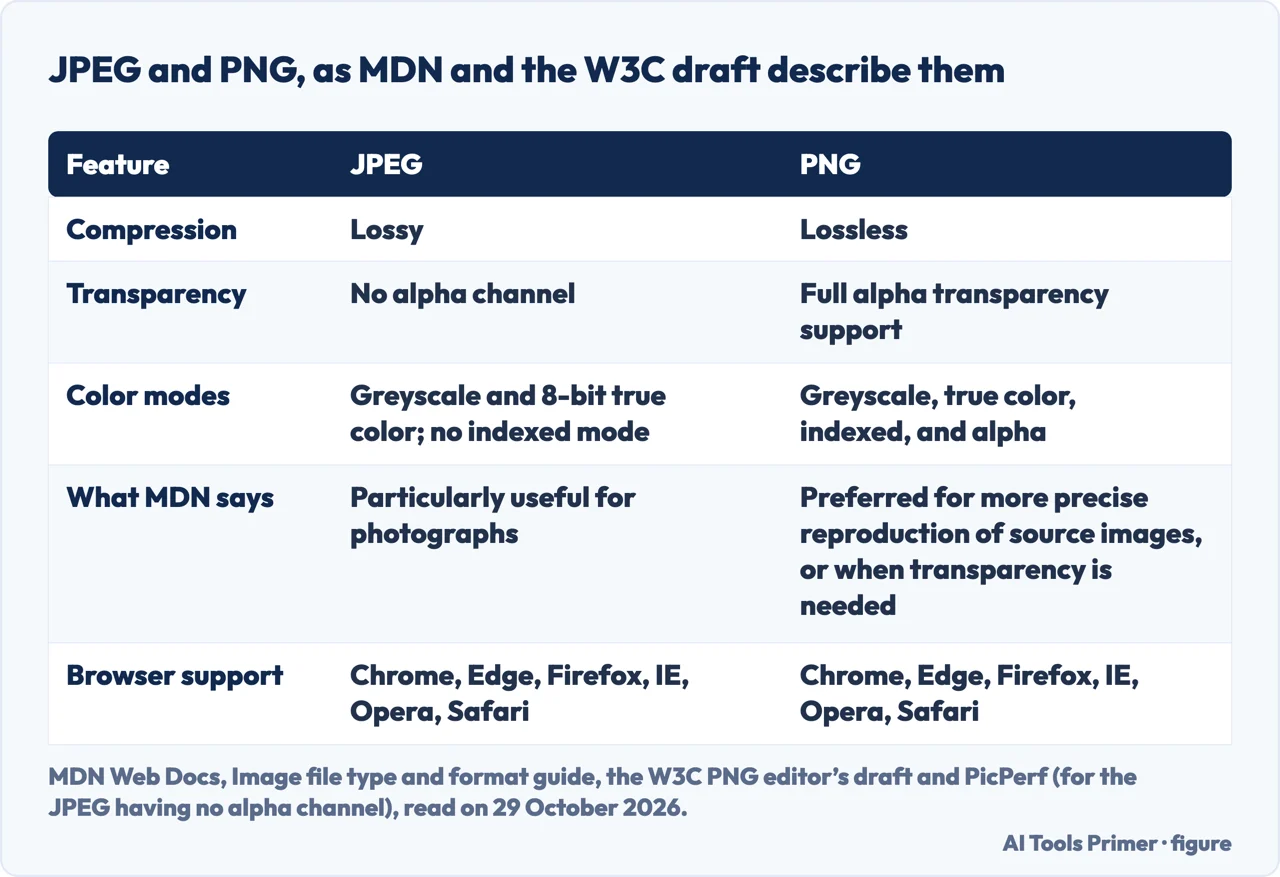
MDN’s guide to image file types calls JPEG “the most widely used lossy compression format for still images”. It adds that JPEG is particularly useful for photographs, and that applying lossy compression to content requiring sharpness, like diagrams or charts, can produce unsatisfactory results. Lossy is the word to hold on to: a lossy file is small because detail was thrown away when it was saved. MDN lists the color modes a JPEG can have as greyscale and 8-bit true color, and says JPEG does not offer an indexed color mode.
PNG is built the other way round. MDN says the PNG format uses lossless compression, supports higher color depths than GIF, and features full alpha transparency support. The W3C’s PNG specification, which we read in its editor’s draft form (it is titled Fourth Edition), describes PNG as an extensible file format for the lossless, portable, well-compressed storage of static and animated raster images. It supports indexed-color, greyscale and truecolor images, plus an optional alpha channel, with sample depths from 1 to 16 bits. One of its stated design goals is losslessness: filtering and compression should preserve all information. The filter step is described there as deterministic, reversible and lossless.
The alpha channel is the part that matters for a conversion. The specification says that if the alpha channel is not present, all pixels are fully opaque. PicPerf, which sells an image delivery service and has a free converter page, states the consequence plainly: a JPEG has no alpha channel. MDN’s image guide lists Chrome, Edge, Firefox, IE, Opera and Safari as supporting both formats. MDN also gives the size ceilings: a JPEG can be at most 65,535 by 65,535 pixels, a PNG up to 2,147,483,647 pixels on a side, so no ordinary photo is blocked by either limit.
What converting can and cannot do
PicPerf describes the conversion in one sentence: the JPEG is decoded and re-encoded as a lossless PNG. Because PNG is lossless, it says, converting never adds compression artifacts, and the image looks exactly like the JPEG you started with. The same answer carries the limit: artifacts already baked into the original JPEG can’t be removed by a format change. A PNG is a faithful container for the JPEG it receives. It is not a way back to the photograph the JPEG was made from.
MDN’s comparison table does not say that conversion repairs anything; it speaks of reproducing the source image. For JPEG it says to prefer PNG when more precise reproduction of the image is required; for PNG it says the format is preferred over JPEG for more precise reproduction of source images, or when transparency is needed. Our reading, not MDN’s words: a JPEG has already been through the lossy step, so what a PNG can reproduce is that JPEG. Transparency follows the same logic. PicPerf says PNG supports transparency, but there is nothing transparent in the source image to preserve, so the result is fully opaque. FreeConvert’s converter page offers something different: a color picker that makes a chosen color transparent in the PNG output. That is a separate edit applied during the conversion, not something the format change does by itself. For a cut-out that is edited by hand, our page on removing a background covers the alpha channel.
The pages we read do not agree on quality. Canto’s guide says “Converting JPGs to PNGs can significantly enhance the quality and usability of your images”, and lists “Improved image quality” as the first reason to convert, followed by transparency, which a JPEG cannot supply (see above). The Adobe Express page says PNG files offer transparency, faded edges and higher quality compression, and that its converter upholds the quality. We give more weight to MDN, the W3C draft and PicPerf, because they describe what lossless means: information that arrives is kept. Canto’s own table is closer to that reading, since it says JPG quality degrades with edits and PNG quality is preserved through edits, and its FAQ says outright that converting does not restore quality lost to JPG’s lossy compression. That is a statement about later saves, not about the file you start from. The Adobe Express page we read does not mention that the PNG will be larger.
MDN names one format that does go back: JPEG XL can losslessly transcode existing JPEG images, allowing the original JPEG file to be reconstructed. The pages we read do not say whether a PNG made from a JPEG can be turned back into the identical JPEG file.
The cost is file size
PicPerf explains the size difference this way: lossless formats do not discard detail the way JPEG does, so a PNG of a photo is “commonly two to ten times larger than the equivalent JPEG”. It calls that the trade-off for zero quality loss. Canto’s guide says the same thing in fewer words: “The PNG is a large file – much less manageable than the JPG.” MDN does not put a number on it.
We ran one test. On 29 October 2026, on a Mac running macOS 26.6.2, we took a JPEG graphic from this site, 1200 by 630 pixels and about 126 kilobytes, and converted it with sips -s format png. The PNG came out at about 600 kilobytes, roughly 4.8 times larger, as an 8-bit RGB file without an alpha channel. That is one graphic, not a photograph and not a rule; it sits inside the range PicPerf gives, and no more can be read from it.
PicPerf also says when the larger file is worth having: when you plan to edit the image repeatedly, need to avoid generational quality loss across saves, or are building on a workflow that requires a lossless format. For publishing photos on the web, it says JPEG, WebP or AVIF will serve smaller files. MDN agrees on the direction. It says WebP “offers much better compression than PNG or JPEG”, that lossy AVIF images are around 50% smaller than JPEG images at visually similar compression levels, and that PNG, JPEG and GIF perform worse than the newer formats but enjoy broader “historical” browser support. Our page on reducing image file size covers the two kinds of compression, and the one on WebP files covers the format that sits between the two.
One converter shows that a PNG can be made smaller, at a price. FreeConvert’s JPG to PNG page has a compression setting for the PNG where, it says, “Lossy” gives the smallest files at the cost of image quality and “Auto” picks a level. That is a choice made on that site’s page, and it moves the output away from the lossless PNG described above.
Doing it offline, for free
Canto’s guide says converting a JPG to PNG does not require third-party software, because on both Windows and Mac it can be done in a few clicks with built-in apps. It also says that using online tools means uploading images to third-party sites, which raises some privacy concerns. The routes below run on the computer in front of you.
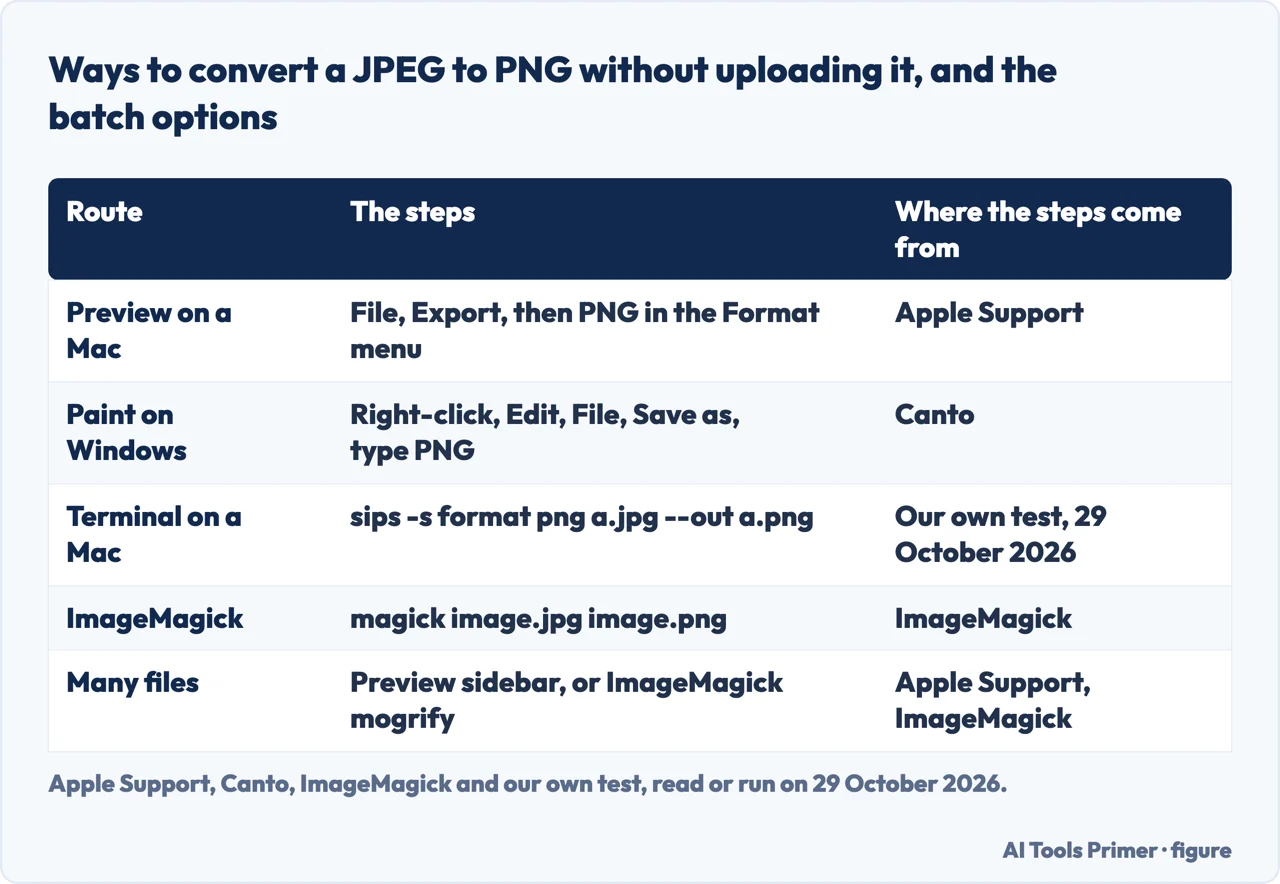
On a Mac, in Preview. Apple Support gives these steps:
- Go to the Preview app and open the file you want to convert, then choose File > Export.
- Click the Format pop-up menu and choose HEIC, JPEG, JPEG-2000, OpenEXR, PDF, PNG or TIFF.
- Type a new name or choose a new location for the converted file, then click Save.
Apple adds that holding the Option key while clicking the Format menu shows specialized or older formats, and that for JPEG and JPEG-2000 you can adjust the image’s quality. To convert more than one file at a time, open the files in one window, select them in that window’s sidebar, and follow the same steps. The pages we read do not say whether Preview changes colors when it saves a PNG.
On Windows, in Paint. We found no Microsoft page for these steps, so they are Canto’s: locate the JPG, right-click it and select Edit, then in Paint choose File and Save as, pick PNG in the Save as type menu, and save. The Microsoft Support page we read on graphic file types covers Office, not Paint, so we did not use it for this.
In the Terminal on a Mac. The command we ran for the test above is sips -s format png a.jpg --out a.png. Apple’s Preview page does not mention it; we ran it ourselves once and it worked on that one file.
With ImageMagick. The ImageMagick command-line page shows a simple single-file conversion as magick image.jpg image.png and an install line, brew install imagemagick, for Homebrew. For many files, its usage guide describes magick mogrify -format, whose example turns all PNG files into JPEG files with the same filename and a different suffix. The guide is blunt about the risk: “Mogrify is dangerous, as it can easily destroy the original image!” It says to test on a separate copy of your images, and warns that if a file with the same name already exists, it will be over-written. We did not run mogrify; the swapped formats for a JPEG to PNG batch are our reading of its example.
What converter sites say they keep
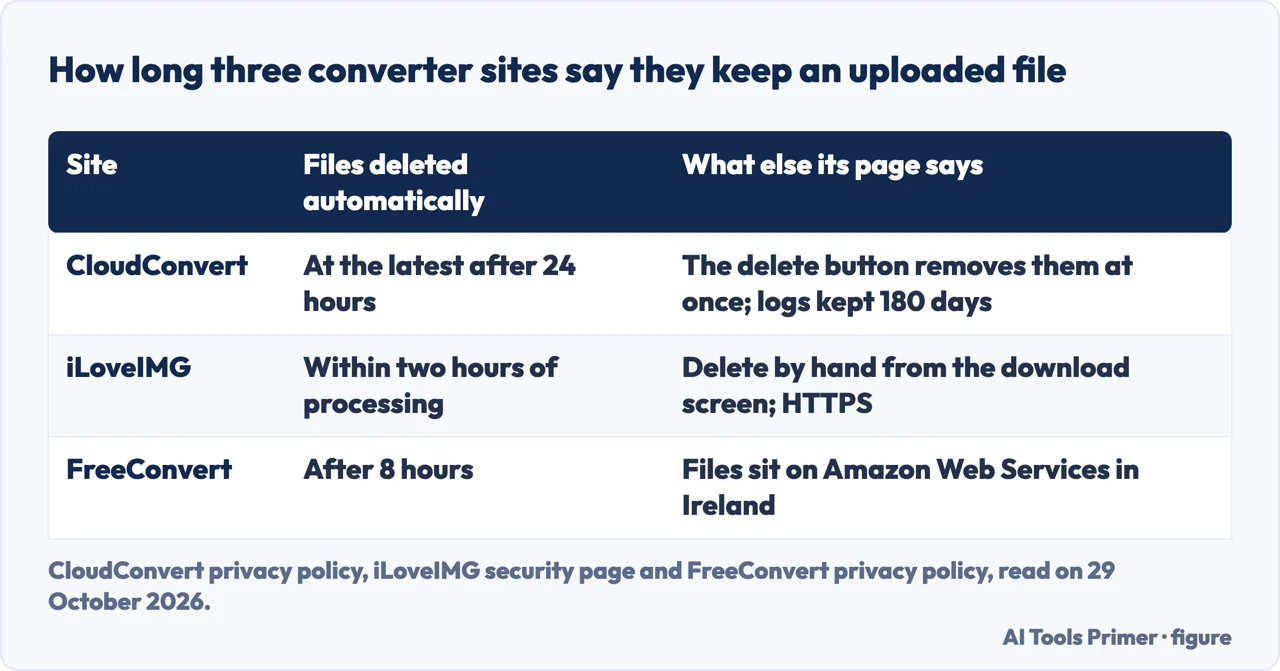
We read the privacy or security pages of three converter sites that take uploads. Each states how long it keeps your file, and the three answers differ. They are the sites’ own statements, and we did not check them.
CloudConvert’s privacy policy says your selected files are transferred to and temporarily stored on its servers, and that the files are deleted immediately and irreversibly when you use the delete button, and automatically at the latest after 24 hours. It says it does not read, look into or mine any data from your files and makes no copies of them. Log data, meaning IP address, user agent and referrer, is deleted after 180 days; the IP address is logged to prevent abuse and for broad demographic analysis. It also says it collects the number of converted files, the number of errors and the total file size of conversions.
iLoveIMG’s security page says all files processed on its platform are automatically and permanently deleted within two hours of being processed, and that you can delete them by hand from the download screen. It describes HTTPS encryption and an ISO information security certification. FreeConvert’s privacy policy says files are automatically and permanently deleted after 8 hours, with the option to delete them earlier, and that all user files are stored on Amazon Web Services in Ireland. It says it does not access or view your files, except with explicit written consent or where legal procedures require it. Its cookie section describes a one-month cookie that stores how many credits you have used and what files you have worked with.
The pages we read do not say what a site gains from the files themselves; the policies speak of deletion, logs and storage. They also do not say what a converter does with the Exif data of a JPEG. The PNG specification has a place for it, a chunk for Exif metadata such as shutter speed, aperture and orientation, and says decoders may ignore all or some of the ancillary information. That tells you what the format allows, not what any converter does. Our page on metadata in photos covers what travels inside a picture file. The offline routes in the section above run on the computer in front of you, so a site’s retention clock does not come into them.
Which route, and what we did not use
Convert a JPEG to PNG when the PNG will be edited and saved again and again, or when a workflow asks for a lossless file, as PicPerf puts it. Do not expect it to repair or add transparency, and expect a larger file. For a photo that is going on the web, the sources we read point to JPEG, WebP or AVIF instead. Preview, Paint and a one-line command cover the job without an upload; a converter site is a choice about how long you are comfortable with a file sitting on someone else’s server, and the three answers above run from two hours to 24.
If you are going the other way, our page on PNG and JPG covers converting a PNG to a JPG. If the file will not open because it is a HEIC from a phone, see HEIC and phone photos.
The W3C’s Recommendation page for PNG could not be read from our machine, so the specification statements above come from its editor’s draft and are marked as such. We ran one conversion, on one graphic, and nothing else on a photograph.
Where to start
Four ways in.
- “Will the picture look better?”
- What converting can and cannot do — cannot
- “Why is the PNG so big?”
- The cost is file size — cost
- “Can I do it without uploading?”
- Doing it offline, for free — offline
- “What do converter sites keep?”
- What converter sites say they keep — sites
Formats next door
The reverse conversion, the web’s newer format and the phone’s own.
Size, metadata and backgrounds
What a bigger file, a hidden location and a missing alpha channel each need.
Questions people also ask
Does converting a JPEG to PNG improve quality?
PicPerf says artifacts already in the JPEG can’t be removed by a format change, and MDN describes PNG as preferred for precise reproduction of source images. Canto’s guide says converting can enhance quality (though its FAQ adds that conversion does not restore lost quality), and Adobe Express says its converter upholds the quality; we weighed MDN and PicPerf more heavily.
Why is the PNG file bigger than the JPEG?
PicPerf says lossless formats do not discard detail the way JPEG does, so a PNG of a photo is commonly two to ten times larger. Our one test, on a 1200 by 630 pixel graphic, gave about 4.8 times.
Can a JPEG become a PNG with a transparent background?
Not by the format change alone. PicPerf says a JPEG has no alpha channel, so the PNG is fully opaque. FreeConvert’s page offers a color picker that makes a chosen color transparent in the output.
How do I convert JPEG to PNG without uploading it?
On a Mac, Apple Support says to open the file in Preview and choose File > Export, then PNG in the Format menu. Canto gives the Paint steps for Windows, and ImageMagick shows magick image.jpg image.png.
Not covered here. We converted one graphic with sips and nothing else. The statements come from MDN, the W3C PNG editor’s draft, PicPerf, Apple Support, Canto, Adobe Express, ImageMagick and the privacy or security pages of three converter sites, all read on 29 October 2026.
The search volume and difficulty behind this page come from a Semrush reading of 29 August 2026, older than the 60 days the site normally allows.
Sources
- MDN Web Docs — Image file type and format guide — developer.mozilla.org, read 29 October 2026.
- W3C — Portable Network Graphics (PNG) Specification, editor’s draft — w3c.github.io, read 29 October 2026.
- PicPerf — Convert a JPEG to PNG — picperf.io, read 29 October 2026.
- Apple Support — Convert image file types using Preview on Mac — support.apple.com, read 29 October 2026.
- Canto — How to Convert JPG to PNG — www.canto.com, read 29 October 2026.
- Adobe Express — Convert JPG to PNG — www.adobe.com, read 29 October 2026.
- ImageMagick — Command-line Processing — imagemagick.org, read 29 October 2026.
- ImageMagick Examples — Basics — usage.imagemagick.org, read 29 October 2026.
- CloudConvert — Privacy Policy — cloudconvert.com, read 29 October 2026.
- iLoveIMG — Security and Data Protection — www.iloveimg.com, read 29 October 2026.
- FreeConvert — Privacy Policy — www.freeconvert.com, read 29 October 2026.
- FreeConvert — JPG to PNG converter — www.freeconvert.com, read 29 October 2026.
Written by Alberto Gulotta
Founder and editor of AI Tools Primer, writing from Palermo, Italy. Thirty-five years of taking computers apart, starting with a Commodore 64 — the long version is on the about page.
Something wrong on this page? Write to aitoolsprimer@gmail.com and it gets fixed.
Written on 29 October 2026.
Independence and limits
No affiliate links and no paid placements anywhere on this site. Nobody pays to appear here, and no company has seen this page before you did.
This is general information, not professional advice. Where a page touches money, health, safety or the law, it names its source and the date it was read — and your situation may still differ. See the privacy page and the cookie policy.