
Images · guide
How to resize an image in Photoshop: size and resolution
By Alberto Gulotta · Updated · 14 min read
How to resize an image in Photoshop: open Image, then Image Size, and enter a width and height. What happens to the pixels depends on the Resample box. Adobe, a photography blog and a university print shop agree on the steps; a delivery-network vendor adds size examples, and the pages differ on the method and the print resolution.
| Question | Answer | Where it comes from |
|---|---|---|
| Where do I start? | Image, then Image Size: width, height, the chain icon, resolution, Resample, OK | Adobe |
| What does the Resample box decide? | Checked, the pixel count can change; unchecked, only resolution and physical size move | Adobe |
| Does making it smaller cost quality? | Adobe says downsampling reduces quality, though it works better than enlarging because real image data informs the calculations | Adobe |
| How many ppi for print? | Adobe says 300 typically; Puget Sound says no lower than 200, with 300 ideal | Adobe, Puget Sound |
| Is cropping the same as resizing? | No: Adobe says the Crop tool isolates existing pixels rather than adding or removing data | Adobe |
Three numbers that move together
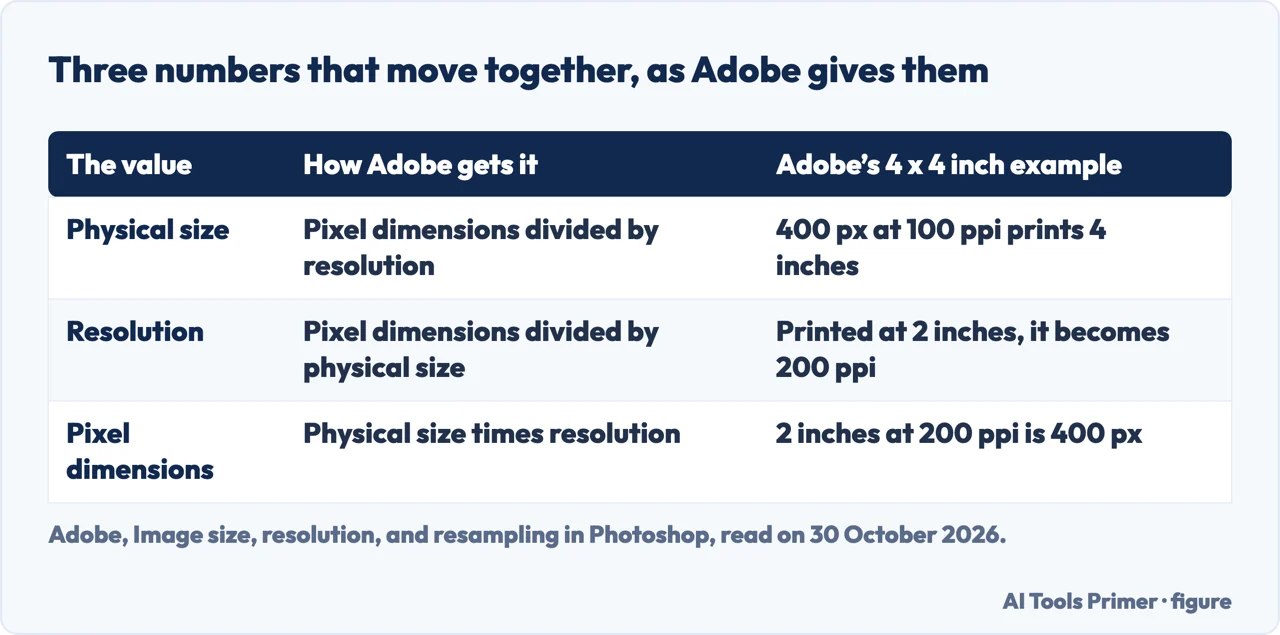
Adobe’s page on image size, resolution and resampling, updated on 28 September 2026, starts from the idea that a picture has three linked properties: its pixel dimensions, its resolution and its physical size. They adjust together, and Adobe says you cannot set all three independently. Physical size is the pixel dimensions divided by the resolution, resolution is the pixel dimensions divided by the physical size, and pixel dimensions are the physical size multiplied by the resolution. A picture of 3000 by 2000 pixels holds 6 million of them, and Adobe adds that the resolution value “doesn’t change the image data”.
Its worked example is a picture of 400 by 400 pixels at 100 pixels per inch, which prints at 4 by 4 inches. Printed at 2 by 2 inches without resampling, the same pixels become 200 per inch. Raise the print size and the resolution falls; lower it and the resolution rises. In neither case is a pixel added or taken away, because Adobe says that only resampling does that.
On a screen, Adobe says the resolution you set does not change how the picture is shown: a square of 1000 by 1000 pixels looks the same whether it is labelled 72 or 300 pixels per inch. What counts there is the pixel count. At 100 percent, Adobe says a picture of 960 by 540 pixels fills a quarter of a 1920 by 1080 monitor and a sixteenth of a 3840 by 2160 one. In print the resolution does matter: the same 1000 by 1000 pixels cover about 13.9 inches on a side at 72 pixels per inch and about 3.3 inches at 300. Adobe says professional printing typically needs 300 ppi and a screen 72 to 96.
The steps in the Image Size window
Adobe’s guide to resizing images (23 February 2026) gives the order. Open Image, then Image Size. Type a Width and a Height in the unit you want. Turn on the Constrain aspect ratio chain icon if the proportions should stay as they are. Set the Resolution, select Resample, and press OK. Adobe’s page on image size says what the Resample box decides: with it checked you can change everything, with it unchecked only the resolution and the physical size change and the pixels stay as they are. It adds that a chain icon that is unlinked typically distorts the content.
SLR Lounge and Puget Sound describe the same window with small differences. SLR Lounge, a photography blog (article dated 13 October 2015), opens Image Size from the Image menu or with Command, Option and I, and says it uses the window to change pixel dimensions, usually without changing the ratio, for example for a website or blog. It calls the control the chain link icon and points out that the chain does the arithmetic: enter 650 pixels wide and the height follows. Its warning is about the unit: 650 inches is not 650 pixels. The University of Puget Sound print shop calls the same box Constrain Proportions, chooses inches, and sets the resolution for print.
Two habits come from these pages. Puget Sound says to choose Save As and give the file a new name if you want to keep the original. SLR Lounge makes the same point from the other side by listing export routes that leave the original alone, covered below. If the proportions you want differ from the picture’s own, Puget Sound says it will be necessary to crop after resizing, which is the subject of the section on cropping.
To resample or not
Adobe’s page says resampling adds or removes pixels, and so changes how much data the file holds. When Photoshop enlarges a picture it estimates the new pixels, which Adobe says can reduce sharpness and introduce artifacts; modern algorithms do better, but Adobe says they cannot add detail that was never there. Making a picture smaller combines several pixels into one and discards information. Adobe says this works better than enlarging because real image data informs the calculations, and still states plainly that “Downsampling reduces quality.”
Adobe’s advice follows from that. For a screen, think in pixel dimensions. Avoid resampling where you can, especially enlarging. Start from a source that already has the right size. Resample once, because repeating it compounds the quality loss. KeyCDN, a company that sells a content delivery network, gives a size example: a picture of 3000 by 2000 pixels and 17.2 MB became 1000 by 667 pixels and 1.91 MB. It also says to begin with a high-resolution original that has not been compressed or resized before, and that both enlarging and reducing degrade a picture to some extent.
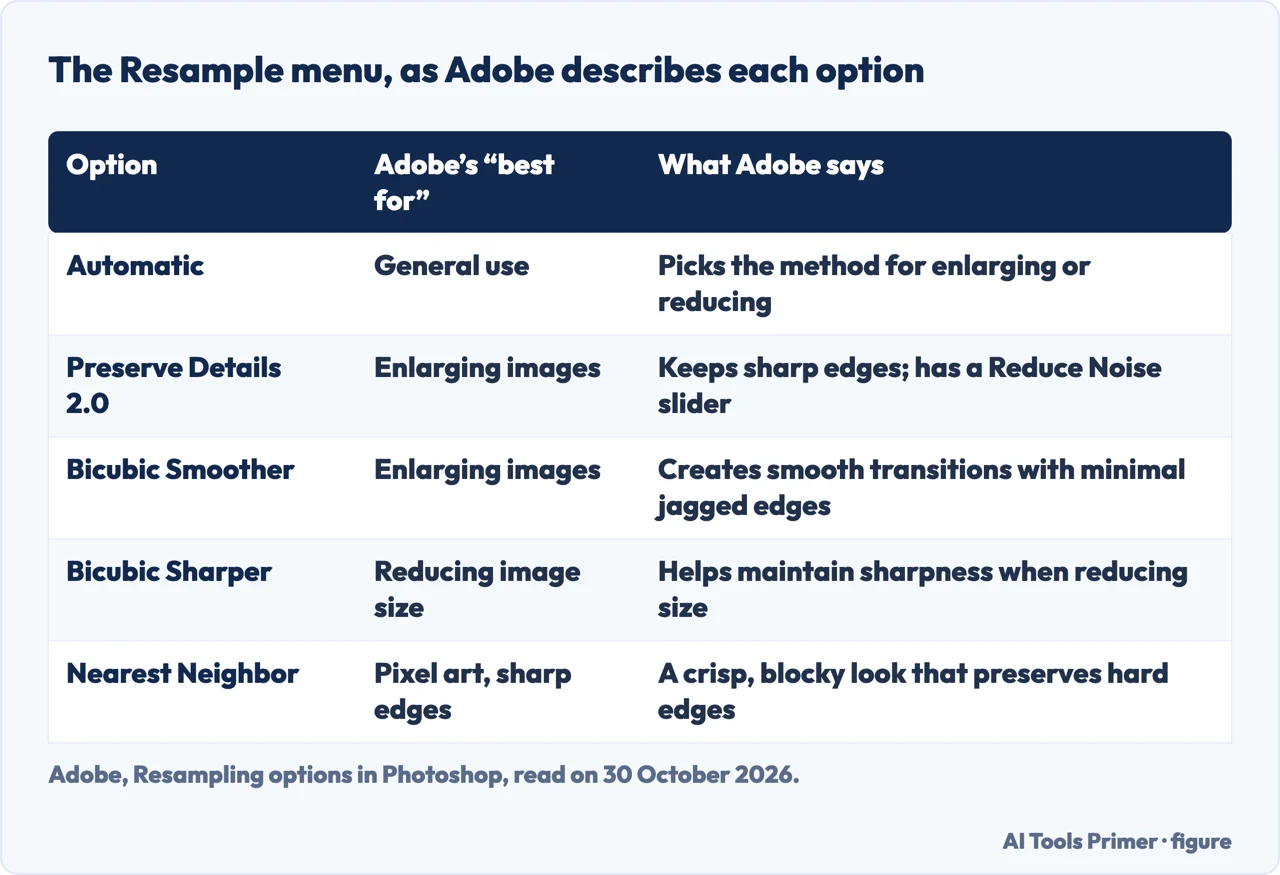
The Resample menu offers a choice of method, and Adobe describes each one in a table (23 February 2026), summarised in the figure below. The pages differ on which to pick. Adobe’s table lists Automatic for general use and Preserve Details 2.0 for enlarging. KeyCDN recommends Bicubic Smoother when enlarging and Bicubic Sharper when reducing, and Adobe’s table agrees about Sharper for reduction. SLR Lounge says it generally chooses Automatic. Adobe’s table also lists Bicubic (smooth gradients) for general use, Nearest Neighbor (hard edges) for pixel art or sharp-edged graphics, and Bilinear, which it says may give less precise results and softer images. The pages we read do not say which of these gives the best result for a given picture.
How far you can enlarge, and what Save for Web trades
The Adobe pages we read do not give a limit. KeyCDN, a company that sells a service, says that you can usually get away with 2x upsampling before noticing a big drop in quality (it adds that with most PNGs you will probably notice a big difference), and that once you get into 3x it starts to become quite blurry; that is its observation, shown with sample pictures, not a measurement from Adobe. SLR Lounge puts it more loosely: if you make an image larger, the computer interpolates pixels and you might lose quality, and whether that matters depends on what the picture is for.
The same KeyCDN page shows that file size and quality are a trade. In Save for Web, an original of 3.1 MB saved at 20 percent quality came to 486 KB with visible pixelation, and at 50 percent quality to 799 KB. It ends by saying the balance is up to the user and the quality they require against the file size. Our page on reducing the size of an image file goes into the two kinds of compression.
Cropping is not resizing
Adobe’s page on the Crop tool (6 October 2026) opens by saying that the tool works differently from resampling. Cropping selects a region of the existing pixels, and Adobe says it does not add or remove data to fit preset dimensions. The Crop tool’s option bar takes a Width and a Height with a unit (pixels, inches, centimetres, millimetres, points or picas; with no unit, inches) and a Resolution, and the Info panel shows the pixel dimensions of the area as you draw it.
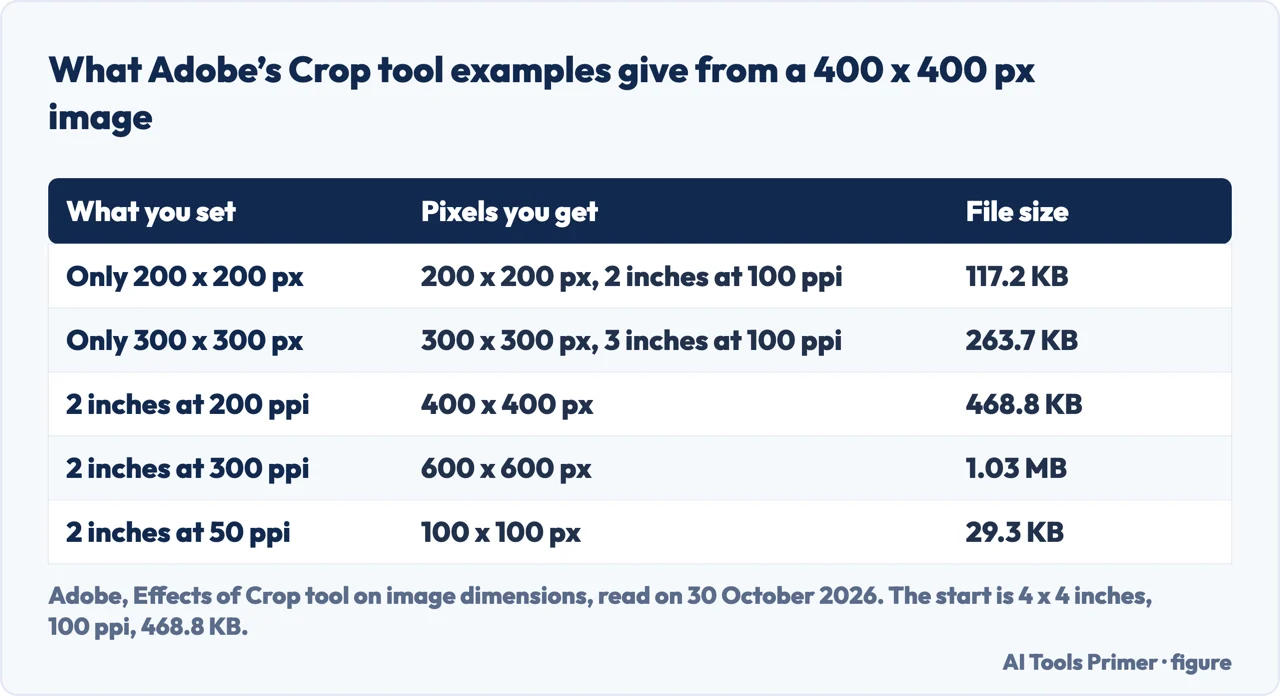
Adobe then tabulates what different settings do to a picture that starts at 4 by 4 inches, 100 pixels per inch, 400 by 400 pixels and 468.8 KB. If you give only pixel dimensions, the resolution stays at 100 and the physical size follows. If you give a physical size and a resolution, the pixels follow: 2 by 2 inches at 200 pixels per inch gives 400 by 400 pixels again, at 300 it gives 600 by 600 and 1.03 MB, and at 50 it gives 100 by 100 and 29.3 KB. We left out the first scenario in Adobe’s page, because its sentence and its table do not agree with each other.
In practice the sources split the jobs. SLR Lounge uses the Crop tool to change the ratio, for example from 2:3 to 1:1, and saves a copy. Puget Sound resizes first and crops afterwards when the proportions differ. Adobe’s crop page does not say which order is better, and neither do the others we read. Our page on cropping on a Mac covers two built-in tools that behave differently.
Canvas Size, Save for Web and Export As
SLR Lounge lists five ways in all: the Crop tool, Image Size, and three more. Canvas Size, under the Image menu (Command, Option and C), adds space around a picture without changing the photo itself; there is an anchor point that says where the new space goes. The article warns that a smaller number clips the picture, which is why it uses Canvas Size only to expand. The blog suggests duplicating the layer and hiding or deleting the locked original first, so that the new area is transparent.
The last two are export routes. Save for Web is labelled “legacy” in the article, found under File, Export, with Command, Shift, Option and S, and it changes the size on export without touching the original file. Export As, the article says, seems to be the new replacement for it: a simpler window for exporting to various formats, with Image Size and Canvas Size built in, a preview and the projected file size for the format, dimensions and quality you pick. The article dates from 2015, and menus can have moved since, so check the names in your own version before you rely on them.
Which one to use, and where the pages stop
Put side by side, the pages give a rough division. Use Image Size to set pixel dimensions for a screen, and the physical size and resolution for print. Use the Crop tool to change the shape of a picture. Use Canvas Size to add space. Use an export route to get a smaller copy without altering the original. Our page on resizing in GIMP follows the same ideas in a free program, and the one on resizing on an iPhone separates three jobs that share the name.
Several things were not answered by the pages we read. They do not say which order, cropping first or resizing first, is better. They do not give a limit for enlarging that Adobe stands behind. They do not explain why Photoshop might refuse to resize a given picture, so we cannot answer that question beyond what the Image Size window itself does, and we do not guess at causes. They do not describe dragging a picture to a new size. On cutting file size inside Photoshop, the pages give KeyCDN’s Save for Web example and SLR Lounge’s export routes.
What we did not use
We tested nothing in Photoshop. Pages from Reddit, the Adobe community, YouTube and bringyourownlaptop.com were not opened, so nothing in this page rests on them. SLR Lounge is a 2015 article, so the interface it describes may have changed. KeyCDN is a vendor and its page dates from May 2023, so we used it for its numbers and named it as a vendor. The Puget Sound page comes from the university’s print and copy services, and we used it for its steps and for the print resolution it gives.
Where to start
Four ways in.
- “What do the three numbers mean?”
- Three numbers that move together — numbers
- “Where do I type the size?”
- The steps in the Image Size window — steps
- “Does it lose quality?”
- To resample or not — resample
- “Should I crop instead?”
- Cropping is not resizing — crop
Resizing in other places
The same job in a free program, on a phone, and as a file.
Shape and quality
Cropping, enlarging and what the format keeps.
Questions people also ask
How do I adjust the size of an image?
Adobe’s steps are Image, then Image Size; type a Width and a Height in the unit you want; use the chain icon to keep the proportions; set the Resolution; select Resample; press OK.
How do I scale an image to a specific size?
Type the width and height with the right unit, since SLR Lounge points out that 650 inches is not 650 pixels. Puget Sound adds that if the proportions differ from the size you want, you will need to crop after resizing.
Why can’t I resize an image in Photoshop?
The pages we read do not answer this. Nothing we read names a cause. What Adobe does say about the window is that with Resample unchecked only the resolution and physical size change, so the pixel dimensions will not move, and that you cannot set pixel dimensions, resolution and physical size independently; we do not offer this as the reason.
How to reduce the photo size in Photoshop?
Adobe says downsampling combines pixels and discards information. KeyCDN’s example took a picture of 3000 by 2000 pixels from 17.2 MB to 1.91 MB at 1000 by 667 pixels, and SLR Lounge points to Save for Web and Export As.
Not covered here. We tested nothing in Photoshop. The statements come from four Adobe help pages, KeyCDN, SLR Lounge and the University of Puget Sound, read on 30 October 2026.
The search volume and difficulty behind this page come from a Semrush reading of 29 August 2026, older than the 60 days the site normally allows.
Sources
- Adobe — Resize images in Photoshop — helpx.adobe.com, read 30 October 2026.
- Adobe — Image size, resolution, and resampling in Photoshop — helpx.adobe.com, read 30 October 2026.
- Adobe — Resampling options in Photoshop — helpx.adobe.com, read 30 October 2026.
- Adobe — Effects of Crop tool on image dimensions — helpx.adobe.com, read 30 October 2026.
- KeyCDN — How to Resize Image Without Losing Quality — www.keycdn.com, read 30 October 2026.
- SLR Lounge — Resize Photos in Photoshop: The 5 Most Common Methods — www.slrlounge.com, read 30 October 2026.
- University of Puget Sound — How To Resize an Image In Photoshop — www.pugetsound.edu, read 30 October 2026.
Written by Alberto Gulotta
Founder and editor of AI Tools Primer, writing from Palermo, Italy. Thirty-five years of taking computers apart, starting with a Commodore 64 — the long version is on the about page.
Something wrong on this page? Write to aitoolsprimer@gmail.com and it gets fixed.
Written on 30 October 2026.
Independence and limits
No affiliate links and no paid placements anywhere on this site. Nobody pays to appear here, and no company has seen this page before you did.
This is general information, not professional advice. Where a page touches money, health, safety or the law, it names its source and the date it was read — and your situation may still differ. See the privacy page and the cookie policy.