
Malware · guide
How to scan for malware, and the fake scanners to avoid
By Alberto Gulotta · Updated · 18 min read
To scan for malware on Windows, Android or a Mac, Microsoft’s support page starts each scan from the Microsoft Defender dashboard, under Device details. Security.org and Acronis add quick and full scans. Panda Security says a program you haven’t already downloaded and opened cannot scan your computer, so a pop-up claiming a scan is the thing to close.
| Question | Answer | Where it comes from |
|---|---|---|
| Where does a Windows scan start? | Microsoft starts it in the Defender dashboard: Device details, Manage in Windows Security, Quick scan | Microsoft Support |
| How long does a quick scan take? | Security.org says typically five to 15 minutes; the pages we read give no time for a full scan | Security.org |
| How often should I scan? | Security.org says quick daily and full weekly; Acronis says full weekly and quick two to three times a week | Security.org, Acronis |
| Can a pop-up scan my computer? | Panda says a program you have not downloaded and opened cannot; Malwarebytes says real software does not scan without your permission | Panda Security, Malwarebytes |
| Where do I get a scanner safely? | Panda says to type the company’s address or use its app store listing, not an ad link | Panda Security |
The scanner Microsoft describes, and where each scan starts
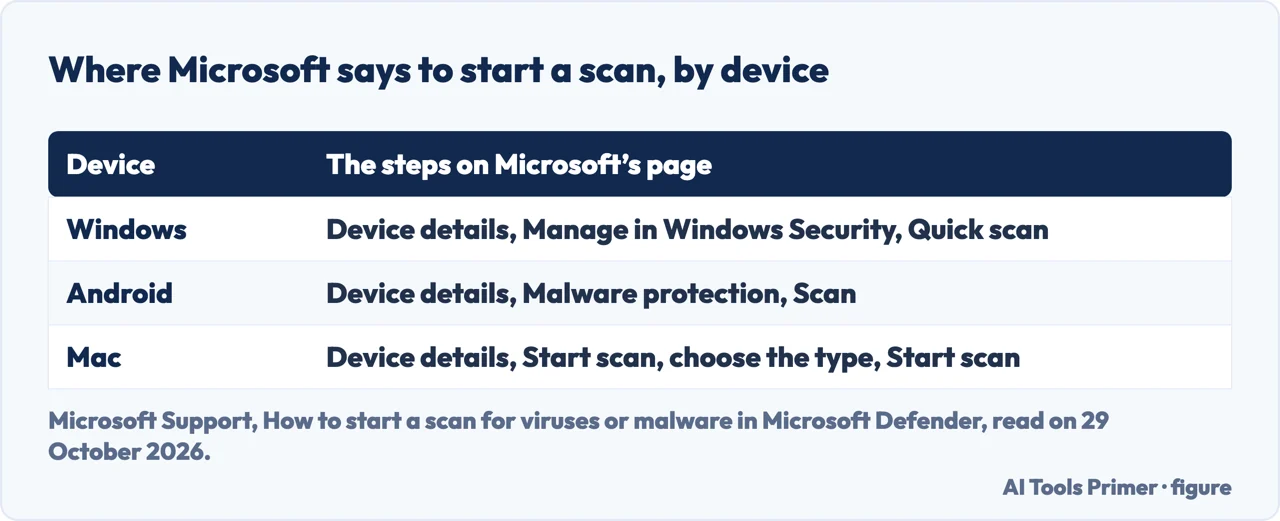
Microsoft’s support page on starting a scan says you can start a scan for malware any time you like, and that Microsoft Defender currently offers anti-malware on Windows, Android and macOS. Each platform gets its own short list, drawn in the first figure below. On Windows the page starts from the Microsoft Defender dashboard: Device details, then Manage in Windows Security, then Quick scan. On Android it is Device details, Malware protection and the Scan button. On a Mac it is Device details, Start scan, the type of scan you want, and Start scan again. The page says that when a scan finishes, Defender reports whether it found anything.
The Windows steps on that page begin in Defender and then pass to Windows Security, so the page takes it for granted that Windows Security is there to open. We checked no computer for it. Our page on Microsoft Defender covers what that protection is and how to see whether it is switched on.
Security.org, a site that says it may earn compensation from some providers, starts the same job from a different place. Its Windows steps begin at Settings and Update & Security, then Windows Security, Virus & Threat Protection and Current Threats, and its FAQ lists them under Windows 10. We did not try them on a computer, and Microsoft’s own page does not use that path, so we cannot say whether they match a current Windows screen. Security.org also describes a right-click on a file or folder in File Explorer and the choice Scan with Microsoft Defender. For Android it names Google Play Protect: open the Play Store menu, choose Play Protect, then Settings, and turn Scan Apps With Play Protect on. Its FAQ gives a second route, Play Protect and then Scan Device for Security Threats.
iPhones are where the pages disagree. Security.org says iPhones and iPads do not need antivirus software, while Malwarebytes says its free scanner supports iOS. We do not settle that here; our pages on whether iPhones get viruses and on removing a virus from an iPhone do.
For a Mac, Microsoft offers Start scan in Defender for Mac. Apple’s page on safely opening apps, published on 27 May 2026, is not a scan guide. It describes checks macOS makes when you open an app: Gatekeeper performs online checks for known malware, a notarized app is one Apple checked for malicious software and found none, and if macOS detects known malware it says the app cannot be opened and moves it to the Trash. Security.org’s Mac section describes only the setting for where software may come from, the App Store or the App Store and identified developers. Our page on checking a Mac for malware goes through the rest.
Quick, full, custom and scheduled
Security.org names four kinds of scan. A quick scan examines the device’s most vulnerable areas, such as system files, running processes and common hiding spots, and it says this typically takes five to 15 minutes. A full scan covers all of a device’s file directories and connections; it takes longer, can slow the computer slightly, and Security.org says it usually lets one run while it is away from the machine. A custom scan covers specific areas or files, for example a file you downloaded and worry about. A scheduled scan is either of the first two set to run at a chosen time, such as at night. The pages we read do not say how long a full scan takes or how many files it examines; Malwarebytes says only that its scan takes a few minutes, without naming a type.
Acronis describes the same split in its own product. Its full scan examines all files and folders on the machine, and its quick scan checks the specific folders most likely to store threats, which it says makes it faster for routine checks. Its scan can run in the background, and the progress shows in the Protection section. Microsoft’s page keeps it simpler: the Windows steps end at Quick scan, with a tip that choosing Scan options in step three lets you pick another type. For the most complete scan Microsoft points to Microsoft Defender Offline and links to a page about it that we did not read, so we say nothing about how it works.
On the Windows side Security.org also describes a scheduled scan through Task Scheduler: the Task Scheduler Library, then Microsoft, Windows, the Windows Defender folder and Windows Defender Scheduled Scans, then Properties, Triggers and New, where you set the time and how often. Malwarebytes describes a scan of one item for its own scanner: right-click a file, folder or external drive in Windows Explorer or Mac Finder and choose the Malwarebytes scan option.
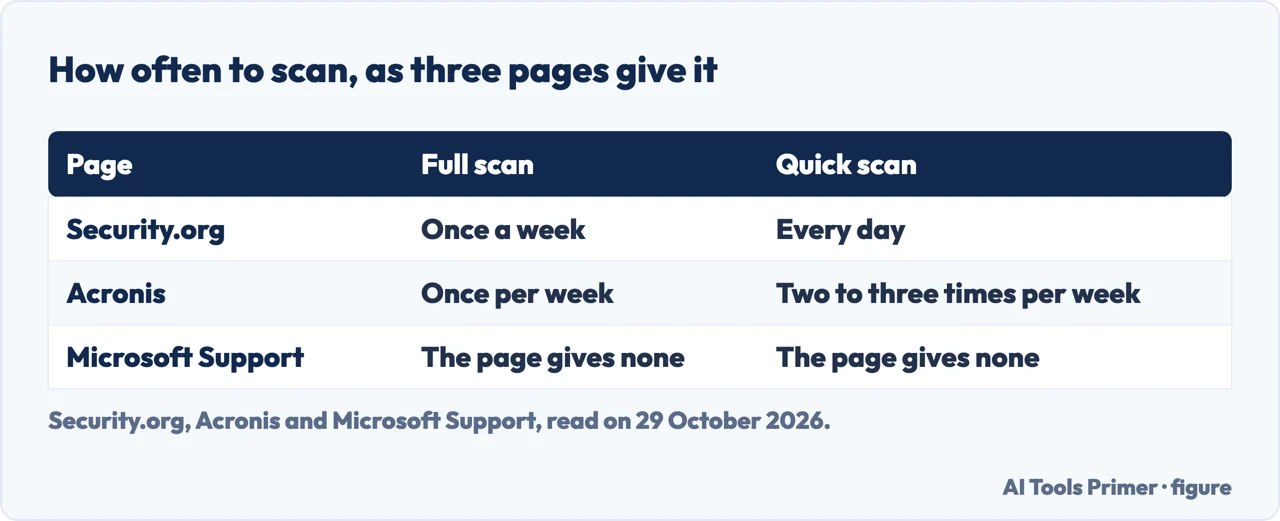
The pages give different schedules, shown in the second figure. Security.org says quick scans daily and full scans once a week, and Acronis says a full scan once a week and a quick scan two to three times a week, with real-time monitoring continuous. Microsoft’s page gives no schedule at all. Both schedules come from sources with something to sell: Security.org says it may earn compensation from providers, and the Acronis post is on the blog of a company that sells the product it describes. We cannot tell you which one is right, and the pages do not say.
Before you start, and when to scan at all
Two pages give a preparation list, and they overlap. Acronis, in a post last updated on 22 January 2026, says to install the latest updates for the system, whether Windows, Android, Mac or iOS, because malware often exploits security holes those updates patch. It then says to close unnecessary programs, which frees resources for a faster scan, and to check that a free scanner is on its latest version. For what it calls an even deeper clean it suggests restarting in safe mode, which limits background processes. Security.org, whose page was last updated on 26 August 2026, gives the order for a first scan: complete all security updates, do a full scan, read the results, follow the prompts, and schedule future scans. It adds elsewhere that security patches should go on within 24 to 48 hours of release.
Safe mode is the difference between them. Acronis suggests it; the Microsoft and Security.org pages we read do not mention it. Acronis also says to be patient with a full scan on a device with a lot of files, and to review the results when it ends.
Microsoft answers the question of when. It says to start a scan if you suspect the device may be infected, or if you want to confirm that a previous infection appears to be cleaned. The signs it lists are a device suddenly running much slower than usual, a significant decrease in battery life, and an unexpected increase in data usage, which it says may indicate an unknown process running in the background and consuming resources. Other clues are unexpected ads or pop-ups and being redirected to totally different sites when browsing. Malwarebytes lists a similar set on its scanner page: lots of pop-ups, frequent crashes, spam emails sent from your account, a password that suddenly changes, a slow computer and a different homepage. Our page on telling whether a computer has a virus sorts such signs further.
When the search results cannot be trusted
A search for a scanner is where a scan can go wrong before it starts. Several of the pages we read are written by companies that sell a scanner, and their steps run through their own product. Malwarebytes gives four: download the free scanner and open the installer, install and open it, click Scan, then review the results and quarantine any threats, restarting if prompted. It adds that scanning finds threats that are already on the device, and that real-time protection, which stops new ones, comes with Premium. Acronis gives its own sequence: install and launch the product, open the Protection tab, choose the malware scan, pick the drives or folders and click Start Scan.
Panda Security, a security vendor itself, says the search is also where fakes are found. Its page, dated 24 July 2026, describes false advertisements: paid ads on search engines, social media platforms and trusted websites, styled to look like a well-known antivirus brand, whose links lead to pages that closely mimic the company’s design. Its advice is to type the company’s address straight into the browser. It describes malicious sponsored links in the same terms, search results and social feeds that lead to malware downloads disguised as free antivirus, and says to use the company’s own site or its app store listing rather than the ad link. It adds that fake antivirus is often bundled with pirated software or cracked games, and that texts or emails about a subscription about to expire can push you to pay or to install remote access software. The pages we read do not describe another way to tell a sponsored result from any other.
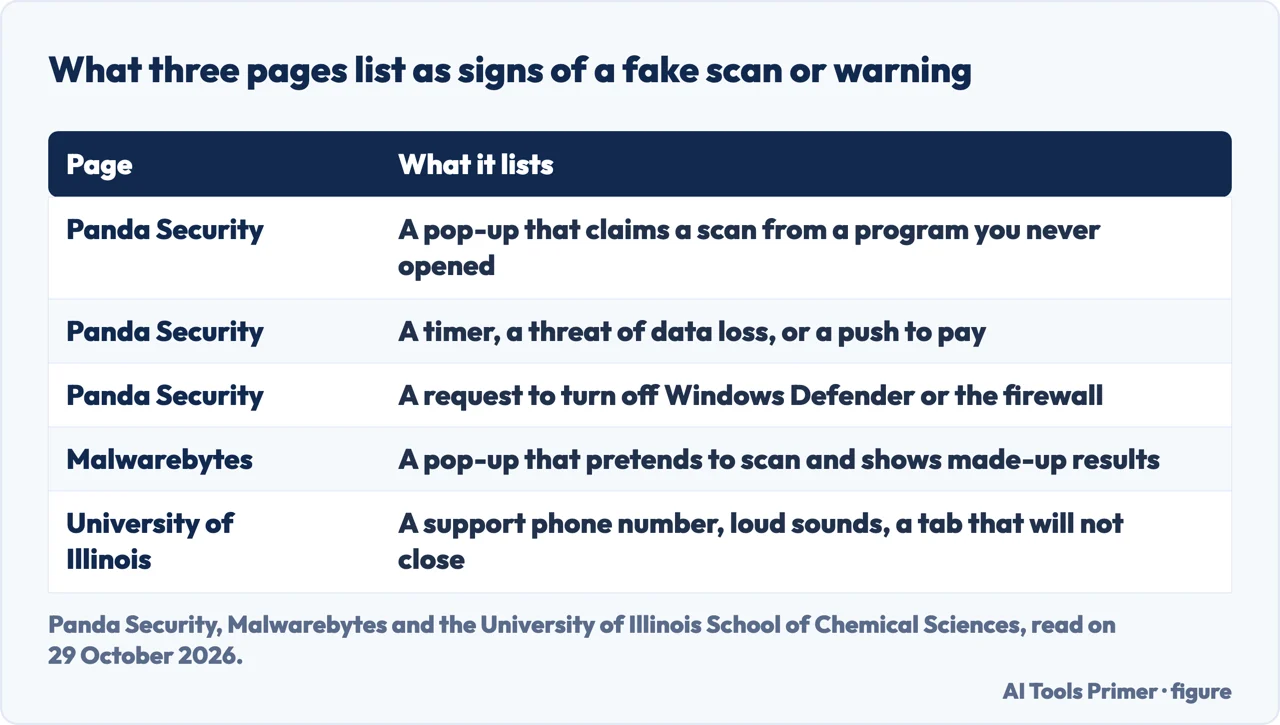
Panda also lists signs that a program is fake: a name or branding that matches no known antivirus company, or that copies a trusted one; spelling and grammar errors; unsolicited pop-ups; pressure to download or pay, with countdown timers or threats of data loss; a request to turn off a security program such as Windows Defender, to disable a firewall or to grant remote access; and a warning from your existing antivirus or browser before the install. As an example, Panda cites a 2024 case against Restoro and Reimage that ended in a 26 million dollar settlement, saying the software neither stole data nor installed malware but was useless and was used to sell more. That is Panda’s account; we did not read the court or agency record.
When the warning arrives before you asked
A fake scan can be one you never started. Panda says it is impossible for a program you have not already downloaded and opened to scan your computer, so a pop-up that says it found dozens of infections is not reporting a scan, and it says real antivirus programs do not run scans through unsolicited pop-ups on unrelated websites. Malwarebytes, on its page about scareware, says such pop-ups sometimes pretend to scan your system and show fabricated results, and that legitimate security software will not launch a scan without your permission. It describes scareware as alarming warnings, often from ads or emails, that push you to download a fix which is itself a fake antivirus.
The University of Illinois School of Chemical Sciences, in a help article updated on 8 May 2026, lists what such a warning looks like: urgent and alarming language, logos of known tech or antivirus companies, a phone number for technical support, an invitation to download removal software, a tab that is hard to close and loud noises. It says the aim is to make you pay for useless services, download actual malware or give remote access. The third figure sets these signs beside Panda’s and Malwarebytes’s.
What the pages say to do is close to the same. Panda says to close out of the tab or the browser. Malwarebytes says to close the browser through the task manager or force quit. The University article is the most specific, for Windows: click nothing, not even the X; press Ctrl, Shift and Esc to open Task Manager; find the browser in the Processes tab and choose End task; do not call the number shown. When the browser reopens, it says not to restore the previous session, then to clear cookies and cached files, remove extensions you do not recognize, review the sites allowed to send notifications and reset the browser if the warnings persist. The article also has a step about the university’s own security tool and a duty to report to its IT department; that part is specific to the university, so we left it out. Our pages on the Microsoft security alert scam and on pop-up ads that survive a blocker cover this kind of warning on its own.
What a result tells you, and what comes next
Microsoft’s page ends a scan with the statement that Defender reports whether it found anything. It does not say what to do if it did, or what it means when it found nothing. Acronis describes its own product’s screen: if no threats are found it indicates the system is clean, and if some are, a Threats Found message with a list of infected files. Detected threats are typically placed in quarantine, which Acronis describes as an isolated area where you review them and can delete them permanently, restore them if they are false positives, or manage exclusions. Malwarebytes gives the shorter version, to review the results, quarantine any threats and restart if prompted, and Security.org to read the results and follow the prompts. These are vendor screens; a different program may word its result differently.
For a scan that finds something, Acronis says to disconnect from the internet first, by turning off Wi-Fi, Ethernet and Bluetooth and keeping external drives and shared network resources out of reach, so the malware cannot spread while you clean. Panda’s list, written for a fake antivirus that was installed, starts the same way, unplugging Ethernet or turning off Wi-Fi. It then says to uninstall the program through the device’s own uninstall menu and not through a button inside the program, to run a full scan with a trusted security program, to reset and update the browser, and to change passwords and turn on two-factor authentication, starting with email, banking and social media. Acronis adds that if malware keeps coming back, you can restart in safe mode and update security software and its threat definitions.
The full sequences are in our own guides: removing malware from a computer for Windows and getting rid of a virus on an Android phone. Malwarebytes says scanning finds threats that are already on the device. The pages we read do not say what a clean result rules out, or whether one scan is enough. Our page on removing malware from a computer gives four published reasons a scan can report nothing on an infected machine, which is the nearest answer we have.
Where to start
Five ways in.
- “Where do I start the scan?”
- The scanner Microsoft describes — scanner
- “Quick or full?”
- Quick, full, custom and scheduled — types
- “Do I scan now?”
- Before you start, and when to scan at all — before
- “Is this download real?”
- When the search results cannot be trusted — search
- “A pop-up says it scanned me.”
- When the warning arrives before you asked — warning
Where a scan begins
The protection a scan relies on, and the Mac.
When the warning comes first
Alerts and signs that arrive before any scan.
Questions people also ask
How do I run a malware scan?
Microsoft starts a scan from the Defender dashboard under Device details: Manage in Windows Security and Quick scan on Windows, Malware protection and Scan on Android, Start scan on a Mac. Security.org suggests updating first, then a full scan, then reading the results.
How do I detect if I have malware?
Microsoft lists a device running much slower than usual, a significant drop in battery life, an unexpected rise in data use, unexpected ads or pop-ups and redirects to different sites. It says to start a scan if you suspect an infection or want to confirm a cleanup.
How to clean malware from PC?
Acronis describes quarantine (delete, restore false positives, manage exclusions), isolating the device and restoring from a clean backup. For a fake antivirus, Panda says to cut the connection, uninstall from the device’s own menu, run a full scan and reset the browser. Our page on removing malware from a computer has the full sequence for Windows.
Can I trust a Malwarebytes scan?
The pages we read do not test its results. Malwarebytes says its free scanner finds threats already on the device and that real-time protection needs Premium. Panda’s advice is to get a scanner from the company’s own site or app store listing, not an ad link. Whether the program itself is safe is covered on our MBAM safety page.
Not covered here. We ran no scan on any machine and tested no scanner. The statements come from eight pages read on 29 October 2026: Microsoft Support, Security.org, Acronis, two Malwarebytes pages, Panda Security, a University of Illinois help article and Apple Support. Apple’s page is about opening apps, not about scanning, and we used it only for that.
We did not read the Samsung, Reddit, university-helpdesk and McAfee pages, the Microsoft Defender Offline page, or any record of the Restoro and Reimage case.
The search volume and difficulty behind this page come from a Semrush reading of 29 August 2026, older than the 60 days the site normally allows.
Sources
- Microsoft Support — How to start a scan for viruses or malware in Microsoft Defender — support.microsoft.com, read 29 October 2026.
- Security.org — How to Run an Antivirus Scan on Your Computer or Phone — www.security.org, read 29 October 2026.
- Acronis — How to scan for malware — www.acronis.com, read 29 October 2026.
- Malwarebytes — Free Virus Scanner — www.malwarebytes.com, read 29 October 2026.
- Malwarebytes — What is scareware — www.malwarebytes.com, read 29 October 2026.
- Panda Security — Fake Antivirus: What It Is and How to Protect Yourself — www.pandasecurity.com, read 29 October 2026.
- University of Illinois School of Chemical Sciences — How to Remove Fake Virus and Malware Warnings on Windows Browsers — answers.uillinois.edu, read 29 October 2026.
- Apple Support — Safely open apps on your Mac — support.apple.com, read 29 October 2026.
Written by Alberto Gulotta
Founder and editor of AI Tools Primer, writing from Palermo, Italy. Thirty-five years of taking computers apart, starting with a Commodore 64 — the long version is on the about page.
Something wrong on this page? Write to aitoolsprimer@gmail.com and it gets fixed.
Written on 29 October 2026.
Independence and limits
No affiliate links and no paid placements anywhere on this site. Nobody pays to appear here, and no company has seen this page before you did.
This is general information, not professional advice. Where a page touches money, health, safety or the law, it names its source and the date it was read — and your situation may still differ. See the privacy page and the cookie policy.