
Software · guide
CarPlay not working: cable, wireless and the car itself
By Alberto Gulotta · Updated · 10 min read
CarPlay not working: Apple says to check that the country or region and the car support CarPlay and that the iPhone has the latest iOS; then to try another USB cable and port, or Bluetooth, Wi-Fi and Auto-Join for wireless; restart the iPhone and the car; turn Siri on; and forget the car and set CarPlay up again.
| What | What the makers say |
|---|---|
| Country or region | It has to support CarPlay (Apple) |
| The car | It has to support CarPlay; if unsure, ask the vehicle manufacturer (Apple) |
| The device | An iPhone with the latest iOS; iPad and iPod touch don’t support CarPlay (Apple) |
| Siri | On (Apple) |
| A cable | An Apple Lightning to USB cable; for an iPhone with USB-C, see below (Apple); an Apple-approved USB cable on Ford SYNC |
| Wireless | Bluetooth and Wi-Fi on (Apple); on Ford SYNC 4A and SYNC 4, iOS 9 or newer, and not while on the vehicle’s Wi-Fi hotspot; SYNC 3 has no wireless CarPlay (Ford) |
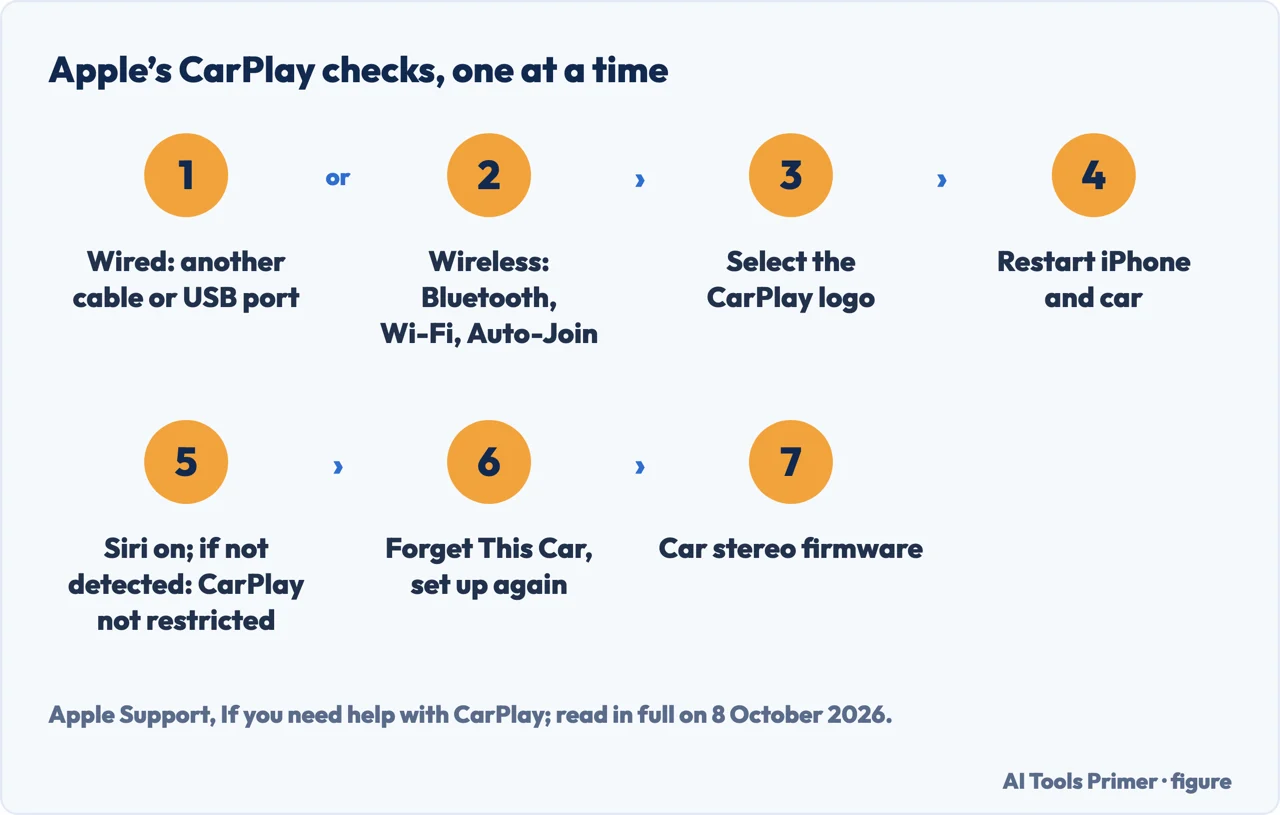
- Try another cable and port. With a wired connection, Apple says to connect again with a different USB cable, to a different USB port if the car has one. Apple’s order is to check CarPlay after each step.
- Check Bluetooth, Wi-Fi and Auto-Join. With a wireless connection: Settings › Bluetooth on, then Settings › Wi-Fi on, tap the CarPlay network and check that Auto-Join is on.
- Select the logo. If CarPlay doesn’t start by itself, Apple says to look for the CarPlay logo on the car’s display and select it.
- Restart the iPhone and the car. A frozen iPhone is in force restarting an iPhone.
- Turn Siri on, and check CarPlay is allowed. If the iPhone isn’t detected by CarPlay, Apple says to go to Settings › Screen Time › Content & Privacy Restrictions; if that is on, tap Allowed Apps and make sure CarPlay is enabled.
- Forget the car. Settings › General › CarPlay, tap the car, then Forget This Car, and set CarPlay up again.
- Update the car stereo. Apple says to make sure the CarPlay stereo has the latest firmware from the car manufacturer, and points to the car’s manual.
Setting CarPlay up again
Before connecting. Apple says to start the car and make sure Siri is on.
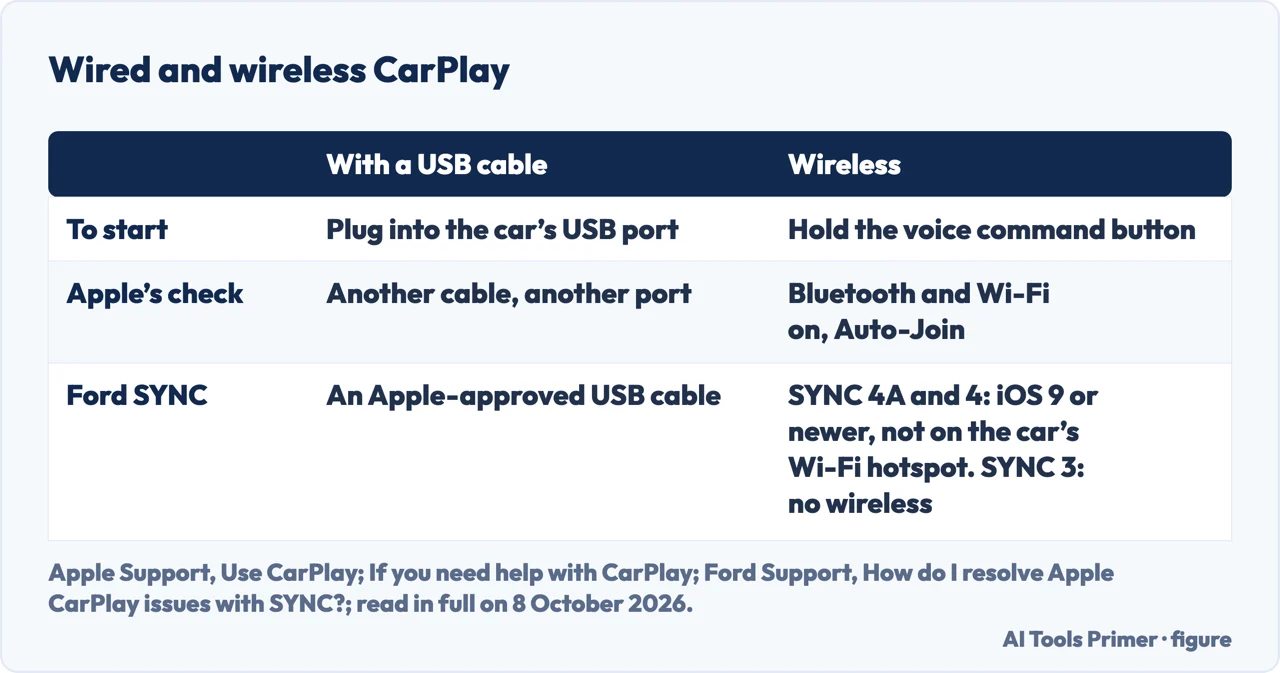
With a cable. Plug the iPhone into the car’s USB port, which might be labelled with a CarPlay icon or a smartphone icon. If the car supports both, plug in anyway: Apple says an alert on the iPhone will offer to connect wirelessly on the next drives.
Wireless only. If the car supports only wireless CarPlay, Apple says to press and hold the voice command button on the steering wheel, with the stereo in wireless or Bluetooth mode. On the iPhone, Wi-Fi on, the Info button for the CarPlay network, Auto-Join on; then Settings › General › CarPlay and select the car. Apple’s page on connecting to a car names the same list Available Cars.
An iPhone with USB-C. Apple says the USB-C to Lightning Adapter works with wired CarPlay in most vehicles, but some combinations of adapters, cables and vehicle entertainment systems might disrupt the wired connection; then, or in cars that support wired CarPlay alone, Apple says to use a direct connection with a USB cable.
What Chevrolet adds for its vehicles
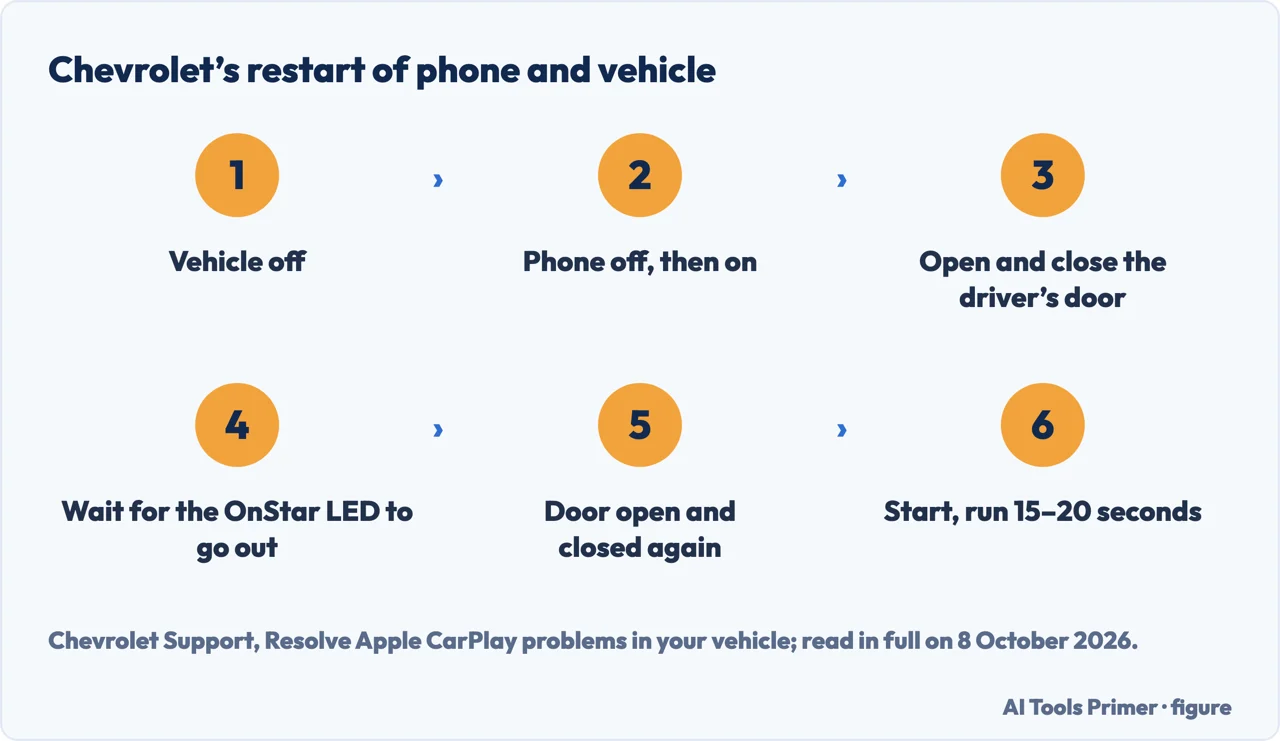
Not connecting. Chevrolet says to update the phone and, where the vehicle offers it, the vehicle software (Settings › System › Vehicle Software); then to restart both in a set order, which waits for the OnStar LED on the overhead console to go out, which Chevrolet says may take 5 to 15 minutes depending on the vehicle; and to use the original USB cable or a high-quality compatible one, avoiding third-party or damaged cables. It also suggests keeping the vehicle in an open area, away from garages, buildings or dense tree cover.
The icon is greyed out. Chevrolet’s ten steps add that Bluetooth and Wi-Fi have to be on in the vehicle as well as on the phone, that Apple CarPlay has to be enabled in the vehicle’s own settings, and, at the end, to delete the phone from the vehicle and the vehicle from the phone’s Bluetooth list, restart both and pair again. If nothing works, it says to press the blue OnStar button or visit a dealer.
Which cars. These steps come from Chevrolet’s support site, and the restart refers to the OnStar LED; for information specific to a vehicle, Chevrolet points to its Owner’s Manual.
On a Ford with SYNC
Which systems. Ford’s page covers SYNC 4A, SYNC 4 and SYNC 3. With a cable it asks for an Apple-approved USB cable in the USB port closest to the SYNC screen, and an iPhone 5 or newer with iOS 7.1 or later.
Wireless. Ford says wireless Apple CarPlay is not supported on SYNC 3. On SYNC 4A and SYNC 4, it says wireless CarPlay needs iOS 9 or newer, that the capability can vary by iPhone model, and that CarPlay cannot be used wirelessly while the phone is connected to the vehicle’s Wi-Fi hotspot. If wireless CarPlay stops working during troubleshooting, Ford says to use an Apple-approved USB cable instead.
Ford’s order. Another cable; the USB port closest to the screen; then set the audio source to USB and play music. If that does not work, Ford says to stop troubleshooting and book a dealer appointment. For SYNC 4A and SYNC 4, its list then goes on: a SYNC module reset, updates for the phone, a soft reset of the phone, then delete the phone from SYNC and SYNC from the phone’s Bluetooth menu, and pair again. On SYNC 3, the list starts with the latest SYNC software and adds removing the phone from Apple CarPlay Preferences and a key cycle.
When it is Bluetooth, not CarPlay. Apple separates the two: CarPlay where the car supports it, and USB playback or Bluetooth otherwise, or for an iPad or iPod touch. A phone that will not pair with the car for calls and audio is in Bluetooth not connecting to car, and a phone whose Bluetooth will not turn on in why is my bluetooth not working. For USB playback, Apple adds checking the charging port for debris or damage; a phone that will not charge is in how to fix phone not charging.
Which versions. Apple’s steps come from support pages published in March 2025 and January 2026; they do not name an iOS version for the checks beyond the latest. Chevrolet’s page is for its own vehicles, and Ford’s for SYNC 4A, SYNC 4 and SYNC 3. Apple and Chevrolet point to the car’s manual; Ford, for the phone’s steps, to the phone’s manual and its maker’s website.
Another screen. Sending the iPhone to a television rather than a car is in screen mirroring to a TV.
Where to start
Five ways in.
- “Where do I start?”
- Apple’s checks — apples checks
- “I want to start over.”
- Setting it up again — setting it up again
- “It is a Chevrolet.”
- Chevrolet’s steps — chevrolet steps
- “It is a Ford.”
- Ford SYNC — ford sync
- “It is Bluetooth, not CarPlay.”
- Another connection — bluetooth is another connection
More on phones and cars
The connections around a phone in a car.
Questions people also ask
Why is my iPhone charging but CarPlay is not working?
The pages read for this guide don’t name this case. For a wired connection, Apple’s checks start with a different USB cable and a different port; Chevrolet says to use the original cable or a high-quality compatible one, and Ford an Apple-approved one. That a cable can charge without carrying CarPlay is our reading.
Why did my car stop using CarPlay?
Apple’s checks include the latest iOS on the iPhone, Siri on, CarPlay not restricted in Screen Time, and the latest firmware on the car stereo. Chevrolet’s steps for a phone that is not connecting start with phone and vehicle software updates; its steps for a greyed-out icon include enabling CarPlay in the vehicle’s settings.
Why is my phone suddenly not connecting to my car?
For Bluetooth, Apple says to restart the phone, turn Bluetooth off for about 5 seconds and on again, rename the phone if several are connected to the stereo, update it, and check the stereo firmware. For CarPlay, it adds Wi-Fi with Auto-Join, Siri, and forgetting the car.
How do I reconnect to Apple CarPlay?
Apple says to go to Settings, General, CarPlay, tap the car, then Forget This Car, and set CarPlay up again: plug into the car’s USB port, or, if the car supports only wireless CarPlay, hold the voice command button with the stereo in wireless or Bluetooth mode and select the car in CarPlay settings.
Not covered here. It does not cover Android Auto, CarPlay Ultra, or third-party apps that misbehave inside CarPlay; for a third-party app, Apple says to try to contact the app developer.
Sources
- Apple Support — If you need help with CarPlay (published 13 March 2025): requirements, wired and wireless checks, restrictions, Forget This Car, the USB-C to Lightning Adapter — support.apple.com, read 8 October 2026.
- Apple Support — Use CarPlay with your iPhone (published 6 March 2025): setting up with a cable and wirelessly — support.apple.com, read 8 October 2026.
- Apple Support — How to connect your iPhone, iPad, or iPod touch to your car (published 9 January 2026): CarPlay, Bluetooth and USB playback — support.apple.com, read 8 October 2026.
- Chevrolet Support — Resolve Apple CarPlay problems in your vehicle: not connecting, and a greyed-out icon — www.chevrolet.com, read 8 October 2026.
- Ford Support — How do I resolve Apple CarPlay issues with SYNC? SYNC 4A, SYNC 4 and SYNC 3 — www.ford.com, read 8 October 2026.
Written by Alberto Gulotta
Founder and editor of AI Tools Primer, writing from Palermo, Italy. Thirty-five years of taking computers apart, starting with a Commodore 64 — the long version is on the about page.
Something wrong on this page? Write to aitoolsprimer@gmail.com and it gets fixed.
Written on 8 October 2026.
Independence and limits
No affiliate links and no paid placements anywhere on this site. Nobody pays to appear here, and no company has seen this page before you did.
This is general information, not professional advice. Where a page touches money, health, safety or the law, it names its source and the date it was read — and your situation may still differ. See the privacy page and the cookie policy.