
Software · guide
How to clear RAM on Mac, and when there is nothing to clear
By Alberto Gulotta · Updated · 12 min read
How to clear RAM on Mac: quit the apps you are not using, or restart from Apple menu › Restart. First open Activity Monitor › Memory: Apple says a green Memory Pressure graph means the Mac is using all of its RAM efficiently, and that free memory does not necessarily improve performance.
| What | Where or how | Apple page read |
|---|---|---|
| See memory use | Activity Monitor › Memory, the panel at the bottom | View memory usage |
| Decide if there is a problem | The Memory Pressure graph: green, yellow or red | Check if your Mac needs more RAM |
| Free memory | Quit apps you are not using | If your Mac runs slowly |
| An app that does not respond | Option-Command-Esc, or Apple menu › Force Quit | Support article 102586 |
| Start again | Apple menu › Restart | Shut down or restart your Mac |
| Can RAM be added? | Option + Apple menu › System Information › Memory | Check if your Mac needs more RAM |
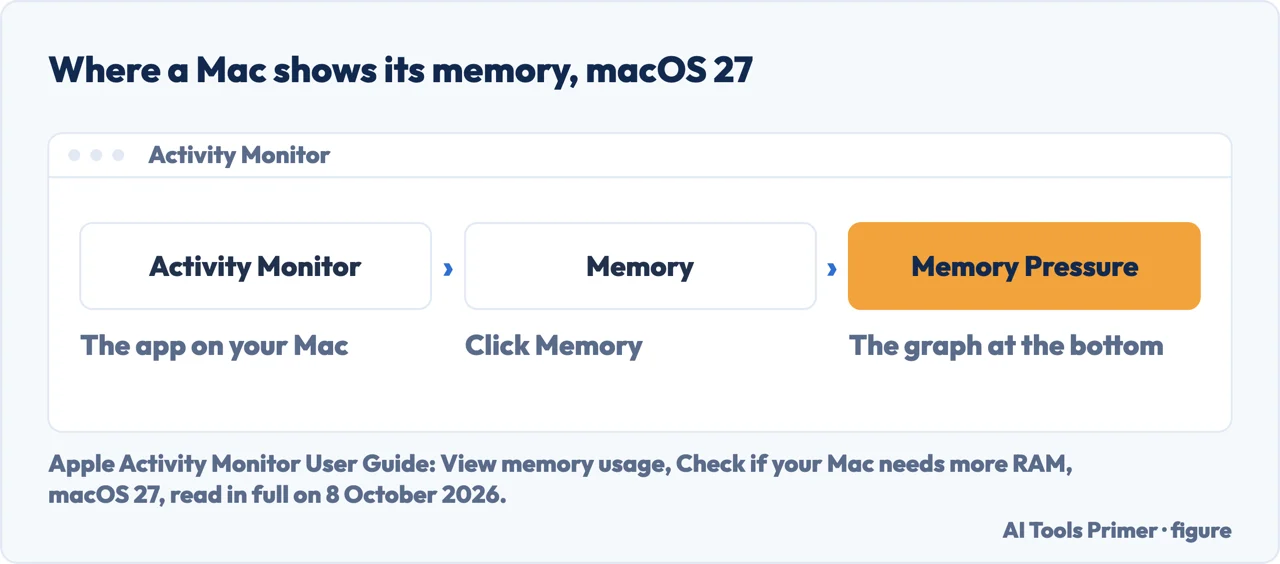
- Open Activity Monitor and click Memory. A reply in the Apple Community thread on freeing RAM gives its place as Applications › Utilities. Apple’s guide puts the Memory Pressure graph and the totals at the bottom of the window.
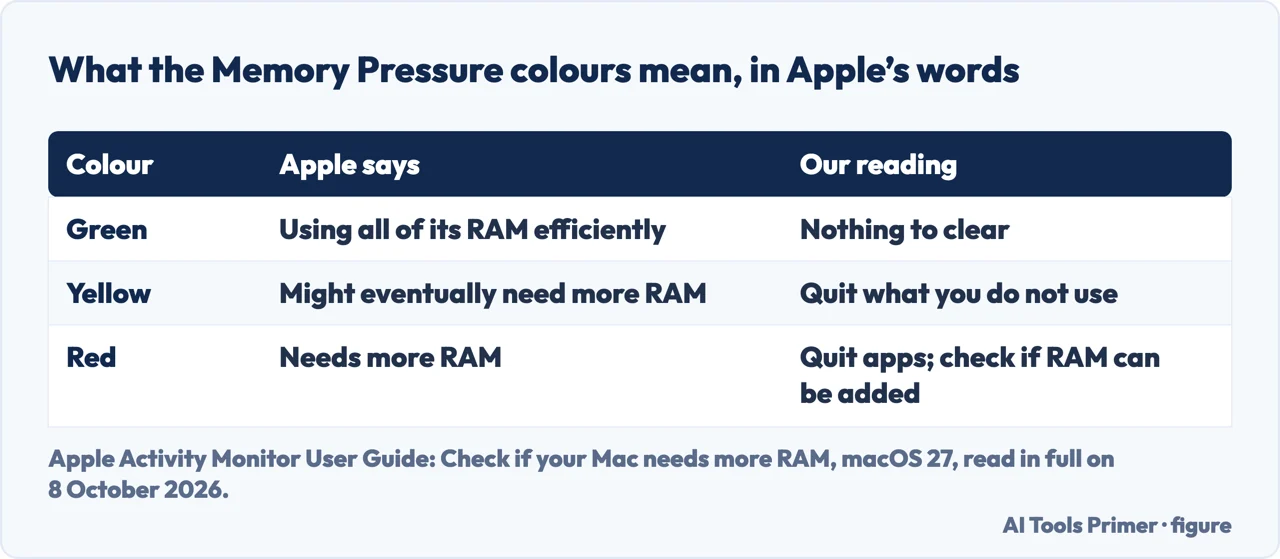
- Read the colour before clearing anything. Apple: green means the computer is using all of its RAM efficiently, yellow that it might eventually need more RAM, red that it needs more RAM. On green, by our reading, there is nothing to clear.
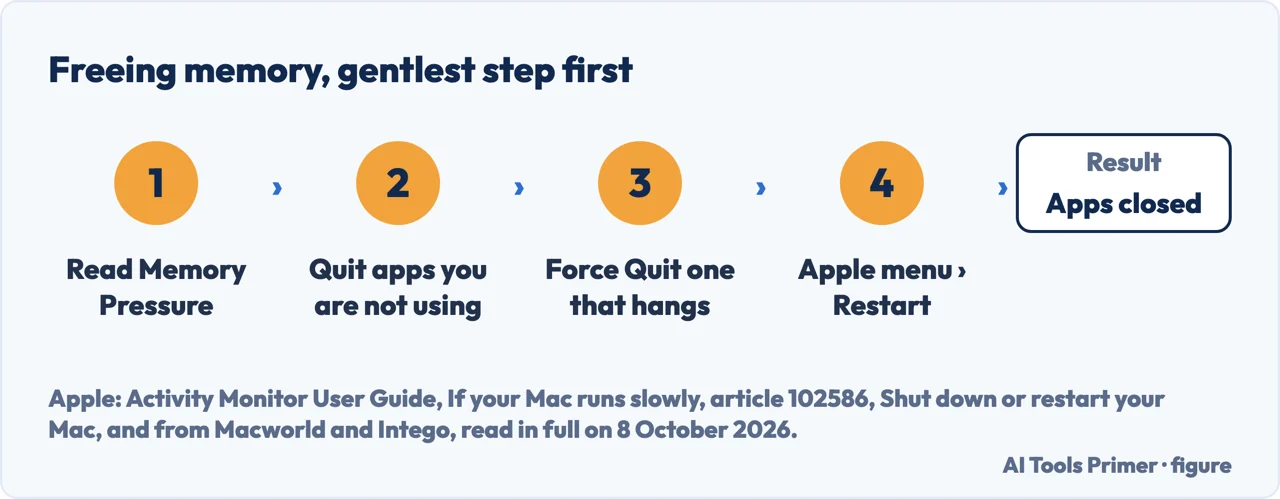
- Quit the apps you are not using. It is on Apple’s list for a Mac that runs slowly. Quit from the app’s own menu, or in Activity Monitor select it, click the button in the upper-left corner and choose Quit, which Apple says is the same as File › Quit; the process quits when it is safe to do so.
- Force Quit only what has stopped responding. Press Option, Command and Esc together, or choose Force Quit from the Apple menu, select the app and click Force Quit. Apple asks you to try a normal quit first, because an app that quits normally can save changes.
- Restart, which Macworld and Intego list for freeing memory. Apple menu › Restart. Untick Reopen windows when logging back in if you do not want the same apps back at once.
What the Memory pane shows
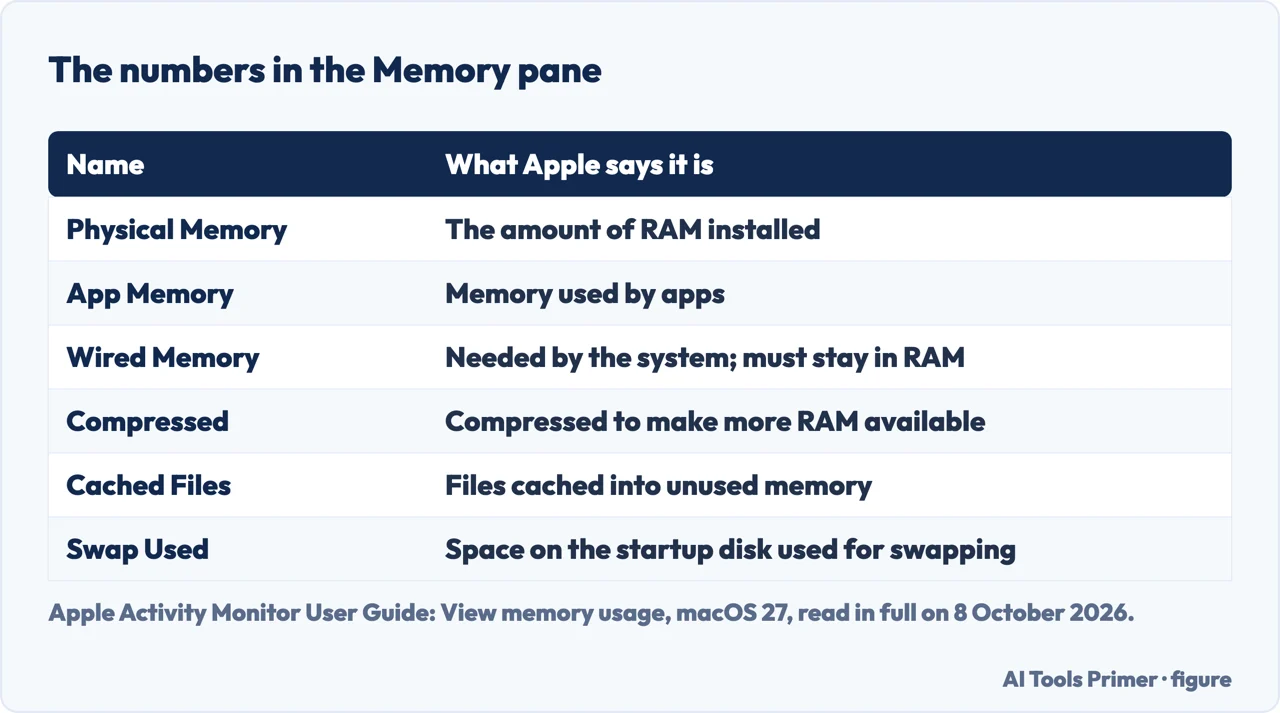
Apple’s page View memory usage names each number. Physical Memory is the RAM installed; Memory Used is how much of it is in use, with App Memory for apps, Wired Memory for what the system needs to operate and must stay in RAM, and Compressed for memory that has been compressed to make more RAM available. Cached Files are files the system has cached into unused memory; Swap Used is space on the startup disk used to swap files to and from RAM.
The graph is a separate reading. Apple says memory pressure is determined by the amount of free memory, the swap rate, wired memory and file cached memory. When the Mac approaches its maximum, inactive apps in memory are compressed so that active apps get more.
Free memory and speed. Apple’s page on whether a Mac needs more RAM says: “When you have free or unused memory, your computer performance does not necessarily improve.” macOS, it continues, obtains the best performance by efficiently using and managing all of the memory. By our reading, the number to watch is the colour of the graph, not how much memory is free.
The RAM cache, and the purge command
Cached Files, by our reading, are the cache in memory. Apple describes them as files cached by the system into unused memory to improve performance, which stay cached until the memory is overwritten and can help when you reopen the app. The Apple pages read for this guide give no command to empty them.
The Cache tab is something else. In Activity Monitor it shows content caching, which you turn on under System Settings › General › Sharing › Content Caching; its figures include the data the content cache has served and the data it downloaded from the internet. By our reading, it is not the memory cache.
sudo purge. Macworld’s guide, dated 27 February 2024, gives a Terminal step, typing
sudo purge and the password while inactive memory is cleared, and says it does not
recommend it unless you are an advanced user. No Apple page read here mentions it, and this guide has
not run it.
Files on disk are another cache. Intego notes that cache files are stored on the startup disk and that wiping them won’t free up memory; a reply in the Apple Community thread How to free up RAM on a Mac?, from March 2016, says deleting files off disk won’t typically affect RAM usage. Disk caches have their own guide: how to clear cache on Mac.
Restarting, and forcing a shutdown
What a restart does to memory. Macworld writes that a restart empties the RAM and disk caches, and Intego that restarting closes running apps and clears active memory; Apple’s own steps are Apple menu › Restart, then Restart.
When nothing responds. Apple’s article 102586 says to restart from the Apple menu if an app cannot be forced to quit. If the whole Mac is unresponsive, the Mac User Guide allows a forced shutdown by pressing and holding the power button until the Mac shuts down (article 102586 adds that on laptops with Touch ID it is the Touch ID button), and warns that unsaved changes in open documents may be lost.
Wait before closing a laptop. On a Mac laptop, Apple says to wait for the shutdown to finish before closing the display, or it may not shut down properly and may start up more slowly next time.
When the graph stays yellow or red
Check whether memory can be added. Hold Option, choose Apple menu › System Information, click Memory under Hardware, then look at Upgradeable Memory in the Memory Slots pane. If that pane does not appear, Apple says upgradeable memory is not available for that Mac. Intego adds that Apple silicon Macs use unified memory built into the main chip, which cannot be upgraded after purchase.
Check the app’s needs. Apple’s page on a slow Mac says an app may need more memory than the Mac has easily available, and points to the documentation that came with the app for its system requirements.
Check it is memory at all. The same page lists other causes: too little free space on the startup disk, an app not compatible with the Mac’s processor or graphics card, and disk problems, for which it suggests Disk Utility. The rest of that list is in how to speed up MacBook.
An app that will not close. The three keys and what they cost are in force quitting on a Mac, and the restart itself in how to restart a MacBook.
Where to start
Five ways in.
- “Just give me the steps.”
- Five steps — the steps to free memory
- “What do these numbers mean?”
- The Memory pane — what the memory pane shows
- “How do I clear the cache in RAM?”
- Cached Files and purge — the ram cache
- “Nothing responds.”
- Restart or force a shutdown — restart and force shutdown
- “It is red all the time.”
- More memory, or another cause — when the graph stays red
More on a Mac that slows down
Quitting, restarting and the disk each have a guide of their own.
Questions people also ask
How do I clear my RAM cache on a Mac?
By our reading, the cache in memory is Cached Files in Activity Monitor: files kept in unused memory, which Apple says can help when you reopen an app. The Apple pages read here give no command to empty it. Macworld gives sudo purge in Terminal, and does not recommend it unless you are an advanced user.
How can I free up RAM on my Mac?
Quit the apps you are not using, which is on Apple’s list for a Mac that runs slowly. Force Quit, with Option-Command-Esc, is for an app that has stopped responding. Intego says a restart closes running apps and clears active memory. Check Activity Monitor › Memory first: on a green graph Apple says the RAM is being used efficiently.
How to reset RAM on a Mac?
The Apple pages read for this guide have no reset for RAM. The nearest is a restart, Apple menu › Restart, which Macworld and Intego say clears memory. If the Mac is unresponsive, Apple allows holding the power button until it shuts down, and warns that unsaved changes may be lost.
How do I clear my RAM memory?
Open Activity Monitor and click Memory. If the Memory Pressure graph is yellow or red, quit the apps you do not need, force quit one that has stopped responding, or restart. If it is red, Apple says the computer needs more RAM; Option + Apple menu › System Information › Memory shows whether it can be added.
Not covered here. It does not cover memory-cleaning apps, or adding RAM inside a Mac, for which Apple’s page links model-by-model articles.
Every Apple step above is from the guides for macOS 27 or from support article 102586, which names no macOS version; Activity Monitor’s guide offers the same pages for earlier versions, not compared here.
Sources
- Apple Activity Monitor User Guide — Check if your Mac needs more RAM, macOS 27: free memory and performance, the three Memory Pressure colours, and Upgradeable Memory — support.apple.com, read 8 October 2026.
- Apple Activity Monitor User Guide — View memory usage, macOS 27: Physical Memory, App Memory, Wired, Compressed, Cached Files, Swap Used, and what determines memory pressure — support.apple.com, read 8 October 2026.
- Apple Activity Monitor User Guide — Quit an app or process, macOS 27: Quit and Force Quit — support.apple.com, read 8 October 2026.
- Apple Activity Monitor User Guide — View cache activity, macOS 27: the Cache tab and Content Caching — support.apple.com, read 8 October 2026.
- Apple Mac User Guide — If your Mac runs slowly, macOS 27: memory, quitting apps, disk space and Disk Utility — support.apple.com, read 8 October 2026.
- Apple Support article 102586 — How to force an app to quit on Mac: Option, Command and Esc, and Restart — support.apple.com, read 8 October 2026.
- Apple Mac User Guide — Shut down or restart your Mac, macOS 27: Restart, the power button, and laptops — support.apple.com, read 8 October 2026.
- Macworld — How to clear RAM on a Mac: tips to free up memory, 27 February 2024, the seventh search result on 7 October 2026: restarting, and sudo purge — www.macworld.com, read 8 October 2026.
- Intego — How to clear RAM on Mac and reduce memory usage, the fourth search result on 7 October 2026: restarting clears active memory — www.intego.com, read 8 October 2026.
- Apple Community — How to free up RAM on a Mac?, a thread from March 2016, the second search result on 7 October 2026: disk storage and RAM are two things — discussions.apple.com, read 8 October 2026.
Written by Alberto Gulotta
Founder and editor of AI Tools Primer, writing from Palermo, Italy. Thirty-five years of taking computers apart, starting with a Commodore 64 — the long version is on the about page.
Something wrong on this page? Write to aitoolsprimer@gmail.com and it gets fixed.
Written on 8 October 2026.
Independence and limits
No affiliate links and no paid placements anywhere on this site. Nobody pays to appear here, and no company has seen this page before you did.
This is general information, not professional advice. Where a page touches money, health, safety or the law, it names its source and the date it was read — and your situation may still differ. See the privacy page and the cookie policy.