
Software · guide
How to delete files securely, and why an SSD changes the answer
By Alberto Gulotta · Updated · 12 min read
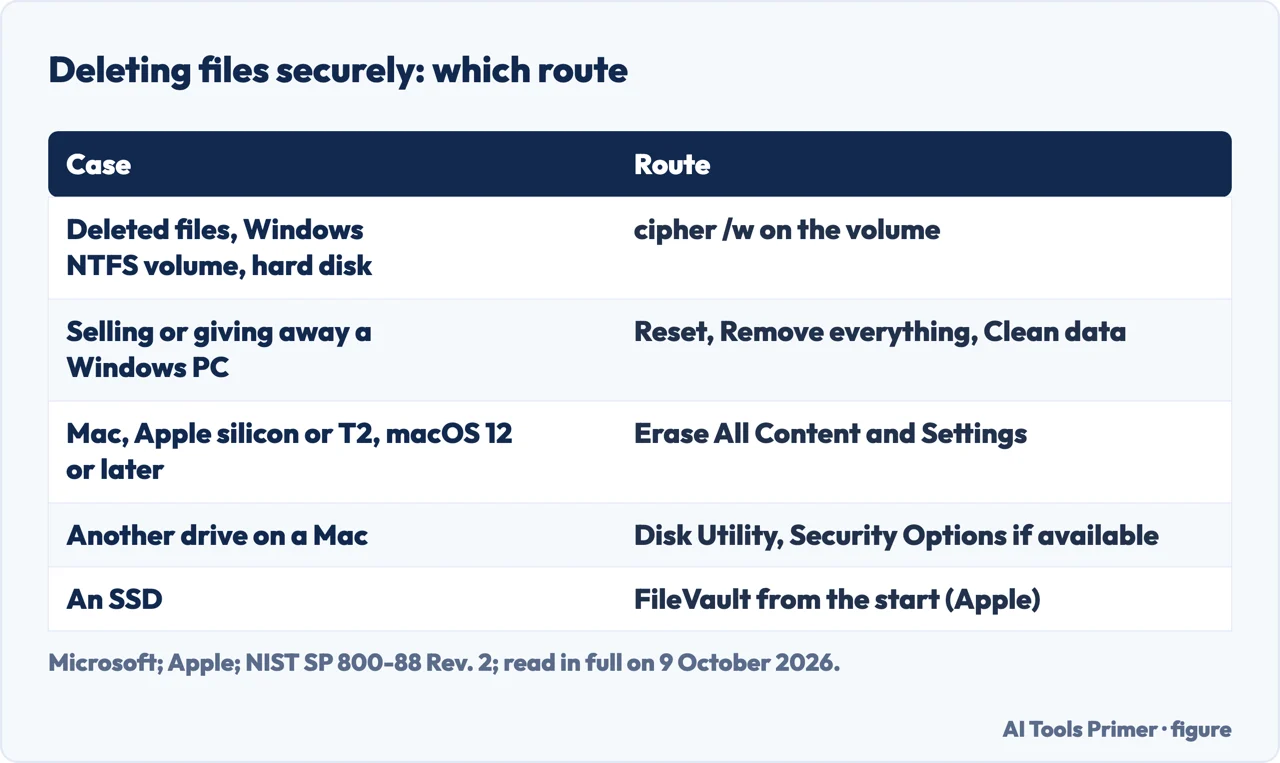
How to delete files securely depends on the drive. Microsoft says deleting frees the space but doesn’t remove the data at first, so it stays recoverable until overwritten. On an NTFS drive, cipher /w overwrites that space. On flash storage with wear levelling, NIST says users can’t overwrite all old data; for an SSD, Apple suggests FileVault from the start.
| Case | Route | Source |
|---|---|---|
| Files already deleted, Windows, NTFS volume on a hard disk | cipher /w on the volume | Microsoft; hard disk, our reading of NIST |
| Selling or giving away a Windows PC | Reset, Remove everything, Clean data on | Microsoft |
| Selling a Mac with Apple silicon or a T2 chip, macOS 12 or later | Erase All Content and Settings | Apple |
| Another storage device on a Mac | Disk Utility, Erase, Security Options if available | Apple |
| An SSD | FileVault when you start using it, Apple suggests; NIST says a user can’t overwrite all old data on flash with wear levelling | Apple, NIST |
Versions. The cipher command reference lists Windows Server 2025, 2022, 2019 and 2016, Windows 11, Windows 10 and Azure Local 2311.2 and later, while the page on overwriting deleted data is written for Windows Server; Reset your PC covers Windows 11 and 10, and Microsoft notes that support for Windows 10 ended on 14 October 2025; Erase All Content and Settings needs macOS Monterey 12 or later. NIST’s guide is SP 800-88 Revision 2, published in September 2025, which supersedes Revision 1 of December 2014.
What deleting a file does
What deleting leaves behind
The space, not the data. Microsoft explains that when you delete files or folders the data isn’t initially removed from the hard disk: the space it occupied is deallocated, made available for new data. Until something is written over it, the deleted data can be recovered with a low-level disk editor or data-recovery software. In our reading, the same fact is what makes recovering deleted files possible.
Copies you didn’t make. Microsoft adds that when Encrypting File System encrypts a plain file it first makes a backup copy, then deletes it; like any deleted file, that copy stays on the disk until overwritten.
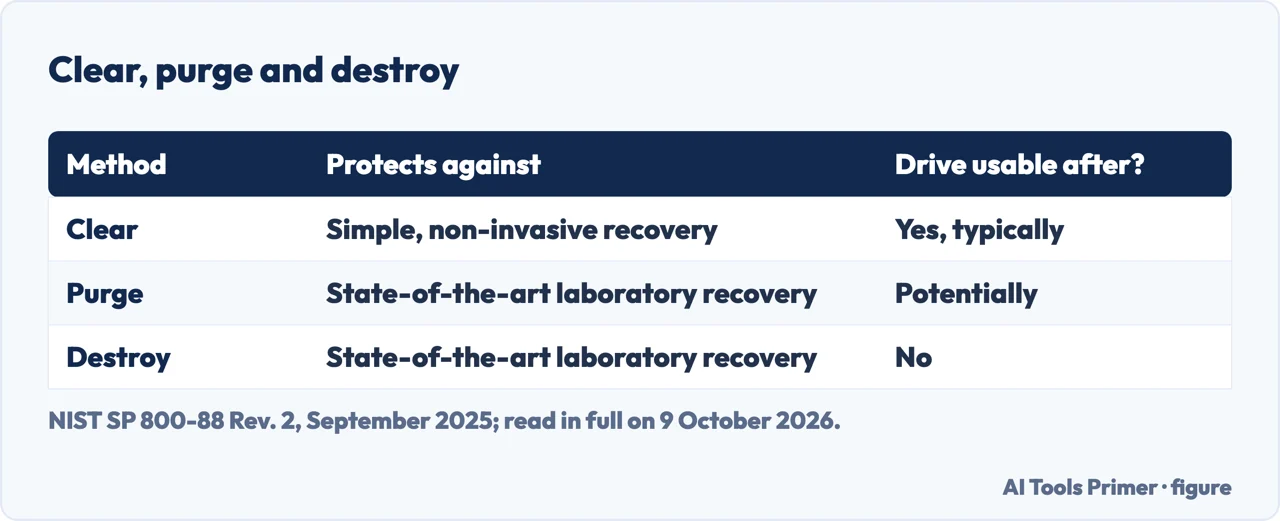
Three methods, in NIST’s terms. NIST’s Guidelines for Media Sanitization, revision 2 of September 2025, sort them into clear, purge and destroy. Clear applies logical techniques to all user-addressable storage locations, through the same interface the user has, for example by overwriting, and protects against simple, non-invasive recovery; purge makes recovery infeasible even with state-of-the-art laboratory techniques while keeping the drive potentially reusable; destroy makes recovery infeasible in the same way and leaves the drive unable to store data. Bending, cutting or drilling a hole through a device, NIST adds, may only partly damage it, leaving portions of it accessible with those same techniques. NIST says purge should be used instead of clear when possible.
Overwriting deleted files on Windows
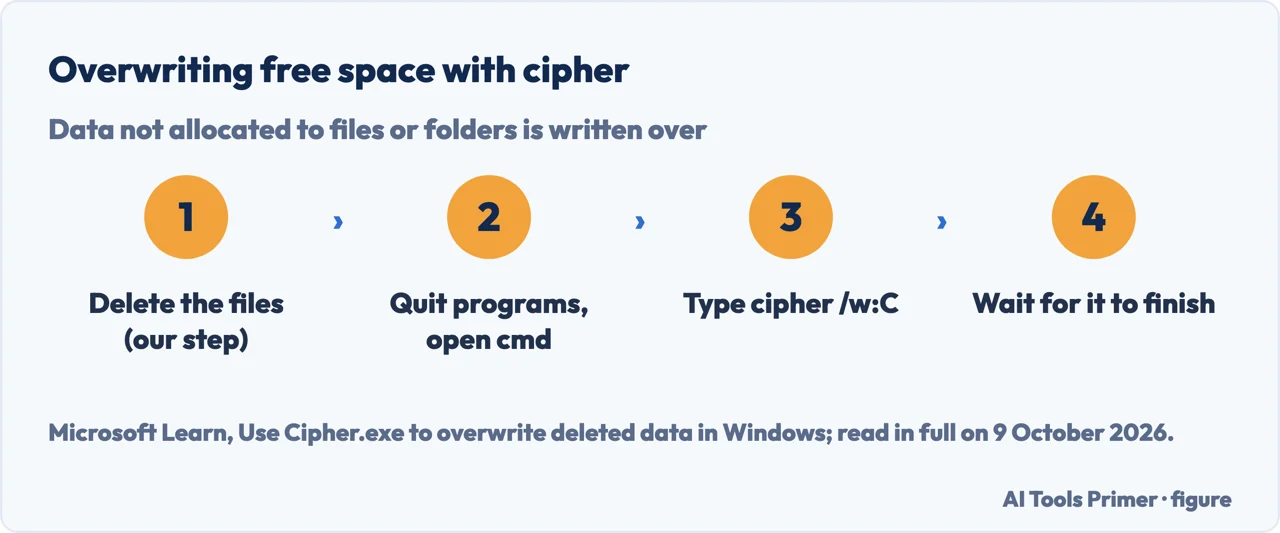
- Delete the files first. Microsoft says cipher /w overwrites data that isn’t allocated to files or folders; so, in our reading, a file that still exists is left as it is.
- Open a command prompt. Microsoft’s steps, on a page written for Windows Server: quit all programs, then Start > Run, type cmd and press Enter.
- Type cipher /w: and a folder, then press Enter. The folder is any folder on the volume you want to clean; for example, cipher /w:C overwrites all the deallocated space on drive C. If the folder is a mount point or points to a folder on another volume, all the deallocated space on that volume is cleaned.
- Wait. Microsoft says the data is permanently removed, and that it can take a long time if you overwrite a large amount of space.
What cipher /w covers, and what it doesn’t
Where Microsoft says it applies. The how-to article on overwriting deleted data lists only supported versions of Windows Server under Applies to; the reference page for the cipher command lists Windows 11, Windows 10 and Azure Local as well, and describes /w as removing data from available unused disk space on the entire volume, and when /w is used every other parameter is ignored. Microsoft describes cipher as a tool for NTFS volumes.
Hard disk or SSD. NIST says flash storage with spare cells and wear levelling makes it infeasible for a user to reach all the old data by overwriting, because the drive does not expose all of it through the normal read and write interface, and that on SSDs with overprovisioning such practices should be avoided, because very little confidentiality protection is achieved. NIST does not name cipher; applying this to cipher /w on an SSD is our reading.
Passes. In the past, NIST says, hard drives were often erased with multiple overwrite passes, from a single pass to as many as 39, for example following the Defense Department’s 5220.22-M manual; NIST notes that the department removed overwriting specifications from that manual in 2006. On a Mac, Disk Utility’s Security Options slider sets how many times the erased data is written over, on the storage devices that offer it.
The whole PC. Before you sell or give away a Windows PC, Microsoft says to back up important files before you begin, and points to Reset this PC with Remove everything and the Clean data option, which removes files and cleans the drive and makes them harder to recover. Microsoft also says this erasure is aimed at consumers and does not meet government and industry data erasure standards. The steps and the four options are in resetting Windows.
Deleting files securely on a Mac
On a Mac
The whole Mac. Apple’s Erase All Content and Settings erases all data, settings and apps and keeps the installed macOS. Apple says these steps erase all of your data from the Mac, and that a backup made first can be used to restore the files to a new Mac. It needs macOS Monterey 12 or later and a Mac with Apple silicon or the Apple T2 Security Chip; the path is Apple menu > System Settings > General > Transfer or Reset > Erase All Content and Settings. On macOS Monterey 12, on a Mac that supports the feature, Apple says to choose System Preferences from the Apple menu, then Erase All Content and Settings from the System Preferences menu in the menu bar. The full route, and what survives it, is in how to factory reset a MacBook.
Why it is quick. Apple’s Platform Security guide, in the chapter on Apple devices with Data Protection, says the encrypted file system key is additionally wrapped by an effaceable key stored in Effaceable Storage or by a media key-wrapping key, designed to be quickly erased on demand by Erase All Content and Settings or a remote wipe, and that erasing it renders all files cryptographically inaccessible. The key that wraps the file metadata key changes every time a user erases the device.
Another drive. In Disk Utility, erasing a storage device deletes everything on it, and Apple marks as important that any files you want to keep are copied to another storage device before you erase; Security Options appear only for some types of device. With an SSD, Apple says secure erase options are not available in Disk Utility, and, for more security, suggests considering FileVault encryption when you start using the drive.
Encryption on an SSD
Encryption, and the conditions NIST attaches to it
Cryptographic erase. NIST describes it as a purge technique for storage with integrated encryption, usable under the correct conditions and with strong cryptography: the data is sanitised by sanitising the keys that encrypt it, much faster than other techniques. For cloud storage it may be the only viable purge option.
The conditions. NIST cites ISO/IEC 27040 for the first condition: no sensitive data may have been stored on the drive unencrypted (for a drive already sanitised with an appropriate technique, since that sanitisation), because cryptographic erase can only sanitise keys to encrypted data. In its own words, and not ISO’s, NIST adds that cryptographic erase should not be trusted on drives whose data or keys have been backed up or escrowed, unless there is a high level of confidence in how and where the keys were stored and managed. NIST writes about drives with built-in encryption and does not name FileVault or BitLocker; that the same conditions apply to them, and so favour turning encryption on when you start using a drive, as Apple suggests for FileVault on an SSD, is our reading.
Long-lived secrets. NIST adds that the data still sits on the drive as ciphertext, so for information that must stay confidential for decades, a future weakness in the cryptography is a concern. On Windows, the encryption Microsoft’s Reset your PC page names is BitLocker, whose recovery key it asks for on an encrypted device; where that key is kept is in BitLocker recovery key.
A file that won’t delete. Microsoft’s article on NTFS, written for Windows Server, lists six causes: permissions, a file in use by a process, file system corruption, for which it says to run Chkdsk while noting that Chkdsk may or may not recover file data, a path deeper than MAX_PATH, a reserved name such as lpt1, a name ending in a space or a period, and a name made up of a space only. Among the things that can corrupt the file system, Microsoft lists bad sectors and other faulty hardware; checking a drive is in checking hard drive health.
Where to start
Four ways in.
- “Can deleted files come back?”
- What deleting leaves — what delete does
- “I’m on Windows.”
- cipher /w — cipher
- “I’m on a Mac.”
- Erase and Disk Utility — mac
- “My drive is an SSD.”
- Encryption — encryption
Before you pass a computer on
Resetting, erasing and the keys that guard the drive.
Questions people also ask
How to delete files and make them unrecoverable?
In our reading, on a Windows hard disk: delete them, then run cipher /w, which overwrites free space. For a whole PC, Microsoft gives Reset with Remove everything and Clean data, which makes recovery harder. On a Mac with macOS 12 or later, Erase All Content and Settings. On an SSD, NIST says a user can’t overwrite all old data.
How to permanently delete files that won’t delete?
Microsoft’s NTFS article, written for Windows Server, gives the causes: no permission, a file in use, a corrupted file system, a path that is too deep, a reserved name such as lpt1, or a name ending in a space or a period. Fix the cause and delete the file; in our reading, cipher /w can then overwrite its space.
Does deleting a file from your computer permanently erase it?
Not at first, Microsoft says: the data isn’t initially removed from the hard disk, the space it occupied is deallocated, and until that space is overwritten the data can be recovered with a low-level disk editor or data-recovery software.
Not covered here. It does not rank third-party shredding programs, cover phones, or describe the IEEE 2883 sanitize commands that NIST points to for purge.
Sources
- Microsoft Learn — Use Cipher.exe to overwrite deleted data in Windows — learn.microsoft.com, read 9 October 2026.
- Microsoft Learn — cipher — learn.microsoft.com, read 9 October 2026.
- Microsoft Support — Reset your PC — support.microsoft.com, read 9 October 2026.
- Microsoft Learn — You can’t delete a file or a folder on an NTFS file system volume — learn.microsoft.com, read 9 October 2026.
- Apple — Erase your Mac and reset it to factory settings — support.apple.com, read 9 October 2026.
- Apple — Erase and reformat a storage device in Disk Utility on Mac — support.apple.com, read 9 October 2026.
- Apple Platform Security — Data Protection in Apple devices — support.apple.com, read 9 October 2026.
- NIST — SP 800-88 Rev. 2, Guidelines for Media Sanitization (September 2025) — nvlpubs.nist.gov, read 9 October 2026.
Written by Alberto Gulotta
Founder and editor of AI Tools Primer, writing from Palermo, Italy. Thirty-five years of taking computers apart, starting with a Commodore 64 — the long version is on the about page.
Something wrong on this page? Write to aitoolsprimer@gmail.com and it gets fixed.
Written on 13 October 2026.
Independence and limits
No affiliate links and no paid placements anywhere on this site. Nobody pays to appear here, and no company has seen this page before you did.
This is general information, not professional advice. Where a page touches money, health, safety or the law, it names its source and the date it was read — and your situation may still differ. See the privacy page and the cookie policy.