
Software · guide
Firestick remote not working: what the light says, then the reset
By Alberto Gulotta · Updated · 12 min read
Firestick remote not working: Amazon says a remote that supports troubleshooting mode shows the fault by the colour of its light; it recommends AAA alkaline batteries; its pairing steps hold Home for about 10 seconds near the Fire TV; and most remotes reset with Left, Menu and Back held for 12 seconds, after unplugging the Fire TV.
| What | What Amazon says |
|---|---|
| Troubleshooting mode on | Rewind and Right together for three seconds, then Menu; the light turns green |
| Troubleshooting mode off | Play/Pause and Up together for three seconds, then Menu; then take the batteries out and put them back |
| Pair again (Amazon’s set-up steps) | Hold Home for about 10 seconds, within 10 feet (3 m) of the Fire TV |
| Reset, most remotes | Left, Menu and Back together for 12 seconds |
| Reset, Alexa Voice Remote (1st Generation) | Left and Menu together for 12 seconds |
| Batteries | AAA alkaline, for best performance |
The order on this page. Amazon spreads these steps over separate help pages; its pairing page has its own order for a remote that will not connect at set-up. The order below, from the light to the reset, is ours.
- Read the light. If the remote has a light, press the Alexa Voice button: Amazon says that if the light at the top flashes, the remote supports troubleshooting mode. Turn it on as in the table above, press any button, and the colour names the fault (figure below).
- Change the batteries. Amazon recommends AAA alkaline batteries for best performance. On some remotes a latch releases the battery cover first; on both kinds Amazon describes, the cover then slides down halfway and rolls off.
- Pair it again. Amazon gives these steps for a remote that will not connect during initial set-up; using them later is our reading. Stay within 10 feet (3 m) of the Fire TV and press Home until Press to start appears on the screen, about 10 seconds. If that fails, Amazon says to take the batteries out for 30 seconds, put them back and hold Home again, then to try a new pair of alkaline batteries.
- Reset the remote. The combination depends on the remote; the full steps are below.
- Use the phone instead. The Fire TV app can pair a remote and can work as one.
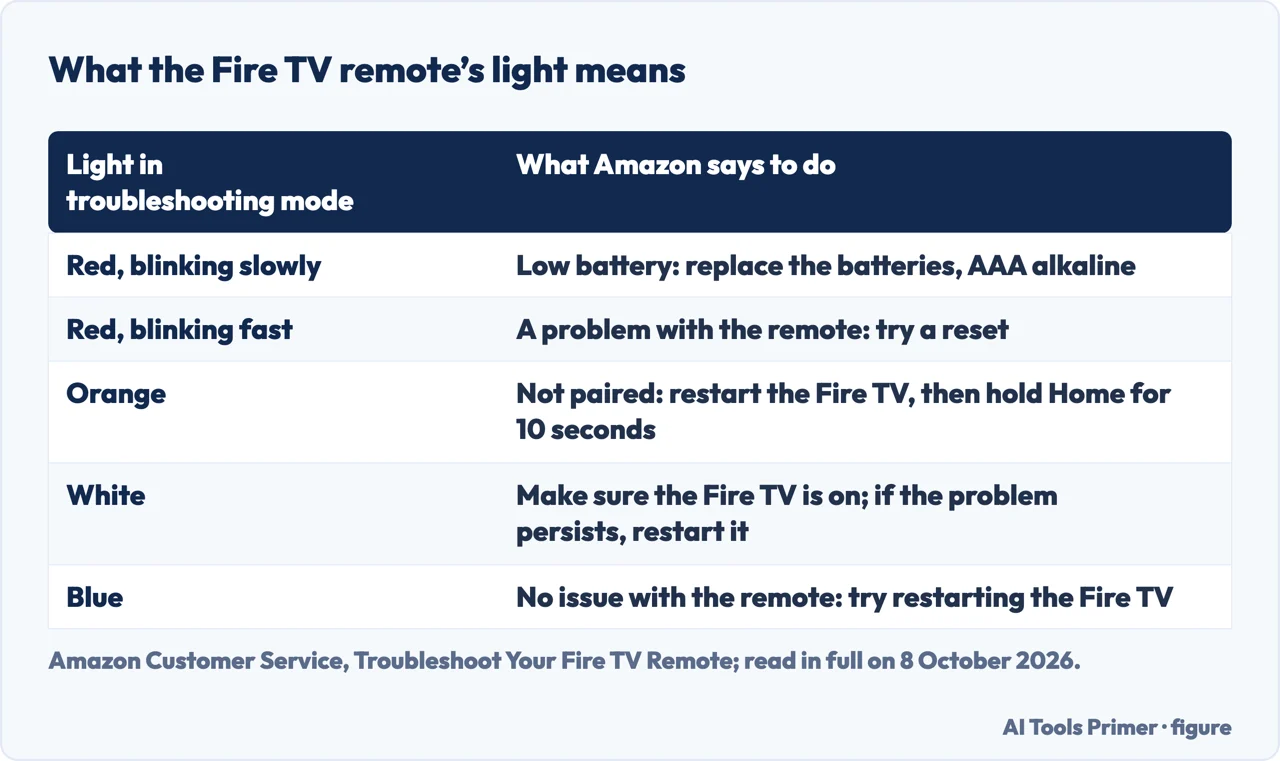
What the light says
Which remotes. Amazon says not all remotes have a light. The test is the Alexa Voice button: if the light at the top of the remote flashes, troubleshooting mode is available.
The colours. Red blinking slowly means low battery, and Amazon says to replace the batteries. Red blinking fast means there is a problem with the remote, and Amazon says to try a reset. Orange means the remote is not paired: restart the Fire TV, wait until the screen says it cannot detect the remote, then hold Home for 10 seconds. For white, Amazon says to make sure the Fire TV is on, then to restart it if the problem persists. Blue means no issue with the remote, and Amazon says to try restarting the Fire TV.
Leaving the mode. Play/Pause and Up together for three seconds, then Menu, then take the batteries out and put them back.
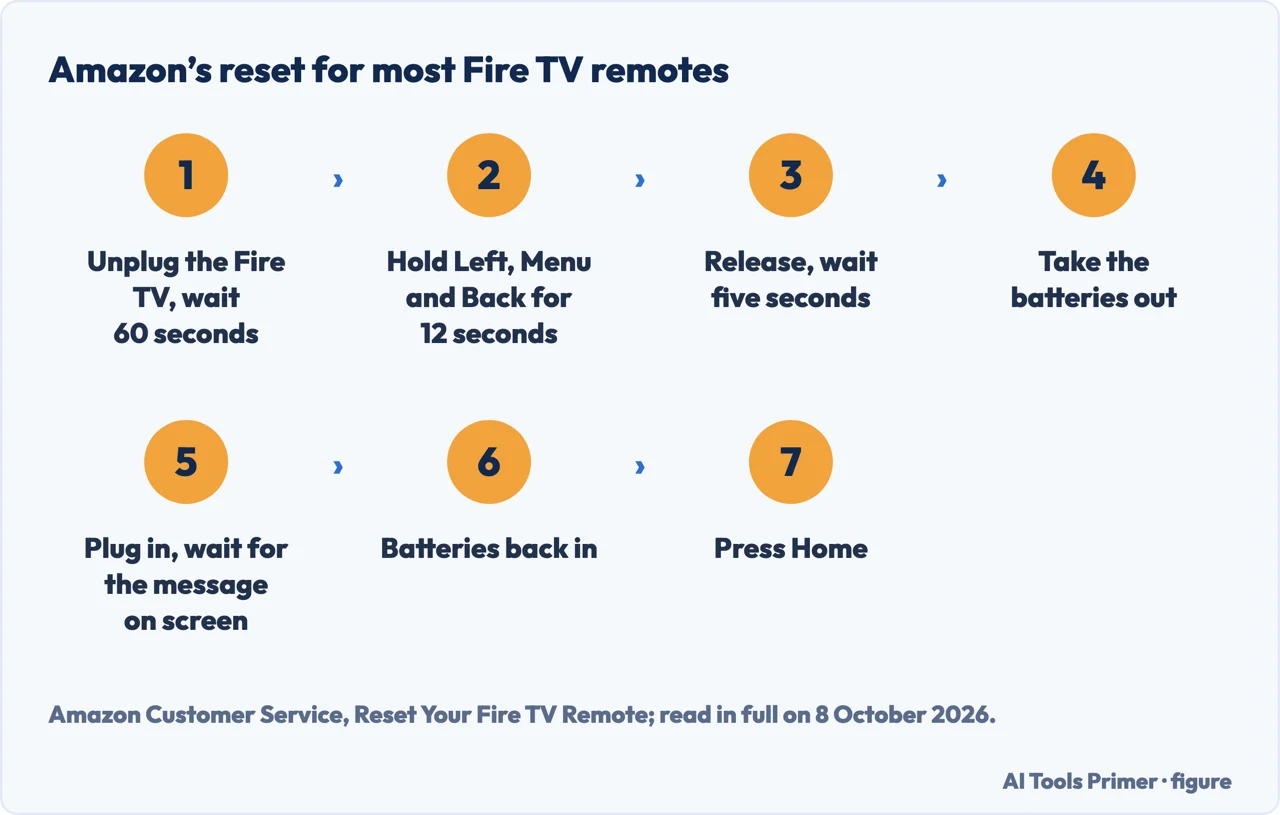
Resetting the remote
Most Fire TV remotes. Unplug the Fire TV from power and from the HDMI input and wait 60 seconds. Hold Left, Menu and Back together for 12 seconds, release them and wait five seconds, then take the batteries out. Plug the Fire TV in, wait for the on-screen remote detection error message, put the batteries back and press Home. Amazon says the light blinks blue when the remote pairs, on remotes that have one; if it does not pair, hold Home for 10 seconds.
Alexa Voice Remote (1st Generation). The same steps with only Left and Menu held for 12 seconds.
Basic Edition Remote. Hold Home and press Menu three times; release Home and press Menu nine times; take the batteries out; unplug the Fire TV for 60 seconds; put the batteries back and plug the Fire TV in; when the Home screen appears, hold Home for 40 seconds, then wait 60 seconds for setup to complete.
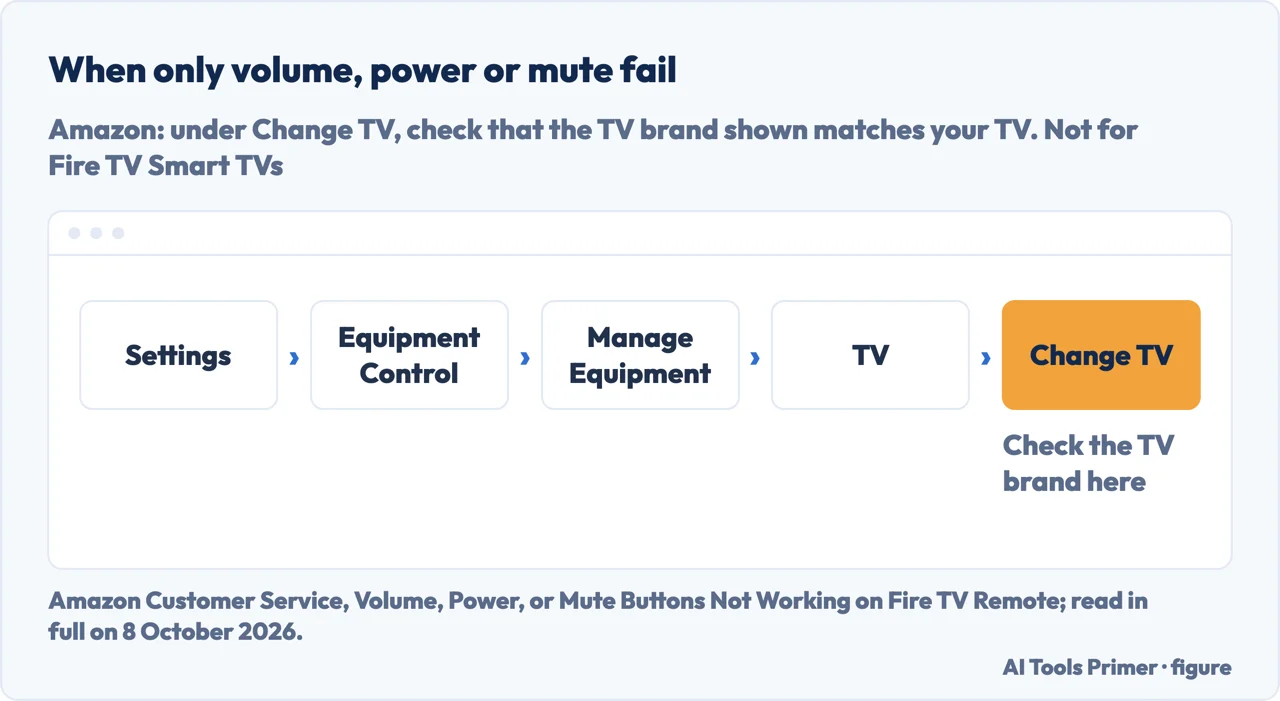
When only volume, power or mute do nothing. Amazon’s troubleshooting steps for these three buttons are in the settings: Settings, Equipment Control, Manage Equipment, TV, and under Change TV check that the brand shown is the brand of your television; if it is not, select Change TV and follow the steps on screen. Amazon says these instructions do not apply to Fire TV Smart TVs. A television whose own remote is the problem is in how to fix tv remote not working.
Batteries that drain fast. Amazon’s steps: use alkaline AAA batteries; take them out for 30 seconds, put them back and hold Home; if the problem stays, replace them with new alkaline AAA batteries.
A new remote, a second remote, or the phone
With the old remote still working. Settings, Controllers & Bluetooth Devices, Amazon Fire TV Remotes, Add New Remote, then put the batteries in the new one; it should appear in the list. Amazon notes that not all remotes are compatible with every Fire TV device.
Without it. Restart the Fire TV by unplugging it, plug it back in, wait for the on-screen remote detection error message, and put the batteries in the new remote; if it does not pair, hold Home for 10 seconds. If seven controllers are already paired, Amazon says to remove one before pairing another.
With the Fire TV app. The app is in the Apple App Store and Google Play. With the phone on the same Wi-Fi network as the Fire TV, open the app, sign in to the Amazon account, select the remote icon, then Set Up New Fire TV, and follow the on-screen prompt; Amazon says the app lets the phone work as a remote. From the app, the same Settings path as above pairs a new or replacement remote. A phone that will not join the network is in Wi-Fi not working.
What iFixit adds
Not Amazon’s steps. These come from iFixit, not from Amazon: answers by members of its community, and a troubleshooting wiki written by students.
Fresh batteries, clean contacts. In an iFixit Answers thread from January 2018, the answer marked as the chosen solution says pairing worked only with fresh new batteries, not ones taken from another remote, and that if it does not connect on its own, Home has to be held for at least 10 seconds. Another answer says cleaning the two metal contacts that touch the batteries brought the remote back. iFixit’s troubleshooting wiki for the Fire TV Stick, written by students for the model released in November 2014, adds checking that the spring under the battery makes full contact.
The television’s remote. A comment in the same thread says turning on the CEC or HDMI control option in the television’s settings let its own remote move around the Fire TV. A Roku remote, and CEC on a Roku device, are in Roku remote not working.
The stick itself. For a blank screen, the wiki says to check that the stick is fully inserted in the HDMI port and, if it still does not show up, fully powered by the USB adapter supplied with it.
Which remotes, which versions. Amazon’s pages give no date. The reset combinations are for “most Fire TV remotes”, the Basic Edition Remote and the Alexa Voice Remote (1st Generation), and the volume steps exclude Fire TV Smart TVs. A Fire TV paragraph also sits in the guide to television remotes, on a Fire TV, and a remote that pairs over Bluetooth with something else is in why is my bluetooth not working. Showing a phone on the television is in screen mirroring to a TV.
Where to start
Five ways in.
- “Where do I start?”
- The checks in order — the checks in order
- “The light is flashing a colour.”
- What the light says — what the light says
- “Nothing works at all.”
- Resetting the remote — resetting the remote
- “Only the volume is dead.”
- Volume, power or mute — volume power or mute
- “I have a new remote.”
- A new or second remote — a new or second remote
More around the TV
Other remotes and screens.
Questions people also ask
How do I fix an unresponsive Fire Stick remote?
From Amazon’s pages, in our order: check the light in troubleshooting mode if the remote has one, use AAA alkaline batteries, hold Home for about 10 seconds within 10 feet of the Fire TV to pair it again, and reset it, on most remotes with Left, Menu and Back held for 12 seconds after unplugging the Fire TV.
Why isn't my Fire Stick remote working with new batteries?
An orange light in troubleshooting mode means the remote is not paired, and Amazon says to restart the Fire TV and hold Home for 10 seconds. Fast red blinking means a problem with the remote, and Amazon says to try a reset. An answer on iFixit adds cleaning the battery contacts.
How to tell if a Fire Stick remote is bad?
In troubleshooting mode, Amazon says fast red blinking means there is a problem with the remote and to try a reset; blue means no issue with the remote. The Amazon pages read for this guide do not say when to replace it, and Amazon says not all remotes have the light the mode works through.
How do I resync my remote to my Fire Stick?
Amazon’s pairing steps, written for initial set-up: hold Home for about 10 seconds within 10 feet (3 m) of the Fire TV; if that fails, take the batteries out for 30 seconds and try again, then reset the remote, or pair it from the Fire TV app on a phone on the same Wi-Fi network.
Not covered here. It does not cover the Fire TV device itself when it will not start or shows no picture, beyond the iFixit note above, Echo devices with a screen, or buying a replacement remote.
Sources
- Amazon Customer Service — Troubleshoot Your Fire TV Remote: troubleshooting mode, the Alexa Voice button test, the light colours and how to leave the mode — www.amazon.com, read 8 October 2026.
- Amazon Customer Service — Reset Your Fire TV Remote: most remotes, the Basic Edition Remote and the Alexa Voice Remote (1st Generation) — www.amazon.com, read 8 October 2026.
- Amazon Customer Service — Pair Your Fire TV Remote: the 10 feet, the Home button, the 30 seconds without batteries, seven controllers — www.amazon.com, read 8 October 2026.
- Amazon Customer Service — Volume, Power, or Mute Buttons Not Working on Fire TV Remote: Equipment Control and Change TV — www.amazon.com, read 8 October 2026.
- Amazon Customer Service — Replace the Batteries in Your Fire TV Remote: covers with and without a latch, AAA alkaline — www.amazon.com, read 8 October 2026.
- Amazon Customer Service — Fire TV Remote Batteries Are Draining Fast — www.amazon.com, read 8 October 2026.
- Amazon Customer Service — Pair Another Fire TV Remote: with and without the original remote, compatibility — www.amazon.com, read 8 October 2026.
- Amazon Customer Service — Use the Fire TV App to Pair Your Remote — www.amazon.com, read 8 October 2026.
- Amazon Customer Service — Use Your Mobile Device like a Fire TV Remote — www.amazon.com, read 8 October 2026.
- iFixit — Amazon Fire TV Stick Troubleshooting: a student-contributed wiki for the model released in November 2014 — www.ifixit.com, read 8 October 2026.
- iFixit Answers — Why won’t my remote work? (Amazon Fire TV Stick, January 2018): answers and comments from owners — www.ifixit.com, read 8 October 2026.
Written by Alberto Gulotta
Founder and editor of AI Tools Primer, writing from Palermo, Italy. Thirty-five years of taking computers apart, starting with a Commodore 64 — the long version is on the about page.
Something wrong on this page? Write to aitoolsprimer@gmail.com and it gets fixed.
Written on 9 October 2026.
Independence and limits
No affiliate links and no paid placements anywhere on this site. Nobody pays to appear here, and no company has seen this page before you did.
This is general information, not professional advice. Where a page touches money, health, safety or the law, it names its source and the date it was read — and your situation may still differ. See the privacy page and the cookie policy.