
Software · guide
How to fix tv remote not working, from batteries to pairing
By Alberto Gulotta · Updated · 12 min read
How to fix tv remote not working: Samsung checks the batteries first. Then point the remote at a phone camera and hold a button; Samsung says a coloured light means it is sending an infrared signal, and no light with fresh batteries means replacing the remote. With a light, clear the way to the TV or re-pair the remote.
| Check | What the maker says | Source |
|---|---|---|
| Batteries | Fit a fresh set, matching + and −; mixing old and new, or brands, may affect performance | TCL |
| Camera test | A coloured light on a phone camera screen means the remote is sending an infrared signal | Samsung |
| Reset | Batteries out, hold Power for eight seconds, batteries back in | Samsung |
| Line of sight | Infrared remotes need a clear view of the TV: nothing in front of it, such as a sound bar | TCL |
| Pairing | Samsung’s Smart Remote pairs; at TCL, usually voice or enhanced remotes, and one with no pairing button may be infrared and need none | Samsung, TCL |
| Restart the TV | Unplug it for at least 30 seconds (TCL); 30 seconds for a Smart Remote that will not pair (Samsung) | Samsung, TCL |
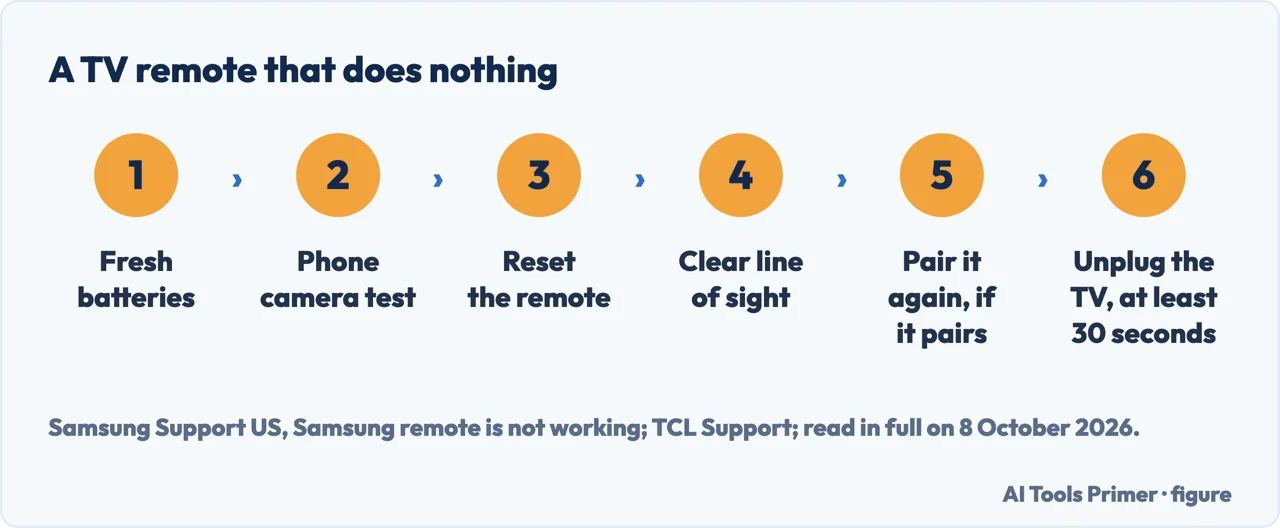
- Fresh batteries. Samsung’s Malaysian support page says that with a remote problem you should generally check the battery first, and clean the top edge of the remote, the transmission window. TCL’s page for its Roku TVs adds: match the + and − signs, and avoid mixing old and new batteries or different brands, which it says may affect performance.
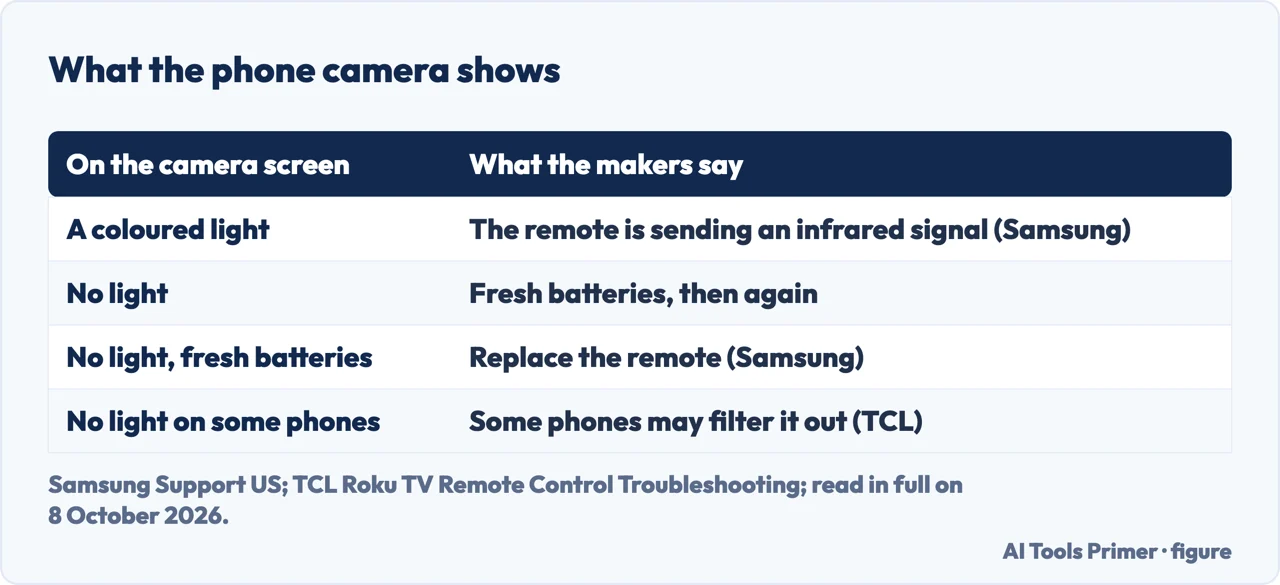
- The phone camera test. Point the remote at a phone or tablet camera and hold the Power button while watching the camera screen. Samsung says a coloured light means the remote is sending an infrared signal. If there is no light, fit fresh batteries and try again; if there is still no light, Samsung says to replace the remote. TCL warns that some phone cameras may filter out infrared light, so the test may not work with every phone.
- Reset the remote. Samsung: take the batteries out, hold Power for eight seconds, put them back. On a Samsung solar remote (2021 or newer TV models) the reset is Return and Enter held for 10 seconds, after which the remote has to be paired again. TCL, for a standard infrared remote: batteries out, press several buttons, fresh batteries in.
- Clear the line of sight. TCL says infrared remotes need a clear line of sight to the TV, so nothing should block its front: a sound bar, decorations, furniture or other devices. If the camera shows the light, Samsung’s next step for a remote that is not a Smart Remote is to point it straight at the Samsung logo.
- Pair it again, if it pairs. Samsung’s Smart Remote pairs with the TV, and TCL says the remotes that need pairing are usually voice or enhanced remotes; the steps for Samsung and Fire TV are below. TCL says a remote without a pairing button may be an infrared remote, which does not need pairing.
- Restart the TV. Unplug it from the wall for at least 30 seconds, plug it back in and let it start fully, then try the remote again. Samsung gives the same unplugging for a Smart Remote that will not pair.
Infrared or paired: two kinds of remote
Infrared. A remote that talks in infrared light has to be pointed at the TV or the box. Roku says of its simple remote that it cannot work through cabinets or walls and needs a direct line of sight; TCL says the remotes of its Roku TVs that use infrared need a clear line of sight to the TV.
Paired. Roku says some of its voice remotes use wireless signals rather than infrared, so they do not have to be pointed at the device. Remotes like these are paired with the TV, and TCL lists a remote that will not pair after multiple attempts among the signs it may need replacing.
What the camera test can tell. The test looks for infrared light. That it says nothing about a remote’s wireless link is our reading of how the test works, not something Samsung or TCL say; Samsung pairs its Smart Remote as a separate step after the test.
On a Samsung TV
Smart Remote. Samsung’s US support page: to reset it, hold Return and the button diagonally up and to the right of Return, usually the one with four coloured dots, though this can vary by remote. To pair it, stand within 1 foot of the TV and hold Return and Play/Pause together for at least 5 seconds, until a message on the TV says the remote is connected. If it will not pair, unplug the TV for 30 seconds and try again; after that, Samsung sends you to its support.
The TV changes source or volume by itself. Samsung’s US page says to check whether any buttons of the remote are stuck; its Malaysian page says the TV’s controls may be dirty. Take the batteries out of the remote, unplug the TV, wipe the touch controls on the TV’s bezel with a microfibre cloth, plug it back in and turn it on with those controls. If the behaviour comes back with new batteries in the remote, Samsung says the remote needs replacing.
After the SmartThings app. Samsung describes an issue with 2022 TVs (B models): after devices are registered in the SmartThings TV app, the app disrupts the remote’s infrared signal. Samsung says the issue is with the current version of the app and an update is coming to correct it; as a temporary solution, turn the TV off and on with its own Power button and, in the SmartThings TV app, go to Settings, About SmartThings, SmartThings Guide and choose Do not receive new device notifications.
On an Amazon Fire TV
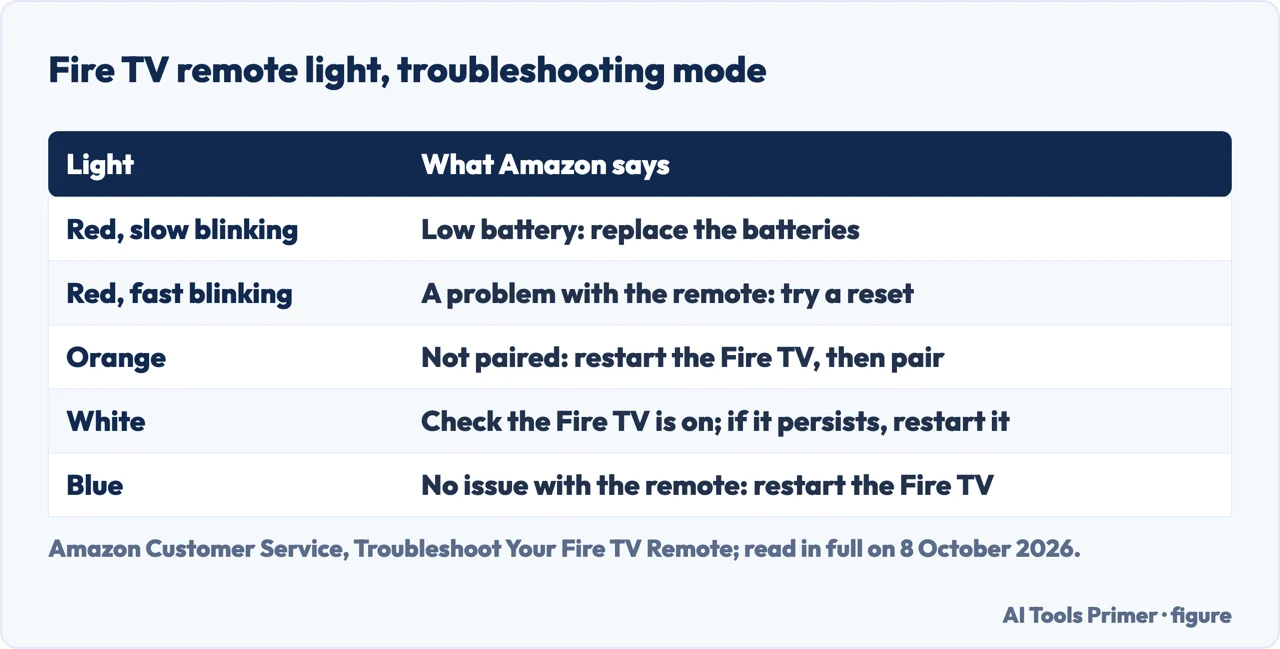
Troubleshooting mode. Amazon says some Fire TV remotes have a troubleshooting mode in which the light on the remote changes colour with the problem. To check whether a remote has it, press the Alexa Voice button: if the light at the top flashes, the mode is available. Amazon’s page gives the buttons that turn it on; the light turns green, then pressing any button makes it flash a colour, listed in the figure below. Not all Fire TV remotes have a light.
Resetting the remote. Amazon’s steps for most Fire TV remotes: unplug the Fire TV from power and from HDMI and wait 60 seconds; hold the combination of buttons that Amazon gives for that remote for 12 seconds; release, wait five seconds, take the batteries out; plug the Fire TV back in and wait for the on-screen message that it cannot detect the remote; put the batteries back and press Home. Amazon says the light blinks blue when the remote pairs, on remotes that have one.
Batteries. In troubleshooting mode, when the light blinks red slowly, Amazon says to replace the batteries, and recommends AAA alkaline ones for best performance.
When the remote is the fault
TCL’s list. The remote may need replacing if fresh batteries do not help, it has visible damage, it was exposed to liquid, its buttons are stuck or not responding, it will not pair after several attempts, or the TV responds to the Roku mobile app but not to the remote. Samsung reaches the same point by another route: no infrared light on the camera with fresh batteries.
In the meantime. TCL says the Roku mobile app may work as a temporary remote when the phone and the TV are on the same Wi-Fi network.
Which TVs. The Samsung steps come from Samsung’s US page, which covers its TVs, Odyssey Ark screens and projectors, and from its Malaysian page, updated 23 May 2024. TCL’s page is for its Roku TVs, and says remote features and menus may vary by model and software version. Amazon’s steps are for Fire TV remotes.
Other fixes around the TV. Showing a phone on the TV is in how to screen mirror iPhone to TV, and a Bluetooth device that will not connect in why is my Bluetooth not working. Headphones are in how to pair Bluetooth headphones. The home network is in Wi-Fi not working and how to fix slow internet.
Where to start
Five ways in.
- “Where do I start?”
- The checks in order — the checks in order
- “Does it need pairing?”
- Infrared or paired — infrared or paired
- “It is a Samsung.”
- Samsung TV — on a samsung tv
- “It is a Fire TV.”
- Fire TV — on a fire tv
- “Is the remote dead?”
- When to replace it — when to replace it
More around the TV
The screen, the sound and the network.
Questions people also ask
Why is my TV not responding to any remote?
Samsung’s steps separate the remote from the TV: if a remote that is not a Smart Remote shows its infrared light on a phone camera, turn the TV on with its controls, then point the remote at the Samsung logo; if it still does not work, request service. TCL’s list includes unplugging the TV for at least 30 seconds.
How do I reset my TV remote?
On a Samsung remote with batteries: take them out, hold Power for eight seconds, put them back. A Samsung solar remote (2021 or newer TVs) resets with Return and Enter held for 10 seconds, then needs pairing. TCL, for a standard infrared remote: batteries out, press several buttons, fresh batteries in.
How do I fix a TV remote that isn't working?
From Samsung’s and TCL’s pages: fresh batteries, the phone camera test, a reset, a clear line to the TV, pairing again if the remote pairs, and unplugging the TV. TCL says it may need replacing if fresh batteries do not help, it is visibly damaged or was wet, buttons stick, or it will not pair after multiple attempts.
Why is my remote not working even with new batteries?
For its simple remote, Roku says to check that the batteries face the right way, that nothing blocks the signal, and to restart the Roku device; if it still does not work, the remote may be faulty. Samsung: if a phone camera shows no infrared light with fresh batteries, replace the remote.
Not covered here. It does not cover programming a universal remote with codes, or opening a remote to repair a button.
Nor does it cover remotes for other makes of TV, such as Sony and LG.
Sources
- Samsung Support US — Samsung remote is not working: reset, the infrared camera test, Smart Remote pairing, a TV that changes source by itself, and the SmartThings issue on 2022 TVs — www.samsung.com, read 8 October 2026.
- Samsung Support Malaysia — What to do when Samsung TV Remote Control is not working?: the battery first and the transmission window, updated 23 May 2024 — www.samsung.com, read 8 October 2026.
- TCL Support — TCL Roku TV Remote Control Troubleshooting: batteries, line of sight, pairing, the camera test and when to replace the remote — support.tcl.com, read 8 October 2026.
- Amazon Customer Service — Troubleshoot Your Fire TV Remote: troubleshooting mode and the light colours — www.amazon.com, read 8 October 2026.
- Amazon Customer Service — Reset Your Fire TV Remote: unplugging, the 12-second reset and pairing — www.amazon.com, read 8 October 2026.
- Roku Support — How to set up your Roku simple remote: infrared, line of sight, and new batteries that do not help — support.roku.com, read 8 October 2026.
- Roku Support — Fix your Roku remote (simple or voice): infrared and wireless voice remotes — support.roku.com, read 8 October 2026.
Written by Alberto Gulotta
Founder and editor of AI Tools Primer, writing from Palermo, Italy. Thirty-five years of taking computers apart, starting with a Commodore 64 — the long version is on the about page.
Something wrong on this page? Write to aitoolsprimer@gmail.com and it gets fixed.
Written on 8 October 2026.
Independence and limits
No affiliate links and no paid placements anywhere on this site. Nobody pays to appear here, and no company has seen this page before you did.
This is general information, not professional advice. Where a page touches money, health, safety or the law, it names its source and the date it was read — and your situation may still differ. See the privacy page and the cookie policy.