
Software · guide
Roku remote not working? First, which remote it is
By Alberto Gulotta · Updated · 11 min read
Roku remote not working: check which remote it is. A simple remote has no voice button and uses infrared, so it needs a clear line to the device; Roku’s battery step is a fresh matching pair. A voice remote pairs: restart the remote and the Roku device, then hold the pairing button, or Back and Home, for 5 seconds.
| Remote or step | How Roku says to fix it | Time |
|---|---|---|
| Simple (infrared) | Clear line of sight; old batteries out, any two buttons pressed, a fresh matching pair in | — |
| Voice, with batteries | Both batteries out, any two buttons pressed, batteries back negative end first | — |
| Voice, rechargeable | Hold the pairing button, or Back + Home, then wait for the light to stop flashing; then charge | 20 seconds; charge at least 5 hours |
| Roku device | Unplug it, wait, plug it back in and wait for the Home screen | 5 seconds |
| Pairing | Pairing button, or Back + Home on a remote without one, until the light flashes | 5 seconds |
| Unused remotes | Take their batteries out, or hold Back + Home + Mute | 5 seconds |
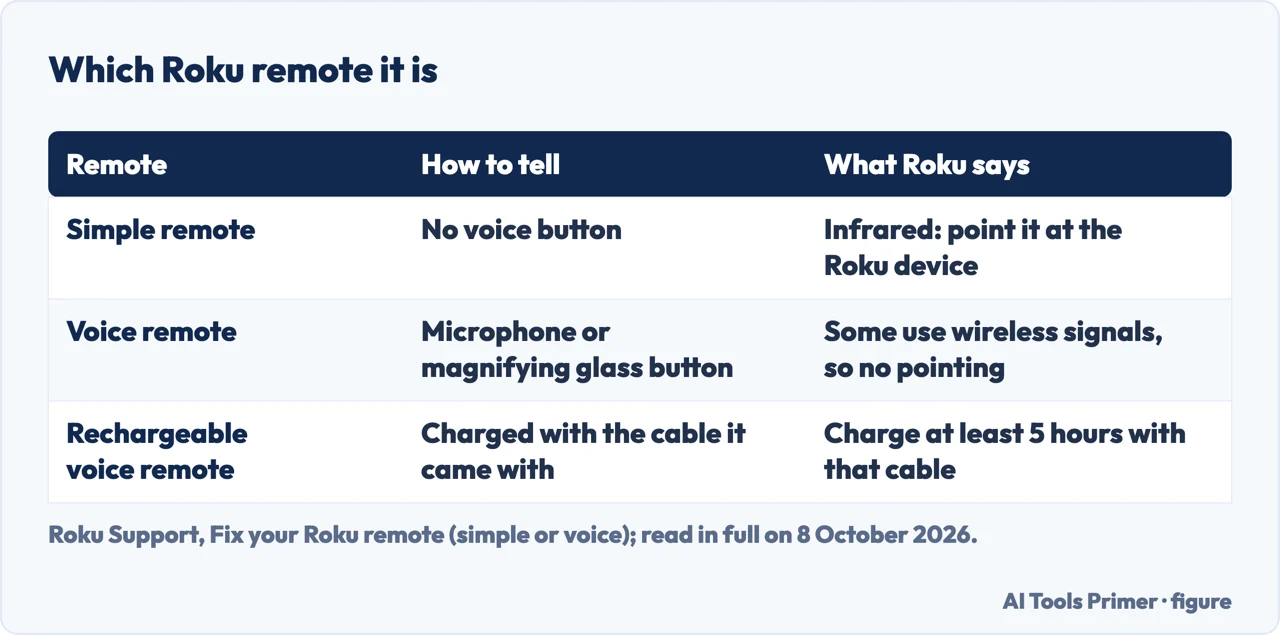
- Restart the remote. With batteries: take both out, press any two buttons, put them back negative end first and replace the cover. Rechargeable: hold the pairing button for 20 seconds, or Back and Home on a remote without one, then wait for the light on the remote to stop flashing.
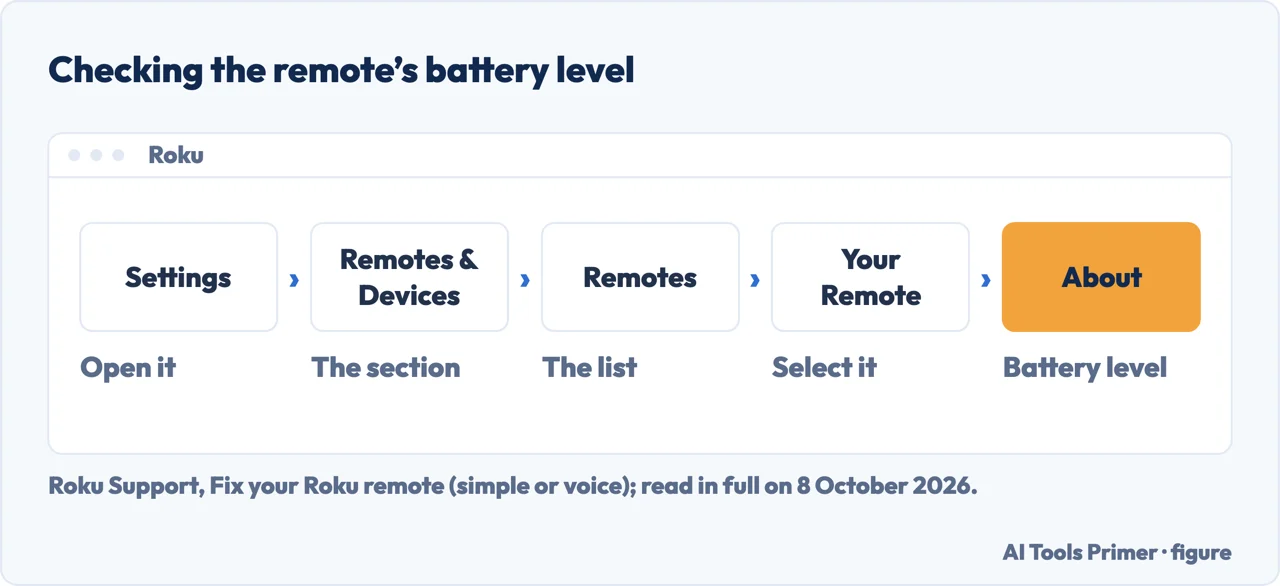
- Charge it, if it is rechargeable. Roku says to charge a rechargeable remote with the cable that came with it, from USB power or a computer, for at least 5 hours. The battery level is under Settings › Remotes & Devices › Remotes, the remote, then About.
- Restart the Roku device. Unplug the Roku player from power, wait 5 seconds, plug it back in and wait for the Home screen. If buttons still do not respond well, Roku says to try replacing or recharging the batteries fully.
- Pair it again. After restarting the Roku TV or player, hold the pairing button for 5 seconds until the light flashes, or Back and Home for 5 seconds on a remote without a pairing button, and wait for the pairing message on the screen. If pairing fails, Roku’s pairing page says to make sure the device and the remote are in pairing mode at the same time.
- If it still will not pair. Roku says to restart the streaming device and repeat the steps, then to check for interference from other electronics, obstacles, or the distance from the device; failing that, to use the Roku mobile app as a remote while you contact Roku support.
The simple remote: infrared
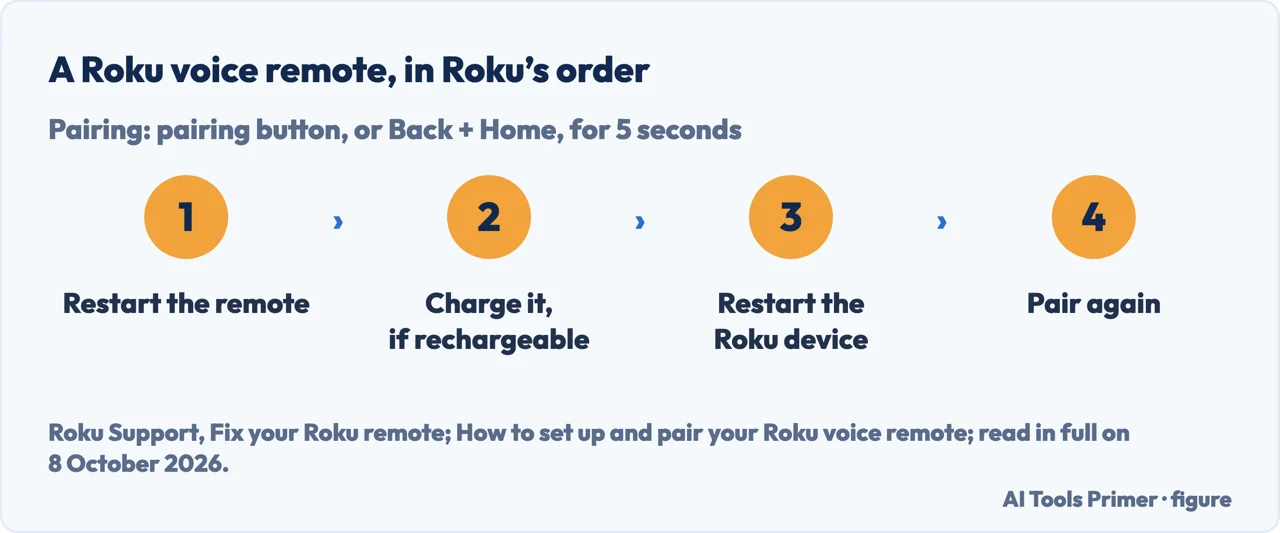
How to tell. Roku says a simple remote has no voice or microphone button and uses infrared, so it has to point directly at the Roku device. A voice remote has a microphone or magnifying glass button, and Roku says some voice remotes connect without infrared, so they do not need pointing.
Line of sight. Make sure nothing blocks the front of the Roku device, do not hide it behind the TV or in a cabinet, and try pointing the remote from different angles. Roku says a simple remote cannot work through cabinets or walls.
Batteries. Take the old ones out, press any two buttons to reset the remote, fit a fresh matching pair and replace the cover. A simple remote has no pairing button and needs no pairing.
If it feels hot. Roku says to stop using it, not to remove the batteries while they are hot, to put it on a hard surface that will not burn, such as tile, and to contact Roku support if it does not cool down.
When only power and volume fail, on a voice remote
How the remote reaches the TV. Roku says a voice remote can send power and volume to the TV through CEC (Consumer Electronics Control), or by infrared. Point the remote straight at the TV’s sensor at the front: if the volume works that way, the remote uses infrared.
If it does not. Roku says to try enabling CEC on the TV and set the remote up again. If both power and volume fail, Roku’s sequence is to update the Roku software under Settings › System › System Update › Check Now, then Settings › Remotes & Devices › Remotes › Set up remote for TV control.
Voice commands. Roku says commands such as turning the TV off work only through CEC, not with infrared remotes, and to check that CEC is turned on in the TV or ask the TV’s maker.
On a Roku TV
TCL’s steps. For its Roku TVs, TCL starts with batteries matching the + and − signs, not old and new mixed, which TCL says may affect performance, and a clear view of the TV for the remotes that use infrared. Then a restart: unplug the TV, wait at least 30 seconds, plug it back in. If a remote with a pairing button still does not work, TCL’s steps to pair it again take the batteries out, unplugs the TV for at least 30 seconds, plugs it back in, puts the batteries back and holds the pairing button until the light flashes.
The camera test. For an infrared remote, TCL suggests pointing it at a phone camera and holding a button: a flashing light on the screen means it is sending. TCL notes that some phone cameras filter out infrared, so the test may not work with every phone.
Restarting the TV from the menu. TCL: Home, Settings, System, Power if it is there, System restart, then Restart; where there is no Power submenu, Settings › System › System restart. If the menus cannot be reached, unplug the TV for 60 seconds. If the TV still misbehaves after several restarts, TCL says a factory reset, which erases apps and settings, may be needed as a last resort.
Low battery, a streaming stick, no remote at all
Low battery that will not go away. Roku says to reboot the remote, remove the batteries or disconnect the charging, and to disable remotes you do not use by taking their batteries out or holding Back, Home and Mute for 5 seconds.
A Roku streaming stick. Roku says to use the wireless receiver that is part of its USB power cable, and offers a free HDMI extender to reduce interference.
No working remote. Roku suggests the Roku mobile app as a remote while you contact Roku support; TCL suggests it as a temporary remote, if the phone and the TV are on the same Wi-Fi network. Roku also says a Roku remote is needed to connect the Roku device to Wi-Fi.
Which Roku. The Roku steps come from Roku’s US support pages, last updated between March and September 2026, and cover Roku players and Roku TVs. The TCL steps are for TCL Roku TVs, and TCL says menus, buttons and pairing steps may vary by model, remote and software version. The Roku Touch tabletop remote has its own page at Roku and is not covered here.
Other fixes around the TV. The home Wi-Fi network is in improving the Wi-Fi signal and changing the Wi-Fi channel. Streaming that stalls is in how to fix slow internet, showing a phone on the TV in how to screen mirror iPhone to TV, and other wireless devices in why is my Bluetooth not working.
Where to start
Five ways in.
- “It has a voice button.”
- The voice remote steps — the voice remote steps
- “It has no voice button.”
- The simple remote — the simple remote
- “Only the volume fails.”
- Power and volume — power and volume
- “It is a Roku TV.”
- On a Roku TV — on a roku tv
- “Something else.”
- Other Roku problems — other roku problems
More around the TV
The network and the other wireless devices.
Questions people also ask
How to resync Roku remote?
Roku’s steps: restart the Roku TV or player, then hold the pairing button for 5 seconds until the light flashes, or Back and Home for 5 seconds on a remote without one, and wait for the pairing message. A simple remote has no pairing button: it uses infrared and needs no pairing.
Why is my remote not working even with new batteries?
For a simple remote, Roku says to check the batteries face the right way, that nothing blocks the signal, and to restart the Roku device; if it still does not work, the remote may be faulty. TCL adds not mixing old and new batteries or different brands.
Why is my Roku remote not working with new batteries?
If it is a voice remote, Roku’s steps are restarting the remote, charging it if rechargeable, restarting the Roku device and pairing again. If pairing fails, Roku says to check for interference from other electronics, obstacles and the distance from the device, and to use the Roku mobile app meanwhile.
How do I reset my unresponsive Roku?
TCL, for its Roku TVs: Home, Settings, System, Power if shown, System restart; if the menus cannot be reached, unplug the TV for 60 seconds. For a Roku player, Roku: unplug, wait 5 seconds, plug back in. After several restarts, TCL says a factory reset, which erases apps and settings, may be needed as a last resort.
Not covered here. It does not cover a lost Roku remote, the Roku Touch tabletop remote, or choosing a replacement.
Nor does it cover remotes of other makes of TV.
Sources
- Roku Support — Fix your Roku remote (simple or voice): line of sight, restarting the remote, charging, pairing, CEC and low battery — support.roku.com, read 8 October 2026.
- Roku Support — How to set up and pair your Roku voice remote: pairing mode and what to check when it will not pair — support.roku.com, read 8 October 2026.
- Roku Support — How to set up your Roku simple remote: infrared, no pairing, and new batteries that do not help — support.roku.com, read 8 October 2026.
- TCL Support — TCL Roku TV Remote Control Troubleshooting: batteries, line of sight, re-pairing and the camera test — support.tcl.com, read 8 October 2026.
- TCL Support — How to Restart Your TCL Roku TV: System restart and unplugging — support.tcl.com, read 8 October 2026.
Written by Alberto Gulotta
Founder and editor of AI Tools Primer, writing from Palermo, Italy. Thirty-five years of taking computers apart, starting with a Commodore 64 — the long version is on the about page.
Something wrong on this page? Write to aitoolsprimer@gmail.com and it gets fixed.
Written on 8 October 2026.
Independence and limits
No affiliate links and no paid placements anywhere on this site. Nobody pays to appear here, and no company has seen this page before you did.
This is general information, not professional advice. Where a page touches money, health, safety or the law, it names its source and the date it was read — and your situation may still differ. See the privacy page and the cookie policy.