
Software · guide
Flashlight on Android: where the switch is, and how to dim it
By Alberto Gulotta · Updated · 8 min read
To turn on the flashlight on Android, swipe down from the top of the screen to open Quick Settings and tap Flashlight; swipe down again to see every tile. Google’s Android Help says touching and holding a tile opens its advanced settings; on a Galaxy, Samsung says the hold brings a brightness slider, grey until the light is on.
| What | What the makers say |
|---|---|
| Where the switch is | In Quick Settings (Samsung); swipe down once for the first few settings, twice for all (Google) |
| A tile that is missing | Swipe down twice, tap Edit, and add it from the list (Google’s steps for any setting; some need Android 13 or later) |
| Brightness on a Galaxy | Touch and hold the Flashlight icon; the slider stays grey until the light is on (Samsung) |
| A button for it on a Galaxy | Double press the Side button, once it is set to Flashlight, even with the screen off (Samsung Canada) |
| By voice when locked | Gemini can control some phone features, like turning on the flashlight, on most Android lock screens (Google) |
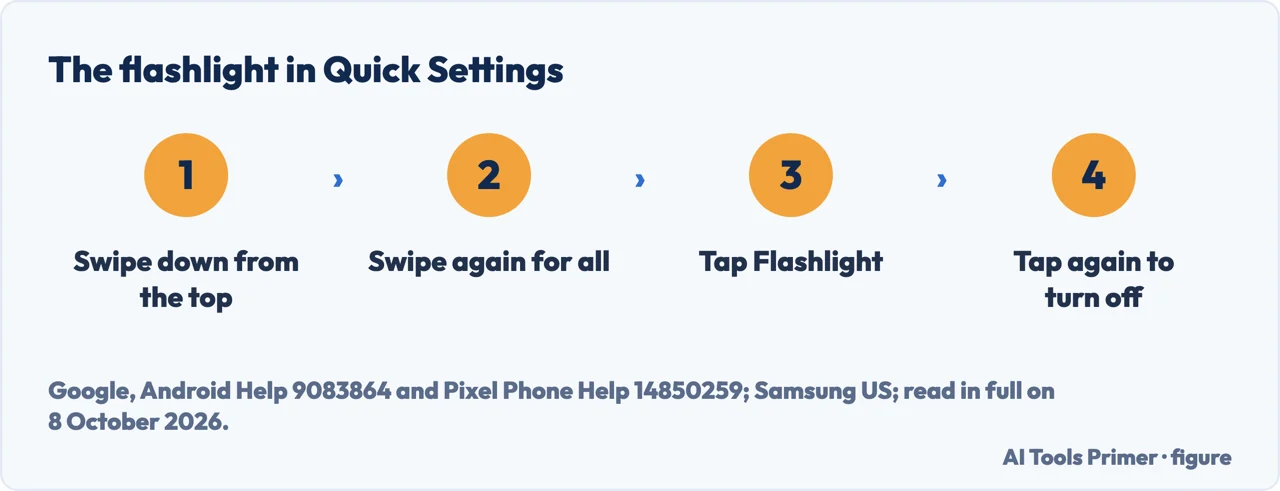
- Swipe down from the top of the screen. Google says the first swipe shows your first few Quick Settings; Samsung’s US page says to swipe down from the top right on a Galaxy.
- Swipe down again if it isn’t there. The second swipe shows all of them; on a Pixel, Google says to swipe from right to left for more.
- Tap Flashlight. Google says a tap turns a setting on or off, and that dimmed settings are off.
- Tap it again to turn it off. Samsung says the same icon turns the light on or off.
When the Flashlight tile is missing
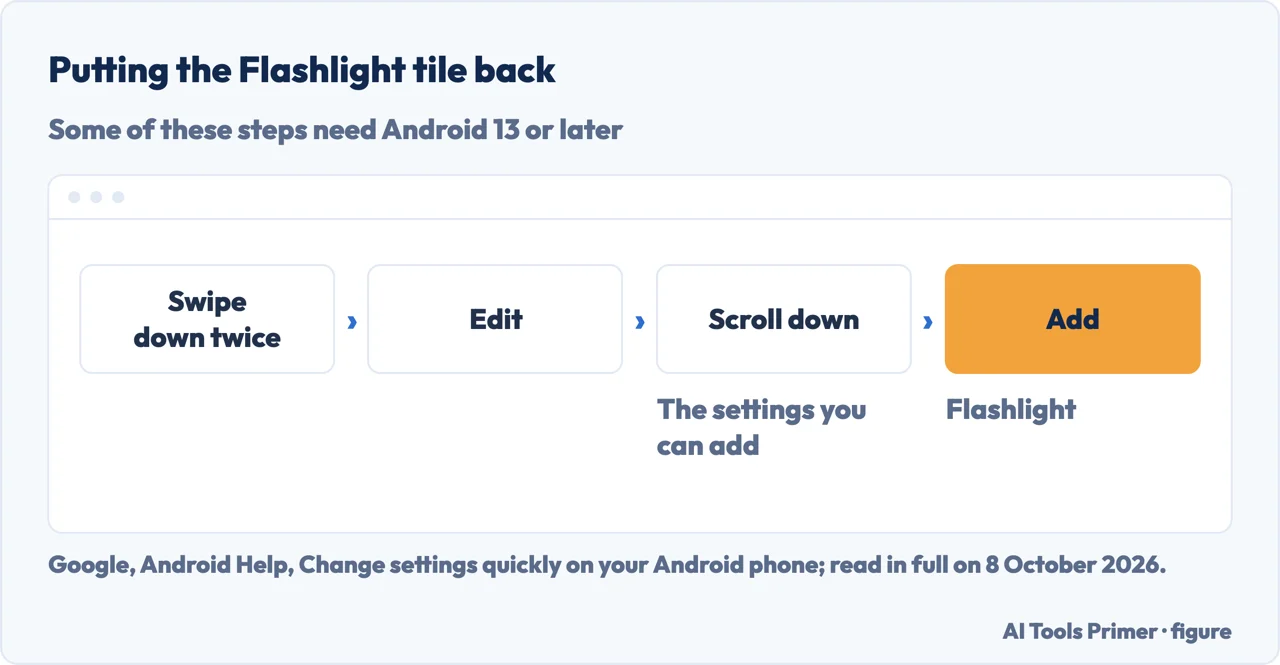
Put it back. Google’s steps: swipe down twice from the top of the screen, tap Edit, scroll down to find the settings you can add, and add it; drag tiles to change their order. Google notes that some of these steps work only on Android 13 and later. On a Pixel, Google says to drag a setting up from the area marked “Hold and drag to add tiles”.
Look further along. Samsung says you may need to swipe to find the icon, depending on how the panel is set up: its US page says left, its Canadian page says right, and the Canadian page notes that screens and settings vary by carrier, software version and model.
Settings behind a tile. Google says touching and holding a Quick Settings icon opens its advanced settings.
Brightness on a Galaxy
Samsung’s steps. Open the Quick settings panel, touch and hold the Flashlight icon, turn the flashlight on with the switch, then move the slider. Samsung says the slider is greyed out until the light is on.
What it is. Samsung says the flashlight uses the camera’s LED. The Google pages read here don’t describe a brightness control for the flashlight on a Pixel.
A button or your voice
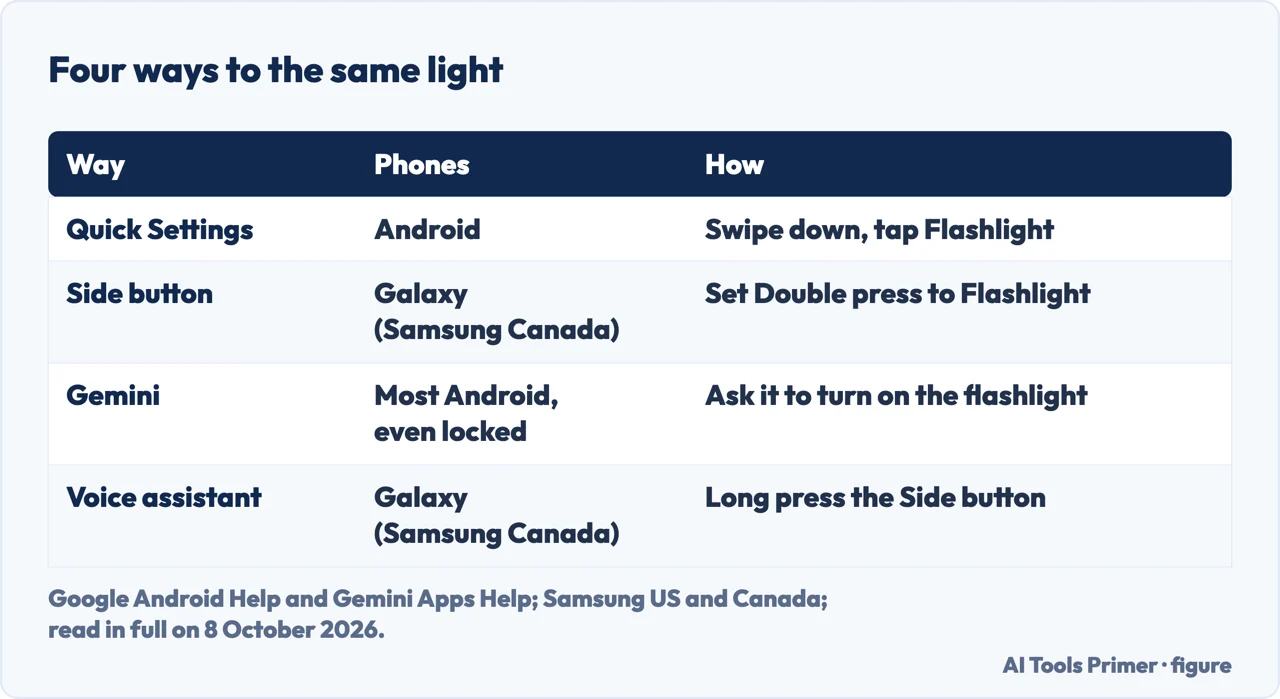
The Side button on a Galaxy. Samsung Canada’s steps, for phones sold in Canada: Settings, Advanced features, Side button, Double press, Flashlight. Then a double press turns the light on, even with the screen off, and another turns it off. Samsung’s US page adds that the XCover6 Pro’s XCover or Top key can be set to turn it on.
On a Pixel. Google’s gestures page says a double press of the power button opens the camera or Wallet, and that Quick Tap, two taps on the back of a Pixel 4a (5G) or later, can take a screenshot, play or pause media, show notifications or open an app.
By voice. Google says that on Android phones and tablets the Gemini app can help while the phone is locked, by touch or by saying Hey Google if that is on, including turning on the flashlight, and that Gemini is available on most Android lock screens. Its lock screen setting is in Gemini, Settings, Gemini on lock screen, Use Gemini without unlocking. Samsung says its digital assistant, a long press of the Side button by default, turns the light on or off when you say something like turn on the flashlight.
Which phones. Google’s Android Help covers Android phones in general, with some steps needing Android 13 or later; its Pixel pages are for Pixel phones, and Quick Tap for the Pixel 4a (5G) and later. Samsung’s US page gives no date; its Canadian page was updated on 31 October 2025 and is written for phones sold in Canada. Screenshots and screen recording on the same phones are in screen capture on Android, and where the apps live in the app tray on Android.
When the phone itself struggles. A phone that is slow to respond is in a slow Android phone, apps that close by themselves in apps crashing on Android, and a battery that empties quickly in why a battery drains fast.
Where to start
Four ways in.
- “Where is it?”
- From Quick Settings — from quick settings
- “The icon has gone.”
- When the tile is missing — when the tile is missing
- “It is too bright.”
- Brightness on a Galaxy — brightness on a galaxy
- “Is there a shortcut?”
- Buttons and voice — buttons and voice
More on Android
Finding things on the phone, and when it misbehaves.
Questions people also ask
Where is my flashlight icon?
In Quick Settings: swipe down from the top of the screen, and again to see every tile. If it isn’t there, Google’s steps are to swipe down twice, tap Edit and add it from the list; some work only on Android 13 and later. On a Galaxy, Samsung says you may need to swipe across the panel to find it.
How to quickly turn on flashlight on Android?
Swipe down from the top of the screen and tap Flashlight in Quick Settings. On a Galaxy, Samsung Canada adds a double press of the Side button once it is set to Flashlight. Google says Gemini can control some phone features while the phone is locked, including turning on the flashlight.
What is the shortcut key for flashlight?
On a Samsung Galaxy, Samsung Canada’s steps set the Side button: Settings, Advanced features, Side button, Double press, Flashlight, then press it twice, even with the screen off. Google’s gestures page for Pixel says a double press of the power button opens the camera or Wallet.
What happened to the flashlight on Android?
If the tile has gone from Quick Settings, Google’s steps for adding a setting are to swipe down twice, tap Edit, and add it from the list; some work only on Android 13 and later. Samsung says the icon can sit further along the panel, depending on how the panel is set up.
Not covered here. It does not cover flash notifications, flashlight apps from Google Play, or phones other than Pixel and Galaxy models.
Sources
- Google, Android Help — Change settings quickly on your Android phone: opening Quick Settings, adding and moving tiles — support.google.com, read 8 October 2026.
- Google, Pixel Phone Help — Change settings quickly — support.google.com, read 8 October 2026.
- Google, Pixel Phone Help — Use gestures on your Pixel phone: Quick Tap and the double press of the power button — support.google.com, read 8 October 2026.
- Google, Gemini Apps Help — How your Gemini mobile app can help when your phone is locked — support.google.com, read 8 October 2026.
- Samsung US — Use the flashlight on your Galaxy phone: Quick settings and brightness — www.samsung.com, read 8 October 2026.
- Samsung Canada — Quickly activate the flashlight on your Samsung Galaxy (updated 31 October 2025): the Side button and the voice assistant — www.samsung.com, read 8 October 2026.
Written by Alberto Gulotta
Founder and editor of AI Tools Primer, writing from Palermo, Italy. Thirty-five years of taking computers apart, starting with a Commodore 64 — the long version is on the about page.
Something wrong on this page? Write to aitoolsprimer@gmail.com and it gets fixed.
Written on 9 October 2026.
Independence and limits
No affiliate links and no paid placements anywhere on this site. Nobody pays to appear here, and no company has seen this page before you did.
This is general information, not professional advice. Where a page touches money, health, safety or the law, it names its source and the date it was read — and your situation may still differ. See the privacy page and the cookie policy.