
Software · guide
How to fix slow android phone, from restart to reset
By Alberto Gulotta · Updated · 10 min read
How to fix slow android phone: restart it, install Android and app updates, and keep more than 10% of storage free, below which Google says issues can start. If it is still slow, restart in safe mode: if the slowness goes away there, a downloaded app is the likely cause. Google’s last step is to consider a factory reset.
| Check | What Google says | Where |
|---|---|---|
| Connection | Check network and connection settings | Settings, or the carrier |
| Force restart | Press the power button for about 30 seconds, or until it restarts | On most phones; Pixel 6 and later use Power and Volume up |
| Android update | Follow the update steps on screen | Settings › System › Software update |
| Free storage | Issues can start when less than 10% is free | Settings › Storage |
| Safe mode | Temporarily turns off all downloaded apps | Varies by phone: the maker’s support site |
| Factory reset | Removes all data; back up first | The last step on Google’s page |
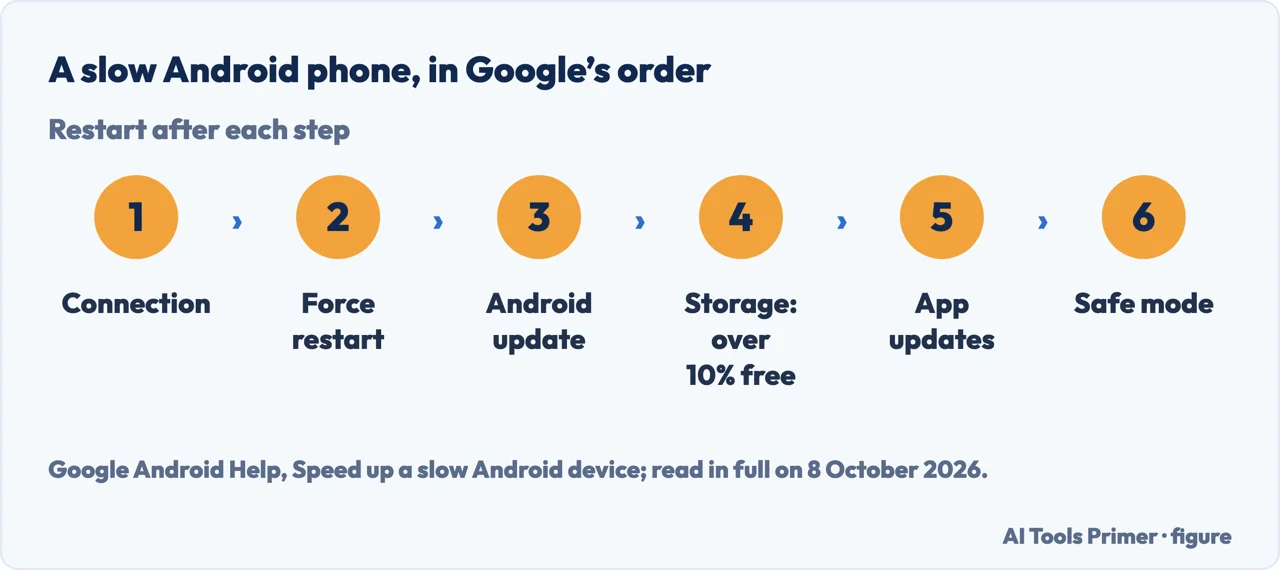
- Check the connection first. Google’s Android Help starts with network and connection settings, and sends you to the network administrator, the internet provider or the carrier if the connection is the problem.
- Force restart. On most phones, hold the power button for about 30 seconds, or until the phone restarts; you may need to tap Restart. Google’s Pixel help gives Power and Volume up for a few seconds on a Pixel 6 and later. After each of the steps below, Google says to restart and check again.
- Update Android. Settings › System › Software update, and follow the steps. Google notes that settings can vary by phone.
- Check the storage. Settings › Storage shows how much is left. Google says a phone can start having issues when less than 10% of storage is free.
- Update the apps and close the ones not in use. In the Play Store: the profile icon, Manage apps & devices, then update. Google says an app can usually be force stopped in Settings, which can vary by phone; on a Pixel, Settings › Apps › See all apps, the app, Force stop. Google suggests writing down which apps you force stop.
- Test in safe mode, then consider a reset. The two steps below.
Storage is not memory
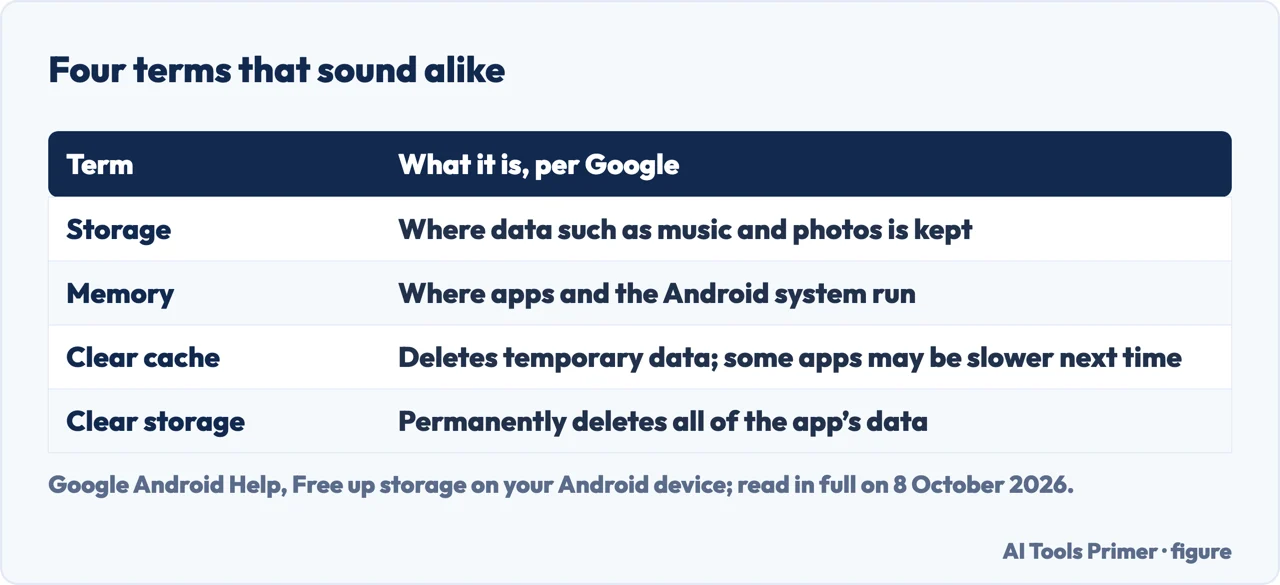
Two different things. Google’s page on freeing up space separates them: storage is where data such as music and photos is kept; memory is where apps and the Android system run. The 10% line in the steps above is about storage.
Freeing storage. Settings › Storage › Free up space lists photos, videos and apps not used recently, by category; Select files, then Move files to Trash. Google also describes Smart Storage, which, once turned on, clears backed-up photos and videos when storage is almost full; the page warns that some of its steps work only on Android 14 and up. Photos backed up with Google Photos can be deleted from the phone and found in the app when it is connected to the internet.
Cache or storage of an app. Clear cache deletes temporary data, and Google warns that some apps may be slow the next time they open. Clear storage permanently deletes all of the app’s data, and Google says to try deleting the data within the app first.
Memory. Google says you don’t usually need to close apps; if an app isn’t responding, you can try to close or force stop it, and if you think an app uses too much memory, you can delete it.
Safe mode: is it an app?
What it does. Safe mode temporarily turns off all downloaded apps. How to restart into it varies by phone, and Google sends you to the manufacturer’s support site for the buttons. It also removes some Home screen widgets: Google suggests a screenshot first, to put them back afterwards.
How to read it. If the phone is quick in safe mode, Google says an app is likely causing the problem. If it is just as slow, Google says an app is not the cause and points to other troubleshooting; on its slow-phone page, the step after safe mode is a factory reset.
Finding the app. Restart normally, then remove recently downloaded apps one at a time, restarting after each. Once the app that caused the problem is gone, Google says the others can be reinstalled.
On a Samsung Galaxy: Device care
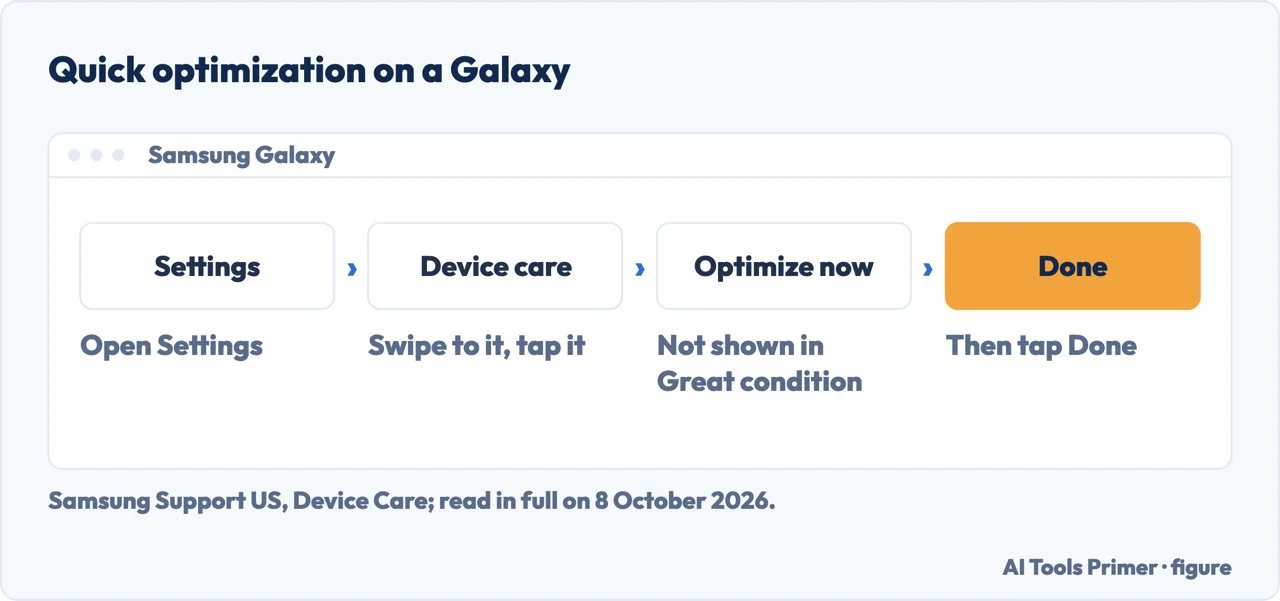
Optimize now. Samsung’s support page: Settings › Device care › Optimize now, then Done. Samsung says it identifies apps that use excessive battery, clears unneeded items from memory, deletes unnecessary files, scans for malware and closes background apps. The button does not appear when Device care rates the phone in Great condition.
Memory and storage. Device care › Memory › Clean now stops background apps; Excluded apps keeps chosen ones running. Device care › Storage deletes by category. RAM Plus, under Memory, uses part of the storage as up to 8 GB of virtual memory, and needs a restart.
Restarts on a schedule. Device care › Auto optimization › Auto restart, with Restart when needed or Restart on schedule.
Two battery settings. Samsung says the Light performance profile prioritises battery life over processing speed, and that Power saving limits things such as background network use and syncing; on One UI 2.5 or lower, the power saving options are different. Both are under Device care. That one of them may be the reason a Galaxy feels slower is our reading of Samsung’s description, not something Samsung says.
The factory reset, last
What goes. Google: a factory data reset removes all data from the phone, and with it any issue caused by settings changes or third-party software. Data stored in the Google Account can be restored; all apps and their data are uninstalled. Back up first.
When the phone does not respond. Google says the reset can be triggered with the phone’s buttons if the screen stays blank. If none of this works, Google sends you to the carrier or the manufacturer.
Which Android. Google’s page warns that some of its steps work only on Android 8.0 and up, and its storage page that some steps work only on Android 14 and up; Google says settings can vary by phone. The Samsung steps come from Samsung’s US support page for Galaxy phones and tablets, which says screens and settings may vary by wireless service provider, software version and device model.
Other fixes on the same phone. Apps that close on their own are in apps crashing on Android, a connection that is the real bottleneck in how to fix slow internet, and a backup before any reset in how to back up photos on Android. Blocking a caller is in blocking a number on Android.
Where to start
Five ways in.
- “Where do I start?”
- The checks in order — in googles order
- “My storage is full.”
- Storage and memory — storage and memory
- “Is it an app?”
- Safe mode — safe mode
- “It is a Samsung.”
- Device care — on a samsung galaxy
- “Nothing worked.”
- Factory reset — factory reset
More on Android
The same phone, other faults.
Questions people also ask
How do I clean up my phone to make it run faster?
Google’s Android Help: Settings › Storage › Free up space lists photos, videos and apps not used recently; uninstall apps you do not use and clear app caches. Google says issues can start when less than 10% of storage is free. On a Galaxy, Samsung’s Device care › Optimize now closes background apps and deletes unnecessary files.
How do I find out what is slowing down my Android phone?
Restart in safe mode, which temporarily turns off all downloaded apps. If the phone is quick there, Google says an app is likely the cause: restart normally and remove recently downloaded apps one at a time, restarting after each. If safe mode is just as slow, an app is not the cause.
Why is my phone so slow and laggy all of a sudden?
Google’s help does not name one cause. Its checks go, in order, through the connection, the Android version, storage under 10% free, app updates and apps left open, then safe mode, which tests for a downloaded app. Google says to restart after each step to see whether it fixed the issue.
How do I clear the cache on Android?
Google’s Android Help says an app’s cache can usually be cleared in the phone’s Settings app, with menus that vary by phone. Clear cache deletes temporary data, and some apps may be slow the next time they open; Clear storage is different and permanently deletes all of the app’s data.
Not covered here. It does not cover a phone that restarts by itself or freezes, a battery that drains, or malware; Google has separate pages for the first two.
Nor does it promise a result on a given phone: the menus and the safe-mode buttons differ by phone, and Google sends you to the manufacturer for them.
Sources
- Google Android Help — Speed up a slow Android device: connection, force restart, updates, the 10% storage line, safe mode and factory reset — support.google.com, read 8 October 2026.
- Google Android Help — Free up storage on your Android device: storage and memory, Free up space, Smart Storage, Clear cache and Clear storage — support.google.com, read 8 October 2026.
- Google Android Help — Find problem apps by rebooting to safe mode on Android: widgets, exiting, and removing apps one by one — support.google.com, read 8 October 2026.
- Google Pixel Phone Help — Speed up a slow Pixel phone: the force-restart buttons by model and Force stop — support.google.com, read 8 October 2026.
- Samsung Support US — Keep your Galaxy phone or tablet from slowing down with Device Care: Optimize now, Memory, RAM Plus, Auto restart, Light and Power saving — www.samsung.com, read 8 October 2026.
Written by Alberto Gulotta
Founder and editor of AI Tools Primer, writing from Palermo, Italy. Thirty-five years of taking computers apart, starting with a Commodore 64 — the long version is on the about page.
Something wrong on this page? Write to aitoolsprimer@gmail.com and it gets fixed.
Written on 8 October 2026.
Independence and limits
No affiliate links and no paid placements anywhere on this site. Nobody pays to appear here, and no company has seen this page before you did.
This is general information, not professional advice. Where a page touches money, health, safety or the law, it names its source and the date it was read — and your situation may still differ. See the privacy page and the cookie policy.