
Software · guide
macOS installation couldn’t be completed: the fixes in order
By Alberto Gulotta · Updated · 12 min read
macOS installation couldn’t be completed: Apple’s page lists, in this order, freeing up storage space, checking the internet connection, installing from macOS Recovery and repairing the startup disk. Apple says such messages are sometimes temporary; rarely, a Mac with Apple silicon or a T2 chip might need its firmware revived or restored, and erasing the Mac comes after the rest.
| What may be in the way | Apple’s fix |
|---|---|
| Not enough storage space | Free up space; safe mode clears certain system caches, which might give enough room for an update |
| The internet connection | A stable connection, to download macOS and get firmware for the Mac model |
| Other software on the Mac | Install from macOS Recovery; from the App Store or Software Update, safe mode first might help |
| An installer called damaged or not verified | Repair the disk, delete the installer, download it again from Apple |
| A persistent issue on Apple silicon or a T2 chip | Rarely, the firmware might need reviving or restoring |
| The installer does not see the disk | Erase the startup disk in Disk Utility; if Disk Utility cannot see it, the Mac might need service |
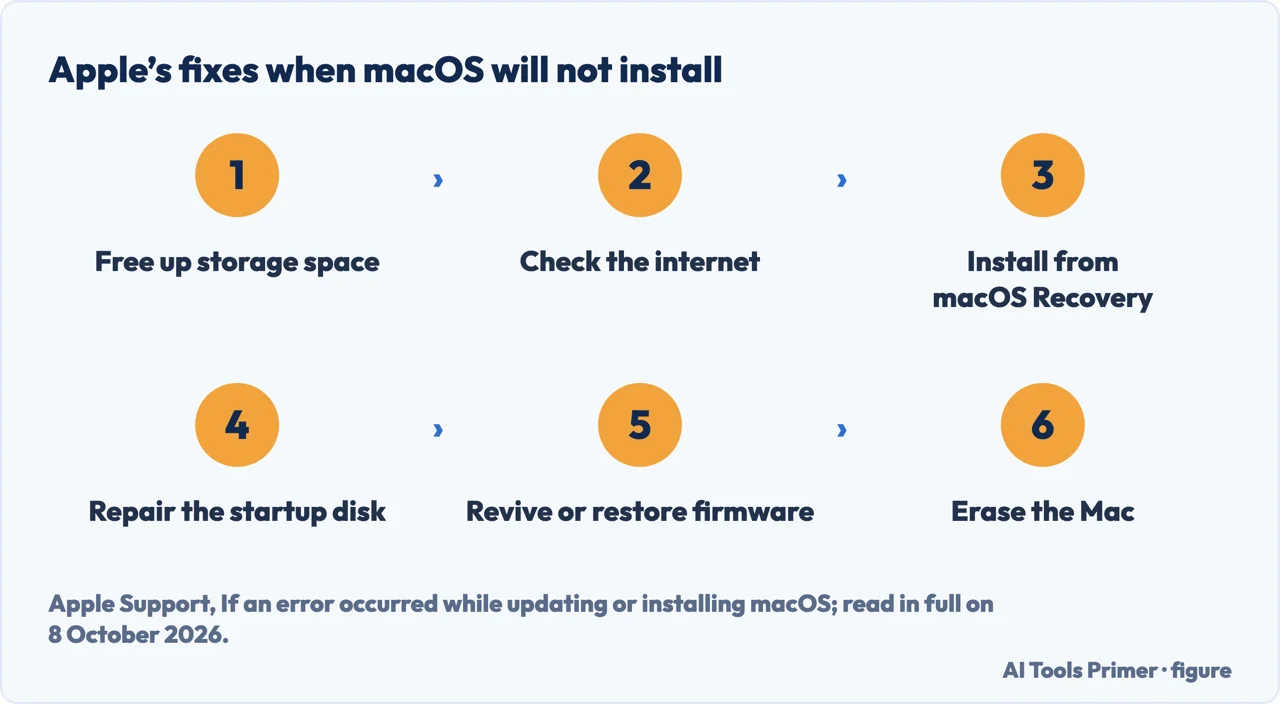
- Free up storage space. If the message says the Mac lacks space, Apple says to free some up. In macOS Ventura 13 or later the figures are in System Settings › General › Storage; in earlier versions, About This Mac › Storage. Apple’s ways include moving files to an external drive, deleting media, especially media that can be streamed or downloaded again, deleting files in the Downloads folder, removing unused apps and emptying the Trash, because space taken by a file in the Trash is not available until the Trash is emptied.
- Check the internet connection. Apple says the installer needs a stable connection to download macOS and to get firmware and other information specific to the Mac model.
- Install from macOS Recovery. Apple gives the reason: there, no other software on the Mac can interfere. For the same reason, when installing from the App Store or Software Update, Apple says it might help to start up in safe mode first.
- Repair the startup disk. Run Disk Utility from macOS Recovery; Apple says it is not needed if Disk Utility has just erased that disk. If a previously downloaded installer is called damaged or cannot be verified, Apple says to delete it and download the installer from Apple after repairing the disk.
- Revive or restore the firmware. Apple says that rarely, on a Mac with Apple silicon or the Apple T2 Security Chip, this might be needed to resolve a persistent installation issue.
- Erase the Mac. If none of the previous steps work, Apple’s next step is to erase the Mac and reset it to factory settings, which is in how to factory reset MacBook; if the installation issue persists or you need help, Apple says to contact Apple Support.
Getting to macOS Recovery, and which macOS it installs
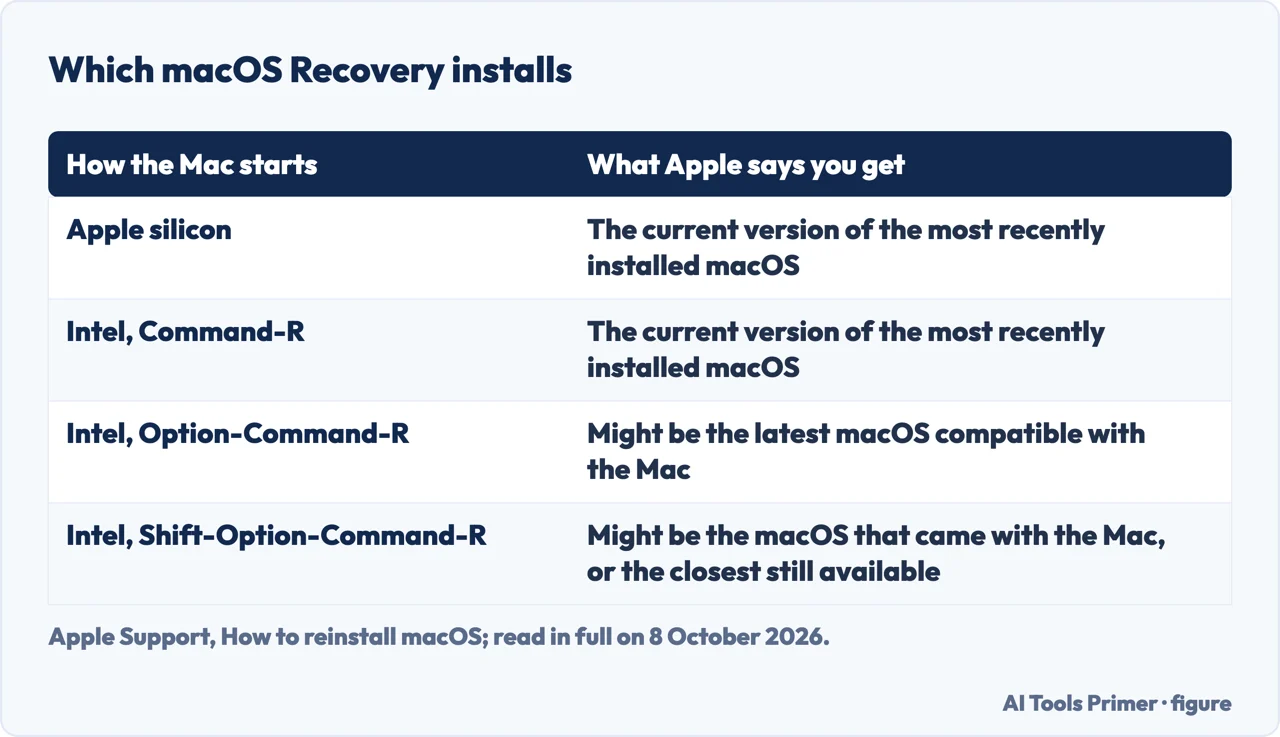
On a Mac with Apple silicon. Apple says to press and hold the power button as the Mac starts up and to release it at the startup options screen, which shows the startup disks and a gear icon labelled Options. From there the Mac can start from another disk, in safe mode, or in macOS Recovery. Recovery installs the current version of the most recently installed macOS; Apple adds that after an upgrade followed by an erase in Disk Utility, it might install the macOS used before the upgrade.
On an Intel-based Mac. Command-R starts the built-in Recovery and gets the current version of the most recently installed macOS. Option-Command-R starts Recovery over the internet and might give the latest macOS compatible with the Mac; Shift-Option-Command-R might give the macOS that came with the Mac, or the closest version still available. Shift alone starts up in safe mode.
When a key combination does nothing. For an Intel-based Mac, Apple says to press all the keys together, to shut the Mac down first and press them after the power button, and to wait a few seconds if the keyboard needs time to be recognised. A wireless keyboard should be plugged in if possible, with a keyboard made for a PC, Apple says to try one made for a Mac, and some combinations do not work while a firmware password is on.
The network Recovery needs. Apple says installing from Recovery needs a broadband connection that uses DHCP over Wi-Fi or Ethernet, and that some connections can prevent it, including those that use a required captive-network login, 802.1X security, or PPPoE (unless a router is handling the PPPoE connection). A hotel or office Wi-Fi with a sign-in page is the captive kind; that example is ours.
What Apple says happens when reinstalling from Recovery
Data. Apple says reinstalling macOS does not remove apps or personal data, and that a backup first is still a good idea.
The wait. The Mac should not sleep and its lid should stay open until the installation completes. Apple says it might restart and show a progress bar several times, and the screen might be empty for minutes at a time.
Two questions the installer may ask. If it asks to unlock the disk, the answer is the password used to log in to the Mac; a forgotten one is in forgotten Mac password. If it offers Macintosh HD or Macintosh HD - Data, Apple says to choose Macintosh HD.
If the installer does not see the disk. Apple says to quit it, open Disk Utility from the Recovery options and erase the startup disk; if Disk Utility cannot see the disk or erase it, the Mac might need service. A check of the drive from macOS itself is in how to check hard drive health.
First Aid in Disk Utility, the way Apple orders it
Before. Apple says to have a current backup, in case damaged files need recovering or Disk Utility finds errors it cannot repair. For the startup disk, Disk Utility is opened from macOS Recovery.
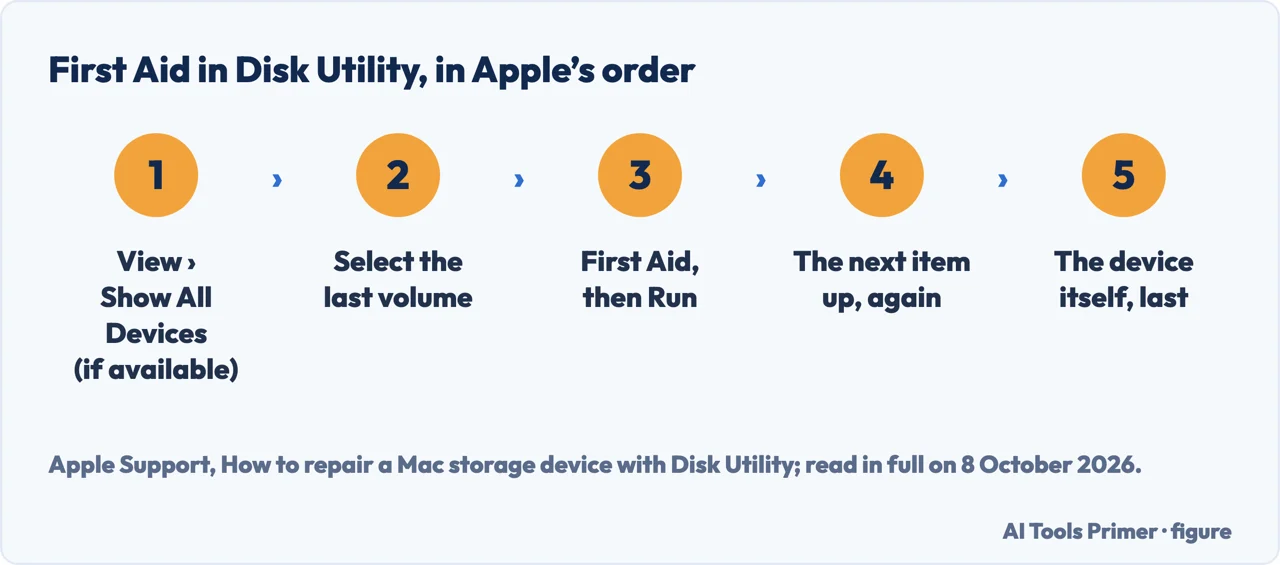
The order. Choose View › Show All Devices, if available. Select the last volume on the device, click First Aid and then Run (or Repair Disk). When the check ends, select the item above it and run First Aid again, moving up through each volume, each volume group, each container and, at the end, the device itself. A dimmed button means that item is skipped.
If it cannot repair. Apple says to erase (format) the disk. If the device does not appear in the sidebar, Apple says the Mac or the device might need service, and to shut down, unplug nonessential devices and try again.
Other ways Apple gives to get the installer
Software Update. Apple calls it the fastest and easiest way to get macOS updates, and says it shows only updates compatible with the Mac and can use less storage space than other methods.
Terminal. On macOS Catalina 10.15 or later, the command softwareupdate --fetch-full-installer --full-installer-version followed by a version number downloads the installer to the Applications folder. If Terminal says update not found, Apple says that version is not available for the Mac, and softwareupdate --list-full-installers lists the ones that are.
The App Store and a bootable installer. Apple links some older versions in the App Store, from macOS Sequoia 15 back to High Sierra 10.13, and some still older ones as disk images. Apple says a bootable installer can be useful when other methods cannot install macOS, or to install it on several Macs without downloading the installer each time.
One owner’s account, from 2019
Which Mac. Jay Versluis wrote on The WP Guru in June 2019 about a MacBook Pro from 2011 that showed the message after a High Sierra security update. What worked for him, to a certain extent, was holding the Option (Alt) key at startup and choosing the regular drive rather than the boot partition: the Mac started without applying the update. On an Intel-based Mac, Apple lists Option as the key for Startup Manager, which chooses among startup disks or volumes.
What did not. Safe mode took several hours on his 500GB SSD, he says, and did not fix the problem. Among the tips he lists, rather than results, are First Aid in Disk Utility, reached with Command-R, and checking for login items that may no longer be compatible after a software update. This is one Mac, one macOS version and one person, and the Apple pages read for this guide do not mention login items.
Which Macs. The steps come from Apple Support pages published between March 2025 and September 2026, with separate routes for a Mac with Apple silicon and an Intel-based Mac; storage figures are located for macOS Ventura 13 or later and for earlier versions. The account from The WP Guru is about High Sierra on a 2011 MacBook Pro.
Other Mac questions. Restarting without holding anything down is in how to restart MacBook, a Mac that asks for a password it no longer accepts in Macbook is disabled, and the browser that comes with the system in updating Safari.
Where to start
Five ways in.
- “Where do I start?”
- The steps in order — the steps in order
- “How do I reach Recovery?”
- macOS Recovery — macos recovery
- “It has been empty for minutes.”
- During the installation — during the installation
- “The disk may be the fault.”
- First Aid — first aid
- “I need the installer.”
- Other ways to install — other ways to install
More on the Mac
Restarting, resetting, the login password and the browser of a Mac.
Questions people also ask
Why does my Mac keep saying installation failed?
Apple says the cause of such messages can vary and is sometimes temporary. Its fixes point at storage space, the internet connection, other software interfering, the startup disk or a damaged installer, and, rarely on a Mac with Apple silicon or a T2 chip, the firmware.
Why won’t my Mac let me install macOS?
Apple says the App Store might dim the Get button, or say the macOS is not compatible or not available, when it does not fit the Mac. Software Update shows compatible updates, and in Terminal, update not found means that version is not available for the Mac.
Does macOS really take 3 hours to install?
None of the Apple pages read for this guide gives an installation time. For a reinstall from macOS Recovery, Apple says the Mac might restart and show a progress bar several times, the screen might be empty for minutes at a time, and the Mac should not sleep or have its lid closed until it completes.
My macOS installation is stuck. What can I do to fix it?
For a reinstall from macOS Recovery, Apple says the Mac might restart several times and the screen might be empty for minutes. If the installation fails, Apple’s page lists storage space, the internet connection, macOS Recovery and repairing the startup disk; erasing the Mac comes after those.
Not covered here. It does not cover Windows installed with Boot Camp, beta versions of macOS, or how to revive or restore the firmware of a Mac with Apple silicon or a T2 chip.
Sources
- Apple Support — If an error occurred while updating or installing macOS (published 15 September 2026): storage, internet, Recovery, disk repair, firmware, erase — support.apple.com, read 8 October 2026.
- Apple Support — How to reinstall macOS (published 14 September 2026): which macOS Recovery installs, and the networks that block it — support.apple.com, read 8 October 2026.
- Apple Support — How to download and install macOS (published 14 September 2026): Software Update, Terminal, App Store and compatibility — support.apple.com, read 8 October 2026.
- Apple Support — How to repair a Mac storage device with Disk Utility (published 14 September 2026) — support.apple.com, read 8 October 2026.
- Apple Support — Mac startup key combinations (published 13 March 2025) — support.apple.com, read 8 October 2026.
- Apple Support — Free up storage space on Mac (published 6 July 2026): the Storage settings and safe mode — support.apple.com, read 8 October 2026.
- The WP Guru — The macOS Installation couldn’t be completed. Now what? (Jay Versluis, 13 June 2019; MacBook Pro 2011, High Sierra) — wpguru.co.uk, read 8 October 2026.
Written by Alberto Gulotta
Founder and editor of AI Tools Primer, writing from Palermo, Italy. Thirty-five years of taking computers apart, starting with a Commodore 64 — the long version is on the about page.
Something wrong on this page? Write to aitoolsprimer@gmail.com and it gets fixed.
Written on 8 October 2026.
Independence and limits
No affiliate links and no paid placements anywhere on this site. Nobody pays to appear here, and no company has seen this page before you did.
This is general information, not professional advice. Where a page touches money, health, safety or the law, it names its source and the date it was read — and your situation may still differ. See the privacy page and the cookie policy.