
Video · guide
How to record a Zoom meeting as host, participant or on a phone
By Alberto Gulotta · Updated · 10 min read
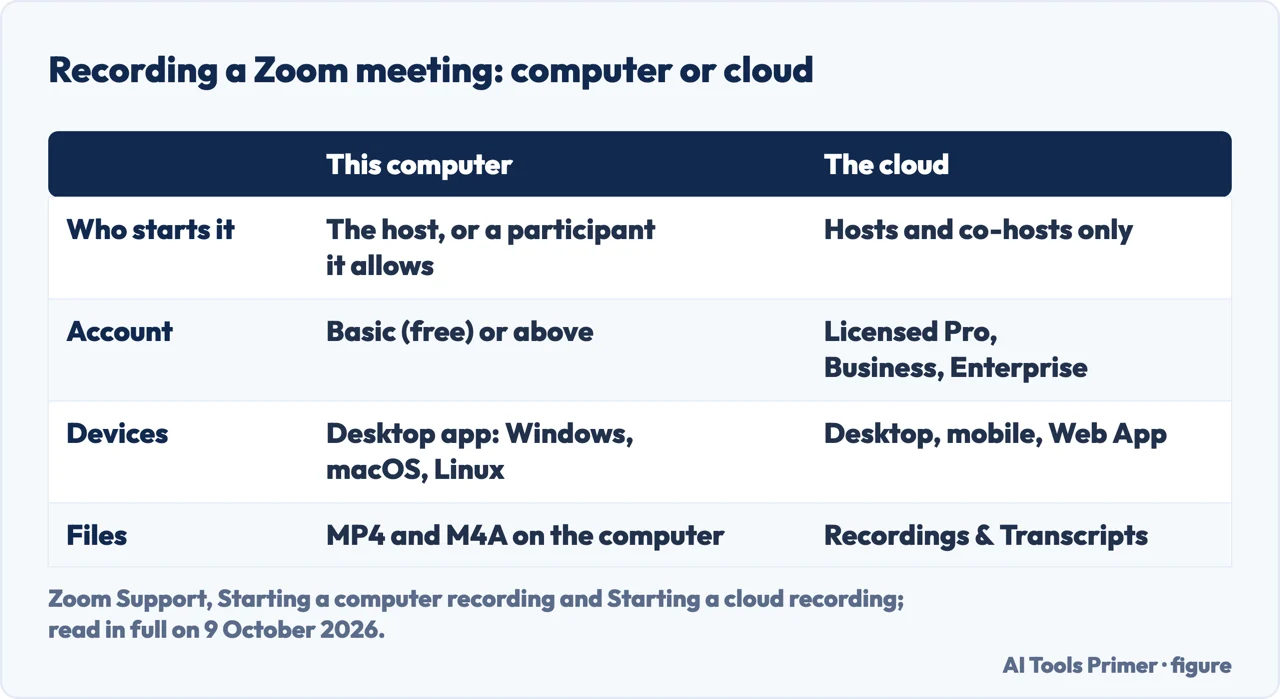
How to record a Zoom meeting depends on your place in it. The host records to this computer or to the cloud; a participant needs the host’s permission or an alternative-host role; and a phone can only record to the cloud, which Zoom gives to paid accounts. Recording to the computer works on a free account.
| Record on this computer | Record to the cloud | |
|---|---|---|
| Who can start it | The host, or a participant the host allows | Hosts and co-hosts only |
| Account | Basic (free) or above | A licensed user on a Pro, Business or Enterprise account |
| Where | Zoom desktop app for Windows, macOS or Linux; not iOS, iPad or Android | Desktop app, mobile app, Zoom Web App |
| The files | MP4 and M4A in the Zoom recording folder on the computer | Recordings & Transcripts in the Zoom web portal |
| Limits | No separate active speaker, gallery and shared-screen files; no audio transcription | 150 files from one live session |
Recording as the host
These are the steps of Zoom’s articles on computer and cloud recording, in the Zoom desktop app for Windows, macOS or Linux. A phone call rather than a meeting is in recording a phone call.
- Start the meeting as the host, in the Zoom desktop app.
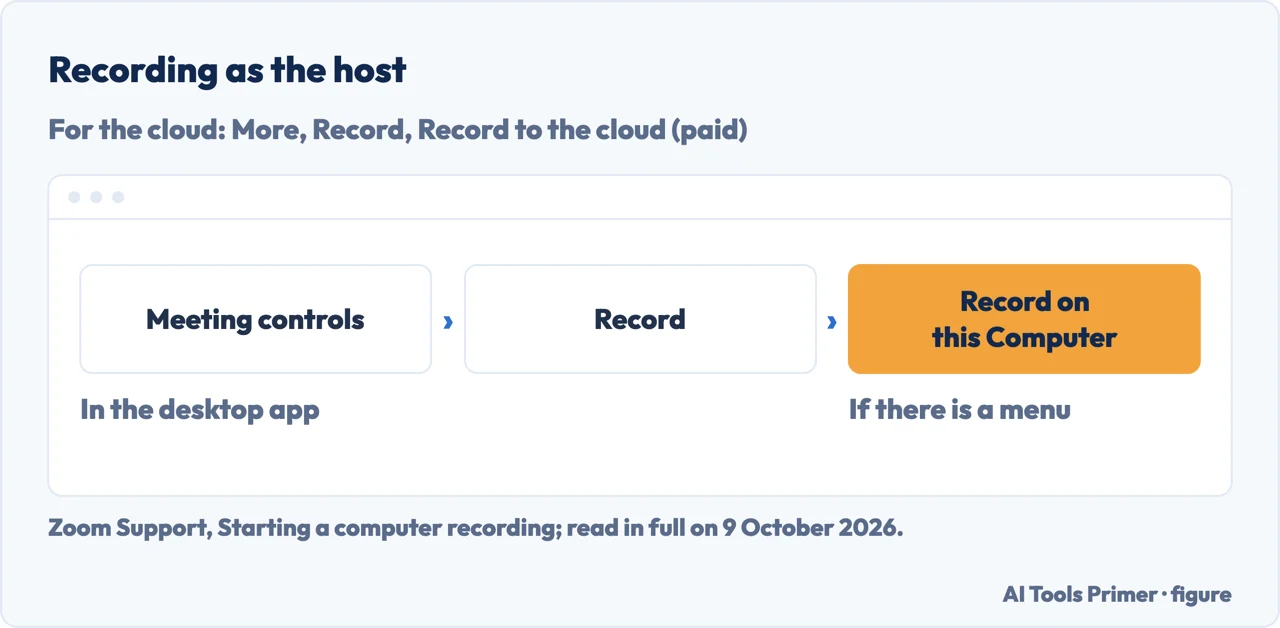
- Click Record in the meeting controls toolbar. For the cloud, Zoom’s article goes through the More icon and then the Record icon.
- Choose where. For the computer, if there is a menu, select Record on this Computer, which saves the files locally; for the cloud, Record to the cloud sends them to Zoom. Zoom says participants see a recording indicator in the top-left corner during a computer recording, and its cloud article puts the indicator in the top-right corner of the meeting window; for a computer recording, dial-in participants hear a message that the meeting is being recorded unless the host disabled it.
- Pause or stop. Pausing keeps writing to the same file; stopping and starting again creates a new one, for computer recordings and for the cloud alike.
- Let it finish after the meeting. A computer recording is converted when the meeting ends, and the folder opens when that is done. Zoom warns that restarting or shutting down the computer, putting the disk to sleep or closing the laptop interrupts the conversion, and that the files could then become corrupted and non-recoverable. A cloud recording generally takes about twice the recorded time to process, but may occasionally take up to 24 hours, and you don’t need to stay in the meeting for it.
If you are not the host
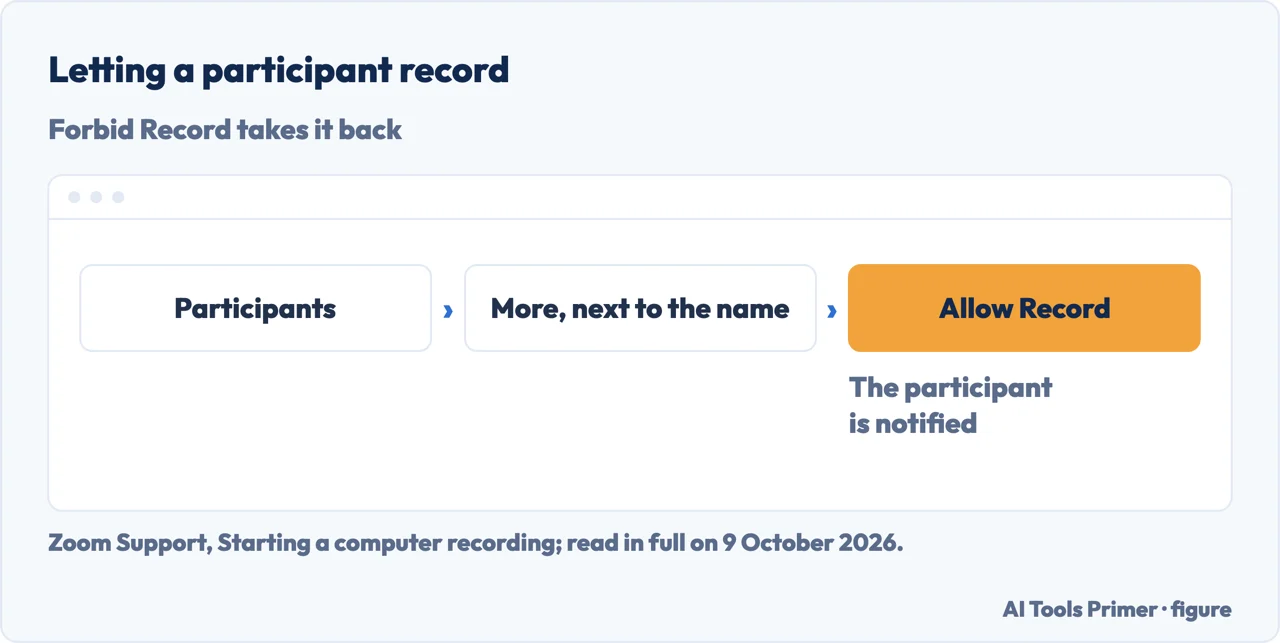
Permission from the host. Zoom’s article on computer recording says the host must record the meeting or grant the ability to record to a participant. In the meeting, the host clicks Participants, then More next to the participant’s name, then Allow Record; Forbid Record takes it back, and the participant is notified both times. Zoom’s article on recording without the host adds the other way: set the participant up as an alternative host.
Cloud recording. Only hosts and co-hosts can start a cloud recording, Zoom says; for a participant, the host can make them co-host or use computer recording. Recordings started by co-hosts appear only in the host’s list of recordings.
What an admin can switch on. Under Record to computer files in the web portal, “Who can request host permission to record?” lists internal participants, external participants and participants with specified domains, each with an optional automatic approval. The University of Minnesota’s IT page adds that even with local recording enabled and the additional box checked, participants can’t record unless the host gives permission during the meeting; that if Hosts can give participants the permission to record locally is left unchecked, the host won’t have that option; and that webinar attendees can’t record unless they are made panelists.
On a phone or in a browser
Phones record to the cloud only. Zoom says computer recording is not supported on iOS, iPad or Android devices, and its recording FAQ says the mobile app supports cloud recording only. In the mobile app, as host or co-host, Zoom’s cloud article gives More, Record, Start recording; tapping the indicator in the top-left corner gives the pause and stop icons, and Stop asks to confirm. IT@UMN adds the consequence: if your account type does not allow cloud recording, you will not be able to record from the Zoom mobile app.
Browsers. IT@UMN says you cannot record locally through a web browser. Zoom lists the Zoom Web App among the places a cloud recording can be started.
Recording the screen instead. A screen recorder captures what is on your display; it is not Zoom’s recording, and none of the Zoom pages read here describes it. The built-in recorders are in screen recording on Windows and screen recording on iPhone, and a full recorder in OBS.
When you can’t record
Not the host. By default only the host can start a computer recording, Zoom says; a participant records after the host allows it, or as an alternative host.
A locked setting. If Record to computer files is greyed out in your settings, it has been locked at the group or account level, and Zoom says to contact your Zoom admin. Account owners and admins enable or disable computer recording in the web portal.
A free account and the cloud. Cloud recording is automatically enabled for paid subscribers; a free account records to the computer. If an account is downgraded to free, Zoom says its cloud recordings stay inaccessible until it resubscribes within 30 days, and after 30 days they are set to be deleted. Zoom’s article on enabling cloud recording lists Pro, Business, Education and Enterprise accounts, and its cloud recording article says accounts with added HIPAA security may have the feature disabled entirely.
A phone. No computer recording on iOS, iPad or Android.
Where the recording goes, and what it contains
Computer recordings. They go to the default Zoom recording folder; the audio and video file is named video[number].mp4 and the audio-only file audio[number].m4a. They show the meeting as the person recording sees it, in speaker view if that is the layout in use, and can include separate audio tracks for each participant if Record a separate audio file for each participant is on, in Settings, Recording. Zoom strongly recommends keeping the default location on a local drive, and its FAQ warns that external or network storage can result in data loss. They don’t include audio transcription; turning speech into text afterwards is in transcribing a recording.
Cloud recordings. They appear in Zoom Hub in the desktop app and on the Recordings & Transcripts page of the web portal, and, if email notifications are set to do so, Zoom emails the host when processing is done. Zoom’s FAQ says only public chat messages are recorded, that gallery view needs at least two attendees with cameras on to appear in a cloud recording, which otherwise shows active speaker view, and that recordings moved to the trash are deleted after 30 days.
Which versions. Zoom’s articles were updated on different dates: Enabling or disabling computer recording on 12 March 2026, Starting a computer recording on 13 October 2025, Starting a cloud recording on 4 March 2026, Enabling cloud recording on 25 November 2024, Starting recordings without the host on 5 December 2024 and the recording FAQ on 29 November 2024. Zoom says the web experience is being updated and some navigation paths may differ from your interface. Both kinds of recording need the Zoom desktop app at Zoom’s global minimum version or higher. The IT@UMN page, last modified on 14 March 2026, describes the University of Minnesota’s own Zoom accounts.
Where to start
Five ways in.
- “I’m the host.”
- The steps — as host
- “I’m not the host.”
- Permission — not the host
- “I’m on my phone.”
- Cloud only — on a phone
- “It won’t let me record.”
- The blocks — cannot record
- “Where did it go?”
- The files — the files
Recording a screen or a call
The recorders built into Windows and iPhone, a full recorder, and phone calls.
Questions people also ask
Why can't I record my Zoom meeting?
In our reading, Zoom’s pages point to four causes: you aren’t the host and haven’t been allowed to record; the setting is greyed out because an admin locked it; you are on a phone, where computer recording isn’t supported; or you chose the cloud on a free account, since cloud recording needs a licensed Pro, Business or Enterprise user.
Can I record a Zoom meeting when I am not the host?
With the host’s permission: Zoom says the host must record or grant the ability to record, from Participants, More, Allow Record. Cloud recording is for hosts and co-hosts only, so for the cloud the host would make you co-host. An account admin can also let participants request permission, with optional automatic approval.
Is there a way to record myself on Zoom?
The Zoom pages read here don’t describe a separate mode for it. In our reading, a meeting you start alone makes you its host, and the host can record to the computer even on a free account. Zoom’s FAQ notes that a cloud recording shows active speaker view, not gallery, when only one camera is on.
Can I record on Zoom for free?
Yes, to your computer: Zoom says computer recording is available to free and paid subscribers, in the desktop app for Windows, macOS or Linux. Cloud recording needs a licensed user on a Pro, Business or Enterprise account, and on a phone the cloud is the only option.
Not covered here. It does not cover Zoom Rooms, webinars beyond the panelist rule, Zoom Clips, or editing a recording after it is made.
Sources
- Zoom Support — Enabling or disabling computer recording (KB0063640) — support.zoom.com, read 9 October 2026.
- Zoom Support — Starting a computer recording (KB0076922) — support.zoom.com, read 9 October 2026.
- Zoom Support — Starting a cloud recording (KB0062627) — support.zoom.com, read 9 October 2026.
- Zoom Support — Enabling cloud recording (KB0063923) — support.zoom.com, read 9 October 2026.
- Zoom Support — Starting recordings without the host (KB0067079) — support.zoom.com, read 9 October 2026.
- Zoom Support — Frequently asked questions about Zoom recording (KB0061246) — support.zoom.com, read 9 October 2026.
- IT@UMN, University of Minnesota — Zoom: Record a Meeting or Webinar — it.umn.edu, read 9 October 2026.
Written by Alberto Gulotta
Founder and editor of AI Tools Primer, writing from Palermo, Italy. Thirty-five years of taking computers apart, starting with a Commodore 64 — the long version is on the about page.
Something wrong on this page? Write to aitoolsprimer@gmail.com and it gets fixed.
Written on 9 October 2026.
Independence and limits
No affiliate links and no paid placements anywhere on this site. Nobody pays to appear here, and no company has seen this page before you did.
This is general information, not professional advice. Where a page touches money, health, safety or the law, it names its source and the date it was read — and your situation may still differ. See the privacy page and the cookie policy.