
Software · guide
How to retrieve deleted text messages on Android, app by app
By Alberto Gulotta · Updated · 9 min read
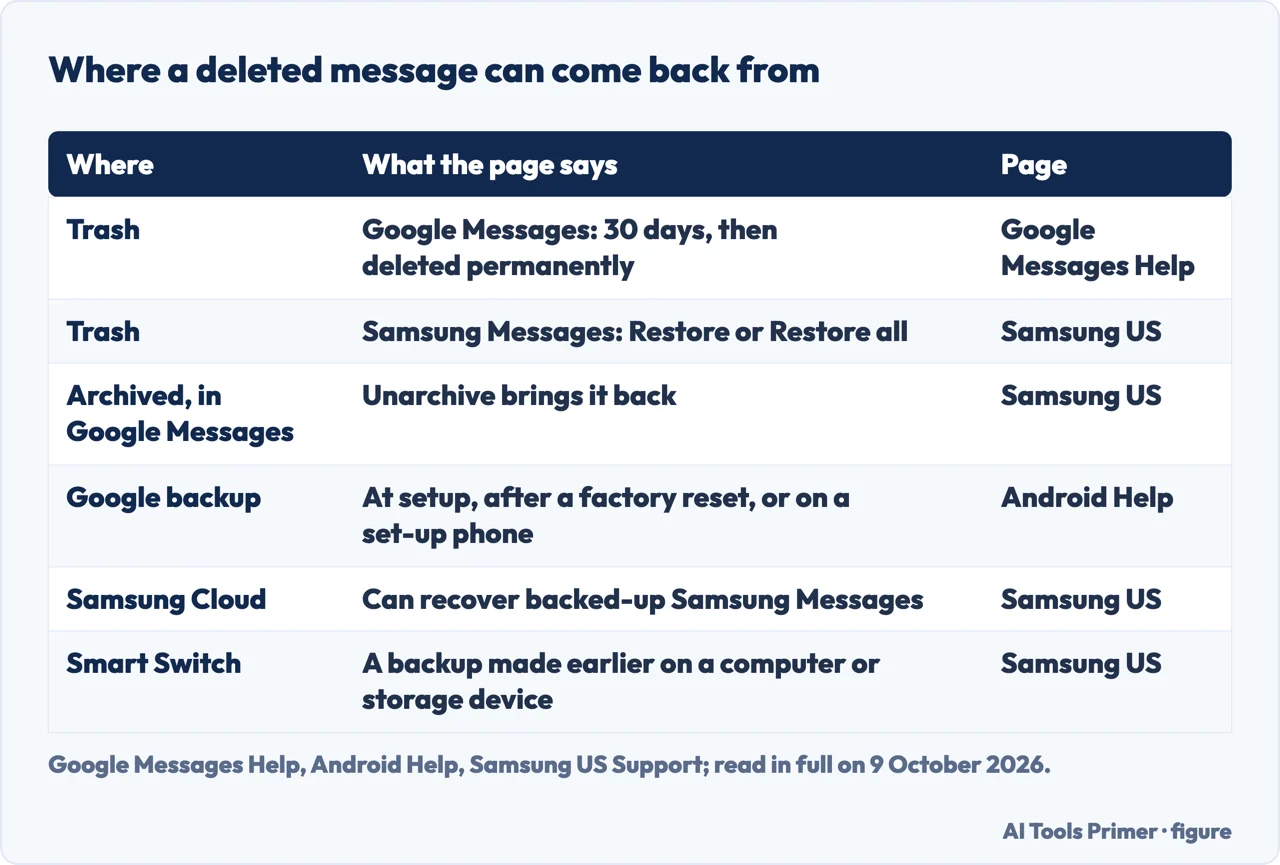
How to retrieve deleted text messages on Android depends on the app that held them. Google Messages keeps deleted conversations in Trash for 30 days, and Samsung Messages has a Trash of its own. Past the Trash, the routes the pages read here describe are backups: Google’s, Samsung Cloud and Smart Switch.
| Where | What the page says | Page |
|---|---|---|
| Trash in Google Messages | 30 days to restore a conversation; once deleted from the Trash, it can’t be restored | Google Messages Help |
| Trash in Samsung Messages | Restore or Restore all, from More options | Samsung US |
| Archived, in Google Messages | Archived text can be recovered with Unarchive | Samsung US |
| Google backup | Includes SMS and MMS, and RCS with Google Messages; restored at setup, after a factory reset, or when the account is added to a phone already set up | Android Help |
| Samsung Cloud | Can recover backed-up messages from Samsung Messages | Samsung US |
| Smart Switch | Restores a backup made earlier on a computer or a storage device | Samsung US |
Which app. Google Messages and Samsung Messages each have a Trash, so the one to open is in the app that shows your texts; on a Galaxy phone that can be Samsung Messages. What an SMS, an MMS and an RCS message are is in SMS, RCS and iMessage; the same job on an iPhone is in recovering deleted messages on iPhone.
Google Messages: the Trash, within 30 days
- Open Google Messages. Google’s page says deleted conversations stay in the Trash folder for 30 days before Google Messages deletes them permanently.
- Open Trash. Google’s steps: tap Profile picture or More, then Trash. Each conversation shows a counter of the days it has left.
- Touch and hold the conversation. To bring back several, touch and hold each of them first.
- Tap Restore. To restore everything, tap Restore without selecting a conversation. Google says that to find the messages in a trashed conversation, you must first restore it.
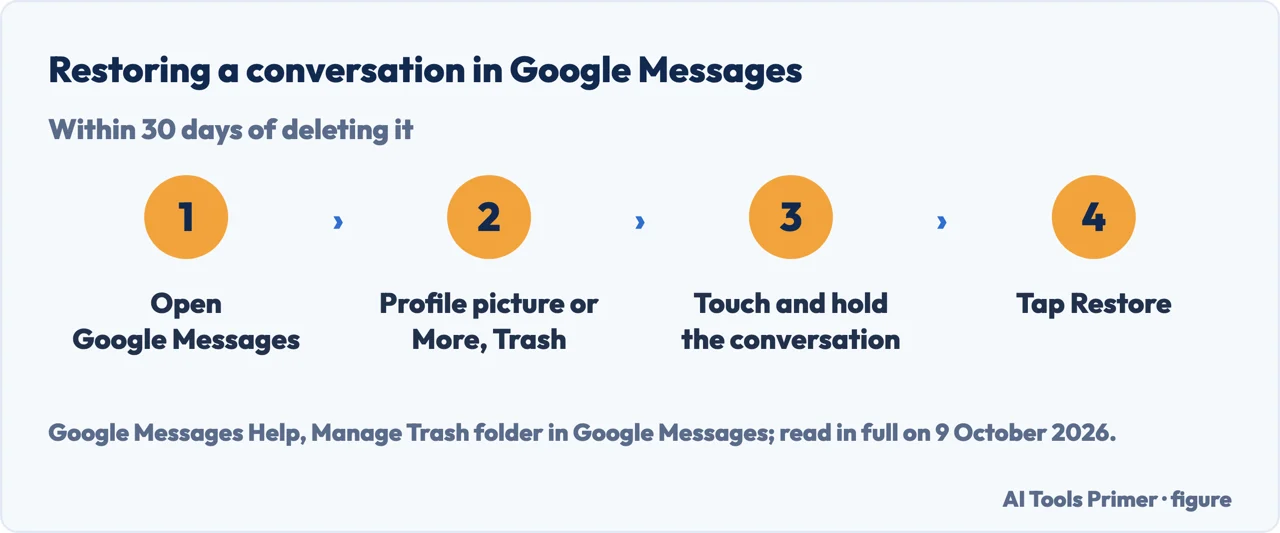
What the Trash keeps, and what it doesn’t. Google says that once a conversation is deleted from the Trash folder it can’t be restored, whether on purpose or by accident, and that deleting or restoring all chats at once is possible, so to delete with caution. If a new message arrives in a conversation that is in the Trash, Google says it shows up as a new conversation in the Inbox. Moving a conversation to the Trash with a swipe works only after Swipe actions has been set to Trash in Messages settings.
On a Galaxy phone with Samsung Messages
The Trash. Samsung’s steps: open Samsung Messages, tap More options (the three vertical dots), then Trash. Touch and hold the message to recover, or tap All, then Restore or Restore all. Samsung’s pages read here don’t say how long its Trash keeps a message.
Other messaging apps. Samsung says that to restore deleted messages in other messaging apps, you contact the app developer.
Two pages on deleted Google Messages
Samsung’s. Its US page, read on 9 October 2026, says that text messages deleted in Google Messages are permanently deleted and cannot be recovered, and that archived text can: tap the Profile icon, then Archived, touch and hold the message, and tap Unarchive, the box with an up arrow.
Google’s. Its Google Messages Help page, read the same day, describes the Trash folder and the 30 days. It doesn’t say from which version of the app the folder exists. If your Google Messages shows no Trash, Samsung’s page gives Archived as the place archived text can be recovered from.
When the Trash is empty
Past the Trash, the pages read here describe restoring from a backup. A backup taken after the message was deleted no longer has it: that is our deduction from how a backup works, not a sentence on the pages read here. Where Android keeps photos is a separate question, in backing up photos on Android.
From a backup
What Google backs up. Android Help says the phone’s data goes to the Google Account automatically, and lists SMS and MMS messages among it, with RCS messages when you use Google Messages. Under Settings, Google services, Backup, the Backup details list shows what is in it. Google says some of these steps work only on Android 9 and up, that not all apps can back up or restore all settings and data, and that backup can’t be used on a personal device set up with a work profile or for work only, or on a company-owned device.
When it comes back. Google says a backup can be restored while a new phone is set up for the first time or after a factory reset, by following the on-screen steps, and that adding the Google Account to a phone already set up also gives the option to restore; the process can take up to 24 hours. The backup must come from the same Android version or an earlier one: a backup from a higher version can’t go onto a phone running a lower one. A factory reset erases everything on the phone, so on a phone in use that route trades what is on it now for what was in the backup. That reading is ours; Android Help puts the two steps side by side without saying it.
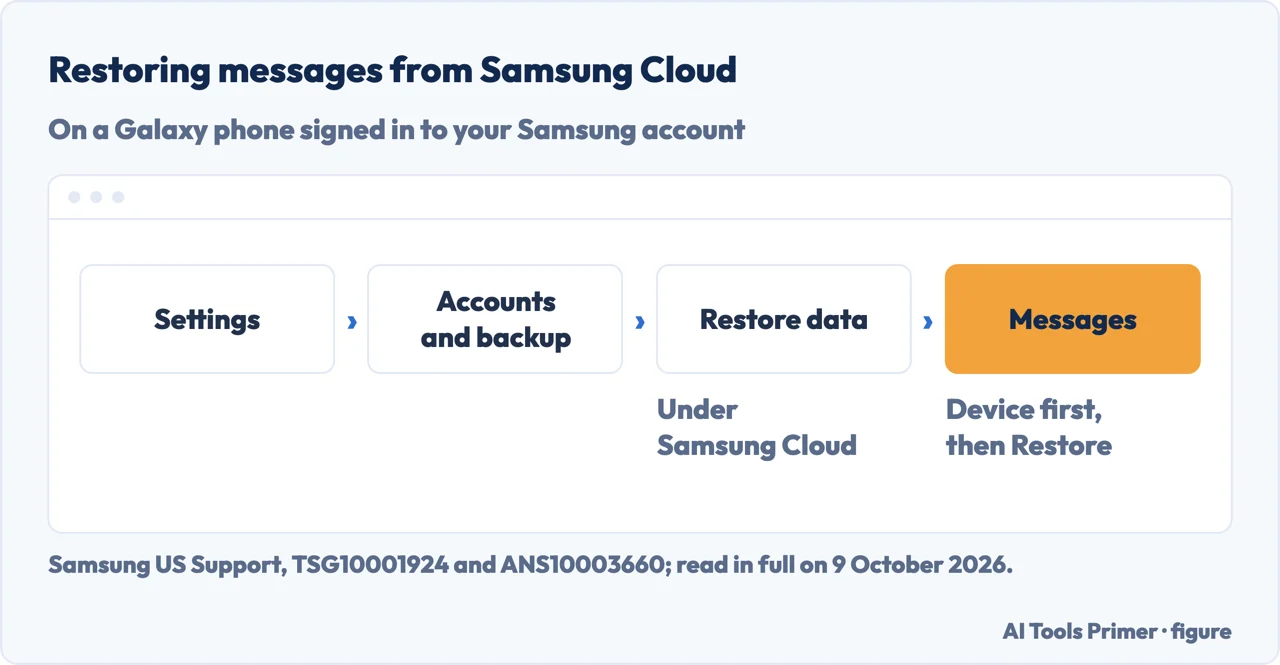
Samsung Cloud. Samsung says it can recover backed-up messages from Samsung Messages: Settings, Accounts and backup, Restore data under Samsung Cloud, then the device, Messages and Restore. Samsung says that to restore the messages to another phone, you need to log into your Samsung account on that phone.
Smart Switch. A backup made earlier on a PC or Mac goes back to a Galaxy phone with Restore, then Restore now, in Smart Switch on the computer, with the phone on a USB cable. Samsung says the messages can’t be viewed on the computer from the backup files, only once they are on the phone; and its steps say to turn off or temporarily disable the firewall, anti-virus and other security tools on the computer first, so all of the files can transfer. A backup on an SD card, if both phones support it, or on a USB flash drive or SSD in the phone’s charging port, where Samsung says an OTG adapter may be needed, is restored from the storage device’s icon in Smart Switch on the phone.
What doesn’t come back. Google’s page says permanently deleted messages can’t be recovered from its Trash. None of the four pages read here names a recovery app for a text that is in no Trash, not archived and not in a backup, and this page doesn’t either. Files rather than texts are in recovering deleted files, and keeping copies before anything goes is in backups, properly.
Where to start
Five ways in.
- “I use Google Messages.”
- The Trash — the trash
- “I have a Galaxy phone.”
- Samsung Messages — samsung messages
- “My app has no Trash.”
- Two pages — two pages
- “It isn’t in the Trash.”
- From a backup — from a backup
- “Is it gone for good?”
- What doesn’t come back — what does not come back
Around the messages
The other phone, what the message types are, and the copies kept before anything goes.
Questions people also ask
Can I retrieve permanently deleted messages from Android?
Not from Google Messages: Google says messages deleted permanently from its Trash can’t be recovered. The other routes on the pages read here are backups: Google’s, restored at setup, after a factory reset or when the account is added to a phone already set up, and Samsung Cloud, which can recover backed-up Samsung Messages.
How do you bring back deleted messages on Android?
In Google Messages, open Trash from Profile picture or More, touch and hold the conversation and tap Restore, within 30 days. In Samsung Messages, tap More options, then Trash, select the message and tap Restore. Past the Trash, a Google or Samsung Cloud backup; one made after the deletion won’t have it, in our reading.
Where do I find recently deleted on Android?
In the messaging app. In Google Messages it is the Trash folder, under Profile picture or More, where each conversation shows the days it has left. In Samsung Messages it is Trash, under More options, the three vertical dots.
Are deleted texts gone forever?
Not at first. Google Messages keeps a deleted conversation in its Trash for 30 days, then deletes it permanently; anything deleted from the Trash itself can’t be restored, Google says. Past that, the pages read here point to backups; one made after the deletion won’t have it, in our reading.
Not covered here. It does not cover third-party recovery apps, WhatsApp or other messaging apps, or messages kept by a carrier.
Sources
- Google Messages Help — Manage Trash folder in Google Messages — support.google.com, read 9 October 2026.
- Android Help — Back up or restore data on your Android device — support.google.com, read 9 October 2026.
- Samsung US Support — Recover messages deleted from your Galaxy phone (TSG10001924) — www.samsung.com, read 9 October 2026.
- Samsung US Support — Transfer, backup, or restore Messages on Galaxy phones (ANS10003660) — www.samsung.com, read 9 October 2026.
Written by Alberto Gulotta
Founder and editor of AI Tools Primer, writing from Palermo, Italy. Thirty-five years of taking computers apart, starting with a Commodore 64 — the long version is on the about page.
Something wrong on this page? Write to aitoolsprimer@gmail.com and it gets fixed.
Written on 9 October 2026.
Independence and limits
No affiliate links and no paid placements anywhere on this site. Nobody pays to appear here, and no company has seen this page before you did.
This is general information, not professional advice. Where a page touches money, health, safety or the law, it names its source and the date it was read — and your situation may still differ. See the privacy page and the cookie policy.