
iPhone · guide
How to schedule a text message on iPhone, and change it before it goes
By Alberto Gulotta · Updated · 9 min read
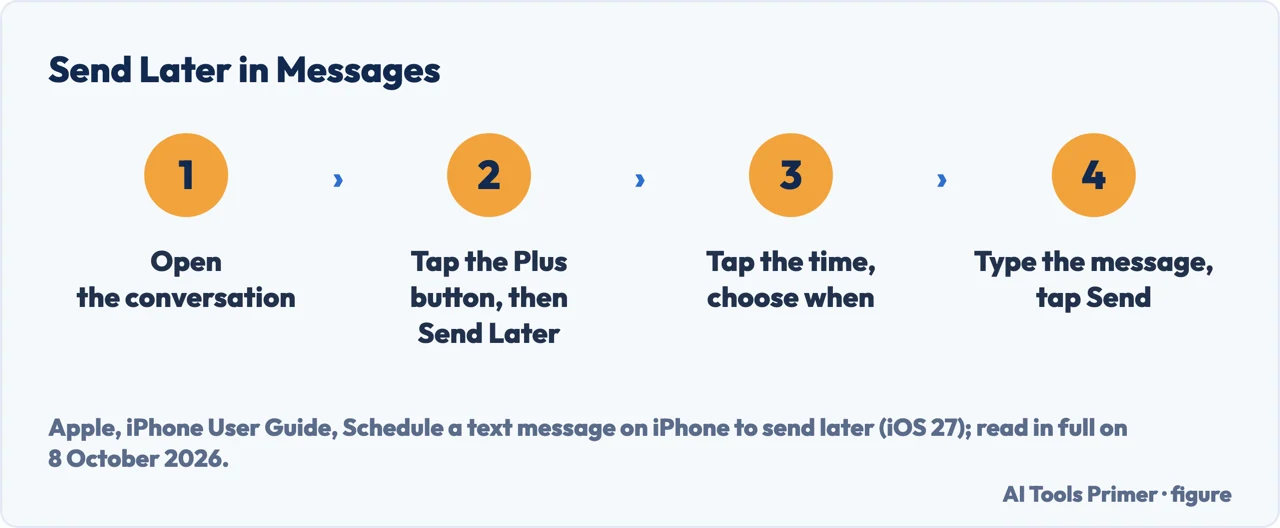
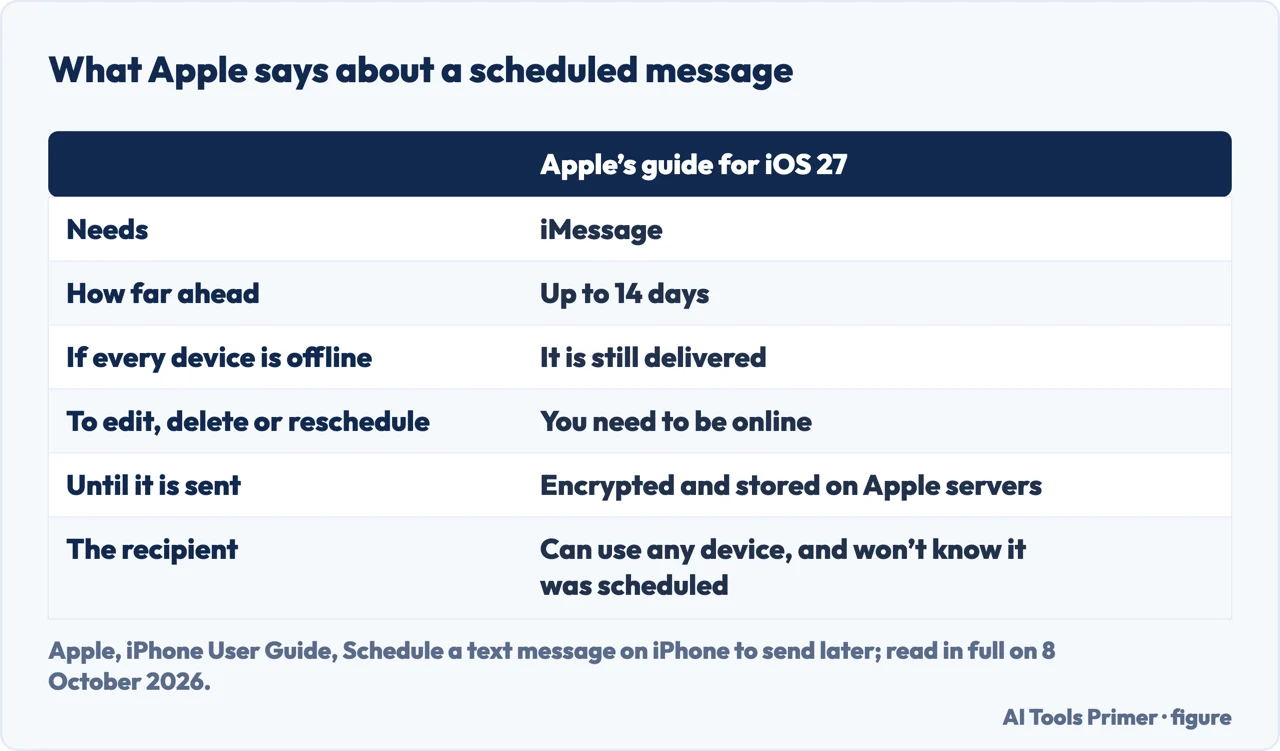
How to schedule a text message on iPhone: in Messages, open the conversation, tap the Plus button, then Send Later, tap the time to choose when, type the message and tap Send. Apple says you must be using iMessage, and that a message can be scheduled up to 14 days ahead.
| What | What Apple says |
|---|---|
| Announced | In Apple’s iOS 18 preview of June 2024 (Apple Newsroom) |
| Needs | You must be using iMessage |
| How far ahead | Up to 14 days |
| If all your devices are offline | The message is still delivered |
| To edit, delete or reschedule | You need to be online |
| The recipient | Can use any device, and won’t know the message was scheduled |
- Open the conversation. In Messages, go to the conversation, or start a new one.
- Tap the Plus button, then Send Later.
- Choose the time. Tap the time to open the scheduler and pick when; Apple’s limit is 14 days ahead. Apple says the border of the text field then turns into a dashed line, and the sending time appears at the top of the message.
- Type and send. Enter the message and tap the Send button. It stays in the conversation with a dashed line until it is sent.
Until it is sent
Where it waits. Apple says scheduled messages are encrypted and stored on Apple servers only until they are sent, and that the message is delivered even if all your devices are offline. When it goes, it is removed from Apple’s servers, the balloon becomes a solid colour and the dashed line disappears.
Where to find it. If the message is not visible, scroll down to the bottom of the conversation: Apple says scheduled messages may appear below sent messages.
What the other person sees. Apple says they won’t know the message was scheduled. Holding back an email to send later is in scheduling an email.
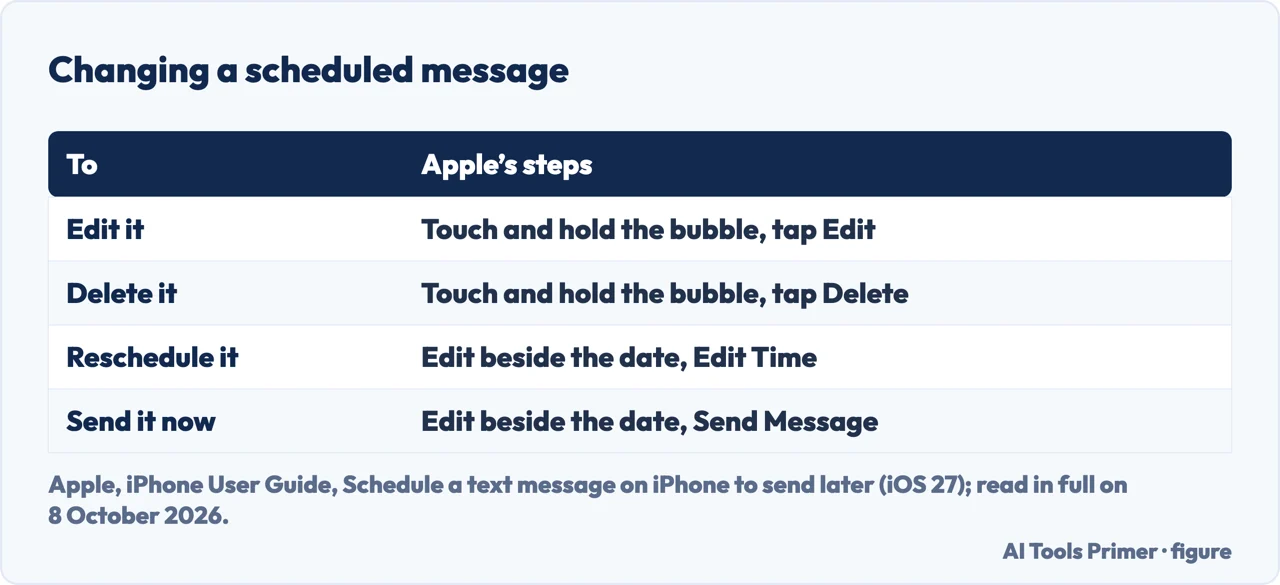
Changing it, or cancelling it. Until it goes you can edit, delete or reschedule the message, or send it at once, and Apple says you need to be online to do any of the first three. Touch and hold the bubble, then Edit, make the changes, then resend with edits or revert; or touch and hold it, then Delete, and Apple says it is cancelled and not delivered. To move it, tap Edit beside the date above the message, then Edit Time, choose the new time and tap away from the scheduler; to send it now, Edit beside the date, then Send Message. A message that has already gone is a different case, in unsending a message, and what the other side sees after it arrives is in read receipts.
When Send Later is missing
Apple’s condition. The guide says you must be using iMessage. Apple’s page on iMessage says texts sent with iMessage go with a blue send button, and that a green send button means the message goes as SMS, MMS or RCS. That a green button rules Send Later out is our reading of the two pages together; turning iMessage on is in enabling iMessage, and the colours are in SMS, RCS and iMessage.
The software. Apple announced scheduling in its iOS 18 preview of June 2024, and said iOS 18 would come that autumn to iPhone Xs and later. Twilio’s guide, dated 17 September 2025, says the same: iOS 18 or later.
Someone without an iPhone. Apple’s guide says the recipient can use any device. In an Apple Community thread opened in September 2024, people on iOS 18 reported that Send Later did not appear in conversations with Android phones, and replies said it works through iMessage only. Apple’s guide does not mention SMS or RCS conversations, so this page does not say what iOS 27 does with them.
A message that repeats, with Shortcuts
What Apple’s guide covers. The Shortcuts app can run a shortcut automatically when a trigger fires; Time of Day is one, with Daily, Weekly and Monthly repeats. Apple’s steps: tap a shortcut or create one, tap Edit, then Automation, and choose a trigger such as Time of Day. Time of Day is in Apple’s list of automations that can run without asking, which is switched on under Privacy with Allow Running When Locked; Apple says the automation then does not notify you when it is triggered, and that some actions may also need to be set to run automatically.
What Twilio adds. Twilio’s guide builds a Time of Day automation with a Send Message action, a recipient and the text, and notes that it repeats, so a one-time message needs the automation deleted afterwards. Its steps tap Create Personal Automation; the Apple Shortcuts guide read for this page goes through Edit, then Automation. It also lists apps from the App Store, some of which, it says, only notify you to send the message yourself, and the Reminders app as a reminder that does not send anything.
Which versions. The steps come from Apple’s iPhone User Guide for iOS 27, which gives no date; the iOS 18 announcement is dated 10 June 2024; Twilio’s guide 17 September 2025; Apple’s Shortcuts guide gives no date, and the text read does not say which version it is for. The Apple Community thread is from users, not from Apple.
Where to start
Five ways in.
- “Where do I start?”
- Send Later, step by step — send later step by step
- “Did it go?”
- Until it is sent — until it is sent
- “I need to change it.”
- Changing or cancelling — changing or cancelling
- “Send Later is not there.”
- When it is missing — when send later is missing
- “It should repeat.”
- Shortcuts — repeating messages
More on Messages
Before and after a message goes.
Questions people also ask
Why isn't the "Send Later" option showing up on my iPhone?
Apple says you must be using iMessage. A green send button means the message goes as SMS, MMS or RCS; that this hides Send Later is our reading of Apple’s pages. Apple announced the feature with iOS 18, and Twilio’s guide says it needs iOS 18 or later.
How do I set a text message to be sent at a certain time?
In Messages, open the conversation, tap the Plus button, then Send Later, tap the time and choose when, type the message and tap Send. Apple’s limit is 14 days ahead; the message waits with a dashed line until it goes.
Can you schedule a text on iPhone to someone who doesn't have an iPhone?
Apple’s guide says the recipient can use any device, and that you must be using iMessage. In a 2024 Apple Community thread, users on iOS 18 reported that Send Later did not appear in conversations with Android phones. The guide does not mention SMS or RCS.
Why can't I send a message later?
Apple’s note says you must be using iMessage, and that you need to be online to reschedule, edit or delete a scheduled message. Apple announced scheduling with iOS 18. For a message that repeats, Twilio’s guide uses a Time of Day automation in Apple’s Shortcuts app.
Not covered here. It does not cover scheduling on an iPad or a Mac, third-party apps beyond Twilio’s mention of them, or sending texts in bulk from a business number.
Sources
- Apple, iPhone User Guide (iOS 27) — Schedule a text message on iPhone to send later: iMessage, 14 days, offline delivery, editing, deleting and rescheduling — support.apple.com, read 8 October 2026.
- Apple, iPhone User Guide (iOS 27) — iMessage overview: blue and green send buttons, and RCS — support.apple.com, read 8 October 2026.
- Apple Newsroom — iOS 18 makes iPhone more personal, capable, and intelligent than ever (10 June 2024): scheduling a message to send later — www.apple.com, read 8 October 2026.
- Apple, Shortcuts User Guide — Add automations to Shortcuts on iPhone or iPad: triggers, and automations that run without asking — support.apple.com, read 8 October 2026.
- Apple, Shortcuts User Guide — Event triggers in Shortcuts on iPhone or iPad: Time of Day and its repeats — support.apple.com, read 8 October 2026.
- Twilio — How to schedule a text message on iPhone and Android (17 September 2025): iOS 18, Shortcuts, apps and Reminders — www.twilio.com, read 8 October 2026.
- Apple Community — Why can’t I schedule messages to Android users on iPhone? (thread opened September 2024): reports from users on iOS 18 and 18.1 — discussions.apple.com, read 8 October 2026.
Written by Alberto Gulotta
Founder and editor of AI Tools Primer, writing from Palermo, Italy. Thirty-five years of taking computers apart, starting with a Commodore 64 — the long version is on the about page.
Something wrong on this page? Write to aitoolsprimer@gmail.com and it gets fixed.
Written on 9 October 2026.
Independence and limits
No affiliate links and no paid placements anywhere on this site. Nobody pays to appear here, and no company has seen this page before you did.
This is general information, not professional advice. Where a page touches money, health, safety or the law, it names its source and the date it was read — and your situation may still differ. See the privacy page and the cookie policy.