
iPhone · guide
How to cancel vibration on iPhone, for one sound or for all of them
By Alberto Gulotta · Updated · 8 min read
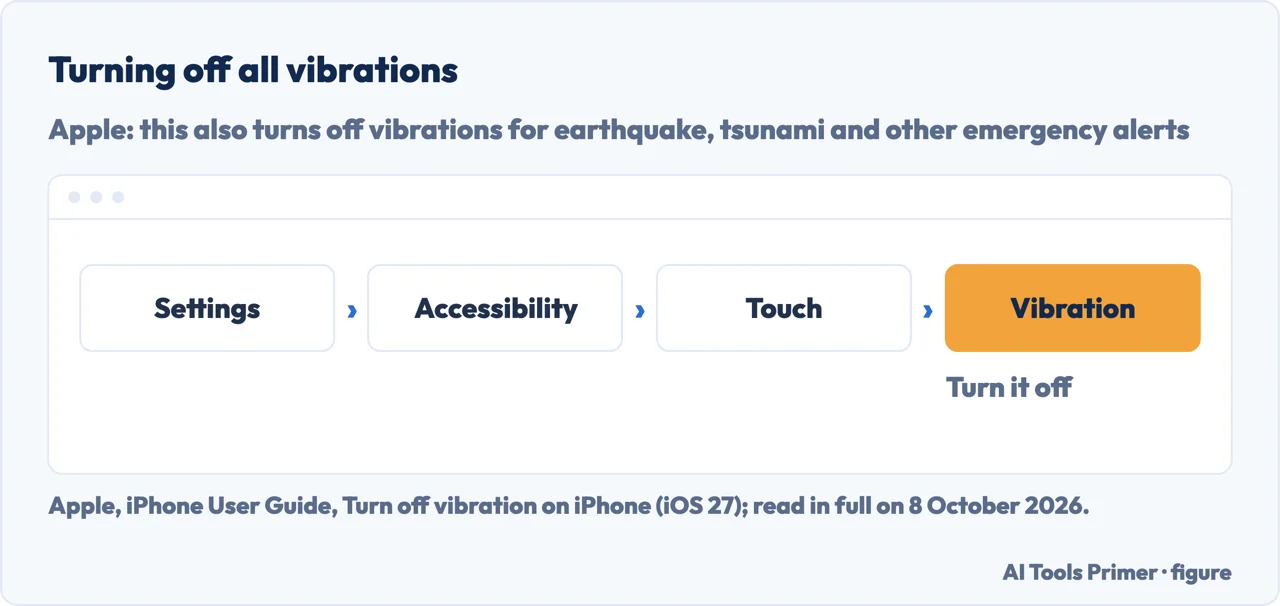
How to cancel vibration on iPhone: Apple’s guide for iOS 27 says to go to Settings, Accessibility, Touch and turn off Vibration, which also turns off vibrations for emergency alerts. For one sound at a time, the pattern is under Settings, Sounds & Haptics. On iOS 26 and iOS 18, Haptics there has a Never Play option.
| Setting | What Apple says |
|---|---|
| Accessibility › Touch › Vibration | Off turns off all vibrations, including for earthquake, tsunami and other emergency alerts (iOS 27) |
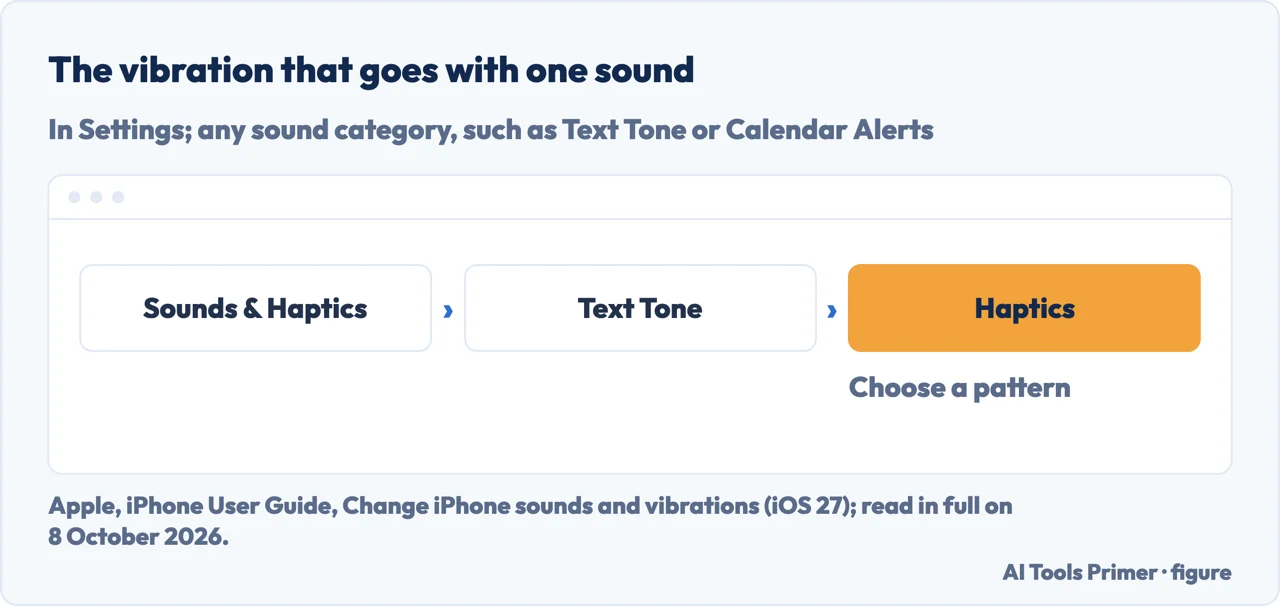
| Sounds & Haptics › a sound › Haptics | The vibration pattern paired with that sound (iOS 27) |
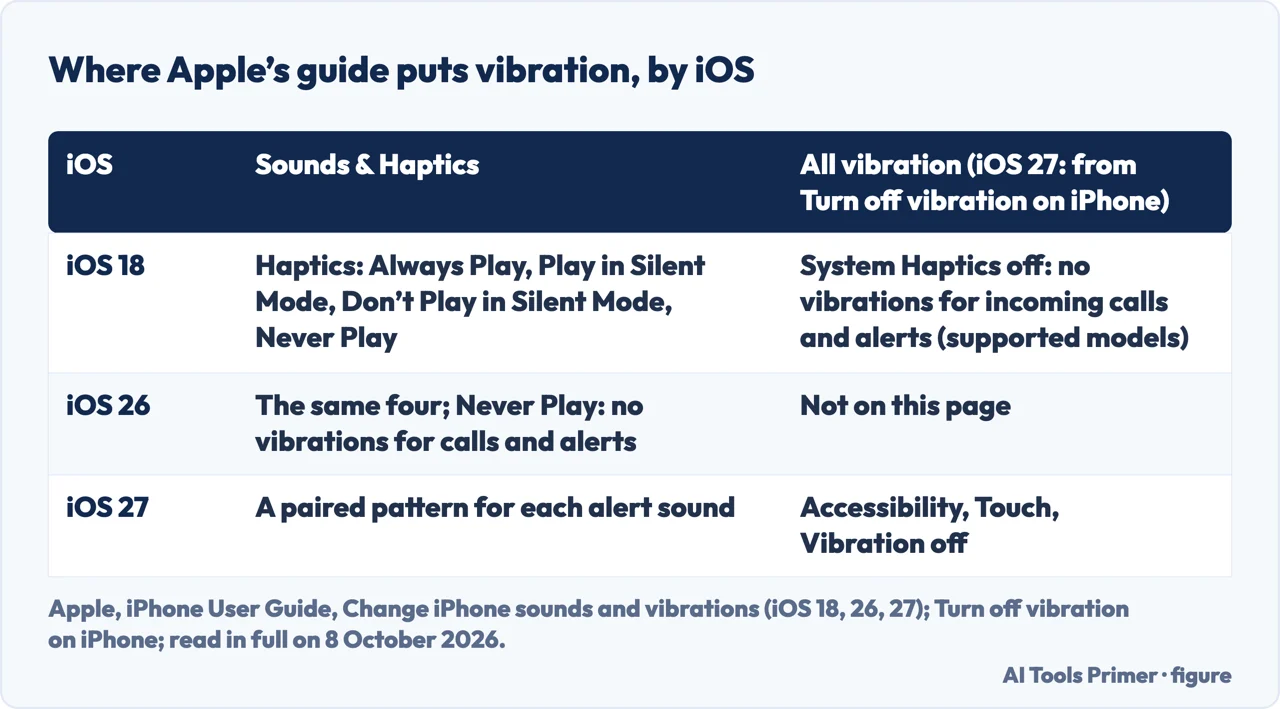
| Sounds & Haptics › Haptics | Always Play, Play in Silent Mode, Don’t Play in Silent Mode or Never Play (iOS 26 and iOS 18) |
| Silent mode | The iPhone doesn’t ring or play alerts, but may still vibrate (iOS 27) |
| Keyboard Feedback › Haptic | The vibration as you type, iOS 16 or later |
- Open Settings. Apple’s guide for iOS 27 gives this path in one line; the split into steps is ours.
- Tap Accessibility.
- Tap Touch.
- Turn off Vibration. Apple’s note: this also turns off vibrations for earthquake, tsunami and other emergency alerts.
One sound at a time
The pattern. Apple says each alert sound has a paired vibration pattern, and that you can change the vibration for any sound or create a custom one. In Settings, Sounds & Haptics, tap a sound category such as Text Tone or Calendar Alerts, tap Haptics, then choose a pattern or tap Create New Vibration to record your own. The ringtone has the same Haptics row below Ringtone. Apple’s page for iOS 27 does not say whether one of the patterns is no vibration at all.
The tones themselves. Changing the sound rather than the vibration, and setting one for a single person, is in ringtones.
Vibrating on silent
What Silent mode does. Apple says that when Silent mode is on, the iPhone doesn’t ring or play alerts or other sound effects, but may still vibrate. On models with an Action button, press and hold it to turn Silent mode on or off, or turn it on or off in Settings, Sounds & Haptics if the button does something else; on other models, the Ring/Silent switch towards the back of the phone turns it on.
On iOS 26 and iOS 18. Apple’s guide for both versions gives a Haptics setting in Sounds & Haptics with four choices for ringtones and alerts: Always Play, Play in Silent Mode, Don’t Play in Silent Mode and Never Play. For iOS 26 it says that with Never Play you won’t hear or feel vibrations for incoming calls and alerts. The iOS 18 page says the same, on supported models, of System Haptics turned off.
On iOS 27. Apple’s guide for iOS 27 does not list those four choices, and this page does not say whether the setting is still on the screen. Asurion’s guide, which gives no date or version, describes a Haptics route like the one in Apple’s iOS 26 and iOS 18 pages, by our comparison: Haptics, then Never Play, or under Ringtone and Alerts from Play in Silent Mode to Never Play.
Quiet at set times. Apple points to Focus for silencing calls and notifications on a schedule; a Do Not Disturb that keeps coming back is in Do Not Disturb that comes back, and notifications that should stop altogether in notifications.
The keyboard and the system. The tap you feel while typing has its own switch: Settings, Sounds & Haptics, Keyboard Feedback, then Haptic on or off. Apple says keyboard haptics might affect battery life, and that if they are on but you don’t feel them, to make sure Vibration is on in Accessibility, Touch. Other keyboard settings are in autocorrect. On iOS 27, Apple says System Haptics, also in Sounds & Haptics, plays haptics for system controls and interactions.
Emergency alerts. Apple’s note says the Accessibility switch turns off vibrations for emergency alerts too. Asurion says that with the Haptics setting at Never Play, emergency alerts will still make the phone buzz, and points to Settings, Notifications, Government Alerts for turning off Emergency Alerts and Public Safety Alerts. Silencing calls from numbers you don’t know is in unknown callers.
Which versions. The iOS 27, iOS 26 and iOS 18 pages are versions of the same article in Apple’s iPhone User Guide, which gives no dates; Apple’s keyboard article was published on 27 May 2026 and covers iOS 16 or later. Asurion’s guide names no iOS version.
Where to start
Five ways in.
- “Stop all of it.”
- All vibration off — all vibration off
- “Only for texts.”
- One sound at a time — one sound at a time
- “It buzzes on silent.”
- Vibrating on silent — vibrating on silent
- “It buzzes when I type.”
- Keyboard and system — keyboard and system haptics
- “What about alerts?”
- Emergency alerts — emergency alerts
More on sounds and alerts
What rings, what buzzes, and when.
Questions people also ask
How do I stop my iPhone from shaking?
Apple’s guide for iOS 27: Settings, Accessibility, Touch, then turn off Vibration. Apple notes that this also turns off vibrations for earthquake, tsunami and other emergency alerts. For a single sound, change its Haptics pattern in Sounds & Haptics instead.
How do I change my iPhone from vibrate to sound?
Apple says that with Silent mode off the iPhone plays all sounds. Press and hold the Action button if it is set to Silent mode, or turn Silent mode off in Sounds & Haptics; on other models, flip the Ring/Silent switch towards the front. Ringer volume is the slider below Ringtone.
How do I stop my phone from vibrating on silent?
On iOS 26 and iOS 18, Apple’s guide gives Sounds & Haptics, Haptics, with Don’t Play in Silent Mode and Never Play among the choices. Apple’s guide for iOS 27 does not list them; there, Accessibility, Touch, Vibration off stops all vibration.
How do I turn off vibration?
Apple gives two routes: Settings, Sounds & Haptics for the vibration of particular sounds, and Settings, Accessibility, Touch, Vibration off for all of it, emergency alerts included. Keyboard vibration has its own switch under Keyboard Feedback.
Not covered here. It does not cover an iPhone that no longer vibrates at all, Apple Watch, or vibration on Android.
Sources
- Apple, iPhone User Guide (iOS 27) — Turn off vibration on iPhone: Sounds & Haptics for specific alerts, Accessibility, Touch, Vibration for all, and the emergency-alert note — support.apple.com, read 8 October 2026.
- Apple, iPhone User Guide (iOS 27) — Change iPhone sounds and vibrations: patterns for each sound, Keyboard Feedback, System Haptics — support.apple.com, read 8 October 2026.
- Apple, iPhone User Guide (iOS 26) — Change iPhone sounds and vibrations: the four Haptics choices and Never Play — support.apple.com, read 8 October 2026.
- Apple, iPhone User Guide (iOS 18) — Change iPhone sounds and vibrations: the four Haptics choices and System Haptics — support.apple.com, read 8 October 2026.
- Apple, iPhone User Guide (iOS 27) — Silence iPhone: Silent mode, the Action button and the Ring/Silent switch — support.apple.com, read 8 October 2026.
- Apple Support — Change iPhone keyboard sounds or haptics (published 27 May 2026): iOS 16 or later — support.apple.com, read 8 October 2026.
- Asurion — How to turn off vibration on your iPhone (undated): Never Play, Silent mode and Government Alerts — www.asurion.com, read 8 October 2026.
Written by Alberto Gulotta
Founder and editor of AI Tools Primer, writing from Palermo, Italy. Thirty-five years of taking computers apart, starting with a Commodore 64 — the long version is on the about page.
Something wrong on this page? Write to aitoolsprimer@gmail.com and it gets fixed.
Written on 9 October 2026.
Independence and limits
No affiliate links and no paid placements anywhere on this site. Nobody pays to appear here, and no company has seen this page before you did.
This is general information, not professional advice. Where a page touches money, health, safety or the law, it names its source and the date it was read — and your situation may still differ. See the privacy page and the cookie policy.