
Software · guide
How to unlock keyboard: the keys and settings thirteen pages give
By Alberto Gulotta · Updated · 19 min read
How to unlock keyboard? Pages name different keys. Microsoft lists Right Shift held for eight seconds as the Filter Keys shortcut, ASUS gives Fn + F11 or Fn + F12, and Dell and Lenovo describe Fn + Esc as the Fn lock. We read thirteen pages and set out what each says.
| Question | Answer | Where it comes from |
|---|---|---|
| Is it the keyboard or the whole computer? | ASUS says to move the mouse or touchpad: if the cursor moves, only the keyboard is locked | ASUS India |
| Which keys does Microsoft list? | Right Shift for eight seconds turns Filter Keys on and off | Microsoft Support |
| Where is the switch in Windows 11? | Start > Settings > Accessibility > Keyboard, or Windows + U to open Accessibility | Microsoft Support |
| Which key is the Fn lock? | Fn + Esc on the Dell and Lenovo pages; HP gives a BIOS setting or fn + left Shift | Dell, Lenovo, HP |
| Do the pages agree on an F key? | No: ASUS gives F11 or F12, Digital Citizen F6, F8 or F11, and neither names a model | ASUS India, Digital Citizen |
| What if it is stuck on the lock screen? | A Microsoft Q&A reply points to the Recovery Environment and System Restore | Microsoft Q&A |
First: is it the keyboard, or the whole computer?
ASUS India, Digital Citizen, HP Tech Takes and top-password.com each include a check of what is actually wrong, and they do it differently. ASUS India says to move the mouse or use the touchpad: if the cursor moves, only the keyboard is locked, and if nothing moves, the whole computer is frozen. Digital Citizen puts the same check in its quick checks, next to restarting, typing in a different app or browser and plugging in an external keyboard. It says that if an external keyboard works, the problem is likely settings or drivers, and it adds that in most cases the keyboard is not broken. That is its claim; the page gives no figures behind it.
HP Tech Takes, dated 3 November 2019, starts from the other end. It says a frozen laptop is much more likely than a true keyboard lock, and that a frozen laptop can still look like a keyboard fault. Its first step is Ctrl + Alt + Del to see whether a malfunctioning program or process can be ended, and it names Win + Ctrl + Shift + B to reset the video driver when a screen problem may be to blame. Only after that does it move to physical damage, cleaning with compressed air, a restart and a driver reinstall. top-password.com, a blog from a company that sells password software, dated 29 May 2019, asks for a physical test before any software step: for an external USB or PS/2 keyboard, connect it to a different computer, and if the problem persists, it is possible that the keyboard is physically damaged.
A closed Microsoft Q&A question from 16 November 2023 shows the case where none of this helps. The person who asked had a PC stuck on the lock screen with keyboard and mouse both silent, and had already tried Ctrl + Alt + Del + Esc and holding Shift for eight seconds. The reply, from an Independent Advisor, was to force the Recovery Environment: press and hold the power button for five to ten seconds as Windows starts loading, do it twice, and on the third start Windows boots into recovery. From there it points to Troubleshoot, Advanced options and System Restore, and to checking for a restore point. The advisor frames it as a way to see whether the mouse works in recovery. The page does not show whether it solved the problem, and the question is locked.
Filter Keys: Right Shift for eight seconds
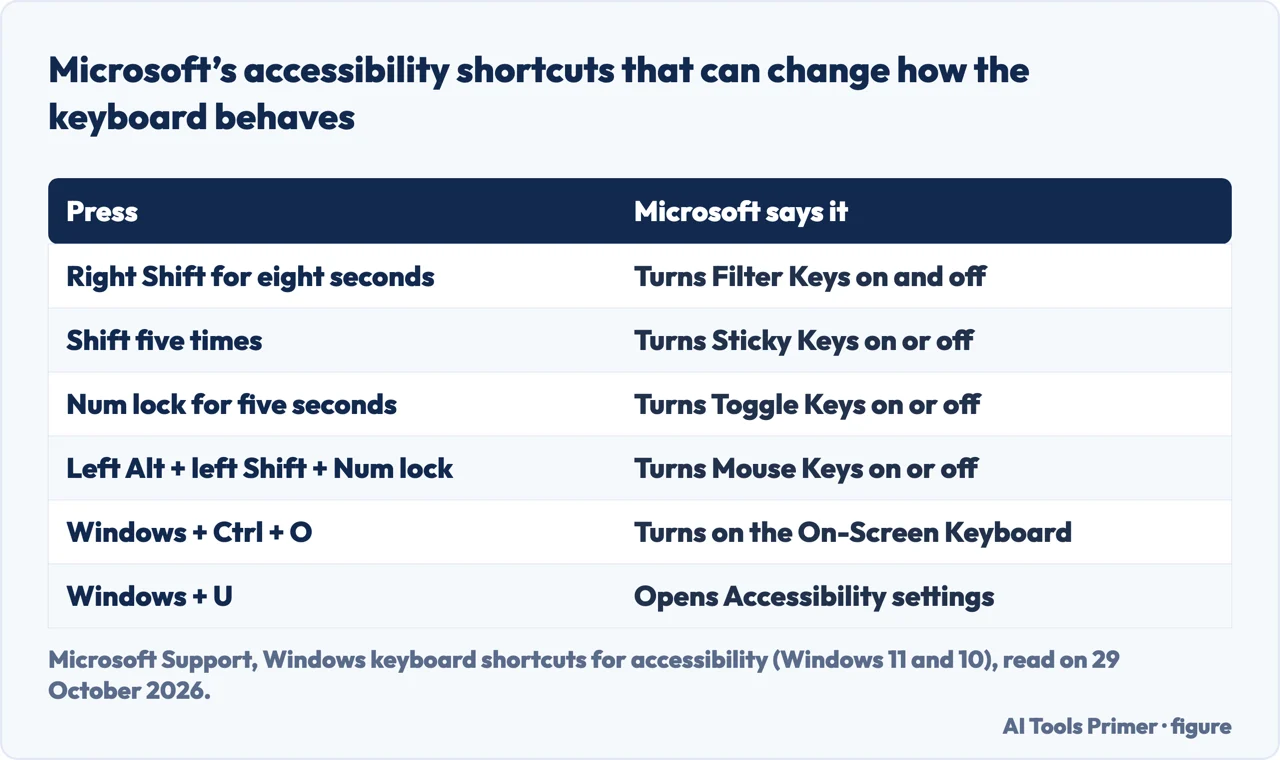
The shortcut several pages repeat comes from Microsoft. Its list of accessibility shortcuts, which has a version for Windows 11 and one for Windows 10, says Right Shift for eight seconds turns Filter Keys on and off. The same table lists Shift five times for Sticky Keys and Num lock for five seconds for Toggle Keys; our page on Sticky Keys covers the first. Microsoft’s page on making input devices easier to use says what Filter Keys does (our page on keyboard not typing covers that setting in depth): it sets the keyboard’s sensitivity so that brief or repeated keystrokes are ignored. It places the switch in Accessibility, under Keyboard. On Windows 11 that is Start, Settings, Accessibility, and Windows + U opens the Accessibility settings directly. The Windows 10 version of the page gives Settings, Ease of Access, Keyboard, with a toggle under Filter Keys.
The Microsoft pages we read do not say that Filter Keys “locks” the keyboard, and they do not mention a tone after eight seconds. Two of the thirteen pages go further, though. top-password.com says that holding the right Shift key for eight seconds should produce a tone and show a Filter Keys icon in the system tray, and that the keyboard is then locked and nothing types. Its way back is to hold right Shift for eight seconds again, or to turn Filter Keys off from the Control Panel. ASUS India describes a window that appears after the eight seconds and asks about Filter Keys, and says to click No or disable it. For Sticky Keys it says to press Shift five times and, if a dialog appears, turn Sticky Keys off. Microsoft’s table does not mention a window.
Digital Citizen, from 4 February 2026, lists “Hold the Shift key for 8 seconds” among shortcuts to try one by one, without saying which Shift. Microsoft, ASUS and top-password.com all say the right one. The route it gives to switch the feature off is Settings, Accessibility, Keyboard, Filter Keys, and it adds that the shortcut that switches Filter Keys on should be turned off too, so it does not return. Neither Digital Citizen nor the Microsoft pages we read say where that option sits, so we do not either.
One more voice is an archived HP Community thread from 2017, now read-only. A single message in it says the person had figured it out: hold the right shift key for eight seconds to lock and unlock the keyboard. It is one message, and HP does not confirm it on that page. The wording is worth a note. Microsoft calls the shortcut Filter Keys on and off, while top-password.com and the HP thread call it a lock. The same eight seconds appear on several pages under different descriptions.
The Fn lock and the function row
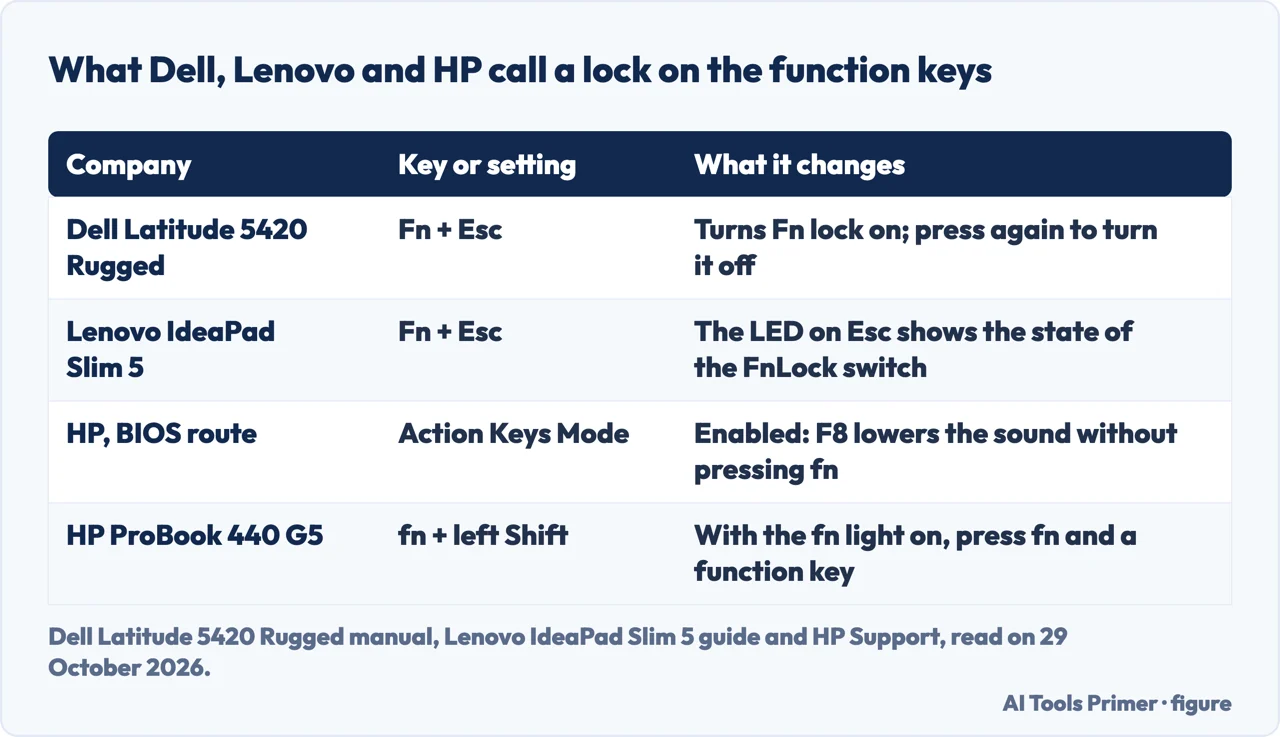
The three pages that come from Dell, Lenovo and HP support describe something else under the word lock: the Fn lock, which changes what the top row of keys does. The Dell Latitude 5420 Rugged service manual says to press Fn + Esc to turn the function lock on. It adds that the other secondary functions on the top row are not affected and still need the Fn key. Pressing Fn + Esc again turns the lock off, and the function keys return to their default actions. Lenovo’s IdeaPad Slim 5 user guide calls FnLock an electronic switch that affects the hotkeys, turned on and off with Fn + Esc, and says the Esc key has an LED that shows the state. With the LED off, a hotkey pressed alone gives its primary function and with Fn its secondary one; with the LED on, it is the other way round.
HP’s support page on locking and unlocking the fn key starts from the printed icons on F1 to F12, which often show a secondary action such as muting the sound or adjusting display brightness. It calls this action keys mode or hotkeys. On many notebooks a setting lets you use those actions without pressing fn each time, and the page gives the steps by model. Most start in the BIOS: turn the computer off with the power button held for at least five seconds, turn it on and press F10 repeatedly, choose the System Configuration menu and then Action Keys Mode, and set it to Enabled or Disabled. HP’s example for Enabled is that F8 lowers the sound without fn. For some ProBook and EliteBook models the page uses Esc for the Startup Menu, then F10, and the choice is called Launch Hotkeys without Fn Keypress. For the ProBook 440 G5 and the related models it lists, pressing fn and the left Shift key together turns fn mode on, and when the fn key light is on, fn and a function key are needed together.
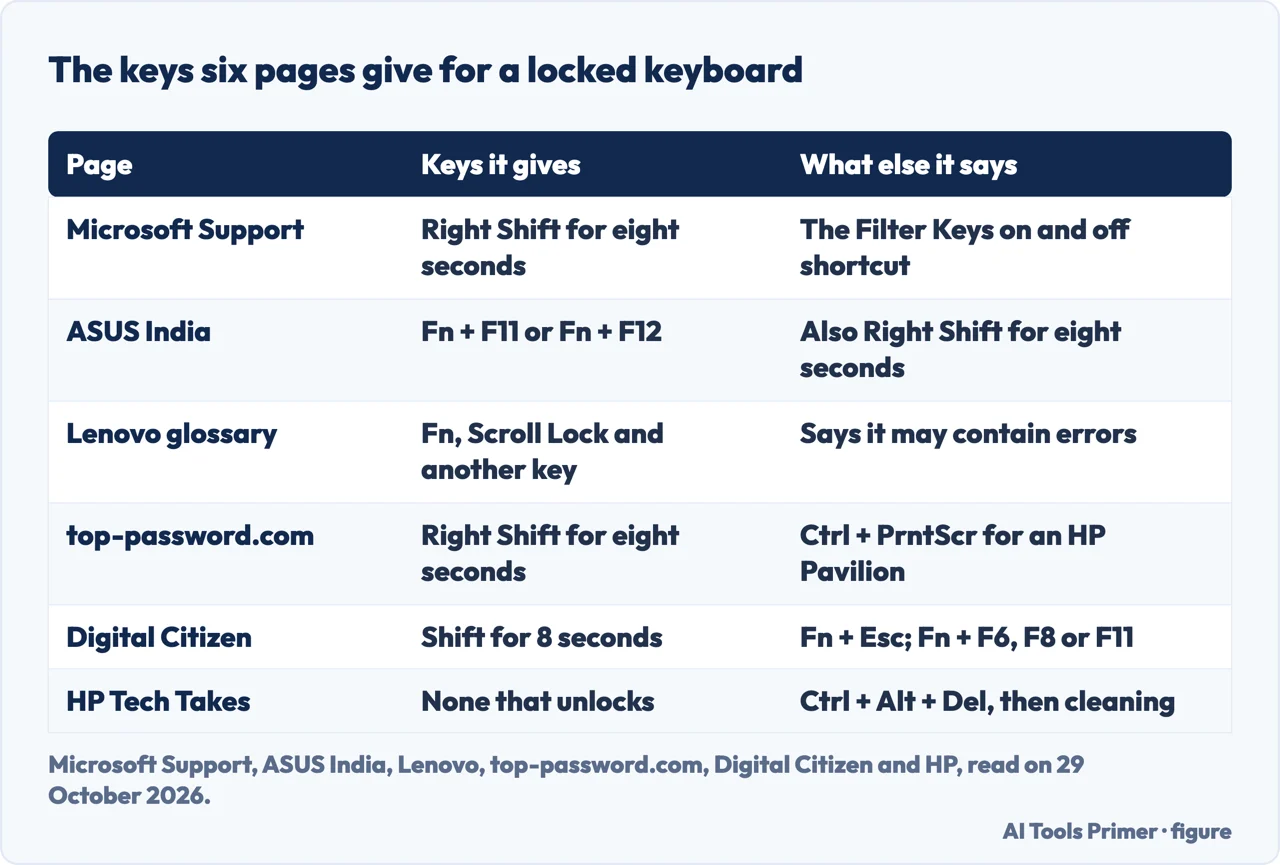
These three pages do not describe the lock as stopping letters from typing; they describe it as changing the top row. That is where they part from the pages that tell you to unlock a stuck keyboard with an Fn combination. ASUS India says Fn + F11 or Fn + F12 are the most common ASUS unlock shortcuts, adds that some models use different combinations, and suggests Fn + NumLk or Fn + Scroll Lock. It does not say which models use F11 or F12. Lenovo’s glossary says to hold Fn, press Scroll Lock while pressing any other key, and release all keys together; it also asks you to check for a physical lock on the laptop, and it states that it may contain errors. Digital Citizen offers Fn + Esc and Fn + F6, F8 or F11 depending on the laptop, and says to look for a lock or keyboard icon on the function keys. top-password.com gives Ctrl + PrntScr for an HP Pavilion and names no other model.
Num Lock, a restart, the driver and the on-screen keyboard
If letters come out as numbers, ASUS India points to Num Lock: look for the small Num Lock light, press the key once or try Fn + Num Lock, and on some laptops Fn + Insert. top-password.com offers Num Lock or a wrong keyboard layout for a keyboard that types the wrong characters. Microsoft lists Toggle Keys separately: it plays a sound when Caps lock, Num lock or Scroll lock is pressed and is switched by holding Num lock for five seconds.
A restart appears on three pages. ASUS India says to press Ctrl + Alt + Delete, choose the power button at the lower right and pick Restart, and if the keyboard does not work at all, to hold the power button for ten seconds, wait thirty seconds and turn it back on. HP Tech Takes says to shut down with the touchpad or mouse, or hold the power button if there are other problems, and notes that some older HP laptops have a touchpad toggle in the upper left corner of the pad.
The driver step is the most uniform. ASUS India has you right-click Start, open Device Manager, expand Keyboards and choose Update driver, then Search automatically; if that fails, Uninstall device and restart, after which Windows reinstalls the driver. HP Tech Takes reaches Device Manager through the Control Panel or the search bar, opens the Keyboard entry, names Standard PS/2 Keyboard and gives only the uninstall step, and top-password.com says the keyboard may become locked because of a faulty or outdated driver. Digital Citizen says driver problems are common after Windows updates. ASUS India also lists the Windows keyboard troubleshooter under Settings, Update & Security, Troubleshoot, Additional troubleshooters, and the Keyboard test in the MyASUS app under System Diagnosis. Digital Citizen adds a malware scan and a test in Safe Mode or from a bootable USB drive.
To keep working while the keyboard is down, Microsoft says Windows + Ctrl + O turns on the On-Screen Keyboard, which lets you pick keys with a mouse or another pointing device, and that the same switch is in Accessibility under Keyboard. ASUS India gives that route too. For the physical side, ASUS India says to switch the laptop off and look for stuck keys, crumbs and signs of liquid, to clean between the keys with compressed air, and, after a spill, to turn the laptop upside down and leave it to dry for 24 hours before switching it on. HP Tech Takes also names compressed air.
An external keyboard, and a Mac
For a USB or Bluetooth keyboard, Digital Citizen lists the steps in this order: unplug and reconnect it, try a different USB port, replace the batteries in a wireless one, pair a Bluetooth keyboard again, avoid USB hubs while testing, and test it on another PC if possible. Lenovo’s glossary suggests checking whether an external keyboard has a lock key, which it says is usually at the top right, and pressing it twice; for a Bluetooth keyboard it says to pair it with the computer again. top-password.com and Digital Citizen both use a second computer as the test.
Apple’s page for a Mac that does not respond to key presses does not describe a shortcut that locks or unlocks the keyboard. For a wireless keyboard it asks that you check that it is turned on and charged, that Bluetooth is on, and that you disconnect and reconnect it; for a wired one, to reconnect it with the connector fully in the port, then try a different port or a different Mac, or a different keyboard on this Mac. If a built-in keyboard does nothing, Apple says the Mac may be showing a low battery alert you cannot see, and to connect it to power or attach an external keyboard to see the alert.
Two details on the Mac side explain keys that seem dead. The Caps Lock and Media Eject keys have a slight delay so that an accidental press does nothing, and Apple says to hold them longer, until the indicator light comes on or the Eject icon appears. For other keys, it points to two settings in System Settings under Accessibility: Slow Keys, under Keyboard, which makes keys need a longer press when it is on, and Mouse Keys, under Pointer Control, which can also be reached with Option-Command-F5. It also says to check that the right keyboard layout is selected, and that a Keyboard Viewer can show a keyboard on the screen to click with the mouse or trackpad.
Where the pages disagree, and what they leave out
The first disagreement is which keys do the unlocking. Microsoft lists Right Shift for eight seconds and nothing with Fn. ASUS India leads with Fn + F11 or Fn + F12 and also gives the Right Shift route. Lenovo’s glossary gives Fn with Scroll Lock, Digital Citizen gives a list, top-password.com gives Right Shift and, for one HP model, Ctrl + PrntScr, and HP Tech Takes gives no combination at all. The Dell, Lenovo and HP support pages give Fn + Esc, a BIOS setting or fn + left Shift, and they are describing the Fn lock. The pages we read do not say which models take Fn + F11 or Fn + F12, or which combination fits a given model.
The second is what a lock is. Microsoft describes Filter Keys as a setting that ignores brief or repeated keystrokes. top-password.com and the HP thread describe the same eight-second press as locking the keyboard. The Fn lock pages describe a change to the top row. The Q&A shows a third case, a lock screen where the keyboard and mouse do not respond. The pages we read do not connect these meanings, so we keep them apart.
Third, a few claims have no data behind them. Digital Citizen calls Filter Keys one of the most common reasons a keyboard feels locked, and ASUS India says turning off Filter Keys and Sticky Keys fixes most problems. The pages we read do not give figures for how often either is the cause. We tested nothing on a laptop, and the only forum thread we read is the archived HP Community one. The shortcuts and settings above are what the pages say, not what we confirmed on a machine, and a keyboard that still fails after the steps may have a hardware fault. Digital Citizen says the issue may be hardware-related at that stage, ASUS India says persistent physical damage may need professional repair, and HP Tech Takes points to support or a repair shop when nothing helps.
Where to start
Four ways in.
- “Is it the keyboard or the whole computer?”
- First: is it the keyboard, or the whole computer? — first
- “What does holding Right Shift do?”
- Filter Keys: Right Shift for eight seconds — filter
- “Which Fn key unlocks it?”
- The Fn lock and the function row — fn
- “It is an external keyboard, or a Mac.”
- An external keyboard, and a Mac — external
Keyboards that stop answering
Settings that ignore keys, and keyboards that do not type.
Keys, lights and other keyboards
The Fn row, the light under the keys, and a keyboard for a tablet.
Questions people also ask
Why is my keyboard not typing?
The pages give different lists; our page on keyboard not typing goes deeper. Digital Citizen names Filter Keys turned on by mistake, a lock shortcut pressed by accident, driver problems after a Windows update, external keyboard connections and laptop-specific lock keys. ASUS India names Filter Keys, Sticky Keys, a function key combination, temporary glitches, outdated drivers and dirt.
How do I turn off keyboard lock?
It depends which lock the page means. For Filter Keys, Microsoft places the switch in Settings under Accessibility, Keyboard, and Windows + U opens Accessibility. For the Fn lock, the Dell and Lenovo pages say Fn + Esc, and HP gives a BIOS setting or fn + left Shift on some models.
What F key unlocks the keyboard?
ASUS India says Fn + F11 or Fn + F12, and Digital Citizen says Fn + F6, F8 or F11 depending on the laptop. Neither says which models. The Dell and Lenovo pages we read use Esc for the Fn lock, and HP uses a BIOS setting reached with F10.
How do I unfreeze a PC keyboard?
ASUS India says to check whether the mouse or touchpad still moves, try Ctrl + Alt + Delete, and if needed hold the power button for ten seconds. HP Tech Takes also starts with Ctrl + Alt + Del. A Microsoft Q&A reply for a lock screen points to the Recovery Environment and System Restore.
Not covered here. We tested nothing on a laptop. The statements come from thirteen pages: three from Microsoft, one from ASUS India, two from Lenovo, one from Dell, three from HP, and one each from top-password.com, Digital Citizen and Apple, all read on 29 October 2026.
The search volume and difficulty behind this page come from a Semrush reading of 29 August 2026, older than the 60 days the site normally allows.
Sources
- Microsoft Support — Windows keyboard shortcuts for accessibility — support.microsoft.com, read 29 October 2026.
- Microsoft Support — Make your mouse, keyboard, and other input devices easier to use — support.microsoft.com, read 29 October 2026.
- Microsoft Q&A — How do I unlock my keyboard and mouse — learn.microsoft.com, read 29 October 2026.
- ASUS India — How to Unlock Laptop Keyboard (20 February 2026) — www.asus.com, read 29 October 2026.
- Lenovo — How to Fix a Locked Laptop Keyboard (glossary) — www.lenovo.com, read 29 October 2026.
- Lenovo — IdeaPad Slim 5 user guide, The FnLock switch — download.lenovo.com, read 29 October 2026.
- Dell — Latitude 5420 Rugged service manual, Enabling the Function (Fn) lock — www.dell.com, read 29 October 2026.
- HP Support — How to lock or unlock the fn (function) key — support.hp.com, read 29 October 2026.
- HP Tech Takes — How to Fix a Laptop Keyboard When It’s Locked (3 November 2019) — www.hp.com, read 29 October 2026.
- HP Community — Keyboard is locked. What keys do I press to unlock it? (2017, archived) — h30434.www3.hp.com, read 29 October 2026.
- top-password.com — How to Unlock the Keyboard on Windows 10 / 8 / 7 Computer (29 May 2019) — www.top-password.com, read 29 October 2026.
- Digital Citizen — How to Unlock Keyboard on Windows (4 February 2026) — www.digitalcitizen.life, read 29 October 2026.
- Apple Support — If your Mac doesn’t respond to key presses — support.apple.com, read 29 October 2026.
Written by Alberto Gulotta
Founder and editor of AI Tools Primer, writing from Palermo, Italy. Thirty-five years of taking computers apart, starting with a Commodore 64 — the long version is on the about page.
Something wrong on this page? Write to aitoolsprimer@gmail.com and it gets fixed.
Written on 29 October 2026.
Independence and limits
No affiliate links and no paid placements anywhere on this site. Nobody pays to appear here, and no company has seen this page before you did.
This is general information, not professional advice. Where a page touches money, health, safety or the law, it names its source and the date it was read — and your situation may still differ. See the privacy page and the cookie policy.