
Temp mail · guide
Apple Hide My Email: what Apple’s pages say
By Alberto Gulotta · Updated · 16 min read
Apple Hide My Email gives you random addresses that forward to your real inbox. Apple’s pages describe two routes: Sign in with Apple, which makes one for an app or website, and iCloud+, which adds addresses made by hand. Apple also says what switching one off does and what happens when the plan ends.
| Question | Answer | Where it comes from |
|---|---|---|
| What does it do? | Makes unique, random addresses that forward to your personal inbox | Apple Support |
| How do I find my addresses? | Settings, your name, then Sign in with Apple or iCloud, then Hide My Email | Apple Support |
| Can I send from one? | Apple says to one recipient at a time; Incogni says both, in different parts of its page | Apple Support, Incogni |
| What does switching one off do? | iPhone: it stops forwarding; iCloud.com: mail is returned to the sender | Apple Support |
| What does it cost? | Part of iCloud+, from $0.99 a month in the United States | Apple Support |
What Apple says it is, and the two ways in
Apple’s page on Sign in with Apple, published on 26 October 2026, says Hide My Email generates unique, random email addresses that automatically forward to your personal inbox. Each address is unique to you, you can read and respond to the messages sent to it, and your personal address stays private. Apple’s iCloud guide describes the same feature as a way to avoid sharing your real address when you fill out a form on the web or sign up for a newsletter.
The pages describe two routes to an address. The first is Sign in with Apple. When an app or website supports it, you can share your address or hide it. If you choose to hide it, Apple says the address is created at @private.icloud.com or @privaterelay.appleid.com, and only the app or website you created the account with can use it. In Apple’s words, only emails sent from designated addresses of that app or website are forwarded to the verified address on your Apple Account.
The second route is iCloud+. Apple’s iCloud guide says that with a subscription you can generate addresses on demand in the places listed below. Mail sent to them is forwarded to your iCloud Mail address or to any address associated with your Apple Account. The same guide says you can create “as many addresses as you need”, add a label or a note to remind you how you used one, and deactivate or delete the ones you stop using. The pages we read do not give a number for how many addresses an account can hold.
On what Apple can see, its Sign in with Apple page says the company does not read or process the content of messages that pass through, except for standard spam filtering that it describes as required to maintain its status as a trusted email provider. It adds that messages are deleted from its relay servers after delivery to you, usually within seconds.
Incogni, a company whose blog menu carries an entry on automated data removal, published a page on the feature that it updated on 18 February 2026. It splits the feature into a free version and a paid one. In its account, the free version is the Sign in with Apple route: the address is created automatically, cannot be edited, and can only be used to reply once someone has written first. The paid version, which it ties to iCloud+, lets you create addresses by hand and send new messages. Apple’s Sign in with Apple page mentions iCloud+ only for changing the forwarding address, and the Apple pages we read do not call Sign in with Apple free, so the free and paid labels are Incogni’s.
On whether an address can be traced, Incogni writes that the recipient sees only the random address and cannot trace it back to yours, but that “Apple maintains an internal link” so messages reach your inbox. The Apple pages we read do not say how long that link is kept.
Where it appears on each device
For addresses made with Sign in with Apple, Apple’s page says to open Settings on an iPhone or iPad, tap your name, tap Sign in with Apple and pick the app or website from the list. If you used Hide My Email for it, you should see either @private.icloud.com or @privaterelay.appleid.com. On a Mac the path is System Settings, your name, Sign in with Apple. Apple’s page on managing these apps adds a web route: sign in on account.apple.com, go to Sign-In & Security and select Sign in with Apple.
For addresses made with iCloud+, Apple’s guide says Hide My Email is available on iPhone, iPad, Mac and iCloud.com if you, or someone in your Family Sharing group, has an iCloud+ subscription. It also says to be signed in to the same Apple Account on each device, because a device that is not signed in cannot reach the feature. A separate Apple page puts the minimum at iOS 15, iPadOS 15 or macOS 12, and says iCloud.com works from any supported browser.
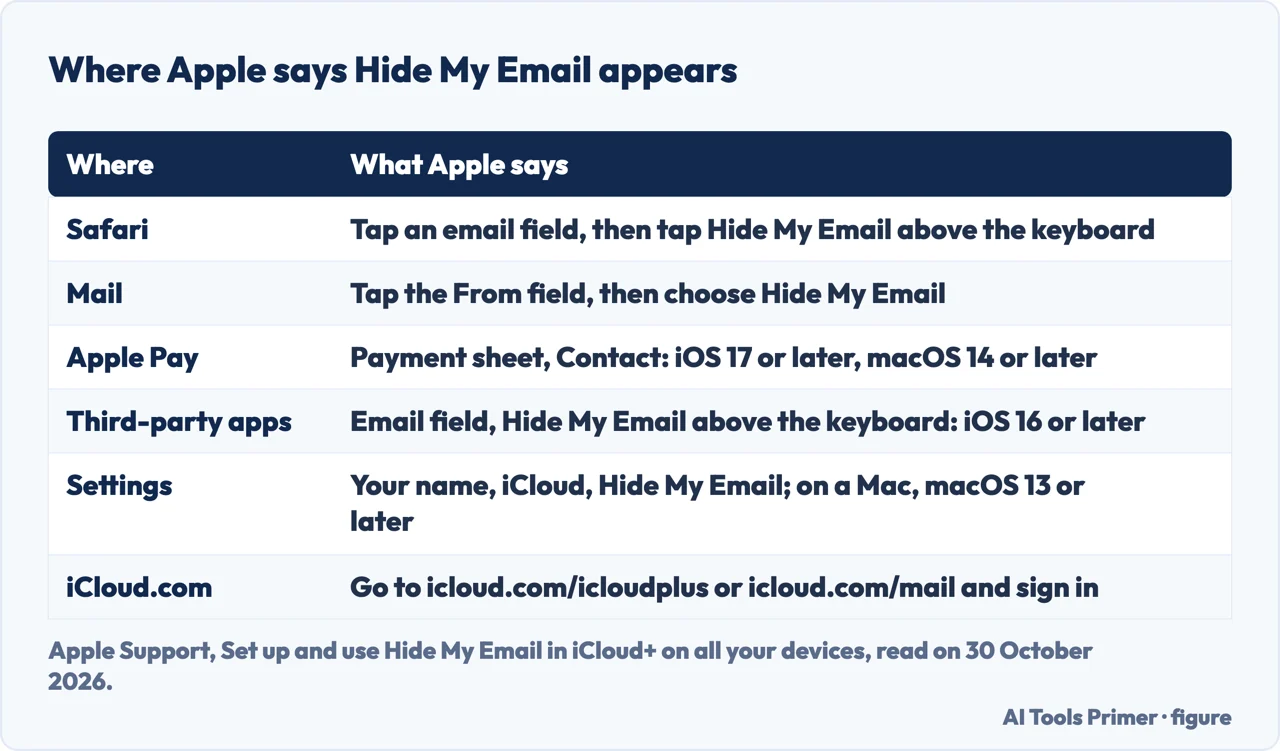
The table below sets out where the guide says the button appears. Two of the rows carry a condition. Apple Pay offers Hide My Email only when an app or website asks for an email address in the payment sheet, and on a Mac Apple says the same address is used for later purchases in that app or website. Apple’s guide also lists a Wallet & Apple Pay setting (Settings, Wallet & Apple Pay, Email on iOS 17 or later; System Settings, Wallet & Apple Pay on macOS 14 or later) where Hide My Email can be turned on for Apple Pay. Apple’s page on iCloud.com adds a note for accounts that do not show the feature at all: if Hide My Email is missing there, the account may have web-only access.
Sending, replying and the forwarding address
Apple’s page on the Mail app on iPhone says that when you subscribe to iCloud+, Hide My Email lets you send and receive messages that forward to your real account. In Mail you tap the From field, tap it again, then tap Hide My Email, and a new address appears in the field. The same page gives the limit on sending: “one recipient at a time”. When the recipient replies, the reply is forwarded to your real address, and when a message arrives at one of your random addresses you can reply from the same address.
Here the sources differ. Incogni writes that an address created by hand lets you send messages and reply to anyone, without limits on the number of recipients. That is the opposite of what Apple’s Mail page says. Incogni’s own page also carries the Apple limit in a note on its Mail steps, “you can only send to one recipient at a time”, so it disagrees with itself. The table at the top of this page follows Apple on the point because it is the page for the app itself, and Incogni’s version is shown as Incogni’s.
Where the mail goes is a single setting. Apple’s iCloud.com page says every unique, random address you create is forwarded to the same email address, that you can change the forwarding address at any time, and that the choices are the addresses associated with your Apple Account. To add or remove one, that page sends you to the Apple Account website. On an iPhone the setting is Forward To, under Settings, your name, iCloud, Hide My Email. On iCloud.com it is the Forward to section, below the list of active addresses and above the inactive ones. Apple’s Sign in with Apple page says that changing the forwarding address requires iCloud+, and Apple’s page on managing apps with Sign in with Apple adds that the choice applies to the email from all apps and developers using Hide My Email.
For creating an address on iCloud.com, Apple says two-factor authentication has to be set up. Incogni lists the same requirement, together with being signed in to the right Apple Account, as the usual reason the option does not appear. Incogni also adds that there is no native Android app, and that on Android the addresses are managed by signing in to iCloud.com. That last part comes from Incogni, not from Apple.
Two pages cover keeping track of addresses. Apple’s iCloud.com page says that with five or more addresses you can search them by name, label, address or the place where the address was created, and that the list is ordered alphabetically by label. Incogni suggests labelling each address, for example “gym membership”, so you can tell who passed your details on if spam arrives. That advice is Incogni’s, not Apple’s.
Switching an address off, and deleting it
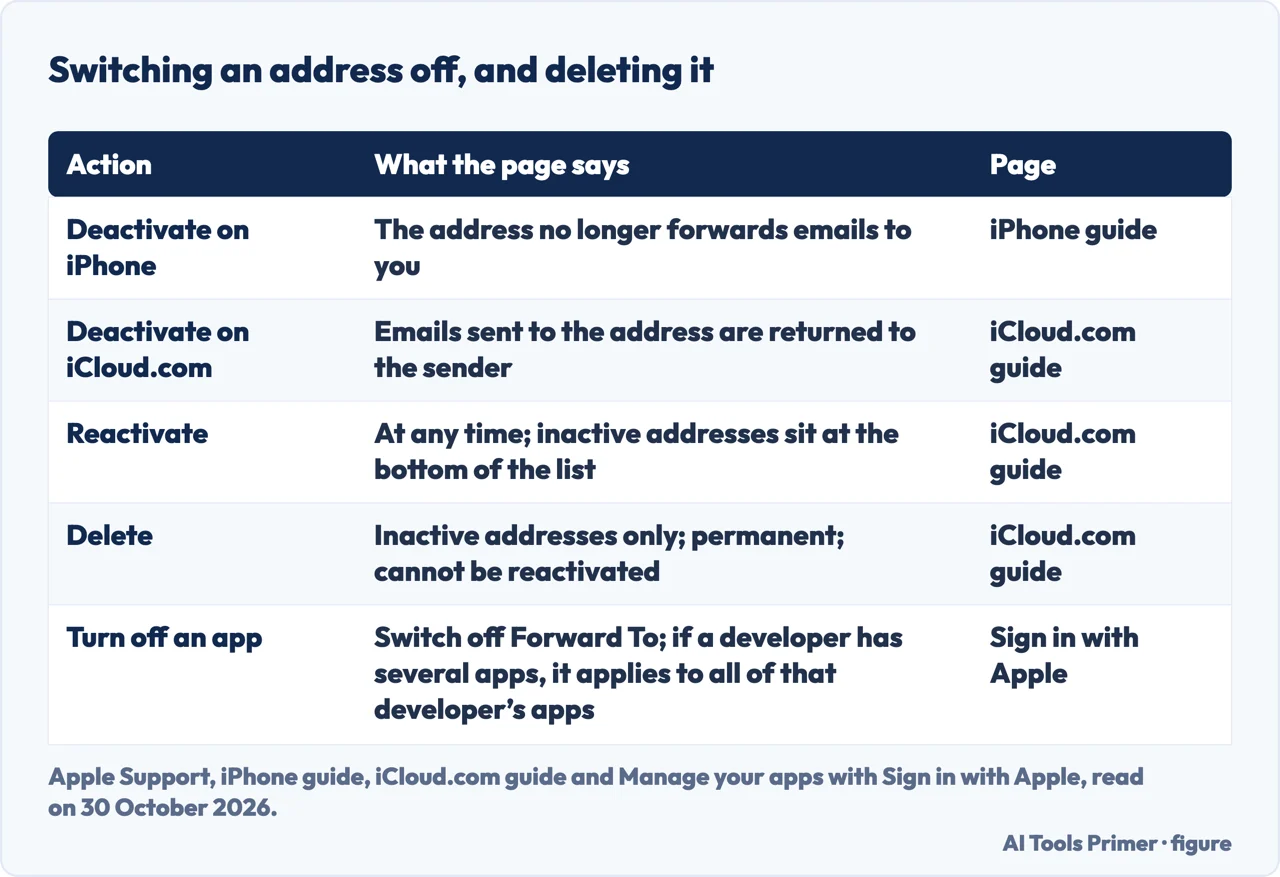
Switching off is described twice, in different words. Apple’s iPhone guide says to tap an address, tap Deactivate Email Address, and that after you do, it no longer forwards emails to you. Apple’s iCloud.com page says that when you stop using an address, any emails sent to it are “returned to the sender”. These are two pages about the same action on two devices. The pages we read do not say whether the sender is shown an error message when a message is returned.
Our page on SimpleLogin also cites Apple’s page on stopping and deleting an address, and our page on Firefox Relay covers that service.
A deactivated address can be brought back. Apple says you can reactivate it at any time, and on iCloud.com the inactive addresses sit at the bottom of the list, where Reactivate address is offered. Deleting is different. Apple says only inactive addresses can be deleted, and in its words deleting an address is permanent: the address is deleted on all your devices set up for Hide My Email, and you cannot reactivate it.
Addresses made through Sign in with Apple follow a separate page. Apple’s page on managing those apps says you can turn off email forwarding for a particular developer: on an iPhone, Settings, your name, iCloud, Hide My Email, pick the app or developer and turn off Forward To. It then adds a caution. Some developers use Sign in with Apple to give you an account for more than one app, and if you turn off forwarding or stop using Sign in with Apple for one app, Apple says it applies to all apps from that developer.
Stopping Sign in with Apple for an app signs you out of it on your device. Apple says that on the next visit you can choose Sign in with Apple to sign in again, which returns you to the same account, or create a new account. Some apps, it adds, let you set a new password for the existing account so you can sign in without your Apple Account. The page does not describe what happens to the hidden address in that case.
What it costs, and what Apple says about leaving
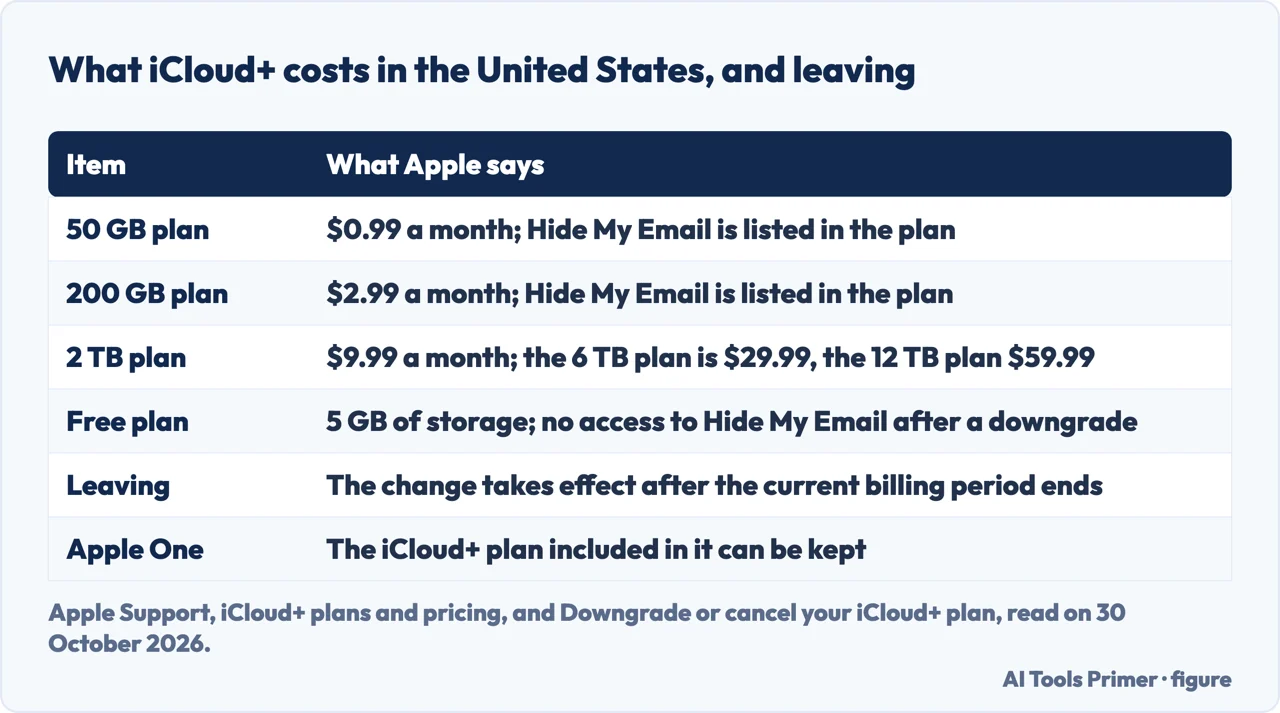
Apple’s plans and pricing page lists Hide My Email in every iCloud+ plan, from 50 GB up to 12 TB, and says the free plan has 5 GB of storage. After you upgrade, Apple says you are billed monthly, and prices differ by country or region. In the United States row, which we read on 30 October 2026, the monthly prices are $0.99 for 50 GB, $2.99 for 200 GB, $9.99 for 2 TB, $29.99 for 6 TB and $59.99 for 12 TB. Incogni’s page, updated in February 2026, gives $0.99 a month for the lowest tier, which matches. Our page on buying more iPhone storage covers the plans and the steps for each version of iOS.
On leaving, Apple’s page on downgrading or cancelling, published on 15 September 2026, says the change takes effect after your current billing period ends. It also says that if you downgrade to the free iCloud plan you lose access to iCloud+ features and benefits like Hide My Email, Private Relay, Apple Invites and HomeKit Secure Video support. On an iPhone with iOS 18.4 or later the steps start in Settings, your name, then Subscriptions, then iCloud+, then Cancel Subscription. Before either step, Apple says to download or remove content that exceeds the new storage amount. Our page on cancelling a subscription on iPhone walks through the general route.
Two other points on that page bear on the cost. If you pay for both Apple One and an iCloud+ plan, Apple says you can cancel the separate plan and use the iCloud+ plan included in Apple One. And partial refunds are available where required by law; for a recent plan change, Apple says to contact it within 14 days.
Several points are left open. The pages we read do not say what happens to addresses you already created, to mail still on its way, or to accounts registered with those addresses once the plan ends. They do not say whether an address made through Sign in with Apple stays active after the cancellation either. Apple states only that access to the feature ends. The third figure sets out the prices and these exit lines together.
What we did not use
We tested nothing on an iPhone or a Mac. Of the pages Google listed, we did not open the iCloud sign-in page or the Reddit thread. The Google AI box was not read. Incogni is a company with its own interests, and we used its page for statements of fact only, attributed to it, and for nothing in the table at the top apart from the sending row. We also did not open the pages Apple links for using Hide My Email in Safari or on a Mac.
Where to start
Four ways in.
- “What does it do?”
- What Apple says it is, and the two ways in — two
- “Where do I find it?”
- Where it appears on each device — where
- “Can I switch one off?”
- Switching an address off, and deleting it — off
- “What if I stop paying?”
- What it costs, and what Apple says about leaving — cost
Other aliases that last
Two other services that forward to your real mailbox.
Paying for and leaving a plan
The iCloud+ plan behind the feature, and trials.
Questions people also ask
What does hide my email do on Apple?
Apple says it generates unique, random email addresses that forward to your personal inbox, so you can read and respond while your own address stays private. It comes through Sign in with Apple or, for addresses made by hand, an iCloud+ subscription.
How do I find Apple Hide My email?
For Sign in with Apple, Apple says to open Settings, tap your name, then Sign in with Apple and choose the app. For iCloud+ addresses, the path is Settings, your name, iCloud, Hide My Email. On the web, icloud.com/icloudplus has it.
Why is my iPhone saying "Hide my email"?
Apple’s guide says the button appears above the keyboard in an email field in Safari and supported apps, and in the From field in Mail. It is offered for generating a random address or reusing one you already made for that site.
Is Apple Hide My email traceable?
Apple says the content of messages is not read except for spam filtering, and that messages are deleted from its relay servers after delivery. Incogni writes that the recipient cannot trace the address, but that Apple keeps an internal link to forward mail.
Not covered here. We tested nothing on an iPhone or a Mac. The statements come from ten Apple Support pages and a page from Incogni, all read on 30 October 2026.
The search volume and difficulty behind this page come from a Semrush reading of 29 August 2026, which expired on 28 October 2026, past the 60 days the site normally allows, and is used with the owner’s authorisation until it is read again.
Sources
- Apple Support — How to use Hide My Email with Sign in with Apple — support.apple.com, read 30 October 2026.
- Apple Support — Create and manage Hide My Email addresses in Settings on iPhone — support.apple.com, read 30 October 2026.
- Apple Support — Set up and use Hide My Email in iCloud+ on all your devices — support.apple.com, read 30 October 2026.
- Apple Support — Create unique, random email addresses with Hide My Email and iCloud+ — support.apple.com, read 30 October 2026.
- Apple Support — Create and edit Hide My Email addresses on iCloud.com — support.apple.com, read 30 October 2026.
- Apple Support — Stop using, reactivate, or delete a Hide My Email address on iCloud.com — support.apple.com, read 30 October 2026.
- Apple Support — Use Hide My Email in Mail on iPhone — support.apple.com, read 30 October 2026.
- Apple Support — Manage your apps with Sign in with Apple — support.apple.com, read 30 October 2026.
- Apple Support — Downgrade or cancel your iCloud+ plan — support.apple.com, read 30 October 2026.
- Apple Support — iCloud+ plans and pricing — support.apple.com, read 30 October 2026.
- Incogni — Apple Hide My Email: How It Works & How to Use It — blog.incogni.com, read 30 October 2026.
Written by Alberto Gulotta
Founder and editor of AI Tools Primer, writing from Palermo, Italy. Thirty-five years of taking computers apart, starting with a Commodore 64 — the long version is on the about page.
Something wrong on this page? Write to aitoolsprimer@gmail.com and it gets fixed.
Written on 30 October 2026.
Independence and limits
No affiliate links and no paid placements anywhere on this site. Nobody pays to appear here, and no company has seen this page before you did.
This is general information, not professional advice. Where a page touches money, health, safety or the law, it names its source and the date it was read — and your situation may still differ. See the privacy page and the cookie policy.