
Video · guide
How to boost microphone volume: where each page says to start
By Alberto Gulotta · Updated · 17 min read
How to boost microphone volume starts before any slider. Microsoft’s page lists the connection and the microphone’s position first, then the Windows sliders. Help Desk Geek, Hollyland and TeamViewer add the boost, the apps and the hardware limits, and the pages give different figures in decibels.
| Question | Answer | Where it comes from |
|---|---|---|
| What comes before the slider? | The connection and the microphone’s position | Microsoft Support |
| Where is the Windows 11 slider? | Settings, System, Sound, then Input and the device: the Input volume slider | Microsoft Support |
| Where is Microphone Boost? | On the Levels tab of the microphone’s properties, if the driver offers it | Microsoft Support (Windows 10 Levels tab), TeamViewer (the driver caveat) |
| How many decibels? | The pages differ: up to +40 dB, a start at +10 dB, typically +10 to +30 dB | Help Desk Geek, Hollyland, Google AI box |
| Is there a boost on a Mac? | Apple documents an input volume slider; Hollyland says macOS has no boost equivalent | Apple Support, Hollyland |
Before any slider: position, connection, device and permission
Microsoft’s page on microphone problems begins with things that cost nothing. For a microphone that is too quiet it lists the same two checks in its Windows 11 and Windows 10 sections: make sure the microphone or headset is connected correctly, and make sure it is positioned correctly. Only then does it turn to the volume itself. TeamViewer’s page agrees on the second point, saying to move closer, to remove obstacles and not to cover a built-in microphone, and it adds that proper placement can significantly increase the volume you perceive.
Hollyland, a seller of wireless microphones, whose blog post is dated 8 June 2026, puts the same idea as a rule about distance. It says most condenser and dynamic microphones work best at 6 to 12 inches, and that beyond 18 inches the volume drops off sharply and software gain cannot fully make up for it. It also says to point the microphone’s capsule at your mouth, to place a clip-on microphone at upper chest level, and to keep a directional microphone from facing a laptop screen or a hard desk. Those figures are the seller’s, not Microsoft’s.
Hollyland adds a few checks that apply to hardware you plug in. Push a USB, 3.5mm or XLR cable fully home. If the microphone or audio interface has a physical gain knob, it says to raise it to at least 75 percent, because a signal that starts quiet is quiet before the computer sees it. For XLR condenser microphones it says phantom power of +48V is needed and that without it the output is near-silent or absent. It also warns that the computer may be listening to the laptop’s built-in microphone instead of the one you plugged in, which is the same point Microsoft makes when it says to make sure the microphone is the default recording device.
The last gate before the slider is permission. For Windows 11, Microsoft says to open Settings, Privacy & security, Microphone, and check that Microphone access is on and that apps may access the microphone; desktop apps do not appear in the list and have their own switch, and Microsoft says you cannot turn off microphone access for individual desktop apps. Zoom’s support page names two of them for Windows: the one for apps and the one for desktop apps. If an app does not see the device at all, Zoom says it may not have been given permission to reach it.
Windows 11 and Windows 10, step by step
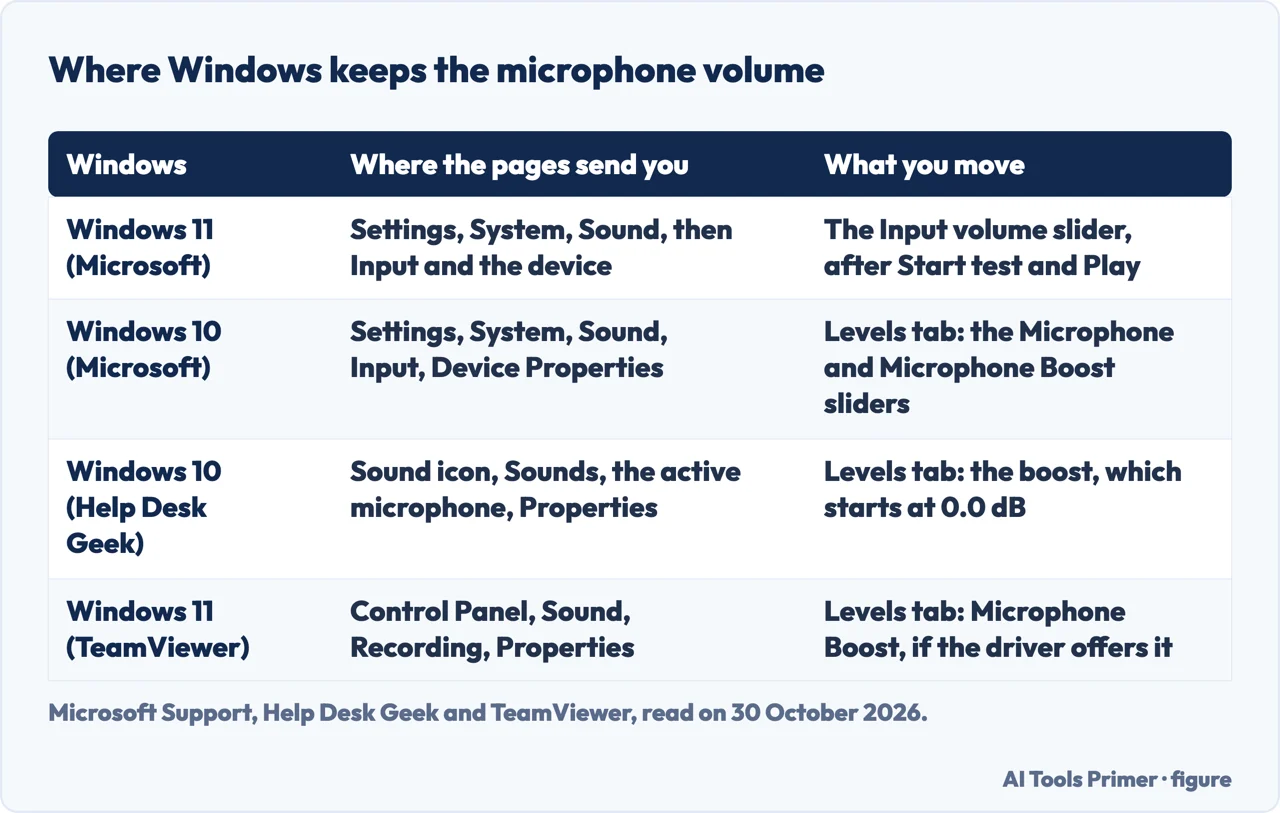
Windows 11. Microsoft’s steps are Start, Settings, System, Sound. Under Input, choose the device you want from the list for speaking or recording, and select the arrow beside it to open its properties. Under Input settings, select Start test and speak normally, select Stop test, then choose Play to hear the recorded sample. If it is too quiet, Microsoft says to adjust the Input volume slider. That is the whole of the Windows 11 instruction in that section: it does not mention a boost control.
Windows 10. Microsoft sends you to Settings, System, Sound. Under Input, make sure your microphone is selected and then choose Device Properties. On the Levels tab of the Microphone Properties window, it says to adjust the Microphone and Microphone Boost sliders as needed, then select OK. To check that the setting works, speak while looking at the test under Test your microphone: if the line moves from left to right the microphone is working, and if nothing changes it is not picking up sound.
Help Desk Geek’s Windows 10 guide reaches the same tab by a longer road. Right-click the sound icon on the taskbar and choose Sounds, right-click the active microphone, which is the one with a green check mark, and choose Properties. On the Levels tab it says the boost is set at 0.0 dB by default and that the slider goes up to +40 dB. It also gives a Control Panel route: Hardware and Sound, Sound, the Recording tab, then Properties on the active microphone.
For Windows 11 the Control Panel route comes from TeamViewer’s page: Control Panel, Sound, the Recording tab, the microphone, Properties, the Levels tab, and then Microphone Boost if it is available. The page adds that not every microphone or audio driver provides the option. Hollyland says a missing field may mean the audio driver does not support it. Neither page says which microphones lack the option.
Hollyland’s Windows steps are close to these, with figures attached. It says to set the Levels slider between 80 and 100 percent and, if a Microphone Boost field is there, to start at +10 dB. It also says to open the Enhancements tab and turn off Noise Suppression and Acoustic Echo Cancellation if they are on, because they can attenuate your voice along with background noise, and it notes that on newer Windows versions the Enhancements tab is not widely available. On the Advanced tab it says to untick the box that lets applications take exclusive control of the device, because some apps override the system gain when exclusive control is active. Help Desk Geek gives the same untick as a step to try if boosting the volume does not help.
If the Microphone Boost field is missing, the pages offer the same two next steps. Help Desk Geek says to run the Windows 10 audio troubleshooter, found under Hardware and Sound as Troubleshoot audio recording, and check again whether the boost appears. Hollyland says a missing field may mean the audio driver does not support it, and to try updating the driver from Device Manager or from the PC maker’s support page. Microsoft lists the recording audio troubleshooter too: in Windows 11 it sits under Settings, System, Sound, Advanced, Troubleshoot common sound problems, Input devices. For drivers Microsoft names Device Manager, with Update driver or Uninstall device and a restart.
How many decibels: four answers
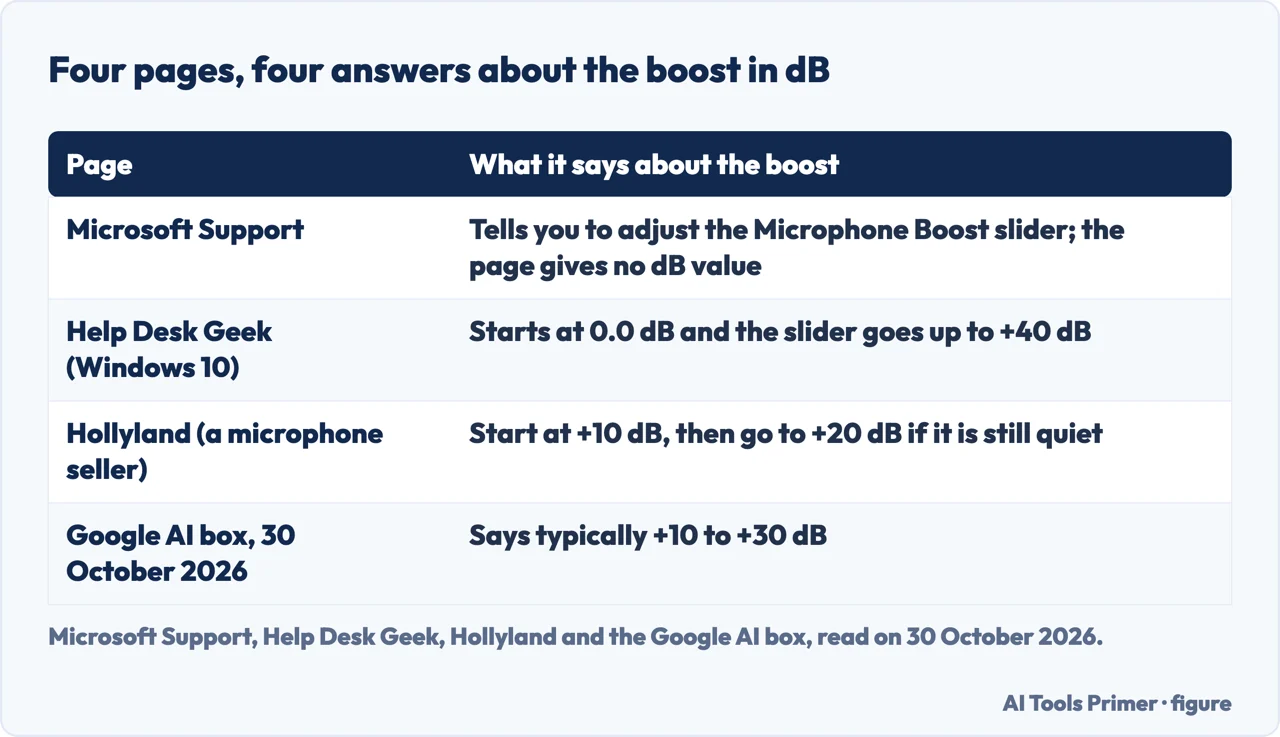
The pages that give a number do not give the same one. Help Desk Geek, in a Windows 10 guide dated 7 March 2021, says the boost starts at 0.0 dB and that the slider goes up to +40 dB, and it frames the setting as something to test with the person you are speaking to, asking whether they can hear you clearly and whether the volume is appropriate. Hollyland says to start at +10 dB and, if the microphone is still quiet after testing, to go to +20 dB. Google’s AI-generated summary, read on 30 October 2026, said the setting is typically +10 to +30 dB; Hollyland’s page, which that summary cited, gives +10 dB and then +20 dB. Microsoft’s page names the Microphone Boost slider but the page we read gives no figure in decibels, and TeamViewer says to increase it if it is available, also without a figure.
We are not choosing among those. The ranges overlap, they come from a help site, a microphone seller and a summary box, and the pages we read do not say how many decibels are right for a given microphone. Only Hollyland says outright to start low and go up in steps; Help Desk Geek frames the boost as something to adjust and test with the person you are speaking to, and TeamViewer says only to increase the input volume carefully. TeamViewer adds that results may vary with the hardware and the audio driver, and it suggests trying with the audio enhancements both on and off.
The pages we read also differ on noise. Microsoft’s page does not mention it. Hollyland does, but about software gain in general: it says that adding gain in software amplifies background noise along with your voice, and that increasing gain also lifts the background noise. Whether the Windows boost itself raises noise on a particular microphone is not something the Microsoft or TeamViewer pages say.
Mac and Chromebook
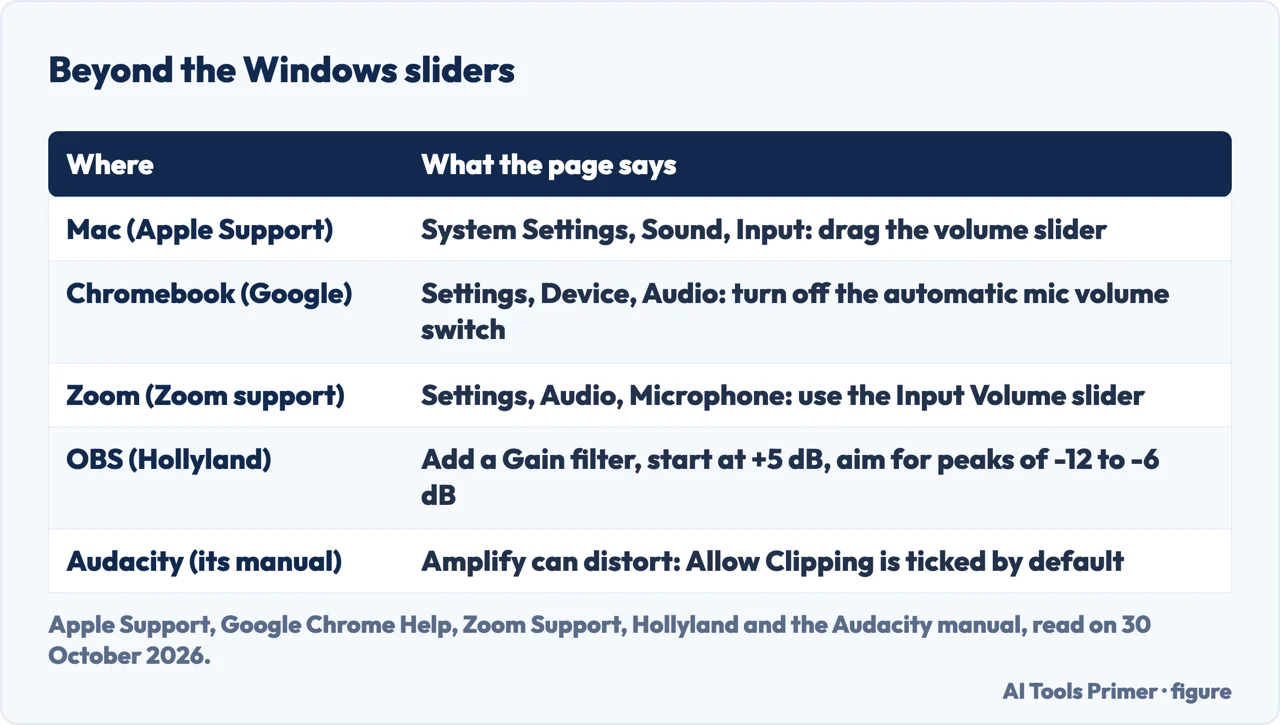
Mac. Apple’s page on sound input settings says to choose the Apple menu, System Settings, then Sound in the sidebar, click Input, and select the device in the list. Then drag the volume slider (Hollyland calls it the Input Volume slider). Apple says that if you are recording sound through the computer’s sound port, you can adjust the input volume to compensate for a source that is too loud or too quiet: for someone speaking softly, increase it so the Mac can better capture the voice, and for loud music, lower it so the recording is not too loud or distorted. The page lists four possible microphones: the computer’s internal one, the display’s if it has one, an iPhone, or an external microphone plugged into the sound port. It also notes that a Mac’s Control Center shows a recording indicator when the microphone is in use or was used recently.
Apple’s page does not mention a boost control. Hollyland does, saying that macOS keeps microphone settings in one place but does not include a boost function equivalent to the one in Windows, and that if the Input Volume slider at 100 percent is not enough you should add gain inside your recording software or at the microphone. That comparison comes from Hollyland alone. Hollyland also advises a target of 80 to 100 percent for the slider, which Apple does not state.
Chromebook. Google Chrome Help has a short page for Chromebooks only. It says the microphone’s volume gain is controlled automatically for some apps to keep the audio quality good, and that after you select the time at the bottom right, a message under Microphone identifies which app controls it. To change that, open Settings, Device, Audio, and turn off the switch that lets apps automatically adjust mic volume; you can then adjust the volume yourself. Google adds that some apps do not allow their mic volume to be adjusted manually. The page says nothing about Windows or Mac.
Inside the apps: Zoom, Teams, Meet and OBS
An app can have a volume of its own on top of the system’s. TeamViewer’s page says that apps such as Teams, Zoom, Google Meet, Discord and Skype have their own audio controls, which is a reason to check them. Zoom’s support page gives the steps for its own client: in Settings, Audio, under Microphone, you can test the microphone, pick the one to use, and use the Input Volume slider to raise or lower the input volume. It also says Windows users may try turning off the Signal processing by Windows audio device drivers option in the advanced audio settings. During a meeting, the arrow beside Mute lets you change the microphone from the toolbar.
Hollyland goes further on Zoom, saying to untick the setting that adjusts the microphone volume automatically, because it says that setting actively reduces your mic level during calls. We read that on Hollyland’s page and not on Zoom’s, so treat it as the seller’s statement. Hollyland also says that Microsoft Teams and Google Meet have no in-app microphone gain control, so a quiet microphone there has to be fixed at the system level, with the Windows steps above. We did not check that against Microsoft’s or Google’s pages for those apps, and it sits uneasily with TeamViewer’s page, which lists Teams and Google Meet among the apps that have their own microphone controls; we have not resolved the difference.
For OBS, Hollyland says to look first at the fader in the Audio Mixer and raise it if it is below 0 dB. Otherwise, right-click the microphone source, choose Filters, add a Gain filter, start at +5 dB and increase in small steps while watching the level meter, aiming for peaks between -12 and -6 dB during normal speech. It adds that software gain should be a final trim rather than the main correction, because it also amplifies background noise. Our page on OBS covers what the program needs before it records anything.
If it is still quiet: Audacity, hardware and noise
A recording that is already made can be raised afterwards. The Audacity manual page on the Amplify effect says the dialog opens with the amount of amplification needed to bring the loudest peak to 0 dB, and that if that is your goal you can just apply it. You can also type a different amount: positive values make the sound louder and negative values make it quieter. Amplify keeps the relative volumes of the tracks you select, which the manual contrasts with the separate Normalize effect, which maximizes each track on its own.
The manual also warns about the Allow Clipping box. If it is not ticked and you enter an amount that would push the new peak above 0 dB, the OK button becomes inactive, which stops you applying too much. If it is ticked, and the manual says that is the default, you can apply as much amplification as you want, possibly creating a horribly distorted sound. Hollyland recommends the same effect, Effect and then Amplify in Audacity, or a Normalize function in other audio software, but adds that excessive amplification after recording also raises the background noise, and that before recording you should set the level so that speech peaks around -12 dB on the meter.
When none of this is enough, Hollyland says the hardware is probably the limit. It names the built-in microphones of laptops, older USB microphones and the microphones on basic headsets as often limited, says software gain cannot fully fix a low-sensitivity capsule, and gives an external microphone with adjustable gain as the next step. As a seller of microphones it has an interest in that advice, and the Microsoft, Apple, Zoom, Google and Audacity pages we read do not make it.
If the next job is capturing sound rather than fixing it, our pages on recording a phone call and screen recording on Windows cover those recorders.
What we did not use
We tested nothing on a microphone, and every statement here is what a page says, not what we heard. We did not read the Reddit thread, the page that lists mic booster software, the Voicemod page, which arrived unreadable, the TenForums thread, which arrived as little more than a shell, or the video Google listed. This page covers computers and leaves out iPhone, Android and webcams. The Google AI box was read as text, and its Mac part was cut off in our reading.
Where to start
Four ways in.
- “It is too quiet.”
- Before any slider — order
- “Where is the boost?”
- Windows 11 and Windows 10 — windows
- “How many dB?”
- Four answers — db
- “Still quiet.”
- Audacity, hardware and noise — after
Recording on a computer
Screens and programs that capture what you hear and say.
Sound and calls
Meetings, voice recordings and pulling the audio out.
Questions people also ask
How do I make my microphone’s volume way louder?
Microsoft says to adjust the Input volume slider in Windows 11, or the Microphone and Microphone Boost sliders on the Levels tab in Windows 10. Hollyland says to start the boost at +10 dB and go to +20 dB if needed, and that software gain also raises background noise.
Why is my mic volume so low?
Hollyland says the signal is in most cases limited at one point, and sorts the faults into four layers: the physical hardware, the system level, the app and the wireless microphone. Microsoft starts with the connection and the position, and TeamViewer adds drivers and the audio enhancements.
What is the 3:1 rule for mics?
The pages we read do not mention it. The nearest thing they give on distance is Hollyland’s working range of 6 to 12 inches for most condenser and dynamic microphones.
Why is my microphone very quiet in Peak?
The pages we read do not mention Peak. For recording software they cover Audacity’s Amplify effect, and Hollyland’s advice to set speech peaks around -12 dB before recording.
Not covered here. We tested nothing on a microphone. The statements come from pages by Microsoft, Apple, Zoom, Google, the Audacity manual, TeamViewer, Help Desk Geek and Hollyland, all read on 30 October 2026.
The search volume and difficulty behind this page come from a Semrush reading of 29 August 2026, older than the 60 days the site normally allows.
Sources
- Microsoft Support — Fix microphone problems — support.microsoft.com, read 30 October 2026.
- Apple Support — Change the sound input settings on Mac — support.apple.com, read 30 October 2026.
- Zoom Support — Troubleshooting speaker or microphone issues — support.zoom.com, read 30 October 2026.
- Google Chrome Help — Adjust microphone volume — support.google.com, read 30 October 2026.
- Audacity manual — Amplify — manual.audacityteam.org, read 30 October 2026.
- TeamViewer — microphone volume on Windows 11 — www.teamviewer.com, read 30 October 2026.
- Help Desk Geek — boosting microphone volume in Windows 10 — helpdeskgeek.com, read 30 October 2026.
- Hollyland Store — Microphone too quiet? 8 fixes — store.hollyland.com, read 30 October 2026.
Written by Alberto Gulotta
Founder and editor of AI Tools Primer, writing from Palermo, Italy. Thirty-five years of taking computers apart, starting with a Commodore 64 — the long version is on the about page.
Something wrong on this page? Write to aitoolsprimer@gmail.com and it gets fixed.
Written on 30 October 2026.
Independence and limits
No affiliate links and no paid placements anywhere on this site. Nobody pays to appear here, and no company has seen this page before you did.
This is general information, not professional advice. Where a page touches money, health, safety or the law, it names its source and the date it was read — and your situation may still differ. See the privacy page and the cookie policy.