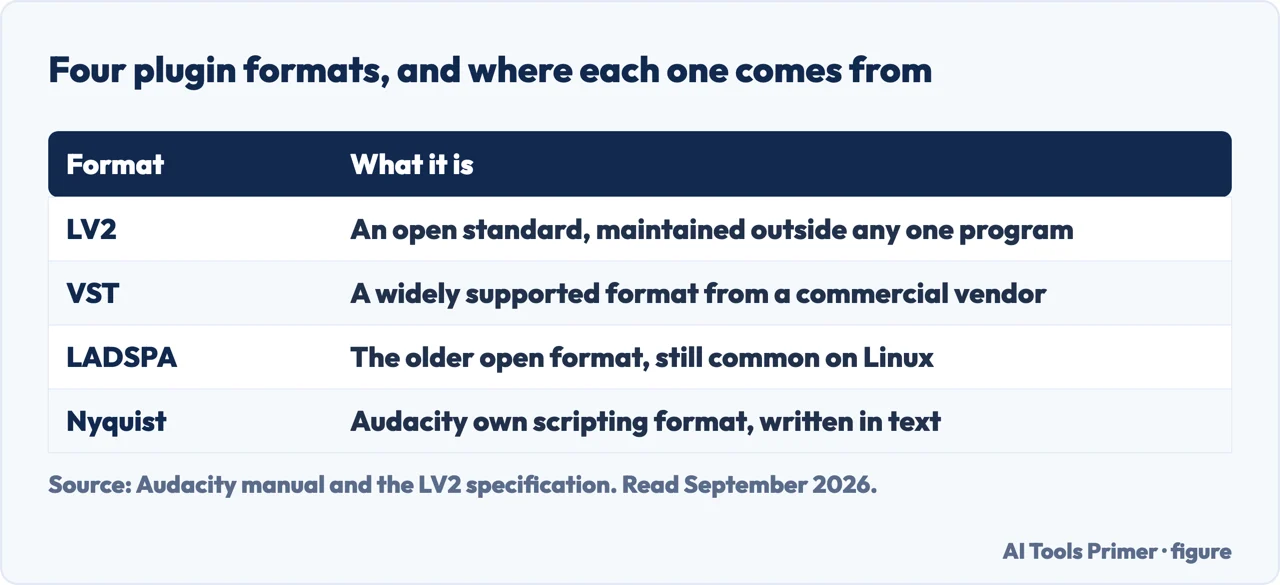
Installing one is usually nothing: “Most plugins get automatically activated once you install them on your system.” The interesting question is the other one — what to do when a plugin is definitely on the machine and definitely not in the menus.
Four formats, and only one is Audacity own. Figure drawn by AI Tools Primer.
Why a plugin does not appear
Audacity documents every one of these. Check them in this order — the first three cost nothing to rule out.
Wrong architecture. “64-bit Audacity can only run 64-bit plugins, and 32-bit Audacity
can only run 32-bit plugins.”
Wrong processor. “Apple Silicon (arm64) Audacity cannot run Intel (x86-64)
plugins and vice versa.” A plugin that worked on an older Mac may not work on a newer
one.
It is an instrument. “‘Instrument’ versions of plugins (VSTi, LV2i) are
not supported.” No folder will make one appear.
It is in the wrong folder — or, for LV2, copied wrongly. See below.
It is installed but switched off in the Plugin Manager. Audacity says most plugins activate themselves, which is why an installed-but-disabled plugin looks like a failed installation.
Those first three are compatibility rules rather than mistakes, and they matter because none of them produces an error message. The plugin simply is not there. Ruling them out takes a minute and saves rearranging folders that were never the problem.
The second applies to any Mac that changed processor. A plugin that worked for years on one machine can be silently invisible on its replacement, and nothing about the file says so.
If the compatibility rules are satisfied and it still is not showing, the next thing is the location — and here Audacity is exact rather than approximate.
Windows
VST2C:\Program Files\Common Files\VST2 or …\Steinberg\VSTPlugins
VST3C:\Program Files\Common Files\VST3
LV2C:\Program Files\Common Files\LV2
LADSPA%AppData%\audacity\Plug-ins
VampC:\Program Files\Vamp Plugins\
Nyquist — installed differently
macOS
Per-user ~/Library/Audio/Plug-Ins/… or system-wide /Library/Audio/Plug-Ins/…
Audio Unit…/Components/
VST2…/VST/ · VST3…/VST3/
LV2~/.lv2 or …/LV2
Vamp…/Vamp
Nyquist — installed differently
Linux
LV2~/.lv2, /usr/local/lib/lv2 (32-bit) or …/lib64/lv2
VST2~/.vst or /usr/local/lib/vst — “Many VST effects
are Windows-only”
VST3~/.vst3 or /usr/local/lib/vst3
LADSPA~/.ladspa or /usr/local/lib/ladspa
Vamp~/.vamp or /usr/local/lib/vamp
Nyquist — installed differently
Two things are worth noticing in those three lists rather than just reading past them. The sets are not the same. Audio Unit appears only for macOS; LADSPA appears in the Windows and Linux lists and not in the macOS one. So a plugin format that is normal on one system may not be part of the arrangement on another, and a set of instructions written for a different operating system can send you to a folder that means nothing on yours.
The second is a warning Audacity attaches to the Linux VST2 entry and nowhere else: “Many VST effects are Windows-only.” That is about the plugins rather than about Audacity — a Linux user hunting for a specific effect may be hunting for something that was never built for the system.
And one instruction is repeated so consistently across all three platforms that it deserves its own box.
“Always copy the complete .lv2 folder.”
Audacity repeats that instruction on all three operating systems, with the word
“folder” emphasised each time. An LV2 plugin is a directory, not a file. Move only the file inside it that looks like the plugin, and nothing appears — with no error to explain why. Audacity emphasising the word three times over is the documentation flagging its own trap.
Nyquist plugins have their own installer
Six steps, and the fifth is a restart — nothing works until it happens.
Download the plugin.
In Audacity, go to Tools → Nyquist Plugin Installer.
Click Browse and find the downloaded file.
Click Open, then Apply, then OK.
Restart Audacity.
It then appears “in the corresponding Generate, Effect or Analyze menu” — which is
three different places, depending on what the plugin does.
Nyquist is worth understanding as a separate category rather than as one more format on the list. It is the only one Audacity installs from inside Audacity, through its own menu item, and the only one that needs a restart before it works. If a set of instructions tells you to drop a Nyquist plugin into a folder, that is not the route the documentation gives.
Turning them on and off. Audacity keeps this in one place:
Tools → Plugin Manager. Select what you want gone and click Disable; select it again
later and click Enable. Then click OK to close the manager and save the settings —
the change is not kept by closing the window another way. This is also where to look when a
plugin you know you installed is not in the menus: installed and enabled are two different
states, and only the second one shows up.
What this page will not do is tell you which plugins to install. That would mean running them against real recordings for long enough to have a view worth publishing, and this site does not put out verdicts it has not earned. Audacity maintains its own plugin site, linked from the same documentation page, and that is where the makers themselves point.
One thing can be said without testing anything, and it is the reason this guide exists at all. Everything above is published by the people who make the program, in a support page that names exact folders for three operating systems and states its own limits in a box headed Caution. When a maker documents this precisely, the useful thing to do is quote it rather than paraphrase it.
Why a plugin from one program sometimes works in another. The formats Audacity accepts are open specifications maintained outside it: LV2 describes itself as “an extensible open standard for audio plugins”, which is why a plugin is written once and loaded by several hosts. That is also the limit — a host supports the formats it chose to support, and a plugin in a format yours does not read is not broken, it is addressed to somebody else.
The guides below take it three ways: getting sound in and out, cleaning up what you recorded, and the questions that come after — what may be published, and what a recording reveals.
Where to start
Three ways in. If a plugin is missing, the first list answers it.
Three compatibility rules that block a plugin without saying so, a folder that has to be copied whole, and a manager where installed and enabled are separate states.
Audacity publishes exact paths for Windows, macOS and Linux — and the three lists are not the same list. A format normal on one system may not be offered on another.
One format installs itself from inside the program and needs a restart. The manager is where anything installed can be switched off — and where a missing plugin may be hiding.
Not covered here. It will not recommend plugins. Choosing between them takes running them on real recordings, and an untested recommendation is worth less than an honest gap.
It will not give one set of folders. Audacity publishes three lists for three systems and they differ, so a single path would be wrong for two of the three.
And it will not tell you a missing plugin is a bug. Audacity names five ordinary reasons, three of which produce no message at all. What holds instead is simple: everything above about folders and the five ordinary reasons a plugin goes missing is Audacity’s own wording, read on the date this page names.
Editing a recording once you have it
The work that happens after the record button, whatever made the file.
Audacity, Installing plugins — official support documentation (that most plugins are automatically activated once installed on the system; the cautions that 64-bit Audacity can only run 64-bit plugins and 32-bit Audacity only 32-bit plugins, that Apple Silicon arm64 Audacity cannot run Intel x86-64 plugins and vice versa, and that instrument versions of plugins such as VSTi and LV2i are not supported; the manual installation folders for Windows covering VST2, VST3, LV2, LADSPA and Vamp, for macOS covering Audio Unit, VST2, VST3, LV2 and Vamp with the per-user and system-wide alternatives, and for Linux covering LV2, VST2, VST3, LADSPA and Vamp; the repeated instruction always to copy the complete .lv2 folder; the note on the Linux VST2 entry that many VST effects are Windows-only; the six steps for installing a Nyquist plugin via Tools → Nyquist Plugin Installer, including restarting Audacity and the plugin then appearing in the corresponding Generate, Effect or Analyze menu; and the routine for deactivating and re-activating plugins via Tools → Plugin Manager, selecting and clicking Disable or Enable and clicking OK to close the manager and save the settings) — support.audacityteam.org, read 6 September 2026.
LV2 — the audio plugin specification: an open standard maintained outside any one program, which is why a plugin can load in several hosts — lv2plug.in, read 4 September 2026.
AG
Written by Alberto Gulotta
Founder and editor of AI Tools Primer, writing from Palermo, Italy. Thirty-five years of
taking computers apart, starting with a Commodore 64 — the long version is on the
about page.
Written on 22 August 2026 · last checked 23 September 2026.
§
Independence and limits
No affiliate links and no paid placements anywhere on this site. Nobody pays to appear here,
and no company has seen this page before you did.
This is general information, not professional advice. Where a page touches money, health,
safety or the law, it names its source and the date it was read — and your situation may
still differ. See the privacy page and the
cookie policy.