
Video · guide
Image to video: clip length, limits, watermarks and rights
By Alberto Gulotta · Updated · 13 min read
Image to video tools take a still picture and add motion. Adobe, Canva, HeyGen, Viggle and Google each describe their own tool on a page we read on 29 October 2026, and the clip lengths differ, from three seconds to ten. This page sets what they say side by side. We did not test any of them.
| Question | Answer | Where it comes from |
|---|---|---|
| How long is the clip? | Canva says three seconds, Adobe about five, Viggle’s free videos five, Google ten, HeyGen ten to fifteen for motion alone | Each page |
| What can I upload? | Adobe says JPG or PNG under 50MB; HeyGen says PNG, JPG or WebP up to 5MB; Viggle says at least 512px on the short side | Adobe, HeyGen, Viggle |
| How sharp can the video be? | Adobe says up to 4K, with settings that vary by AI model; HeyGen says 1080p from a paid plan and 4K export on Pro and Business; Viggle says Pro users can generate up to 1080p; the Canva and Google pages do not give a resolution | Adobe, HeyGen, Viggle |
| Is there a free way in? | Adobe, Canva, HeyGen and Viggle describe one; Google says a Google AI subscription is needed | Each page |
| Is the video marked? | Adobe says no watermark; Viggle and HeyGen say free exports carry one; Google embeds an invisible one | Adobe, Viggle, HeyGen, Google |
| Can I use it commercially? | Adobe and Canva say yes, each with conditions; the other three pages do not address it | Adobe, Canva |
What the pages mean by image to video
All five pages start from a picture you already have and add movement to it. Adobe’s page says Firefly takes photos or AI-generated images plus a prompt and turns them into video. It also separates the job from text to video: text-to-video models, it says, build an entire scene from a written prompt, while image-to-video models start with your existing picture and focus on adding motion or camera movement. Canva describes the same idea with a different route. In its editor you click Edit, choose Image to Video under Magic Studio, and pick Smart to animate the image automatically or Custom to type how it should move.
HeyGen asks for a prompt about the camera and the subject, and gives one example of a good prompt, “Slow zoom in, soft smile, gentle head turn”, which it says beats a vague one such as “make it move”. Viggle splits the job in two. Its Video route works like the others, with a prompt and a model. Its Mix route takes the motion from a video, either a template or a clip you upload, and puts it on the person or character in your photo. Google’s page is about Gemini Omni, which it says will take the place of Veo in the Gemini app and which includes making video from images.
Two pages add a way to fix where the clip ends. Adobe lets you upload a second frame to mark the last frame of the scene. Viggle says its free model offers first-and-last-frame control. On models, Adobe says Firefly offers its own Firefly Video Model plus partner models from Google, Runway, Luma and OpenAI, and Viggle says its free accounts use Viggle-Optimized Minimax H3 while Veo 3.1, Wan 2.7, HappyHorse and Kling 3.0 work on any paid plan. Every statement here is what that maker says about its product, not something we saw happen.
How long the clip runs
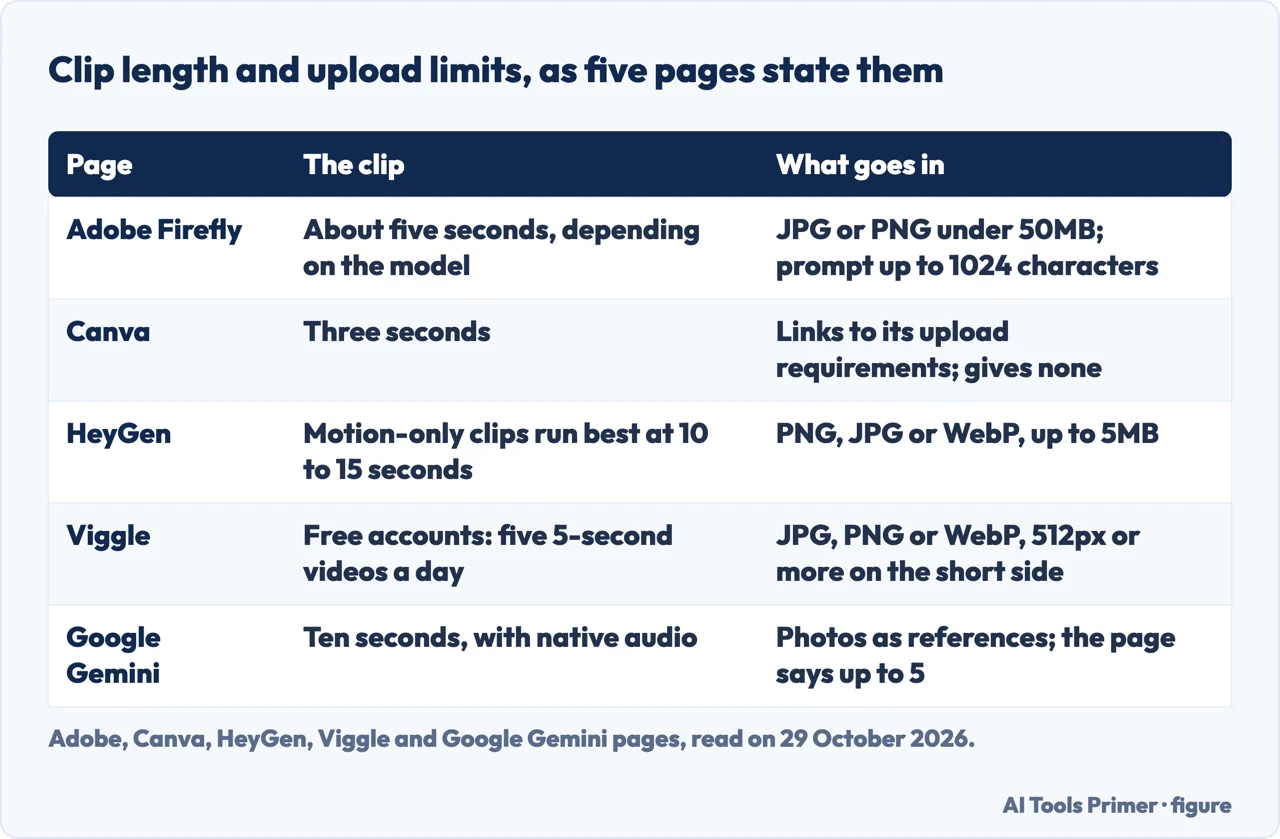
The clip is short on every page, and the pages do not agree on how short. Canva says the converted video lasts three seconds, and that you then edit it with filters and effects and add text and audio. Adobe’s FAQ says clips download as MP4 at up to 4K with a duration of approximately five seconds, depending on the AI model used. Viggle says free accounts get five videos a day of five seconds each, and that most videos are ready in under a minute. Google’s page says Gemini Omni 1.1 Flash creates videos of ten seconds with native audio.
HeyGen gives two figures because it sells two things. For clips with motion alone it says they run best at 10 to 15 seconds. For talking photos, where a script is paired with lip sync, it says the video runs as long as the script, up to 30 minutes on its Creator and Pro plans and 60 minutes on Business. Its free plan, the page says, covers videos of up to one minute each.
Generation time is stated by three pages. Adobe says you will typically see results in under two minutes from upload to preview, HeyGen says most short clips render in under two minutes, and Viggle says most are ready in under a minute. Adobe frames its clips as material for B-roll, cutaways and inserts that you blend with footage you already have, and Canva says you then edit the three-second video with filters and effects and add text and audio. The figure below puts the lengths next to the upload limits.
What you can upload
The limits are stated differently. Adobe’s limits appear in the error messages of its upload form. One says the media must be smaller than 50MB, another that it must be a jpg or png file, another that only one file can be uploaded at a time, and a fourth that a prompt over 1024 characters is too long. The page says you can start from a photo, a digital illustration, an AI-generated image or another static graphic. HeyGen says PNG, JPG and WebP up to 5MB, and adds that higher resolution gives sharper motion, so you should use the best version you have.
Viggle says any standard format works, naming JPG, PNG and WebP, and recommends images at least 512px on the shortest side for the sharpest output. It says front-facing photos with clear lighting give the most realistic motion mapping, and that side-angle shots and illustrations also work. Canva names photographs, illustrations, diagrams and 3D shapes as things you can animate, and points to a separate page about its upload formats and requirements without giving a size or a format on this one. The Google page says Omni can turn photos into a video and create video from photo references, and puts fino a 5, which we read as up to five, beside both; it gives no file size and no format.
So the only maximum file size that appears in writing is Adobe’s 50MB and HeyGen’s 5MB, a tenfold difference between two pages describing the same kind of job. Whether either figure would stop a particular photo is not something the pages answer, and we did not upload one.
What is free, and what is marked
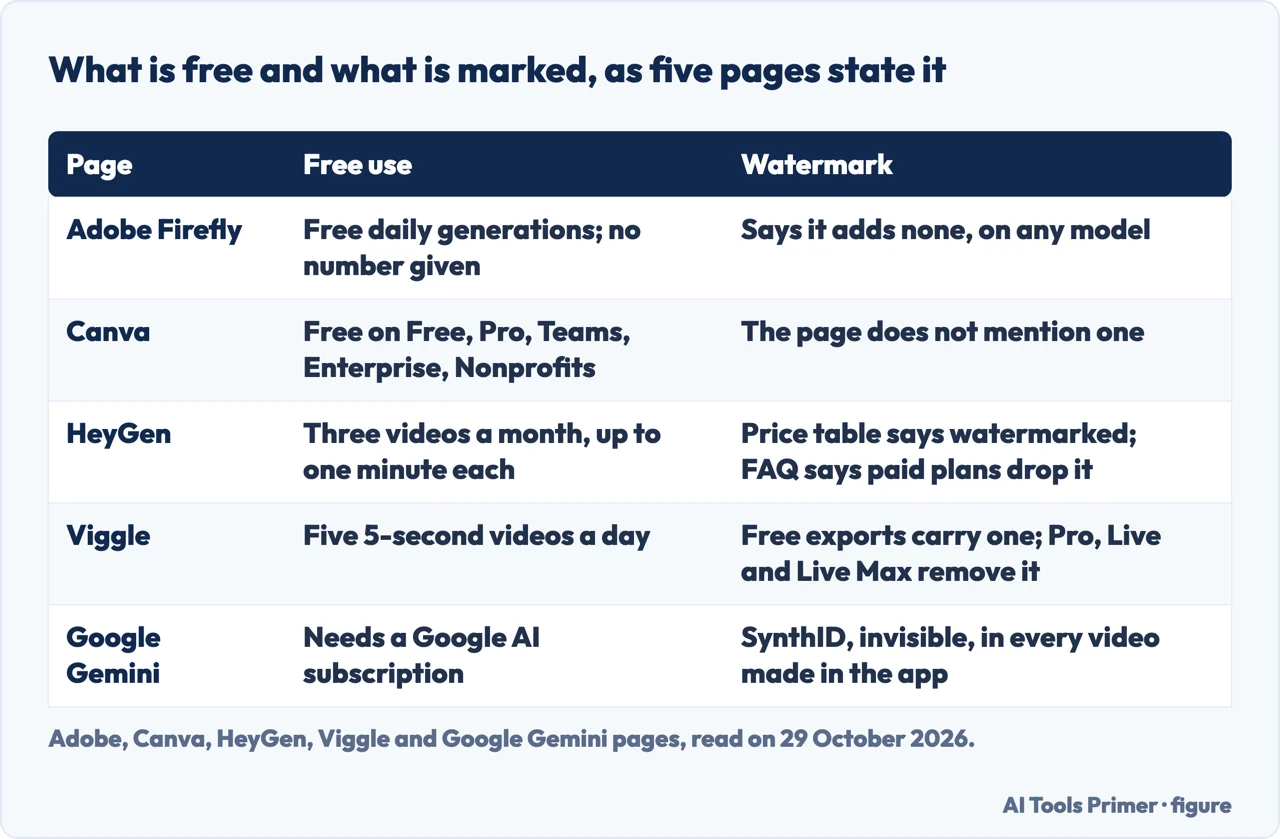
Adobe says you can use Firefly’s image-to-video tool for free with an Adobe account, and that a free account gets free daily generations with the Adobe Firefly Video Model; a paid plan is for higher-volume generations and more partner models. The page gives no number for the daily allowance. On marking, it is the most direct of the five: Adobe says Firefly does not add a watermark to any video you generate, whether you use its own model or a partner model. Canva says its tool is free to use and is available on Free, Pro, Teams, Enterprise and Nonprofits accounts. The page does not mention a watermark either way.
HeyGen’s page is the one that points two ways. Its price table lists the free plan as 3 videos a month, watermarked, and its FAQ says paid plans add watermark-free export, longer videos, voice cloning and 4K. Yet the figures at the top of the same page include “No Watermark” beside its rating and language count. We read both and cannot tell from the page how they fit together. Viggle is direct: after signing up you get 5 free videos a day, free exports carry a watermark, and upgrading to Pro, Live or Live Max removes it.
Google works differently. Its page says Omni needs a Google AI subscription, that features vary by tier and region, and that it is for users aged 18 or over. It says all videos made in the Gemini app carry SynthID, which it calls an imperceptible watermark, and that you can upload a file and ask whether it was generated with Google AI. A banner on the page we read also offered students access to Omni at no cost for a year, a promotion it said was ending soon.
Rights and commercial use
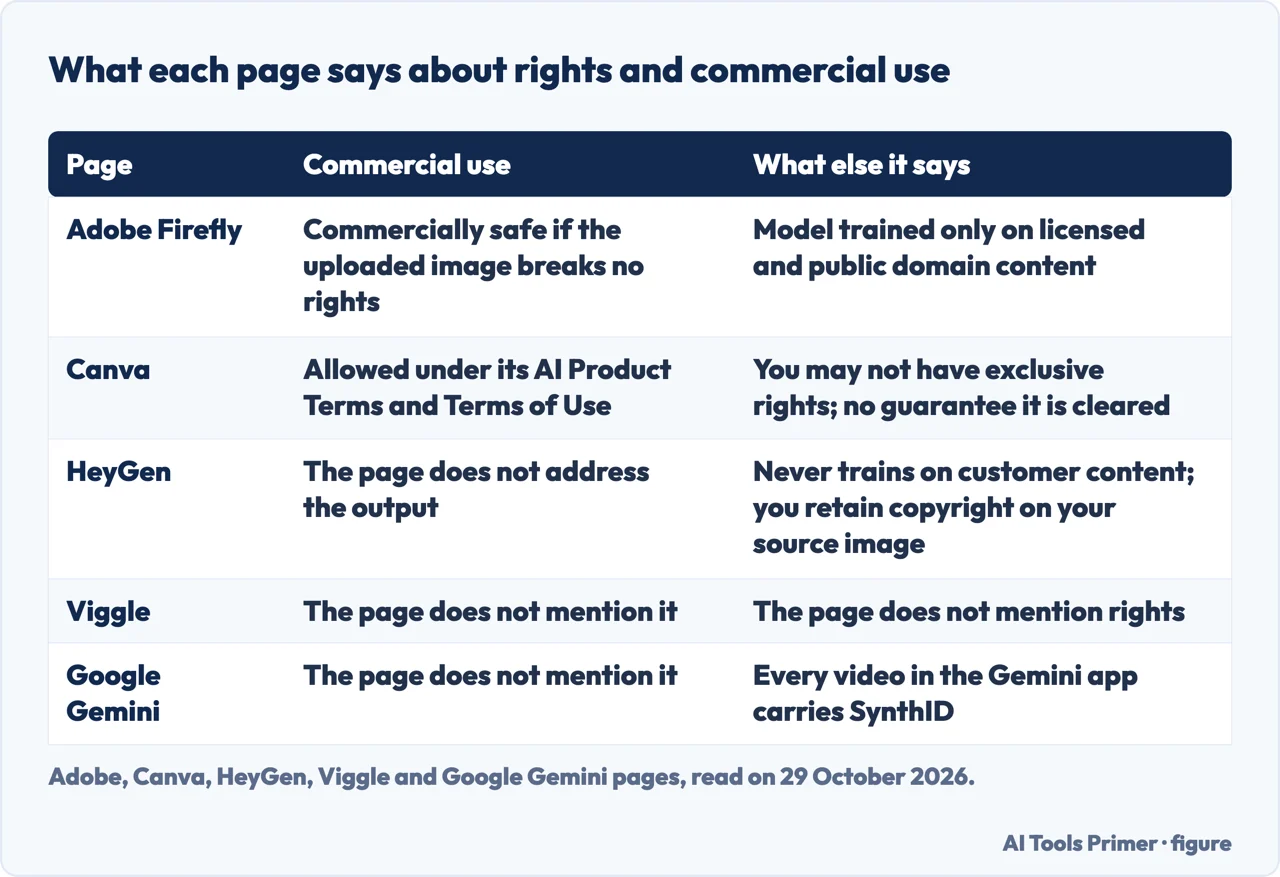
Adobe and Canva are the two pages that speak to commercial use, and neither says a plain yes. Adobe says the Firefly model is trained only on licensed content and public domain content where copyright has expired. It says that as long as the image you upload does not violate copyright, trademark, privacy, publicity or other rights, videos you generate from it with Firefly models are commercially safe. The condition sits on the picture you bring.
Canva says you can use the video commercially as long as you follow its AI Product Terms and Terms of Use, and then adds limits: you may not have exclusive rights to the video, it is your responsibility to decide whether permission is needed to depict works of art, photographs, trademarks or logos, and Canva does not guarantee that the output is cleared for use, particularly if it looks similar to someone else’s work. On who owns the copyright, Canva says the law is currently unclear. It says it makes no copyright claim over what you generate, and that between you and Canva you own the designs you created, subject to its Terms. For safety it describes automated reviews of input prompts for terms that might generate inappropriate content, and a way for users to report unsafe content.
HeyGen speaks to your photo, not to the clip. It says it is SOC 2 Type II certified and GDPR compliant, that it never uses customer content to train AI models, and that you retain copyright on your source image. The page does not say what you may do with the finished video. The Viggle and Google pages we read do not mention commercial use. The third figure sets the five side by side.
What to check before you upload
The five pages are each a maker describing its own tool. Set side by side, the same few facts come up. The length of the clip, because it runs from three seconds on Canva to ten on Google and, for motion alone, ten to fifteen on HeyGen. The size and type of the file, because Adobe asks for JPG or PNG under 50MB while HeyGen allows PNG, JPG or WebP up to 5MB. Whether the plan you will use is free, and what the free plan puts on the video. And whose rights are involved: Adobe puts the condition on the image you upload, and Canva says you may not have exclusive rights.
Two of the answers are about the plan rather than the tool. Google’s tool sits behind a subscription, and HeyGen’s free videos are watermarked in its price table while its FAQ lists watermark-free export as something a paid plan adds. Viggle and HeyGen say the watermark leaves with an upgrade; Adobe says it does not add one.
What the pages leave out is just as clear. The five pages we read for this guide do not compare themselves with each other, and the text we read does not describe what goes wrong when an image is animated. Canva’s page gives no file limit and no watermark statement, Adobe’s gives no daily number, and HeyGen’s and Viggle’s do not address commercial use of the output. We read no terms of service, so a point a page leaves out is simply not covered here.
What we did not use
We made no video with these tools and ran no test of them. We did not open pages from Magic Hour, Picsart or PixVerse, did not watch a YouTube video on turning a photo into a video, and used no AI-generated summary. The Google Gemini page is shown partly in Italian, and the statements here are our translation of it. Prices are left out on purpose, because the only figure we read was HeyGen’s and it comes from the seller’s own page. This page has no question-and-answer block.
Where to start
Five ways in.
- “How long is the video?”
- How long the clip runs — length
- “What file can I upload?”
- What you can upload — upload
- “Is it free, and is it marked?”
- What is free, and what is marked — free
- “Can I use it for work?”
- Rights and commercial use — rights
- “What should I check first?”
- What to check before you upload — choose
Free tools and what they mark
Free plans, watermarks and subscriptions in video software.
After the clip is made
Getting a finished clip into a file that plays, fits and looks right.
Not covered here. We made no video with any of these tools. The statements come from the Adobe Firefly, Canva, HeyGen, Viggle and Google Gemini pages, all read on 29 October 2026, and each one describes its own product.
The search volume and difficulty behind this page come from a Semrush reading of 29 August 2026, older than the 60 days the site normally allows.
Sources
- Adobe — Free Online Image to Video AI | Adobe Firefly — www.adobe.com, read 29 October 2026.
- Canva — Free online image to video AI generator — www.canva.com, read 29 October 2026.
- HeyGen — Free Image to Video AI Generator, Animate Any Photo — www.heygen.com, read 29 October 2026.
- Viggle — Free Image to Video AI Generator — viggle.ai, read 29 October 2026.
- Google — Gemini Omni — gemini.google, read 29 October 2026.
Written by Alberto Gulotta
Founder and editor of AI Tools Primer, writing from Palermo, Italy. Thirty-five years of taking computers apart, starting with a Commodore 64 — the long version is on the about page.
Something wrong on this page? Write to aitoolsprimer@gmail.com and it gets fixed.
Written on 29 October 2026.
Independence and limits
No affiliate links and no paid placements anywhere on this site. Nobody pays to appear here, and no company has seen this page before you did.
This is general information, not professional advice. Where a page touches money, health, safety or the law, it names its source and the date it was read — and your situation may still differ. See the privacy page and the cookie policy.