
Web · guide
How to backup a website WordPress: what you copy, what a host keeps
By Alberto Gulotta · Updated
How to backup a website WordPress comes down to two parts, the files and the database, which WordPress.org says are both needed to restore it. Six host pages describe what each one keeps or leaves out, and WordPress.org says it is better to back up your own files too.
| Question | Answer | Where it comes from |
|---|---|---|
| What is copied? | Two parts, the files and the database; both are needed to restore a typical site | WordPress.org |
| Does a file backup include the database? | Usually not: the database sits in a separate system outside the WordPress directory | WordPress.org |
| In what order? | Database first, then files; on restore, files first, then the database | WordPress.org |
| How often? | Once a week for smaller sites, daily for high-activity ones, and always before an upgrade | WordPress.org |
| Is the host’s copy enough? | WordPress.org says it is better to back up your own files; the host pages differ on what they keep | WordPress.org, host pages |
What a WordPress backup is made of
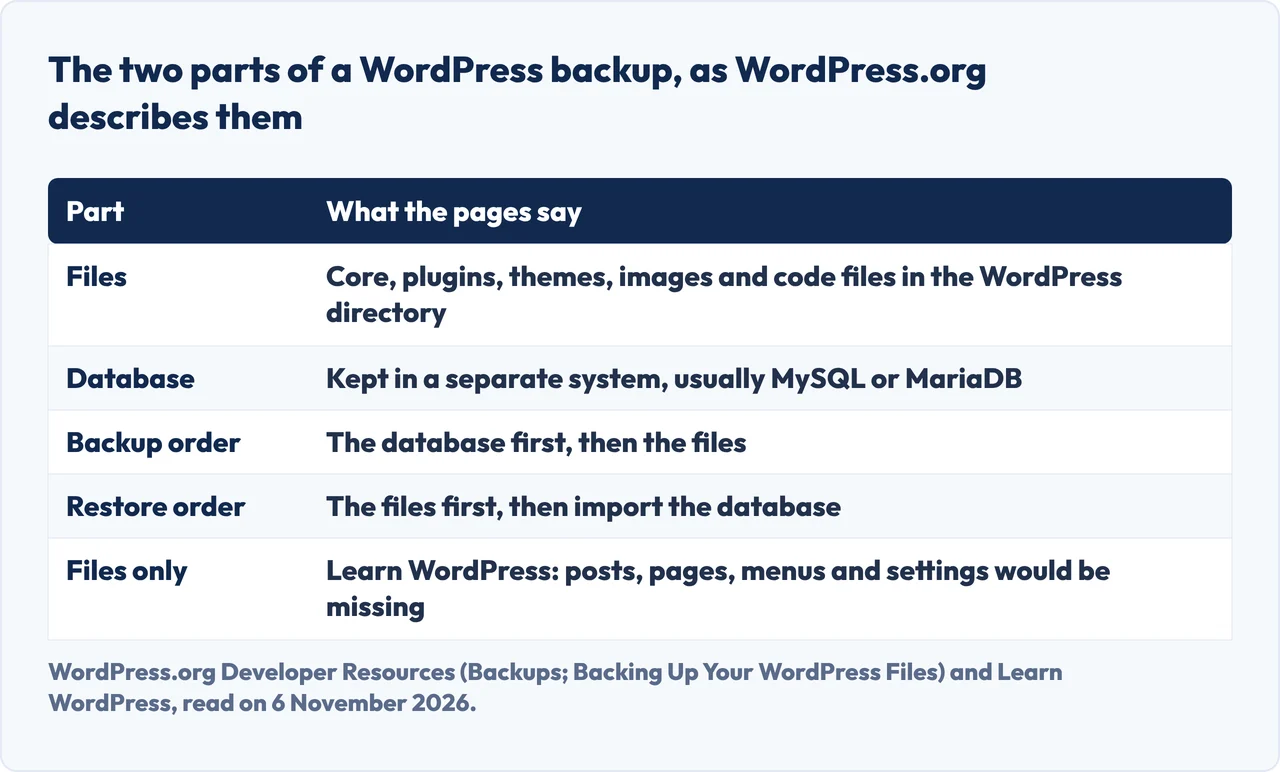
WordPress.org’s backup page says there are two parts to backing up a WordPress site, the database and the files, and that both are needed to fully restore a typical site. The files are the ones in the WordPress directory on the web server: the core installation, plugins, themes, images and other uploaded files, JavaScript and PHP code, and static pages. The database holds the posts and a lot of the data generated on the site, and it lives in a separate database system, usually MySQL or MariaDB, outside the WordPress directory.
That is why the answer WordPress.org gives to whether backing up the files also backs up the database is “Usually no.” Exporting the database produces a file, with an extension such as .sql, .gz or .bz2, which can be stored next to the file backup, but restoring it still means importing it back into MySQL or MariaDB. Learn WordPress, the lesson site of WordPress.org, makes the same point from the other side: in its quiz, someone who backs up only the files would be missing all the content and settings, meaning posts, pages, menus, widgets and configuration, because those are kept in the database.
Inside the files, WordPress.org says the wp-content directory holds the user-generated content by default, such as edited themes, new plugins and uploaded files, and that wp-config.php holds the connection details. It adds that the remaining files are mostly WordPress core, which comes from the WordPress zip download, so core can be replaced from a fresh download. The same page also says to back up everything in the WordPress directory, subdirectories and the .htaccess file included, and Learn WordPress tells the reader to download the wp-admin, wp-content and wp-includes folders and all the files at the root for a complete file backup. The two pages are not saying the same thing about core files, and each is given here as it reads.
On the order, WordPress.org says to treat files and database as one backup set created around the same time, with the database backed up first and then the files. To restore, it says to put back the files first and then import the database, and to update wp-config.php if the database credentials changed in a migration. SiteGround’s academy page, from a company that sells hosting, agrees on the timing: it says a complete backup needs files and database captured at the same point in time, and that a file backup from Monday paired with a database backup from Wednesday creates inconsistencies.
What the host pages say they keep
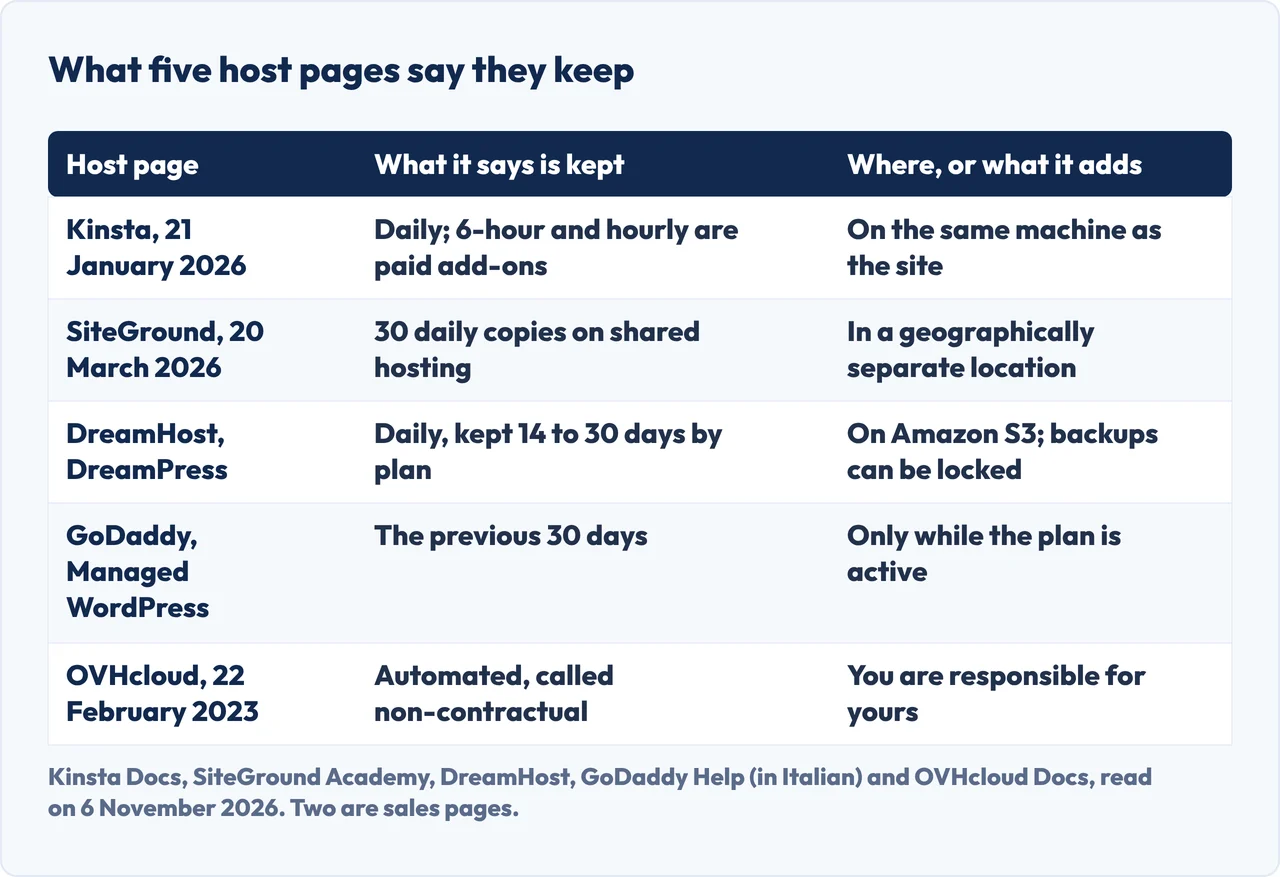
WordPress.org’s pages say most hosts back up the entire server, including your site, but that it takes time to request a copy from the host’s backups and a speedy recovery is critical, so it is better to back up your own files. They also say to check with the host about the services and programs it offers. OVHcloud’s tutorial, last updated on February 22, 2023, puts the responsibility in plain terms: on a web hosting plan, the customer is “responsible for your website’s backups.” It says OVHcloud offers automated backups it calls “non-contractual,” and that the customer sets up a restoration policy and chooses the restoration points.
Kinsta’s documentation, updated on January 21, 2026, says it makes a backup every day and system backups before events such as a restore, a push from staging, a search and replace or a theme or plugin update. Each backup is a snapshot of files, database, redirects, Nginx configuration and MyKinsta settings, stored on the same host machine as the site. Manual backups run to five, kept for a minimum of 14 days. The page lists paid add-ons: backups every 6 hours at $20 per site per month or every hour at $100, each available for 24 hours, and an external add-on that sends weekly or monthly copies to Amazon S3 or Google Cloud Storage for $2 a month per site backup plus $1 a gigabyte for bandwidth. Those are the prices as the page printed them when we read it. The lines we read do not give a number of days for the daily backups.
SiteGround’s academy page, dated March 20, 2026, says shared hosting includes 30 daily automatic backups stored in a geographically separate location, which can be restored in part, files or database or both, or in full from Site Tools. Its Premium Backups add hourly copies kept for 48 hours and a downloadable copy. DreamHost’s DreamPress page says daily backups are kept for 14 to 30 days depending on the plan, that on-demand backups are only on DreamPress, that every backup is stored on Amazon S3, and that a locked backup is not deleted by the routine cycles. Both pages sell the host’s own plans. GoDaddy’s help page for Managed Hosting for WordPress came to us in Italian, so it is paraphrased here: it says the previous 30 days of backups are kept automatically, include files and database, and can be restored separately or together.
The pages differ on where the copies sit. Kinsta says on the same machine as the site, with an external add-on for a second place; SiteGround says in a separate location and adds that backup files on the same server as the live site would be lost together with it in a single server failure; DreamHost says Amazon S3; WordPress.org says to keep copies in different places, including a local computer. The pages also differ on how long copies last: 30 days at GoDaddy, 30 daily copies at SiteGround, 14 to 30 days at DreamHost. The pages we read do not set one host’s backup against another’s.
What a host backup leaves out
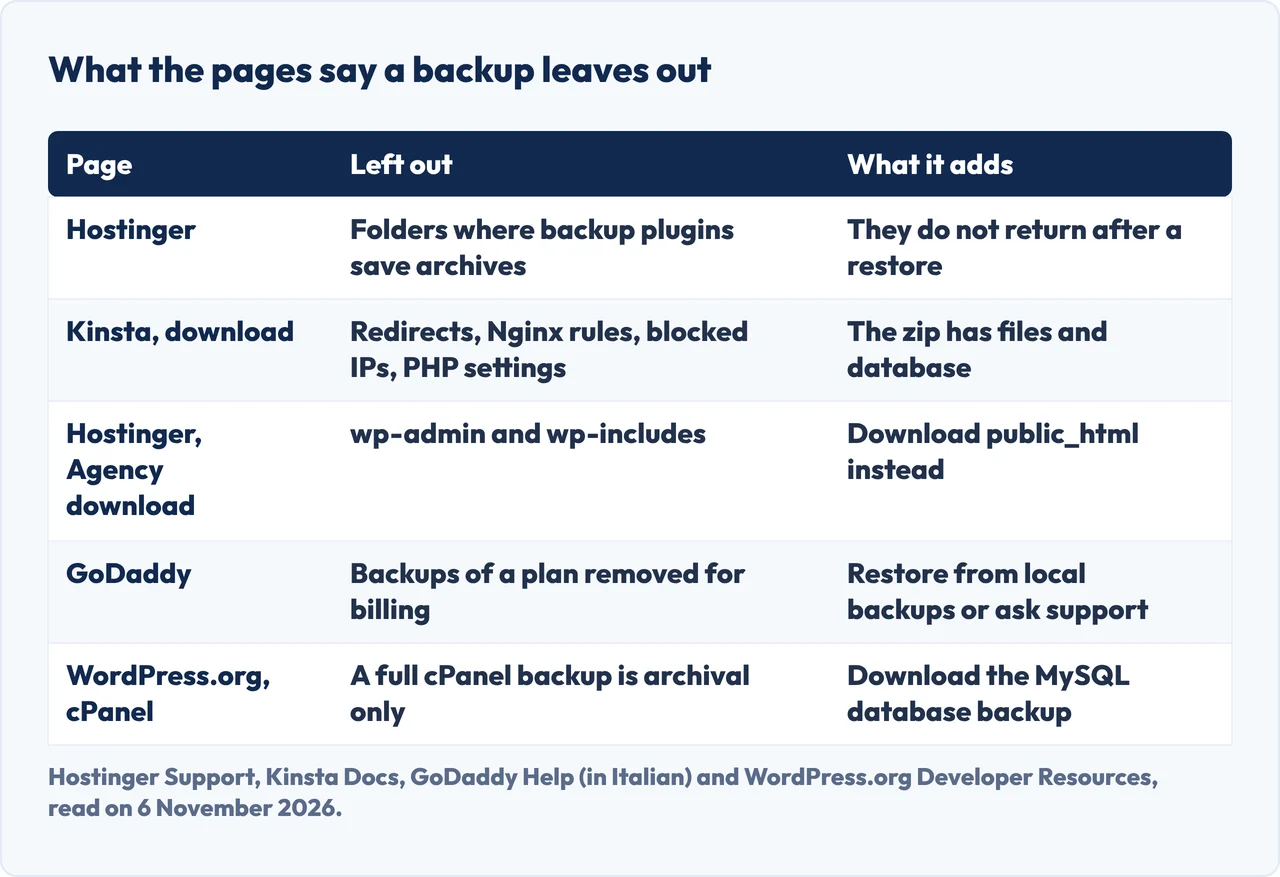
Hostinger’s support page says it backs up the site’s files and database but skips the archives that third-party backup plugins save inside the site’s folders. It lists the paths: wp-content/ai1wm-backups for All-in-One WP Migration, wp-content/updraft for UpdraftPlus, two wpvividbackups folders for WPvivid, wp-content/backups-dup-lite and backups-dup-pro for Duplicator, and wp-content/wp-snapshots for other tools. Its stated reason is to keep backups smaller and faster and to avoid “a backup inside our backup.” The page says the exclusion cannot be turned off, that the skipped archives cannot be recovered from the dashboard and do not reappear after a restore, and that the customer should keep their own copies of plugin-made archives, for instance by sending them to Google Drive, Dropbox or Amazon S3. It lists as included the core files, themes and plugins, the uploads directory and the database tables.
The same page has a second limit. On Hostinger Agency Hosting plans, a downloaded file backup of a WordPress site contains only wp-config.php and the wp-content folder, not wp-admin and wp-includes, and the page says to download the public_html folder from File Manager to get the complete installation.
Kinsta’s downloadable backup, available once a week and for 48 hours, is a zip with only the database and the files. The page says it will not contain the MyKinsta settings or custom server-side configuration: redirects, custom Nginx rules, blocked addresses in IP deny, changes in PHP or MySQL configuration, and add-ons. It also says restoring a snapshot rolls back everything it holds, domains included, so a custom domain added after that moment has to be added again.
GoDaddy’s page, in paraphrase, says its backups are available only for active Managed Hosting for WordPress plans; if a plan was removed for failed billing, the reader has to restore from local backups or contact support. WordPress.org’s page on the database says that in cPanel, a full backup is strictly for archival purposes and cannot be restored through cPanel, and tells the reader to download the MySQL database backup instead.
How often, and making your own copy
WordPress.org says to back up the database regularly and always before an upgrade. On frequency it says the answer depends on how often you blog, how often you want to do it and how you would feel if the database were lost along with a few posts, calls it the owner’s decision, and gives a general suggestion: once a week for smaller websites with fewer posts and daily for high-activity websites with many posts. Learn WordPress adds that backups belong before any core, plugin or theme update and before installing a new plugin. SiteGround reasons from the gap between the last backup and the moment of a restore, which it calls the data loss window: everything that changed since the last backup is gone after a restore, and its examples include WooCommerce orders and form submissions. It calls daily backups enough for relatively static sites such as portfolios and brochure sites, and says sites that process transactions may need hourly ones. It adds that with seven restore points, an infection older than a week leaves no clean copy.
On how many copies to keep, WordPress.org says “at least 3–5 recent WordPress backups,” stored in different places, for example on the hosting server, on cloud storage such as Google Drive or Dropbox, and downloaded to a local computer. It says automatic backups should themselves be checked with a manual backup once in a while to confirm that the process works.
For the files, WordPress.org and Learn WordPress describe an FTP client, with FileZilla, WinSCP and Cyberduck named, that downloads the site to a folder on the computer, which can then be zipped so that several versions are kept. WinSCP can also synchronize the site with a local folder. Learn WordPress recommends SFTP over FTP because SFTP encrypts the username and password before sending them over the network. OVHcloud’s tutorial does the same through an FTP client by dragging its www directory to a local folder.
For the database, WordPress.org’s steps in phpMyAdmin are to choose the WordPress database, click Export, pick the Quick or the Custom method and the SQL format. In the Custom method it says the Add DROP TABLE option makes the import delete an existing table of the same name before the table is created. It says phpMyAdmin cannot handle large databases, and says that using straight MySQL/MariaDB code from the command line, with the mysqldump command, will help; its page also has a section on MySQL Workbench. In cPanel it says not to generate the full backup, as noted above. WordPress.org also says plugins exist that take automatic scheduled backups, found in the Plugin Browser or the WordPress Plugin Directory. The host pages name some: Hostinger’s page lists All-in-One WP Migration, UpdraftPlus, WPvivid and Duplicator when it lists excluded folders, and OVHcloud’s tutorial walks through UpdraftPlus with a daily schedule and email delivery. WordPress.org’s pages we read do not rank these plugins.
Restoring it, and testing the copy
WordPress.org gives the order again for a restore: the files first, then the database. For the database in phpMyAdmin its steps are to log in, click Databases and select the database, open the Import tab, browse to the backup file, check that SQL is the format and click Go. It says this replaces the current database with the backup, reverting it to the state it was in when it was backed up. From the command line, it says to decompress the dump and import it with the mysql command. In its cPanel steps, WordPress.org says that when uploading to a new host the database user has to be recreated with the matching password, and that if the password changes, wp-config.php has to be updated to match.
Kinsta describes a restore from its downloadable zip in three moves: unzip it, delete what is in the site’s public folder and upload the files, then drop the existing database tables in phpMyAdmin and import the SQL file. It adds that if the import times out because the file is too large for the web uploader, the file can be placed in the private folder and imported from the command line. It also says that backups made with its external add-on cannot be restored directly in MyKinsta and have to be restored with the same downloadable-backup steps.
Both GoDaddy’s page, in paraphrase, and SiteGround’s warn that a restore discards what happened after the backup. GoDaddy’s examples are sales records, posts and comments written after the chosen date. SiteGround says WordPress does not have a built-in backup, because its autosave covers only drafts of posts and pages, and suggests restoring to a staging site to check that the backup process works, since a backup never tested is one “trusting on faith.”
What the pages do not say
The pages we read do not compare the backups of different hosts with one another or say which is better. WordPress.org’s pages do not say how many days a host keeps copies or where, and they do not name a plugin as better than the others. The Kinsta lines we read give no number of days for daily backups, and the Hostinger page we read does not say how long it keeps its backups or how often it makes them. WordPress.org says it “takes time” to request a copy from a host, and the pages we read do not say how long.
Kinsta’s prices and plans are as its page printed them on the day we read it.
Where to start
Four ways in.
- “What do I copy?”
- What a WordPress backup is made of — parts
- “What does my host keep?”
- What the host pages say they keep — keep
- “How often, and how?”
- How often, and making your own copy — own
- “How do I put it back?”
- Restoring it, and testing the copy — restore
Where the site runs
The host decides what is copied for you.
Copies and safekeeping
Where else a copy can live.
Questions people also ask
How often should you backup your WordPress website?
WordPress.org says it depends on how often you blog, how often you want to do it and how you would feel if the database were lost along with a few posts, and calls it the owner’s decision. Its general suggestion is once a week for smaller sites and daily for high-activity sites, and always before an upgrade.
How do I backup my website?
WordPress.org says to copy two parts, files and database. Files: an FTP client or shell copies the WordPress directory to a computer. Database: export it as SQL in phpMyAdmin, or use mysqldump. It also says to check with the host about the backup programs the host offers.
How do I export my entire WordPress site?
WordPress.org’s way is the two copies, files and database; SiteGround says its Premium Backups include a full backup as a single-click download. Kinsta offers a downloadable zip with files and the database, once a week, but it does not hold redirects, custom Nginx rules or PHP and MySQL configuration changes.
How do I download a backup of my WordPress website?
Kinsta’s page says to create a downloadable backup under Backups, then Download, and use the link in the email within 48 hours. Hostinger Agency Hosting says to download the public_html folder from File Manager. WordPress.org says an FTP client can download the files.
The statements come from WordPress.org Developer Resources, Learn WordPress, Kinsta, Hostinger, SiteGround, DreamHost, OVHcloud and GoDaddy, all read on November 6, 2026. SiteGround and DreamHost sell hosting, OVHcloud’s tutorial dates from 2023, and GoDaddy’s page was in Italian.
Sources
- WordPress.org Developer Resources — Backups — developer.wordpress.org, read November 6, 2026.
- WordPress.org Developer Resources — Backing Up Your Database — developer.wordpress.org, read November 6, 2026.
- WordPress.org Developer Resources — Backing Up Your WordPress Files — developer.wordpress.org, read November 6, 2026.
- Learn WordPress — Backing Up Your WordPress Site (lesson plan) — learn.wordpress.org, read November 6, 2026.
- Kinsta Docs — WordPress backups — kinsta.com, read November 6, 2026.
- Hostinger Support — Which files are excluded from Hostinger backups — www.hostinger.com, read November 6, 2026.
- SiteGround Academy — WordPress backups — www.siteground.com, read November 6, 2026.
- DreamHost — WordPress backups with DreamPress — www.dreamhost.com, read November 6, 2026.
- OVHcloud Docs — Backing up your WordPress website — docs.ovhcloud.com, read November 6, 2026.
- GoDaddy Help — Back up and restore my Managed Hosting for WordPress site (in Italian) — www.godaddy.com, read November 6, 2026.
Written by Alberto Gulotta
Founder and editor of AI Tools Primer, writing from Palermo, Italy. Thirty-five years of taking computers apart, starting with a Commodore 64 — the long version is on the about page.
Something wrong on this page? Write to aitoolsprimer@gmail.com and it gets fixed.
Independence and limits
No affiliate links and no paid placements anywhere on this site. Nobody pays to appear here, and no company has seen this page before you did.
This is general information, not professional advice. Where a page touches money, health, safety or the law, it names its source and the date it was read — and your situation may still differ. See the privacy page and the cookie policy.