
Work · guide
Is there a way to upload resume on LinkedIn? Yes, three
By Alberto Gulotta · Updated · 16 min read
Is there a way to upload resume on LinkedIn? Yes. LinkedIn Help says it offers multiple methods, and the pages we read describe three places for the file: your job settings, a job application and your profile. The third cannot be used to apply for jobs.
| Question | Answer | Where it comes from |
|---|---|---|
| Is there a way? | Yes: in your job settings, during an application, or on your profile | LinkedIn Help |
| Which file types? | Microsoft Word or PDF, with a recommended size under 2MB | LinkedIn Help |
| How many are kept? | The four most recently uploaded | LinkedIn Help |
| Does the profile copy count for applications? | No: use the settings or the application itself | LinkedIn Help |
| Who can see a file on the profile? | Anyone viewing the profile or post, and it may be visible off LinkedIn | LinkedIn Help |
Yes, and there are three places to put it
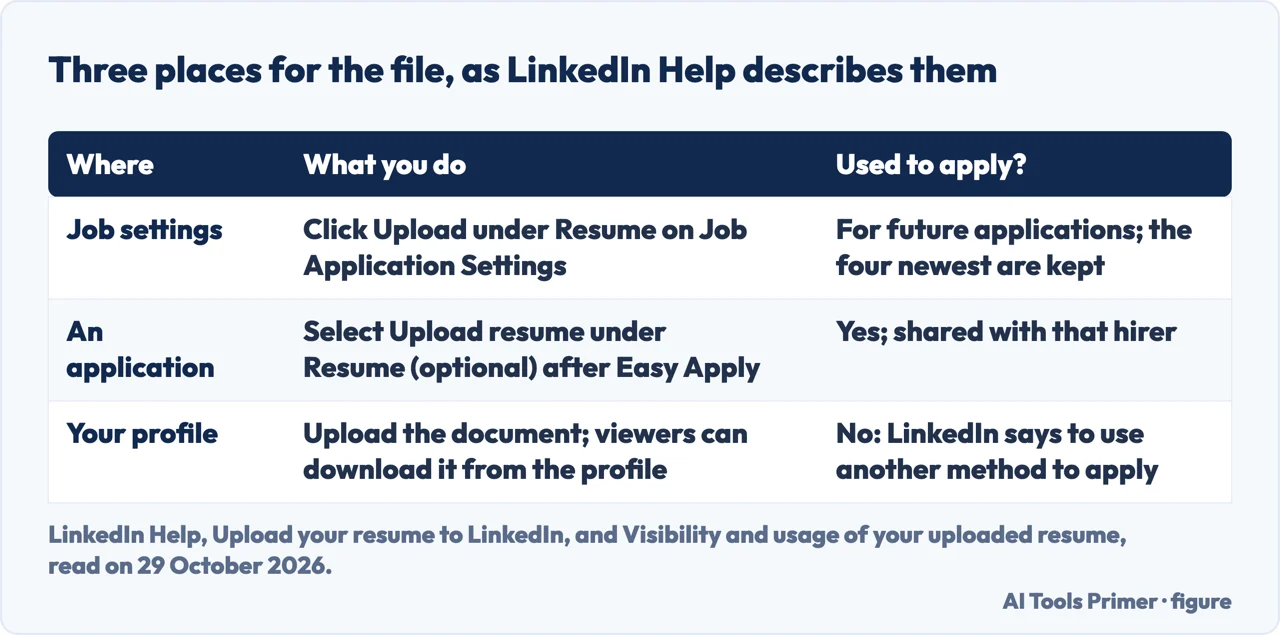
LinkedIn’s help page, titled “Upload your resume to LinkedIn”, opens by saying that LinkedIn offers multiple methods to upload a resume, including uploading it to job applications and displaying it on your profile. It then sets out three. The first is your account settings, for future job applications: on the Job Application Settings page you click Upload under the Resume section, or you go to the Jobs tab, click Preferences and then Resumes and application data. The second is the application itself: you search for a job, open its title, click Easy Apply, complete the required fields and, under Resume (optional), select Upload resume. The third is the profile, where an uploaded document is shared with your network and viewers can download it from your profile page.
What separates the three is what the file can do afterwards. The page says that a resume uploaded to your profile cannot be used for job applications, and that you should use one of the other two methods for those. The settings copy is kept so it can be reused for future applications, and the visibility page says that a resume uploaded while applying for a job on LinkedIn is shared with that hirer; the pages we read do not say whether an application upload also counts among the four saved copies.
If you do not have a resume to upload, the same page gives two routes. You can download your entire profile as a PDF in a resume format, or you can use LinkedIn Resume Builder to create and download a custom resume. It adds that Resume Builder is not currently available to all LinkedIn members, and the pages we read give no detail about who has it.
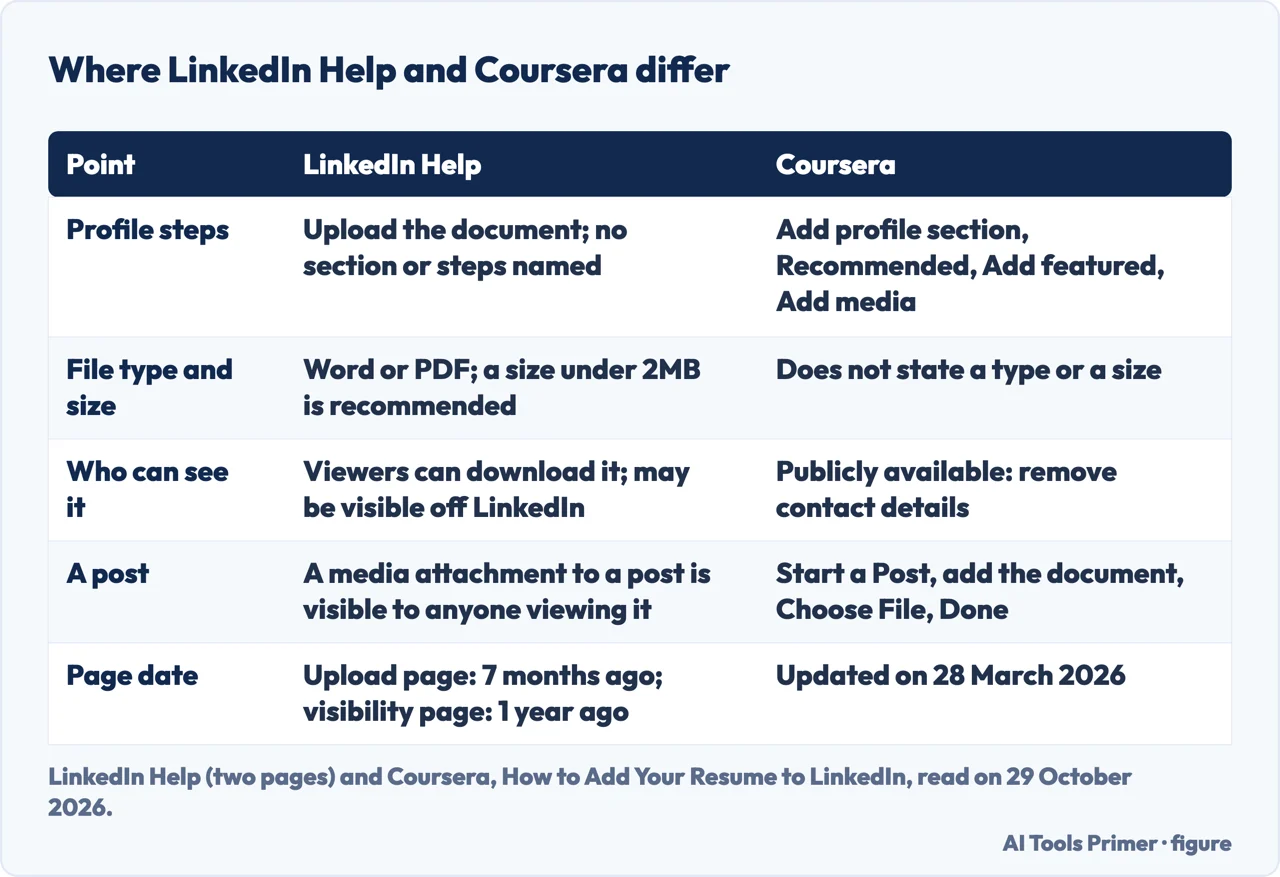
Coursera’s guide, updated on 28 March 2026, also lists three options, but not the same three: add the resume to your profile through the Featured section, apply with Easy Apply, or create a post. The two lists overlap on Easy Apply and the profile. LinkedIn Help mentions a post only as a place where a resume can be attached as media, on its visibility page.
Saving it in your settings
The settings route is the one that lets you reuse a file. LinkedIn Help says it stores your four most recently uploaded resumes so you can use them again for future job applications, and the visibility page repeats the number: when you upload a resume, LinkedIn saves a copy and retains the four most recent. The upload page also says that the file format must be Microsoft Word or PDF and recommends a file size below 2MB. That is a recommendation, not a stated limit. It also answers the question of whether a PDF works: according to LinkedIn Help, a PDF is one of the two accepted formats. Coursera’s guide does not state a format or a size.
Deleting a file uses the same two places. On the Job Application Settings page or the Resumes and application data page, you click the ellipsis to the right of the resume and select Delete, and LinkedIn Help says previously submitted applications are not affected. Coursera gives the same path in its closing answer and the same reassurance. One detail is worth reading closely: the section of the upload page with these steps is headed “Delete a resume from your profile”, yet the steps point to the settings pages and not to the profile.
For changing a file you already saved, the pages we read describe two actions, not an edit in place. A third LinkedIn Help page, on sharing and managing resumes with recruiters, says that from Preferences you can upload a new resume by clicking Upload resume and delete one by clicking the icon and then Delete. Combined with the four-file rule, that is how the saved set changes in the pages we read.
That third page also covers a setting that follows applications. After you apply for a job on LinkedIn, it says, you are shown a prompt to share your resume data with recruiters and the Share resume data with recruiters toggle is turned on. You can turn it off from the prompt, from the Job application settings page or from the Resumes and application data page. You must have at least one saved resume for the feature to work, and your profile can then appear in recruiter searches for skills, experiences, education and accomplishments that match data in resumes you saved over the past two years. Recruiters do not have your full resume unless you provide it directly, including by applying for a job. LinkedIn says it takes steps to keep LinkedIn Recruiter users at your own company and related companies from seeing that you shared a resume, using the current company on your profile marked “I am currently working here”, but it cannot guarantee complete privacy. The feature is available only in English. The visibility page names a related setting a little differently, Share resume data with hirers.
Uploading during an application
The upload page gives these steps for a new resume from a computer or mobile device: search for a job, click or tap a job title to see the details, click or tap Easy Apply, complete the required fields, and under Resume (optional) select Upload resume. When you are finished, you click or tap Submit application. Coursera describes the same path in its own words: the blue Easy Apply button, a window asking for some information, Next, the Upload Resume button, a few more prompts, a review screen and Submit Application.
Two notes on the upload page are about what you see on the job itself. If the button says Apply instead of Easy Apply, you are routed to that company’s website or job board to continue, and Coursera says the same: you visit an external site and fill out an application directly with the company. And if you are not logged in to LinkedIn, uploading a resume is mandatory.
The same page lists what to remember. If you have trouble attaching your resume, it suggests trying a different browser. If you submitted the application without a resume attached, you cannot reopen it to attach one and you cannot reapply for the same job post. If you need to send the resume after submitting, you can contact the job poster directly with an InMail message, as long as they provided contact information in the job posting.
The pages we read also do not say whether a resume uploaded for an application stays visible to the employer after you submit it, beyond the statement that it is shared with that hirer.
Putting it on the profile
LinkedIn Help treats the profile as a place to showcase the resume, not to apply with it. The upload page says that uploading the document lets you share it with your network, that viewers can download it from your profile page, and that the file cannot be used for job applications. Its list of related tasks includes “Manage featured samples of your work on your LinkedIn profile”, but the page does not name a section or give steps for the profile upload.
Coursera does. Its steps for the Featured section are:
- Go to your LinkedIn profile page.
- Click “Add profile section” and expand the section labeled “Recommended”.
- Click “Add featured”, then the plus symbol to the far right of the word Featured.
- Click “Add media” and choose the resume from your computer or device.
We did not check these steps on LinkedIn itself: the interface changes, the upload page was marked as updated seven months before we read it, and Coursera’s guide is dated 28 March 2026. Coursera adds a warning for this method: remove any contact information from the resume, because it will be publicly available. If someone sees it and thinks you may fit a job, it says, they can message you on LinkedIn.
Coursera also describes a post. You click the Start a Post button at the top of your feed, click the plus icon to see more options, click the icon that looks like a note to add a document, choose the file and click Done. People can then download the resume from the post, and Coursera again advises removing contact information you do not want to share publicly. LinkedIn Help’s visibility page puts the two cases together: a resume posted as a media attachment to your profile or in a post is visible to anyone viewing that profile or post and may be visible off LinkedIn.
What LinkedIn does with a saved resume
The visibility page, marked as updated a year before we read it, says that LinkedIn uses saved resumes to personalize and improve LinkedIn, consistent with its Privacy Policy. Its examples include recommending and ranking jobs you might be interested in and personalizing other content recommendations, such as LinkedIn Learning courses, suggested profile updates, feed posts, connections or companies to follow. To do this, it says, LinkedIn may infer data about you, such as skills, interests and experiences, from the saved resumes.
The page also says LinkedIn may use data from saved resumes in generative AI features, for example AI-powered features that show how well you match the qualifications of a role when you are searching for jobs. Saved resume data may also contribute to improvements in its AI models, including training content-generating models, subject to your settings, where you can opt out. You can manage which resumes are saved and can opt out of saving resumes in your resume settings. Coursera says only that LinkedIn uses the resume to recommend jobs, help grow your network and personalize your feed.
If you have not turned off the Share resume data with hirers setting, the same page says your shared resume data is also used as input to features that let hirers see how you match their job qualifications, and certain resume data on your profile appears in LinkedIn’s hiring products.
A related question is whether employers can tell if a resume was written by AI. The pages we read do not mention that. What they do say about AI concerns LinkedIn’s own use of saved resumes, described above.
The file and the profile should not contradict each other
Two university career pages are about the relationship between the two documents. The first sits on the Career Services site of the University of Pennsylvania and says that it was originally published on Ivy Exec. It opens by noting the common advice that the two should mimic each other, with position titles and the years they were held the same in both places, because otherwise employers will wonder whether you are hiding something or are just careless, and then adds that they should not be copied and pasted versions of each other.
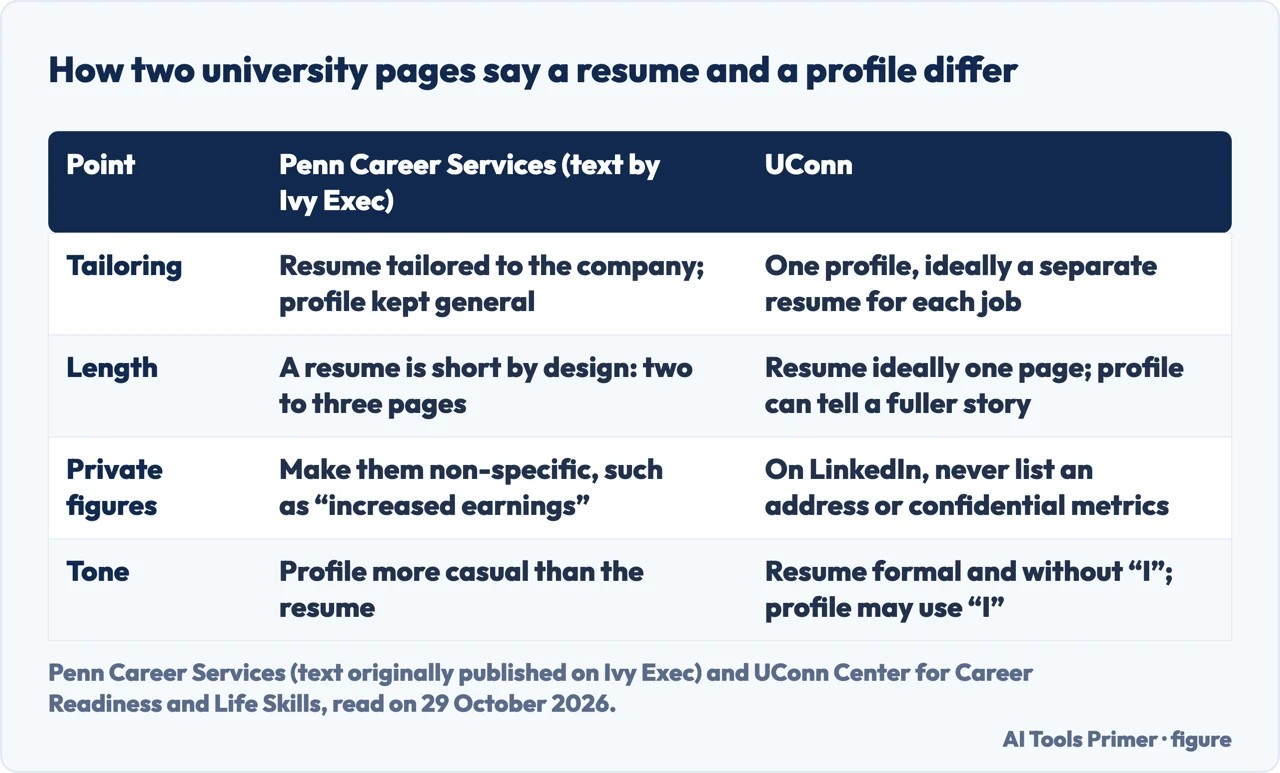
The differences it lists are these. A resume is short by design, two to three pages, and addressed to the company you apply to, using the language of the job posting. A profile is a fuller picture, written in a more conversational tone, and kept general enough that it does not need to change with the role. Because a past or current employer could see the profile, confidential information should be made non-specific, and the text gives the example of an amount on the resume becoming a general “increased earnings” on the profile. It quotes a career coach describing a financial controller who wanted to move into information technology: the resume focused on IT experience, while the profile emphasized both Finance and IT so as not to alarm current colleagues that a search was under way. The profile can also carry links to a portfolio and other samples, news articles, videos and presentations, plus skills, endorsements and recommendations.
The UConn Center for Career Readiness and Life Skills lists six differences. You have one profile but ideally a separate resume for each job, and a resume should carry only what is relevant to that role. The resume is ideally one page; the profile can tell a fuller story. On privacy, the page says LinkedIn is a public platform, so you should never list a physical address or confidential business metrics there, while the resume is a private document. On tone, the resume is formal and avoids first-person pronouns, while the profile can be conversational and use “I” and “me”. On imagery, it says to include a professional profile picture on LinkedIn and no personal photograph in the resume. Its address carries a 2019 date, and we did not read it as an update date.
The two pages agree that the documents serve different readers and should not be identical. They differ on length, two to three pages against ideally one, and the Penn text does not discuss photographs. Coursera adds one thing for the profile itself: treat it like a resume, with About, Experience, Education and Skills sections, and take keywords from job listings that fit what you want.
What the pages do not say
The pages we read do not say which of the three places to prefer. They do not say how many recruiters actually view a profile, or whether employers open the file attached to one. They do not give a cause for a missing upload button beyond the different browser. LinkedIn Help’s upload page does not name the Featured section or give steps for the profile upload (it only links to a task about managing featured samples of your work), and Coursera does not give a file type or size. LinkedIn Help says Resume Builder is not currently available to all members and gives no further detail.
We did not sign in to LinkedIn. Every step above is the one the pages describe, and the labels on the screen may differ from what they say. We did not open any forum thread, third-party article or vendor page on this topic. The LinkedIn Help pages carry relative update dates (seven months, a year and two years at the time of reading), so check the current page before relying on a menu name.
Where to start
Four ways in.
- “Can I upload a PDF?”
- Saving it in your settings — settings
- “Why can’t I upload it?”
- Uploading during an application — apply
- “Who can see the file?”
- Putting it on the profile — profile
- “Was it written by AI?”
- What LinkedIn does with a saved resume — uses
Around the application
Tracking what you sent, what a check can show, and whether the letter is needed.
The document
What the file itself should contain and how software reads it.
Questions people also ask
Can I upload a PDF CV to LinkedIn?
Yes. LinkedIn Help says the file format must be Microsoft Word or PDF, and it recommends a file size below 2MB. Coursera’s guide does not state a format or a size.
Can employers tell if your resume was written by AI?
The pages we read do not address it. They say LinkedIn may use saved resume data in AI-powered features, for example to show how well you match the qualifications of a role.
Why can’t I upload a resume in LinkedIn?
The pages we read do not give a cause. LinkedIn Help suggests trying a different browser. It also notes that an Apply button (instead of Easy Apply) sends you to the company’s own site, and that a resume uploaded to your profile cannot be used for job applications.
How do I update my existing resume on LinkedIn?
The pages we read describe uploading a new resume with Upload resume and deleting one with the ellipsis or icon and Delete, not editing a saved file. LinkedIn keeps the four most recently uploaded.
Not covered here. We did not test anything on LinkedIn. The statements come from three LinkedIn Help pages, a Coursera guide, a Penn Career Services page whose text was originally published on Ivy Exec, and a UConn career page, all read on 29 October 2026.
The search volume and difficulty behind this page come from a Semrush reading of 29 August 2026, older than the 60 days the site normally allows.
Sources
- LinkedIn Help — Upload your resume to LinkedIn — www.linkedin.com, read 29 October 2026.
- LinkedIn Help — Visibility and usage of your uploaded resume — www.linkedin.com, read 29 October 2026.
- LinkedIn Help — Share and manage your resumes with recruiters — www.linkedin.com, read 29 October 2026.
- Coursera — How to Add Your Resume to LinkedIn — www.coursera.org, read 29 October 2026.
- Career Services, University of Pennsylvania — 3 Essential Differences Between a Resume and a LinkedIn Profile (originally published on Ivy Exec) — careerservices.upenn.edu, read 29 October 2026.
- UConn Center for Career Readiness and Life Skills — 6 Ways Your Resume Should Differ from Your LinkedIn Profile — career.uconn.edu, read 29 October 2026.
Written by Alberto Gulotta
Founder and editor of AI Tools Primer, writing from Palermo, Italy. Thirty-five years of taking computers apart, starting with a Commodore 64 — the long version is on the about page.
Something wrong on this page? Write to aitoolsprimer@gmail.com and it gets fixed.
Written on 29 October 2026.
Independence and limits
No affiliate links and no paid placements anywhere on this site. Nobody pays to appear here, and no company has seen this page before you did.
This is general information, not professional advice. Where a page touches money, health, safety or the law, it names its source and the date it was read — and your situation may still differ. See the privacy page and the cookie policy.