
Audio · guide
How to transcribe an interview, and what the pages say
By Alberto Gulotta · Updated · 17 min read
How to transcribe an interview takes six steps in Otter’s guide: record with permission, draft with software, add speaker labels and timestamps, choose a style, check quotes against the audio and store the transcript with the recording. The pages we read differ on timestamp spacing and on how long typing by hand takes.
| Question | Answer | Where it comes from |
|---|---|---|
| Is permission needed first? | Melbourne says to get interviewees’ permission before recording; New York needs one party’s consent, Florida all parties’ | University of Melbourne, Reporters Committee |
| Which styles are there? | Verbatim, intelligent verbatim and edited; SpeakWrite and Otter place the edited style differently | Otter, SpeakWrite |
| Does a built-in tool separate speakers? | Word labels them Speaker 1, Speaker 2; the Voice Memos page does not mention speakers | Microsoft Support, Apple Support |
| How often should a timestamp go in? | Every 30 to 60 seconds, every 2 minutes or every 5 to 10 minutes, depending on the guide | Trint, Marvin, Otter |
| How long does typing by hand take? | About four hours per audio hour in two guides; 3 to 6 in a third | SpeakWrite, Marvin, Otter |
| Where does Word keep the recording? | In the Transcribed Files folder in OneDrive, where it can be deleted | Microsoft Support |
Permission first, then the recording
The University of Melbourne’s accessibility pages open their guide to interview transcripts with a condition: the permission of interviewees is needed before the recordings are made. Otter’s blog guide puts the same step first in its list of six and builds consent into its transcript template, which has a header line for it, with the examples “Verbal consent recorded at 00:00” or written consent on file. Its sample body opens with the interviewer asking for confirmation that the consent form has been reviewed and agreed to. The blog adds that permission should explain how recordings and transcripts will be stored, shared and kept, whether they will be anonymized or publicly accessible, and what withdrawal rights look like.
What the law asks is a separate question, and the Reporters Committee for Freedom of the Press answers it state by state in its Reporter’s Recording Guide. We read the New York and Florida pages, and they differ. New York’s page says a person who is a party to a conversation, or has the consent of one of the parties, can lawfully record it, and that for telephone and electronic communications, including those on a cellphone, the consent of at least one party is required. Florida’s page says all parties must consent to the recording of an in-person, telephone or electronic communication, and that recording or intercepting a private conversation without the consent of all parties is a felony punishable by up to five years in prison and fines. It makes a first offense committed without any illegal purpose and not for commercial gain a misdemeanor. The New York page is marked as last updated in May 2020 and the Florida page in October 2019. We did not read the guide’s pages for the remaining states, so this page says nothing about them.
The Trint, SpeakWrite and Marvin guides we read do not mention asking the interviewee for permission. Trint’s guide covers confidentiality after the fact: it says transcripts must be handled with care and that personally identifiable information may need to be redacted, anonymized or restricted.
For the recording itself, SpeakWrite’s guide says to record in a quiet environment with minimal background noise, to use high-quality equipment such as a digital recorder, and, if a phone is the only option, to switch on Do Not Disturb so that texts and other alerts do not sound during the conversation. Microsoft’s page makes a point about the microphone: if the computer’s input is still set to a headset from the last session, it will not pick up an in-person meeting well, and for a virtual call it says not to use the headset, so that the recording can pick up the sound coming out of the device. Our pages on recording a phone call and meeting notes go further into calls.
Three styles, and what a transcript carries
Otter’s blog says the style is chosen before the typing starts, according to what will be done with the quotes. It names three. Verbatim keeps everything, including fillers, false starts, overlapping speech, pauses and non-verbal sounds, and the blog places it with conversation analysis, discourse research and legal proceedings. Intelligent verbatim, also called clean verbatim, removes fillers, repetitions and false starts while keeping the meaning and the non-verbal cues that carry it; the blog places it with journalism and most qualitative research. Edited removes fillers and repetitions and may fix grammar or reshape sentences, and the blog places it with UX synthesis, published reports and internal summaries.
SpeakWrite names the same three and sorts them differently. It says verbatim is often preferred for private-investigation interviews, calls intelligent verbatim the most common type because it is easier to read and to transcribe, and puts edited transcripts in newspapers, websites and magazines. Otter puts the edited style with internal summaries and reports, so the two pages do not agree on where it belongs, and neither says which is right. Trint recognises two styles, verbatim and non-verbatim, and says verbatim is the one to use if the transcript is headed for court. Marvin says to include filler words and pauses for a verbatim transcript and, for a clean one, to skip them upfront.
Otter’s template shows what a transcript carries. The header lists a project ID, a participant ID or pseudonym, the interviewer, the date, the location, the transcript style, the consent status and a speaker key such as I for the interviewer and P1 for the participant. The body then runs in lines that start [00:00] I: and continue with the question. The template also fixes tags to be used the same way in every transcript of a project: (inaudible, 00:34:15) for a passage that cannot be heard, ((laughs)) or [laughs] for a non-verbal cue, [both speaking, unclear] for overlapping speech and [sic] for a confirmed transcription error. The blog says to apply the chosen style consistently across every interview.
What Word, Voice Memos and Otter do with the recording
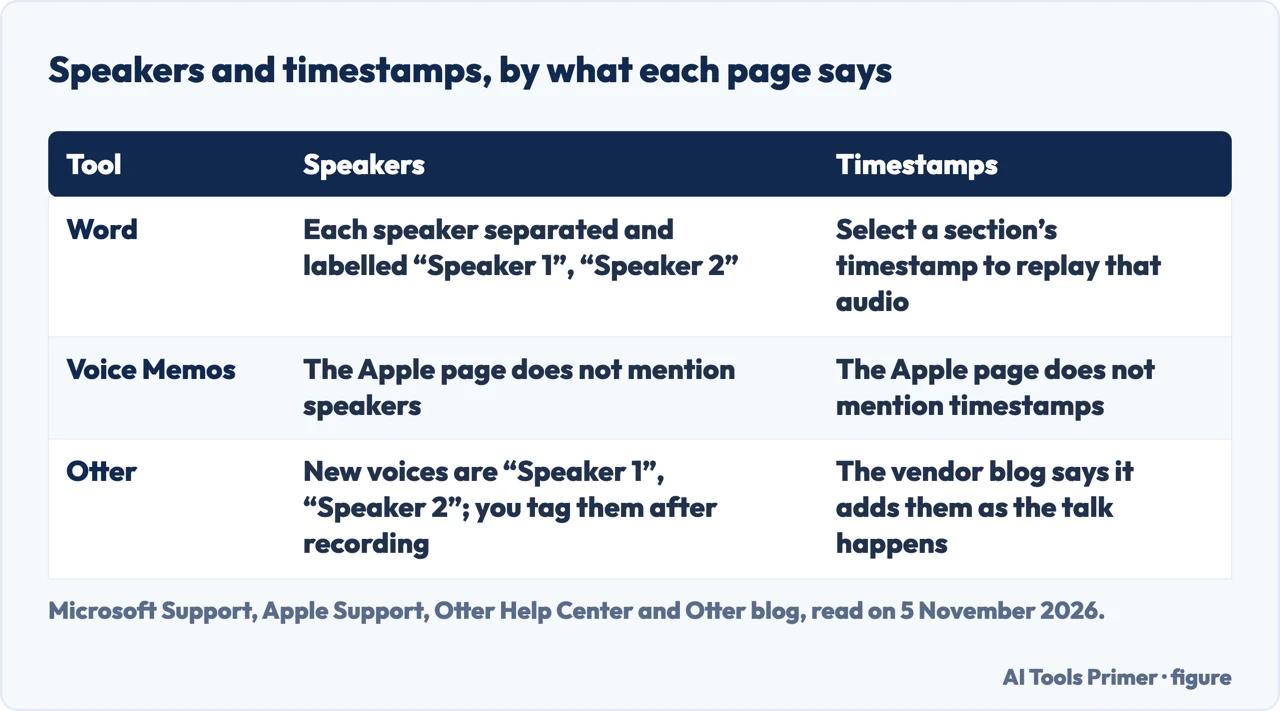
Microsoft’s support page says the Word transcriber converts speech to text with each speaker individually separated, and keeps the timestamped audio so that parts of the recording can be revisited and the text corrected. It names two routes: record in Word (Home, Dictate, Transcribe, Start recording) or upload a file in .wav, .mp4, .m4a or .mp3 format. A recording made in Word is transcribed in the background and the text appears only after Save and transcribe now; an upload can take, the page says, up to about the length of the audio, depending on internet speed. The page says the feature is available in Word for Microsoft 365 on Windows in commercial tenants, while government tenants get it only in Word for the web, and that a Microsoft 365 subscription allows up to 300 minutes of uploaded audio a month, and a Copilot license 30,000 minutes (msword.txt).
The service labels speakers Speaker 1, Speaker 2 and so on. A label can be changed for every occurrence at once with Change all Speaker, and each section can be corrected by hand. Selecting a section’s timestamp plays that portion of the audio, and playback speed can go up to 2x. Only one transcript is kept per document: starting a new transcription deletes the current one.
Apple’s Voice Memos page says transcription works on iPhone 12 or later, in English, Spanish, Portuguese, Italian, French, German, Japanese, Korean and Chinese (Simplified and Traditional), and not in all countries or regions. The text can be watched live by swiping up from the top of the waveform during a recording, or opened afterwards with View Transcript, or copied whole with Copy Transcript. A recording made in iOS 17 or earlier is transcribed automatically when opened, if it includes speech, and the search field looks inside transcriptions as well as titles. With Apple Intelligence, the page adds, Writing Tools can summarize a transcript. The page does not mention separating speakers or timestamps.
Otter’s help center explains how speakers are handled. A voice the account has never tagged shows as Speaker 1, Speaker 2, Speaker 3, which means Otter distinguished a voice but did not tie it to anyone in the account; tagging one of them tags every block of that voice in the conversation. A voice it cannot separate may show as an unknown speaker. Speaker identification begins after the recording has stopped or an imported file has finished, so tagging cannot be done during a live recording. A speaker cannot be deleted, a block can be split by pressing Enter, and Rematch works only on Speaker numbers, not on speakers already tagged. For live Zoom meetings, the page says Otter Notetaker uses the participant names.
Otter’s blog is a vendor page and claims more: it says Otter identifies speakers, adds timestamps and breaks the transcript into paragraphs as the conversation happens, and that an uploaded file is processed the same way. Two vendors state accuracy figures, Otter 95%+ in clear audio and Trint up to 99%; we did not test either.
One recording in three tools: the Melbourne test
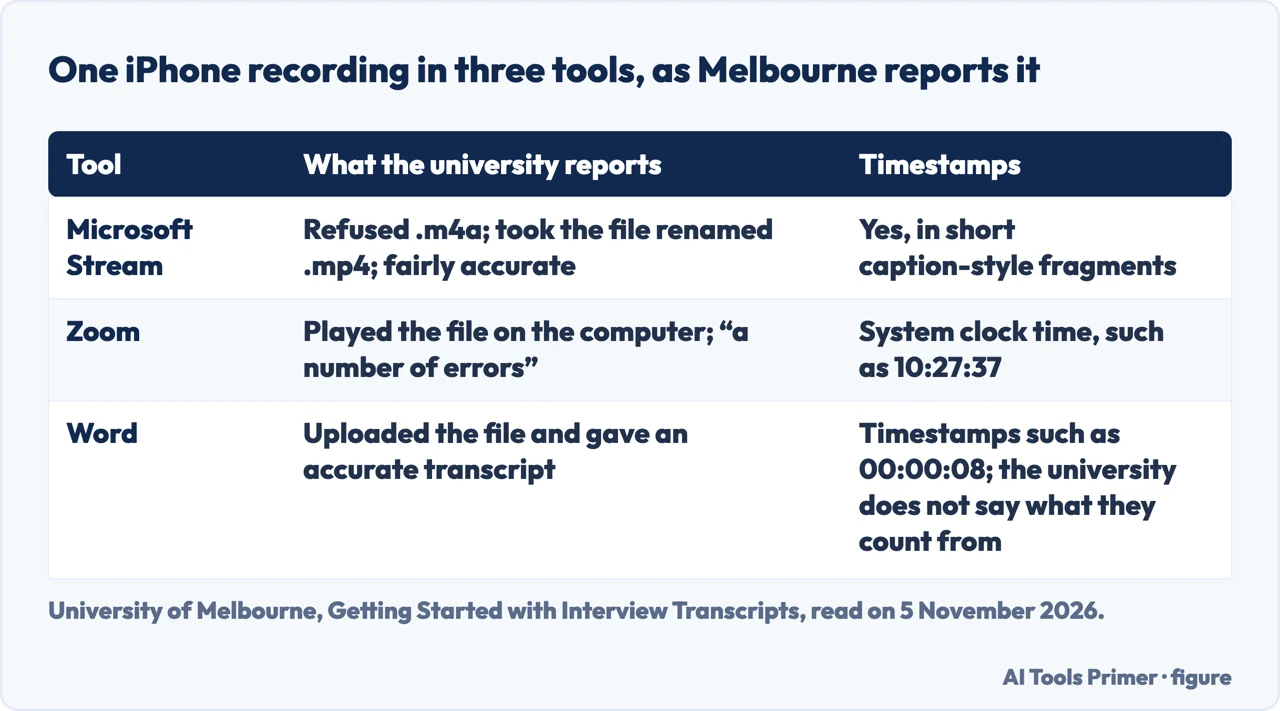
The University of Melbourne’s page runs the same recording through three tools. The university recorded a short passage on an iPhone as an .m4a file and tried it in Microsoft Stream, Zoom and Word in Office 365. Stream would not accept an .m4a file; after the extension was changed to .mp4 it uploaded. The university calls the result a pretty accurate transcription with timestamps, with the sentences broken into small fragments for captioning, and says it took some time. Zoom played the file on the computer with Live Transcript enabled and system sound shared; the university says it made “a number of errors” and that its timestamps reflected the system time, not the meeting time. Word gave what the university calls an accurate transcript from an uploaded file, with timestamps such as 00:00:08.
Comparing the three printed texts with the passage the university printed shows differences its comments do not list. The passage says “options for transcribing calls”. Stream’s text reads “transcript ING calls”, while Zoom’s and Word’s both read “transcript in calls”. In the last sentence the passage has “would be to use dictation” and Zoom’s text has “alternatives would pay to use dictation”.
The test used a single voice, so it says nothing about telling speakers apart, and it did not compare accuracy with several people talking. The passage the university recorded is itself about phone interviews: it recommends recording on the phone and uploading the file to Microsoft Stream to generate a transcript, and names dictation on Mac or Windows during the call as an alternative. Our page on voice typing in Google Docs covers dictation, which types live speech rather than transcribing a file, and transcribing a recording covers the file route.
Speaker labels and timestamps: five habits
The guides we read agree that a transcript needs to say who is speaking and when, and differ on how. Otter’s blog uses initials plus a colon, or role labels: I for the interviewer and P for the participant. Marvin’s guide uses Interviewer and User, and User A and User B when there are several. Trint lists four ways: a title such as interviewer and interviewee or a job title, a full name, a first name, or initials, and says to label each speaker clearly and consistently. SpeakWrite says to identify each speaker by capitalizing the name in brackets, and that the name may be anonymized if necessary.
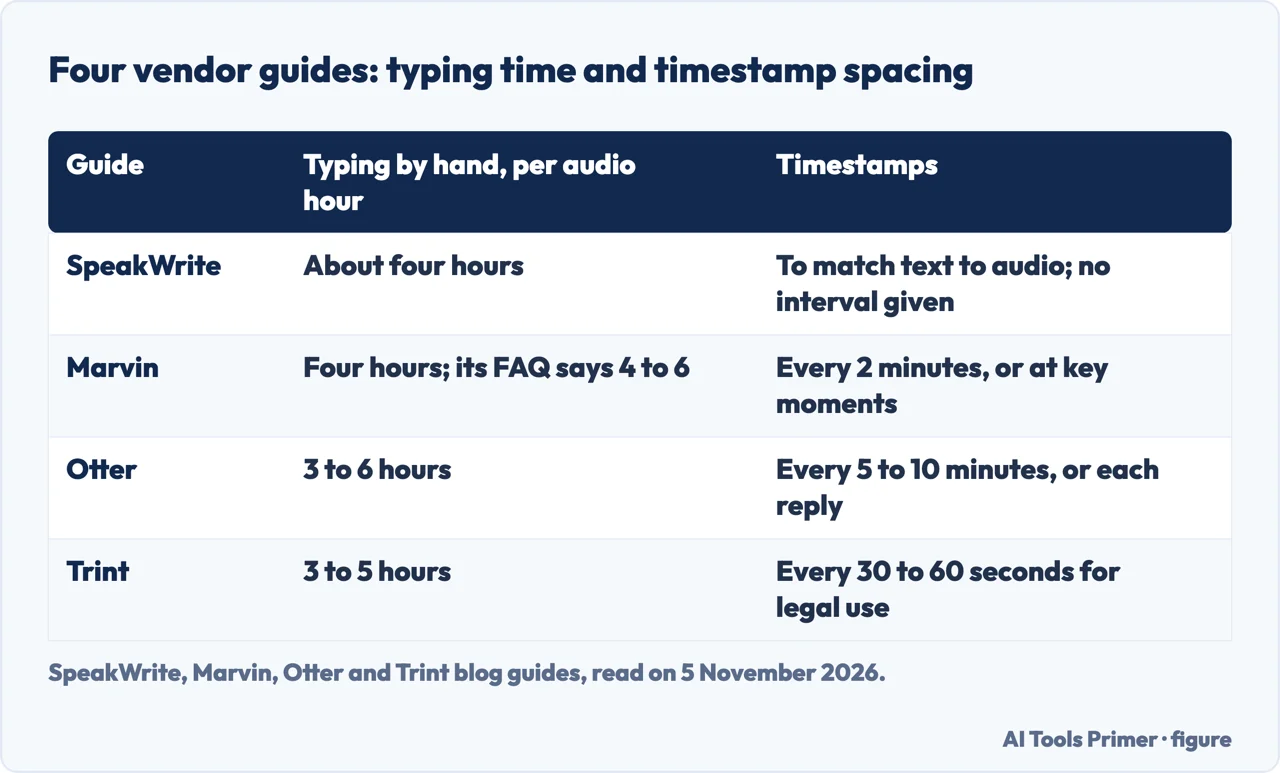
On timestamps the guides give three different spacings. Trint says to apply them at regular intervals of 30 to 60 seconds, or at cue points such as new questions, for legal use or high-volume work. Marvin says every 2 minutes or at critical moments, in the form [00:02:15]. Otter says every 5 to 10 minutes, or at the start of each speaker’s response. SpeakWrite says only that timestamps match the transcribed content to the audio and may be written in brackets, parentheses or with colons. The pages do not say why their intervals differ. Word stamps each section it makes, and in the Melbourne test Zoom stamped the system clock time, such as 10:27:37, while Word showed timestamps such as 00:00:08, which the university does not explain.
Software does this only up to a point. Marvin says transcription software can identify and label several speakers but that accuracy depends on audio quality and speech clarity, so the labels probably need checking and manual adjustment. SpeakWrite says basic AI transcription software can find several speakers and distorted audio challenging. Otter’s blog says an AI draft often shows up with messy speaker labels and too many mistakes, and its fifth step looks specifically for swapped speaker labels.
After the draft: checking, time and storage
Otter’s fifth step is to play back each passage you plan to use and check for errors that change the meaning, swapped speaker labels and dropped words. Marvin ends the same way: listen again while reading, and check for missing words, incorrect labels and formatting. SpeakWrite’s hand method has three listens: one to hear the whole recording and note hard passages, one to type in chunks, and a third to edit. It adds that a transcript for court may have formatting requirements set by the state. On speed, Marvin suggests slowing playback to 0.8x for fast speakers and working in segments of 10 to 30 seconds, while Trint says to listen at half speed because even seasoned typists struggle to keep up in real time.
All four of these guides come from sellers of software or a transcription service. By hand, SpeakWrite says the job takes about four times the length of the audio. Marvin opens with four hours for one hour of audio and, in its FAQ, gives 4 to 6. Otter says 3 to 6 hours per hour of audio and Trint’s comparison table says 3 to 5. The pages do not say how these times were measured. Marvin and Otter say a software draft takes minutes, and that the review still takes additional time.
Where the recording ends up is stated by Microsoft: Word saves a recording or an upload to the Transcribed Files folder in OneDrive, where it can be deleted. Sharing the Word document gives the recipient the Transcribe pane, but to protect privacy audio playback is by default not available there; the page describes sharing the audio file as well. Otter’s sixth step is to store the transcript alongside the source recording, with retention and access controls set. The Otter pages we read do not say where Otter keeps an uploaded recording.
What we did not use: we transcribed no interview and tested no tool. We did not use a university library guide to oral history, which gave us a page with almost no text, or a Reddit thread and a recorder-maker’s blog post that we did not open. The pages we read do not say whether ChatGPT can transcribe an interview, so this page does not answer that.
Where to start
Four ways in.
- “Do I need permission?”
- Permission first, then the recording — consent
- “Which tool separates speakers?”
- What Word, Voice Memos and Otter do with the recording — tools
- “How often do I add a time?”
- Speaker labels and timestamps: five habits — labels
- “How long will it take?”
- After the draft: checking, time and storage — check
From recording to text
Transcribing a file, typing live and captioning.
Calls, meetings and sound
Recording a call, taking notes, cleaning the audio.
Questions people also ask
What is the best way to transcribe interviews?
The pages we read differ. Otter’s blog lists six steps: record with permission, draft with software, add labels and timestamps, choose a style, check quotes against the audio and store the transcript with the recording. SpeakWrite and Marvin describe typing it by hand, which they put at about four hours or more per hour of audio.
How can I transcribe an interview audio to text?
Microsoft says Word can transcribe an uploaded .wav, .mp4, .m4a or .mp3 file, or a recording made inside Word, in Word for Microsoft 365 on Windows. Apple says Voice Memos transcribes on iPhone 12 or later. Otter says speaker identification starts once an imported file has finished. Melbourne ran one iPhone recording through Stream, Zoom and Word.
Is it acceptable to transcribe an interview?
The pages we read speak about recording rather than transcribing. Melbourne says interviewees’ permission is needed before recording, and Otter puts permission first in its steps. The Reporters Committee’s pages differ by state: New York needs the consent of one party, Florida of all parties. Those two pages are marked May 2020 and October 2019.
Can ChatGPT transcribe an interview?
The pages we read do not say whether ChatGPT can transcribe an interview. They name Word, Voice Memos, Otter, Trint, Marvin, Stream and Zoom, and SpeakWrite as a typing service. What each does with speakers and timestamps is on this page.
Not covered here. We transcribed no interview and tested no tool. The statements come from Microsoft Support, Apple Support, Otter’s help center and blog, the University of Melbourne, two state pages of the Reporters Committee for Freedom of the Press, and the blog guides of SpeakWrite, Marvin and Trint, all read on 5 November 2026.
The search volume and SEO difficulty behind this page are an Ubersuggest reading of 5 November 2026 (not the Semrush KD), and a Semrush check is still to be made.
Sources
- Microsoft Support — Transcribe your recordings — support.microsoft.com, read 5 November 2026.
- Apple Support — View a Voice Memos transcription on iPhone — support.apple.com, read 5 November 2026.
- Otter Help Center — Speaker Identification Overview — help.otter.ai, read 5 November 2026.
- Otter — A Guide to Writing Interview Transcripts: Styles, Workflow, and Template — otter.ai, read 5 November 2026.
- University of Melbourne — Getting Started with Interview Transcripts — www.unimelb.edu.au, read 5 November 2026.
- Reporters Committee for Freedom of the Press — Reporter’s Recording Guide: New York — www.rcfp.org, read 5 November 2026.
- Reporters Committee for Freedom of the Press — Reporter’s Recording Guide: Florida — www.rcfp.org, read 5 November 2026.
- SpeakWrite — How to Transcribe an Interview: The Essential Steps — speakwrite.com, read 5 November 2026.
- Marvin — How to Transcribe an Interview: Software, Tips & Techniques — heymarvin.com, read 5 November 2026.
- Trint — How to Transcribe an Interview: A Survival Guide — trint.com, read 5 November 2026.
Written by Alberto Gulotta
Founder and editor of AI Tools Primer, writing from Palermo, Italy. Thirty-five years of taking computers apart, starting with a Commodore 64 — the long version is on the about page.
Something wrong on this page? Write to aitoolsprimer@gmail.com and it gets fixed.
Written on 5 November 2026.
Independence and limits
No affiliate links and no paid placements anywhere on this site. Nobody pays to appear here, and no company has seen this page before you did.
This is general information, not professional advice. Where a page touches money, health, safety or the law, it names its source and the date it was read — and your situation may still differ. See the privacy page and the cookie policy.