
Audio · guide
How to add subtitles in Premiere Pro, and what each platform wants
By Alberto Gulotta · Updated · 21 min read
How to add subtitles in Premiere Pro, in Adobe’s own terms, moves through Speech to Text for the transcript, Create Captions for the caption track, and Find and Replace to fix what it got wrong. Exporting decides what happens next: burning captions into the video, embedding them, or saving a sidecar file each suit a different platform’s rules.
| Fact | Source |
|---|---|
| Premiere’s Speech to Text supports 18 languages | Adobe, Languages supported by Speech to Text, updated 22 August 2025 |
| Premiere exports sidecar captions in six formats: SCC, MCC, XML, STL, SRT, DFXMP | Adobe, Supported file formats for captions, updated 7 January 2026 |
| YouTube’s own preferred caption file format is SCC | YouTube Help, Supported subtitle and closed caption files |
| LinkedIn accepts only SRT for closed captions | LinkedIn Help, Add Closed Captions to Videos on LinkedIn |
| Final Cut Pro’s auto-subtitle feature needs Apple silicon and works only in U.S. English | Apple Support, Generate subtitles automatically in Final Cut Pro |
| The BBC’s recommended subtitle reading speed is 160–180 WPM | BBC Subtitle Guidelines |
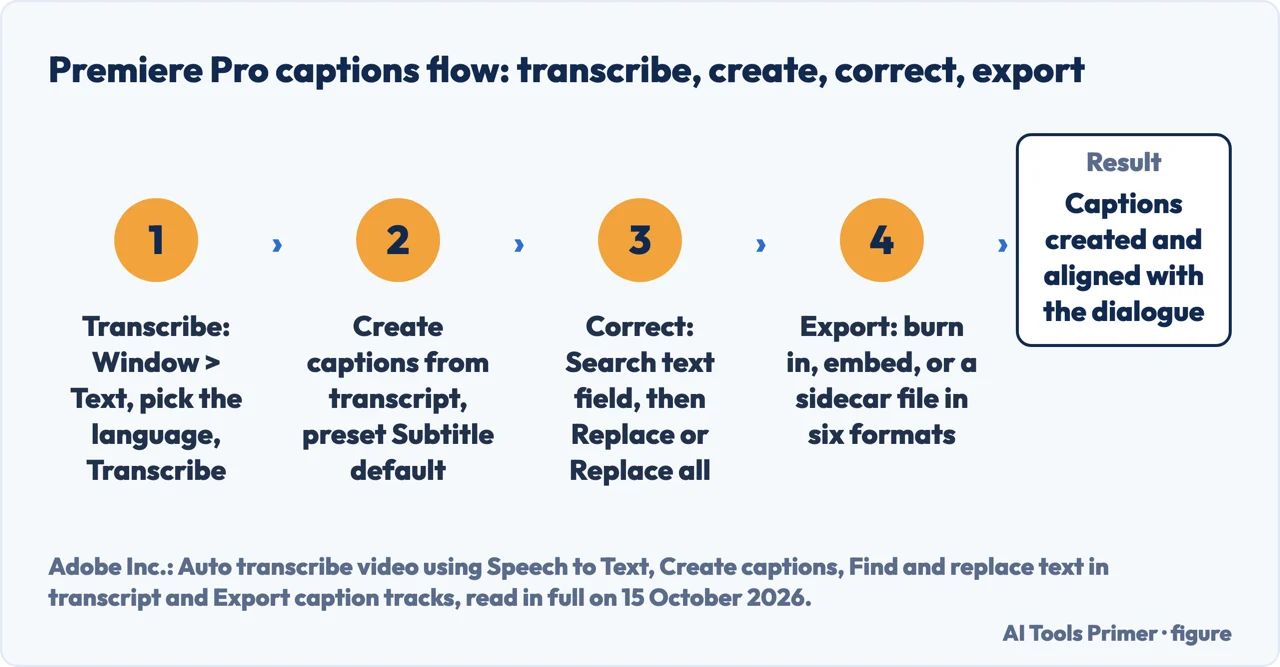
- Transcribe. Adobe’s documentation opens the workflow by selecting Window > Text, choosing the video’s language — downloading a language pack first if it is missing — and selecting Transcribe — the command that runs Premiere Pro’s Speech to Text.
- Create captions. Switching to the Captions and Graphics workspace and choosing Captions > Create captions from transcript turns that transcript into an actual caption track, aligned with the dialogue.
- Correct. Adobe’s Find and replace panel fixes what the transcript got wrong: type a term into the Search text field, then choose Replace or Replace all.
- Export. Burn the captions into the video file, embed them as CEA-608, CEA-708 or OP-47, or save a sidecar file in one of six formats — each platform wants something different.
Generating the transcript with Speech to Text
Adobe’s page on auto-transcribing video is specific about where the whole process starts: “Select Window > Text.” From there, Adobe’s instructions continue plainly: “Select the icon in the Transcript tab to access the Generate static transcript option and launch the dialog box to set your transcription preferences” — the dialog that asks which language the video is in, downloading the matching language pack first if it is not already installed, before selecting “Transcribe.”
Premiere Pro’s Speech to Text does not cover every language equally: Adobe’s own page for Languages supported by Speech to Text lists 18, among them English, English (UK), French, German, Italian, Japanese, Korean, Russian, Simplified and Traditional Chinese, and Spanish. A missing language pack is not a dead end — Adobe’s page on downloading language packs from Creative Cloud says installing additional packs lets someone work with captions, subtitles or transcripts in more languages, and that the Get add-ons option exposes “over fifteen language packs” to choose from.
Transcribing inside Premiere Pro is one route; doing it on a separate machine, with nothing installed at all, is another. That comparison — and how accurate each approach actually is — belongs to transcribing a recording on its own machine, not to this page.
Turning the transcript into captions
A transcript and a caption track are two different things in Premiere Pro, and Adobe’s Captions overview page draws the line precisely: a transcript is created first with Speech to Text, edited as needed, and captions are then added as a separate caption track in the timeline — not the same step as transcribing. Starting a new project with Automatic Transcription turned on at import gets a transcript generated before any manual step is needed.
The dedicated route runs through a workspace built for the job: Adobe’s Create captions page has someone select Window > Workspaces > Captions and Graphics, then choose “Captions > Create captions from transcript.” A caption preset comes next — Adobe’s suggestion is “Subtitle default which is suitable for most use cases” — alongside a choice between keeping captions on a single line or wrapping them onto two. Selecting Create captions finishes the job: Adobe says the result is “created and aligned with the video’s dialogue” automatically, without manual timing.
Correcting the transcript before you export
Speech to Text does not read every word correctly, and Adobe’s page on finding and replacing text in a transcript gives the fix a name rather than leaving it to trial and error: “Select the Search text field and type the term you wish to find or replace” — the next instruction on the same page is just as direct: “Select Replace to replace only a selected instance of a search term or select Replace all to replace all the instances.” Doing this before creating or re-exporting captions means the correction reaches every caption built from that transcript, not just the ones already on screen.
Exporting: burn in, embed, or a sidecar file
Adobe’s Captions overview page frames the export choice as three separate routes: “export captions as stylized, burned-in subtitles or .srt sidecar text files. You can also embed them in a QuickTime MXF file.” Each behaves differently. Burning in, per Adobe’s Export caption tracks page, renders the captions “directly on the video file” regardless of format, so they travel with the picture no matter where it is uploaded. Embedding is the narrowest option: Adobe limits it to every channel of CEA-608, every channel of CEA-708, or a single Caption Stream of OP-47 — chosen from whichever of those the sequence already supports.
A sidecar file is a separate text document the platform reads alongside the video, and Adobe’s list of supported caption formats names six: SCC, MCC, XML, STL, SRT and DFXMP, plus the broader timed-text family — W3C TTML (also called DFXP), SMPTE-TT and EBU-TT — and embedding into or decoding from MOV, DNxHD MXF Op1a and MXF Op1a. The six formats are not interchangeable: Adobe’s documentation notes that .scc “only supports 608 tracks,” that .xml covers 608, 708, Teletext, EBU Subtitle and Australian OP-47, and that .srt, while limited to one stream per file, can carry any of those same formats within that one stream. For the exact character-by-character structure one of those files takes, see how an SRT file is built; and if the exported video itself needs to be a smaller file before it goes anywhere, that is a separate step, covered at compressing a video.
The caption format each platform actually wants
Premiere Pro can produce six sidecar formats, but most destinations only read one or two of them, and each platform’s own help pages say exactly which.
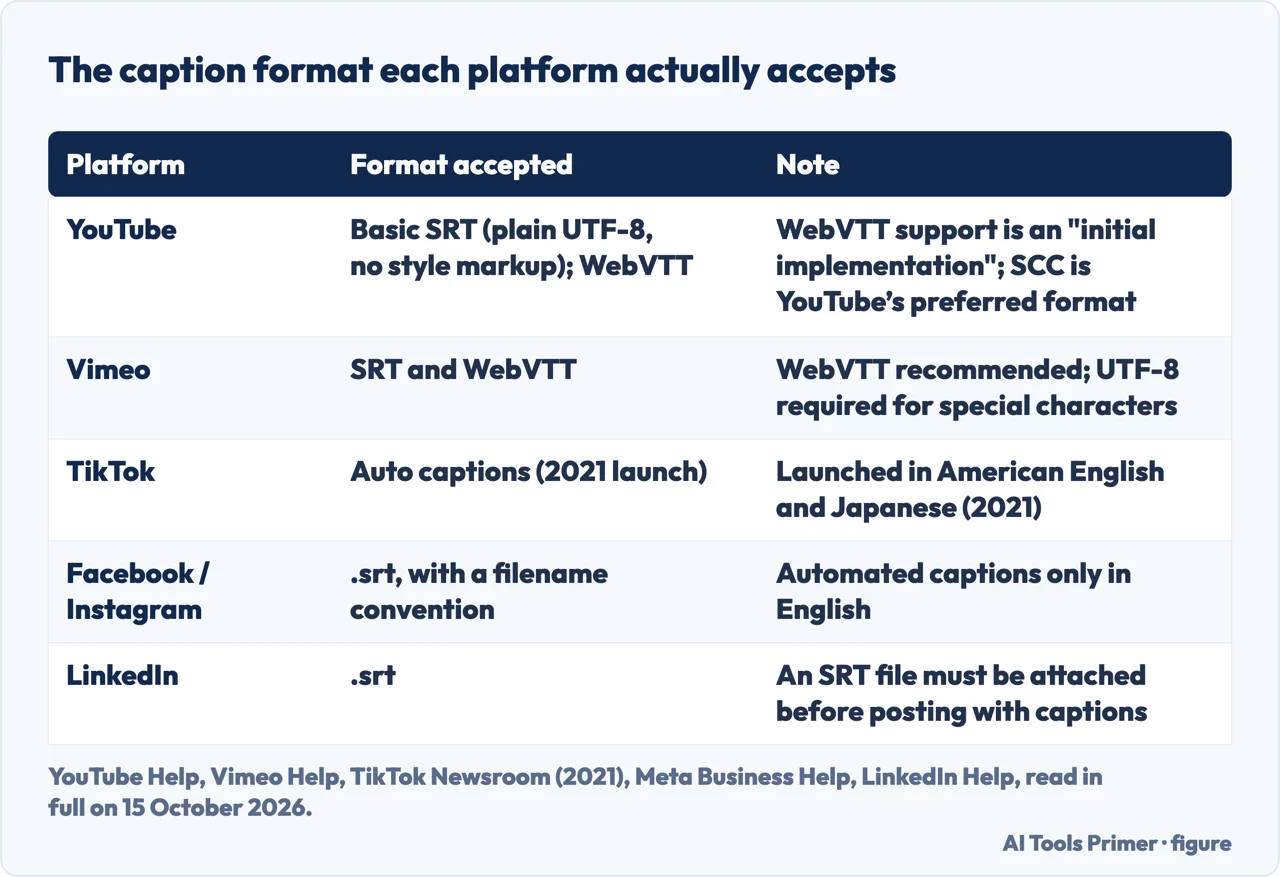
YouTube. YouTube’s page on supported subtitle and closed caption files is blunt about SRT: “Only basic versions of these files are supported. No style info (markup) is recognized. The file must be in plain UTF-8.” WebVTT fares a little better, though the same page still calls it an initial implementation. Styling, per that page, is “limited to <b>, <i>, <u> since CSS class names are not yet standardized.” YouTube names its actual preference outright: Scenarist Closed Caption, .scc, is “our preferred file format.” Its separate Add subtitles & captions page walks through uploading one: confirm the file type is supported, select Upload file, then choose With timing or Without timing. Where no file exists yet, YouTube’s own speech recognition technology can generate captions automatically — but, per the same page, only in the video’s default language.
Vimeo. Vimeo’s help page is more permissive and states a preference of its own:
it supports both SRT and WebVTT for captions and subtitles, recommends WebVTT, and requires
caption files to be encoded in UTF-8 so special characters display correctly. Vimeo’s
separate troubleshooting page for caption file types adds the mechanics each format needs to
be read correctly: a WebVTT file must open with the exact signature WEBVTT and
write its timecodes as 00:00:00.000, while an SRT file must begin each cue with
its own numerical identifier and write timecodes as 00:00:00,000, hours, minutes
and seconds always two digits. Automatic subtitles are not a paid extra on Vimeo either:
creators on both Free and paid accounts have access to automated subtitle transcription, per
the same help page.
TikTok. TikTok’s Newsroom, announcing the feature in 2021, described auto captions as a tool that “automatically generate subtitles, allowing viewers to read or listen to content.” Creators, the same announcement said, could select auto captions from the editing page after a video is uploaded or recorded. It also named a specific limit at launch: the feature would “initially be available in American English and Japanese, with additional language support in the coming months.” No official update beyond that 2021 announcement was reachable on 15 October 2026, when this page’s sources were read, so what TikTok’s own documentation says about captions here is scoped to that launch, not to whatever the app does today.
Facebook and Instagram. Meta’s Business Help page for video ads is specific about the file: “You can upload a SubRip (.srt) file with the captions you’ve created for your video.” The filename itself follows a set pattern, “filename.[language code]_[country code].srt.” Meta can also generate captions automatically, but with a named limit: “Automated captions are only available in English and can only be used on Facebook and Instagram.” A separate Meta help page for Facebook Reels adds that auto-generated subtitles there “are turned on by default, but you can turn them off when you upload a reel.” To qualify for them, Meta says a reel must not already have burned-in subtitles and must have spoken dialogue or a voiceover; those auto-generated subtitles cover 11 languages by that page’s own list, among them Arabic, English, Hindi, Spanish and Vietnamese.
LinkedIn. LinkedIn’s help page, on a page itself marked as last updated five years ago, states a single requirement: “You must have an associated SRT (SubRip Subtitle) file attached to the video before it can be posted.” That file is attached by selecting Select Caption and confirming the choice. No WebVTT, no burned-in option — SRT is the only format LinkedIn’s own documentation names.
The format each platform wants is not arbitrary: the W3C’s WebVTT specification describes the format as intended for marking up external text tracks in connection with HTML’s track element, and requires “a WebVTT file body encoded as UTF-8 and labeled with the MIME type text/vtt” — the same encoding requirement YouTube and Vimeo each state independently for their own accepted files. Uploading the subtitle file is only half of getting a video onto any of these platforms; the video upload itself, across each one, is covered separately at uploading a video to each platform.
Free tools that generate captions automatically
Premiere Pro is not the only way to get automatic captions, and several free or already-installed tools generate them on their own terms.
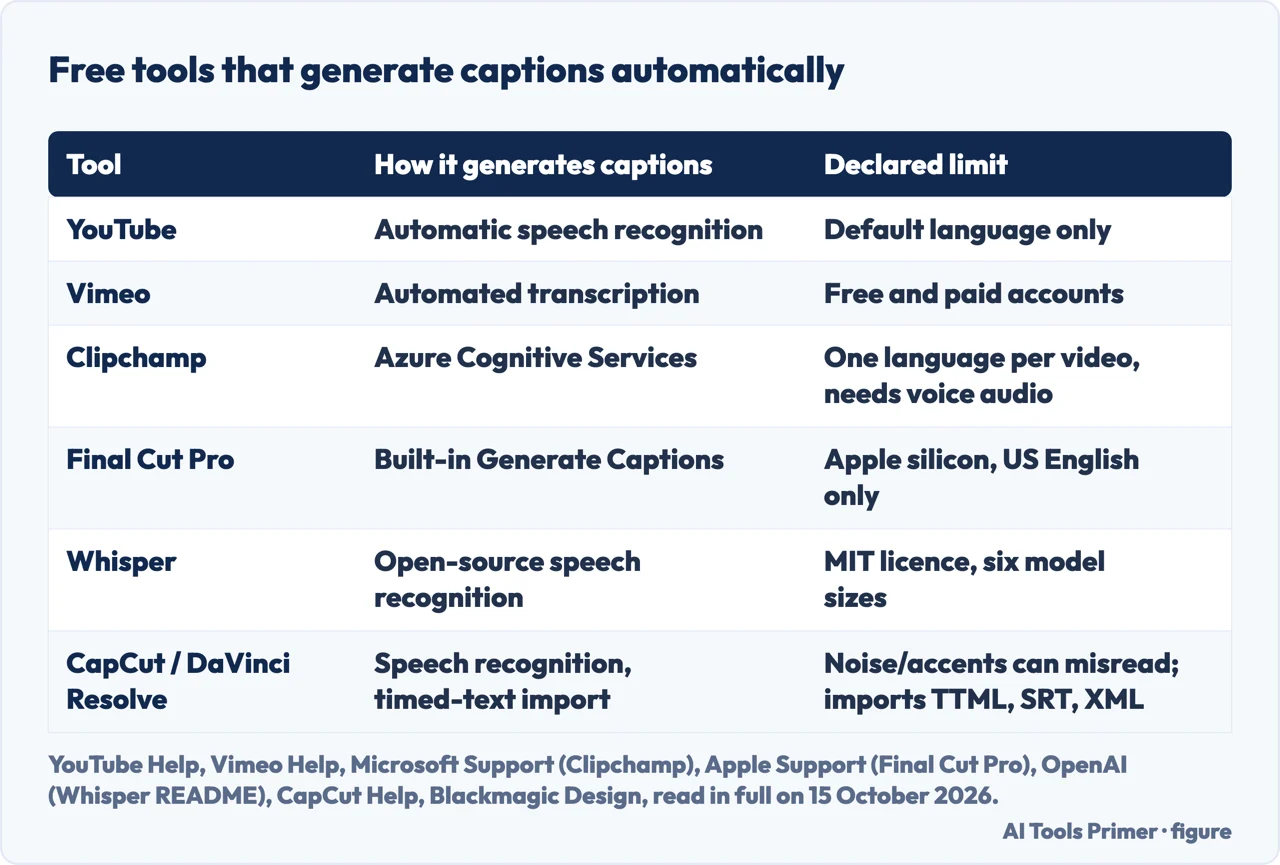
YouTube and Vimeo both do it without any extra software, using the speech-recognition captions already described above — YouTube’s own default-language-only automatic captions, and Vimeo’s automated subtitle transcription available to Free and paid accounts alike. Clipchamp, Microsoft’s video editor, works differently: its support page says its captions feature automatically detects what is said in a video or audio track and generates real-time subtitles in one click, built on “Azure Cognitive Services to process your video’s audio to generate your captions.” The same page names two limits: transcripts come out in one language per video, and the feature only works on assets that actually include voice.
Final Cut Pro, on Mac, carries its own named restriction: Apple’s support guide states the Generate Captions feature “requires a Mac with Apple silicon and is available in U.S. English only.” The first time it runs, Apple says, Final Cut Pro downloads the language model it needs before creating the subtitles — a one-time download that needs an internet connection — then transcribes each clip and connects the resulting title clips to the footage automatically. No Apple page describes an equivalent automatic transcription feature in iMovie; that silence is reported here as undocumented, not as a feature that does not exist.
Whisper, OpenAI’s own speech recognition model, is released as code rather than a packaged app: its README describes it as “a general-purpose speech recognition model.” It is trained for multilingual recognition, translation and language identification, and “Whisper’s code and model weights are released under the MIT License.” The same README names six model sizes, four of them with English-only versions, trading speed against accuracy. The README does not state how many languages the model covers, so no number is claimed here.
Two editors sit a step closer to a phone than Premiere Pro does. CapCut’s help page names a real limit on its own auto-captions: they “may misinterpret words due to background noise, accents, fast speech, or low audio quality.” The page does not say whether the feature itself is free or restricted to a paid plan. DaVinci Resolve, Blackmagic Design’s editor, describes its Edit page as including a set of tools for closed captioning and subtitles, with support for importing timed text TTML, SRT, XML and embedded MXF/IMF subtitles. Results are either rendered into the final video or exported as separate TTML, SRT or VTT files — though its page does not say whether generating captions from speech is exclusive to the paid Studio edition. Captioning on a phone, rather than inside an editor like these two, is its own subject, covered at editing video on an iPhone.
Subtitle readability: the BBC’s numbers and the WCAG rule
A caption file that opens correctly is not automatically one anyone can read in time. The BBC’s Subtitle Guidelines put a number on why this matters: “around 10% of broadcast viewers use subtitles regularly, increasing to 35% for some online content.”
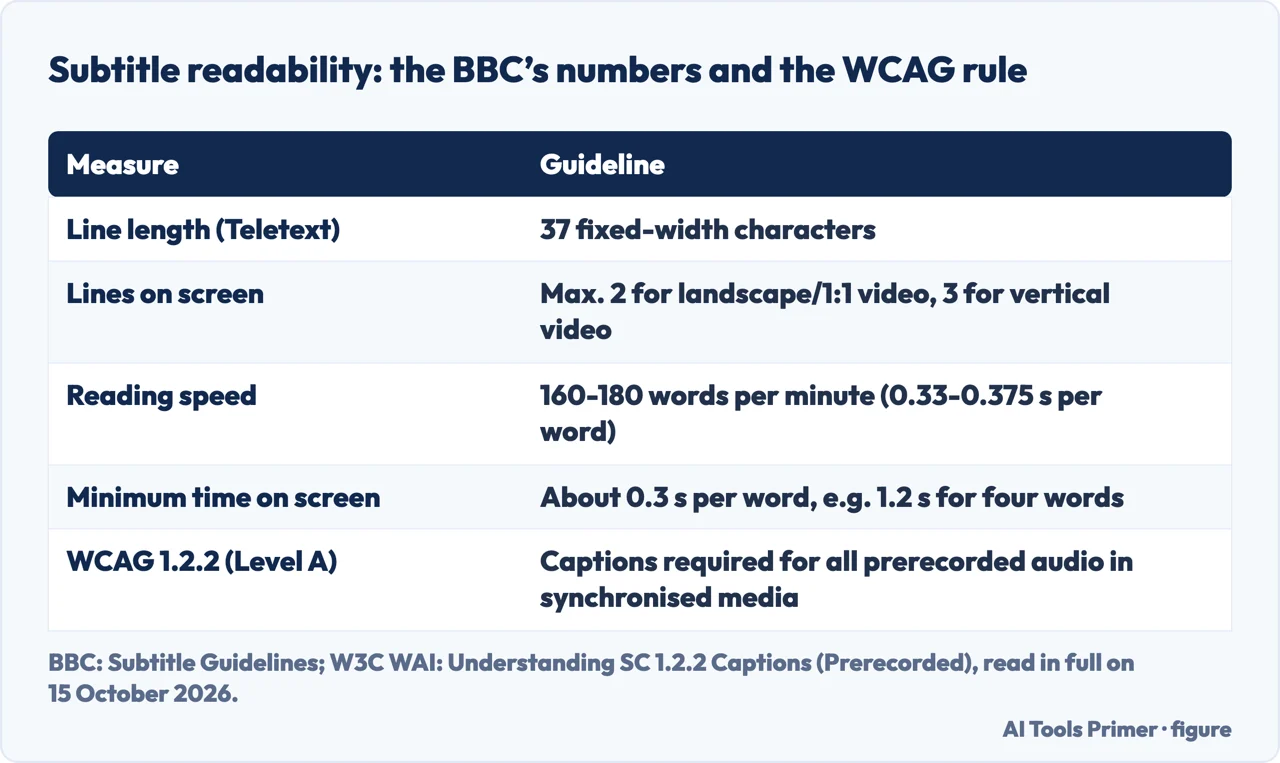
The BBC sets concrete limits rather than a rule of thumb. For Teletext broadcast subtitles, a line is limited to 37 fixed-width (monospaced) characters, since at least 3 of the 40 available bytes carry control codes rather than text. Beyond length, the BBC caps how many lines appear at once: landscape video and 1:1 video are recommended at no more than two lines, while vertical (9:16) video gets a third. Reading speed has its own figure too: 160–180 WPM (words per minute), or 0.33 to 0.375 seconds per word, with a minimum on the other end — “you should aim to leave a subtitle on screen for a minimum period of around 0.3 seconds per word (e.g. 1.2 seconds for a 4-word subtitle).”
Readability also has a legal-style minimum underneath it: WCAG 2.2’s Success Criterion 1.2.2, Captions (Prerecorded), at Level A, requires captions for all prerecorded audio content in synchronized media, except when the media is itself a text alternative and is clearly labeled as such. The W3C Web Accessibility Initiative’s own guidance on that criterion is specific about what counts: captions “not only include dialogue, but identify who is speaking and include non-speech information conveyed through sound, including meaningful sound effects.” A caption track that only types out what is said, leaving out who is speaking or what a sound effect means, has not actually met the criterion — even on a platform whose own upload rules treat the file as complete.
Where to start
Six ways in.
- “How do I get Premiere to type out what’s said?”
- Start with the transcript — generate a transcript with speech to text
- “How do I turn that into on-screen captions?”
- Build the caption track — turn the transcript into captions
- “How do I fix the words it got wrong?”
- Correct before exporting — correcting the transcript before you export
- “What actually happens when I export?”
- Burn in, embed, or sidecar — exporting burn in embed or sidecar
- “Which file does YouTube or TikTok actually want?”
- Check the platform — the caption format each platform wants
- “Is there a free way to caption without Premiere?”
- See the free tools — free tools that generate captions automatically
Getting audio into text
Captions start with a transcript, and Premiere Pro is not the only place to make one.
More from the audio tools
The rest of what happens to audio, before and after it reaches a video editor.
Questions people also ask
How do I add automatic subtitles in Premiere Pro?
Open Window > Text, pick the Transcript tab, choose the video’s language, and select Transcribe — Adobe’s name for this is Speech to Text. Selecting Create Captions then turns that transcript into a caption track aligned with the dialogue automatically.
How do I insert subtitles in a video?
Premiere does this from an existing transcript: pick the Subtitle default preset, choose one or two lines, then select Create captions. What comes out is a caption track in the timeline, which the export step then burns in, embeds or saves as a sidecar file.
What is Ctrl+K in Premiere?
No Adobe source gathered for this page ties Ctrl+K to captions, transcripts or subtitles. It is not part of the captions workflow; Adobe’s own keyboard shortcuts documentation is the place to check, not a guess.
How do I embed captions in Premiere Pro?
Embedding happens at export, and Adobe limits it to three formats: all channels of CEA-608, all channels of CEA-708, or a single Caption Stream of OP-47, chosen from whichever compatible option the sequence already supports.
How do I edit captions in Premiere Pro?
Premiere’s Find and Replace panel does it: type the term into the Search text field, then choose Replace for one instance or Replace all to fix every occurrence across the transcript before creating or re-exporting captions.
Not covered here. Two of the questions this page is closest to belong elsewhere. Typing straight into a document rather than a video has nothing to do with a caption track, and is covered at voice typing in Google Docs; keeping a copy of a source video from YouTube itself, rather than just uploading its subtitles, has its own rules at YouTube to MP3, legally. What holds instead is simple: every step above traces back to Adobe’s or a platform’s own documentation, dated and scoped to the product or version it actually describes, not assumed from a headline.
Sources
- Adobe Inc. — Captions overview: the three-way split between burned-in, sidecar and embedded export, and the transcript-to-caption-track distinction — helpx.adobe.com, read 15 October 2026.
- Adobe Inc. — Auto transcribe video using Speech to Text: the Window > Text route, the language and language-pack step, and the Transcribe command — helpx.adobe.com, read 15 October 2026.
- Adobe Inc. — Create captions: the Captions and Graphics workspace, the Subtitle default preset, the one-or-two-line choice, and dialogue-aligned output — helpx.adobe.com, read 15 October 2026.
- Adobe Inc. — Find and replace text in transcript: the Search field and the Replace / Replace all commands used to correct a transcript before export — helpx.adobe.com, read 15 October 2026.
- Adobe Inc. — Languages supported by Speech to Text: the 18 languages the feature covers, counted by hand on the page — helpx.adobe.com, read 15 October 2026.
- Adobe Inc. — Supported file formats for captions: the six sidecar formats, the broader timed-text family, and each format’s own track limits — helpx.adobe.com, read 15 October 2026.
- Adobe Inc. — Export caption tracks: burning in versus embedding, and the three formats embedding is limited to — helpx.adobe.com, read 15 October 2026.
- Adobe Inc. — Download language packs from Creative Cloud: what a language pack is for, and the Get add-ons route to more than fifteen of them — helpx.adobe.com, read 15 October 2026.
- Google LLC / YouTube — Supported subtitle and closed caption files: the SRT and WebVTT limits, and SCC named as YouTube’s preferred format — support.google.com, read 15 October 2026.
- Google LLC / YouTube — Add subtitles & captions: the upload steps and the default-language-only limit on automatic captions — support.google.com, read 15 October 2026.
- Vimeo.com, Inc. — How to add captions or subtitles to my video: SRT and WebVTT support, Vimeo’s own WebVTT recommendation, and automatic subtitles on Free accounts — help.vimeo.com, read 15 October 2026.
- Vimeo.com, Inc. — Troubleshooting: Caption file types: the exact signature and timecode format each caption file type needs — help.vimeo.com, read 15 October 2026.
- TikTok (ByteDance) — Introducing auto captions: the 2021 launch, the editing-page route, and the American English and Japanese limit at launch — newsroom.tiktok.com, read 15 October 2026.
- Meta Platforms, Inc. — Add Captions to Your Video Ad on Facebook and Instagram: the SRT filename convention and the English-only limit on automated captions — www.facebook.com, read 15 October 2026.
- Meta Platforms, Inc. — About auto-generated subtitles on Facebook Reels: the default-on setting, the no-burn-in limit, and the 11 supported languages — www.facebook.com, read 15 October 2026.
- LinkedIn Corporation — Add Closed Captions to Videos on LinkedIn: the SRT-only requirement before a captioned video can be posted — www.linkedin.com, read 15 October 2026.
- CapCut (ByteDance) — How Do I Fix Inaccurate Auto-Captions in CapCut?: the named causes of misread words, declared here as the maker’s own page — www.capcut.com, read 15 October 2026.
- Blackmagic Design — DaVinci Resolve: Edit: the Edit page’s caption import and export formats, declared here as the maker’s own page — www.blackmagicdesign.com, read 15 October 2026.
- Microsoft Corporation — How to use autocaptions in Clipchamp: the Azure Cognitive Services dependency and the one-language-per-video and voice-only limits — support.microsoft.com, read 15 October 2026.
- Apple Inc. — Generate subtitles automatically in Final Cut Pro for Mac: the Apple silicon and U.S. English requirements, and the one-time language-model download — support.apple.com, read 15 October 2026.
- OpenAI — openai/whisper (README): the MIT licence, the six model sizes, and the absence of a stated language count — github.com, read 15 October 2026.
- W3C (World Wide Web Consortium) — WebVTT: The Web Video Text Tracks Format: what .vtt is for and its UTF-8 encoding requirement — www.w3.org, read 15 October 2026.
- BBC (British Broadcasting Corporation) — BBC Subtitle Guidelines: viewer figures, line-length and line-count limits, and the recommended reading speed — www.bbc.co.uk, read 15 October 2026.
- W3C Web Accessibility Initiative (WAI) — Understanding Success Criterion 1.2.2: Captions (Prerecorded): the Level A requirement and what a caption must include — www.w3.org, read 15 October 2026.
Written by Alberto Gulotta
Founder and editor of AI Tools Primer, writing from Palermo, Italy. Thirty-five years of taking computers apart, starting with a Commodore 64 — the long version is on the about page.
Something wrong on this page? Write to aitoolsprimer@gmail.com and it gets fixed.
Written on 15 October 2026.
Independence and limits
No affiliate links and no paid placements anywhere on this site. Nobody pays to appear here, and no company has seen this page before you did.
This is general information, not professional advice. Where a page touches money, health, safety or the law, it names its source and the date it was read — and your situation may still differ. See the privacy page and the cookie policy.