
Audio · guide
Meeting notes and note-takers: what the pages say
By Alberto Gulotta · Updated · 17 min read
Meeting notes are, in Adobe's description, an informal record of a meeting's most important points, not the official minutes and not a transcript. When an automatic note-taker joins the call, the Otter, Fireflies and Zoom pages say how people are told and what happens if someone objects.
| Question | Answer | Where it comes from |
|---|---|---|
| What are meeting notes? | An informal record of the most important points, not an official company record | Adobe |
| Are they a transcript? | Adobe says they are not meant to be one | Adobe |
| Are people told when a note-taker joins? | Each page describes its own notices: emails, chat messages, prompts, a badge | Otter, Fireflies, Zoom |
| Can a participant refuse? | Otter and Fireflies describe removing the bot; a Zoom reply of 2023 says not while staying in the meeting | Otter, Fireflies, Zoom community |
| What do the pages leave out? | The pages we read do not mention how long data is kept, model training or the text of a law | All five pages |
What meeting notes are, and what they are not
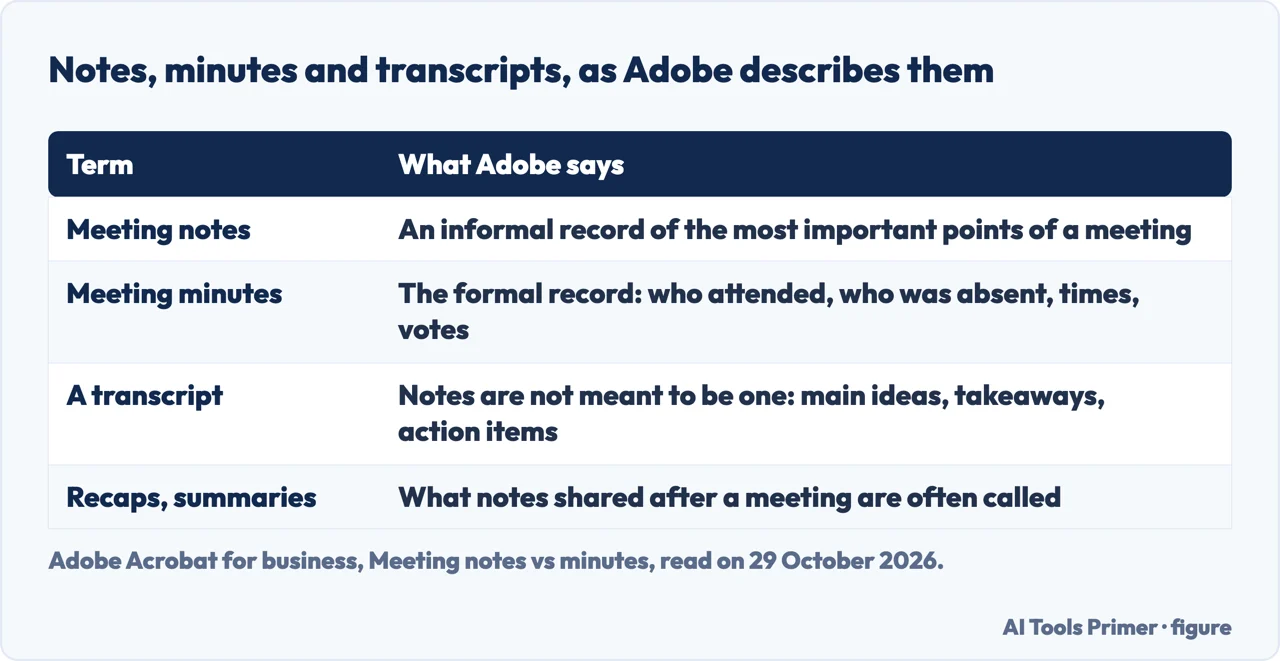
Adobe’s page on the subject calls meeting notes an informal record of the most important points of a meeting. It says the format is left open, that anyone can take them and that several people in the same meeting may take notes at once. They can hold your own thoughts and impressions next to the details of an agenda item, and Adobe says that, unlike meeting minutes, notes are not an official company record.
Minutes are the other thing. Adobe describes them as the company’s official record of a meeting: more formal, written to a standard template, and listing who attended, who was absent, when the meeting began and ended and how attendees voted. It says minutes leave out personal opinions and commentary, that a designated person is asked beforehand to take them, and that they suit formal meetings such as board meetings.
A transcript is a third thing. Under a heading that reads “Avoid transcription”, Adobe says notes are not meant to be a transcript: you do not have to write down everything word for word, and you should write the main ideas, the key takeaways and the action items. Notes shared after a meeting, it adds, are often called recaps or summaries, and they count as minutes only when they are the company’s official record in the formal format. The first figure sets the four terms side by side.
Adobe also gives a reason for writing anything down. It reports that, according to the curve of forgetting, you will have lost 40 percent of what was discussed one day after a meeting, 60 percent the next day and nearly all of the details within a week. We have not checked those figures, and the page does not name a source for them.
Two of our own pages sit next to this one. Taking notes looks at the five steps Cornell publishes, and transcribing a recording covers turning speech into text on your own machine.
Writing them by hand: Adobe’s five methods and its four As
Adobe says there is not one correct way to take meeting notes. Its principle is that the best notes are “high comprehension and low effort”, because a process that is too hard will not get done and notes that are hard to understand will not help. It leaves the medium to you: typed on a computer, tablet or phone, in which case it says to silence notifications and close other windows, or handwritten, in which case it suggests transcribing them into a digital format afterwards.
Because there is no standard format, Adobe says to decide beforehand how you will organize your thoughts, either by adapting a minutes template or with one of five methods.
- Box. A box for each topic of the meeting, filled in with what belongs to it. Adobe suggests it for visual learners and for people who doodle to stay focused.
- Cornell. The paper is divided into three vertical sections: main notes, keywords and summaries. During the meeting you write in the left column; afterwards you add keywords in the middle one, and the right one holds the main takeaways and action items.
- Outline. The main ideas from the agenda, with bullet points and numbered lists under each.
- Slide. If the meeting centers on a presentation, ask the presenter beforehand for a copy of the slides and take notes directly on them.
- Mind map. A central idea from the agenda, with branches drawn out as the meeting goes on; Adobe says it helps you see how discussions, decisions and tasks affect each other.
Adobe also lists eight As. The first four are what to include: the agenda, the attendance, the action items for each attendee and the agreements the team reached. The second four are reasons to bother: accuracy, since notes can settle a dispute about what happened; action, because they record tasks and keep teams accountable; attention, because taking notes helps participants engage; and association, because stored notes give a written record and timeline of projects and decisions.
For the work after the meeting, Adobe says to take time to polish the notes and highlight the most important points and action items, and to store them in one central place, such as a shared team drive or a single document, so that they build into a searchable collection. Its preparation list for the meeting itself is short: review the agenda, rest the night before, have a snack, bring water and keep devices from distracting you.
What an automatic note-taker produces
Adobe’s page ends its tips with a paragraph on artificial intelligence. For a virtual meeting, it says, AI can summarize the proceedings, and tools like Acrobat AI Assistant automatically create meeting summaries and identify action items from meetings in Microsoft Teams and Zoom. This is a software company describing its own product on its own page, so we report it as Adobe’s statement and nothing more. We tested no tool.
Zoom’s support article is about one setting, called Allow Zoom AI to join third-party meetings. Enabling it lets users invite Zoom AI into meetings on other platforms, and the article names Microsoft Teams and Google Meet, for the purposes of joining the meeting as a participant, generating transcripts and providing meeting summaries. The article says the calendar sync must be completed before Zoom AI can be invited. An optional check box makes Zoom AI join automatically, and the article offers three scopes for it: all events with video conference links, meetings where you are the host, or meetings where you are a participant. Its list of related articles includes one titled about retaining transcripts generated with a meeting summary, which we did not open.
Fireflies describes two ways of working. In most meetings, its page says, a bot joins the call by itself. The other way is a desktop app, with a Take Notes button, that captures the meeting without a bot. After the meeting, the page says, the notes and the full transcript are on the meeting’s page in the Fireflies dashboard.
Otter’s page is about Otter Notetaker, which it describes as joining as a named participant. It carries a banner saying that the content is available for the Otter Enterprise plan and may require admin permissions, so some of what follows applies only to that plan. In every case, what we can report is what each company says about itself. One difference runs through all of it: Adobe presents notes as something for your own reference, while Otter and Fireflies write about telling everyone else in the meeting.
What the people in the room are told
Otter opens with the law. Its page says recording laws vary by location: some places require only that the person making the recording is aware of it, which it calls single-party, and others require that every participant is notified and gives permission, which it calls all-party. It lists California, Illinois and Florida, along with many international jurisdictions, as all-party. Even where one party is enough, the page says, telling participants builds trust, and for a team that works across several places it is often simplest to apply all-party practices everywhere.
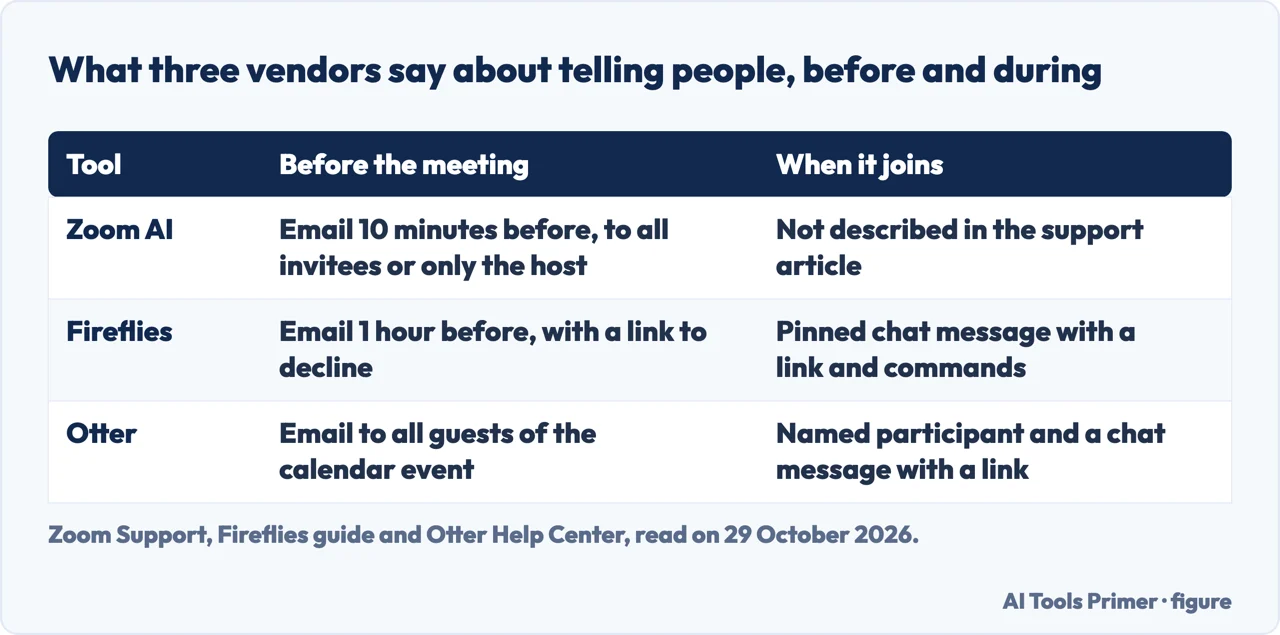
Before the meeting, the three vendors differ. Otter says it can email all guests of any calendar event that Notetaker is scheduled to join, and an admin can make that the default for the workspace under Manage Workspace and Settings, with the toggle Send pre-recording emails. Fireflies says its email goes out one hour before the meeting and carries a link to decline; anyone who clicks it stops Fireflies from joining. Zoom’s article describes an email 10 minutes before the meeting, to the host and/or participants, with a choice between all invitees and only the meeting host; an admin can lock the setting. Otter does not give a time in the part we read. The second figure sets this beside what happens when the bot joins.
When it joins, Otter says Notetaker appears in the participant list and posts a chat message with a link to the live transcript. The page calls that message the primary mechanism by which Notetaker notifies all participants during a session and says admins should not lock it off. Fireflies pins a message in the meeting chat that says it has joined to record and take notes, links to its security and privacy information, shows a real-time notes link if the team has enabled one, and lists two quick commands, /ff pause and /ff leave.
Fireflies’ desktop app has no bot, so it uses three notices that its page says are on by default: an “AI Taking Notes” badge on the camera, on Mac and Windows; a spoken message about 10 seconds after Take Notes starts, on Mac and Windows; and a message in the meeting chat, on Mac only. If you turn one off, the page says you are responsible for informing participants that the meeting is being captured and for complying with applicable recording laws.
For Microsoft Teams, Otter describes a stronger step. With its Otter for Outlook extension, each participant is sent to a recording permissions page before entering the meeting and must click Join to accept; Otter calls this “affirmative, individual permission”. The page says the extension requires the Microsoft Enterprise license.
For Zoom AI inside a meeting, the support article describes only the email. A prompt of this kind appears in a Zoom Community thread, but that thread is about AI Companion in the host’s own Zoom meeting, not about Zoom AI joining a Teams or Google Meet call as the article does; the replies are labelled Employee and dated 29 November 2023. Asked whether there is a way to know that the host has turned on AI Companion, the reply says every participant should see a consent notification, and a later reply says each participant will see a prompt for each AI Companion feature that is enabled. These are community replies from 2023 and 2024, not a current support page. If you are the one who wants to record, our pages on recording a Zoom meeting and recording a phone call cover how those two tell the other people.
If someone does not agree
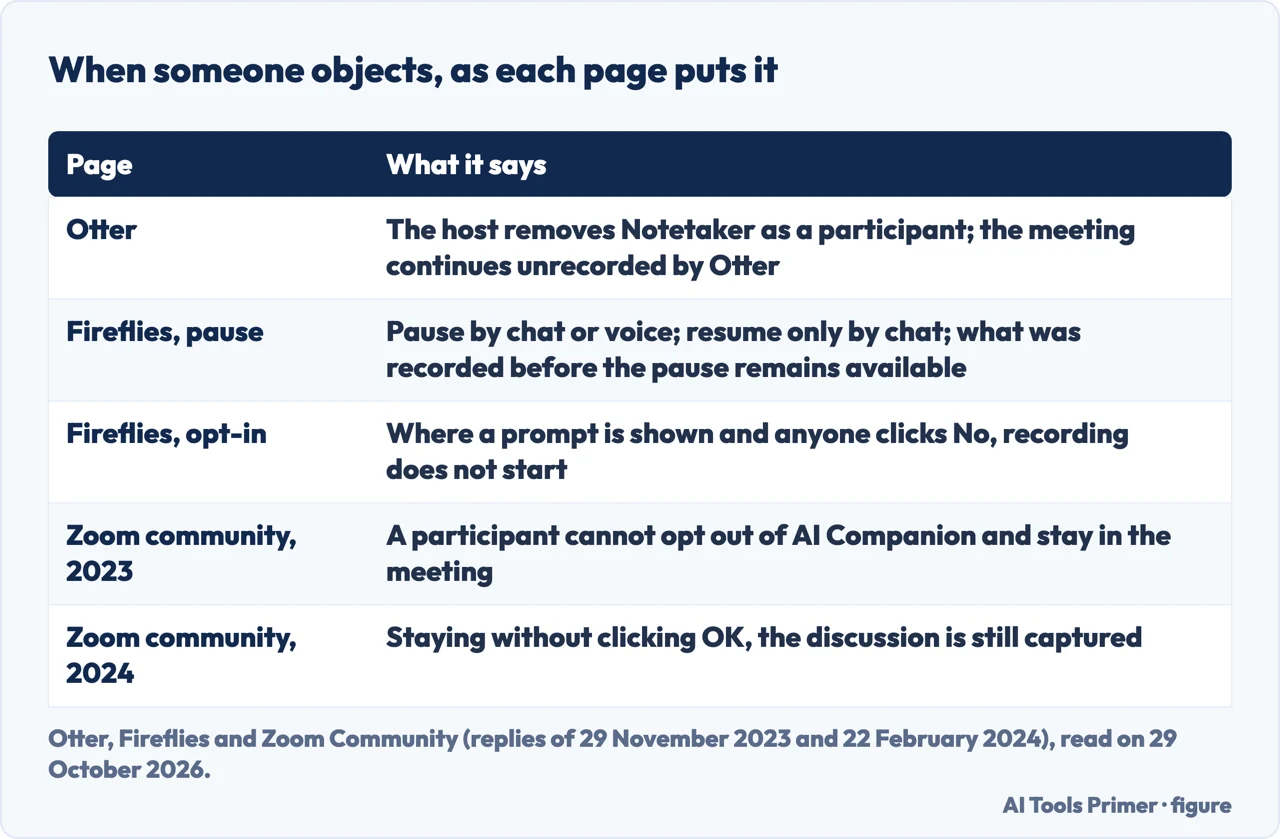
Otter says that if a participant objects after Notetaker has joined, the meeting host can remove it at any time. In Zoom and Microsoft Teams that means removing Notetaker as a participant, the way you would remove any other attendee, and the page says the meeting continues unrecorded by Otter. For a recurring meeting where someone has a standing objection, it suggests leaving that meeting out of auto-join or sending Notetaker by hand.
Fireflies frames the same question as two models. In opt-out, the bot joins automatically and participants who do not agree must remove it. In opt-in, everyone must say yes before recording can start, and if anyone clicks No the recording does not happen; its example is the Request to record this meeting prompt in Zoom. Where a platform shows no pop-up, the page says the opt-out flow applies.
Once the bot is in, Fireflies lists three controls. To pause, type /ff pause in the meeting chat or ask Fireflies by voice to pause the conversation. To resume, only the chat works: /ff resume. Pausing affects recording from that point forward, and anything recorded before the pause remains available. The notes then show a marker with the time and length of the pause, and paused parts do not create a transcript. To remove the bot, type /ff leave or remove it from the participants panel; the FAQ says it will not rejoin unless the meeting is restarted. On the question of whether participants can ask for recorded data to be deleted, the FAQ answers yes, by contacting the meeting host or Fireflies support.
The Zoom Community thread adds another picture. A reply labelled Employee, dated 29 November 2023, says that if you join a meeting where the host wants to use AI Companion features, there is currently no way to opt out while remaining in the meeting. A reply of 22 February 2024 says that a participant who does not click OK and stays still has that portion of the discussion captured, and that when the feature was already on at joining the participant cannot unmute or turn on video until OK is clicked, as with the consent for recording. The same day, another reply says the text of the consent prompt cannot currently be customized.
The pages do not line up exactly. Fireflies says a decline on Zoom’s recording prompt keeps its bot out, while the Zoom thread describes a different prompt, for AI Companion features, where staying without clicking OK still gets a person’s part captured. Fireflies also contradicts itself on its chat commands: one passage says they are valid for Google Meet, Microsoft Teams and Zoom, and a FAQ answer says they are currently only available on Google Meet. The third figure puts the objections side by side.
Where the pages stop
The pages we read do not say how long a transcript or a recording is kept afterwards. Zoom’s article and Otter’s page each list a related article about keeping data, Zoom’s on retaining transcripts and Otter’s on a custom data retention policy, and we did not open either. The pages do not mention whether recordings are used to train models; we searched all five texts for the word and found no use of it. The pages we read do not quote an article of law: Otter names three US states, Fireflies refers to applicable recording laws, and the Adobe page and the Zoom article do not discuss recording law. The pages we read do not mention ChatGPT, so we cannot say whether it takes meeting notes.
Otter’s Zoom setup shows how much is left to the reader. It tells admins to tick Auto approve their permission request for external participants, which means Notetaker does not need manual host approval each time it joins, and then says to verify with your legal team that this is appropriate for your jurisdiction before enabling it. Its best-practice list asks for layers: the pre-recording email, the announcement when Notetaker joins and, for Teams, the permissions page. It also suggests including a recording notice in the calendar invite description and, if Notetaker is sent manually, admitting it after all participants have joined so that everyone can see it arrive and object before recording begins. Its last item is to consult legal counsel before deployment.
Our reading has gaps too. The Otter page is for its Enterprise plan, and one pair of Zoom replies comes from a community thread. We tested no note-taker on a real meeting.
Where to start
Four ways in.
- “What are meeting notes?”
- What meeting notes are, and what they are not — what
- “How do I write them?”
- Adobe’s five methods and its four As — method
- “Do people have to be told?”
- What the people in the room are told — told
- “What if someone says no?”
- If someone does not agree — object
Recording and transcribing
Calls, Zoom meetings and speech turned into text.
Notes and meeting tools
Taking notes and Teams meetings.
Questions people also ask
What are notes of a meeting?
Adobe calls them an informal record of the most important points of a meeting. It says they are short, that the format is left open and that, unlike minutes, they are not an official company record.
What are notes from a meeting called?
Adobe says notes shared after a meeting are often called recaps or summaries. They are minutes only when they are the company’s official record of the meeting and follow the formal minutes format.
How do you write meeting notes?
Adobe says there is no one right way. It suggests a method such as box, Cornell, outline, slide or mind map, and says to write the main ideas, key takeaways and action items rather than every word.
Can ChatGPT take meeting notes?
The pages we read do not mention ChatGPT. They describe Acrobat AI Assistant, Otter Notetaker, Fireflies and Zoom AI, each as its own company presents it, and we tested none of them. Our page on using ChatGPT shows it given meeting notes to rewrite as a short update, but that is a different task from recording a meeting.
Not covered here. We tested no note-taker. The statements come from an Adobe article, an Otter help page, a Fireflies guide, a Zoom support article and a Zoom Community thread, all read on 29 October 2026.
The search volume and difficulty behind this page come from a Semrush reading of 29 August 2026, older than the 60 days the site normally allows.
Sources
- Adobe Acrobat for business — Meeting notes vs minutes: How to take good notes — www.adobe.com, read 29 October 2026.
- Otter Help Center — Recording Permissions with Otter — help.otter.ai, read 29 October 2026.
- Fireflies guide — Recording Consent and Meeting Compliance in Fireflies — guide.fireflies.ai, read 29 October 2026.
- Zoom Support — Enabling or disabling Zoom AI to join third-party meetings for meeting summaries — support.zoom.com, read 29 October 2026.
- Zoom Community — Participant Permission to have a meeting use AI Companion — community.zoom.com, read 29 October 2026.
Written by Alberto Gulotta
Founder and editor of AI Tools Primer, writing from Palermo, Italy. Thirty-five years of taking computers apart, starting with a Commodore 64 — the long version is on the about page.
Something wrong on this page? Write to aitoolsprimer@gmail.com and it gets fixed.
Written on 29 October 2026.
Independence and limits
No affiliate links and no paid placements anywhere on this site. Nobody pays to appear here, and no company has seen this page before you did.
This is general information, not professional advice. Where a page touches money, health, safety or the law, it names its source and the date it was read — and your situation may still differ. See the privacy page and the cookie policy.