
Audio · guide
VoiceOver iPhone: four ways to switch it and what changes
By Alberto Gulotta · Updated · 19 min read
The VoiceOver iPhone feature is Apple's gesture-based screen reader: it describes aloud what is on the screen, so the phone can be used without seeing it. Apple lists four ways to turn it on or off, and once it is on, the gestures that operate the phone change. Windows has Narrator and Android has TalkBack.
| Question | Answer | Where it comes from |
|---|---|---|
| What is it? | A gesture-based screen reader that describes the screen aloud, so the iPhone can be used without seeing it | Apple Support |
| How do I turn it on or off? | Settings, Control Center, the Accessibility Shortcut or Siri | Apple Support |
| What changes once it is on? | The gestures: Apple says VoiceOver gestures are needed to operate the iPhone | Apple Support |
| How do I unlock it? | On a Face ID iPhone, wake it and drag one finger up from the bottom edge until a vibration or two rising tones | Apple Support |
| Where do I practice? | Settings, Accessibility, VoiceOver, then VoiceOver Tutorial or VoiceOver Practice | Apple Support |
| What do Windows and Android have? | Narrator on Windows and TalkBack on Android, each with its own start-up keys or steps | Microsoft Support, Google |
What VoiceOver is, and what it says as you touch
Apple’s iPhone User Guide describes VoiceOver as a gesture-based screen reader that lets you use the iPhone even if you can’t see the screen. It gives audible descriptions of what is on the screen, and the examples Apple picks are the battery level, who is calling and which item your finger is on. The same page says the speaking voice can be customized to suit your needs.
Touch the screen or drag a finger over it and, Apple says, VoiceOver speaks the name of the item under your finger, icons and text included. To interact with an item such as a button or a link, or to move to another one, Apple says to use VoiceOver gestures. When you go to a new screen, VoiceOver plays a sound, then selects and speaks the name of the first item, typically in the top-left corner. It also tells you when the screen changes to landscape or portrait, when the screen becomes dimmed or locked, and what is active on the Lock Screen when you wake the iPhone.
Microsoft and Google each have a reader of their own. Microsoft’s Narrator guide says Narrator lets you use your PC without a mouse to complete common tasks if you are blind or have low vision, and that it reads and interacts with things on the screen, like text and buttons. Google’s Android Accessibility Help calls TalkBack the Google screen reader included on Android devices, and says it gives you eyes-free control of the device. The pages we read for one reader do not mention the other two, so every pairing on this page is ours, drawn from what each page says on its own. A screen reader is not the same job as turning text or a script into a synthetic voice, or a recording into text; for that side of audio, see the text to speech, voice cloning and audio guide, which does not cover VoiceOver itself.
Turning it on or off, and practicing before you rely on it
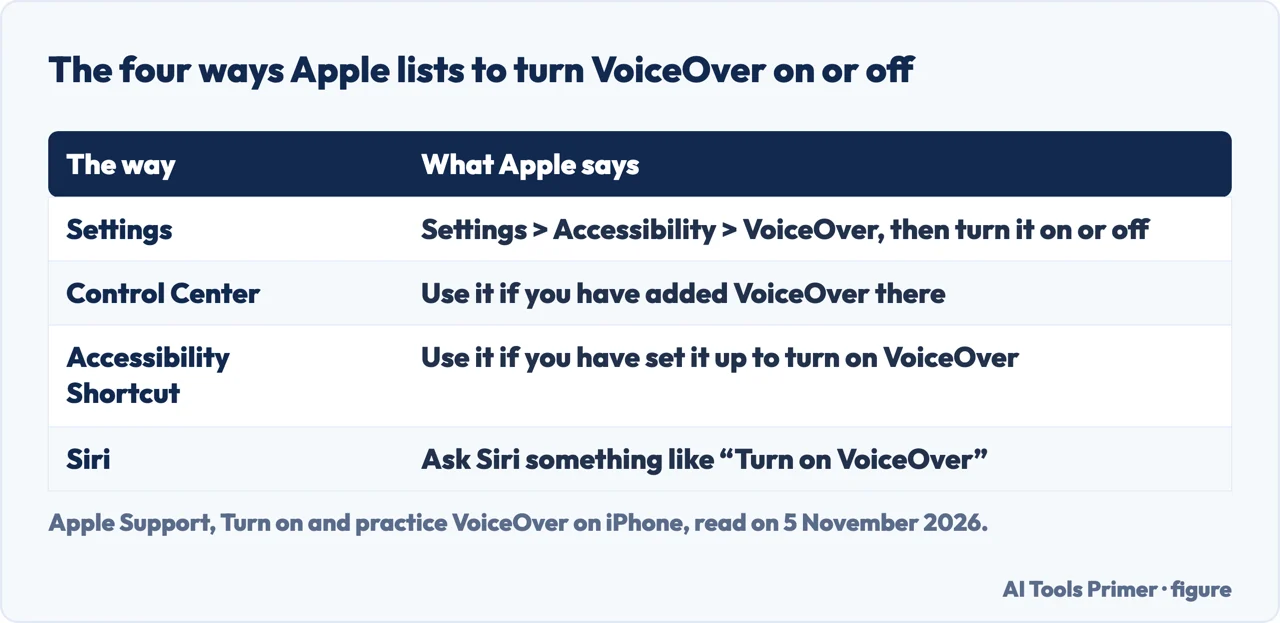
Apple gives four ways to turn VoiceOver on or off, and the same list serves both directions. You can go to Settings, then Accessibility, then VoiceOver, and switch it. You can use Control Center, if you have added VoiceOver there. You can use the Accessibility Shortcut, if you have set it up to turn on VoiceOver. Or you can ask Siri something like “Turn on VoiceOver.” Apple adds that Siri knows when VoiceOver is on and often reads back more information than appears on the screen, and that VoiceOver can read what Siri shows.
Apple marks one point as important: VoiceOver changes the gestures you use to control the iPhone, and while it is on the VoiceOver gestures are the ones that operate the phone.
For learning, Apple offers two things. The first is an interactive VoiceOver Tutorial for the basics and the essential gestures: with VoiceOver turned on, go to Settings, Accessibility, VoiceOver, and tap VoiceOver Tutorial. The second is the VoiceOver Practice area. Turn on VoiceOver, tap VoiceOver Practice, then double-tap to start, and try a tap, a double tap, a triple tap and a swipe left, right, up or down with one, two, three and four fingers. Apple says the area lets you try the gestures and hear what they do without performing any action or otherwise affecting the iPhone. When you finish, tap Done, then double-tap to exit.
Apple’s tips for a gesture that does not work are two. Try a quicker movement, especially for a double tap or a swipe, and brush the screen quickly with your finger or fingers. For multifinger gestures, touch the screen with some space between your fingers.
Using the iPhone with VoiceOver on: unlock, Home, Control Center and the rotor
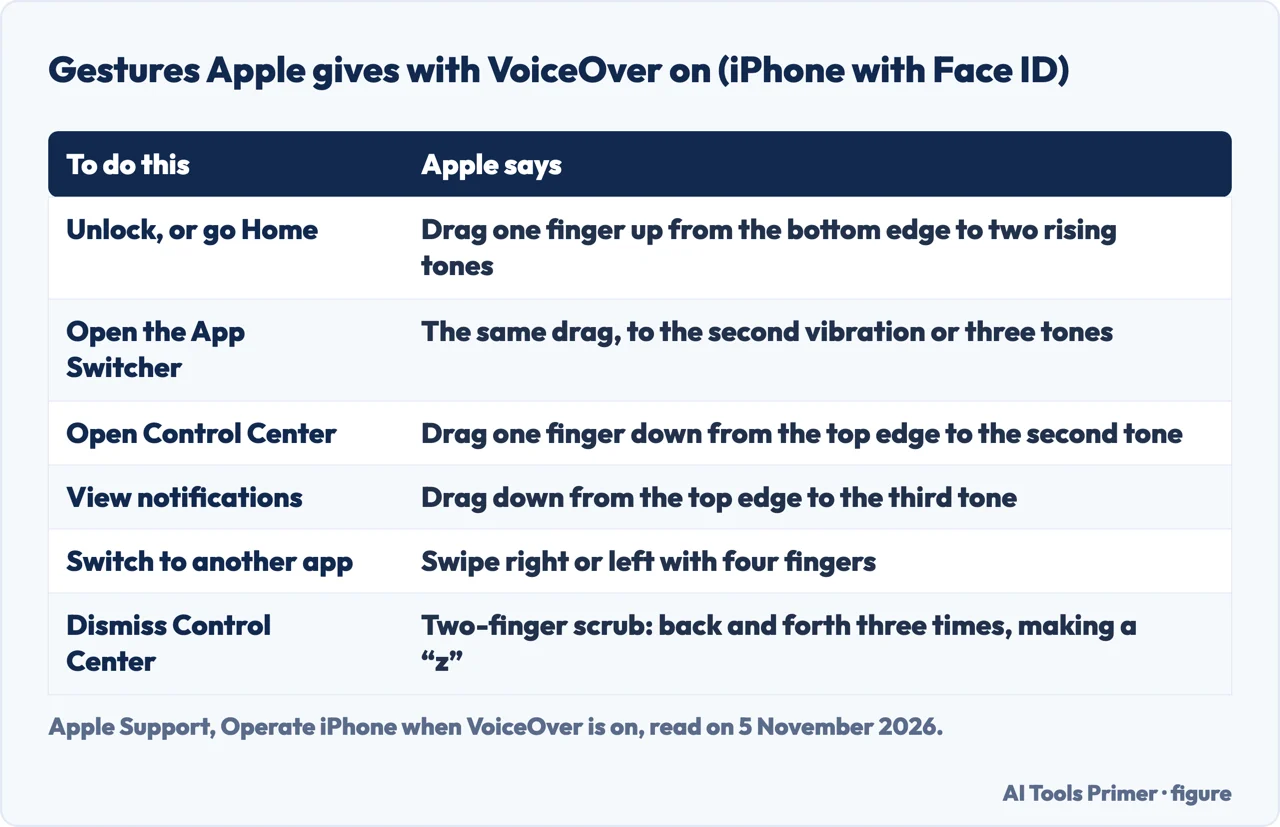
Apple’s page on operating the iPhone says that with VoiceOver on, you need special gestures to unlock the iPhone, go to the Home Screen, open Control Center, switch apps and more. To unlock an iPhone with Face ID or an iPhone Duo, wake it, then drag up from the bottom edge of the screen until you feel a vibration or hear two rising tones. On an iPhone SE, Apple says to press the Home button using the finger you registered with Touch ID. If it asks for the passcode, Apple says that to avoid having it spoken as you enter it, you can enter it silently using handwriting mode or type onscreen braille.
The Home Screen uses the same drag: one finger up from the bottom edge until the vibration or two rising tones, then lift the finger; on an iPhone SE, press the Home button. To switch apps, Apple says to swipe right or left with four fingers to cycle through the open apps. The App Switcher takes the same drag up to the second vibration or three tones, or a double-click of the Home button on an iPhone SE.
For Control Center on a Face ID iPhone, drag one finger down from the top edge until you feel a vibration or hear the second tone. Notifications need a longer drag, to the second vibration or the third tone. Apple adds routes for all iPhone models: tap any item in the status bar, then swipe up with three fingers for Control Center or down with three fingers for notifications. Both screens are dismissed with a two-finger scrub, which Apple describes as moving two fingers back and forth three times quickly, making a “z”. To hear the time, battery state and Wi-Fi signal strength, tap the status bar and swipe left or right.
The rotor is Apple’s way of changing how VoiceOver works. Its support page says you rotate two fingers on the screen as if you are turning a dial, VoiceOver says the first option, you keep rotating to hear more, and you lift your fingers to choose one. After that, a flick up or down with one finger uses it: with Words chosen in an open document, a flick moves to the next or previous word. The page groups the options. Characters, Words and Lines review text. Containers, Headings, Landmarks, Same Item, Vertical Navigation and Static Text move through the structure of a page. Links, Visited Links, Non-visited Links and In-Page Links move between links, and Tables, Lists, Buttons, Form Controls, Text Fields, Search Fields and Images cover more ways through a page.
Some rotor options change the sound and the typing. Voices, Speaking Rate and Volume adjust VoiceOver itself with a flick up or down. Typing Mode switches between Standard Typing, Touch Typing and Direct Touch Typing, and Apple says the last types the same as when VoiceOver is off and turns VoiceOver off for typing only. A Live Recognition option scans the surroundings and describes the scenes in the camera view; Apple warns that VoiceOver Recognition should not be relied upon where you could be harmed or injured, in high-risk situations, for navigation, or for diagnosing or treating a medical condition. Which options appear is set under Settings, Accessibility, VoiceOver, Rotor, Rotor Items. Apple’s rotor page carries a published date of 20 March 2025.
Voice, speed and how much VoiceOver says
Apple’s settings page says you can customize VoiceOver’s audio options, language, voice, speaking rate and verbosity. The volume of VoiceOver speech and sounds follows the iPhone’s volume buttons, which also change all other audio. To lower other audio while VoiceOver speaks, go to Settings, Accessibility, VoiceOver, Audio, tap Audio Ducking and select When Speaking, then drag the Ducking Amount slider to set how much media and calls drop.
For language, Apple says VoiceOver uses the same language you choose for the iPhone, and a different primary language comes from Settings, General, Language & Region, then Add Language. The rotor can switch to a voice for another language, and turning on Detect Languages under Speech lets VoiceOver switch voices by itself. Apple adds that VoiceOver is not available in all languages and points to a separate article on supported languages, which we did not read, so we do not list them.
For the voice, go to Settings, Accessibility, VoiceOver, then Speech. Tapping the name of the current primary voice and then Voice changes it, and Add Rotor Voice adds another voice you can switch to with the rotor. For an enhanced voice, Apple adds a tap on an icon first, one our copy of the page does not show, so we do not name it. Speed is the Speaking Rate slider. Pitch is set by tapping Speech, a voice, and dragging a slider, and a Pitch Change option uses a higher pitch for the first item of a group, such as a list or table, and a lower pitch for the last. Pronunciations lets you add a phrase and dictate or spell out how it should be pronounced; Apple notes that dictating needs Enable Dictation turned on in Settings, General, Keyboards.
How much VoiceOver tells you sits under Verbosity. Punctuation uses groups, and Apple says you can create new ones, for example a programming group in which a square bracket is spoken as “left bracket.” System Notifications is where Apple’s page says VoiceOver reads notifications, including incoming text messages, as they occur by default, even if the iPhone is locked, and repeats unacknowledged ones when you unlock. Other switches cover hints, uppercase letters and embedded links, and VoiceOver can confirm rotor actions and say when the flashlight is turned on.
Apple also describes activities: groups of VoiceOver settings, such as for programming, that apply to chosen apps or to contexts such as Word Processing, Messaging or Console. Navigation Style offers Flat, which moves through each item in turn, or Grouped, where a two-finger swipe right moves into a group and a swipe left moves out. Delay before Selection lengthens the time between touching the screen and VoiceOver selecting the item, which Apple says may help reduce accidental touches. Large Cursor thickens the outline around the selected item, and Caption Panel shows the spoken text at the bottom of the screen.
Two last items on the page are Quick Settings, reached with a two-finger quadruple tap and customized under Settings, Accessibility, VoiceOver, Quick Settings, and the reset routes. Reset VoiceOver Settings is under Accessibility, VoiceOver, and Reset VoiceOver Commands is under Commands.
The same job on Windows and Android: Narrator and TalkBack
Microsoft’s guide starts and stops Narrator with the Windows logo key, Ctrl and Enter pressed together, and the page notes that on older versions of Windows the command was the Windows logo key and Enter. Settings open with the Windows logo key, Ctrl and N, where a toggle under Use Narrator turns it on. Check boxes in those settings start it automatically after you sign in or before sign-in for all users, and at sign-in an accessibility icon in the bottom right corner opens a menu with an on and off toggle. Each time Narrator starts it opens Narrator Home, with QuickStart, the guide, What’s New, Settings and Feedback. The Narrator key is Caps Lock or Insert by default and appears in the guide simply as “Narrator” in a command. The chapters we read carry an “Applies To Windows 10” heading above tabs for Windows 11 and Windows 10.
For everyday control, Microsoft says the Ctrl key stops Narrator reading at any time. Narrator, Ctrl and plus or minus change the volume, Narrator and plus or minus change the speed, and Narrator, Alt and plus or minus switch among installed voices. Narrator and 1 turns on Input Learning, which tells you what keys you are pressing. Narrator and X repeats the last phrase, and Narrator, Alt and X opens a speech recap of the last 500 spoken strings. Screen curtain, on with Narrator, Ctrl and C, blacks out the display while you hear what is on it.
Reading is the other half. Scan mode starts with Narrator and the Spacebar, after which the up and down arrows read by paragraph and the left and right arrows by character. Narrator and R reads from the cursor and Narrator, Ctrl and R from the beginning in one version of the guide’s text (the other tab says from where your cursor is). Lines, words and characters each have three keys for current, next and previous. For images, Narrator, Ctrl and D asks for a description, and the guide says Narrator will send the image to Microsoft; settings under Manage data and services can turn those services off. On Snapdragon-powered Copilot+ PCs the description is generated on the device.
Google’s pages give several ways to turn TalkBack on. During phone setup, hold both volume buttons for a few seconds, and the button stays a shortcut unless you disable it. Afterward, go to Settings, Accessibility, TalkBack and choose Use TalkBack, or turn on the TalkBack shortcut, or say “Hey Google” followed by “Turn on TalkBack” if Google Assistant is set up. A further way, Action, Alt and T on an external keyboard, needs the latest version of Android 16, according to the page. Google adds that how you turn it on depends on the phone and its Android version.
With TalkBack on, you touch an item with one finger to hear it and tap twice with one finger to open or use it. A swipe right with one finger moves to the next item, and two fingers dragged up or down scroll. If the phone uses gesture navigation, the Google page says to use two fingers instead of one for home, back and recent apps. Google notes that TalkBack speaks password letters, with a setting in secure fields to change that. The TalkBack menu opens with a three-finger tap, or a swipe down then right in one motion, and by default lists Read from focused item, Copy last spoken phrase, Spoken language, Screen search, Hide or show screen, Voice commands, TalkBack settings, Text-to-speech settings and Braille settings. Reading controls open with a three-finger swipe up or down and include Characters, Words, Lines, Paragraphs, Rows, Columns, Headings, Controls, Links and Speech rate, where a swipe up is faster and a swipe down is slower. The page says multi-finger gestures are available on TalkBack 9.1, on updated Pixel 3 and up, and on some other devices, and the tutorial opens by itself the first time TalkBack is on.
Where the three readers differ, and what the pages leave out
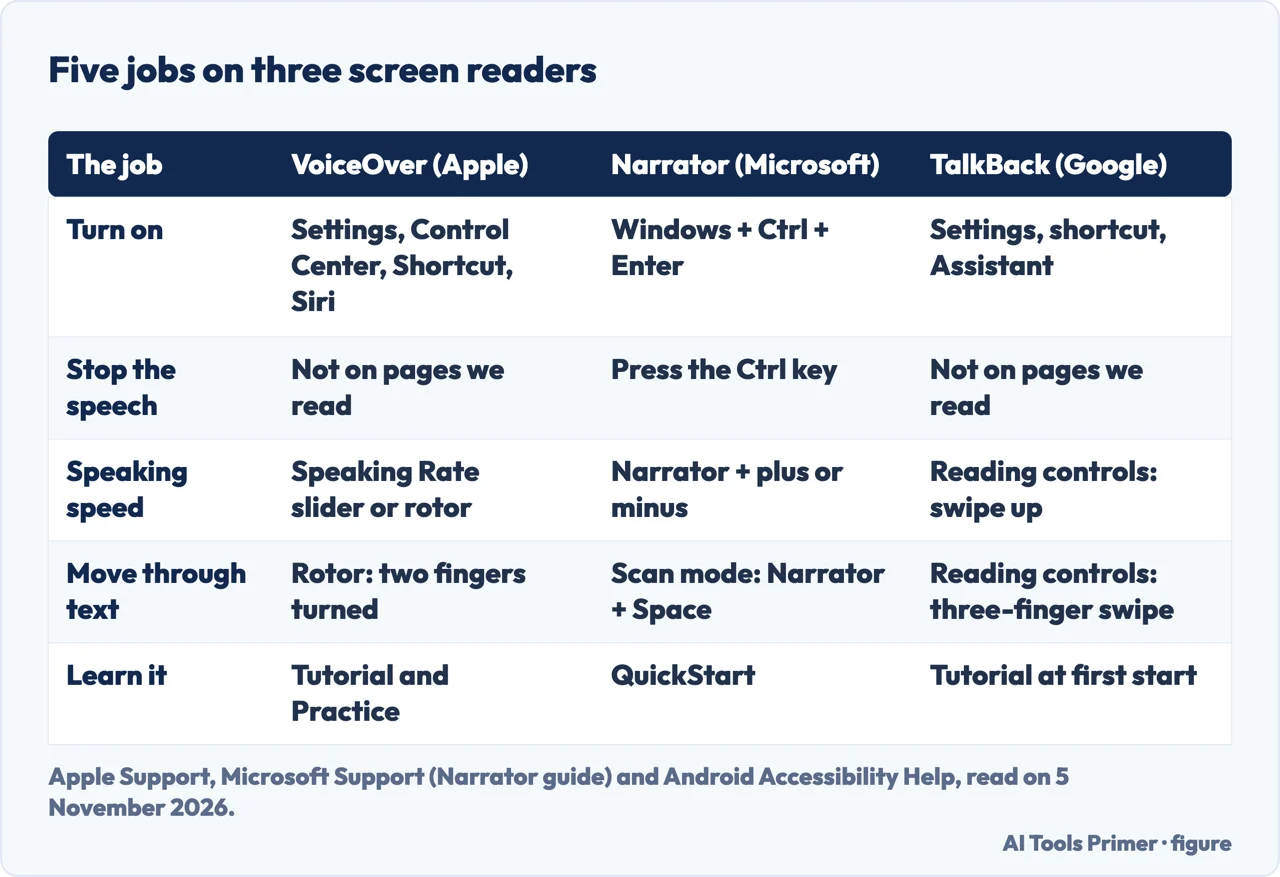
Stopping the speech is where the pages part most plainly. Microsoft says to press the Ctrl key. The Apple and Google pages we read do not give a stop gesture for the speech, so we do not state one for VoiceOver or TalkBack. Speed also differs: Apple gives the Speaking Rate slider in Settings and the rotor, Google gives a Speech rate reading control with a swipe up for faster, and Microsoft gives keys. The voice is another split. Apple puts voices in VoiceOver’s own Speech settings, Google points to Text-to-speech settings in the TalkBack menu, and Microsoft says other text-to-speech voices can be installed.
The rotor, Google’s reading controls and Narrator’s scan mode all move through text in different ways, and our pairing of them is only a way to find the nearest control; each page describes its own. All three change how the device is controlled, but each says so differently: Apple states it outright, Google tells you to use two fingers for gesture navigation, and the Narrator chapters we read give keyboard commands (the guide’s contents list also covers touch, which we did not read).
Some questions are not answered in the pages we read. The pages do not say how many people use each reader or which is better. For a phone that seems stuck on VoiceOver, they give the four ways to turn it off and do not word it as being stuck. We did not read Apple’s separate page on all VoiceOver gestures, so the gestures here are only the ones in the pages listed below. Privacy points appear in three places: Narrator sends an image to Microsoft for a description, TalkBack speaks password letters unless you change the setting, and VoiceOver reads notifications aloud by default even when the iPhone is locked.
Where to start
Four ways in.
- “What is it?”
- What VoiceOver is, and what it says as you touch — what
- “How do I turn it on or off?”
- Turning it on or off, and practicing before you rely on it — turn on
- “How do I use the phone with it on?”
- Unlock, Home, Control Center and the rotor — operate
- “Can I change the voice?”
- Voice, speed and how much VoiceOver says — settings
Settings that change what you see and hear
Other iPhone settings that change how the phone looks, feels, sounds and listens.
Voices and speech
Turning speech into text, and text or scripts into voices.
Questions people also ask
What is VoiceOver on my iPhone?
Apple describes VoiceOver as a gesture-based screen reader that lets you use the iPhone even if you can’t see the screen. It gives audible descriptions of what is on the screen, such as the battery level, who is calling or the item your finger is on, and its speaking voice can be customized.
How do I turn off VoiceOver on my iPhone?
Apple gives four ways to turn VoiceOver on or off: Settings, Accessibility, VoiceOver; Control Center, if you have added it there; the Accessibility Shortcut, if you have set it up; or Siri. Apple adds that while VoiceOver is on, VoiceOver gestures are the ones that operate the iPhone.
How to unlock iPhone if VoiceOver is on?
On an iPhone with Face ID, Apple says to wake it, then drag up from the bottom edge until you feel a vibration or hear two rising tones. On an iPhone SE, press the Home button with the finger registered for Touch ID. If it asks for the passcode, handwriting mode or onscreen braille enters it silently.
Why is my iPhone stuck on VoiceOver?
The pages we read do not use that wording. Apple says VoiceOver changes the gestures you use, so the usual ones will not work while it is on. Its four ways to turn VoiceOver off are in the answer above, and Siri and the Accessibility Shortcut are two of them, the shortcut only if it was set up beforehand.
Not covered here. We tested nothing on an iPhone, a PC or an Android phone. The statements come from four Apple Support pages, three chapters of the Narrator guide on Microsoft Support and three pages of Android Accessibility Help, all read on 5 November 2026.
The search volume and difficulty behind this page come from an Ubersuggest reading of 5 November 2026, not from Semrush, and the difficulty is still to be confirmed with Semrush.
Sources
- Apple Support — Turn on and practice VoiceOver on iPhone — support.apple.com, read 5 November 2026.
- Apple Support — Operate iPhone when VoiceOver is on — support.apple.com, read 5 November 2026.
- Apple Support — Change your VoiceOver settings on iPhone — support.apple.com, read 5 November 2026.
- Apple Support — About the VoiceOver rotor on iPhone or iPad — support.apple.com, read 5 November 2026.
- Microsoft Support — Chapter 1: Introducing Narrator — support.microsoft.com, read 5 November 2026.
- Microsoft Support — Chapter 2: Narrator basics — support.microsoft.com, read 5 November 2026.
- Microsoft Support — Chapter 4: Reading text — support.microsoft.com, read 5 November 2026.
- Android Accessibility Help — Get started on Android with TalkBack — support.google.com, read 5 November 2026.
- Android Accessibility Help — Turn on TalkBack — support.google.com, read 5 November 2026.
- Android Accessibility Help — Use the TalkBack menu & reading controls — support.google.com, read 5 November 2026.
Written by Alberto Gulotta
Founder and editor of AI Tools Primer, writing from Palermo, Italy. Thirty-five years of taking computers apart, starting with a Commodore 64 — the long version is on the about page.
Something wrong on this page? Write to aitoolsprimer@gmail.com and it gets fixed.
Written on 5 November 2026.
Independence and limits
No affiliate links and no paid placements anywhere on this site. Nobody pays to appear here, and no company has seen this page before you did.
This is general information, not professional advice. Where a page touches money, health, safety or the law, it names its source and the date it was read — and your situation may still differ. See the privacy page and the cookie policy.