
iPhone · guide
Hey Siri not working: Apple’s checks, and what silences it
By Alberto Gulotta · Updated · 9 min read
Hey Siri not working on an iPhone or iPad? Apple’s page asks you to check the connection, check that Siri is on, turn “Siri” or “Hey Siri” off and on, and retrain your voice. Three defaults can silence it without a fault: the phone face down, Low Power Mode, and a second device that answers instead.
This page puts Apple’s pages in order, shows which silences are settings, and reports what three third-party guides say.
| Question | Answer | Where it comes from |
|---|---|---|
| What does Apple check first? | That the device is online; offline, Siri usually says it is having trouble with the connection | If Siri isn’t working |
| Siri is on but silent? | Turn “Siri” or “Hey Siri” off and on again, and retrain your voice | If Siri isn’t working |
| Does it work with the phone face down? | By default, “Hey Siri” activates Siri only when the iPhone faces up | Siri accessibility settings |
| Does Low Power Mode matter? | It reduces or disables features such as Hey Siri | Battery page |
| Two devices answer, or the wrong one? | Only the one that heard you best, or was recently raised or used, should respond | Siri with multiple devices |
Apple’s checks, in order
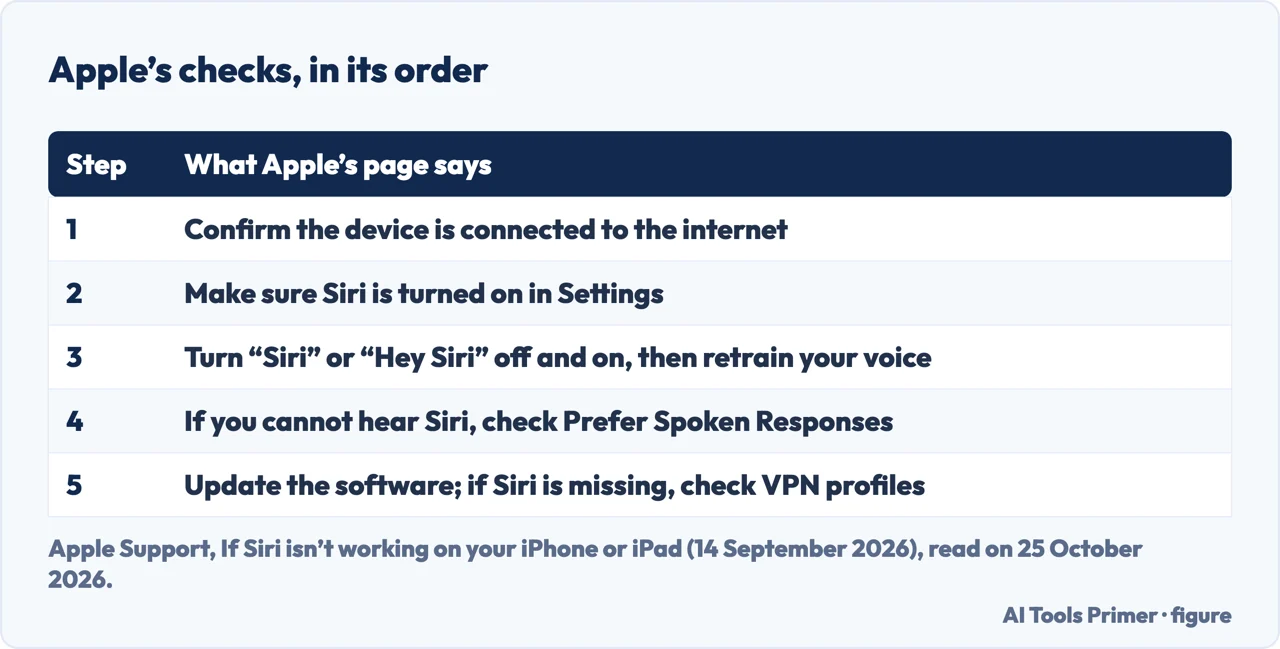
Apple’s page for a Siri that is not working, published on 14 September 2026, starts with the connection: “When your device is offline, Siri will usually respond and say “I’m having trouble with the connection.”” Then it asks you to make sure Siri is enabled: open Settings and tap Siri, then Turn On Siri, noting that on some versions of iOS the preferences sit under Apple Intelligence & Siri.
If Siri is on and the device is online but Siri does not respond, the page gives two steps. First, under Requests (or Talk & Type to Siri), “Make sure “Siri” or “Hey Siri” is turned on. If it’s already on, turn it off and back on again.” Second, to set Siri up to recognise your voice, turn the setting off, turn it back on, tap Continue when the setup screen appears and say each command shown. If you cannot hear Siri, check Prefer Spoken Responses and, if you like, its speaking volume and speed.
The last step is software. “Siri requires iOS 7 or later,” and Siri availability varies by language and region. Another cause is listed: “If Siri doesn’t appear in Settings after your device restarts, check your VPN settings. Some VPN profiles might not allow use of Siri.” The page ends with a fallback: if Siri still does not respond to your spoken requests, try typing to Siri or pressing a button to get its attention.
What silences Hey Siri on purpose
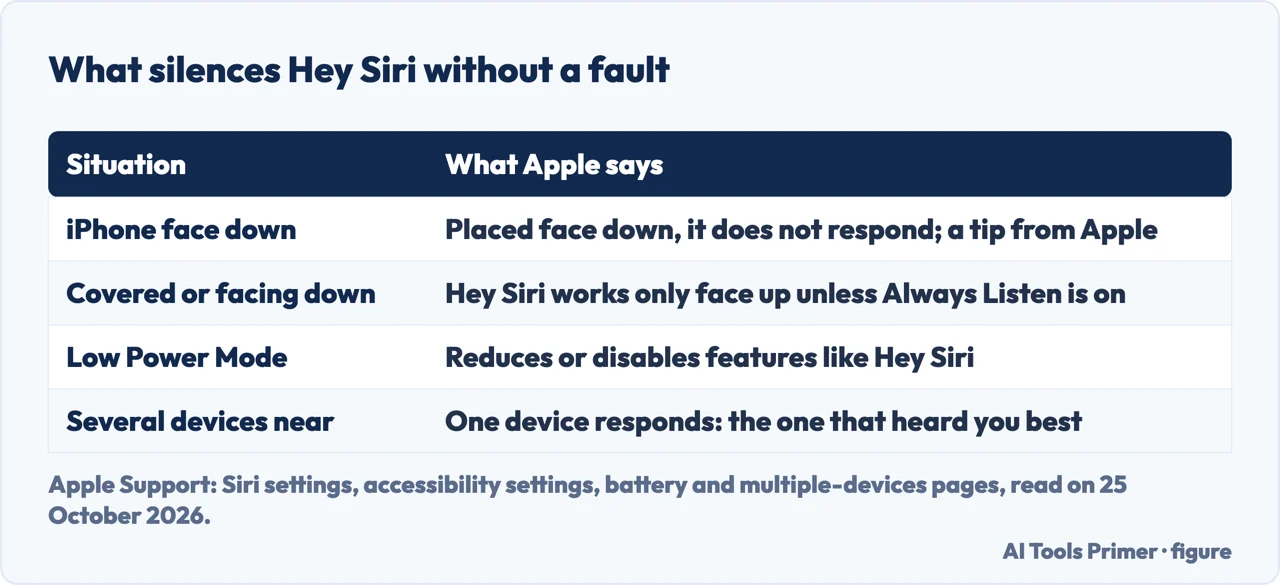
Some of what looks like a fault is a setting. Apple’s accessibility settings page for Siri says: “When you set up Siri, “Hey Siri” or “Siri” activates Siri only when your iPhone faces up. To change this, turn on Always Listen for “Siri.”” The page calls that option the way to use Siri even when the iPhone is covered or facing down. Apple’s general Siri settings page turns the same fact into a tip: “To prevent iPhone from responding to “Siri” or “Hey Siri” when you don’t want it to, place your iPhone face down.” A phone on a desk, a pocket or a bag can therefore be silent by design.
The battery page names another: “Low Power Mode reduces the amount of power that your device uses by reducing or disabling certain settings and features, like Mail fetch, Hey Siri, Background App Refresh, and some visual effects.” If “Hey Siri” stopped answering when the battery got low, that is a place to look. Setapp’s guide mentions Low Power Mode too, among ten solutions.
When more than one device is listening
Apple has a page for the other side of the problem. When you say “Siri” or “Hey Siri” near several devices, they use Bluetooth to decide which one answers, and Apple says the one that responds is “the one that heard you best or was recently raised or used.” If the wrong device responds, make sure each device has Bluetooth turned on and the latest Apple software, and place your iPhone or iPad face down so that Siri will not respond from that device. So a phone that stays quiet while your watch or iPad answers is behaving as Apple describes.
Reaching Siri without saying anything
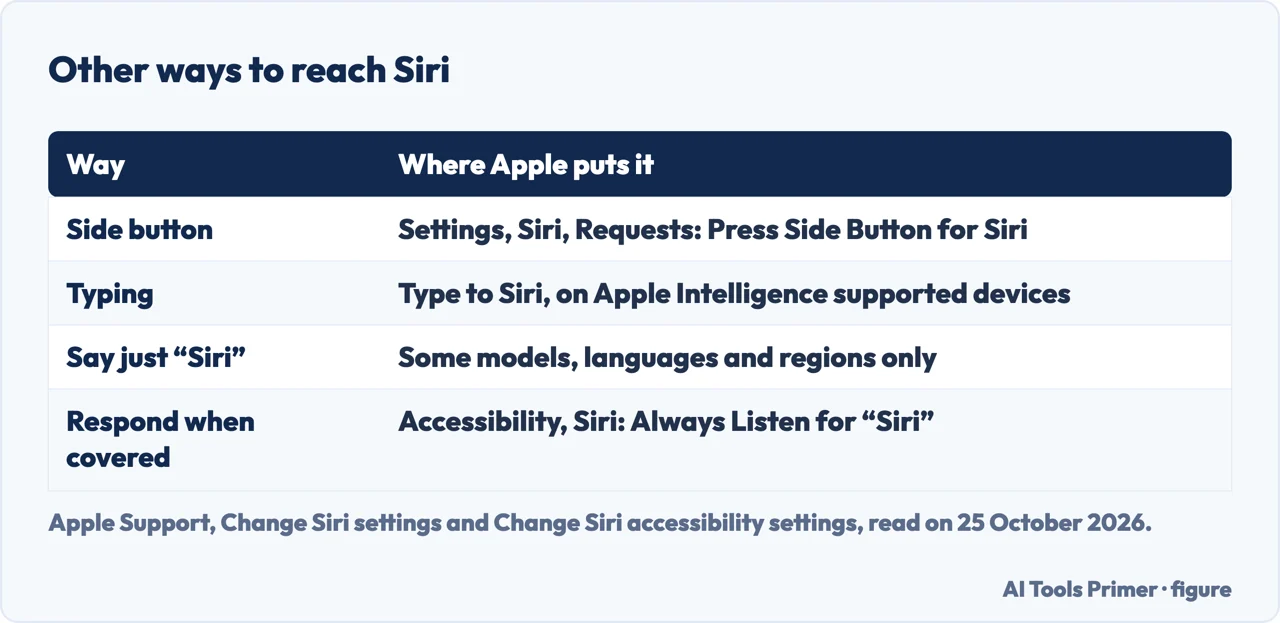
The Siri settings page lists the other ways, under Settings, Siri, Requests: you can say “Siri” or “Hey Siri,” click the side button, or type to Siri. Turn on Press Side Button for Siri to activate it with the side button, and Type to Siri on Apple Intelligence supported devices. The page adds a note: the option to say just “Siri” is available on supported iPhone models in some languages and regions, and Apple points to its iOS and iPadOS Feature Availability website to check your device and language. To retrain your voice, turn the setting off and on again. If a button works and your voice does not, that points to the setting and the microphone, not the connection. For a restart, see the page on force restarting an iPhone.
What three third-party guides say
Setapp’s guide lists ten solutions, among them the VPN, a Focus mode, AirPods and Bluetooth, Low Power Mode and cleaning the microphone, and recommends programs from its own catalogue; WhistleOut, a phone-plan comparison site, and Navi, a phone-deals site, list settings, microphones and cases. In the texts we read, none of the three mentions that “Hey Siri” works only when the phone faces up by default, or Always Listen. Apple’s pages do not mention Focus mode; we cannot say whether it matters.
Where to start
Five ways in.
- “What do I try first?”
- Apple’s order — order
- “It works only sometimes.”
- Face up, low power — design
- “My watch answers instead.”
- Several devices — devices
- “I will just press a button.”
- Other ways — ways
- “The guides say something else.”
- What backs it — guides
Settings that change how the phone behaves
Other iPhone settings that switch things off or on without a fault: apps, battery, restarts.
Sound and connection
The microphone, the network and calling over Wi-Fi.
Questions people also ask
Why is Hey Siri not working on my iPhone?
Apple checks the connection, that Siri is turned on, and that “Siri” or “Hey Siri” is on; if it is, turn it off and on and retrain your voice. By default it also activates only when the iPhone faces up, and Low Power Mode can disable it.
How do I turn Hey Siri back on?
Settings, Siri, Requests (or Apple Intelligence & Siri, Talk & Type to Siri), then turn “Siri” or “Hey Siri” on, or off and on, and follow the setup to retrain your voice.
Does Hey Siri work with the phone face down?
Not by default: Apple says “Hey Siri” activates Siri only when the iPhone faces up, and Always Listen for “Siri” in Accessibility changes that.
What if Siri does not appear in Settings?
Apple says to check your VPN settings, because some VPN profiles might not allow use of Siri, and to update the software.
Not covered here. We did not test any device for this page. The steps and the defaults come from Apple Support (If Siri isn’t working on your iPhone or iPad, published 14 September 2026; Change Siri settings on iPhone; Change Siri accessibility settings on iPhone; How Siri works with multiple devices; If the battery in your iPhone or iPad drains too quickly), read on 25 October 2026. Menu names follow those pages and may differ by iOS version.
Setapp, WhistleOut and Navi are third-party sites that sell subscriptions, plans or deals; Reddit and the videos in the results were not read. Apple Watch, Mac and HomePod are not covered, and neither is Siri with AirPods.
The search volume and difficulty behind this page were read in Semrush on 29 August 2026.
Sources
- Apple Support — If Siri isn’t working on your iPhone or iPad (14 September 2026) — support.apple.com, read 25 October 2026.
- Apple Support — Change Siri settings on iPhone — support.apple.com, read 25 October 2026.
- Apple Support — Change Siri accessibility settings on iPhone — support.apple.com, read 25 October 2026.
- Apple Support — How Siri works with multiple devices — support.apple.com, read 25 October 2026.
- Apple Support — If the battery in your iPhone or iPad drains too quickly — support.apple.com, read 25 October 2026.
- Setapp — Fix Siri not working: 10 non-obvious solutions (3 November 2025) — setapp.com, read 25 October 2026.
- WhistleOut — Why Is “Hey Siri” Not Working? 10 Ways to Fix It (13 March 2026) — www.whistleout.com, read 25 October 2026.
Written by Alberto Gulotta
Founder and editor of AI Tools Primer, writing from Palermo, Italy. Thirty-five years of taking computers apart, starting with a Commodore 64 — the long version is on the about page.
Something wrong on this page? Write to aitoolsprimer@gmail.com and it gets fixed.
Written on 25 October 2026.
Independence and limits
No affiliate links and no paid placements anywhere on this site. Nobody pays to appear here, and no company has seen this page before you did.
This is general information, not professional advice. Where a page touches money, health, safety or the law, it names its source and the date it was read — and your situation may still differ. See the privacy page and the cookie policy.