
Business · guide
How to find all your subscriptions, one place at a time
By Alberto Gulotta · Updated · 19 min read
How to find all your subscriptions means checking more than one place. Apple points to Settings and your email, Google Play has its own subscriptions page, PayPal lists its automatic payments, and a bank or card statement shows who bills you. The pages we read do not put these in one order.
| Question | Answer | Where it comes from |
|---|---|---|
| Where do I look on an iPhone? | Settings, tap your name, then Subscriptions | Apple Support |
| Where do I look on Android? | Subscriptions in Google Play, signed in to the Google Account that has them | Google Play Help |
| Where do I look in PayPal? | Settings, Payments, then Subscriptions and saved businesses or Automatic Payments | PayPal help article |
| What if Apple has no receipt? | Check your bank or credit card statement to find out which company bills you | Apple Support |
| Does stopping a payment end what I owe? | No: a service contract has to be cancelled too, and a loan is paid another way | CFPB |
Where the pages send you to look
The pages we read each cover one place a subscription can sit. Apple Support covers subscriptions billed by Apple and subscriptions bought in apps from the App Store. Google Play Help covers subscriptions bought in Google Play on an Android device. PayPal has two pages on automatic payments that were set up through PayPal. The US Consumer Financial Protection Bureau, the CFPB, covers automatic payments taken from a bank account, and the Federal Trade Commission, the FTC, has a consumer page on free trials and renewals.
Two of the sources say what to do when the subscription is not where you looked. Apple’s page says to search your email for the words “receipt from Apple” or “invoice from Apple”, and, if there is no Apple receipt, to check a bank or credit card statement to find out which company bills you. PayPal’s money guide opens its advice on unwanted charges with an audit of bank and credit card statements. Google Play Help says to make sure you are signed in to the Google Account that has your subscriptions, and that a subscription you cannot find may be on a different account.
The sources differ on where to start. Apple’s page starts with the Subscriptions list and, for one it does not list, searches your email for the receipt and falls back to the statement; PayPal’s guide starts with the statements; the FTC’s consumer page uses statements after you have cancelled, to see whether a charge still arrives. The sections below follow the sources one at a time, Apple first, then Android and PayPal, then bank and card statements, then the FTC rule. That order is ours, chosen to keep each source’s statements together.
Apple: iPhone, iPad, Mac and the receipt search
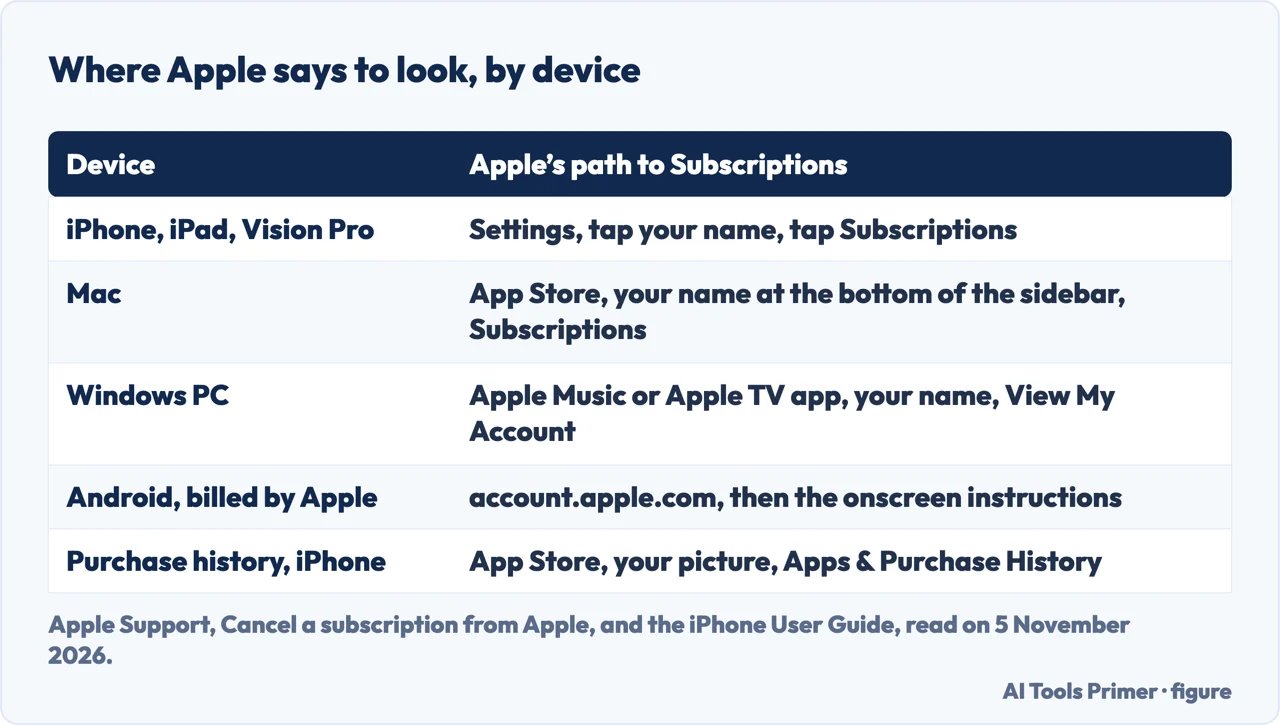
Apple’s page on cancelling a subscription, published on 29 September 2026, gives the same four steps for an iPhone, an iPad and an Apple Vision Pro: in Settings tap your name, tap Subscriptions, tap the subscription, and tap Cancel Subscription. The page says you might need to scroll down to find the Cancel Subscription button, and that if there is no Cancel button, or you see an expiration message in red text, the subscription is already cancelled. On the iPhone, iPad, Vision Pro and Mac the path ends at the Subscriptions list.
On a Mac, the page says to open the App Store, click your name at the bottom of the sidebar (or the Sign In button, then sign in to your Apple Account), click your name again on the page that appears, and click Subscriptions. On a Windows PC, it says to open the Apple Music app or the Apple TV app, click your name at the bottom of the sidebar, choose View My Account, scroll to the Settings section and click Manage next to Subscriptions. It gives separate steps for an older version of iTunes for Windows. For Apple Music or Apple TV on an Android device, billed through Google Play, the page says to cancel in the Google Play app; for a subscription billed by Apple, it points an Android user to account.apple.com.
Apple’s iPhone User Guide describes the same list as the place to view, change and cancel subscriptions from Apple and those bought in apps from the App Store. From the list you can cancel with Cancel Subscription or Cancel All Services, change a plan, renew an expired subscription, turn on Share with Family, and turn on Renewal Receipt Emails to get a receipt each time a subscription renews. The two Apple pages differ in one word: only the guide names Cancel All Services.
The guide also describes a purchase history. In the App Store app, tap your picture, then Apps & Purchase History, then Purchase History; you may be asked for Face ID, Touch ID or your passcode. Apple says the history includes free and paid apps, in-app purchases, subscriptions, music, videos, books and AppleCare+. The search starts on a filter called “Last 90 Days, Paid”, which you can change by date range, cost, type, or family member if you organise a Family Sharing group.
When Apple does not list it
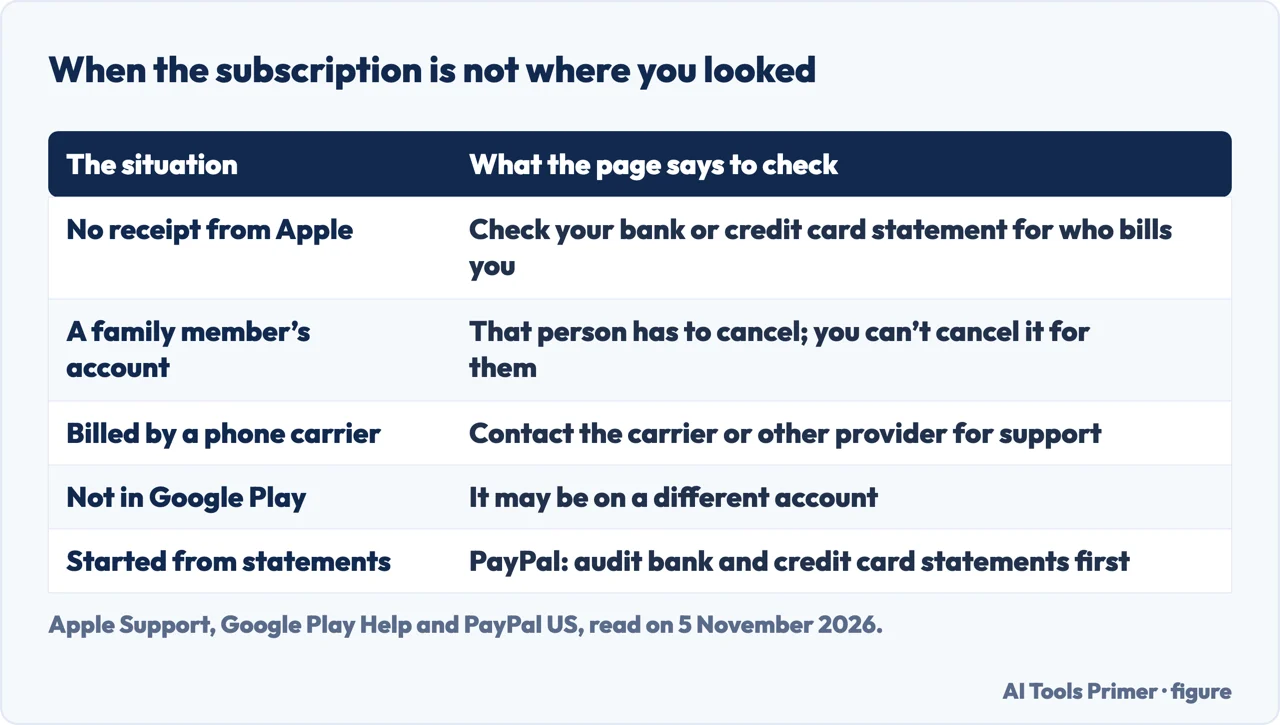
Apple’s page has a short section for a subscription you cannot find. Search your email for the words “receipt from Apple” or “invoice from Apple”, then check which Apple Account is named on the receipt. If it is a family member’s account, the page says that family member has to cancel it, because, in the page’s words, you can’t cancel a family member’s subscription. If it is another Apple Account that you use, sign in to that one. If there is no receipt from Apple, the page says you might have bought the subscription from another company, that your bank or credit card statement will show which company bills you, and that you contact that company to cancel.
Two more cases are on the same page. An AppleCare plan you cannot find may need its setup finished and the plan linked to your Apple Account. A subscription that came through a wireless carrier or another provider is handled by contacting that carrier or provider. For a trial you do not want to renew, the page says to cancel at least 24 hours before the trial ends, and it adds that cancelling works slightly differently in Germany, Israel, South Africa and Türkiye.
Android and Google Play, and where the pages differ
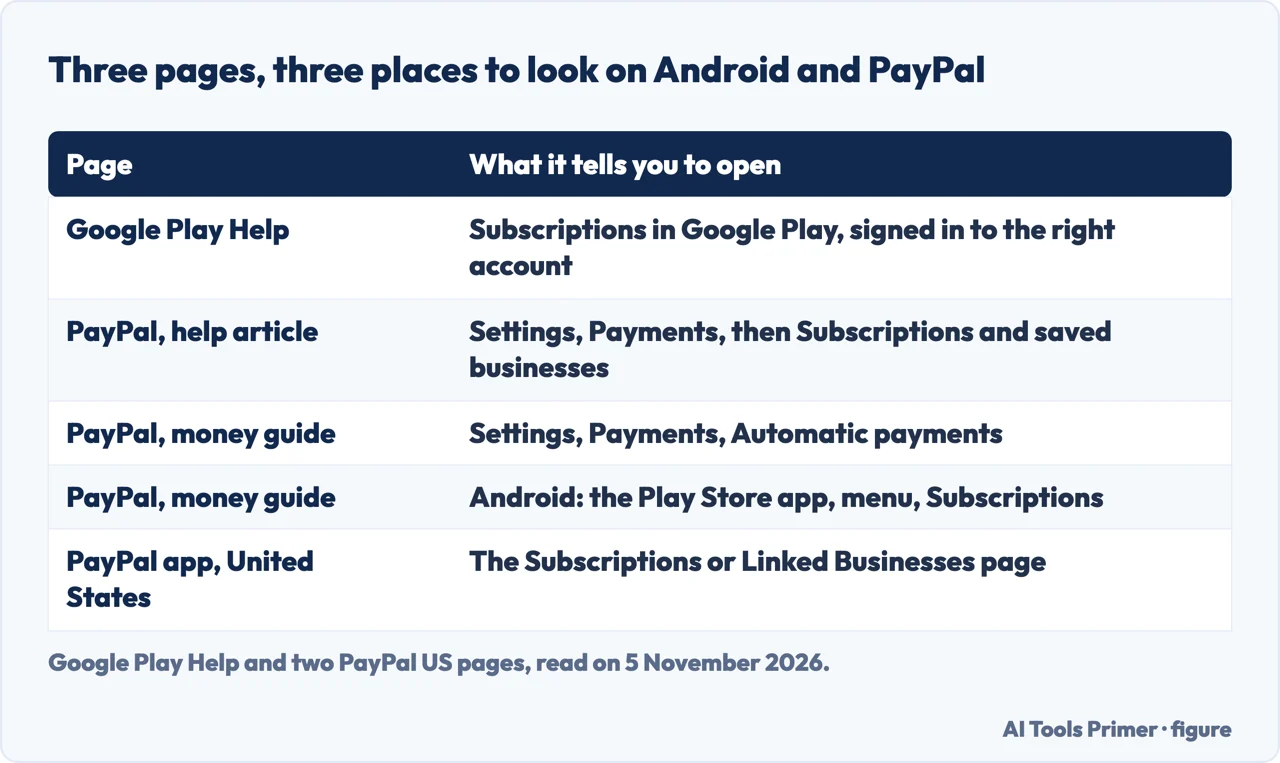
Google Play Help says subscriptions on Google Play have no end date and are charged at the start of each billing cycle unless you unsubscribe, and it tells you to sign in to the Google Account that has your subscriptions. Its steps are to go to subscriptions in Google Play on your Android device, select the subscription, tap Cancel subscription and follow the instructions. It warns that uninstalling the app does not cancel the subscription. If you cannot find a subscription there, the page says it may be on a different account, and that you can try switching between accounts.
The page also describes what you can do from the same screen. After you cancel, you keep access for the time you have already paid; its example is a one-year subscription bought on 1 January for $10 and cancelled on 1 July, with access until 31 December and no charge the next 1 January. Some apps let you pause: under Manage, Pause payments, for a period the page says runs from one week to three months depending on the app, starting at the end of the current billing period. A cancelled subscription can be restarted with Resubscribe, though the page says some are not available. For the payment method, Manage then Update; if the method is declined or has insufficient funds, the subscription may be cancelled, so the page advises adding a backup. Prepaid plans last for a limited time and do not need cancelling. For a plan with multiple payments you cannot cancel the remaining payments, only stop it renewing, and the page says the next renewal date shows in Subscriptions on Google Play or on your email receipt. It adds that past subscriptions cannot be refunded, with some exceptions; we did not read the refund policy it points to.
The path itself is described differently by two sources. Google Play Help says to go to subscriptions in Google Play. PayPal’s money guide, in its steps for an Android phone, says to open the Google Play Store app, tap the menu and select Subscriptions. The Google Play Help page we read gives no route through a profile menu, so we give none as a step.
PayPal: the list is inside the account
PayPal’s United States help article says an automatic payment is also known as a subscription, billing agreement or recurring payment, and that it saves PayPal as your preferred way to pay with a merchant. To find them on the website, go to Settings, click Payments, select Subscriptions and saved businesses or Automatic Payments, and select the merchant. On that page you can cancel the automatic payment and change the backup payment method. To change the method, use Change Payment Method, pick a new method or link a new card or bank, and click Save. The page says contact information for the merchant can be found in the automatic payment. In the United States app, it says the Subscriptions or Linked Businesses page lists them.
PayPal’s money guide, dated 8 January 2026, gives the app steps in more detail: Menu, then Subscriptions or Linked Businesses, then the merchant, then Account, then Unlink, and Unlink again to confirm. Its website steps are Settings, Payments, Automatic payments. The two PayPal pages therefore name the web menu differently: Subscriptions and saved businesses or Automatic Payments in the help article, Automatic payments in the guide.
The guide makes a limit clear. It says only payments and subscriptions set up through PayPal can be cancelled through PayPal. It also says cancelling a payment method in PayPal stops future charges to your PayPal account but typically does not cancel the underlying subscription or contract with the provider, and it often recommends contacting the merchant to close the account or service. It is PayPal’s own guide, and it ends by promoting the PayPal app for managing subscriptions in one place, and the app is a PayPal service.
Bank and card statements, and what the CFPB and FTC add
PayPal’s guide calls auditing your bank and credit card statements the first step to identify recurring charges, with a list of the ones you do not need and a note of progress on cancelling each. To keep new ones from slipping through, it says to note the date a free trial ends, to look through your statements regularly, and to cancel a service you have not used for more than a month. For subscriptions you renew by hand or that are billed by email, it suggests keeping a record of start date, renewal date, cost and payment method, setting calendar reminders a few days before renewal, and building a personal budget with an allowance for subscriptions.
The FTC’s consumer page, which carries a date line of September 2024 at its foot, covers free trials and renewals. It says a free trial usually needs a credit card number, that you will probably be charged if you do not cancel on time, and that you should make a note on your calendar. For a renewal, it says to check that the cost is what you expected, because a promotional rate can end, and that a renewal notice asking for your card details is a reason to stop and read it carefully, since it may be a scam. To stop a subscription it says to look up the company and follow its cancellation instructions, keep a copy of your request and notes of any conversations, and watch your statements for charges after you cancelled. If charges continue, it describes disputing them with the card company, called a chargeback, online or by calling the number on the back of the card, then following up with a letter, which it suggests sending by certified mail with a return receipt. It also says to report problems to ReportFraud.ftc.gov and to your state attorney general.
The CFPB’s page, last reviewed on 28 August 2026, covers automatic payments from a bank account. It says you have the right to stop a company from taking automatic payments from your account, even if you previously allowed them. Its steps are to call the company and take away your permission, then follow up in writing; to call your bank or credit union, say you have revoked authorisation, and follow up in writing; after that, it says, further payments initiated by the company would be errors and you can ask your bank for a refund. Some banks and credit unions recommend a stop payment order too, which the page says they generally charge fees for. The page tells you to follow your bank’s process and keep track of your requests and their dates, and to tell the bank right away about a payment you did not allow or one made after you revoked authorisation.
One line from the CFPB bears on finding subscriptions: cancelling an automatic payment does not cancel what you owe. For a service such as cable or a gym, the page says to cancel the contract as well as the payment; for a loan, you still pay by another method. The page describes itself as general consumer information, not legal advice. The pages we read do not give time limits for a chargeback or a dispute.
What the FTC’s pages say about the click-to-cancel rule
The FTC’s consumer page, dated September 2024 (before the 2024 rule was published), says businesses must make cancelling simple and adds that this is the law; that is the page’s own wording, not a statement of the rule’s present status. The FTC’s page on the Negative Option Rule, read on 5 November 2026, shows where the rule stands. It lists, among its Federal Register notices, an advance notice of proposed rulemaking from 13 March 2026, a notice of 12 February 2026 on revising the Negative Option Rule and withdrawing the CARS Rule, and the 16 CFR Part 425 text from 15 November 2024. It also lists a press release of 11 March 2026 and one of 16 October 2024 that called the final rule “click-to-cancel”.
The Federal Register notice of 12 February 2026 explains what happened. It says that after the 2024 rule was published, businesses and industry groups asked four federal circuit courts to review it, and that the petitions were consolidated in the Eighth Circuit. The notice says the court found that the FTC’s failure to issue a preliminary regulatory analysis was “procedurally insufficient” and vacated the 2024 rule. In light of that, the notice says, the FTC revised the Negative Option Rule to restore it in the form it existed before the 2024 rule became effective; the notice took effect on 12 February 2026. The notice describes the 2024 rule as having prohibited misrepresentations in negative option marketing, required information before taking billing details, required clear affirmative consent, and required simple cancellation mechanisms to halt recurring charges immediately. On the pages we read, those 2024 requirements are described as vacated, not as in force.
The FTC’s press release about the March 2026 notice says the FTC is asking for public comment on whether to amend the current rule to better address deceptive or unfair negative option practices. It lists the options it is asking about: keeping the current rule, adopting provisions of the vacated 2024 rule or others, or alternatives to regulation such as educating consumers and businesses. The release quotes the director of the FTC’s Bureau of Consumer Protection saying that the agency’s enforcement record suggests negative option subscriptions still involve difficult cancellation processes and other impediments. The pages we read do not show a new final rule after that notice. This is a reading of the FTC’s own pages on one date, not legal advice, and we did not read the comments or any later notice.
What the pages leave out, and what we did not read
The pages we read do not put the four places in a sequence: the app store on your phone, PayPal, a card or bank statement, and your email. Google Play Help does not mention bank or card statements; the email receipt appears on that page for the date of the next renewal and as the place that lists the payment methods used. PayPal’s help article on automatic payments does not mention statements, while PayPal’s money guide starts from them. The pages give no counts of how many subscriptions people lose track of, and no timings for how long a check takes. They do not review tracking apps, and we rank none and carry no affiliate links.
We did not read pages from app vendors, forums, blogs or ranking sites, or Google’s own account sign-in page for payments and subscriptions, so they are not used as sources. We did not read Google Play’s refund policy, Apple’s special-circumstances pages for four countries, or the sample letters the CFPB and FTC link to. We tested no step on a phone.
Where to start
Four ways in.
- “Where do I look on an iPhone?”
- Apple’s path, device by device — apple
- “What about Android and PayPal?”
- Google Play and PayPal, and where they differ — android
- “I cannot find it anywhere.”
- Statements, cards and the bank — statements
- “Is click-to-cancel the law?”
- What the FTC’s pages say — rule
Money in a small business
Getting paid, keeping records and comparing accounting tools.
Cancelling, one service at a time
The same screens, seen from the cancel side.
Questions people also ask
How do you keep track of all your subscriptions?
PayPal’s money guide says to build a list from your bank and credit card statements, record each start date, renewal date, cost and payment method, set calendar reminders a few days before renewal, and keep a budget allowance for subscriptions.
How can I check all my active subscriptions?
Apple: Settings, your name, Subscriptions. Google Play Help: subscriptions in Google Play. PayPal: Settings, Payments, then its automatic payments page. Each lists what was bought or set up through that company; Apple adds that, if there is no Apple receipt, a bank or credit card statement shows which company bills you.
Can I see all my subscriptions on my iPhone?
Apple’s guide says Settings, your name, Subscriptions lists those from Apple and those bought in apps from the App Store. For one bought from another company, Apple says to check your bank or credit card statement.
Is there an app that can find all of your subscriptions?
The pages we read do not review tracking apps, so we name none. They describe built-in lists: Apple’s Subscriptions, Google Play’s subscriptions page and, for payments set up through it, the PayPal app.
Not covered here. We tested no step on a phone or in an account. The statements come from Apple Support, Google Play Help, two PayPal United States pages, the CFPB, the FTC and the Federal Register, all read on 5 November 2026. This is general information, not legal advice.
The search volume and difficulty behind this page come from an Ubersuggest reading of 5 November 2026 (United States), which gives search volume and its own SEO difficulty score, not Semrush’s.
Sources
- Apple Support — Cancel a subscription from Apple — support.apple.com, read 5 November 2026.
- iPhone User Guide — See your purchases and subscriptions in the App Store on iPhone — support.apple.com, read 5 November 2026.
- Google Play Help — Cancel, pause, or change a subscription on Google Play — support.google.com, read 5 November 2026.
- PayPal — What is an automatic payment and how do I update or cancel one? — www.paypal.com, read 5 November 2026.
- PayPal Money Hub — How to cancel recurring payments in 4 ways — www.paypal.com, read 5 November 2026.
- Consumer Financial Protection Bureau — How do I stop automatic payments from my bank account? — www.consumerfinance.gov, read 5 November 2026.
- FTC Consumer Advice — Getting In and Out of Free Trials, Auto-Renewals, and Negative Option Subscriptions — consumer.ftc.gov, read 5 November 2026.
- FTC — Negative Option Rule — www.ftc.gov, read 5 November 2026.
- Federal Register — Revision of the Negative Option Rule, Withdrawal of the CARS Rule, Removal of the Non-Compete Rule (12 February 2026) — www.federalregister.gov, read 5 November 2026.
- FTC — FTC Seeks Public Comment in Response to Advance Notice of Proposed Rulemaking Regarding Negative Option Marketing Practices — www.ftc.gov, read 5 November 2026.
Written by Alberto Gulotta
Founder and editor of AI Tools Primer, writing from Palermo, Italy. Thirty-five years of taking computers apart, starting with a Commodore 64 — the long version is on the about page.
Something wrong on this page? Write to aitoolsprimer@gmail.com and it gets fixed.
Written on 5 November 2026.
Independence and limits
No affiliate links and no paid placements anywhere on this site. Nobody pays to appear here, and no company has seen this page before you did.
This is general information, not professional advice. Where a page touches money, health, safety or the law, it names its source and the date it was read — and your situation may still differ. See the privacy page and the cookie policy.