
Chat · guide
NotebookLM and Gemini Notebook: sources, limits, data
By Alberto Gulotta · Updated · 20 min read
NotebookLM is now called Gemini Notebook, and Google says it is the same product, with existing notebooks still open. It answers from the sources you add. Google's help pages give the source types, the limits on each plan and what happens to your files, while a DigitalOcean guide from February still uses the old name.
| Question | Answer | Where it comes from |
|---|---|---|
| Is it still called NotebookLM? | Google says NotebookLM is now Gemini Notebook as of July 2026, and that it is the same product | Google, product site |
| What does it answer from? | The sources you add to a notebook; Google calls this being source-grounded | Google, product site and help |
| How big can a source be? | Half a million words or 200MB for an uploaded file, with pages not limited | Google, FAQ |
| How many sources on the free level? | Fifty per notebook on Standard, and a hundred notebooks per user | Google, plans page |
| Is my content used for training? | Not directly, Google says, unless you send thumbs feedback; Workspace accounts are excluded even then | Google, privacy page |
| Can a deleted notebook come back? | Google says there is currently no recovery option for deleted notes | Google, FAQ |
One product, two names
A search for NotebookLM leads to pages titled Gemini Notebook, and the reason is on the product’s own site, notebook.google. Its FAQ asks whether Gemini Notebook is the same product as NotebookLM and answers yes: NotebookLM is now Gemini Notebook as of July 2026, it is the same product, and all existing notebooks remain fully accessible. The same FAQ says you can keep using it across web and mobile as a standalone tool, and describes the change as a step in expanding notebooks beyond a standalone app into an integrated workspace that brings your context across Google’s AI products.
The pages we read differ on the name, and the dates explain it. The Google help pages say Gemini Notebook. DigitalOcean’s guide, updated on 18 February 2026, says NotebookLM and does not use the new name; that date is before the July change Google describes. Google’s announcement of source discovery, from 2 April 2025, also says NotebookLM. On this page we use the name each page uses when we report what it says, and Gemini Notebook for the product as Google now calls it.
On what the product is, the two sides use different words. Google’s FAQ says its advantage is being source-grounded, which it explains as answers based on the material you provide, and that it is built with the latest Gemini model. DigitalOcean calls it an AI research assistant created by Google and powered by Gemini, and describes it as essentially a closed retrieval augmented generation system: you upload your sources, and it generates responses grounded solely in that data.
The unit of work is the notebook. Google’s page on creating one defines a notebook as a collection of sources for a specific project and adds that each notebook is independent: Gemini Notebook cannot access information across multiple notebooks at the same time. Google’s help topics also list notebooks in the Gemini app and a source type called Gemini chats, so the product is not confined to its own site.
What you can put in a notebook
Google’s help page defines a source as a copy or auto-synced version of the document you import or upload, and says the model uses the sources you add to answer your questions or complete your requests. The types it lists at the time of reading are these.
- Audio files, such as MP3 and WAV, and copied and pasted text.
- Google Docs, Google Slides (up to 100 slides) and Google Sheets (limited to 100k tokens at this time).
- Images in formats from avif and gif to png and webp, with a note that certain types of images may not work as well.
- Word, text, Markdown, PDF, CSV and PowerPoint files, and ePub files.
- Notes, Play Books titles (text only) and web URLs.
- YouTube URLs of public videos, and Gemini chats.
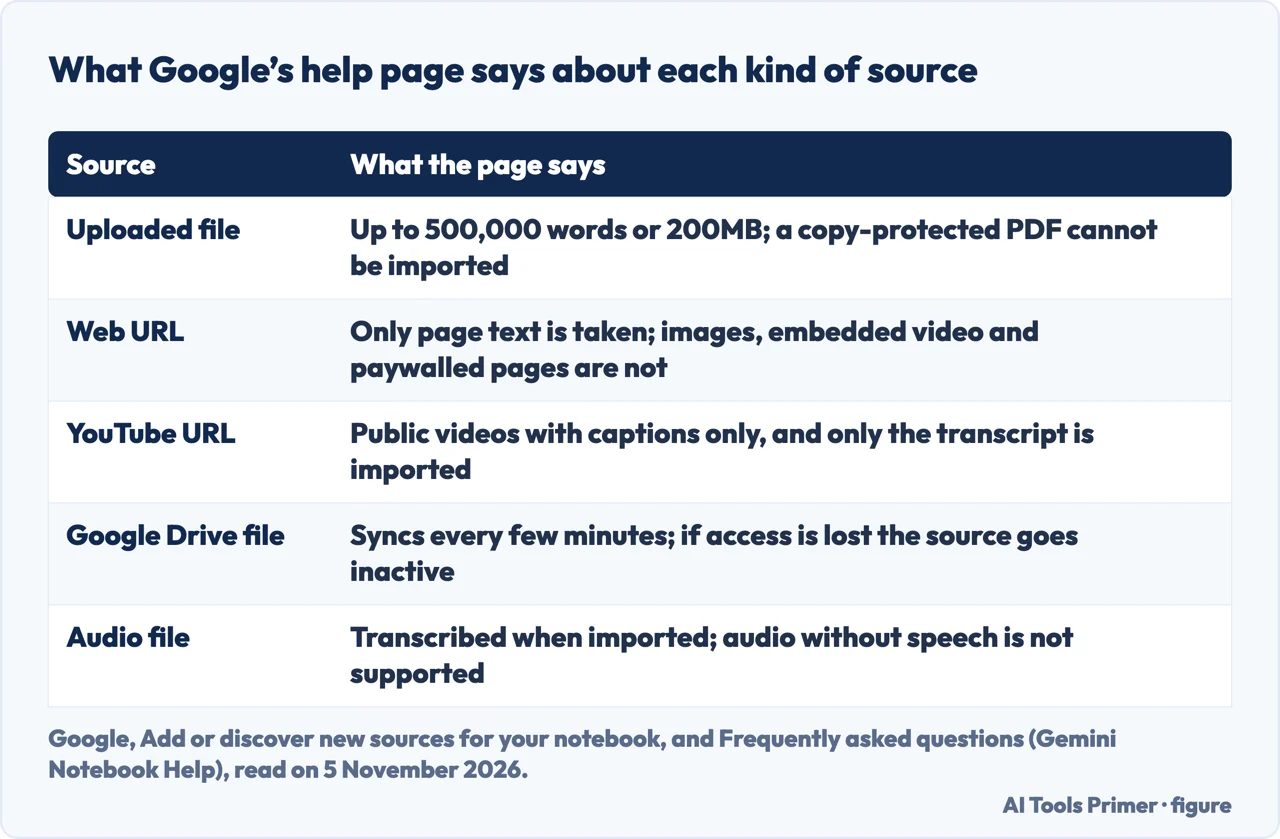
The size rule is given per source: up to half a million words, or up to 200MB for uploaded files, and up to 50 sources in a notebook for free users. Google’s FAQ repeats the word and size limits and says pages are not limited. It lists three reasons an import fails: the source is over the word limit, the file is over the size limit, or the original PDF is copy-protected.
Web pages. Only the text content of the HTML page is scraped. Images, embedded videos and nested webpages are not imported, and paywalled pages aren’t supported. A PDF uploaded through a URL is treated as a PDF source, and several links can be added at once if they are separated by a space or a new line.
YouTube. Only public videos with captions, user-uploaded or auto-generated, are supported, and only the text transcript is imported. Google says videos uploaded less than 72 hours earlier may not be available, videos without speech aren’t supported, and if a video is deleted or made private the source is removed from your notebook within 30 days. Length does not matter unless the caption file runs past half a million words.
Audio. The file is transcribed at import and its text is saved as a new source. Audio without speech isn’t supported, and Google notes that imports may fail if the audio is low quality.
Google Drive. Imported files sync every few minutes, and you need at least view access to import one. If you lose access or the file is deleted, the source becomes inaccessible. Google says such inactive sources still count toward the limits but are not referenced in chats or in the Studio. The product cannot delete or edit the original files in Drive, and it does not import footnotes or comments from Google files.
Finding sources. Google’s announcement of 2 April 2025 describes a Discover option: you describe a topic, and it gathers hundreds of potential web sources in seconds, then presents up to 10 recommendations, each with an annotated summary explaining its relevance. They are imported with one click. The announcement also introduces an “I’m Feeling Curious” button that generates sources on a random topic. The current help page describes the same idea as typing a research question in the search box to find sources from the web or files from Workspace.
How it answers from your material
Google’s FAQ says the product’s advantage over other AI note-taking apps is being source-grounded, which it says helps deliver more accurate answers based on your actual material and reduces the likelihood of AI errors and hallucinations. A second FAQ answer lists reduced hallucinations among the advantages and says strictly referencing uploaded sources reduces the risk of inaccurate information. Both say it lowers the risk; the pages we read do not say it removes it. DigitalOcean puts it more plainly: it is less likely to hallucinate than other AI tools, “but that doesn’t mean it never happens.” The pages we read do not give an accuracy rate or measure how often it is wrong.
Google’s FAQ spells out what goes into each answer. Sources are always used, either the entire set or the subset you select. Notes are used only when you select them. The conversation history is used to generate responses. To chat with a specific set of sources, the help page says to select them individually in the Source panel.
When there is no answer, the FAQ gives three causes. A safety flag can be triggered by language in a source on sensitive topics, even in historical contexts. Unclear phrases can matter when a notebook holds many sources, because it retrieves the most relevant information for your question and builds a response from it, so a specific question helps. And if the answer isn’t in the source material, Google says, “it won’t provide a response.”
Citations are the way to check. The FAQ says that when a source is too short, the product references the entire document without citing an individual passage. DigitalOcean, describing its own try-out with a tutorial link, says the answer offered clickable citations that trace back to specific data in the sources, and its advice is to verify outputs by tracing details back through them. For summaries, Google’s help page offers two routes: ask in chat, or read the auto-generated summary in the Source Guide. To get more focused summaries it says to ask specific questions, and to mention source names when several are selected; its example asks for the key findings on a topic in a named document rather than the bare request to summarize a source.
Beyond chat, the create page describes a Studio panel where outputs based on your sources are generated: notes, Audio Overviews, Video Overviews, mind maps, reports (your own, or an FAQ, study guide, briefing document or an AI-suggested type), data tables, flashcards, quizzes, slide decks and infographics. Reports can be exported to Docs, and a data table exported to Sheets puts its content on the first tab and any citations on the second. Google adds that edits made in an exported file do not synchronize back, and that when you update or delete a source, Studio outputs generated with it do not change.
Google also states a limit of use: it says not to rely on Gemini Notebook for medical, legal, financial or other professional advice, and that content on those topics is for information only. Results that seem inaccurate, unsafe or inappropriate can be reported with the thumbs-down icon.
What happens to your documents
Google’s privacy page says Gemini Notebook uses the files you add, the outputs you generate and your chat history to build your knowledge base and assist with your research and tasks. On training, it says the content will not be used to directly train Google’s foundational AI models, unless you choose to provide feedback. The FAQ on the product site words it the same way and adds that Workspace users’ uploads, queries and responses are not used to train models even if feedback is submitted.
The feedback exception is the part to read twice. When you give thumbs up or thumbs down, Google says it collects the associated content, including prompts, customizations, sources, uploads and the outputs received, and that this includes any Gemini chats in your notebook context even if Gemini Apps Activity is turned off. That data is reviewed by specially trained teams, after it is disconnected from your Google Account, and Google says it is retained for up to 3 years, disconnected from the account. The page asks you not to include confidential or sensitive information in feedback. It also says the data is used to provide, improve and develop Google products, services and machine-learning technologies, and as one example to make Gemini Notebook safer.
Accounts at work or school are treated differently. For Google Workspace and Workspace for Education users, Google says uploads, queries and responses are not reviewed by human reviewers even when feedback is given, and are not used to train AI models. For Gemini Notebook for enterprise through Google Cloud, the plans page says uploaded files remain within your Google Cloud project, data regionalization is honored, and files, chats and outputs are not reviewed by human reviewers or used to improve generative AI models. Which terms apply depends on the account: Google Cloud Terms of Service for qualifying work accounts, Workspace for Education terms for school accounts, the Google Cloud Platform and SecOps terms for Cloud access, and the Google Terms of Service for other users.
On the question of who else sees it, the two sources worded it a little differently. The product-site FAQ says Gemini Notebook does not share your data with third parties, and the help FAQ says your data will never be shared by it. The privacy page adds that data it shares with other Google services, such as the Gemini app, is used under the Google Privacy Policy and service-specific notices, including for product improvement. DigitalOcean says that for individual users data is generally not used for training unless they choose to share feedback, which matches Google’s wording.
Within a notebook, sharing is the other control. Google’s FAQ says a lock icon means the notebook is private, a shared icon means it is shared with named users, and a globe means it is public. The create page says a viewer has read-only access to the sources and notes shared, and an editor can add or remove them and share further; a personal Gmail account can share with up to 50 users. A notebook made public can be opened by anyone with the link who is signed in to a Google account, while shared artifacts can be viewed even without signing in. The page also warns that the Chat View, which hides materials for a focused experience, does not fully revoke a viewer’s underlying access.
Deletion is the last point. Asked about deleted notebooks, the product-site FAQ answers that there is currently no recovery option for deleted notes, and the help FAQ says the same about recovering deleted notes. The two Google help pages differ on copies: the FAQ says duplicating a notebook isn’t supported yet, while the create page describes a Copy option on notebooks you own, or that are shared with you with copies allowed, which copies Studio content and sources but not chat history or notes. For how another assistant describes its handling of confidential files, see our page on ChatGPT and confidential information.
Limits, plans and alternatives
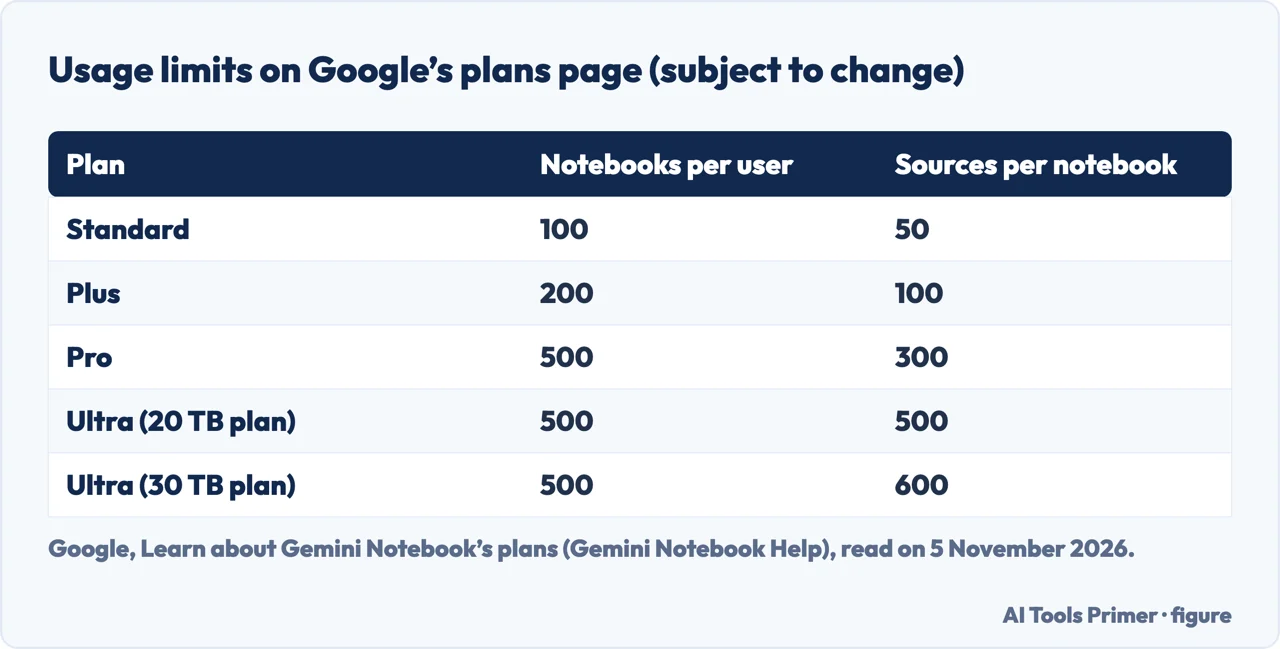
Google’s plans page lists five columns: Standard, Plus, Pro, Ultra on the 20 TB plan and Ultra on the 30 TB plan, and labels the usage limits subject to change. Standard is free with a Gmail account, or through a qualifying Workspace license. Plus, Pro and Ultra come with the matching Google AI plans, and the page also lists a qualifying Workspace license as a route for Standard, Pro and Ultra. The figure below shows the notebook and source counts for each.
The other rows on that page: custom chat and analytics are available to everyone, and advanced sharing to paid users. Plus has access to Gemini models, Pro has higher access and Ultra the highest. Earlier access to key features goes from standard to early to priority. The visible watermark on generated images and videos is removed for Pro and Ultra, but is applied automatically if you live in India, South Korea or Vietnam. Daily quotas reset after 24 hours and monthly quotas after 30 days. Sharing a notebook does not change the source limit for any collaborator, and some outputs created automatically when sources are first added do not count toward the limits. To confirm you are on an upgraded plan, the page says to look for a distinct badge next to your profile picture.
On work and school accounts, Google’s page on using Gemini Notebook with a work or school account says Gemini Notebook is a core service for Workspace and Workspace for Education users, that availability and data handling depend on the license, and that higher limits need the organization to upgrade, with the Workspace administrator as the person to ask. The Cloud route for enterprises lists 5X or more notebook artifacts and extra security features such as VPC-SC and IAM controls.
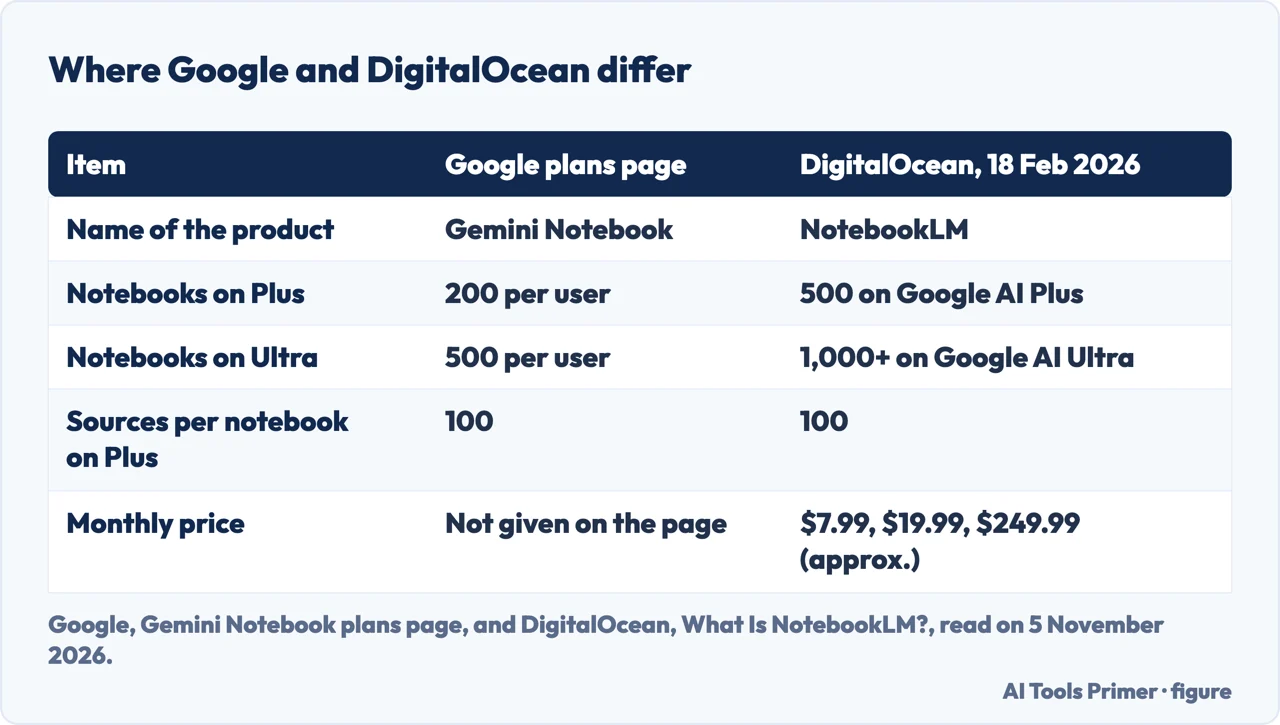
The figure below sets Google’s numbers beside DigitalOcean’s table, and the two do not match. DigitalOcean, updated on 18 February 2026, gives Free 100 notebooks and 50 sources, Google AI Plus 500 notebooks and 100 sources, Pro 500 and 300, and Ultra 1,000+ and 600. Google’s page gives 200 notebooks for Plus and 500 for Ultra. The Google pages we read do not give prices. DigitalOcean gives approximate monthly prices of $0, $7.99, $19.99 and $249.99, although its own FAQ gives Plus as about $14 a month, so the guide disagrees with itself. We have no way to say which of the two sets of numbers applies to your account today, and DigitalOcean predates the rename.
DigitalOcean also lists daily limits that Google’s plans page does not: chat queries of 50, 100, 500 and 5,000 a day, and Audio or Video Overviews of 3, about 6, 20 and 200 a day. Treat those as that guide’s reading, not Google’s. The same guide also says the average user will likely find the free plan sufficient, and gives Deep Research reports as 10 a month on Free. For working habits it suggests one focused notebook per topic and several sources from different angles on the same topic, which is its advice, not Google’s.
DigitalOcean’s guide has a section on limitations, which it says remain after many earlier ones were addressed. It names limited integrations, saying the product does not integrate with external tools the way ChatGPT or Claude do; no choice of model or model version; limited editing after generation, since Video Overviews and Infographics cannot be edited; and new features that are slow to reach mobile. It also lists earlier limits it says have been addressed: chats are now saved, source types now include images and CSV files, and the chat character limit was raised from 500 characters.
The same guide names four alternatives, which we did not try. It describes Perplexity as a web-first answer engine, Elicit as suited to academic research, You.com as offering a Private RAG option for businesses, and ChatGPT as able to connect to Google Drive and Microsoft OneDrive. These are that guide’s descriptions, not ours. Our page on Perplexity reads what Perplexity and OpenAI say about their own answers and citations.
What we did not use
We opened no account and tested nothing. The statements come from nine pages: the product site, six Gemini Notebook help pages, Google’s April 2025 announcement and the DigitalOcean guide, all read on 5 November 2026. We did not read the product’s sign-in page, and we read a course provider’s article and did not use it.
The pages we read do not say whether the limits change on a later date, and they do not compare Gemini Notebook with other assistants beyond DigitalOcean’s short list. Nearly everything here comes from one company’s pages plus one guide that is older than the rename, so the numbers in the figures are what these pages said on the day we read them.
Where to start
Four ways in.
- “Is it still NotebookLM?”
- One product, two names — name
- “What can I upload?”
- What you can put in a notebook — sources
- “Does it train on my files?”
- What happens to your documents — data
- “How many notebooks do I get?”
- Limits, plans and alternatives — plans
What happens to what you type
Where your files go when you hand them to a chat assistant.
Other assistants, read the same way
Three more assistants, each read from its own company’s pages.
Questions people also ask
Is NotebookLM secure?
Google’s FAQ says Gemini Notebook is built with robust security measures and does not share your data with third parties. Its privacy page adds that thumbs feedback sends content to trained reviewers. The pages we read include no audit or test of the security, so this is what Google says, not something we checked.
Can other people see my NotebookLM?
That depends on how a notebook is shared, according to Google’s pages. A lock icon means private, a shared icon means shared with named users and a globe means public. Viewers get read-only access to sources and notes, editors can change them, and a public notebook opens for anyone signed in to a Google account.
Does NotebookLM train on your data?
Google says content in Gemini Notebook is not used to directly train its foundational models unless you provide feedback. Feedback sends prompts, sources, uploads and outputs to trained reviewers. For Workspace users Google says there is no review and no training even then. DigitalOcean says individual data is generally not used unless feedback is shared.
What is NotebookLM’s privacy policy?
The pages we read point to Google’s Privacy Policy. The Gemini Notebook privacy page says that article and the policy describe how Google handles your data, and that data shared with other Google services follows the policy and service notices. The terms of service that apply depend on whether the account is for work, school, Google Cloud or personal use.
Not covered here. This page does not test the product or rank it against other assistants. For how another assistant handles confidential files, see ChatGPT and confidential information; for how answers and citations are checked elsewhere, see Perplexity.
The search volume and difficulty behind this page come from an Ubersuggest reading of 5 November 2026, within the 60 days the site normally allows; its difficulty score is Ubersuggest’s own, not the KD of Semrush.
Sources
- Google — Gemini Notebook, frequently asked questions (product site) — notebook.google, read 5 November 2026.
- Google — Privacy and Terms of Use in Gemini Notebook (Gemini Notebook Help) — support.google.com, read 5 November 2026.
- Google — Add or discover new sources for your notebook (Gemini Notebook Help) — support.google.com, read 5 November 2026.
- Google — Learn about Gemini Notebook’s plans (Gemini Notebook Help) — support.google.com, read 5 November 2026.
- Google — Frequently asked questions (Gemini Notebook Help) — support.google.com, read 5 November 2026.
- Google — Create a notebook in Gemini Notebook (Gemini Notebook Help) — support.google.com, read 5 November 2026.
- Google — Use Gemini Notebook with a work or school Google account (Gemini Notebook Help) — support.google.com, read 5 November 2026.
- Google — New in NotebookLM: Discover sources from around the web (Google blog, 2 April 2025) — blog.google, read 5 November 2026.
- DigitalOcean — What Is NotebookLM? Features and How to Use It in 2026 (updated 18 February 2026) — www.digitalocean.com, read 5 November 2026.
Written by Alberto Gulotta
Founder and editor of AI Tools Primer, writing from Palermo, Italy. Thirty-five years of taking computers apart, starting with a Commodore 64 — the long version is on the about page.
Something wrong on this page? Write to aitoolsprimer@gmail.com and it gets fixed.
Written on 6 November 2026.
Independence and limits
No affiliate links and no paid placements anywhere on this site. Nobody pays to appear here, and no company has seen this page before you did.
This is general information, not professional advice. Where a page touches money, health, safety or the law, it names its source and the date it was read — and your situation may still differ. See the privacy page and the cookie policy.