
Docs · guide
How to delete a page in Google Docs: what holds the page open
By Alberto Gulotta · Updated · 8 min read
How to delete a page in Google Docs depends on what holds the page open: text, empty paragraphs, a page break or a section break. Google’s help covers removing a page break; a community expert adds how to see the hidden marks and what to check when Backspace fails. This page sets out the steps and who says what.
| Question | Answer | Where it comes from |
|---|---|---|
| How do I delete a page with a page break? | Click under the page break and press Backspace or Delete until it is removed | Google Docs Editors Help |
| Why will it not go? | Hidden spaces, line breaks, or page or section breaks that a normal Backspace does not remove | Google Docs Community expert, 18 November 2025 |
| How do I see what is there? | View, Show non-printing characters; Kanbanchi names it Show formatting | Community expert; Kanbanchi |
| What else can hold the page open? | A large bottom margin, or space after paragraphs | Community expert; Kanbanchi |
| And on a phone? | Tap below the page break and delete the break | Google Docs Editors Help |
What holds the page open
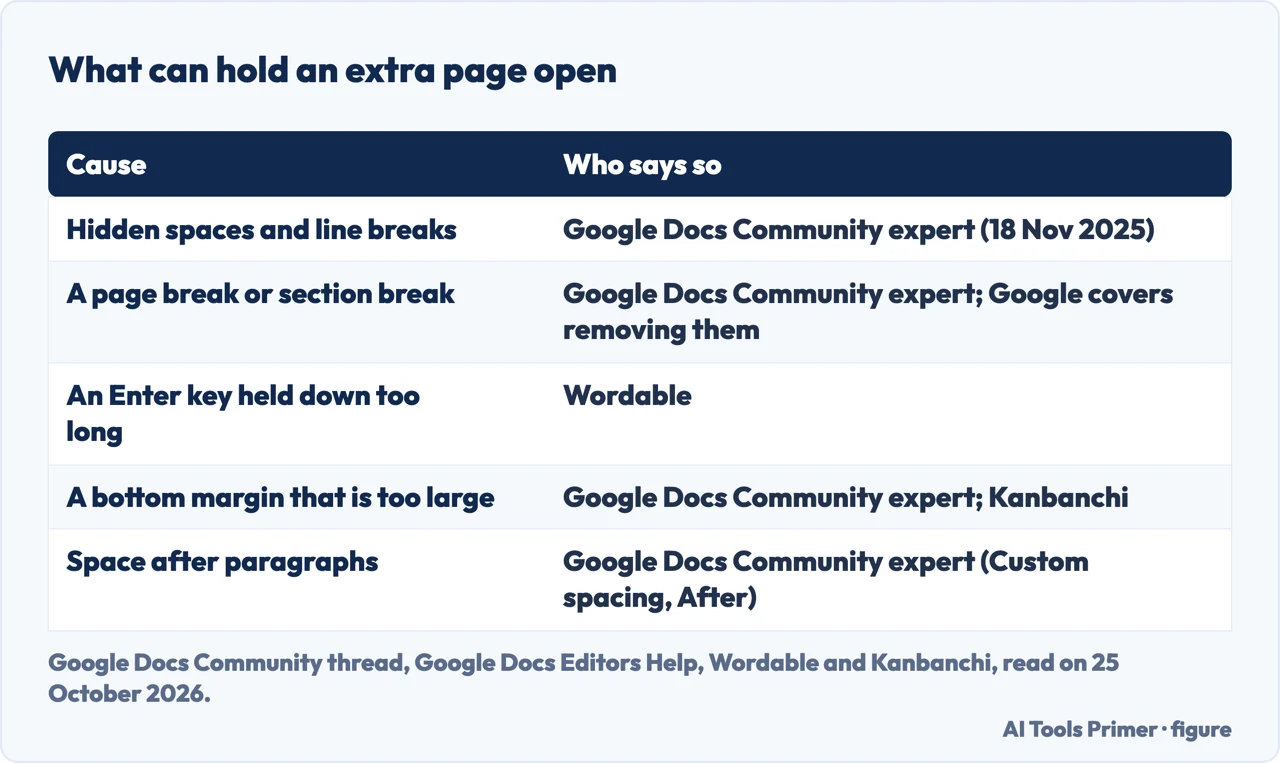
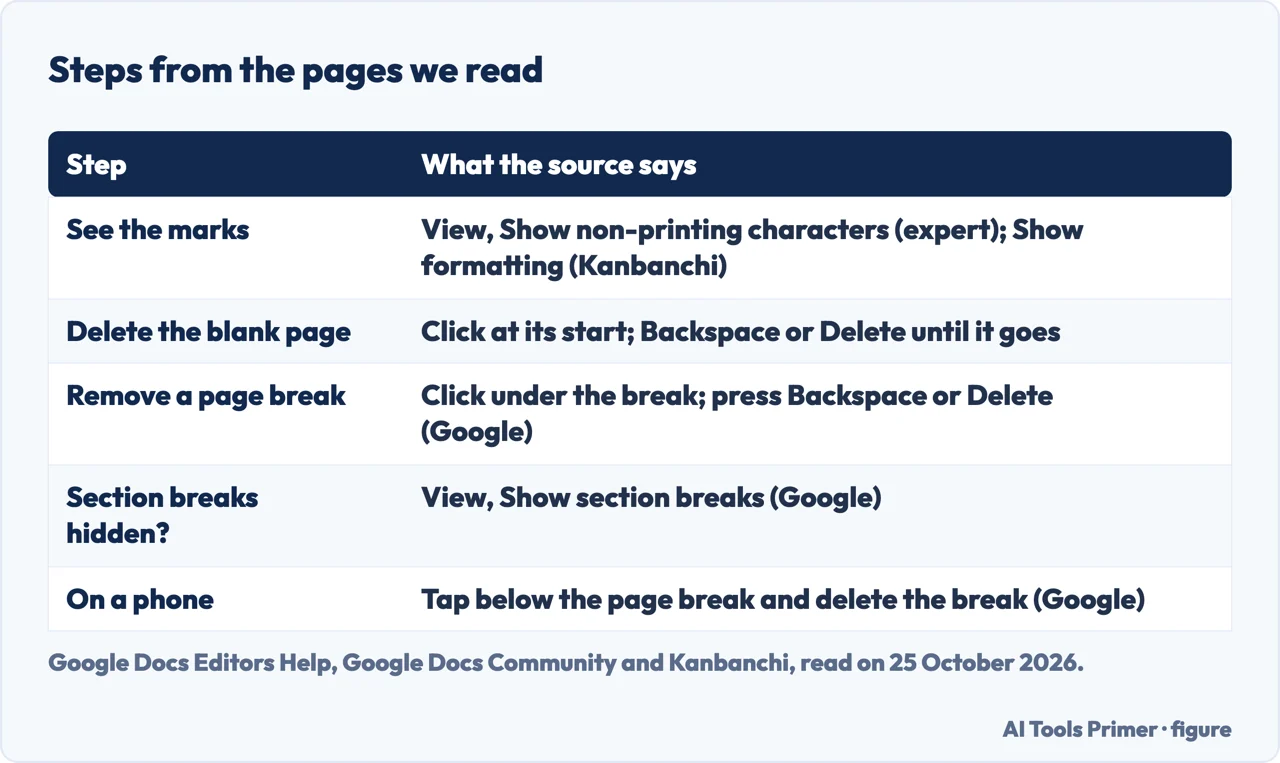
Google’s own help for this is its page on page breaks: to remove a page break on a computer, open the document, click under the page break and press Backspace or Delete until it is removed. On a phone, tap below the page break and delete the break. That page also says section breaks are hidden by default, and that View, Show section breaks displays them. It does not have a section on deleting a page as such.
A locked thread in Google’s community, dated 17 and 18 November 2025, is where the cause is explained: a reader on a Chromebook said they had tried going to Edit and pressing delete without success. An expert answered that this usually happens when the extra page is caused by hidden spaces, line breaks, or section or page breaks that do not get deleted with a normal Backspace or Delete. Wordable gives two other causes: an Enter key pressed for longer than usual, or an accidental page break. Community content may not be verified or up to date.
The steps the sources give
The expert’s steps are: go to View, Show non-printing characters, which shows what creates the blank page; click at the start of the blank page; and press Backspace or Delete until the page disappears. Then make sure the bottom margin is not too large, and check Line spacing, Custom spacing, After set to 0. Kanbanchi gives a similar order: put the cursor at the beginning of the blank page and press Backspace (Windows and ChromeOS) or Delete (Mac), enable Show formatting from the View menu to find extra empty paragraphs, remove a manual page break by placing the cursor just before it, and reduce the bottom margin slightly in Page setup if the page remains. The two sources name the View option differently, so look for either under View.
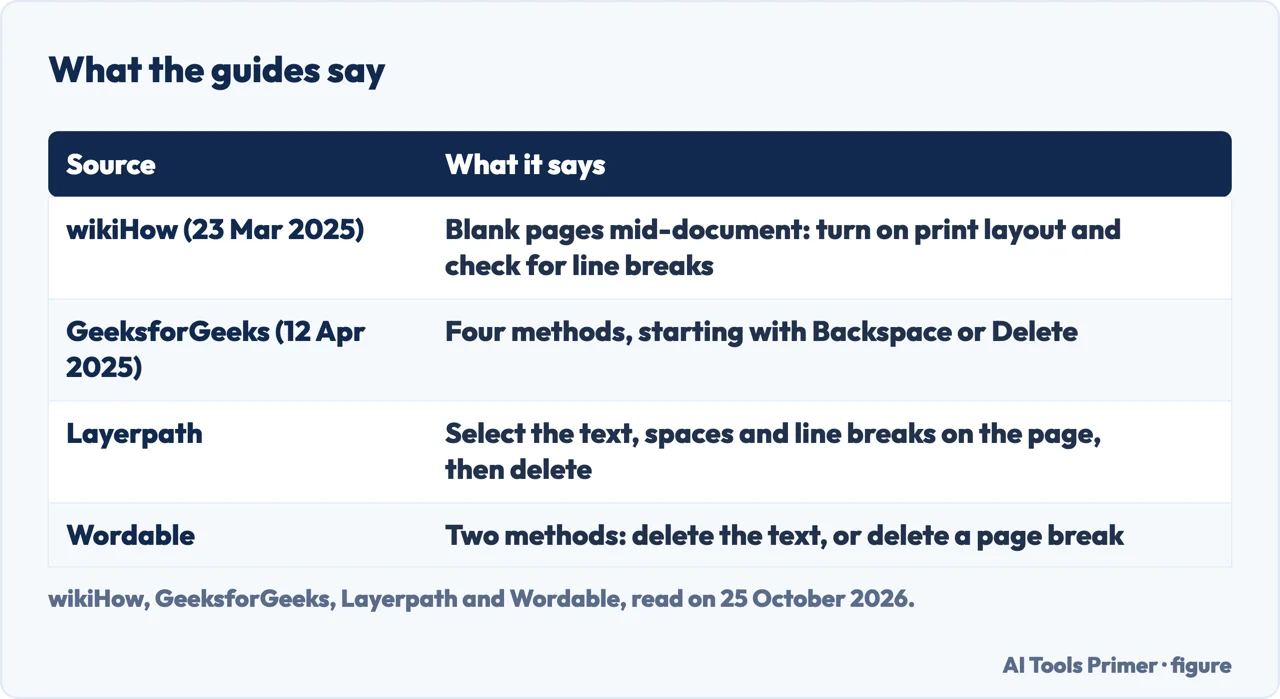
The guides differ in method. Layerpath says to click and drag to select the text, spaces or line breaks on the page, or press Ctrl + A to select everything and delete the unwanted parts, then press Backspace on Windows or Delete on a Mac. Kanbanchi adds that on the Google Docs mobile app, blank pages can be removed by selecting and deleting any extra spaces or page breaks, and by scrolling through the document to check for unnecessary blank lines. wikiHow, updated on 23 March 2025, says that blank pages in the middle of a document can be found by turning on the print layout preview and checking for line breaks, and that to shorten a document you can adjust the text, the line spacing or the margins. GeeksforGeeks, updated on 12 April 2025, has four methods; the first is the Backspace or Delete key and the second removing a page break. Wordable has two: select and delete the text, or delete a page break.
The questions behind the search
Two of the people-also-ask questions are about why a page or blank space will not go. The sources above give the same answer: something you cannot see is holding it open, so show the hidden marks first and then delete them, rather than deleting the page. Searches such as how do i delete a page in google docs, how to delete page in google docs and how do you delete a page in google docs all end at those same two answers: remove the break, or show and delete the hidden marks. For the opposite job, see how to add a page in Google Docs; for a Word document, the page on deleting a page in Word and the one on removing a page break.
Where to start
Four ways in.
- “It will not delete.”
- What holds it open — cause
- “Just the steps.”
- From the sources — steps
- “Why is there blank space?”
- The questions — questions
More Google Docs formatting
The same menus, other parts of a document.
Questions people also ask
Why can’t I delete a Google Doc page?
A Google community expert says it usually happens when the extra page is caused by hidden spaces, line breaks, or page or section breaks that a normal Backspace or Delete does not remove. They suggest showing non-printing characters first.
How do I remove a page in a doc?
Click at the start of the page and press Backspace or Delete until it disappears; if it is a page break, click under it and do the same, as Google’s page on page breaks says.
How do I delete a blank page?
Show the hidden marks under View, click at the start of the blank page and press Backspace or Delete; if it stays, check the bottom margin and the spacing after paragraphs.
Why can’t I delete the blank space in Google Docs?
The sources point to empty paragraphs, line breaks or a page or section break that you cannot see; Kanbanchi says to enable Show formatting under View and delete the empty paragraphs.
Not covered here. We did not delete a page in a document. The statements come from Google Docs Editors Help (the page on page breaks and margins, read on its computer and Android tabs), a Google Docs Community thread of 17 and 18 November 2025, and guides by Kanbanchi, Layerpath, wikiHow (updated 23 March 2025), GeeksforGeeks (updated 12 April 2025) and Wordable, used for what they claim. Menu names change with the Docs version.
The Reddit page and the video in the results were not read. Word, Google Slides and deleting a whole document are not covered here.
The search volume and difficulty behind this page were read in Semrush on 29 August 2026.
Sources
- Google Docs Editors Help — Add page breaks & move margins — support.google.com, read 25 October 2026.
- Google Docs Community — I am trying to delete a page in google docs but I cannot (17 November 2025) — support.google.com, read 25 October 2026.
- Kanbanchi — How to delete a page in Google Docs — www.kanbanchi.com, read 25 October 2026.
- Layerpath — How to Delete a Page in Google Docs — www.layerpath.com, read 25 October 2026.
- wikiHow — How to Delete Pages in Google Docs (updated 23 March 2025) — www.wikihow.com, read 25 October 2026.
- GeeksforGeeks — How to Delete a Page in Google Docs: 4 Easy Methods (updated 12 April 2025) — www.geeksforgeeks.org, read 25 October 2026.
- Wordable — How to Delete a Page in Google Docs — wordable.io, read 25 October 2026.
Written by Alberto Gulotta
Founder and editor of AI Tools Primer, writing from Palermo, Italy. Thirty-five years of taking computers apart, starting with a Commodore 64 — the long version is on the about page.
Something wrong on this page? Write to aitoolsprimer@gmail.com and it gets fixed.
Written on 25 October 2026.
Independence and limits
No affiliate links and no paid placements anywhere on this site. Nobody pays to appear here, and no company has seen this page before you did.
This is general information, not professional advice. Where a page touches money, health, safety or the law, it names its source and the date it was read — and your situation may still differ. See the privacy page and the cookie policy.